
Show contents
Grow stores & business › More stores
Compare stores
- Who
- Owner
- When
- Every month
- Where
- App · Web
What you get
- Stores are lined up by net profit, so you see the stores that earn and the ones that lose on one screen.
- On the website, see each store's revenue, share, net profit and margin side by side.
- On the website, pick «All stores» in «Cash Management» and each store's counters, vaults and bank accounts show on one page.
What it solves
- “I can't tell which store makes money” — opening stores one by one doesn't let you compare them side by side.
Why this way
- Sales, expenses and wages are recorded per store, so each store's net profit adds up on its own.
- To look at one store in detail? Pick the store in Profit & loss, «See which store earns and which loses».
- Can managers see it too? Only the stores they belong to.
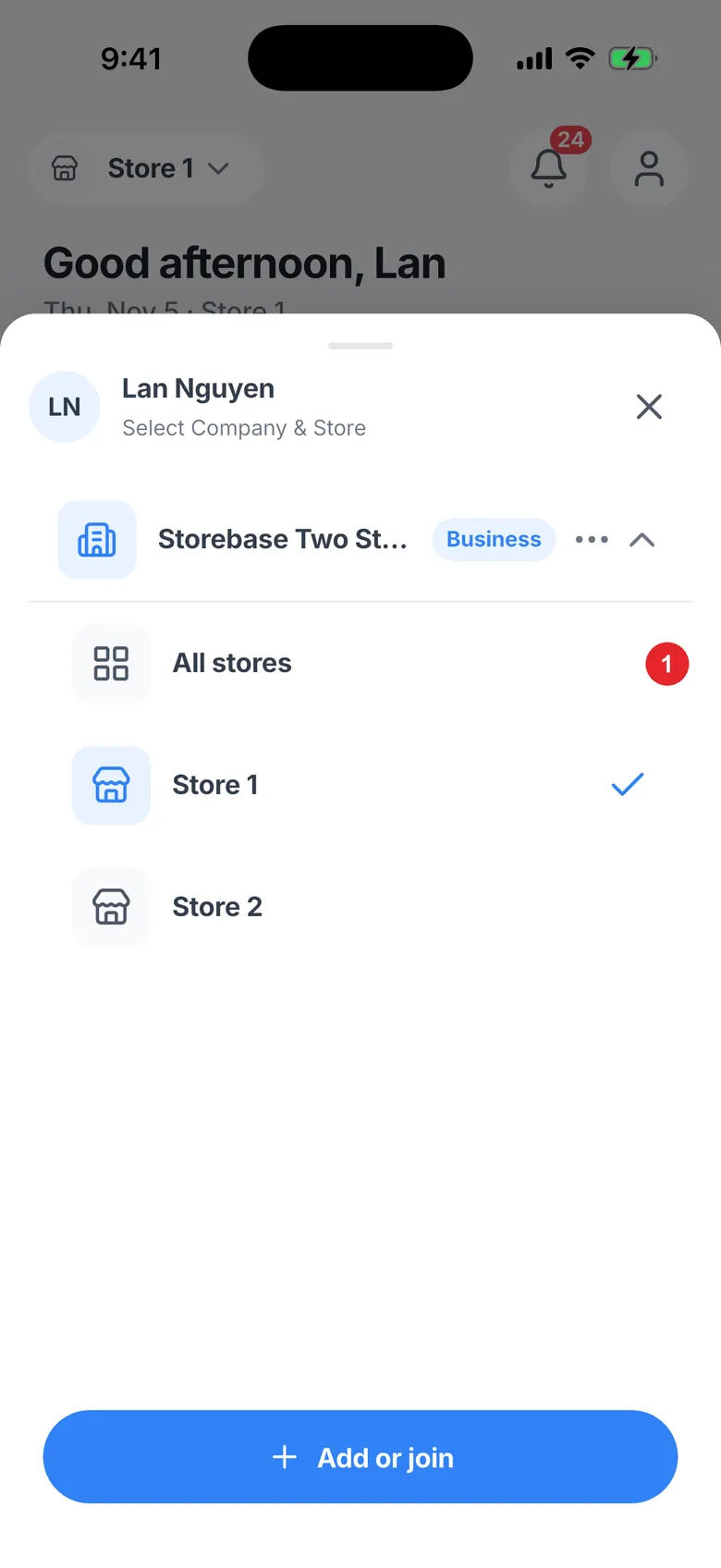
- Tap the store button at the top left of Home and, in «Select Company & Store», tap «All stores».
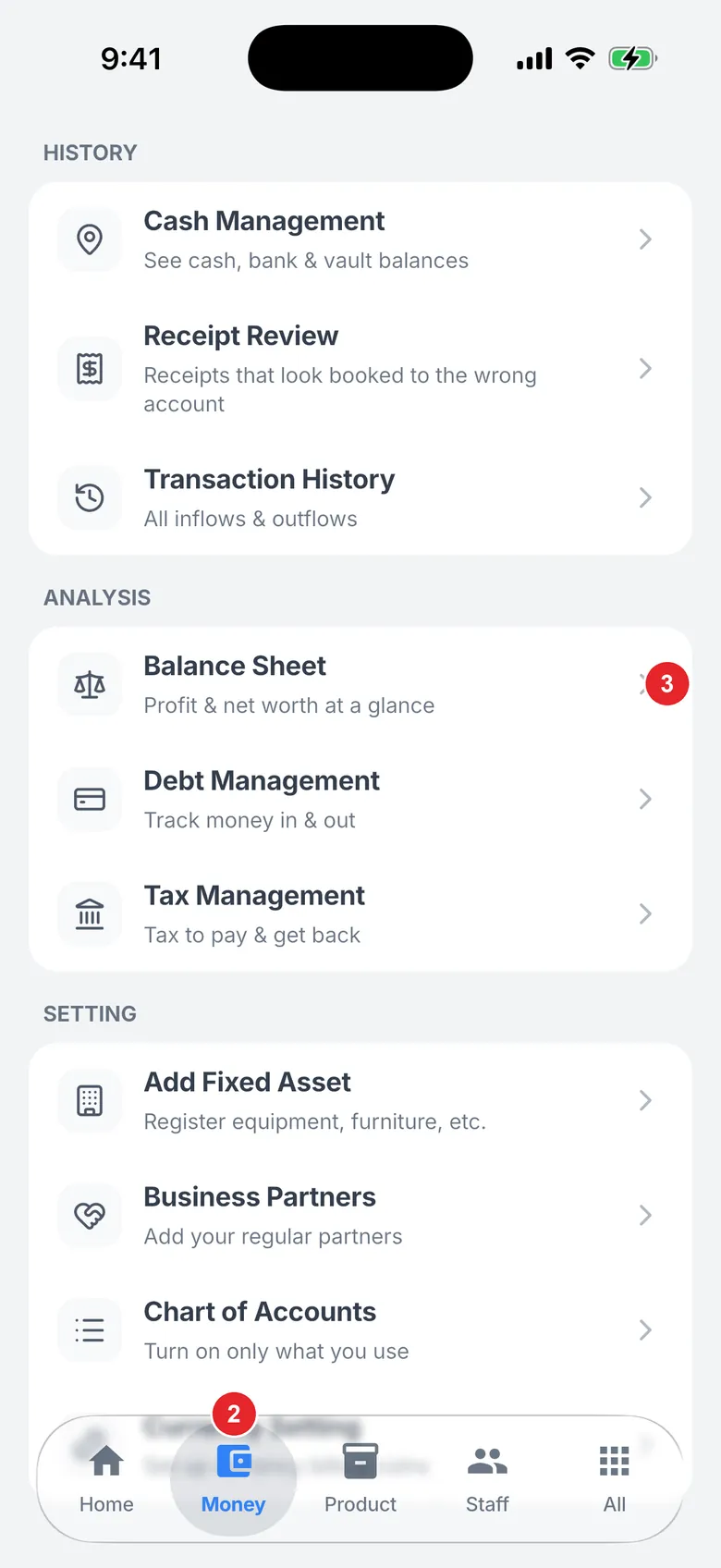
- Tap «Money» at the bottom of the app.
- Scroll down the list and, under «ANALYSIS», tap «Balance Sheet».
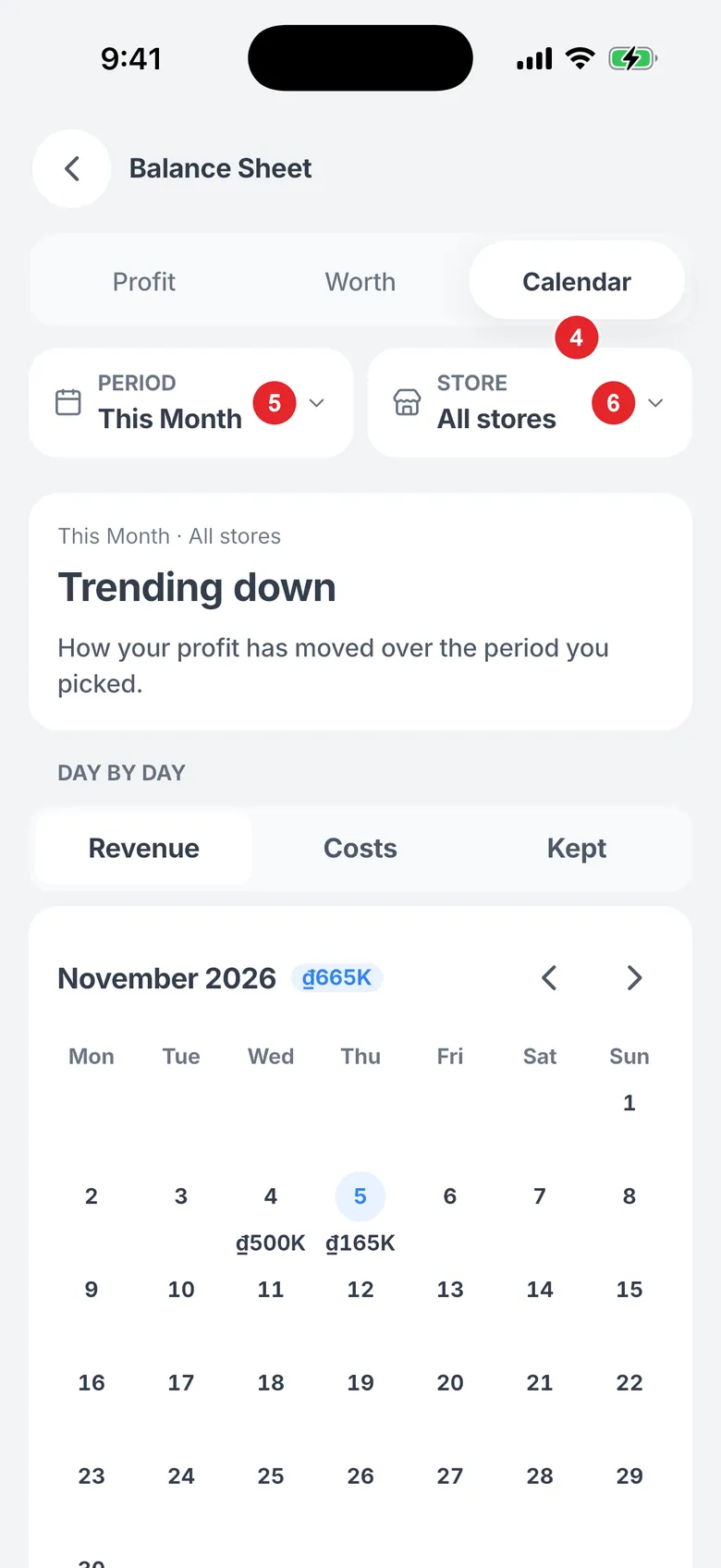
- Tap «Calendar».
- Tap «PERIOD».
- Check that «STORE» next to it reads «All stores».
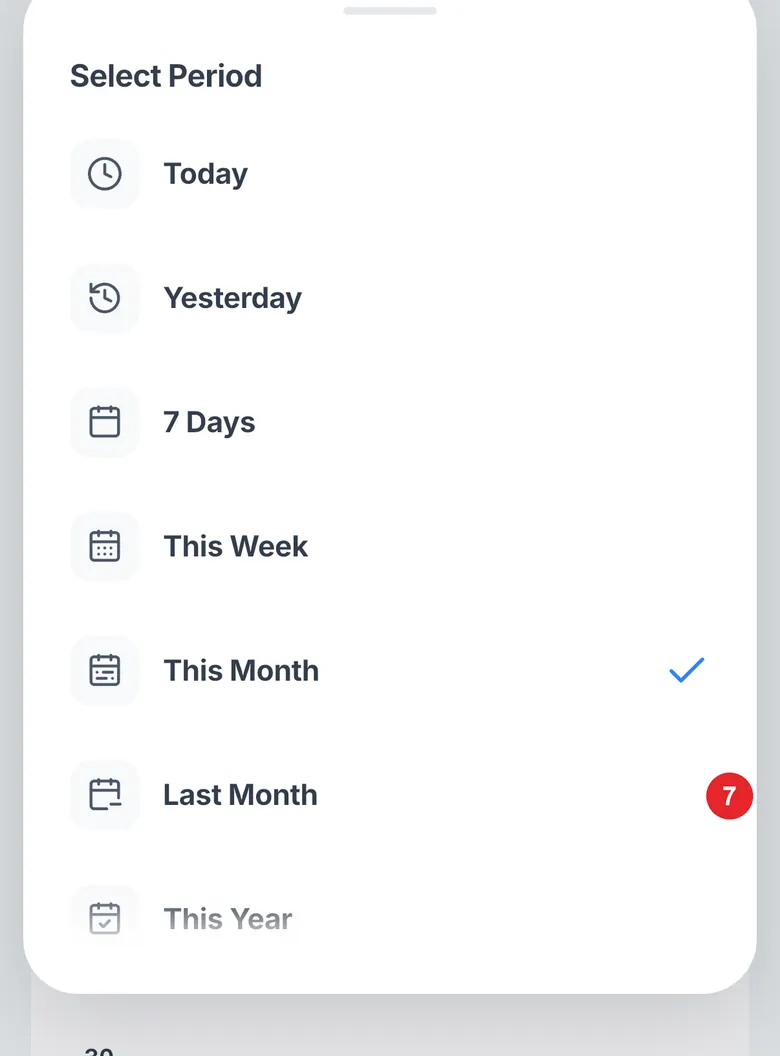
- Tap «Last Month».
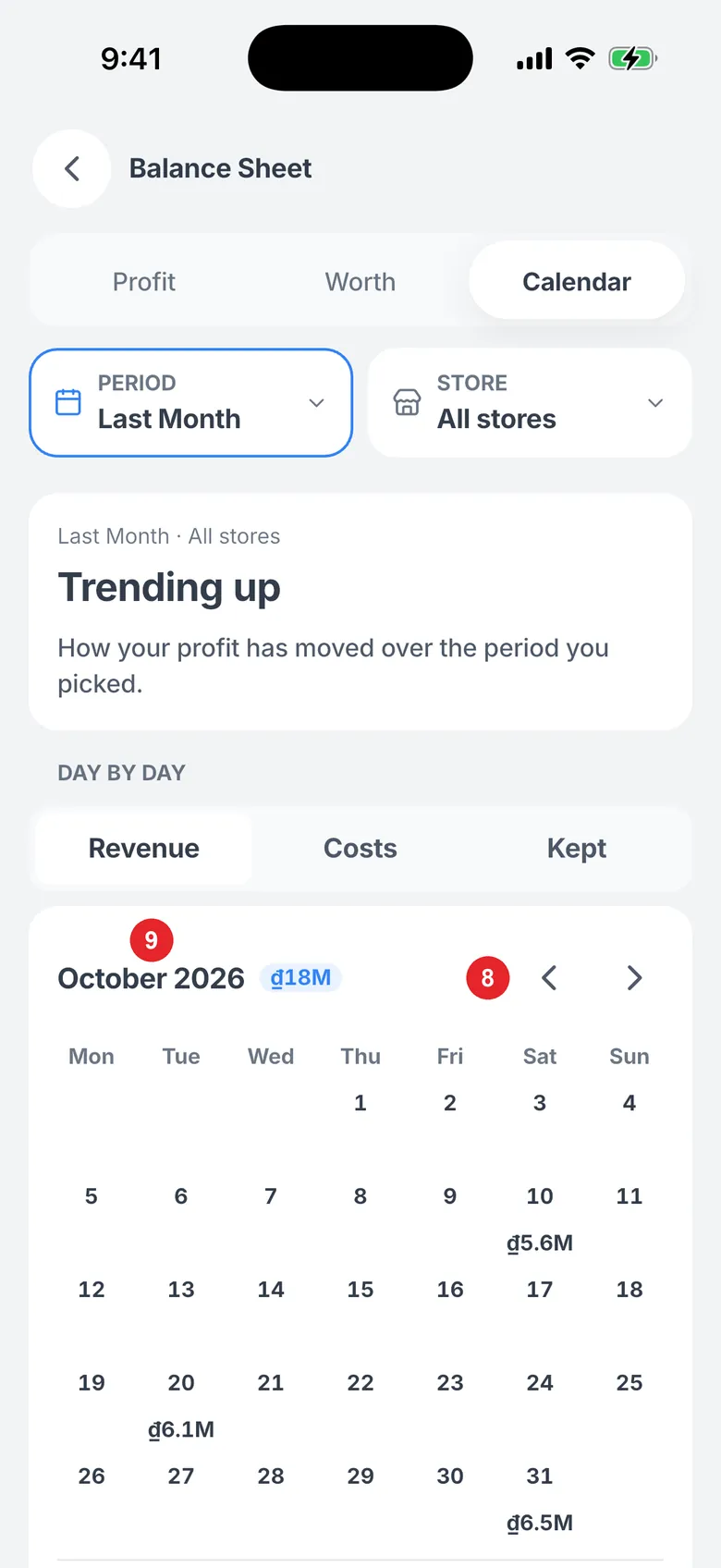
- Use the ‹ button next to the month's name to go back to the month you want.
- «October 2026» shows each day's revenue.
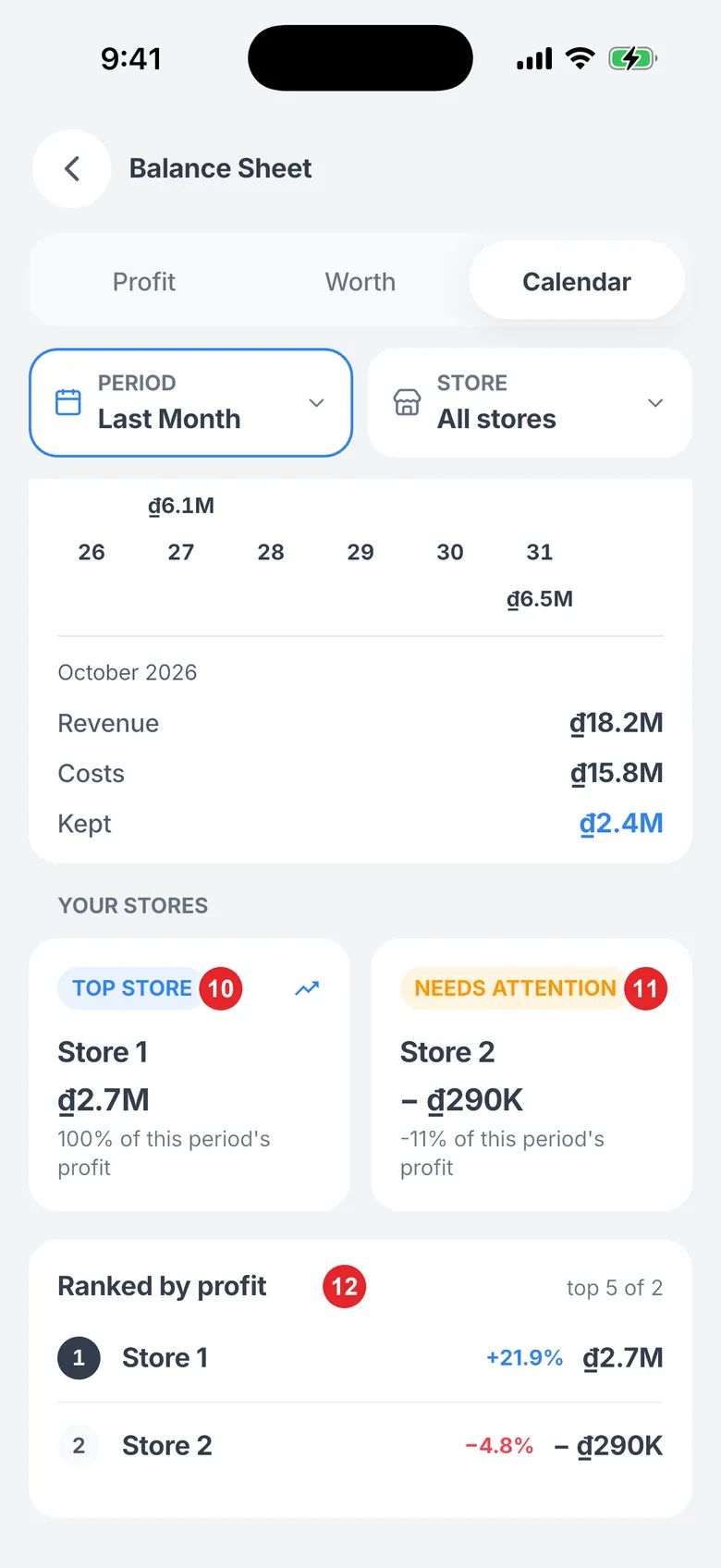
- Scroll down and, under «YOUR STORES», see «TOP STORE». Here it is Store 1, ₫2.7M.
- «NEEDS ATTENTION» shows a store at a loss. Here it is Store 2, − ₫290K.
- In «Ranked by profit», see the stores in order of what they kept. The % beside each is what it kept as a share of revenue: Store 1 is +21.9% and Store 2 is −4.8%.