
Show contents
Inventory › Move stock
Move goods between stores
- Who
- Owner · Manager
- When
- When you send goods from one store to another
- Where
- App · Web
What you get
- Tap «Move stock» on the product and enter only the store it leaves, the store it goes to and the quantity.
- «Stock quantity» shows right away how many each store has.
- The cost moves too. It shows in the receiving store's «Cost trend» as «Store transfer».
What it solves
- If you move goods by word of mouth, the sending store looks short and the receiving store looks like it has extra.
Why this way
- The move is recorded in both stores, so each store's stock and stock value add up.
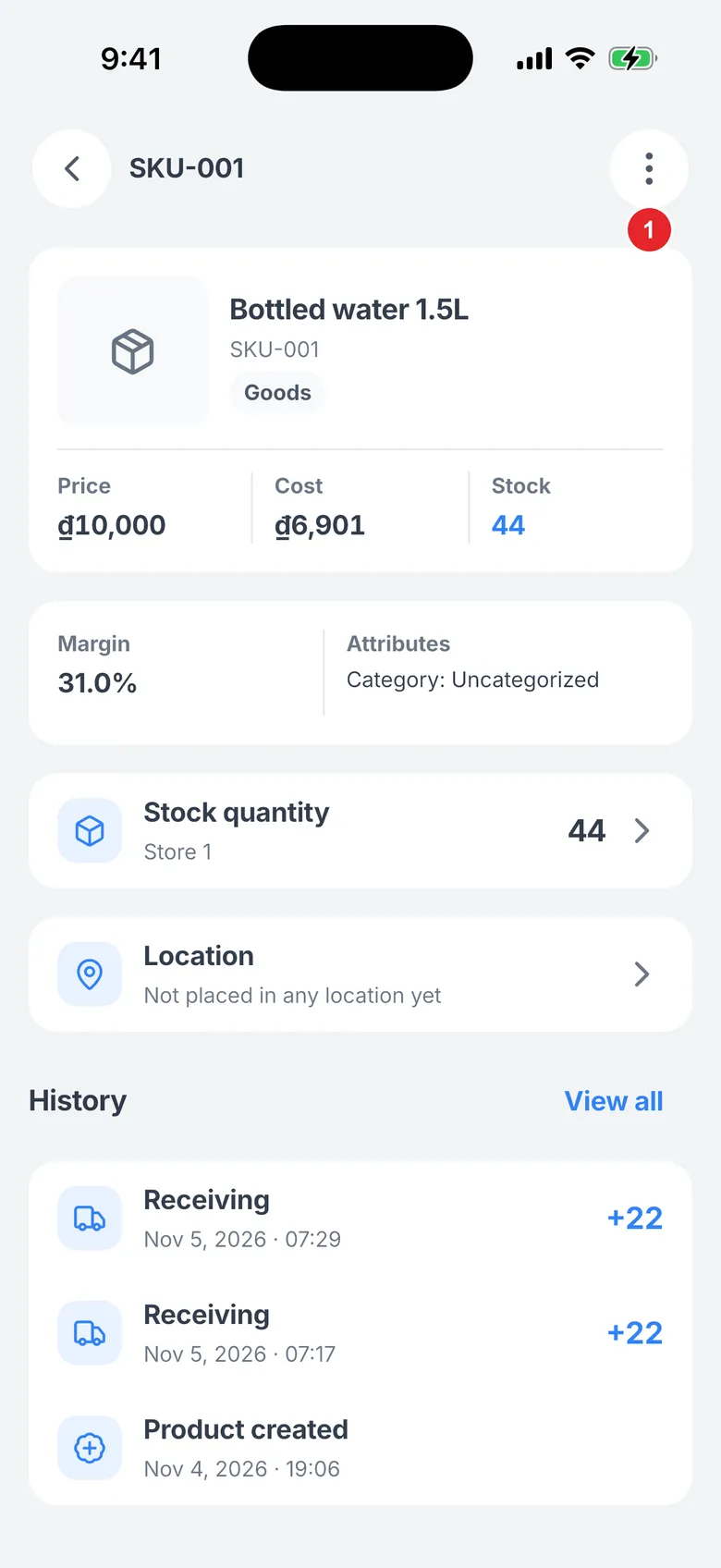
- In «Stock · Add Products», open the product to move and tap the ⋮ button at the top right.
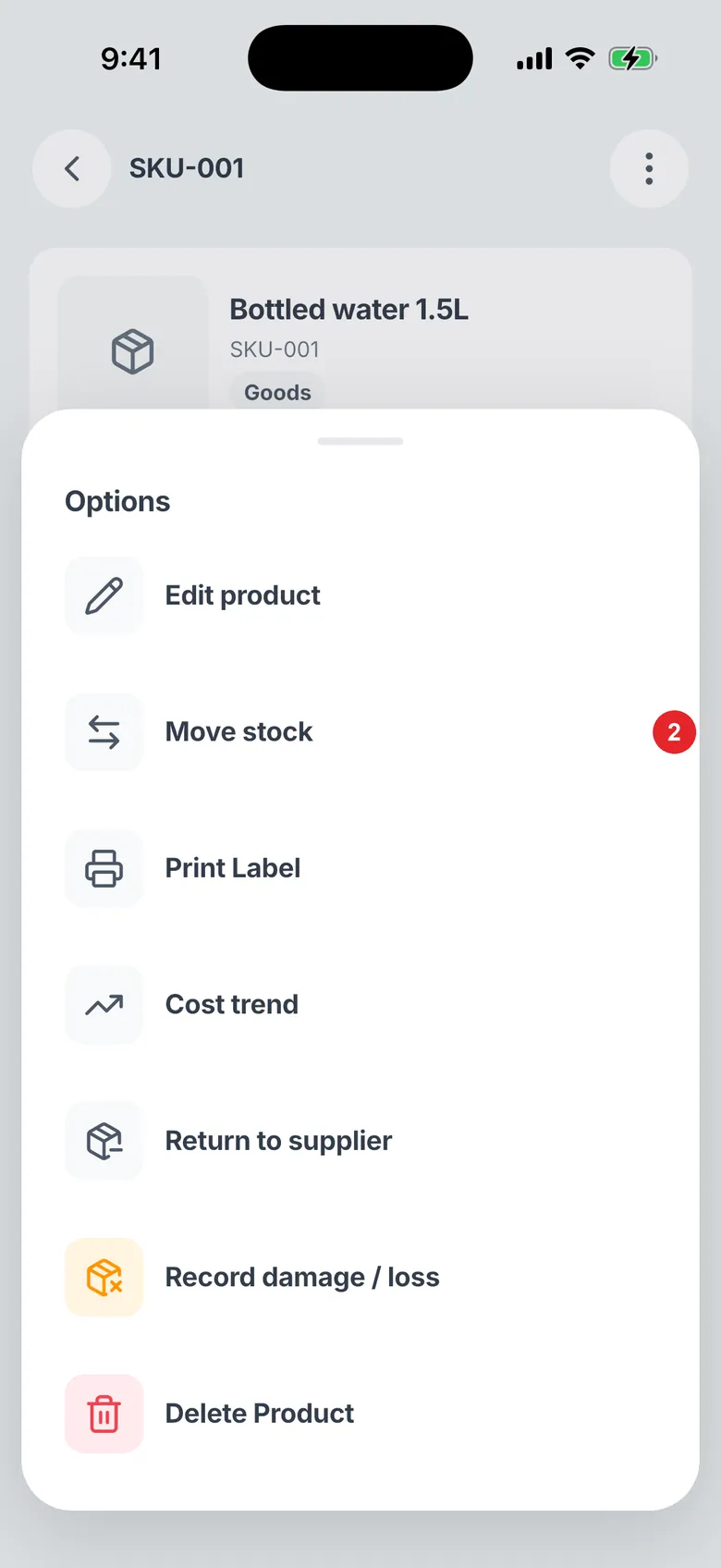
- Tap «Move stock».
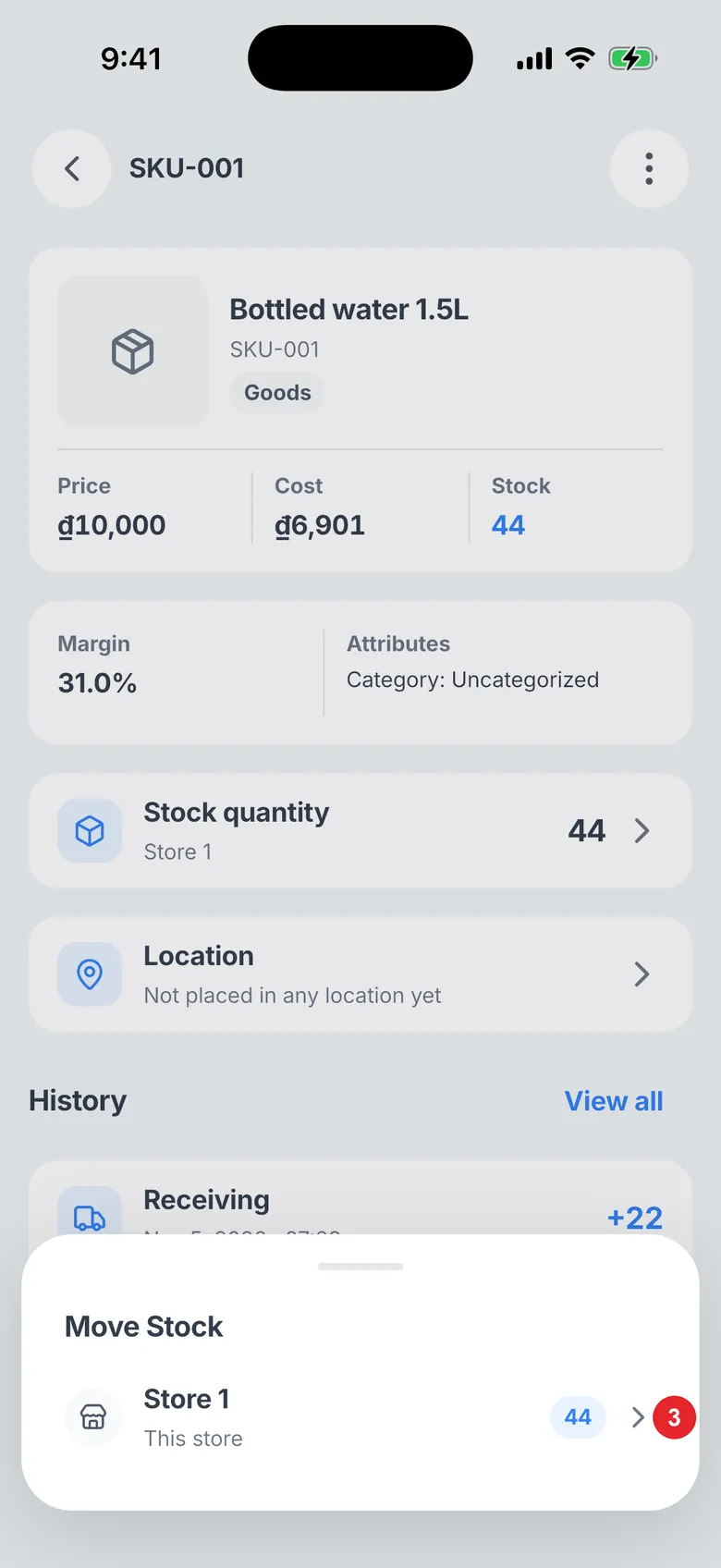
- Tap the store sending the goods. Here it is «Store 1».
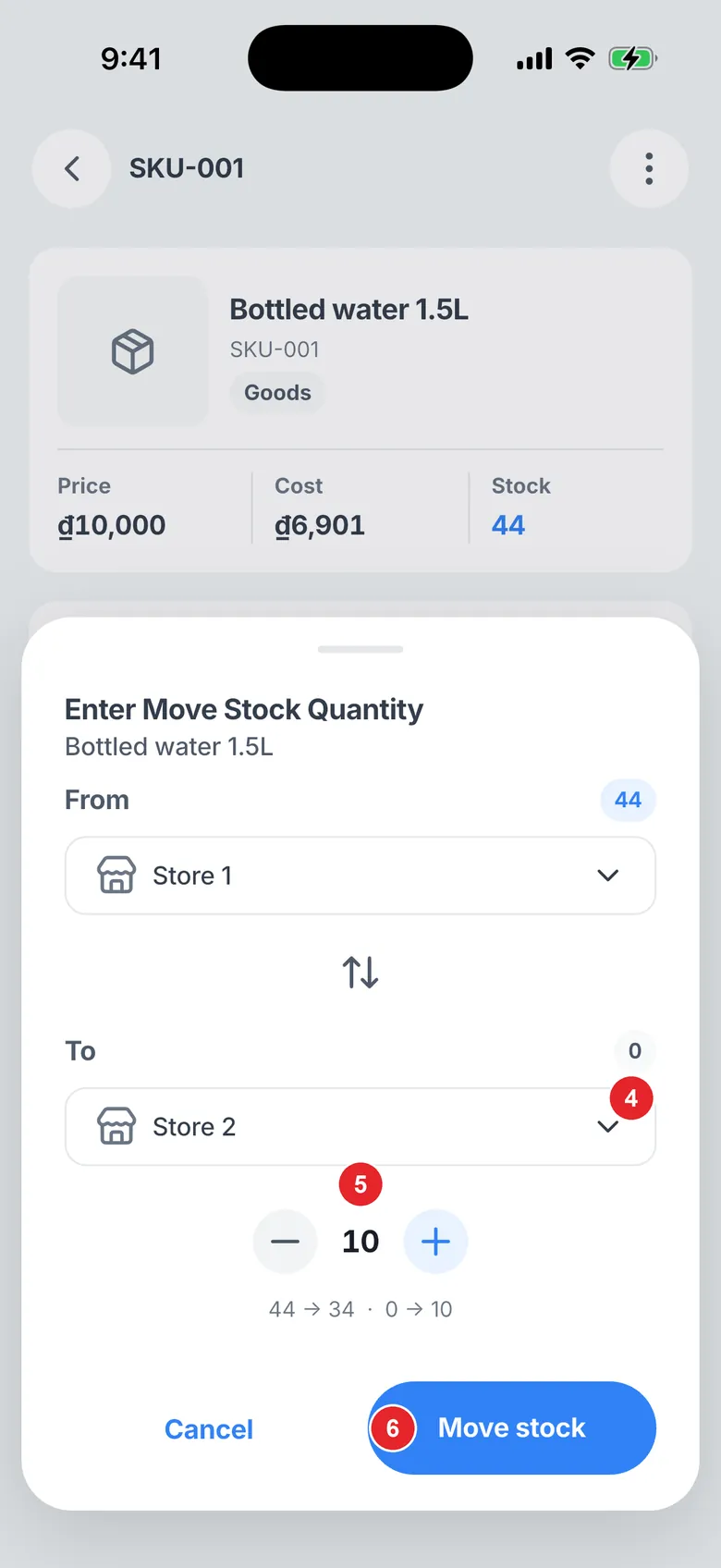
- Tap «To» and choose the store receiving the goods. Here it is Store 2.
- Enter the quantity to move with the − + buttons. Here it is 10. Below, you see how the two stores' quantities change.
- Tap «Move stock».
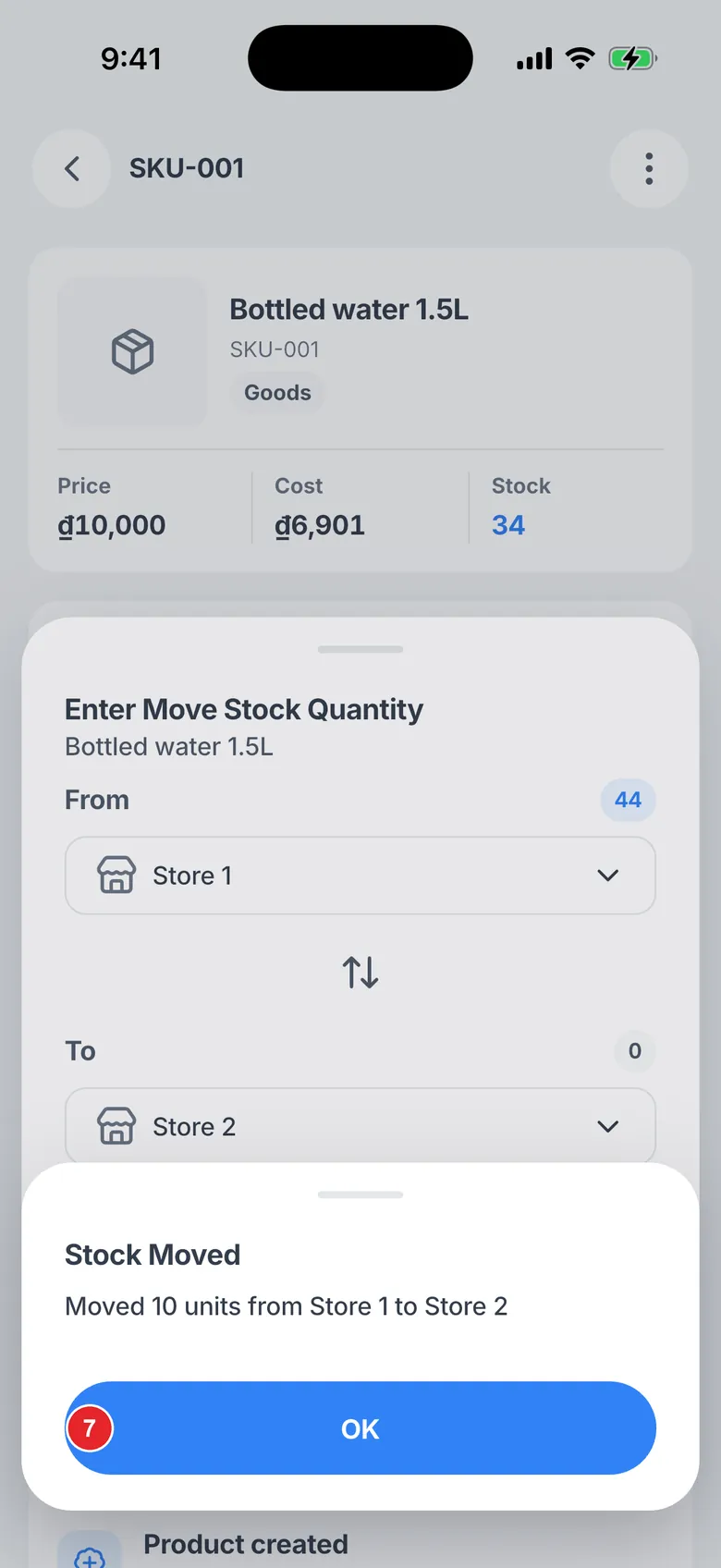
- Tap «OK».
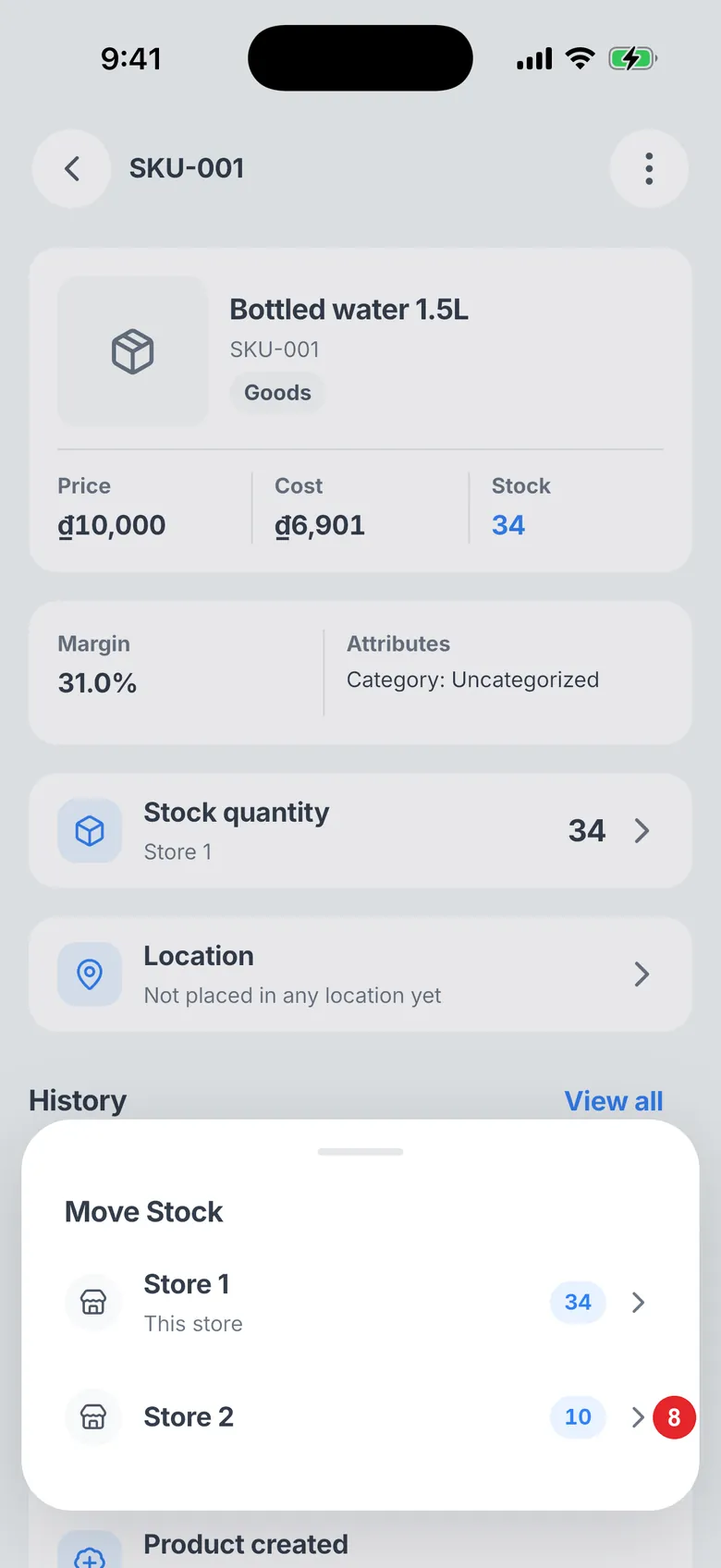
- Tap the «Stock quantity» row in the product details to see how many each store has. Store 1 is now 34 and «Store 2» is 10.
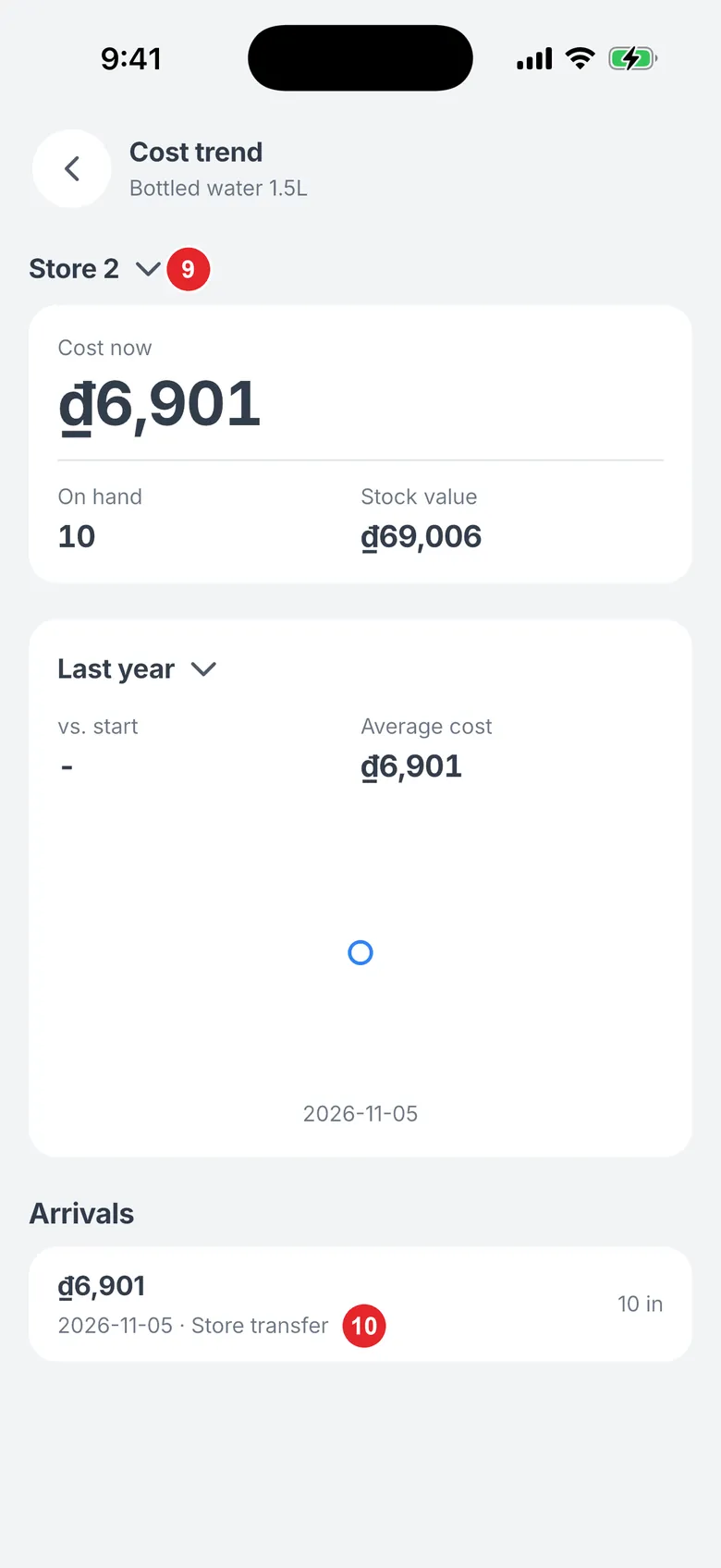
- The cost moves along too. In «Cost trend» from the product's ⋮ button, change the store at the top to «Store 2».
- «Arrivals» shows «2026-11-05 · Store transfer», at Store 1's cost as it was.