
Show contents
Inventory › Count stock
Choose how to count
- Who
- Owner · Manager
- When
- Before you count stock
- Where
- App · Web
What you get
- «Count stock» counts products directly. Only the products you count change; the others stay as they are.
- «Count by location» counts place by place, like storage and shelves. When you submit, any product nobody counted becomes 0.
- Before you submit, a window tells you once more how many products change and how.
What it solves
- You only want to recount a few items, but don't know if you have to count everything, so you put it off.
- Counting goods split between storage and shelves in one go, you count some twice or miss some.
Why this way
- To check a few items, use «Count stock»; to count the whole store place by place, use «Count by location».
- What happens to products nobody counted? «Count stock» leaves them as they are; «Count by location» sets them to 0. So when you count by location, count every place before you submit.
- Can I undo after submitting? The app window says «This cannot be undone», but in «History» you can roll back to the correct count before it. The website window says it can be rolled back from the count page. How to do it is in «Undo a wrong count».
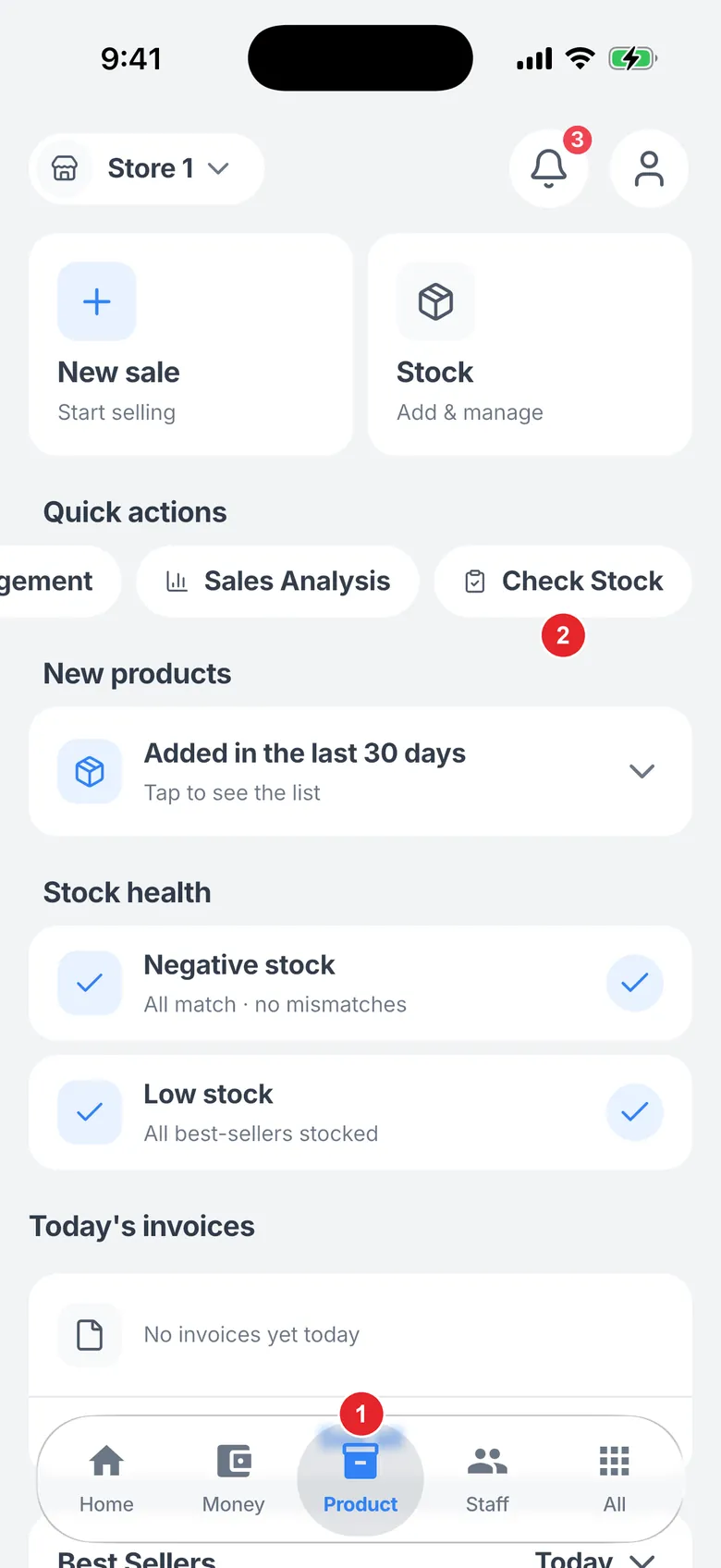
- Tap «Product» at the bottom of the app.
- Under «Quick actions», tap «Check Stock». If it isn't showing, slide the row sideways.
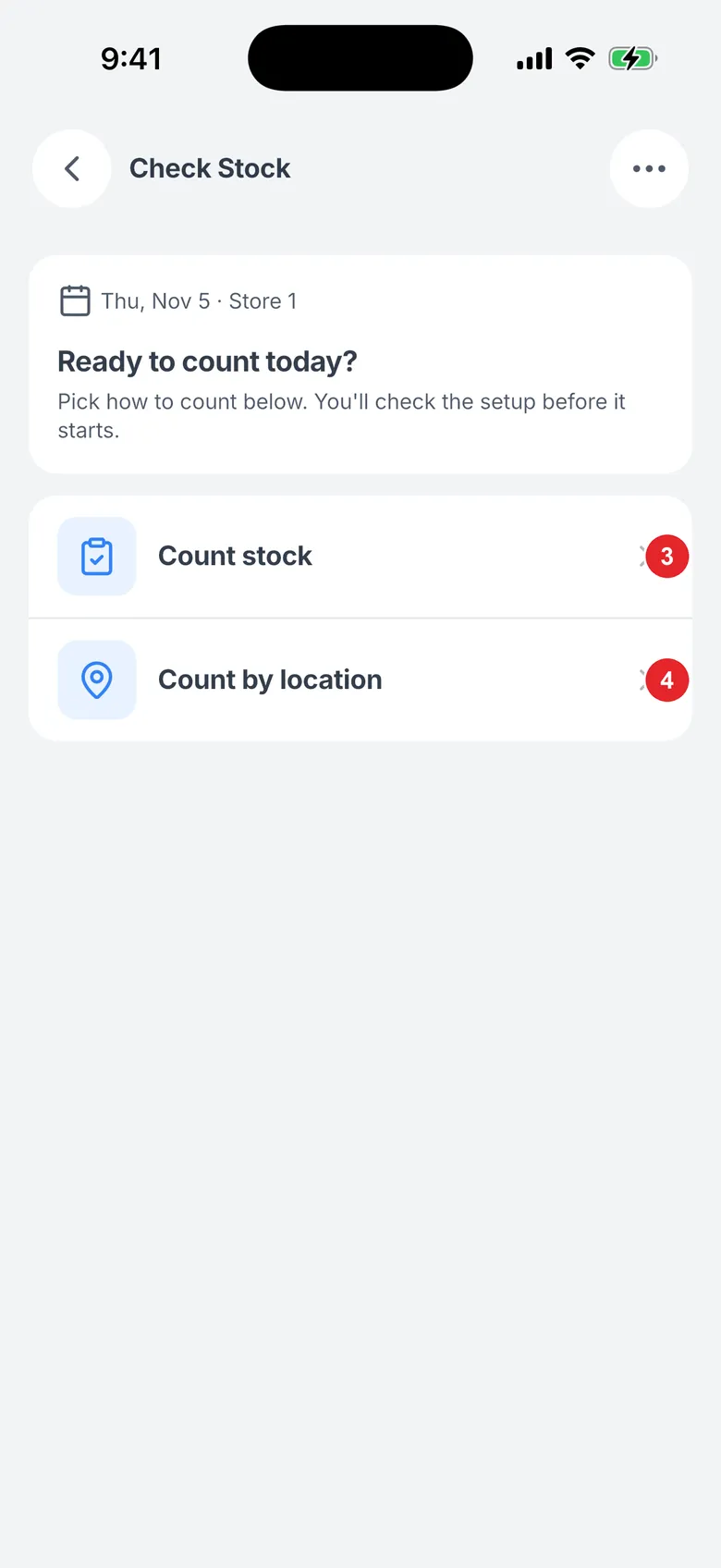
- To count products right away, tap «Count stock». Only the products you count change to the counted quantity. How to count is in «Count together». It is the same when you count alone.
- To count by place, like storage or a shelf, tap «Count by location». When you submit, products nobody counted become 0. How to count is in «Count by location».
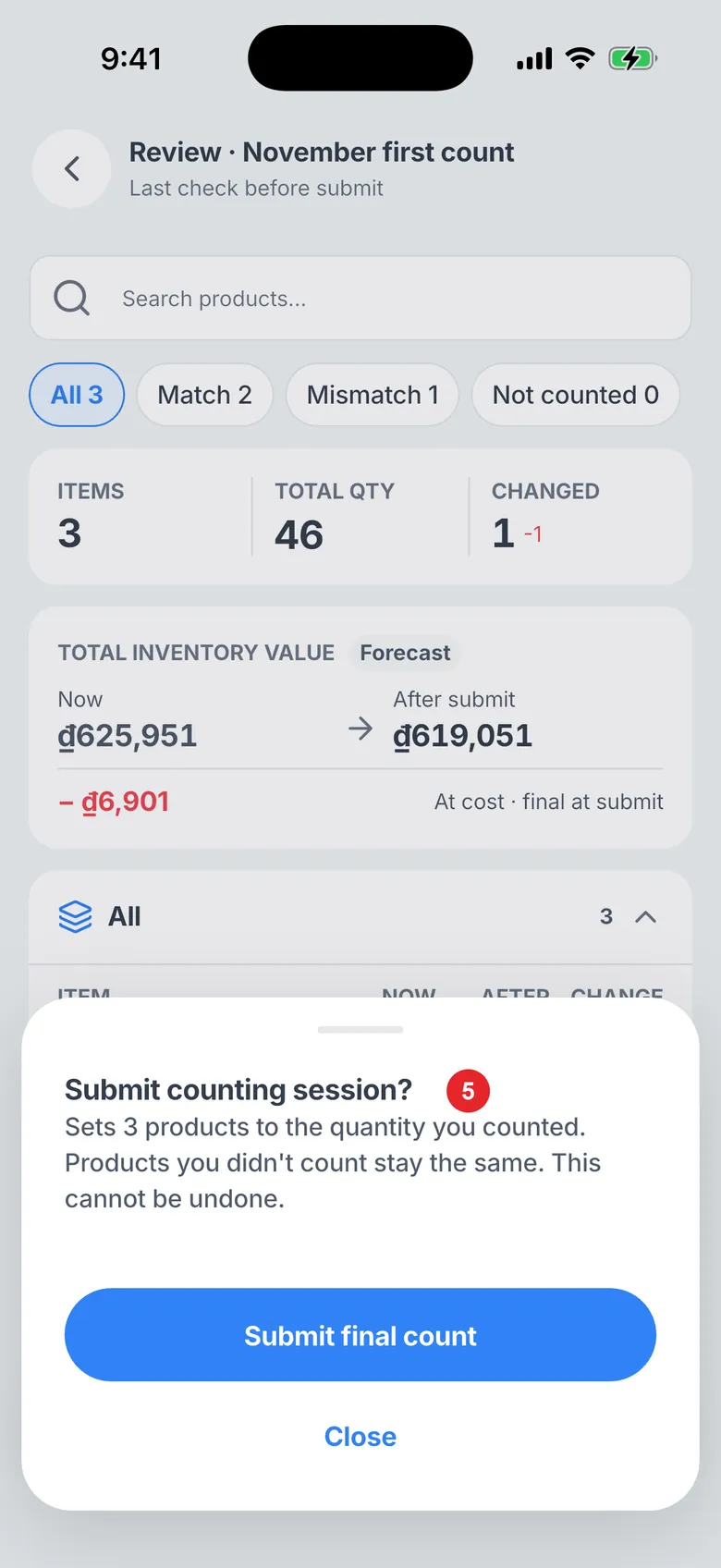
- When you finish «Count stock» and tap «Submit final count», this window opens. Read «Sets 3 products to the quantity you counted. Products you didn't count stay the same. This cannot be undone.» and tap «Submit final count» in the window. If you aren't ready, tap «Close».
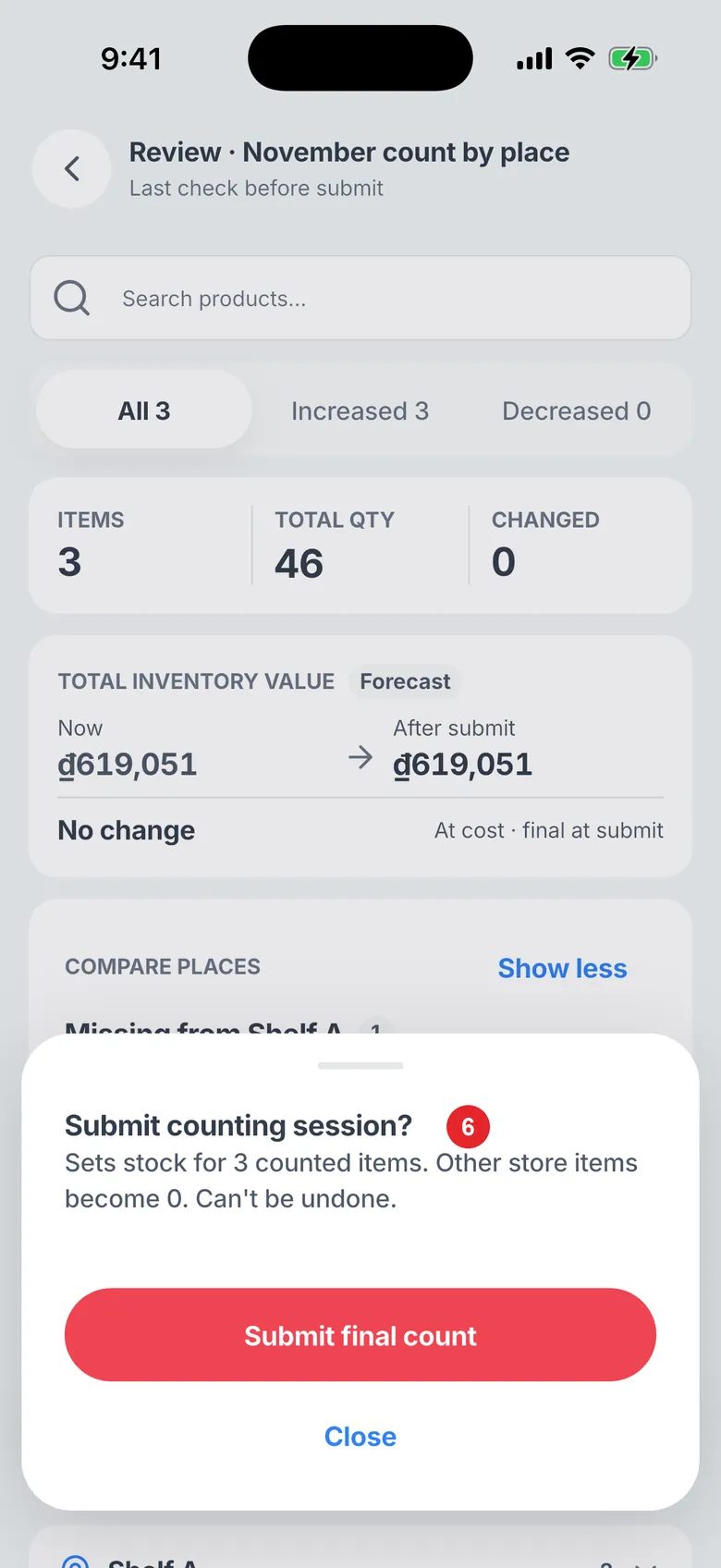
- When you submit «Count by location», «Sets stock for 3 counted items. Other store items become 0. Can't be undone.» appears. Products nobody counted become 0, so tap «Submit final count» in the window after every location is counted.