
Show contents
Inventory › Order and receive
Order from a supplier
- Who
- Owner · Manager
- When
- Before goods run out
- Where
- App · Web
What you get
- Pick the supplier, the store and the items, and the order name (PO-…) is added for you.
- The last price comes up as a suggestion, so you can order without knowing the price.
- One order carries you through the shipment → receiving → setting the price → closing.
What it solves
- When you order by messenger, nothing records what you ordered and how many, so you can't tell if less came.
- When the person who ordered and the person receiving are different, nobody knows what should arrive.
Why this way
- The quantity on the order is what you count against when goods arrive. Less or more shows right there.
- Does ordering pay out money? No. The order amount is an estimate. Nothing goes into the books; the real amount you owe is set later in «Confirm books».
- What if I don't know the price? Leave it empty and the product's cost is used; it's set again from the shipment the seller sends.
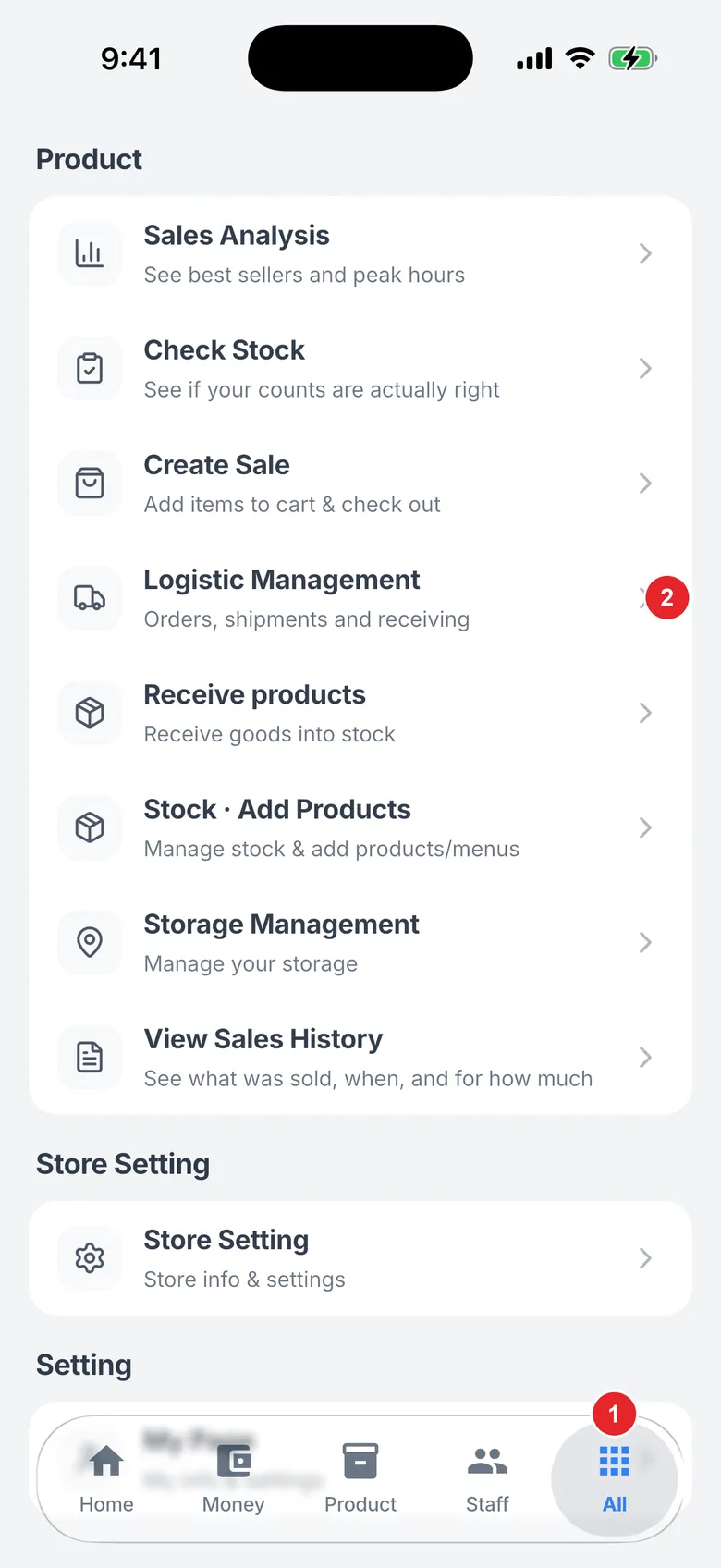
- Tap «All» at the bottom of the app.
- Scroll down and tap «Logistic Management».
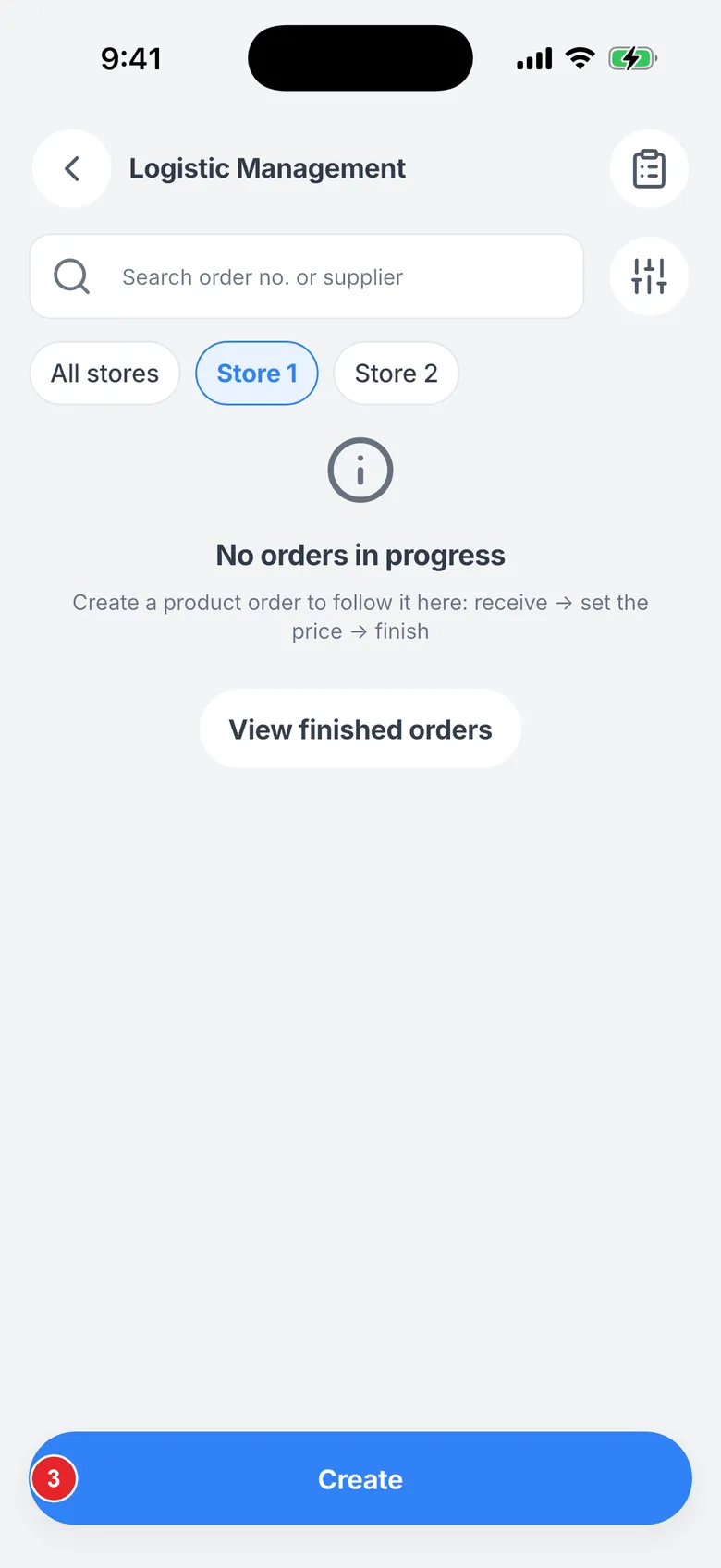
- Tap «Create» at the bottom. If you see «Connect ERP» instead of «Create», it isn't connected yet. First do «Retail: Turn on automatic cost».
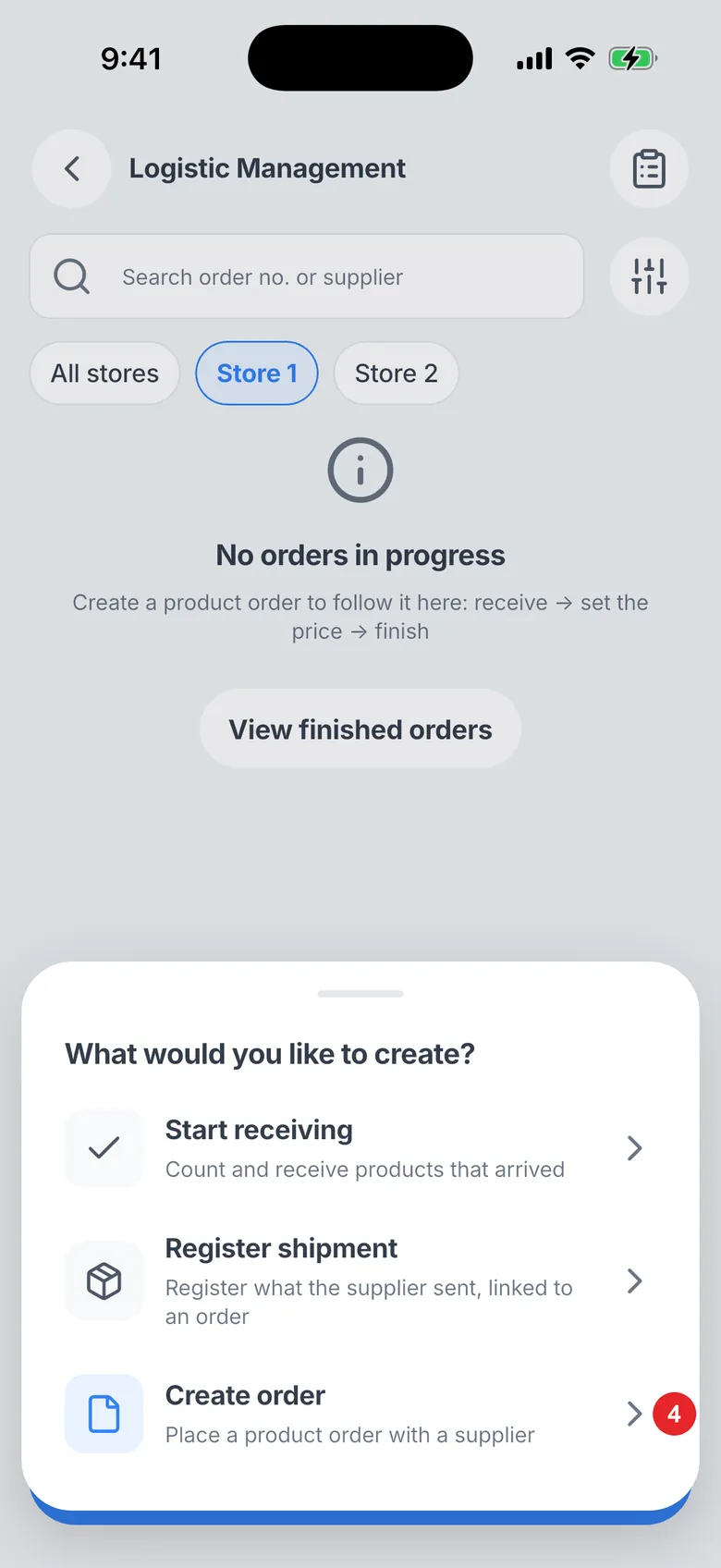
- Tap «Create order».
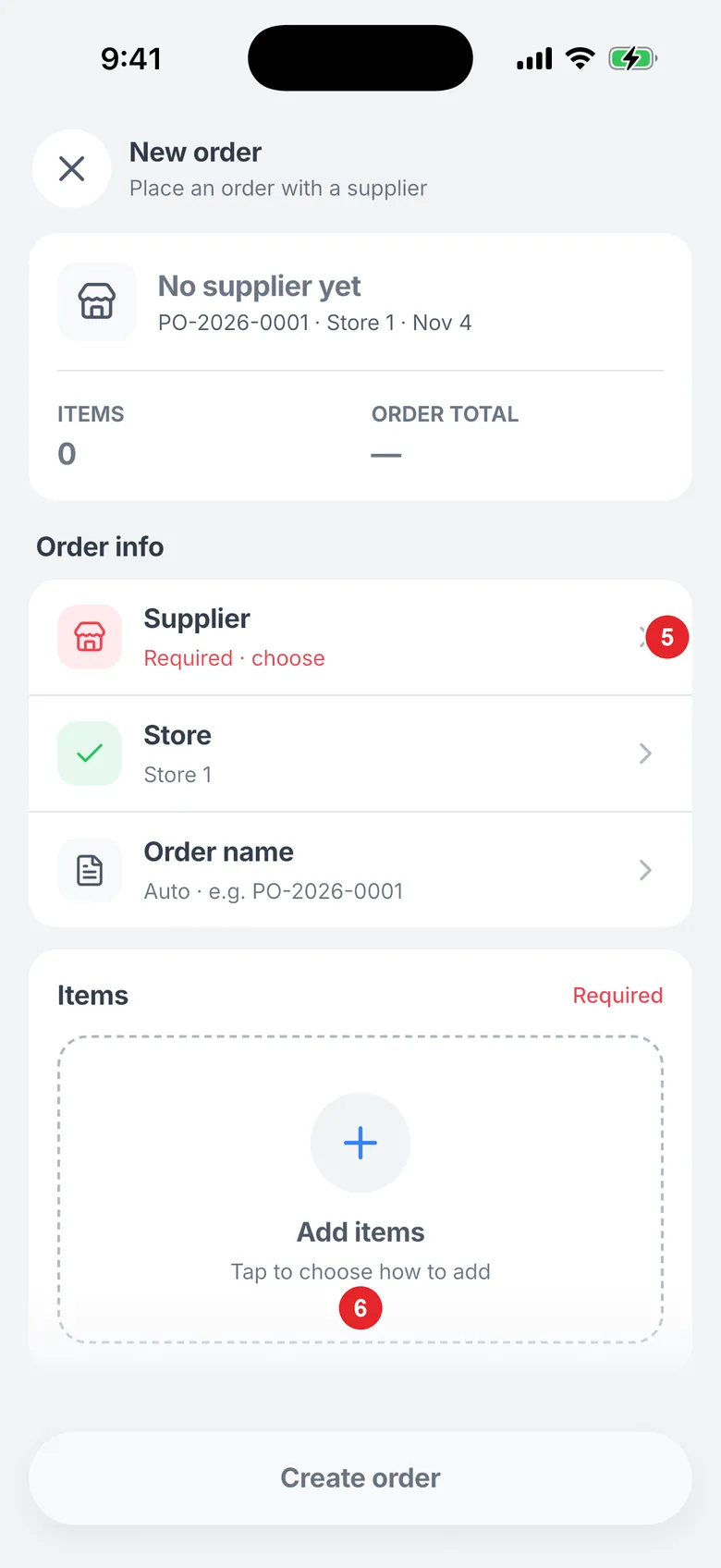
- Tap «Supplier».
- After choosing the supplier, tap «Add items». The store and order name fill in by themselves.
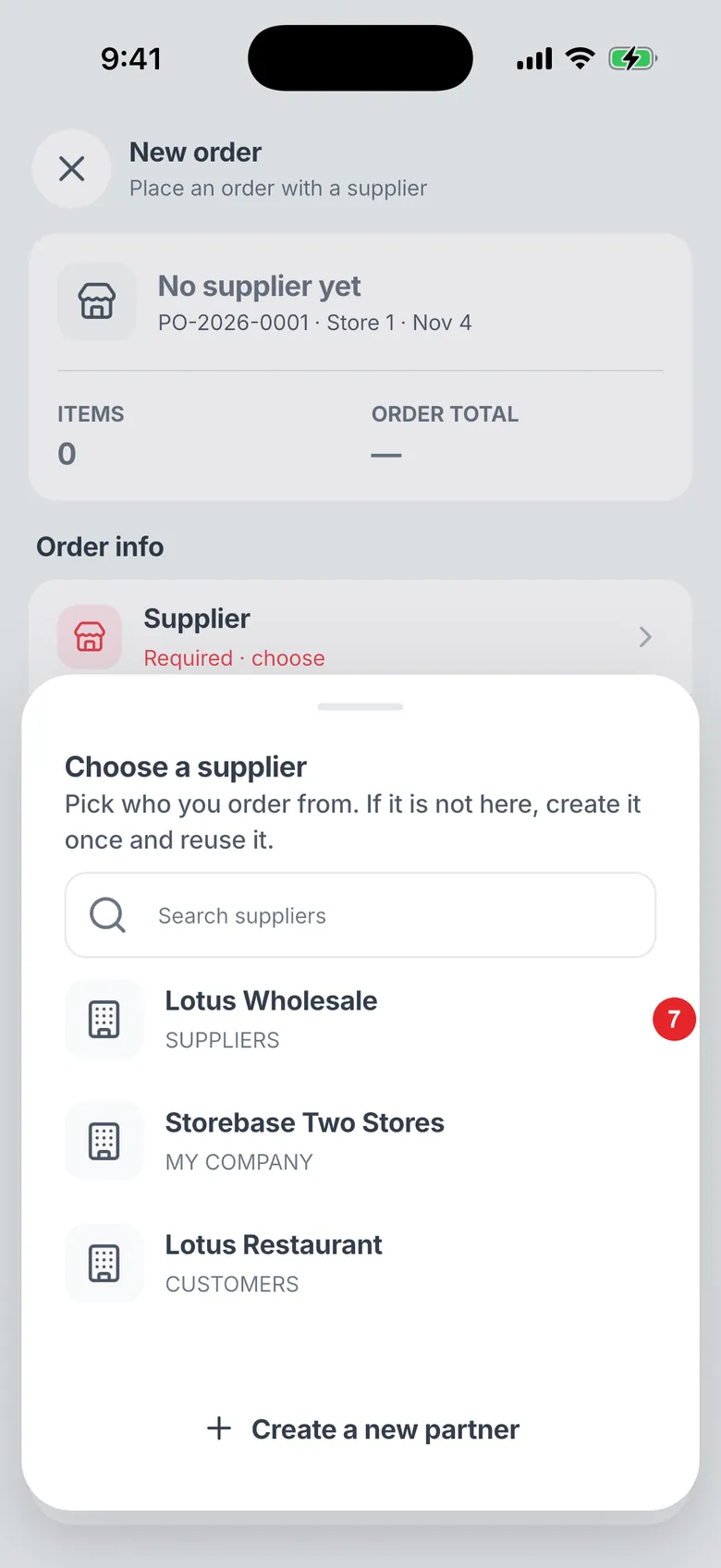
- Tap the supplier you are ordering from. Here it is «Lotus Wholesale». If it isn't in the list, tap «Create a new partner».
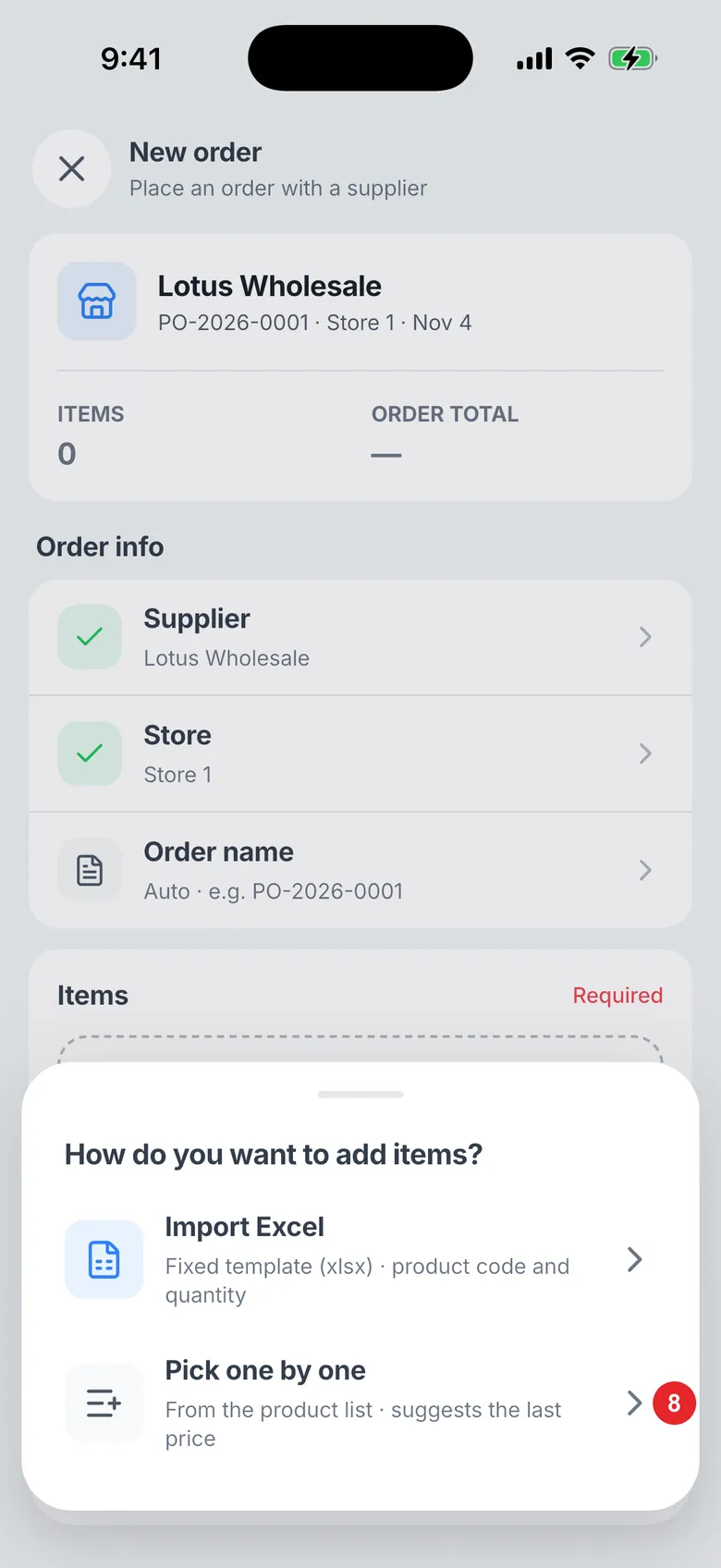
- Tap «Pick one by one».
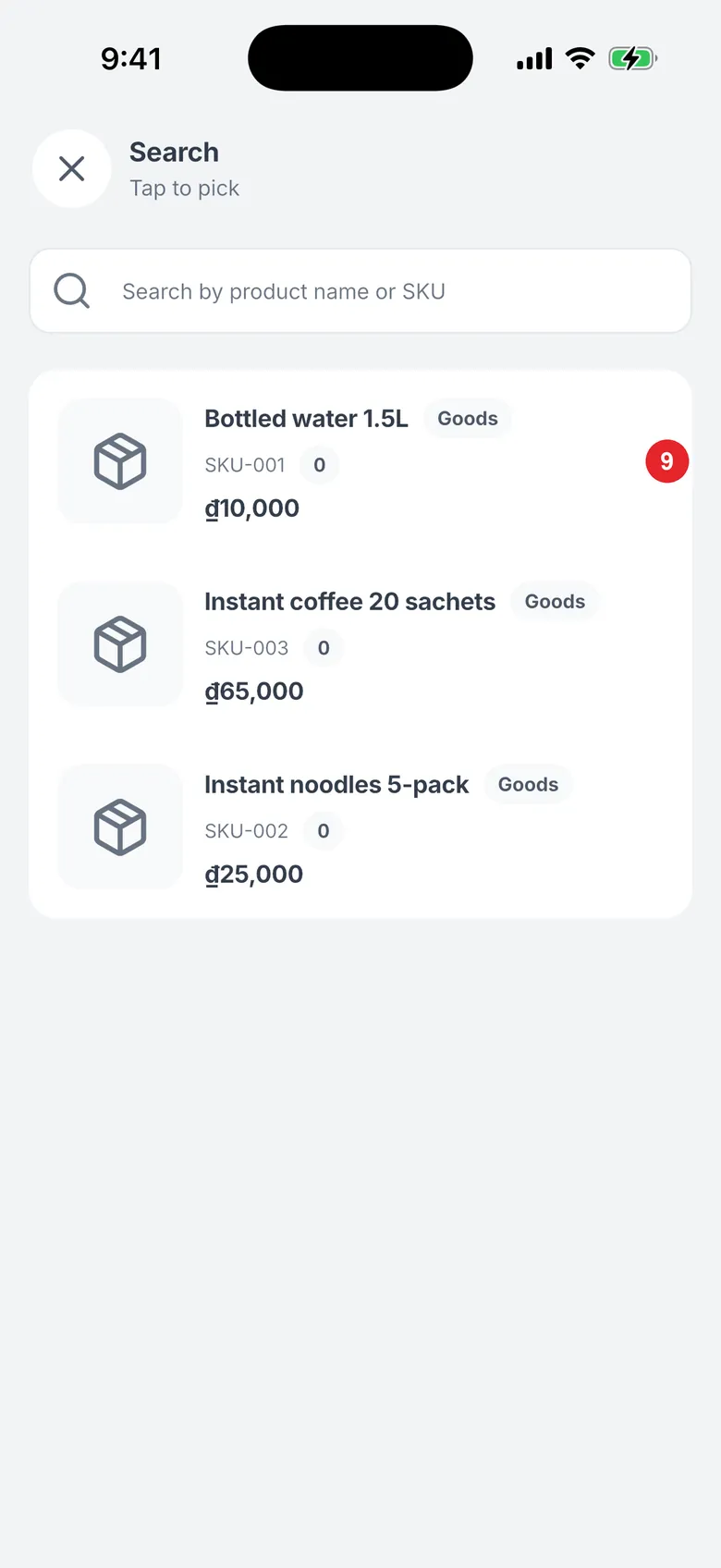
- Tap the product to order. Here it is «Bottled water 1.5L».
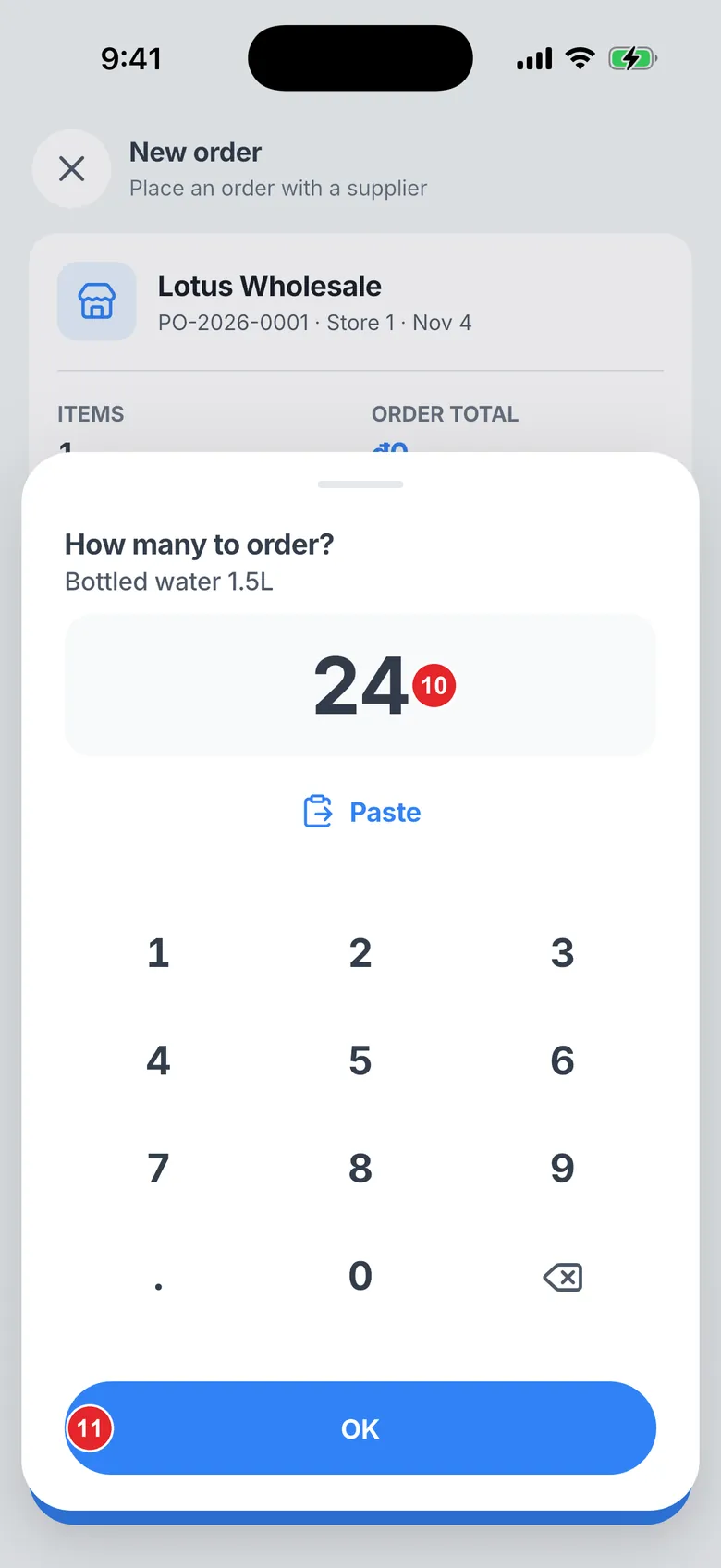
- Enter the quantity to order. Here it is 24.
- Tap «OK».
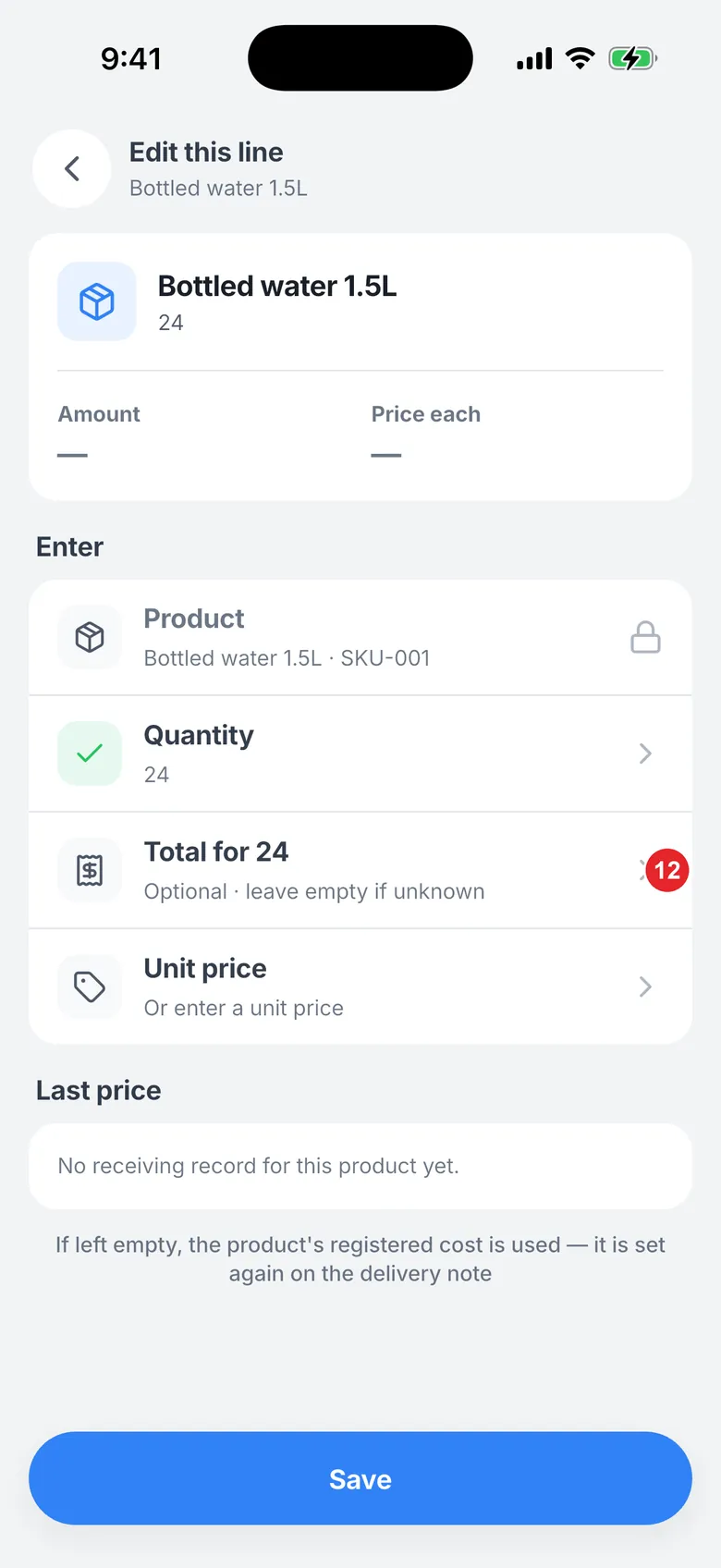
- If you know the price, tap the added line, choose «Edit quantity and price», then tap «Total for 24» and enter the total. If you don't, leave it empty. The product's cost is written in, and you set it again on the delivery note.
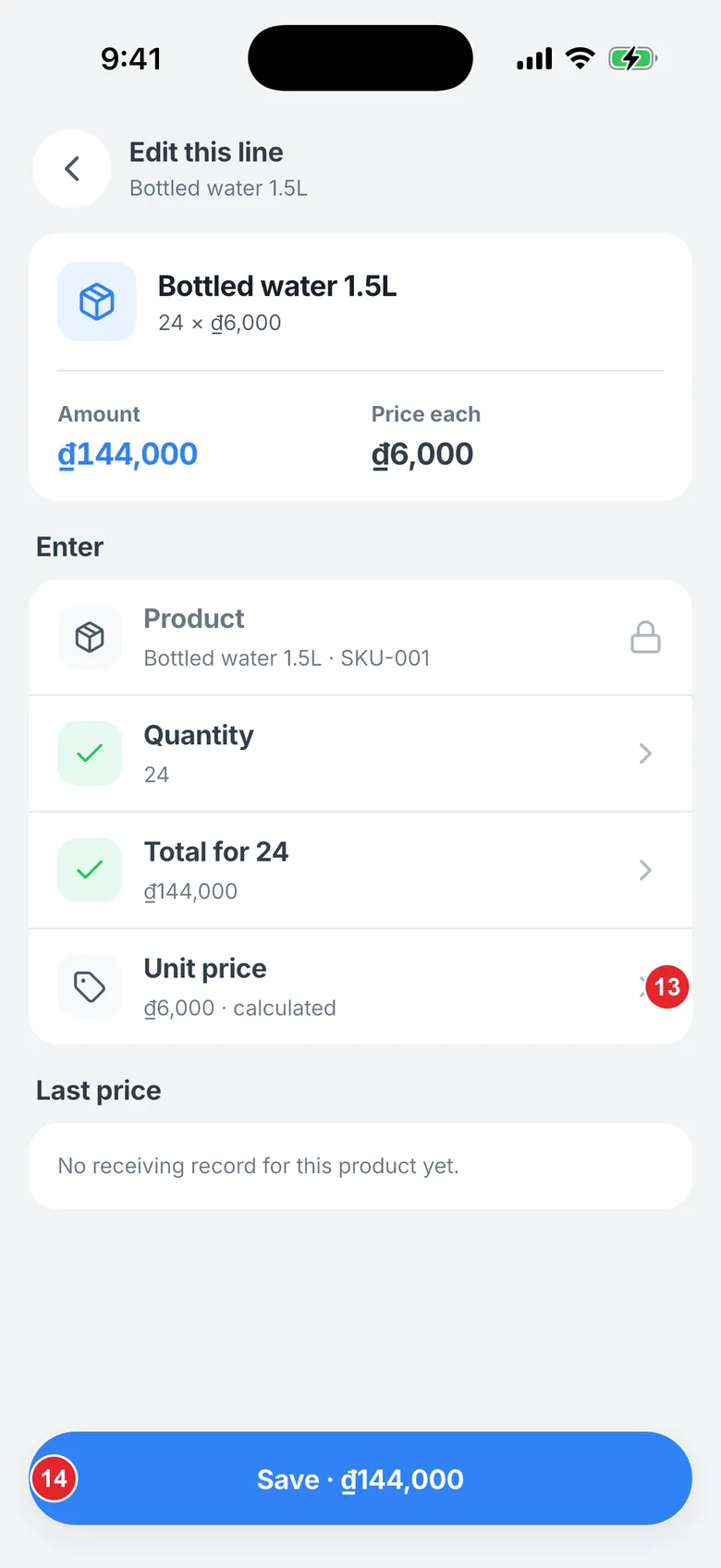
- «Unit price» is worked out by itself.
- Tap «Save · ₫144,000».
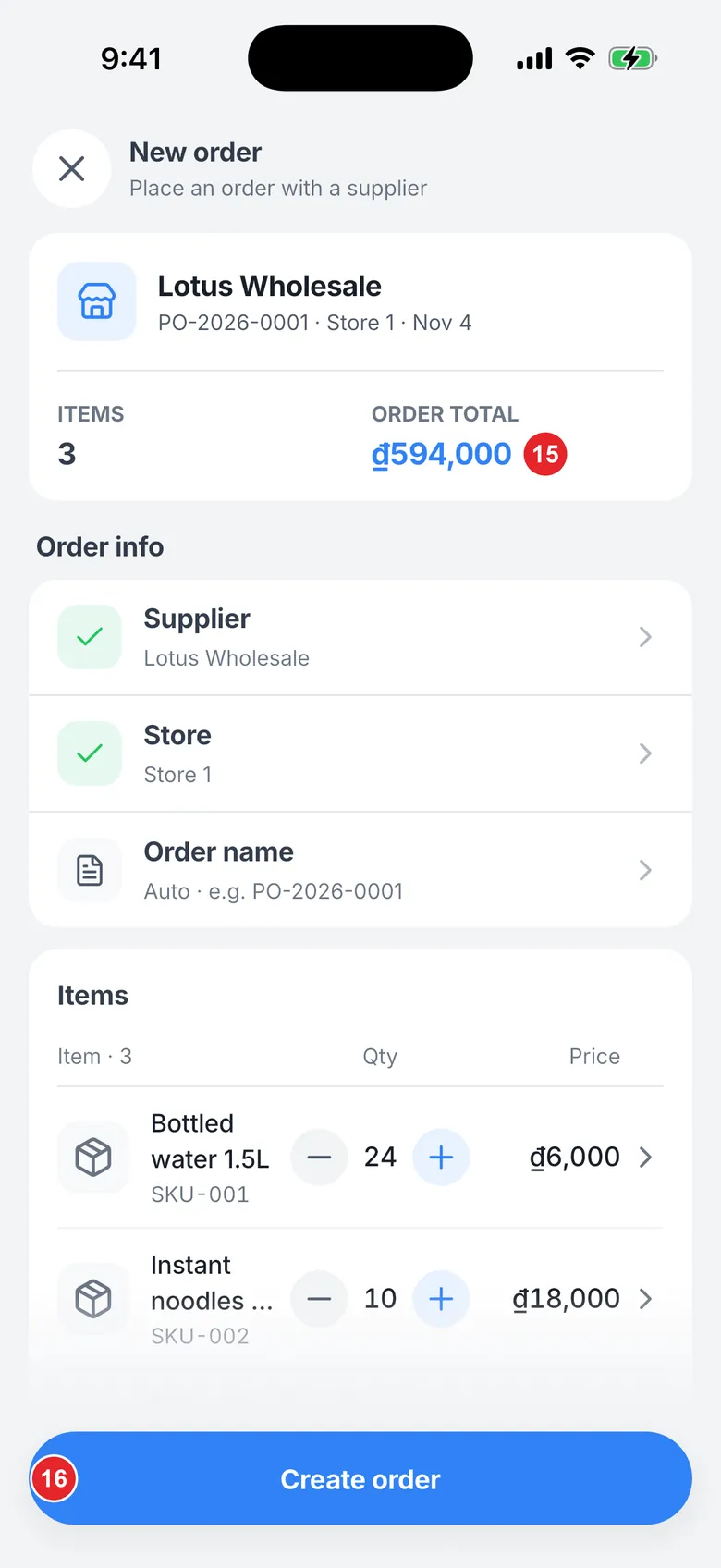
- Add other products the same way and «ORDER TOTAL» shows the total. Here it is ₫594,000.
- Tap the «Create order» button at the bottom.
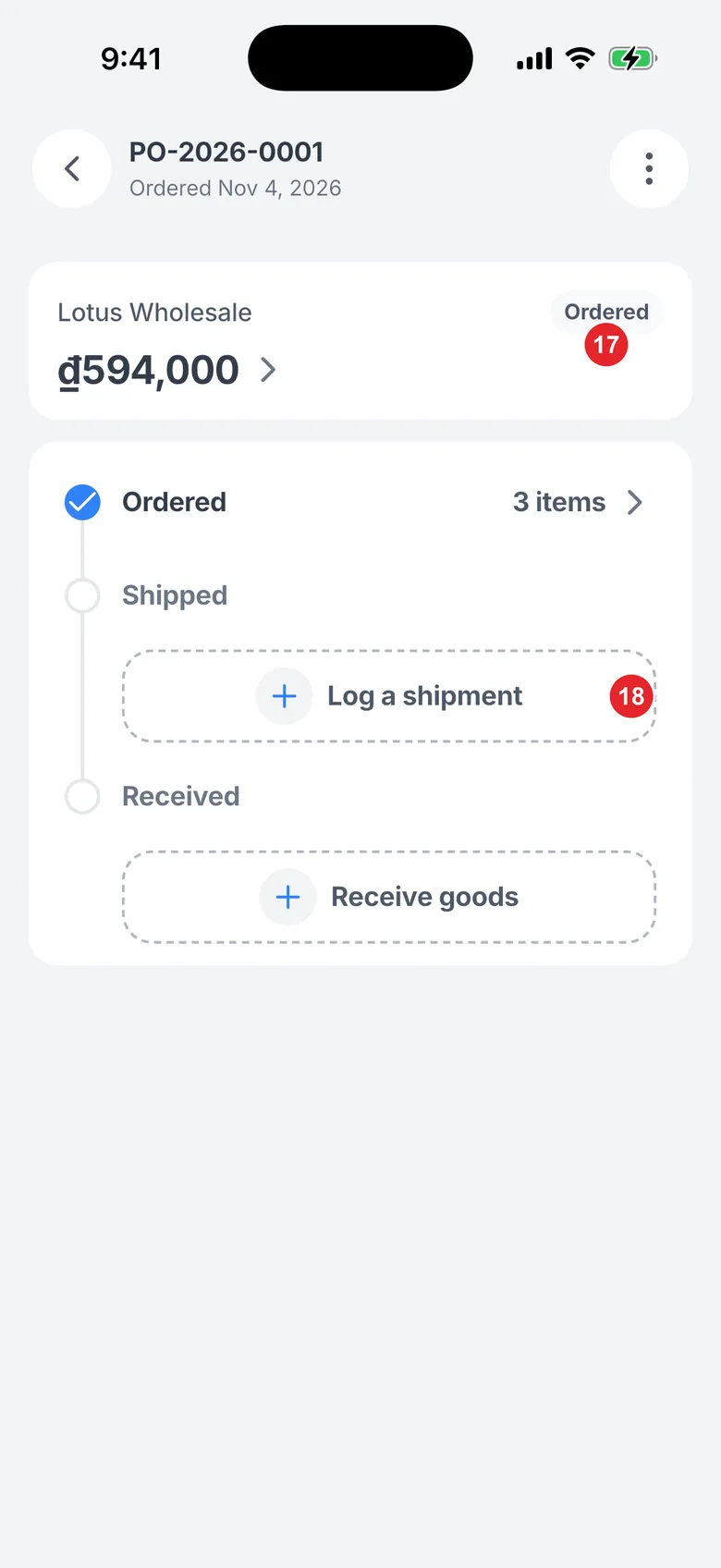
- The order is created as «Ordered». No money has gone out yet.
- When the supplier sends the goods, write down what was sent with «Log a shipment». See «Log a shipment» below. How to count is in «Count goods when they arrive».
Log a shipment
A shipment is the paper that writes down the goods and prices the supplier really sent. It can differ from the order's prices. Here «Bottled water 1.5L» was ordered at ₫6,000 and the supplier sent it at ₫6,500. When you receive, the cost is set by the shipment's price, not the order's.
On the order screen, tap «Log a shipment». The form that opens reads «New delivery note»: a shipment and a delivery note are the same paper. Tap «Add items».
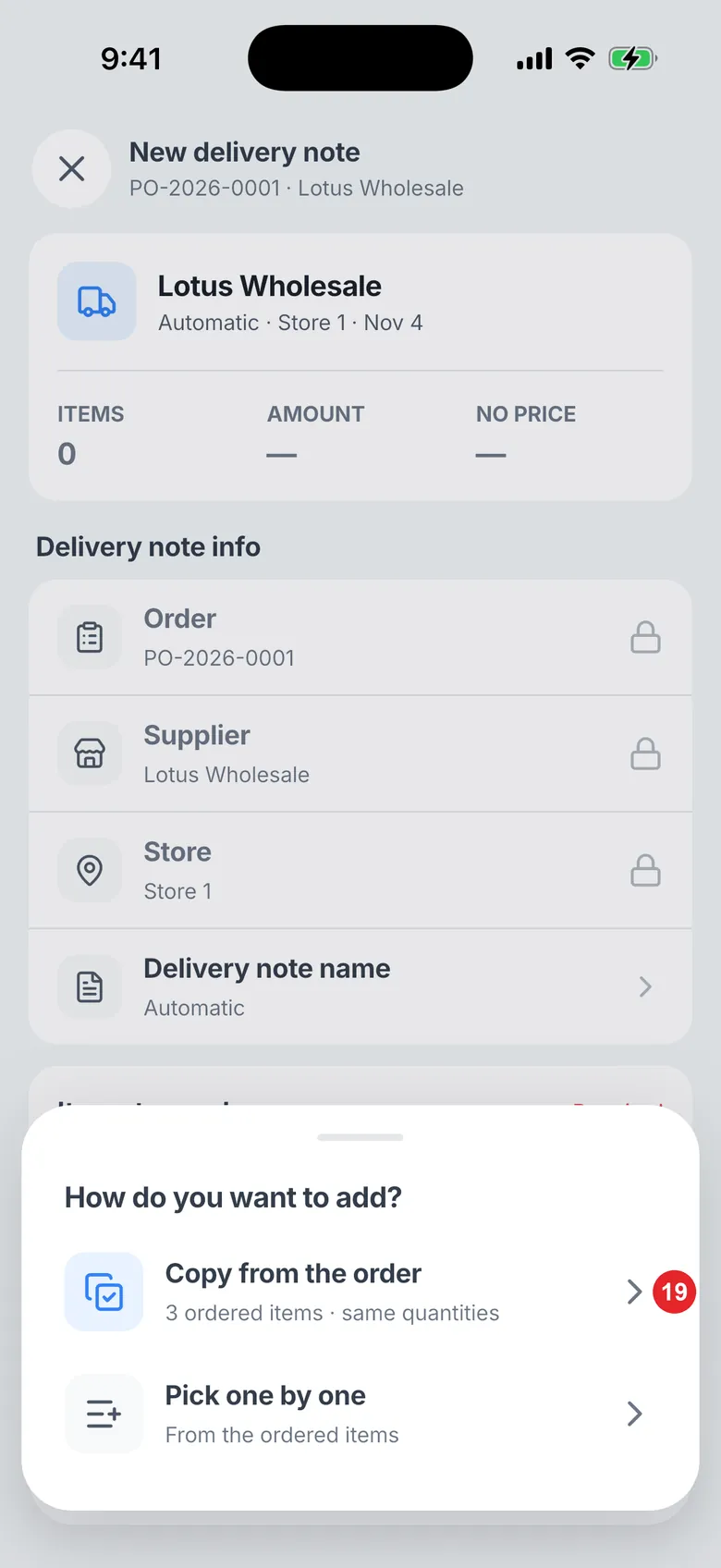
- Tap «Copy from the order». The ordered items and quantities come in as they are.
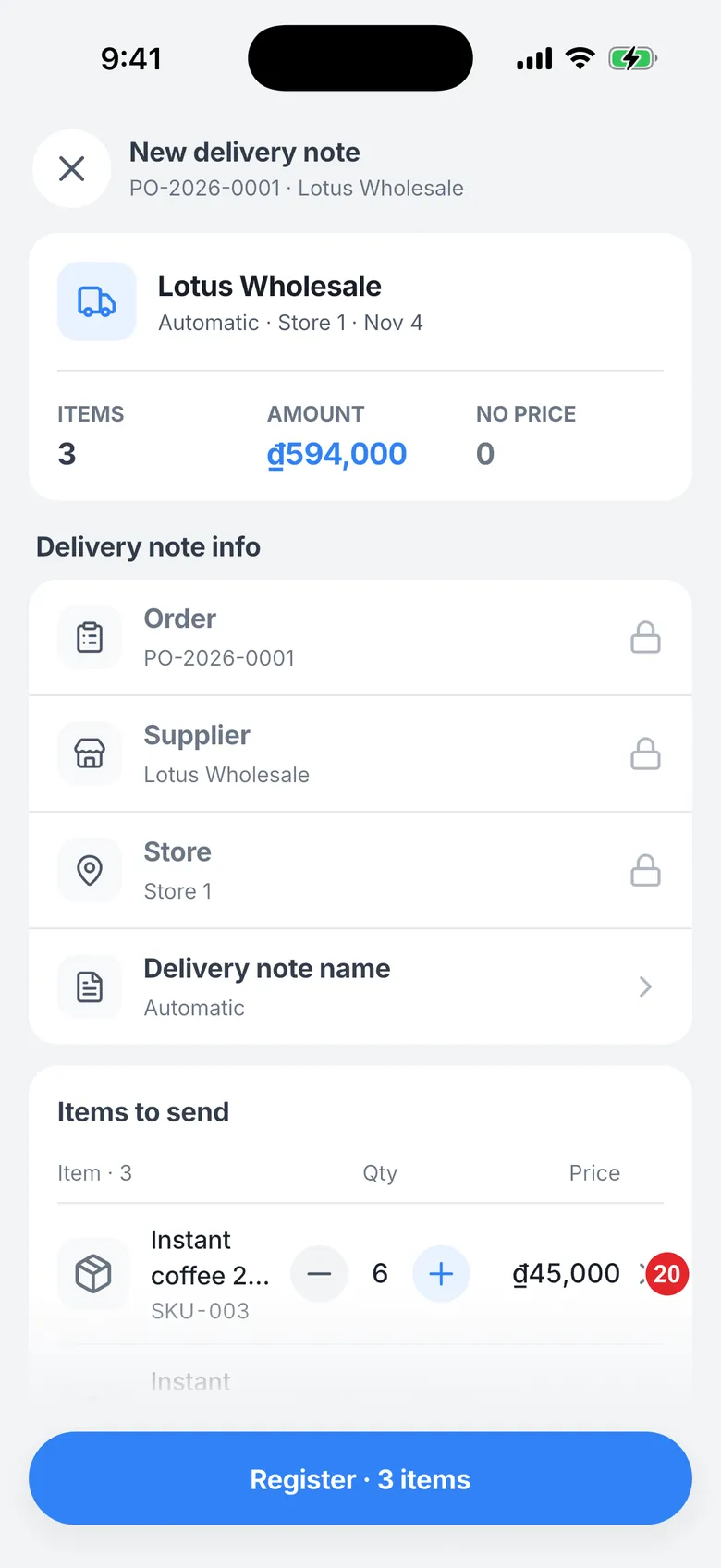
- Under «Items to send», tap a line whose price differs. If a line is hidden, scroll down. The picture below shows the «Instant coffee 20 sachets» line tapped.
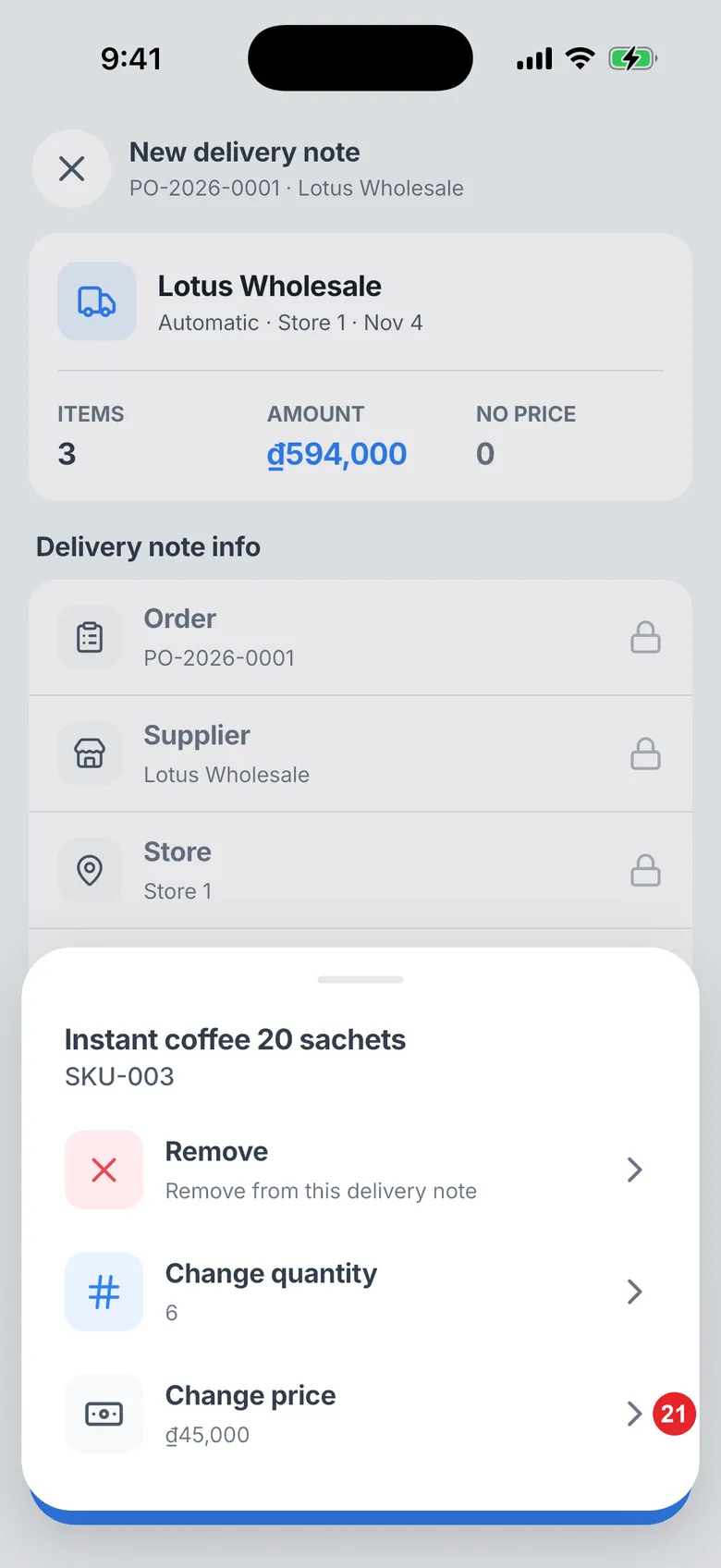
- Tap «Change price». If the quantity differs, tap «Change quantity».
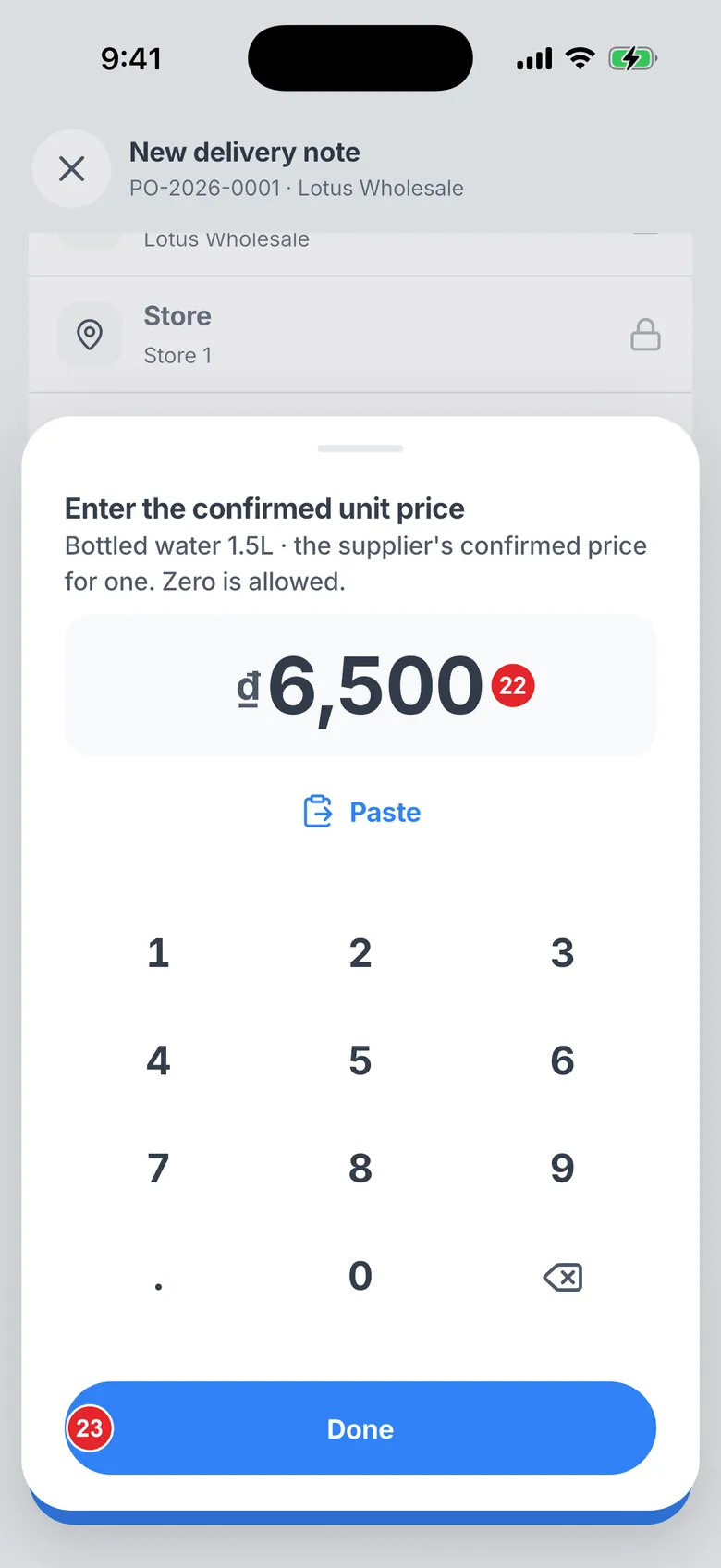
- In «Enter the confirmed unit price», enter the price for 1 item. This picture is another line, «Bottled water 1.5L», at ₫6,500.
- Tap «Done». Do steps 20–23 for each line whose price differs. Here both lines were changed this way: «Instant coffee 20 sachets» to ₫46,000 and «Bottled water 1.5L» to ₫6,500.
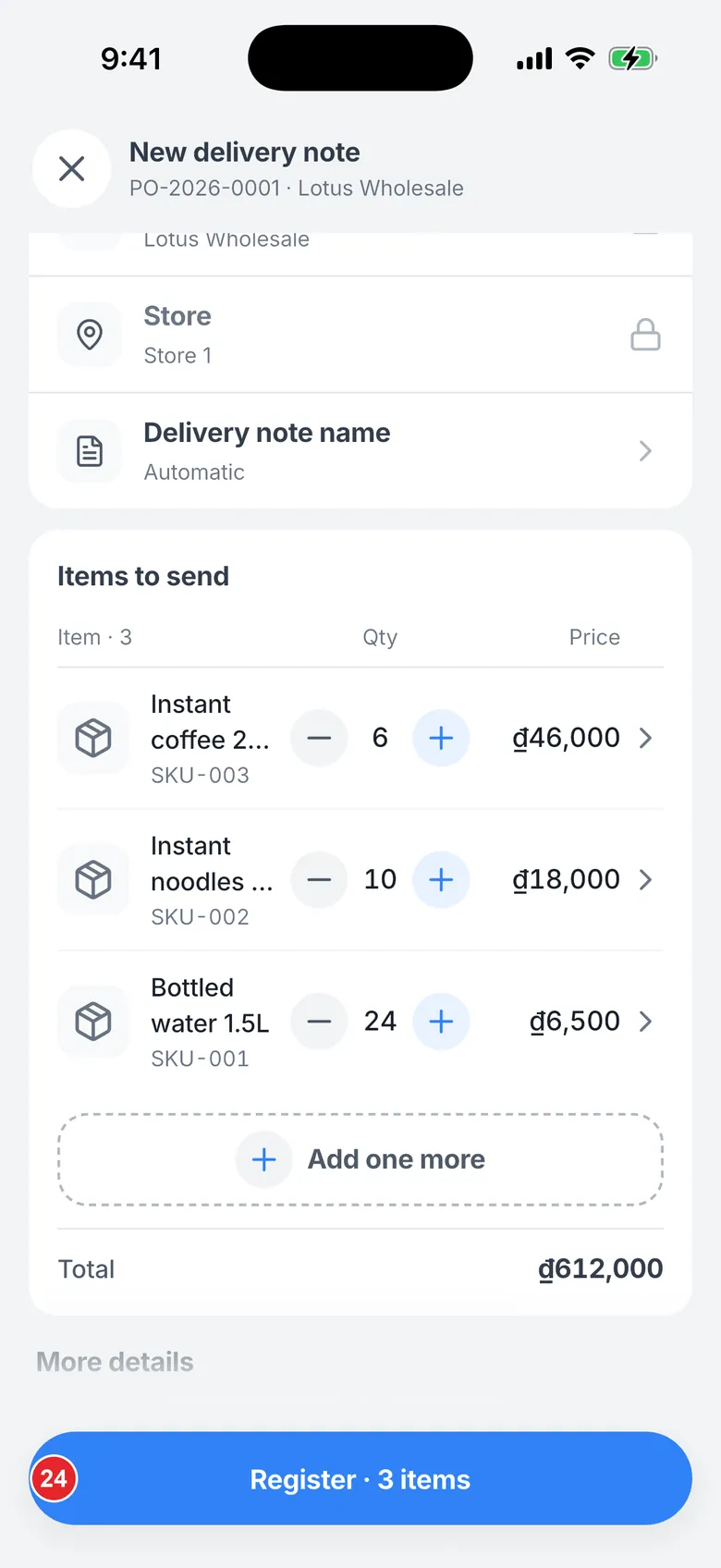
- Check that the «Total» matches the shipment. Here it is ₫612,000. If it does, tap the button at the bottom that shows the number of items, like «Register · 3 items». If a product not on the order came, first tap «Add one more», then «Add a product not on the order».
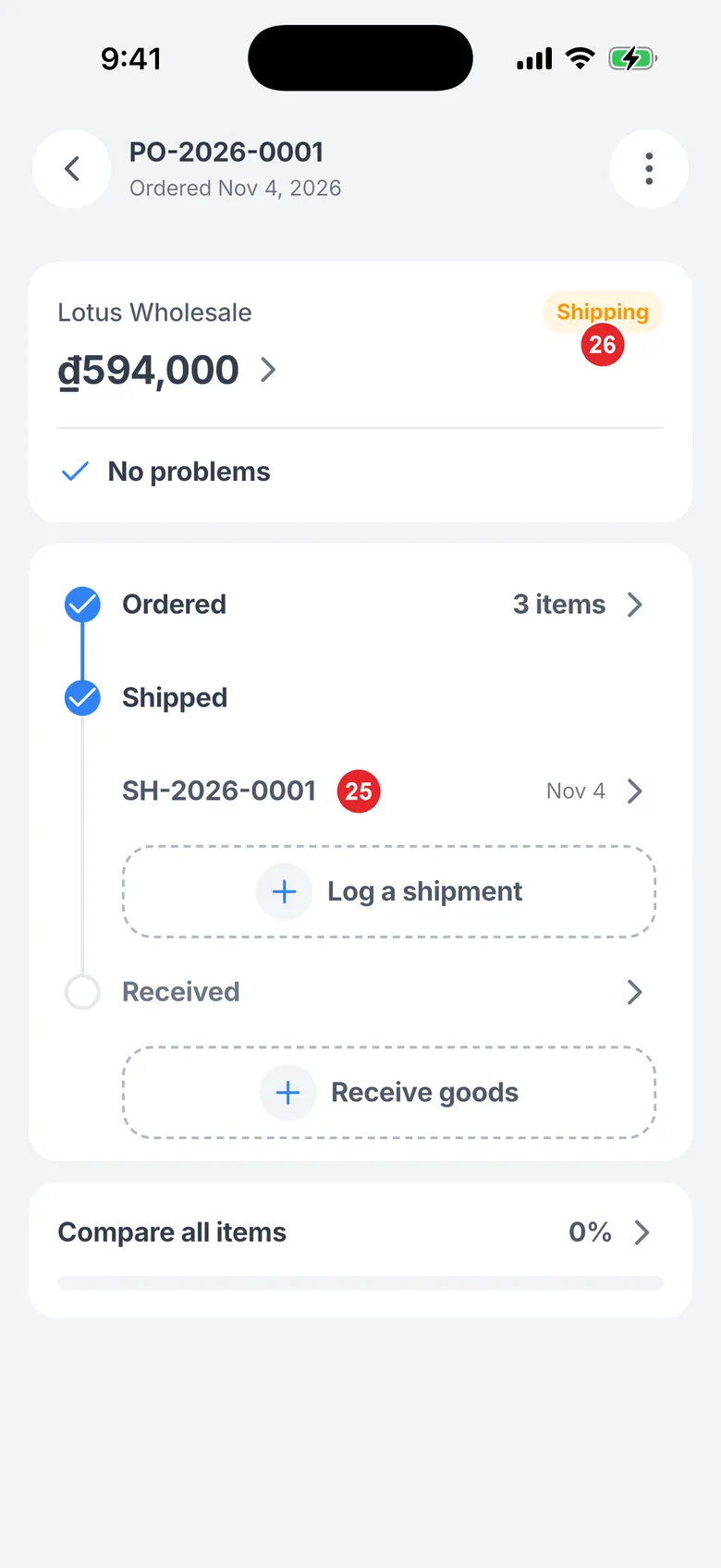
- The shipment's number appears under «Shipped». Here it is SH-2026-0001.
- The order becomes «Shipping».
No shipment received? If the goods have already come, tap «Add a shipment and receive» in «Receive goods». Fill in the same form and tap the button that shows the number of items, like «Start counting · 3», and counting opens right away. For goods that came with no order, see «Receive goods that came without an order».