
Show contents
Profit & loss › Put past costs in their month
Keep a big purchase from sinking that month's profit
- Who
- Owner
- When
- When you buy something you'll use for a long time, like a fridge or an interior fit-out
- Where
- App · Web
What you get
- Enter it with «Add Fixed Asset», and it goes in as a cost (depreciation) split month by month over the time you use it.
- Last month's share goes in by itself on the 1st of the next month, dated the last day of that month. Missed months are filled in going back.
What it solves
- Booking the whole price as a cost of the month you bought it shows a big loss that month and, from the next month, more profit than is real.
Why this way
- The money goes out once on the day you buy, but the cost has to be split over the time you use it for each month's profit to be right.
- Which store's asset does it become? In the app, it goes to the store picked with the store button at the top of Home. That can differ from the «Store» above the «Add Fixed Asset» list, so pick the store on Home first, then add it. On the website, choose it in «Store» in the «New asset» window.
Before you start, pick the store for the asset with the store button at the top left of Home. Here it is «Store 2».
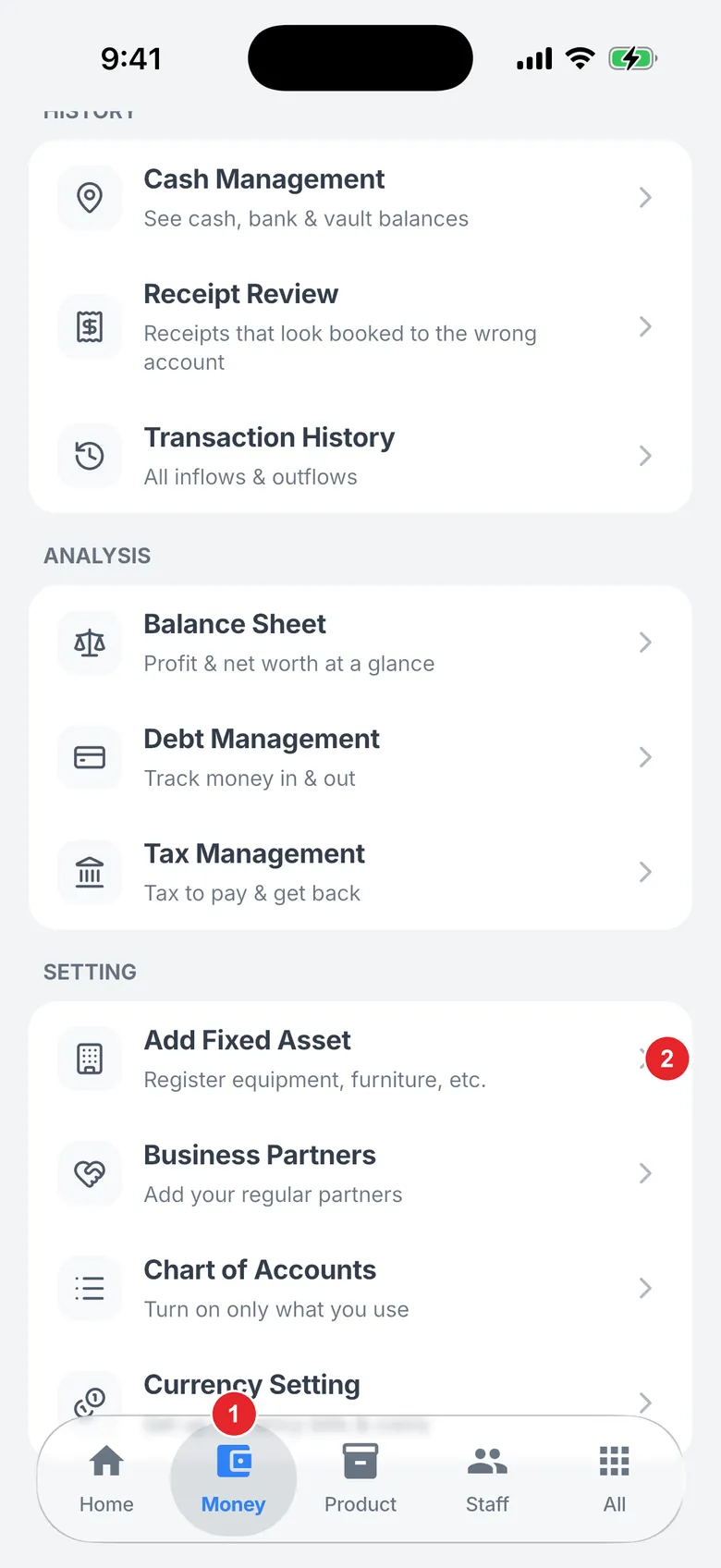
- Tap «Money» at the bottom of the app.
- Scroll down and, under «SETTING», tap «Add Fixed Asset».
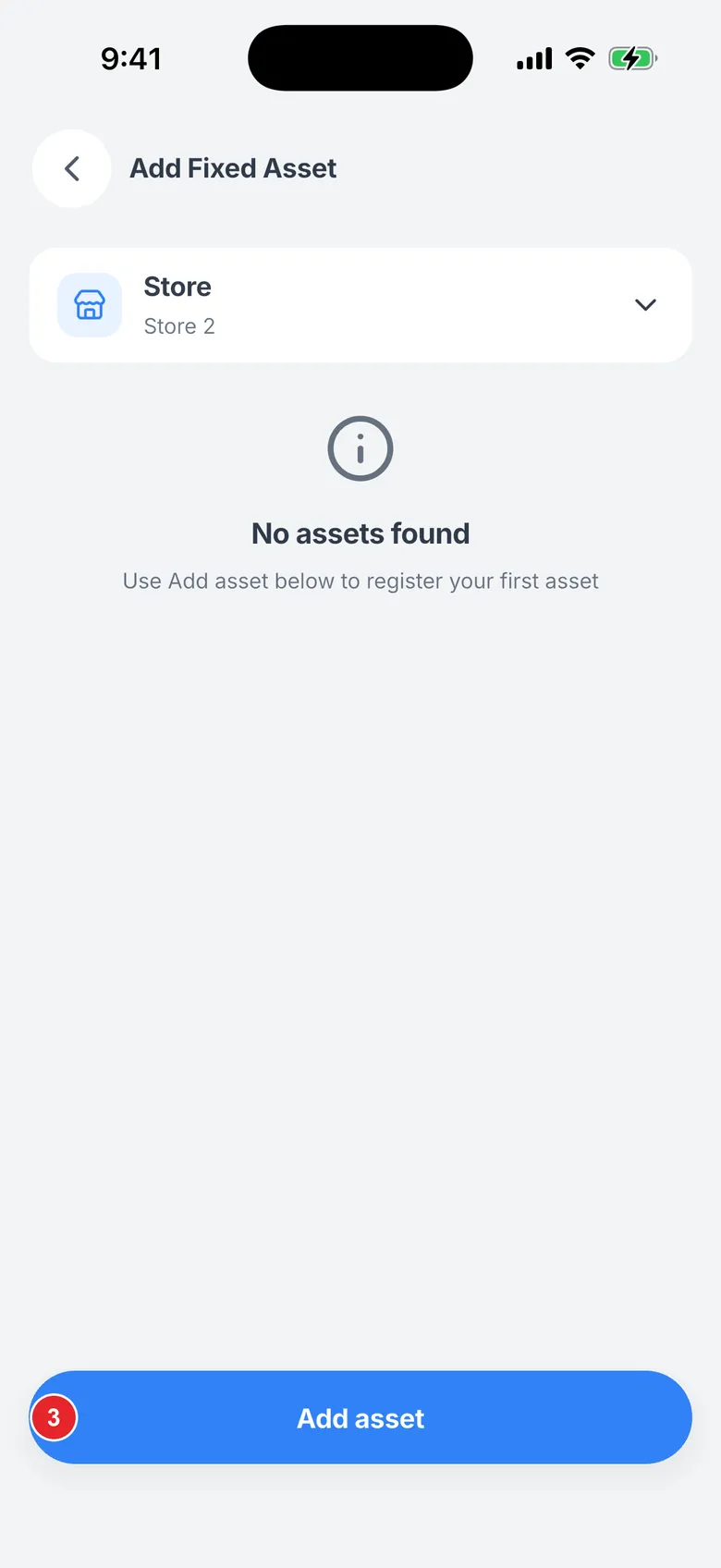
- Close the guide that appears the first time with «Skip» and tap «Add asset». A new asset goes to the store you picked on Home, not to «Store» on this screen. With «All stores», it asks which store first.
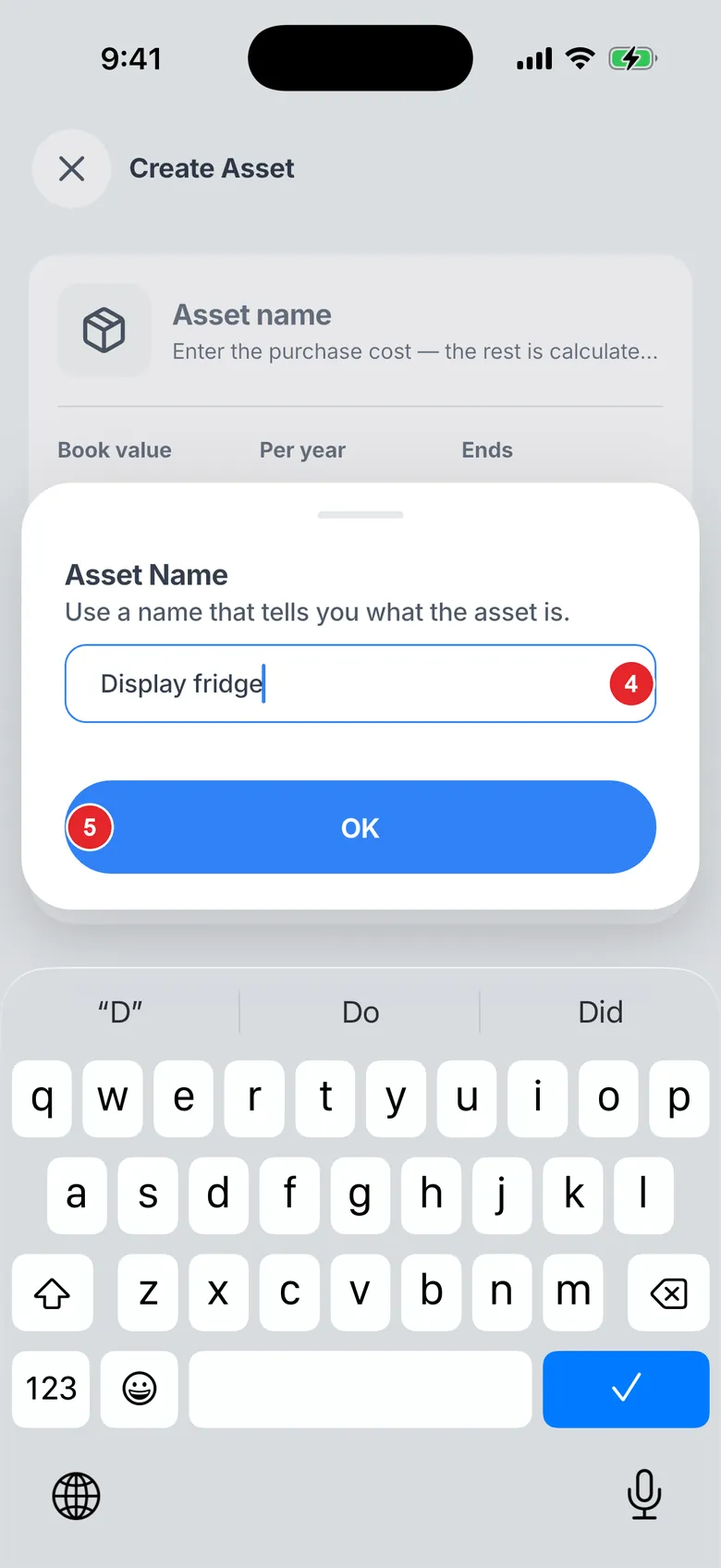
- If it is your first time, another guide appears. Close it with «Skip», tap the «Asset Name» row and enter a name you will recognize. Here it is «Display fridge».
- Tap «OK».
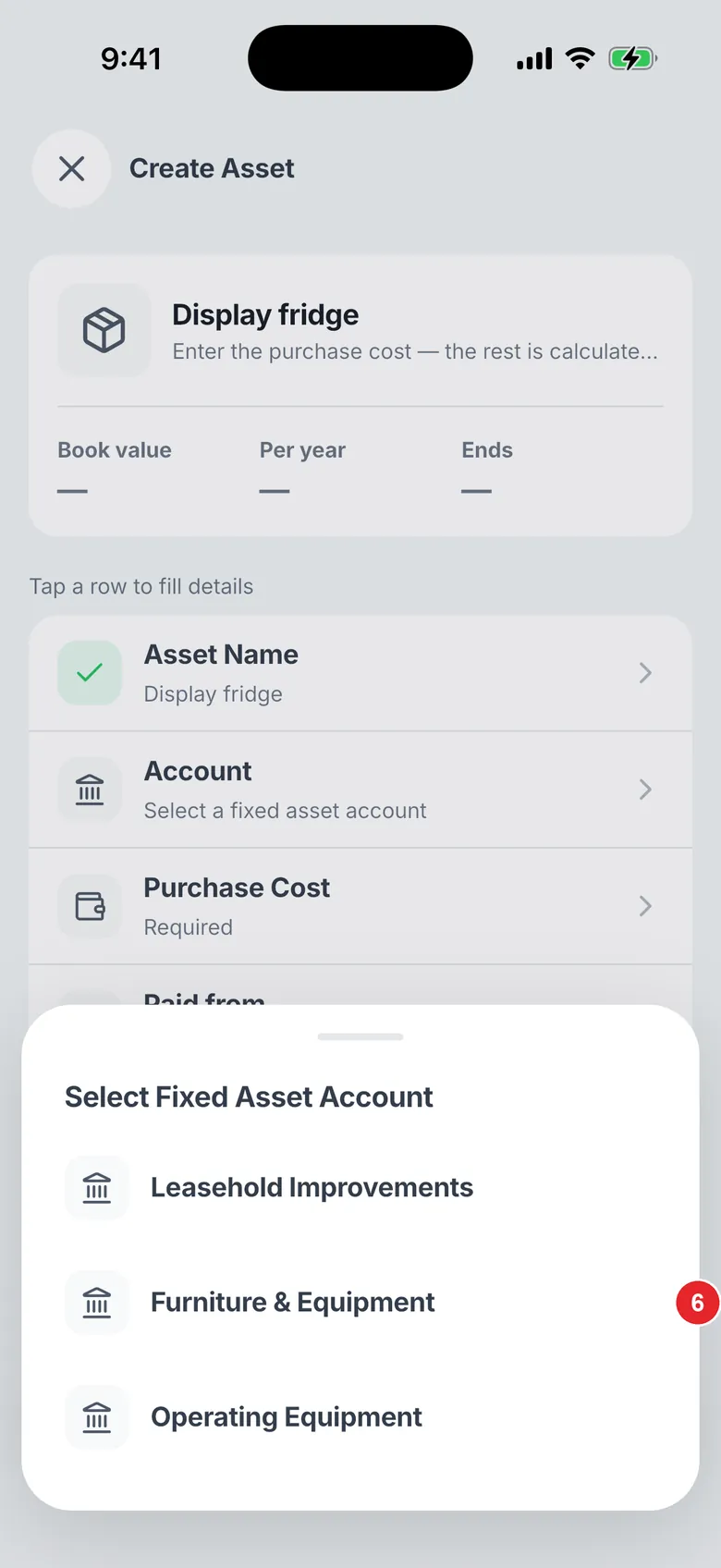
- Tap the account row and, in «Select Fixed Asset Account», tap the type. Here it is «Furniture & Equipment».
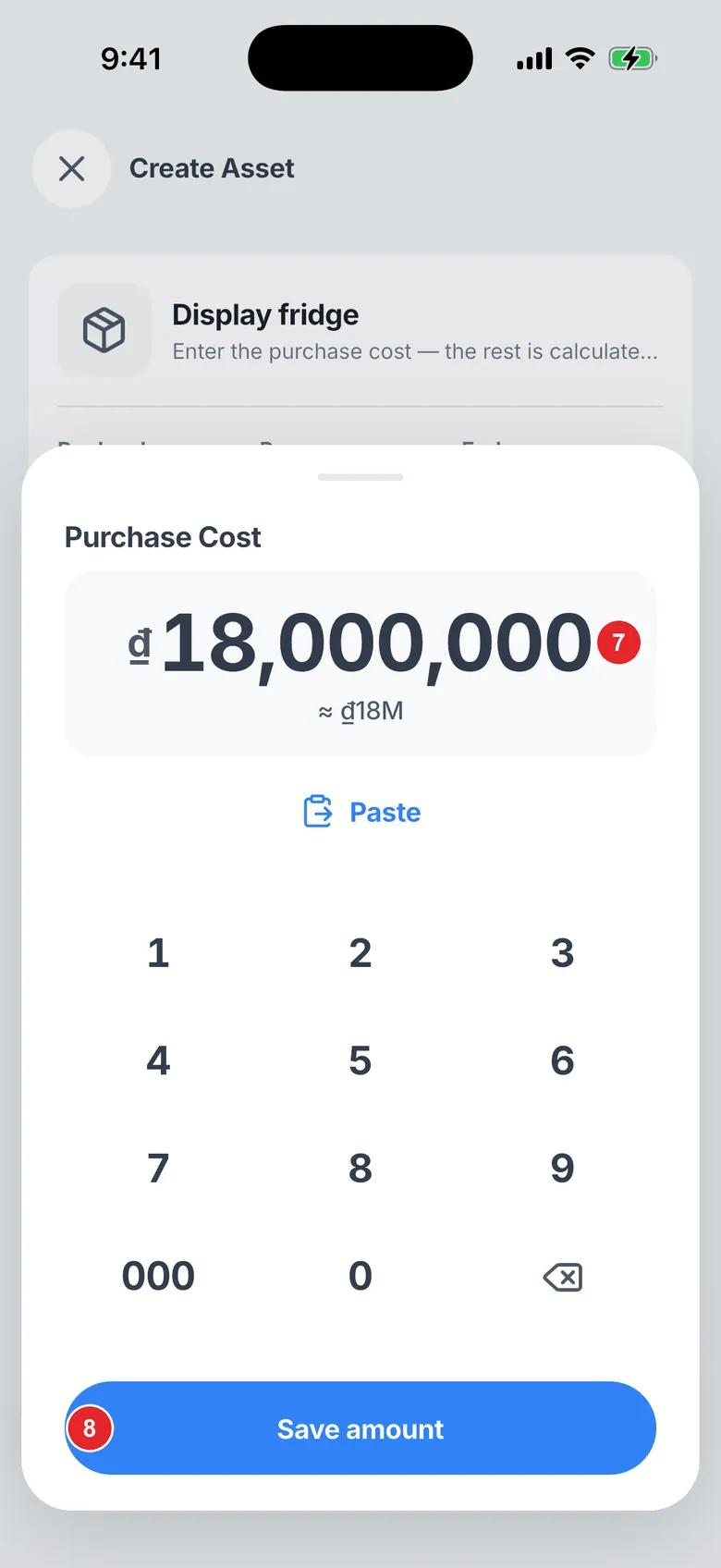
- Tap the «Purchase Cost» row and enter what you paid. Here it is 18,000,000.
- Tap «Save amount».
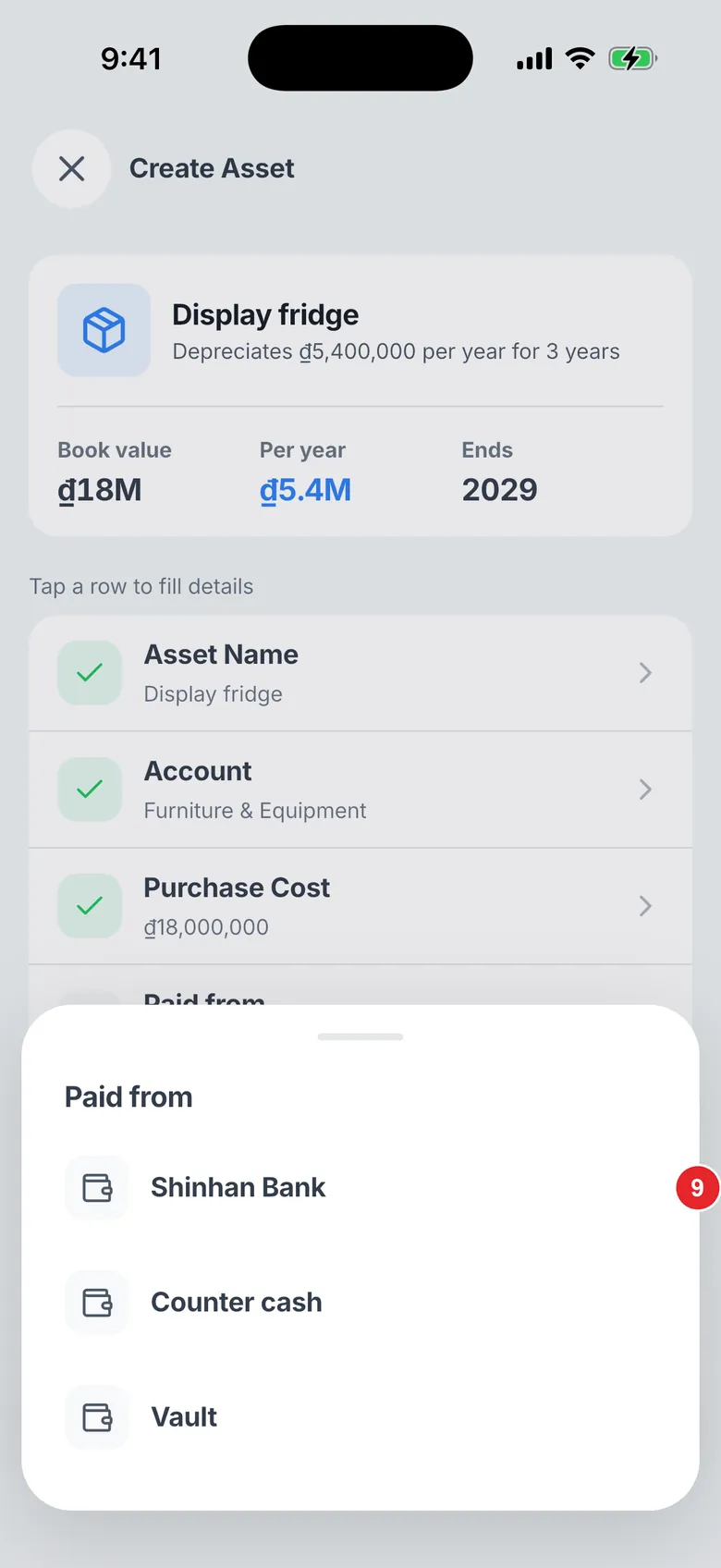
- Tap the «Paid from» row and tap where the money went out from. Here it is «Shinhan Bank».
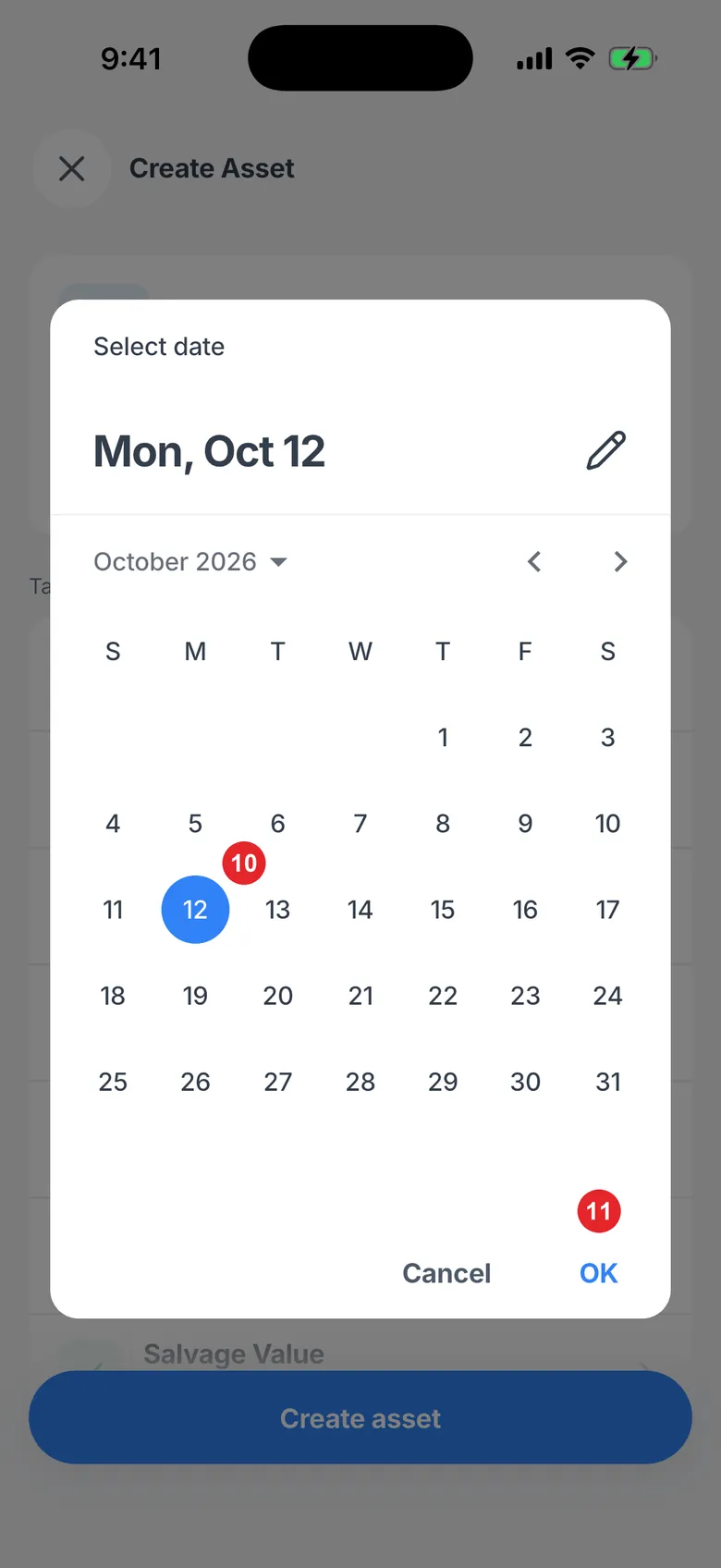
- Tap the «Purchase Date» row and choose the day you bought it. Here it is Oct 12. If you bought it last month, choose a date last month.
- Tap «OK».
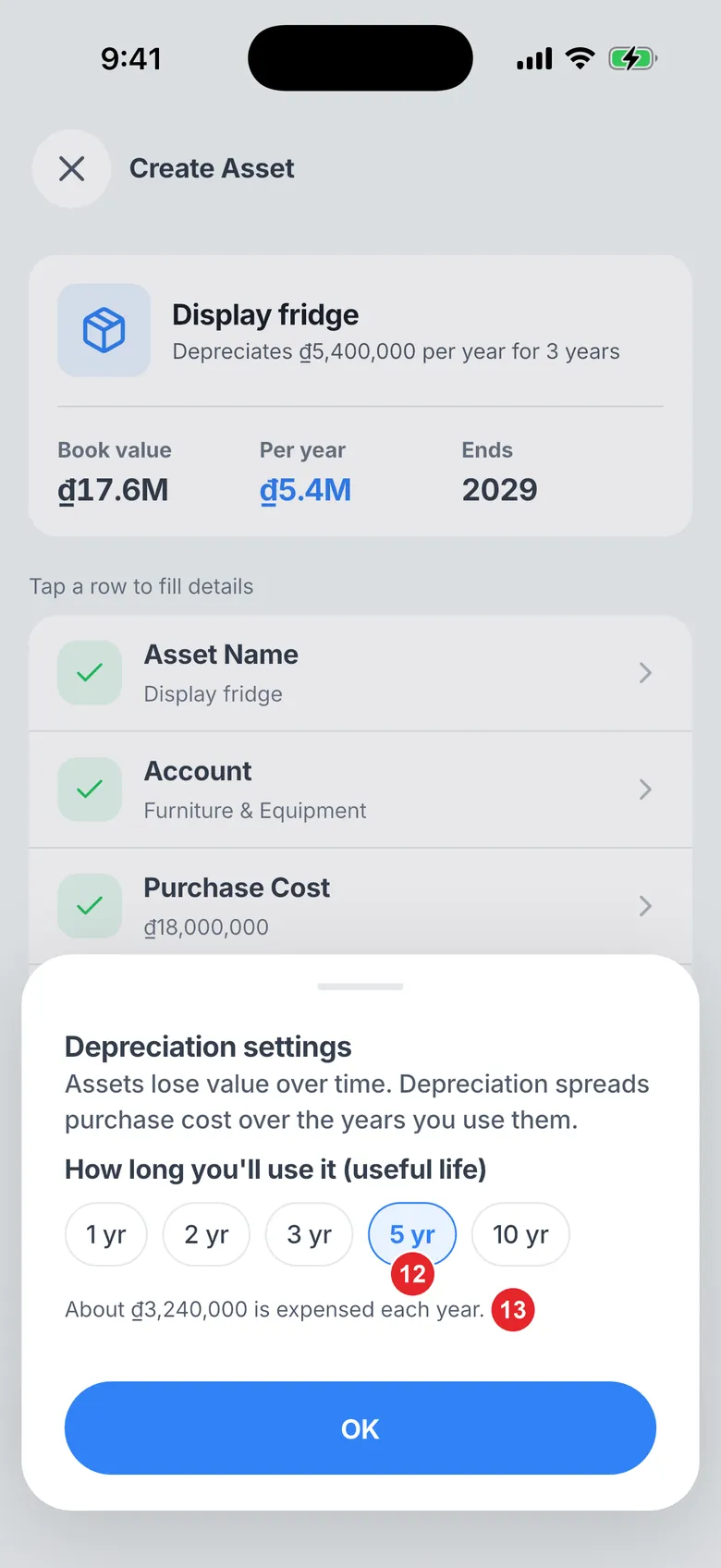
- Tap the «Depreciation period» row and, under «How long you'll use it (useful life)», tap the number of years. Here it is «5 yr».
- In «About ₫3,240,000 is expensed each year.», see the amount that becomes a cost each year. Tap «OK» and the numbers on the card above change to fit 5 years.
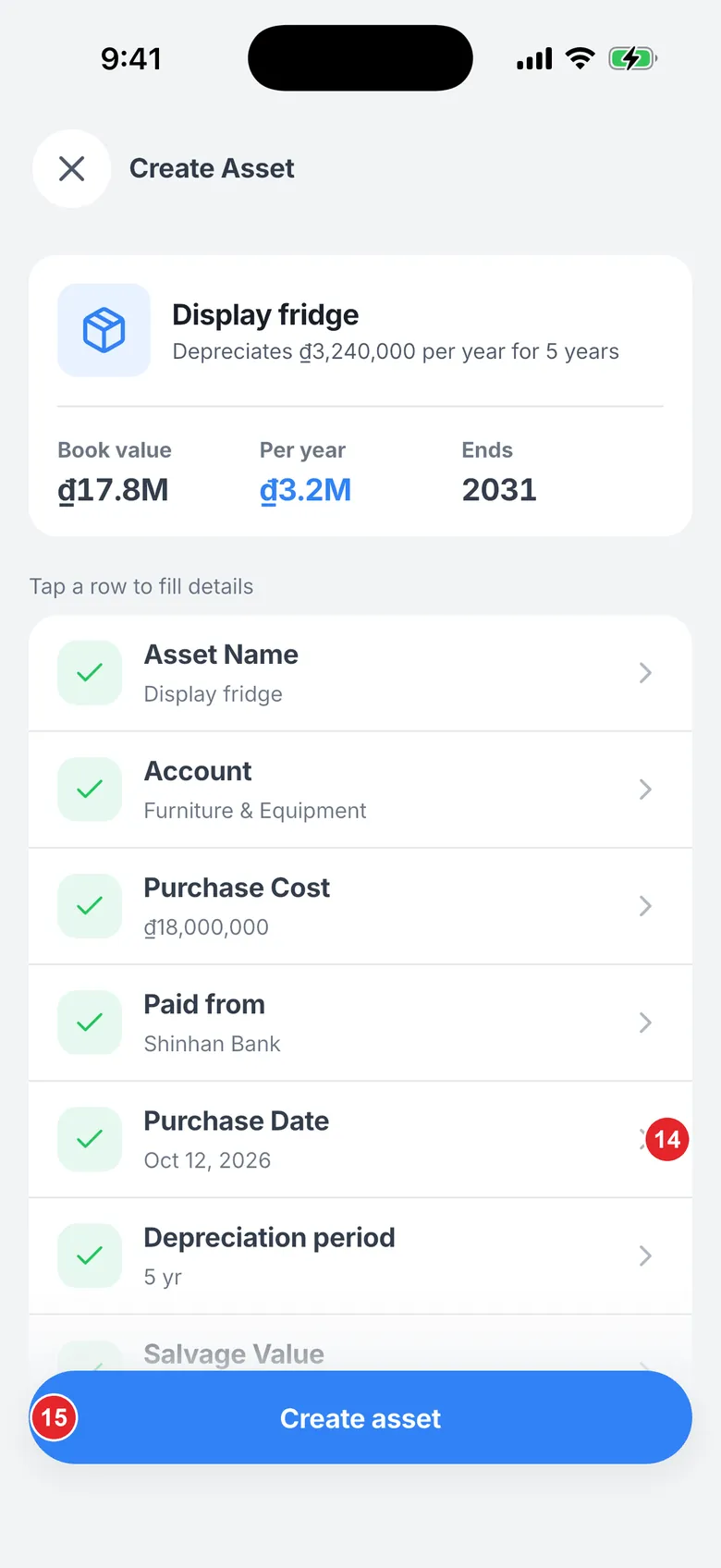
- Check that «Purchase Date» is Oct 12, 2026. «Salvage Value» is what the item is still worth when you finish using it. It fills in by itself at 10% of the purchase cost, so the cost each year is the purchase cost minus this, divided by 5 years: ₫3,240,000.
- Tap «Create asset».
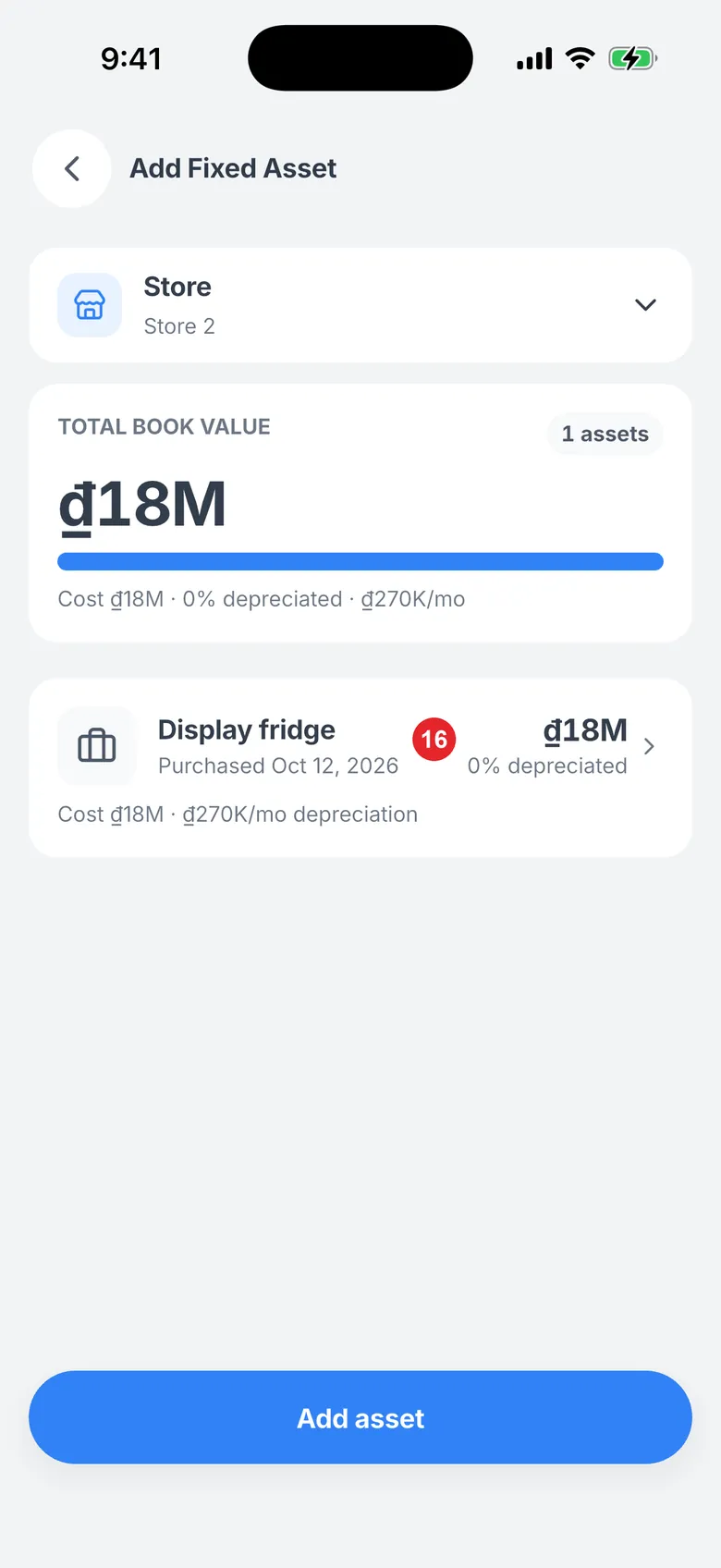
- «Display fridge» is now in the list, with ₫270K a month of depreciation. This amount becomes a cost on the 1st of the next month, dated the last day of the month before.
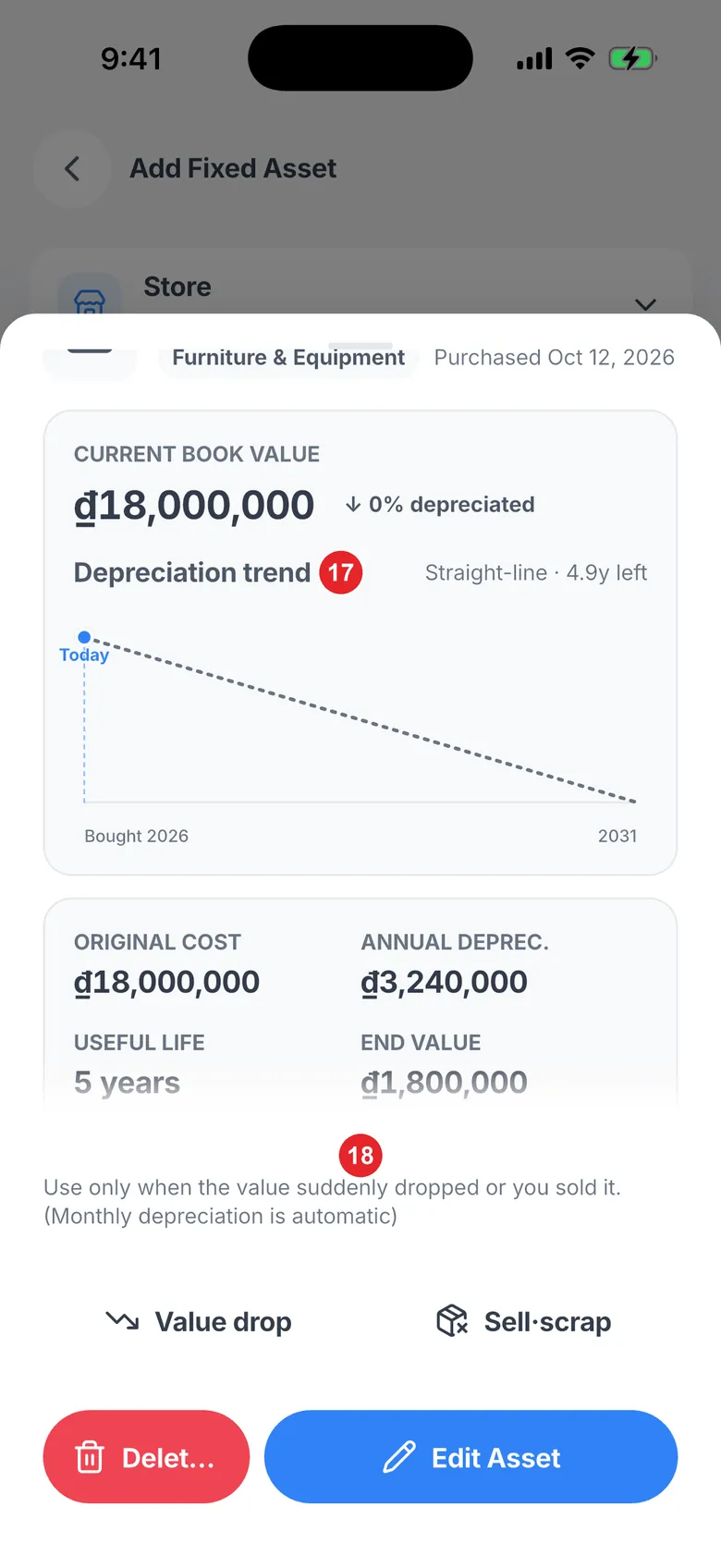
- Tap the asset, and «Depreciation trend» shows the book value going down year by year.
- The «Value drop» and «Sell·scrap» buttons below are only for when the value suddenly dropped or you sold it. Monthly depreciation goes in by itself.