
Show contents
Debts › Money to receive
Collect credit payments
- Who
- Owner · Manager
- When
- When a partner who bought on credit brings the money or sends it to your account
- Where
- App · Web
What you get
- The money that partner owes goes down by what you received, and the place that received it goes up, so you see the credit left right away.
- Even if you are paid in parts, enter only the amount received, and the rest stays in «Debt Management».
What it solves
- If you receive credit money and enter it as sales again, the sales made when you sold on credit are counted twice.
- If you don't record the money received, the drawer or bank account has more money than the books, and the partner still shows as not having paid.
Why this way
- There is no sales line: only the money owed goes down and only the receiving place goes up, so sales count once, on the day you sold.
- Can I check it's right before recording? On the screen before recording, check that the money owed goes down and the receiving place goes up. There is no sales line.
- What if I received it into another store's cash location? The website shows the cash locations of both stores, and if you choose one from another store, «… items of … are settled with a store-to-store record.» shows.
- What if the money owed didn't go down on the website? If you choose «It is a new loan I took» in «What is this money?», the money owed doesn't go down. Keep «They paid back what they owe».
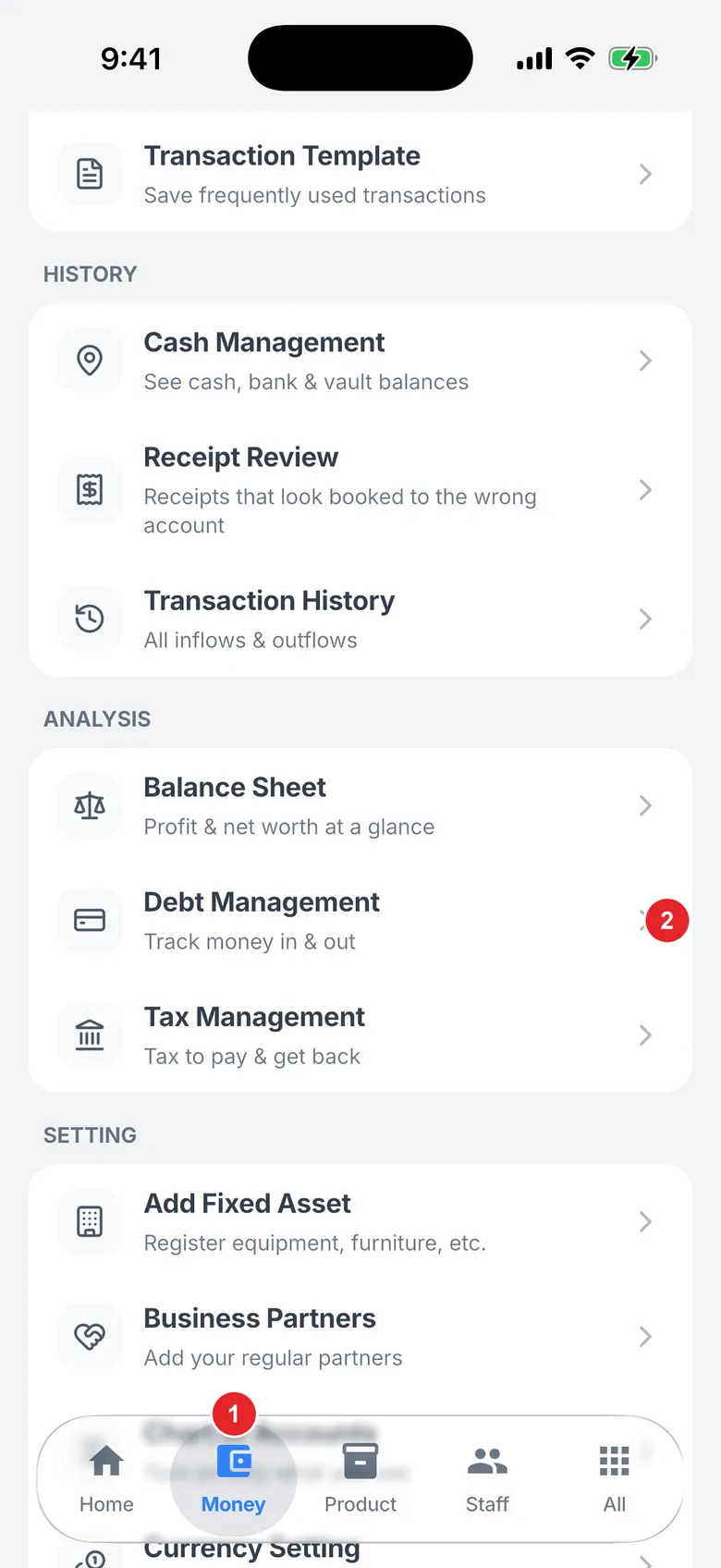
- Tap «Money» at the bottom of the app.
- Scroll down and, in «All features», tap «Debt Management».
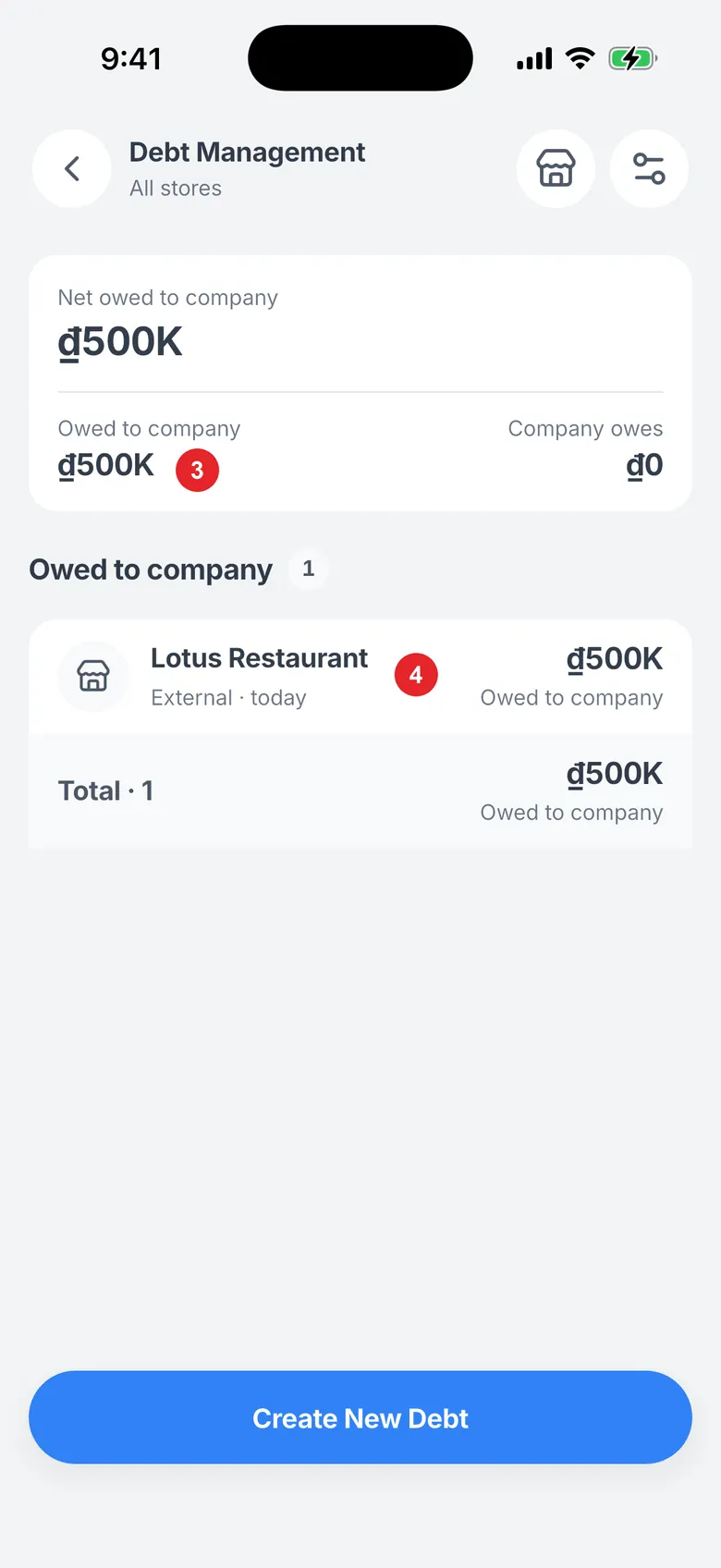
- «Owed to company» shows the total that partners owe you.
- Tap the partner who paid you. Here «Lotus Restaurant» owes ₫500K.
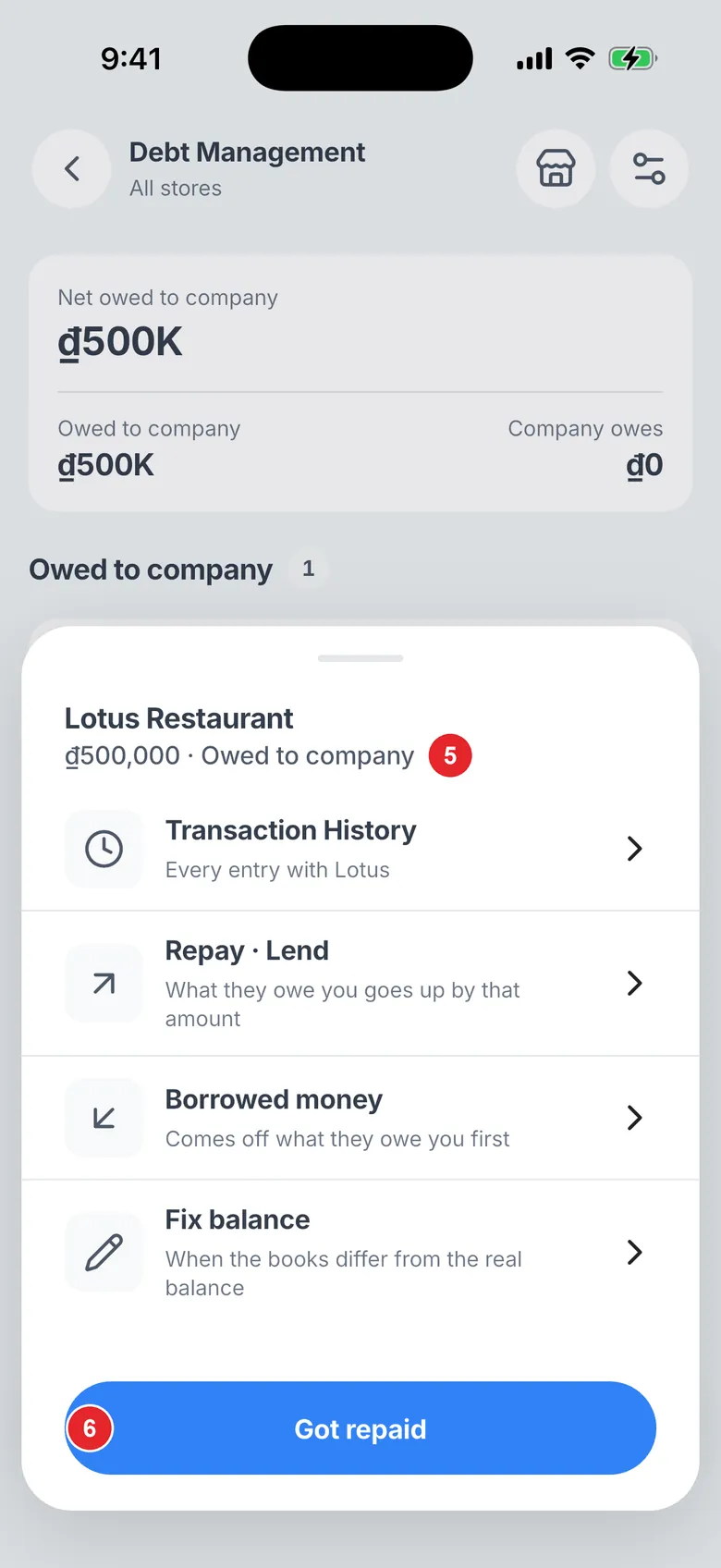
- The money this partner owes you shows.
- Tap «Got repaid».
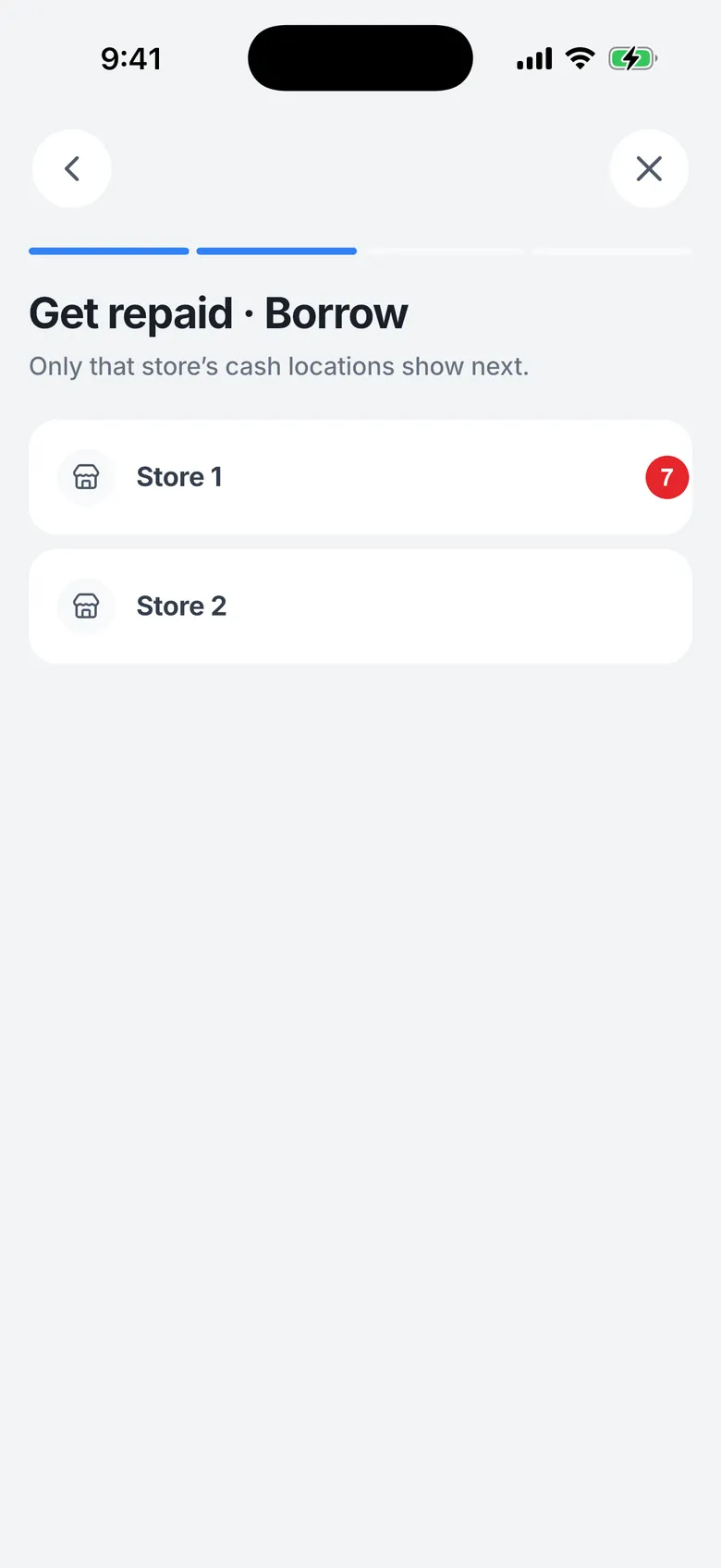
- Tap the store that received the money. Only the chosen store's places show next.
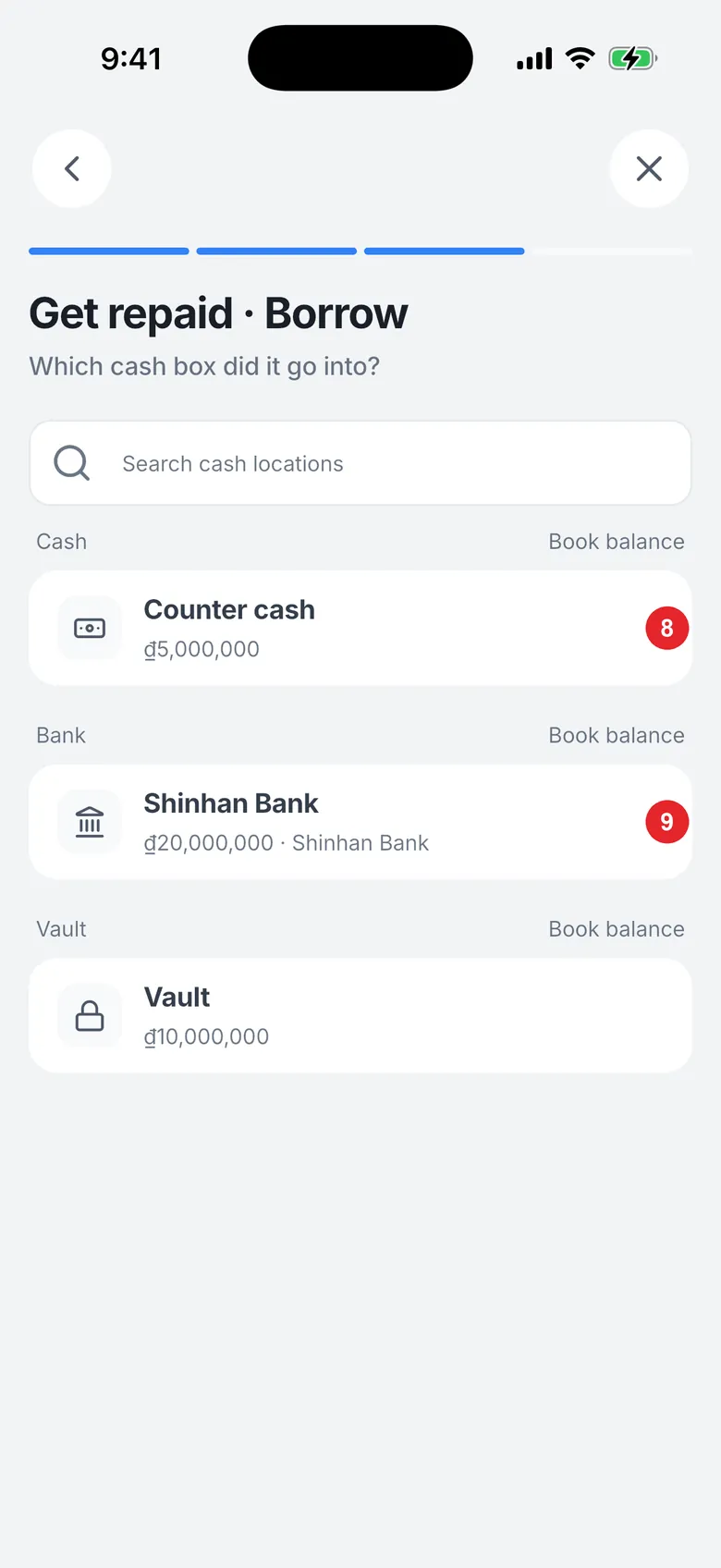
- If you received it in cash, tap «Counter cash».
- If you received it by bank transfer, tap the bank account.
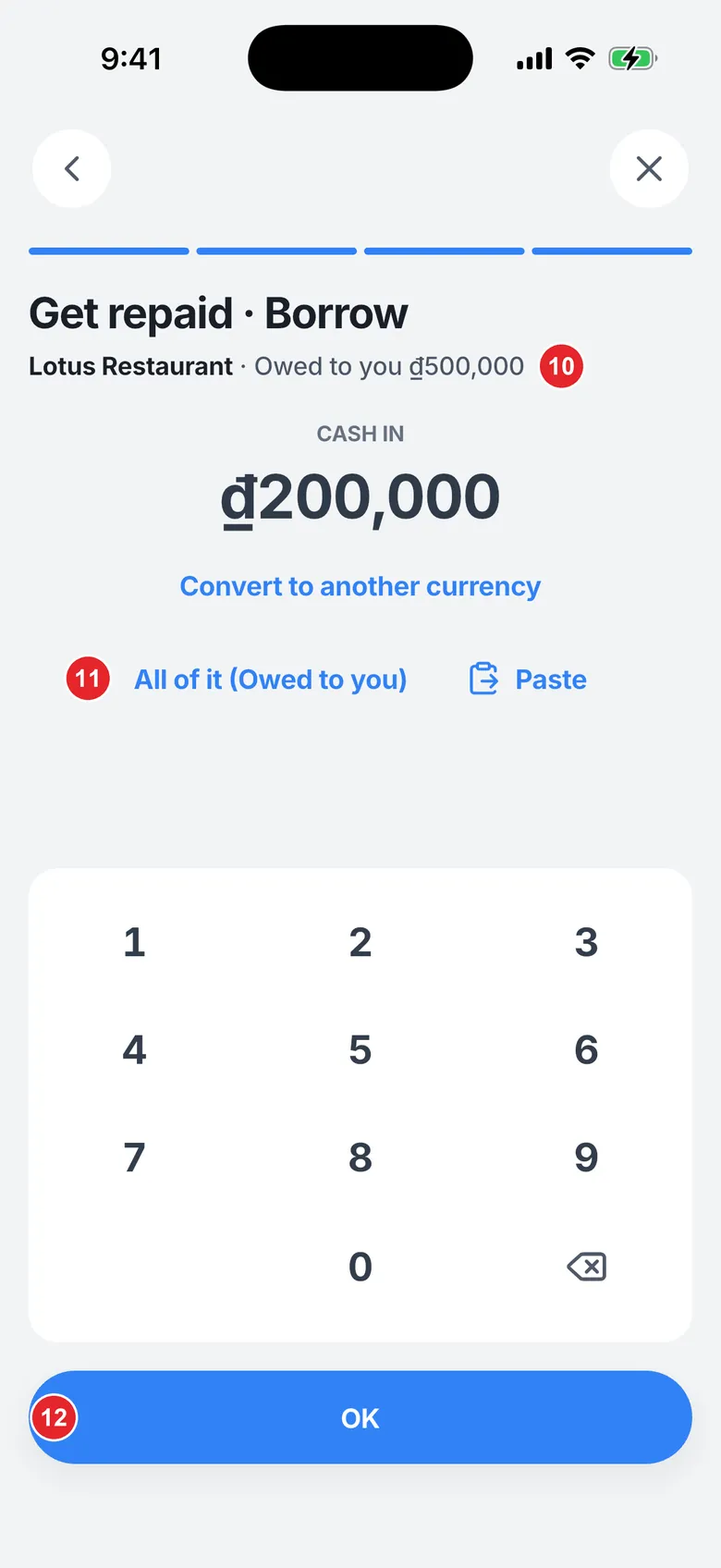
- The money owed now shows at the top.
- If you received all of it, tap «All of it (Owed to you)». If you received only part, enter the amount received. Here it is ₫200,000.
- Tap «OK».
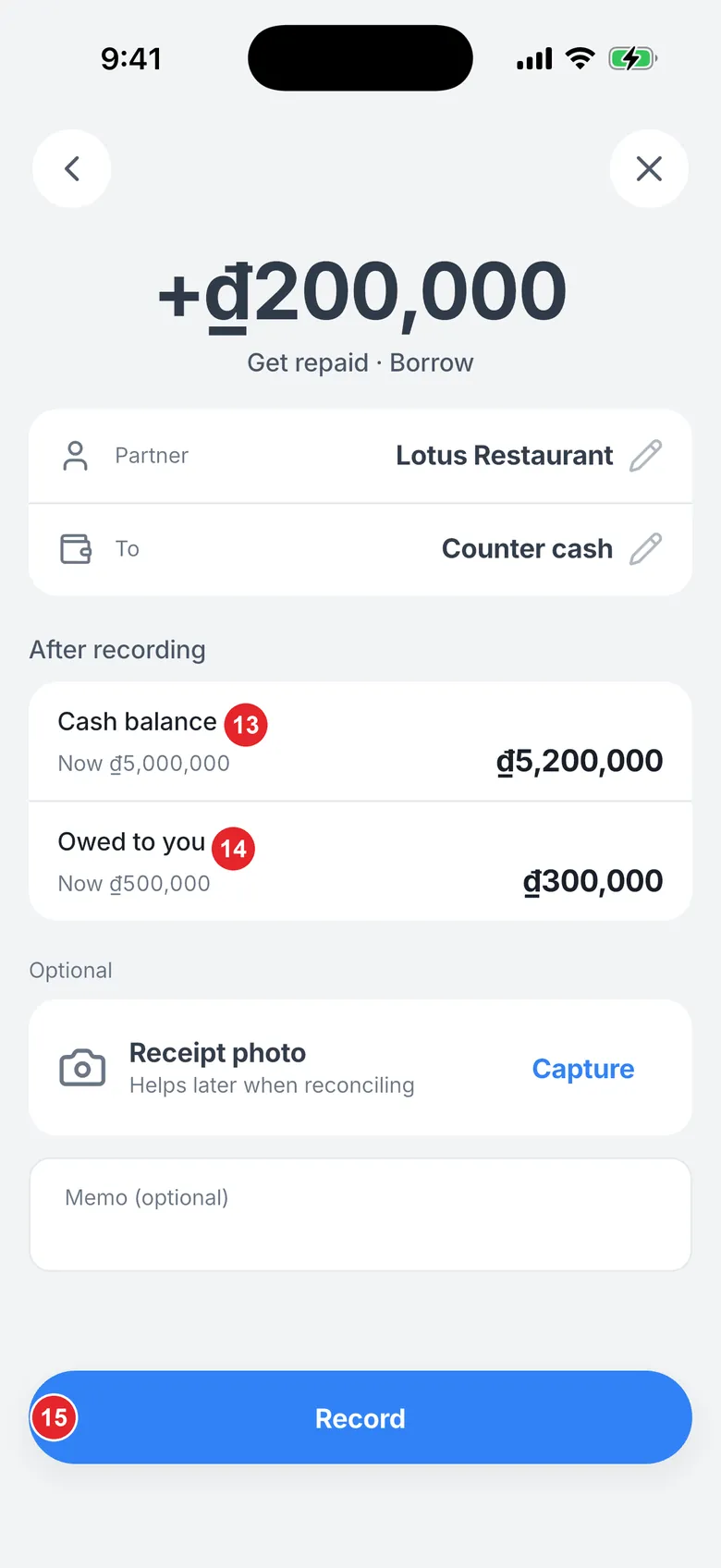
- Under «After recording», «Cash balance» is the place that received the money. It goes up by ₫200,000.
- «Owed to you» goes down from ₫500,000 to ₫300,000. There is no sales line.
- If it is right, tap «Record».
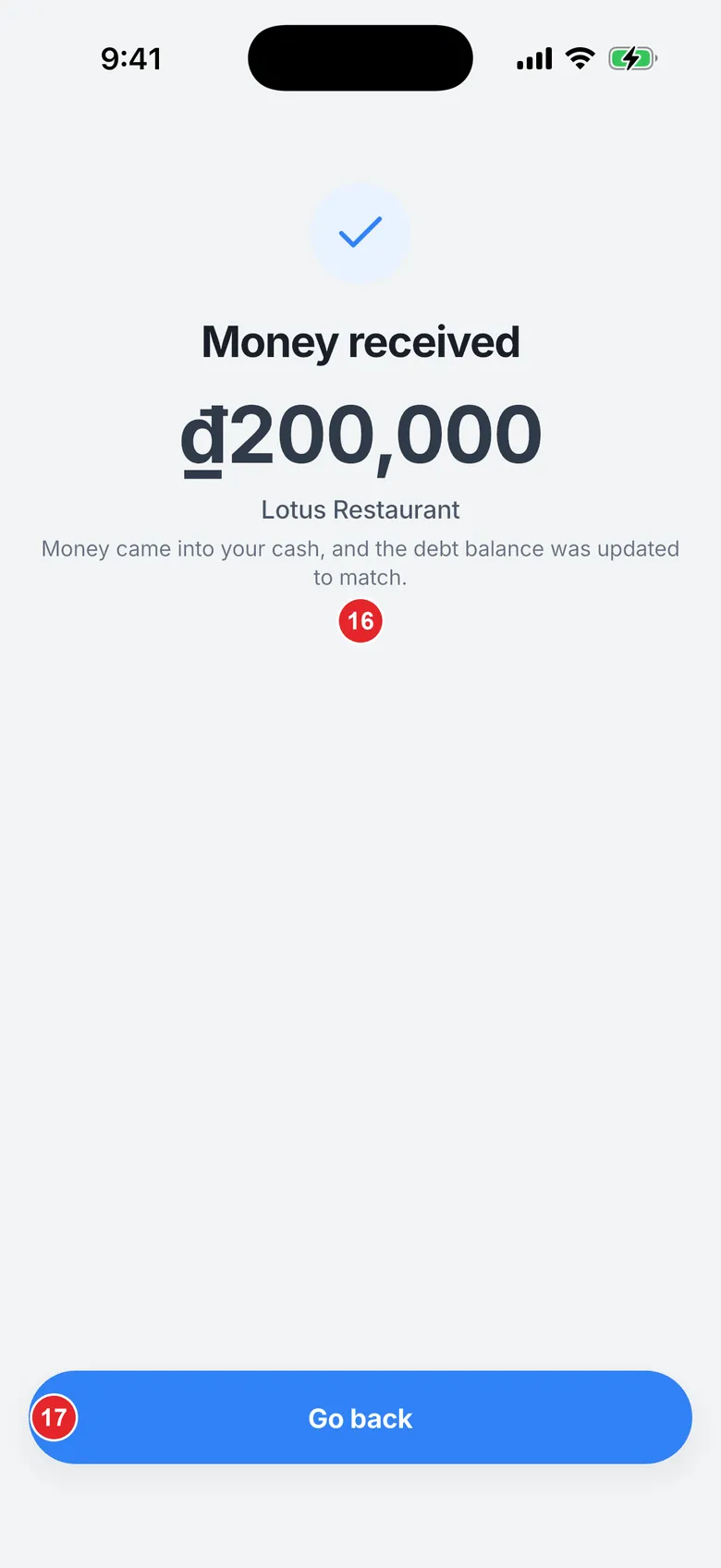
- «Money came into your cash, and the debt balance was updated to match.» shows.
- Tap «Go back».
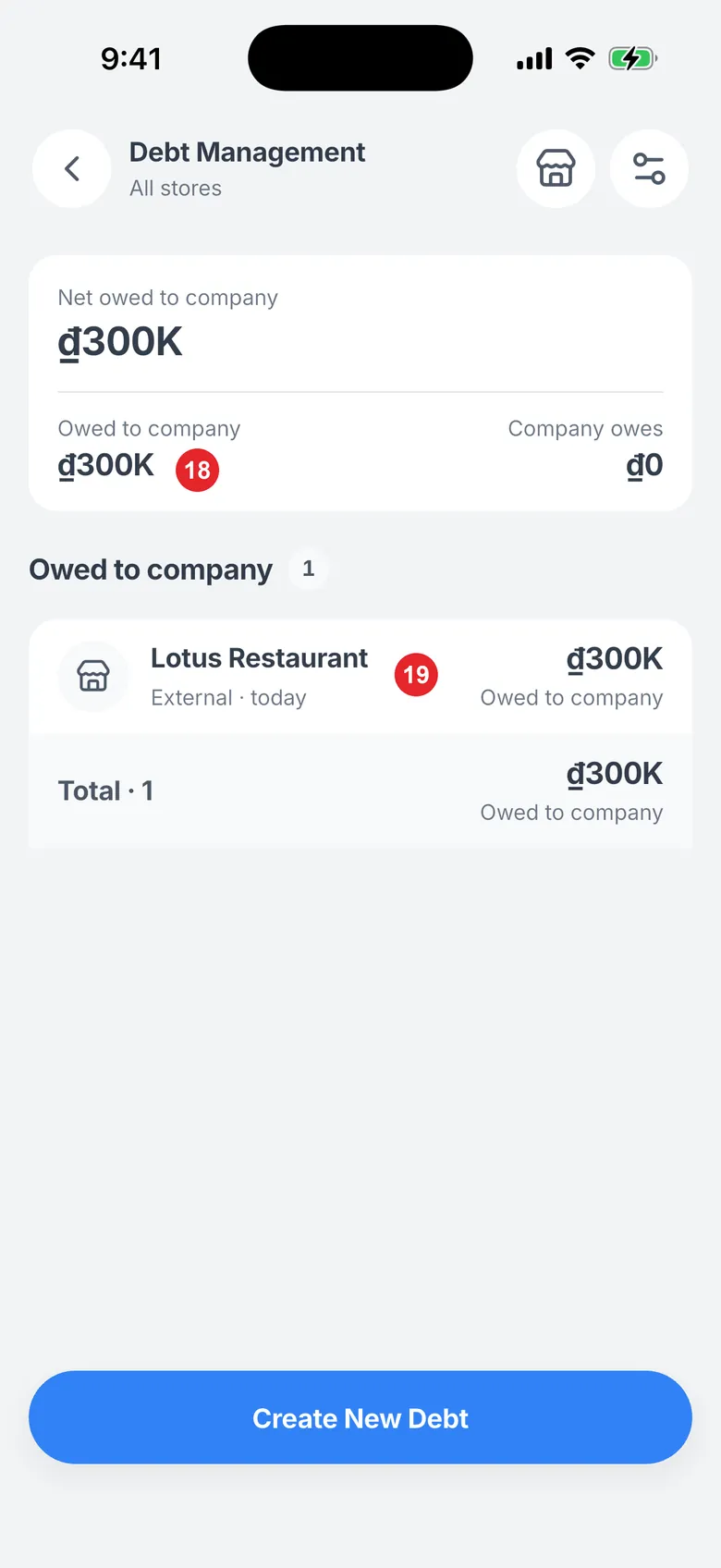
- «Owed to company» has gone down to ₫300K.
- The ₫300K still owed stays on the «Lotus Restaurant» row.
When money from a credit sale comes in, choose that partner in «Debt Management» and record it. The money that partner owes goes down by what you received, and the place the money came into goes up: «Counter cash» for cash, the bank account for a bank transfer. The sales were already counted when you sold on credit, so they don't go up again.
Remember
- You can be paid in parts. Enter only the amount received, and the rest stays in «Debt Management».
- See the money still owed by each partner in «Debt Management». Once everything is paid, «No debt records» shows (website «No debts yet»).
- On the screen before recording, check that the money owed goes down and the receiving place goes up. There is no sales line.
How the app and the website differ
- The app has you choose a store first and shows only that store's cash locations. The website shows the cash locations of both stores in one list. If you choose one from another store on the website, «… items of … are settled with a store-to-store record.» shows.
- The app's «Get repaid · Borrow» clears the money owed first, and anything over becomes money borrowed. On the website, choose «They paid back what they owe» in «What is this money?». If you choose «It is a new loan I took», the money owed doesn't go down.
- The names differ when you start outside «Debt Management». In the app: «Record transaction» › «Quick entry» › «Money in» › «Get repaid · Borrow». On the website: «Create Transaction» › «Quick entry» › «Money in» › «Collect payment».