
Show contents
Inventory › Product setup
See what your stock is worth
- Who
- Owner · Manager
- When
- Any time, at month end
- Where
- App
What you get
- «Total on hand» and «Total value» show above the product list.
- For each product, «Cost trend» shows «On hand» and «Stock value» per store.
- When you count stock, «Total inventory value» shows before you submit how much will change.
What it solves
- You don't know how much money sits in stock, so you order the same product again.
- You have to work out each store's stock value one by one.
Why this way
- Stock isn't cash until you sell it. Knowing how much has piled up tells you whether to order less or more.
- What value is stock counted at? At cost (what you paid). Stores with automatic cost use the store's average cost.
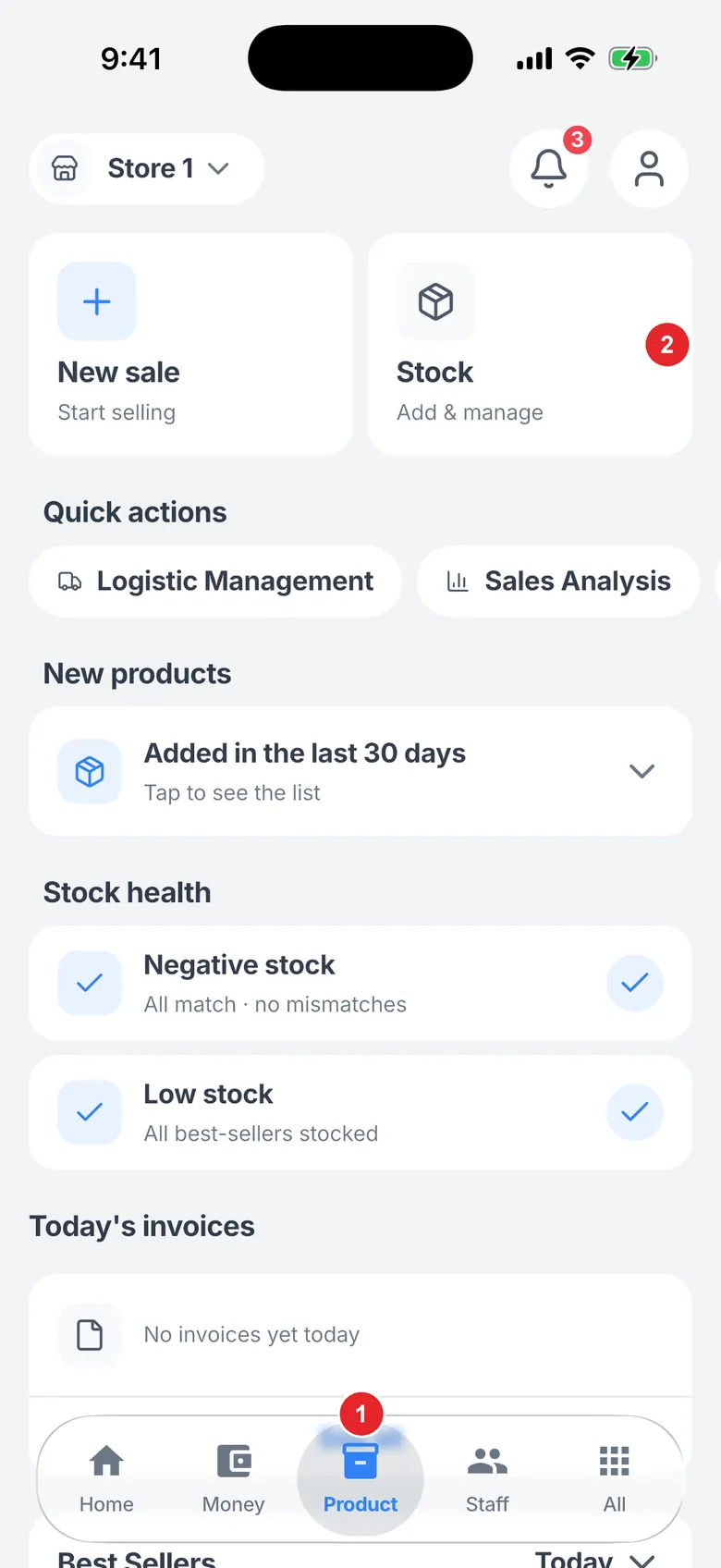
- Tap «Product» at the bottom of the app.
- Tap the «Stock» card.
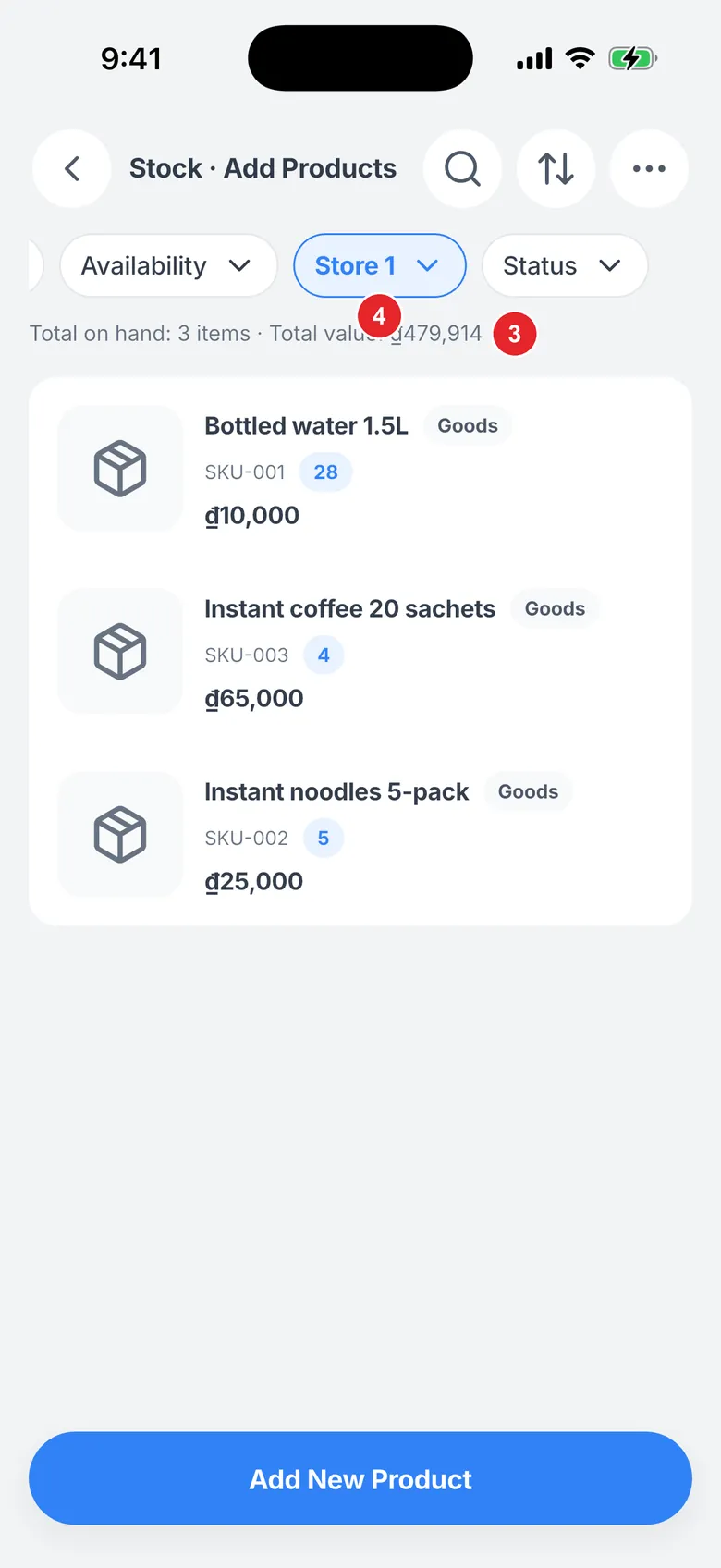
- Above the list, the number of products and the stock amount show, like «Total on hand: 3 items · Total value: ₫479,914».
- When the store filter in the row of filters above the list reads «Store 1», only Store 1's stock is counted. Slide the row sideways to find it.
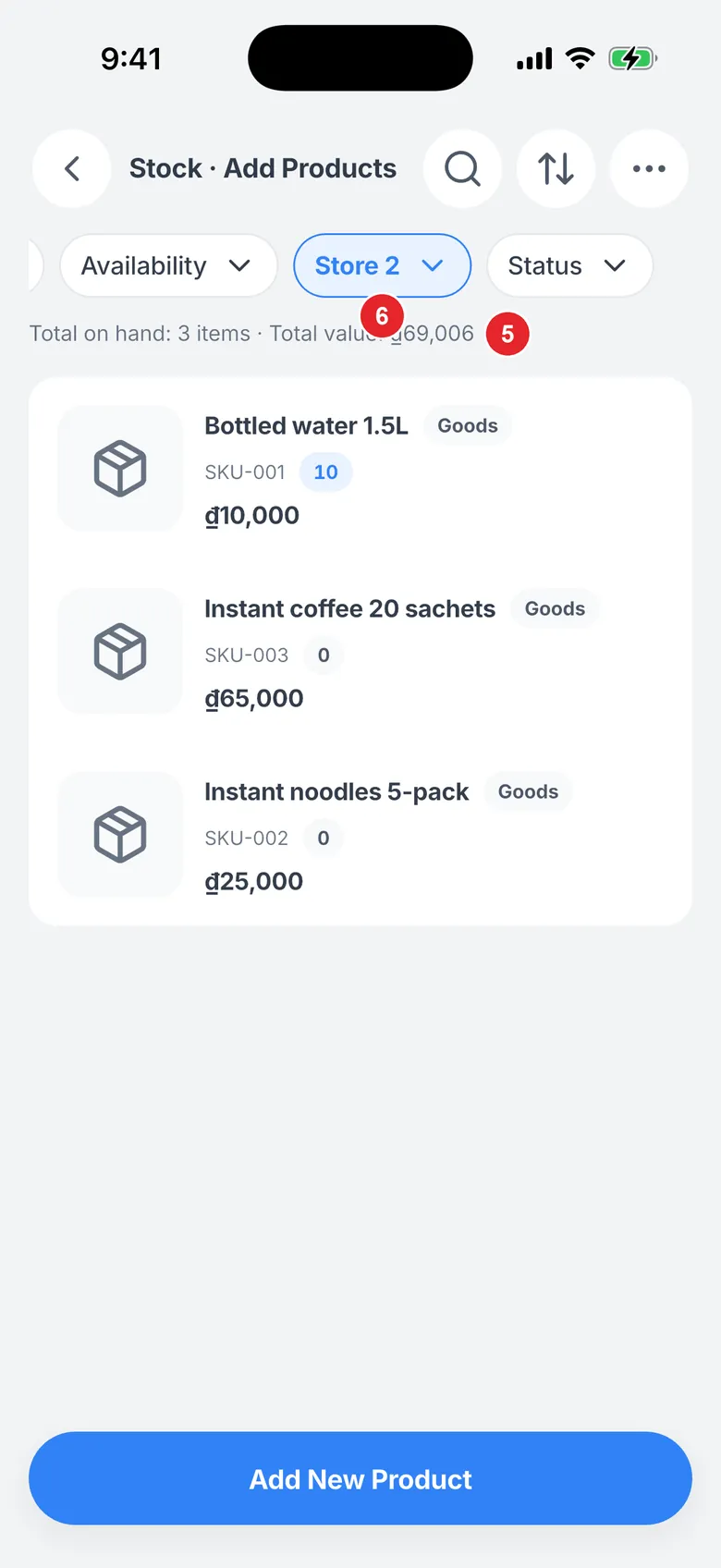
- The total changes to the chosen store. Here it is «Total on hand: 3 items · Total value: ₫69,006».
- To get here, tap the store filter and choose «Store 2».
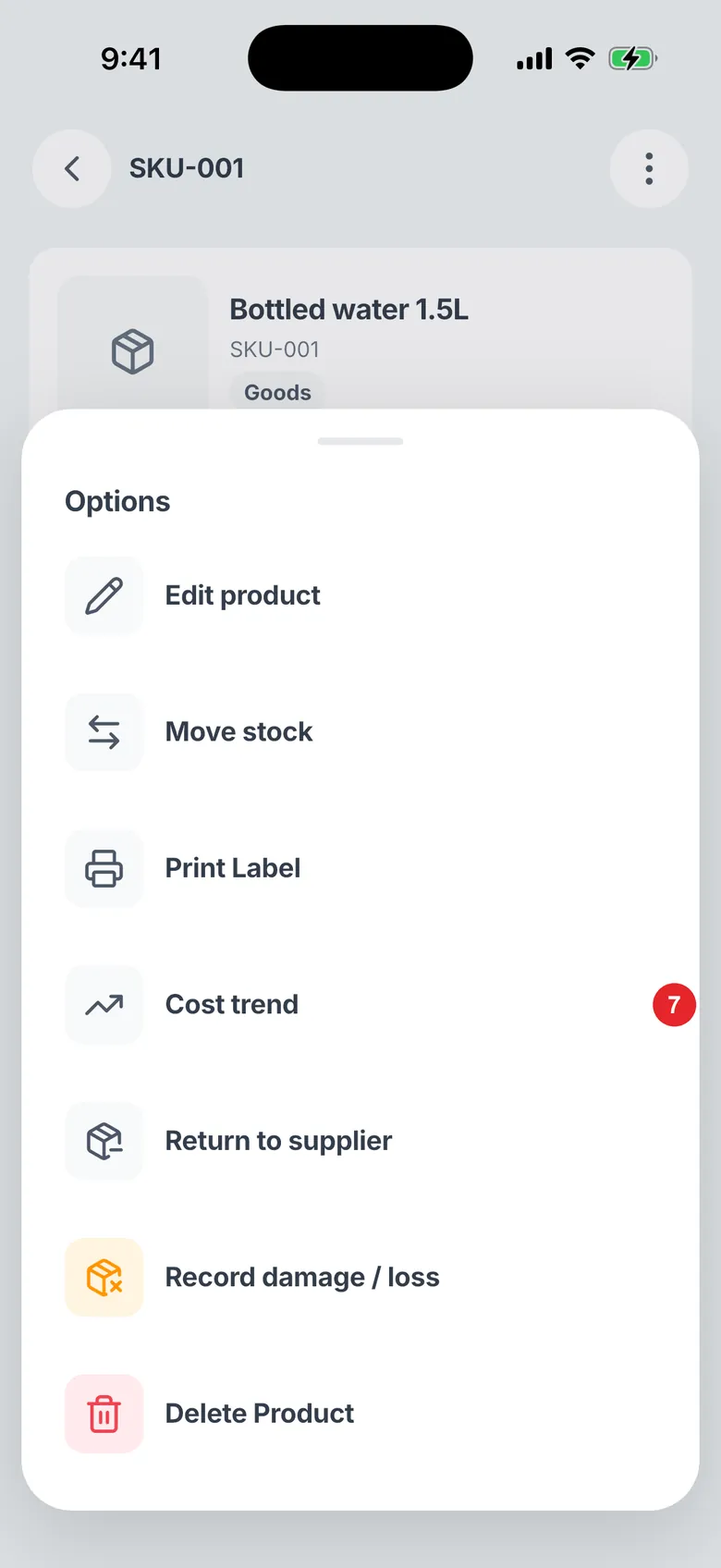
- To see one product's amount, tap that product, tap the ⋮ button at the top right, then tap «Cost trend».
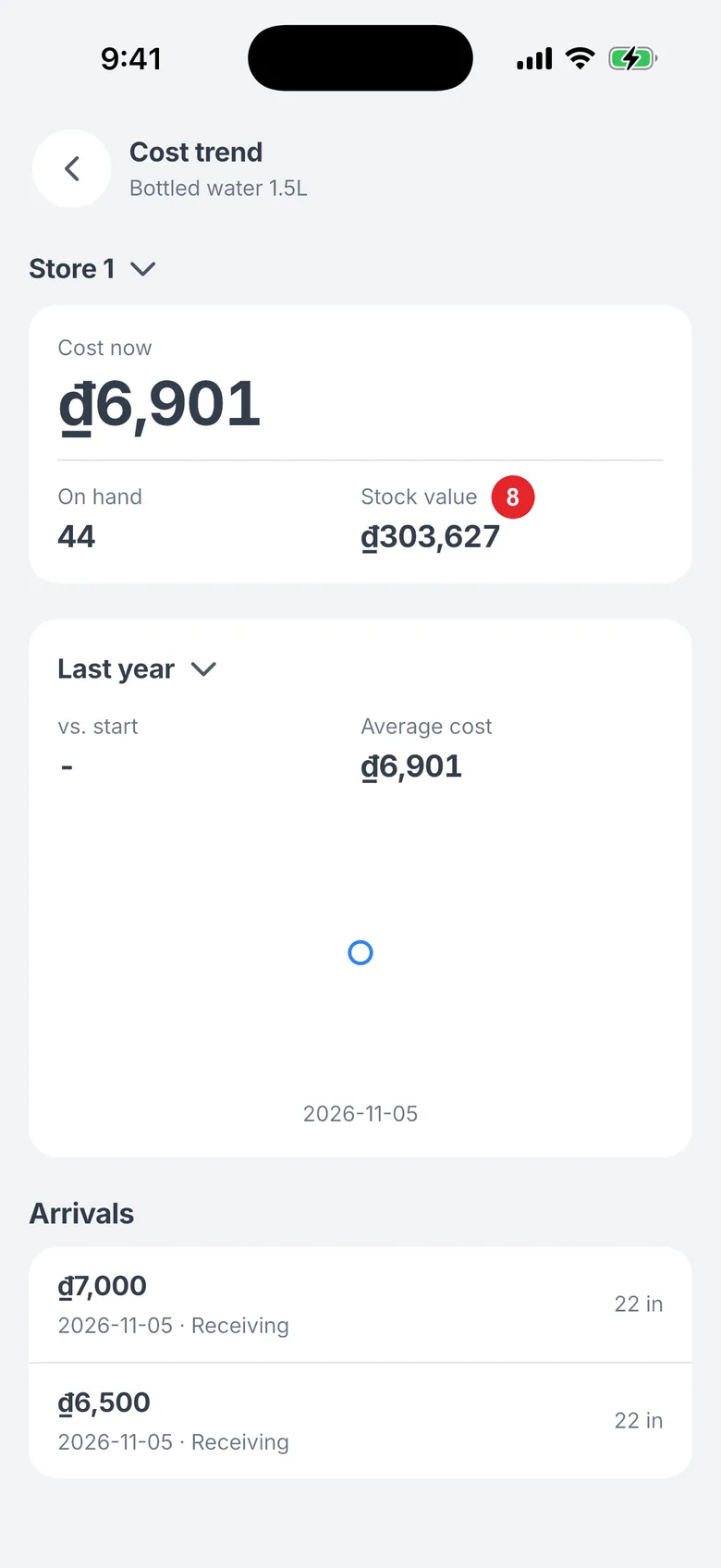
- See «On hand» and «Stock value». Stock value is «Cost now» × the quantity on hand. The cost is shown rounded to the dong, so it can differ by a few dong from the multiplication. The 44 in this picture is from before the moves and sales. The 28 in the list above is after moving 10, 1 fewer in a stock count and selling 5.