
Show contents
F&B menu & sales › Table setup
Set up floors and tables
- Who
- Owner
- When
- Once, at the start · When you change the seating
- Where
- App · Web
What you get
- Staff take orders by tapping tables on a floor that looks like the real seating. They don't mix up tables.
- Table numbers don't repeat even on different floors, so just saying the number tells which seat it is.
- Give a table a name of up to 4 characters, and that name shows instead of the number.
What it solves
- If tables are passed on by word or on paper, food goes to another table or bills get switched.
Why this way
- The app saves as you tap, so you can add tables quickly even during business hours. Position, shape and size are set on the website, and they show on staff screens only after you click «Save layout».
- If I delete a table during business hours, does its order disappear? A table with an order not yet paid can't be deleted. A floor with such a table can't be deleted either, and a message asks you to take payment first.
- If I delete a table or floor, what about past records? Past order records stay as they are.
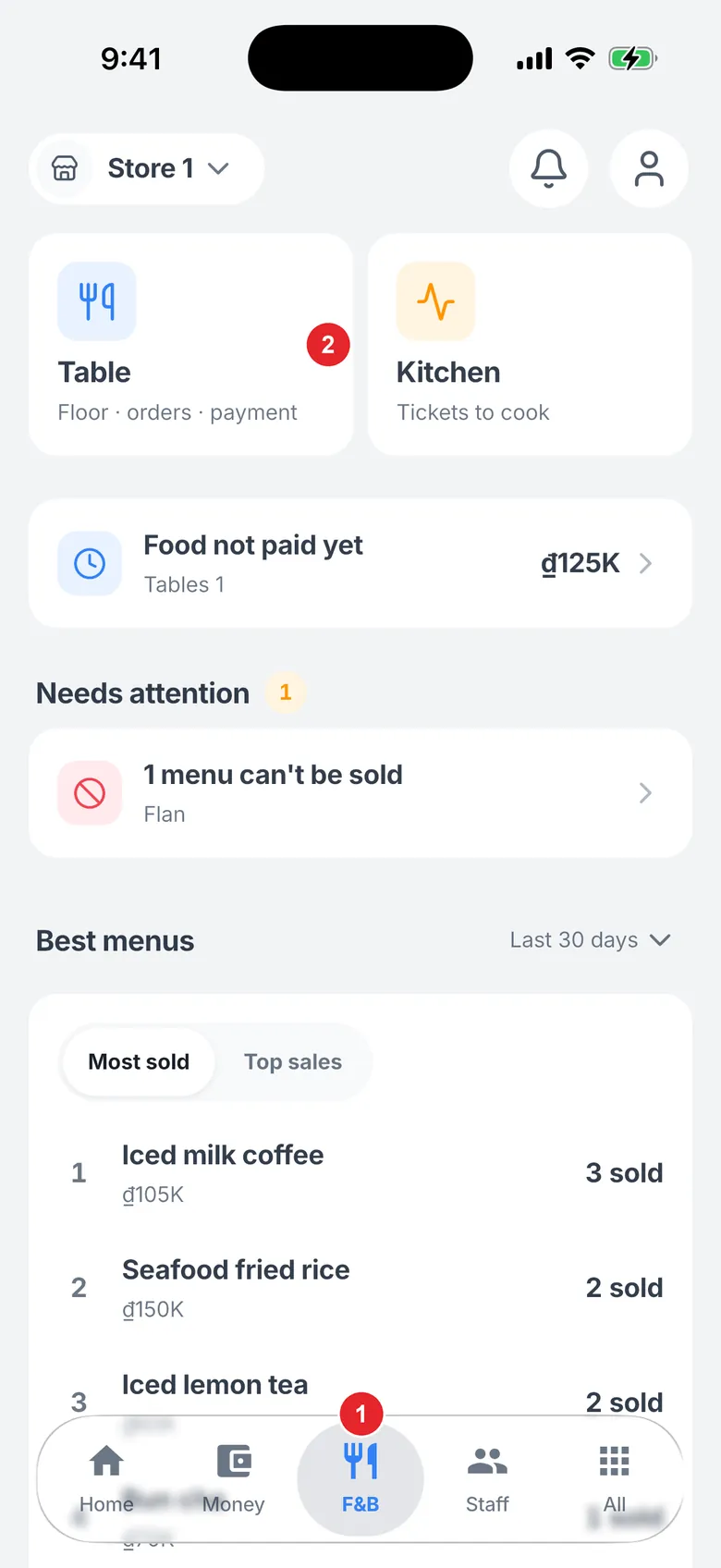
- Tap «F&B» at the bottom of the app.
- Tap «Table».
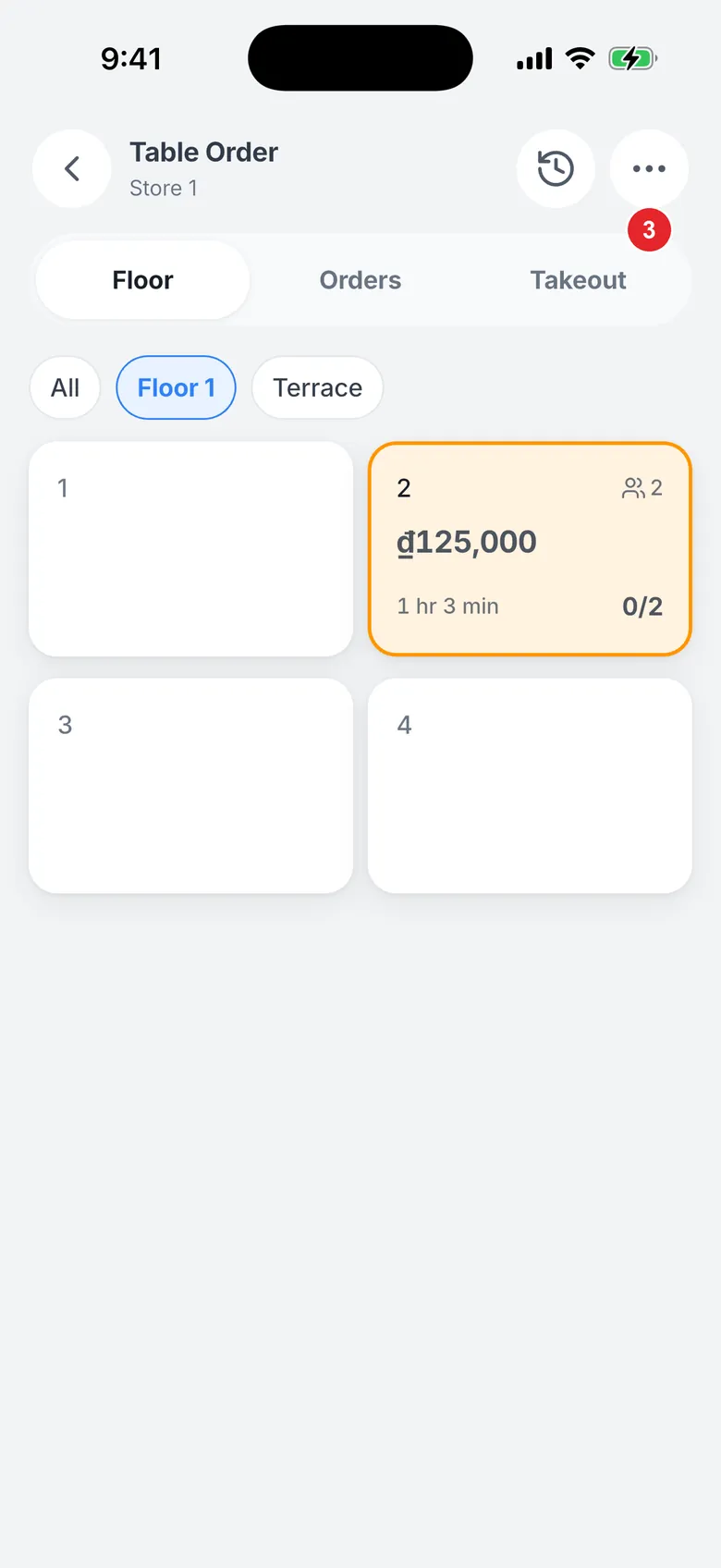
- Tap «More» (the three dots) at the top right.
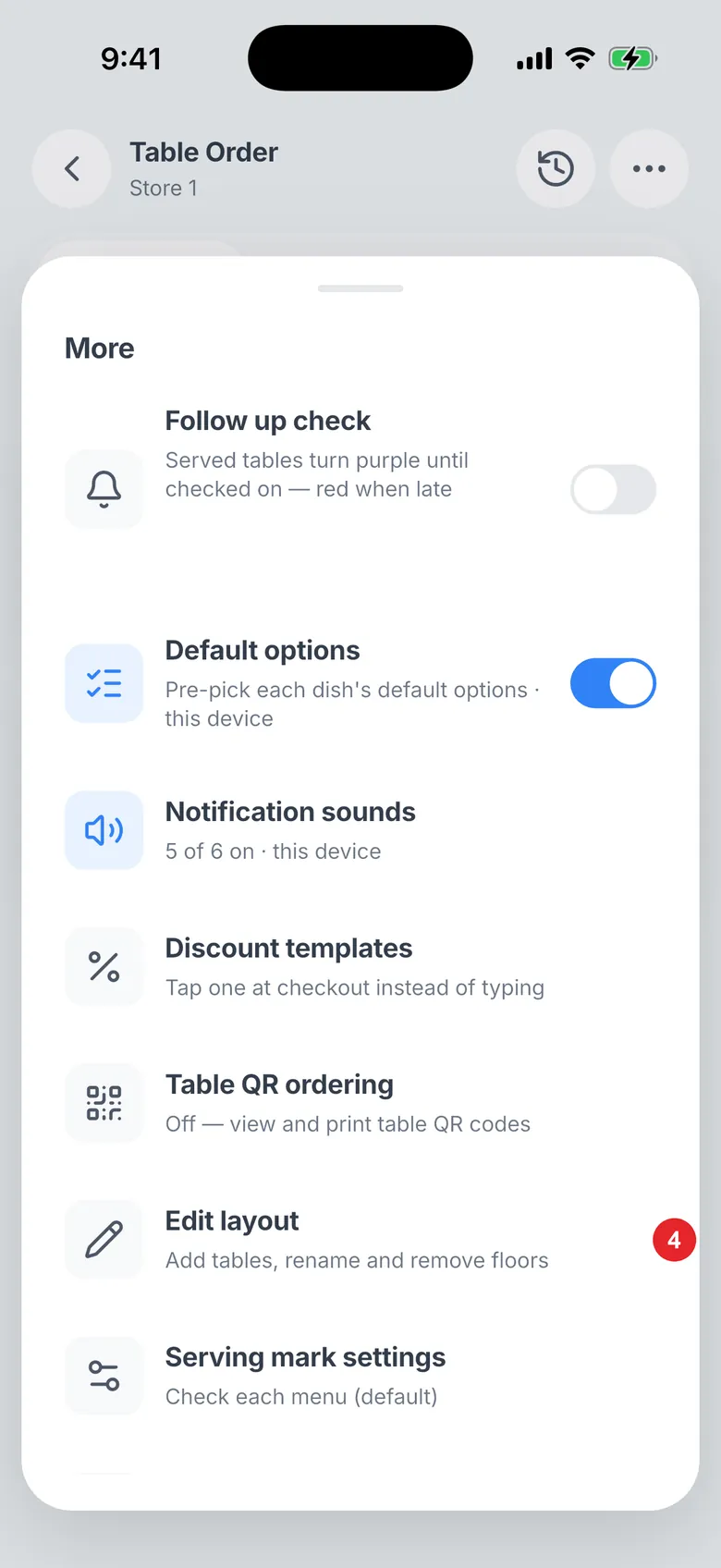
- Tap «Edit layout».
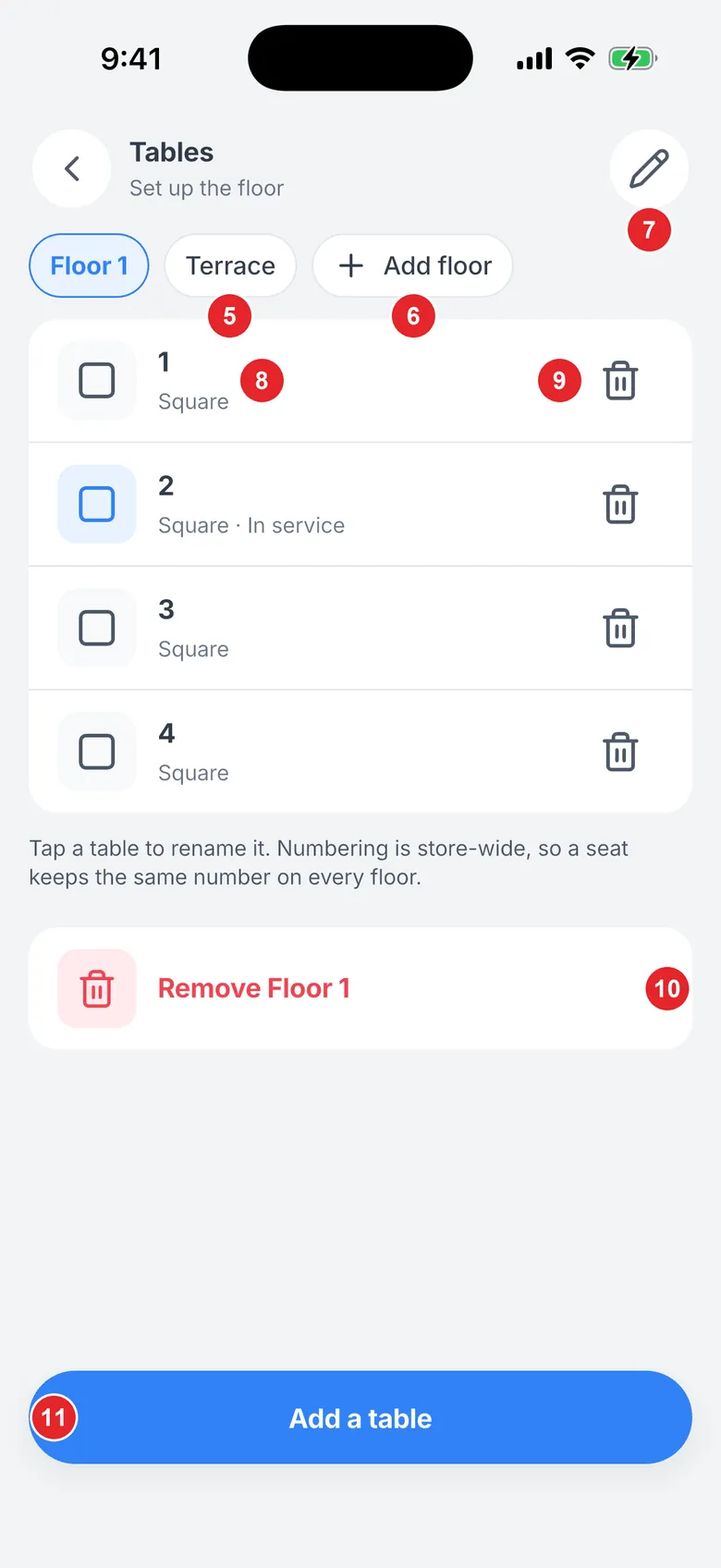
- At the top, tap the floor you want to change.
- For a new floor, tap «Add floor». A floor is saved only after you add its first table.
- Rename the current floor with the pencil button. Use the name staff call it by, like floor · area · terrace.
- Tap a table to rename it.
- Delete a table with the trash button.
- The button with the floor's name on it, like «Remove Floor 1», deletes the whole floor. The tables on that floor are deleted with it.
- Tap «Add a table».
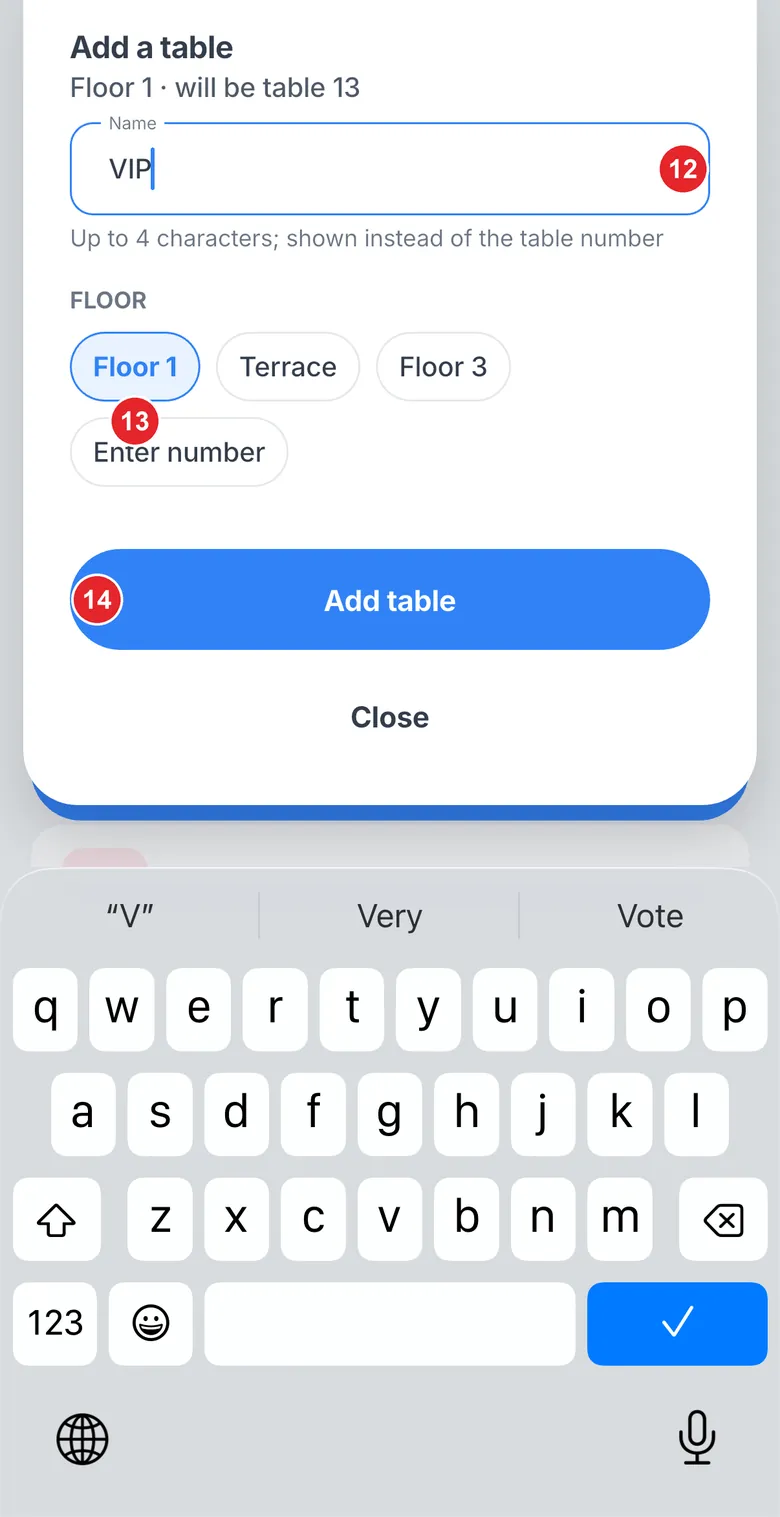
- In «Name», enter up to 4 characters. If you do, this name shows instead of the table number.
- In «FLOOR», tap the floor to put it on. For a floor not in the list, use «Enter number».
- Tap «Add table». It is saved right away and appears in the list.
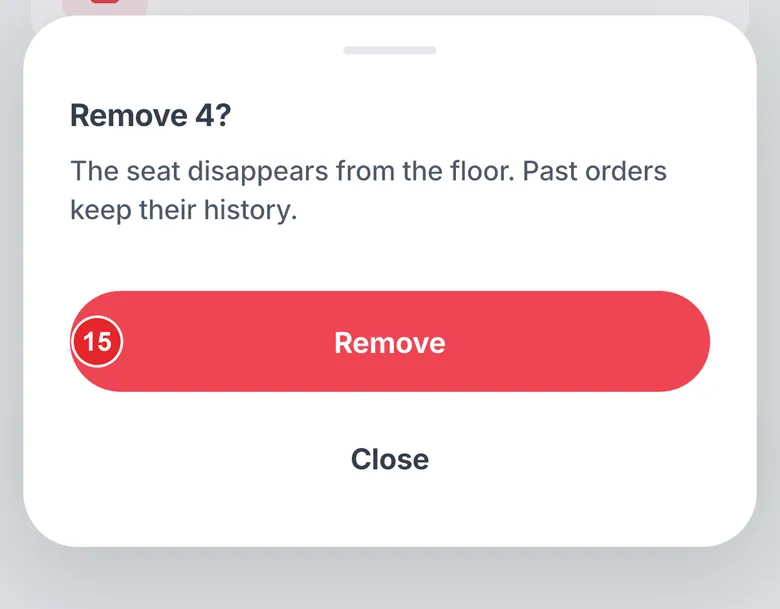
- Tapping the trash button opens this window. Tap «Remove», and the seat disappears from the floor. Past order records stay as they are.
Lay out the store's floors and tables on the screen exactly as they are. Staff take orders by tapping tables on this floor.
What the app and the website do
| Task | App | Web |
|---|---|---|
| Add a table · rename it · delete it | ○ | ○ |
| Add a floor · rename a floor | ○ | ○ |
| Delete a floor with its tables | ○ | |
| Move tables · shape · size · merge | ○ |
Remember
- The app saves as you tap. The website saves only when you click «Save layout».
- The app has no place to move tables. Change position, shape and size on the website.
- Table numbers run on across the whole store. Even on different floors, the same number doesn't repeat.
- Even if you delete a table or floor, past order records stay as they are.