
Show contents
F&B menu & sales › Take orders & get paid
Take a table order
- Who
- Staff
- When
- Each time guests sit down
- Where
- App · Web
What you get
- Press «Send order», and the order shows on the kitchen screen right away, by table. Nobody carries paper order slips.
- The menu selling price and the option prices go in automatically, so staff don't memorize or add up prices.
- When guests order more, add it to the same table with «Add food», and it continues on one bill.
What it solves
- With paper orders, slips get lost or the writing can't be read, so the kitchen misses dishes or makes them wrong.
- If you skip asking the size or spice level, you have to go back to the guest.
Why this way
- Before it goes to the kitchen, you see the menu items once more in «Send … to the kitchen?». «Required» options must be chosen before the item is added, so they aren't missed.
- The chosen options and the app's «Note for the kitchen» show together under that menu item on the kitchen screen.
- What if two staff add to the same table at the same time? A table has one bill. The two orders are merged into one bill, and the app shows a notice that they were merged.
- What if I sent it wrong? Before sending, remove it with the − button; after sending, see «I entered an order wrong».
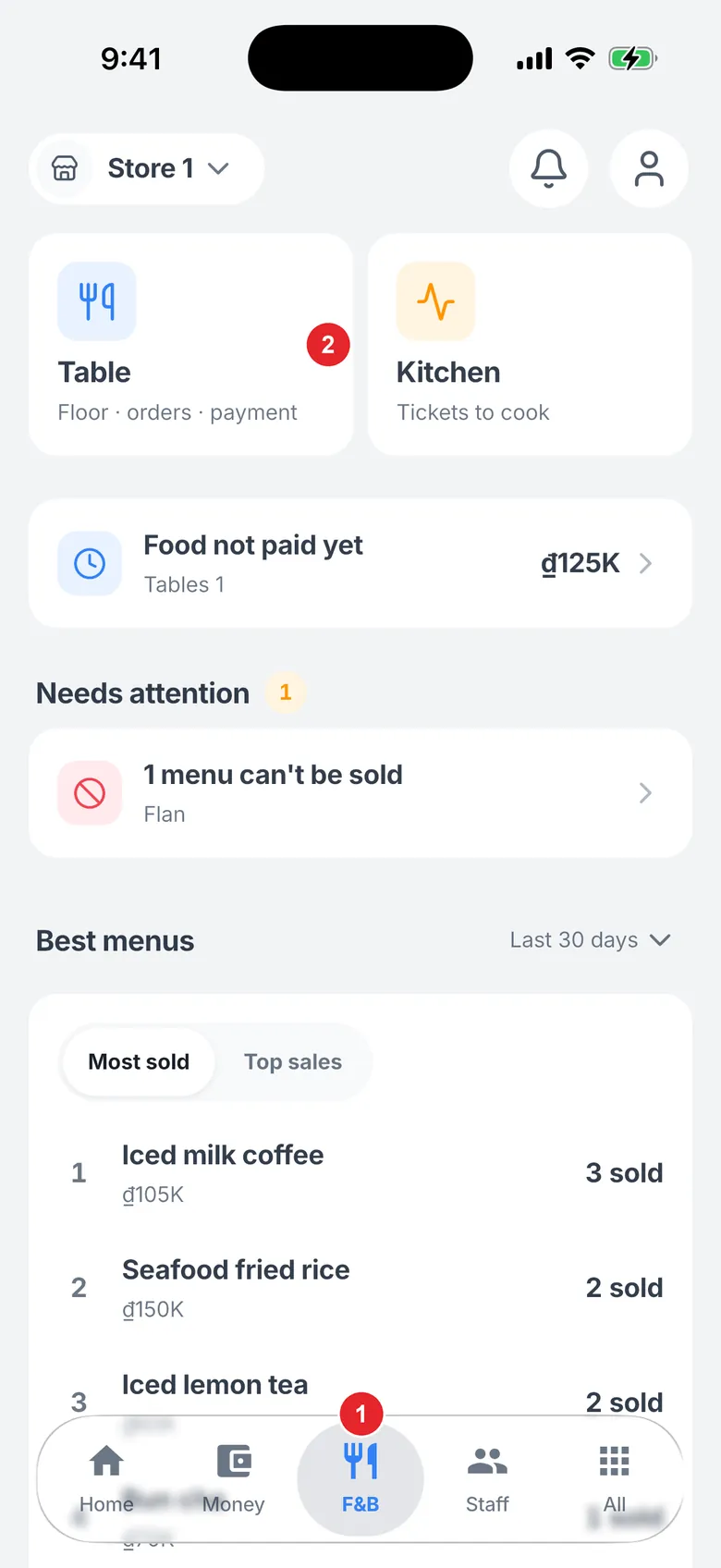
- Tap «F&B» at the bottom of the app.
- Tap «Table».
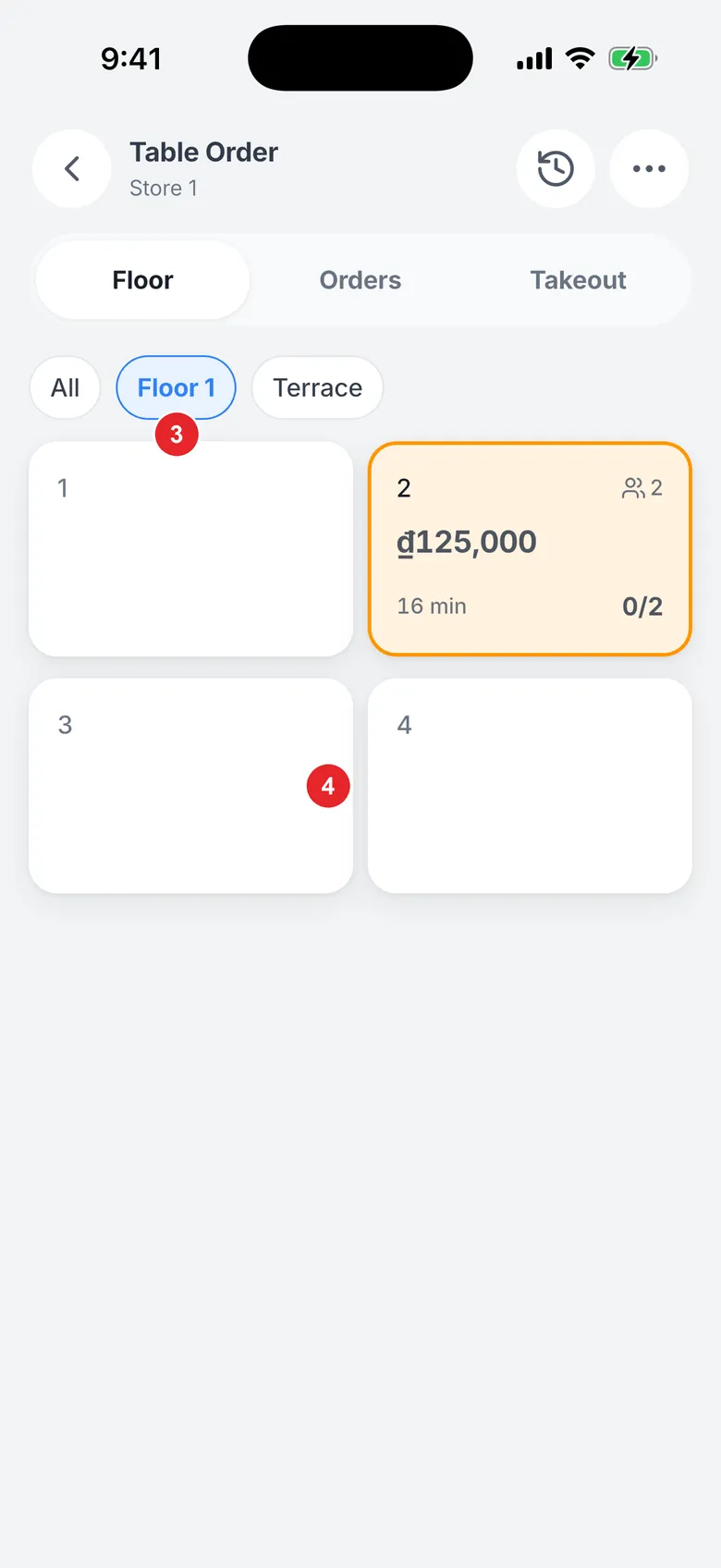
- Choose the floor at the top.
- Tap the empty table where the guests sat. Here it is «3».
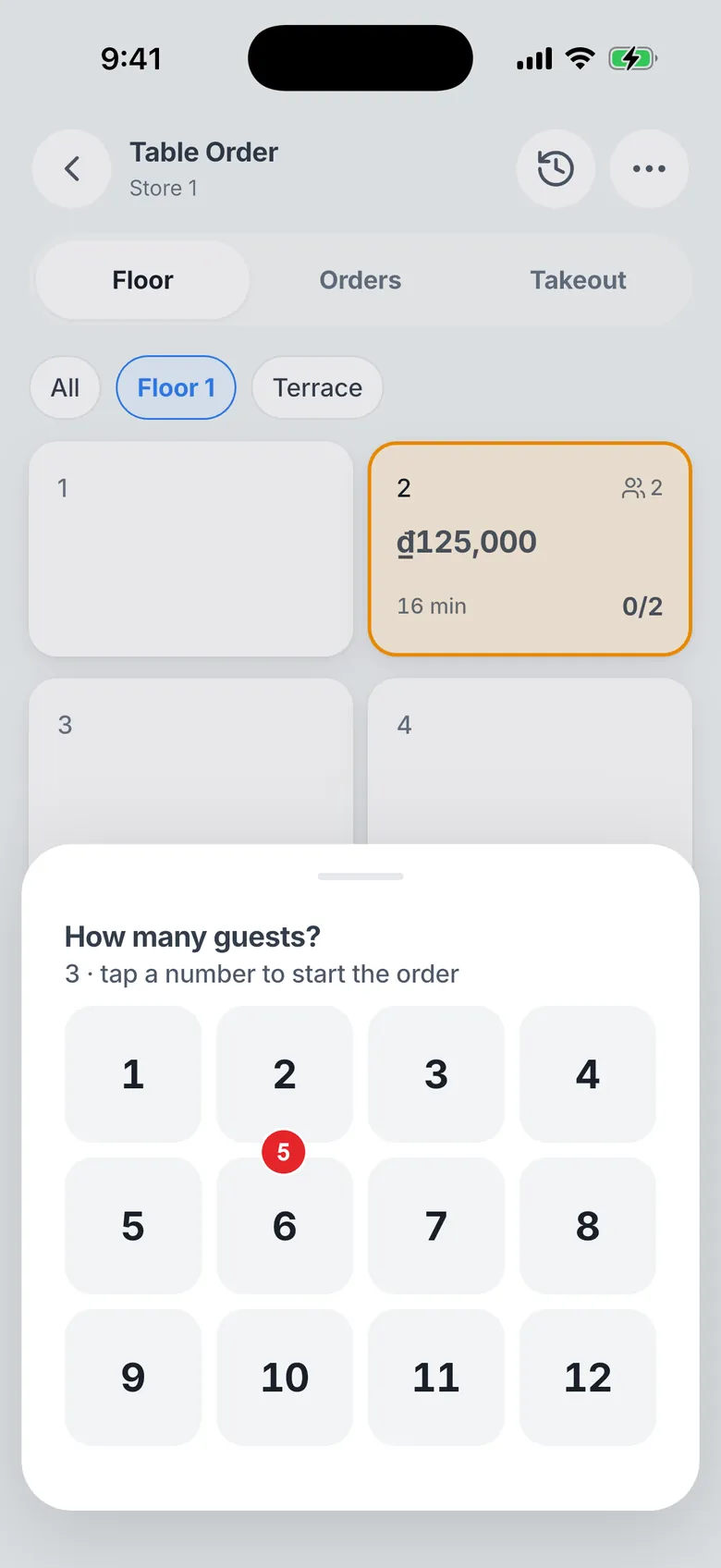
- Tap the number of guests. As soon as you tap, that table's order starts.
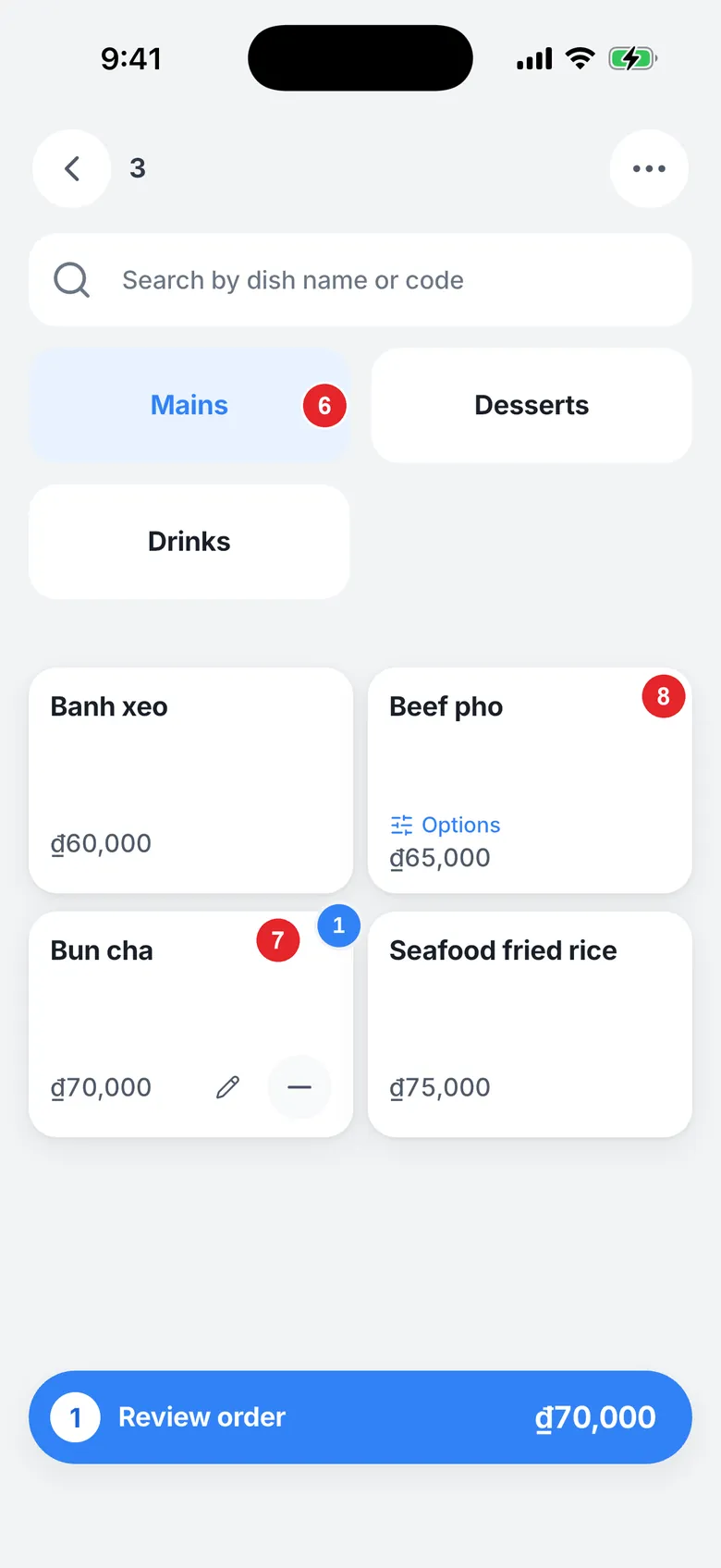
- Choose a menu group at the top. To find a dish by name, type in the search box at the top (it reads «Search by dish name or code» until you type).
- Tap a menu item to add it. The number added shows at its top right.
- A menu item marked «Options» opens an options window when you tap it.
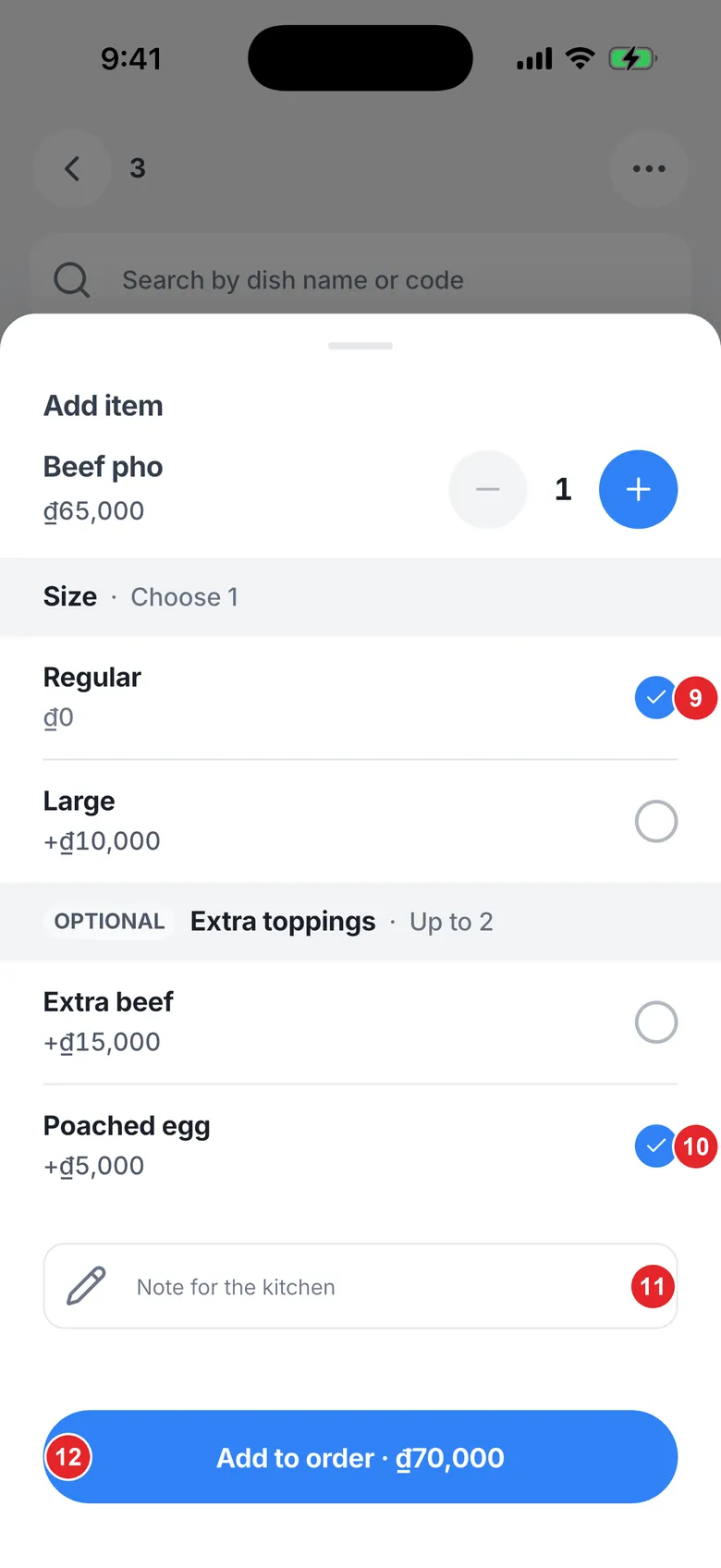
- In a group that must be chosen, choose one. Here it is «Regular» under «Size · Choose 1».
- Options marked «OPTIONAL» are chosen only if needed.
- If there is something to tell the kitchen, write it in the note box (it reads «Note for the kitchen» until you type).
- Tap the button at the bottom, here «Add to order · ₫70,000».
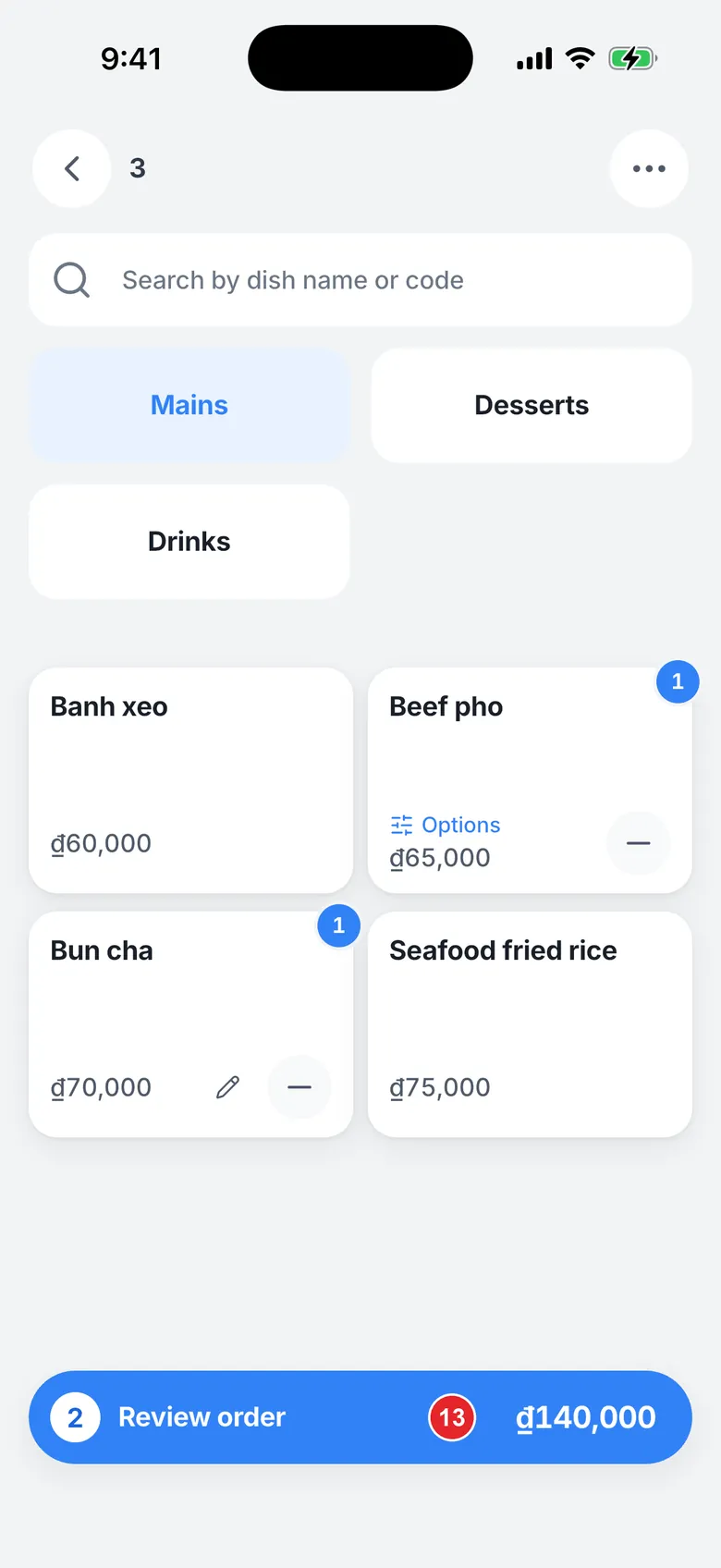
- When everything is added, tap «Review order» at the bottom.
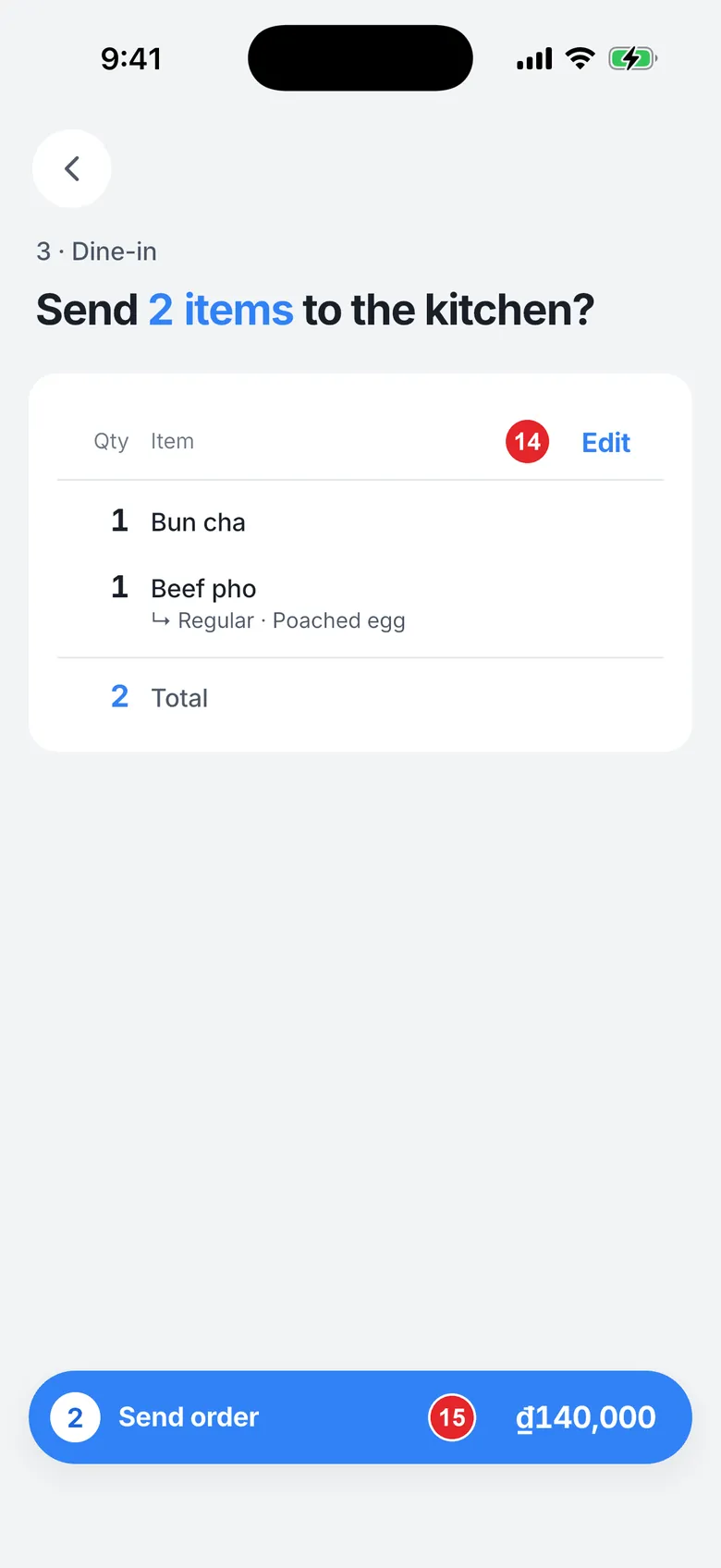
- Check the menu items and quantities. To change something, tap «Edit».
- Tap «Send order» at the bottom, and it goes to the kitchen.
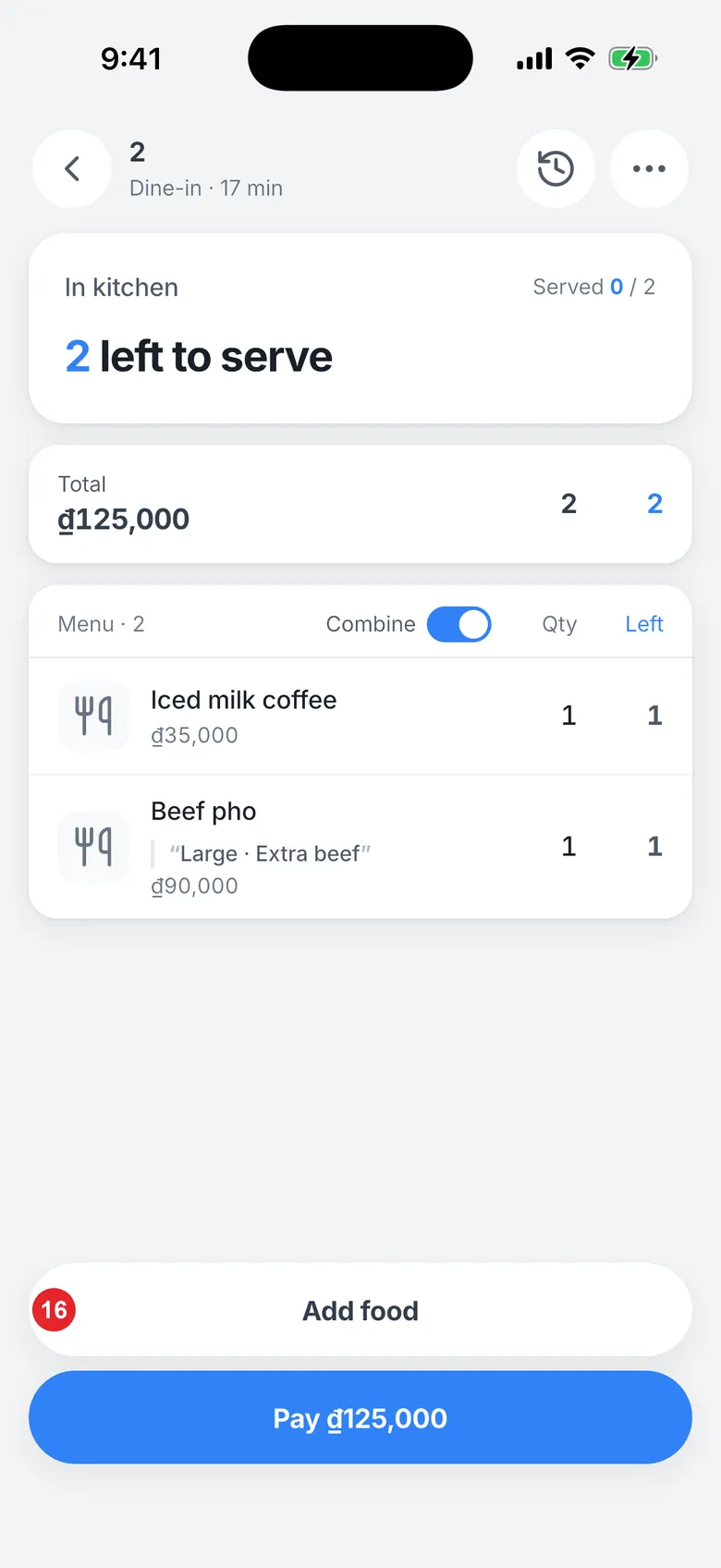
- If the guests order more later, tap that table (the picture shows table «2», which already has an order), tap «Add food», and add it the same way.
Open an empty table and choose the number of guests, and that table's order starts right away. Add menu items and press «Send order», and it goes to the kitchen.
Remember
- If you only choose the number of guests and leave, the table stays open. If the guests just left, see «Guests left before ordering».
- Before «Send order», remove a menu item with its − button. To change it after sending, see «I entered an order wrong».
- When guests order more, open the same table and add it with «Add food».