
Show contents
F&B menu & sales › Table setup
Tables I changed on the website aren't on staff screens
- Who
- Owner
- When
- After changing the layout on the website
- Where
- Web · App (to check)
What you get
- Click «Save layout» in the website's «Edit layout», and the fixed layout shows on staff screens just as it is.
- Even if you fix it on the website during business hours, staff keep using the current layout until you save.
What it solves
- If you move tables on the website and leave without saving, staff screens still have the old layout and can't find the new tables.
Why this way
- On the website, you try moving several tables and save them all at once. If you don't like it, «Cancel» throws away all the changes.
- The app still shows the old layout? If it was already open, leave and open it again. If it is still the old layout, click «Save layout» on the website again.
- Do I have to save when I fix it in the app too? No. The app's «Edit layout» saves as you tap.
The app's «Edit layout» saves as you tap, so this problem doesn't happen there. Here you check that the layout changed on the website shows in the staff app.
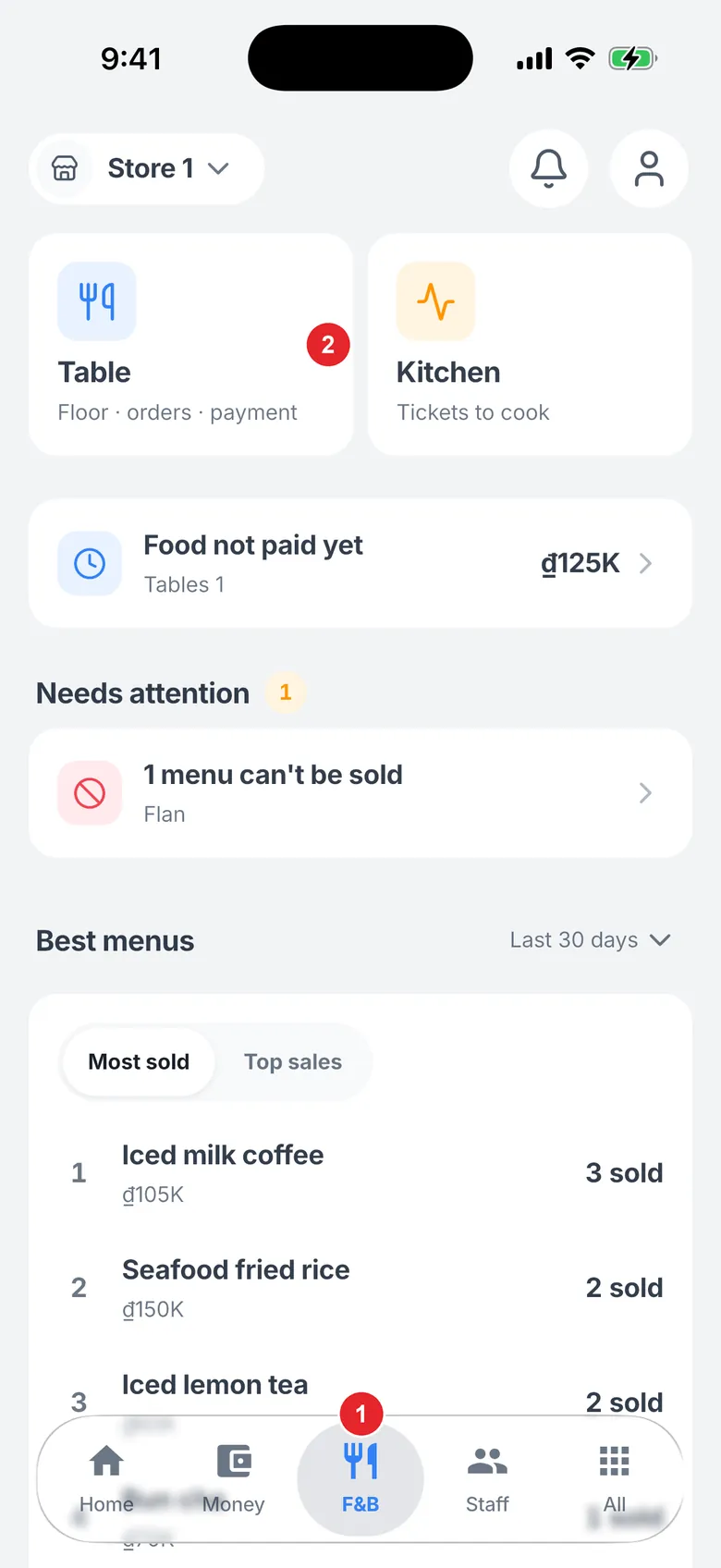
- Tap «F&B» at the bottom of the app.
- Tap «Table».
- The layout saved with «Save layout» on the website shows. If it was already open, leave and open it again. If it is still the old layout, click «Save layout» on the website again.
Why it works this way
What you move, add or delete in the website's «Edit layout» stays only when you click «Save layout». Clicking «Cancel» throws away all the changes.
Remember
- The app's «Edit layout» saves as you tap. Only the website has a separate «Save layout».