
Show contents
Staff & shifts › Staff training
First-week check
- Who
- Owner
- When
- First week
- Where
- App · Web
What you get
- Find staff with missing pay in the first week. Shifts confirmed without pay stay at ₫0, even if you enter the pay later.
- Spot unapproved shifts and staff who don't scan the QR in the first week, so it doesn't all pile up at month end.
- Check one shift's «Salary breakdown this shift», and you know in the first week whether the rate and hours go in correctly.
What it solves
- ₫0 shifts, unapproved shifts and days with no record all show up at once, only at the end of the first month. There is a lot to fix, so pay goes out late.
Why this way
- If pay is entered late, you have to open and fix each shift confirmed in the meantime («The hourly pay shows ₫0»). If you find it in the first week, there are fewer shifts to fix.
- Do I check monthly staff too? Yes. If they are not linked to a work schedule, «No work schedule assigned.» appears when they clock in.
- Do they really need to try scanning the QR once? A shift with neither clock-in nor clock-out has no pay, so the manager has to enter the times one by one.
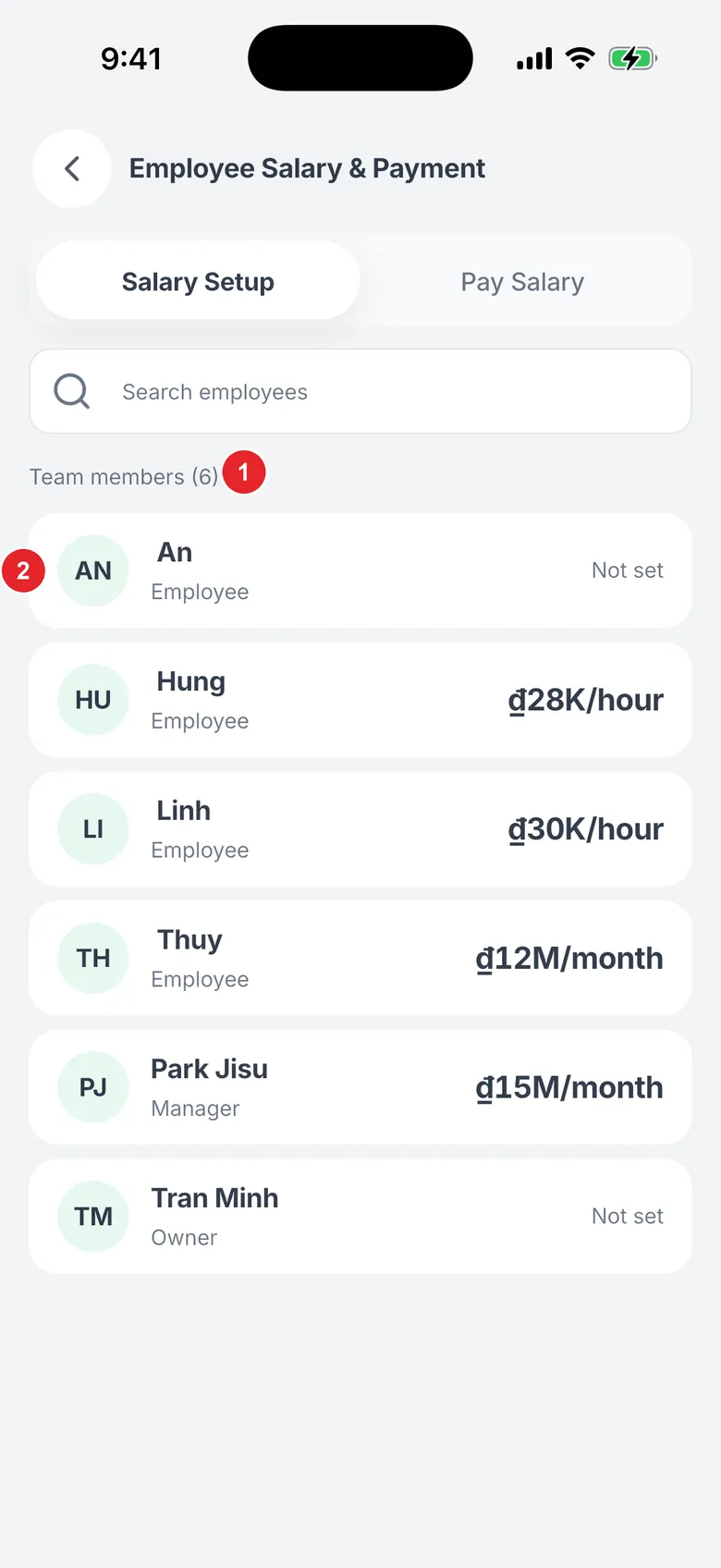
At the bottom of the app, open «Staff» → «Employee Salary & Payment» → the «Salary Setup» tab.
- In «Team members (6)», check that all staff have joined (the number is how many staff you have).
- Check that each row has an amount. «Not set» means no pay yet.
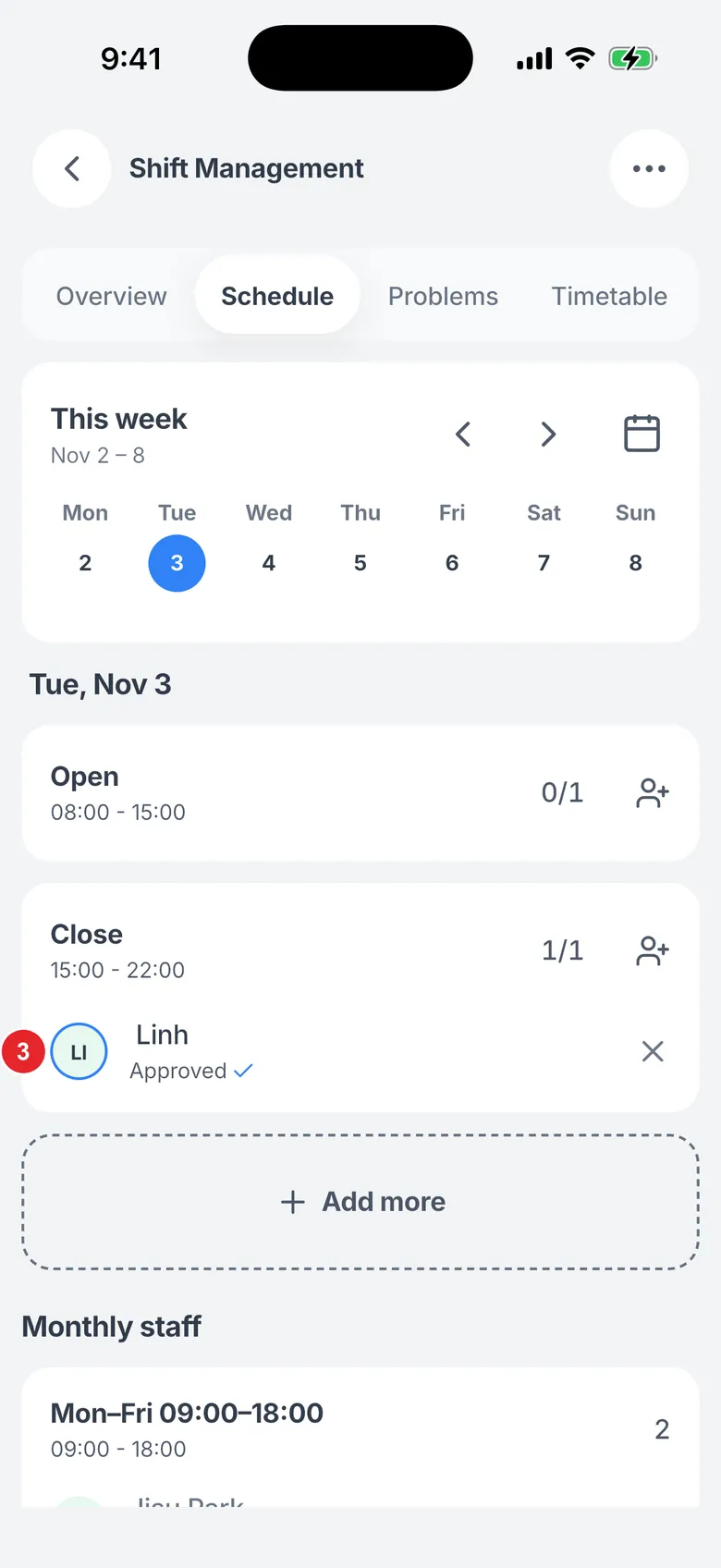
- In «Staff» → «Shift Management» → the «Schedule» tab, check that «Approved» is under the staff names.
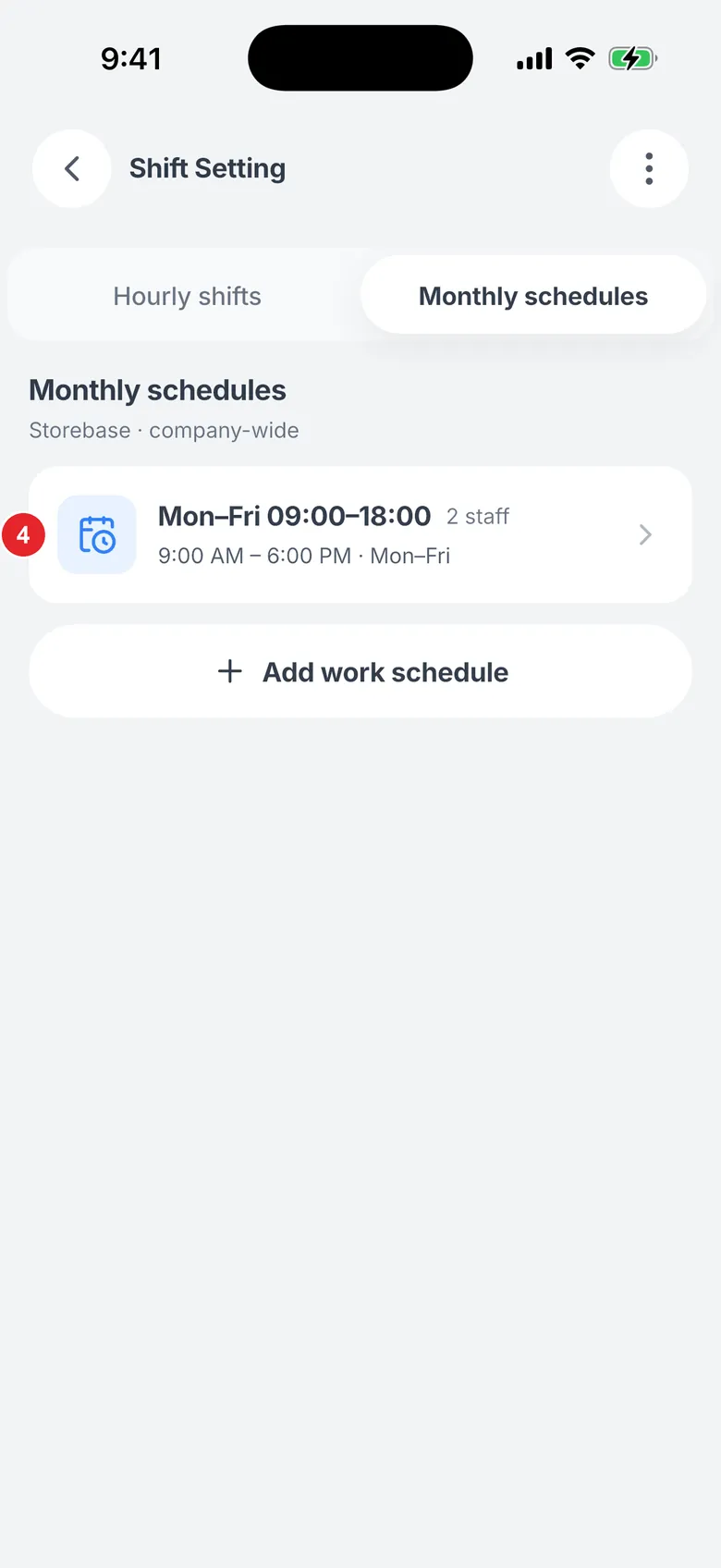
- In «Staff» → «Shift Setting» → the «Monthly schedules» tab, check how many people are linked to each schedule.
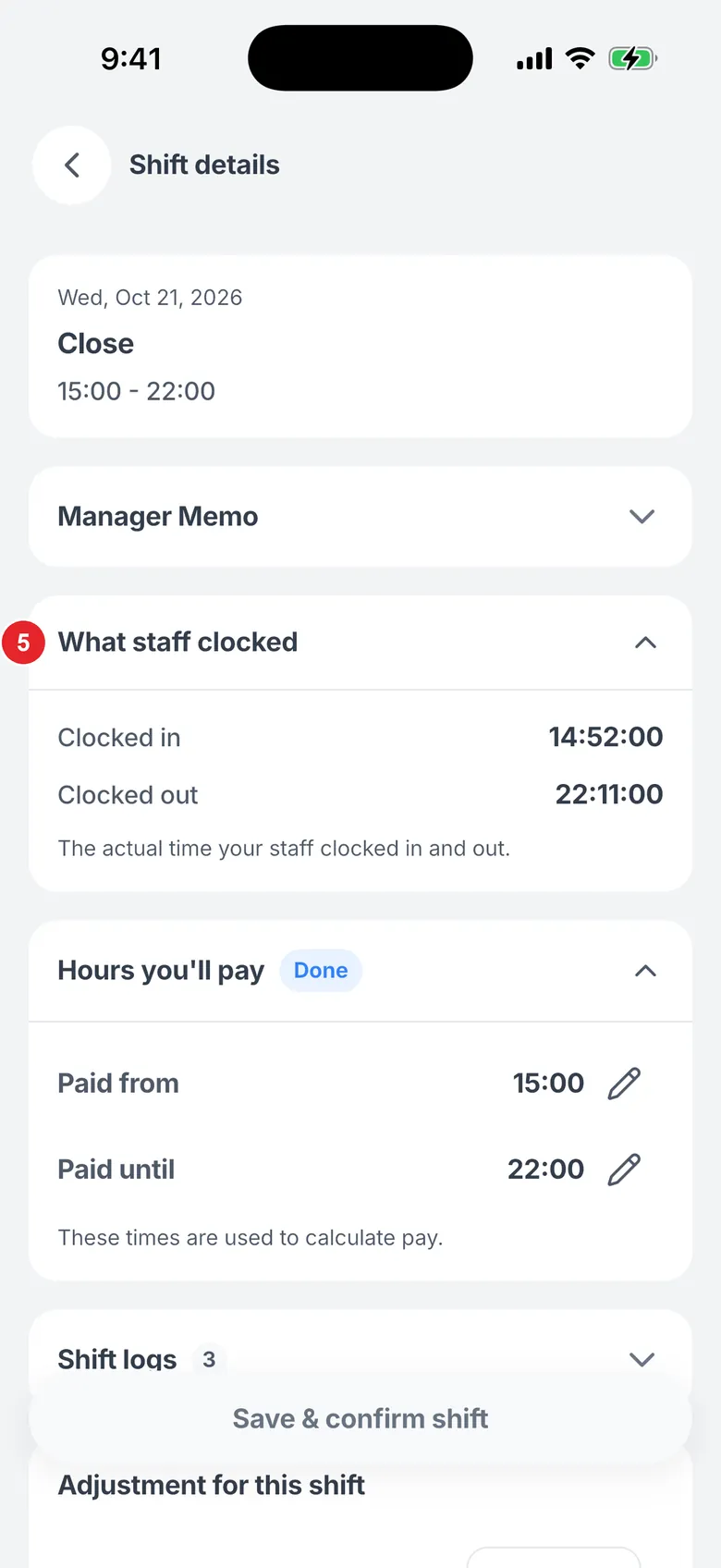
- In «Shift Management» → the «Schedule» tab, choose a date and tap the staff member on a shift to open «Shift details». Tap «What staff clocked» to check that the QR times came in.
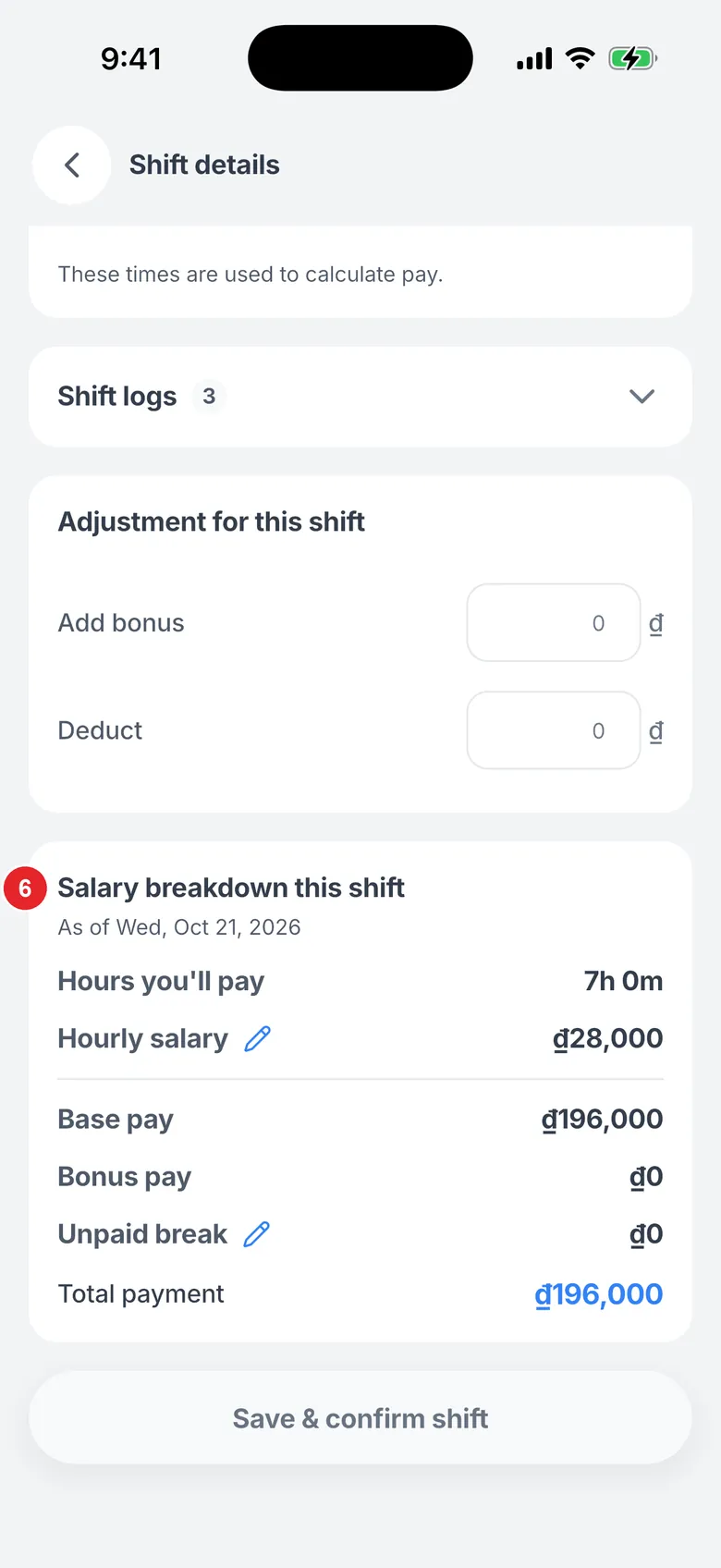
- Scroll down and check that the amount in «Salary breakdown this shift» is right.
- All staff have joined
- Each staff member has pay entered
- Hourly staff's shifts are approved
- Monthly staff are linked to a work schedule
- Each staff member has tried scanning the QR once
- You opened one shift and checked that the amount is right