
Show contents
Staff & shifts › Monthly staff
Set monthly pay
- Who
- Owner
- When
- Each time someone joins
- Where
- App · Web
What you get
- Enter the monthly amount once, and that amount shows as the amount to pay every month. You don't count hours.
- Set the salary and the work schedule together, and clock-in is judged by that schedule's days and hours.
- Staff see their own salary under «MONTHLY CONTRACT AMOUNT» on the app home.
What it solves
- Nothing stops you from leaving a staff member's pay empty, so it is easy to miss. At month end «No record» shows, or «There is nothing left to pay this month.» appears.
- If monthly staff have no schedule, there is no rule for when they must come, so you can't tell when they are absent.
Why this way
- In the app, choosing «Monthly» makes you choose a «Work Schedule» too. You can't save a monthly salary without a schedule, so it doesn't get missed.
- If I enter it on the website, does the schedule go in too? No. The website does not ask for a schedule when you switch to monthly. Add the staff member to a schedule in «Monthly schedules» under «Shift Setting».
- Does the salary drop by itself when they are absent? No. To reduce it, take it off with «− Deduction» when paying, or tap «Apply (-amount)» in the app.
- What about staff who join mid-month? The salary is not split by hire date; a full month shows. See «A mid-month hire shows a full month's salary».
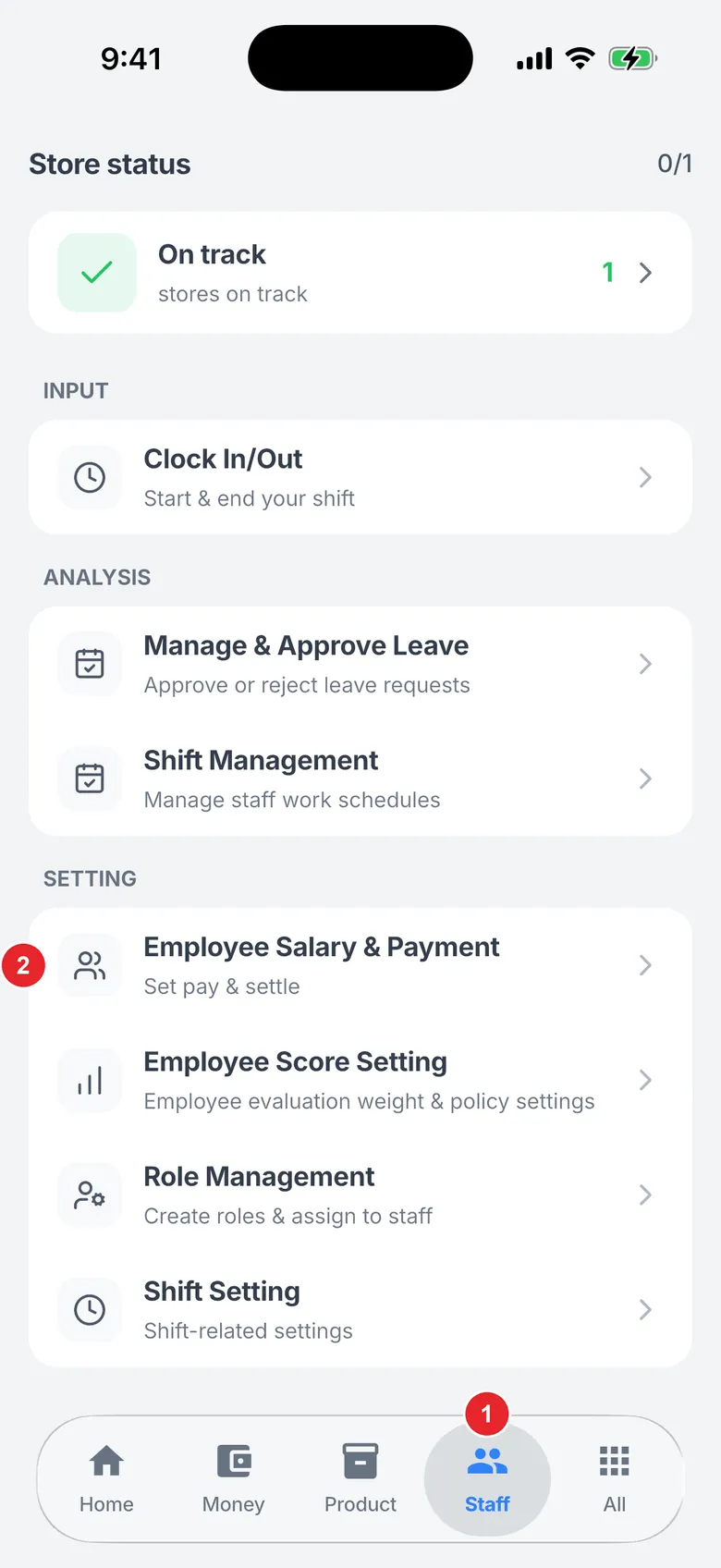
- Tap «Staff» at the bottom of the app.
- Scroll down and tap «Employee Salary & Payment».
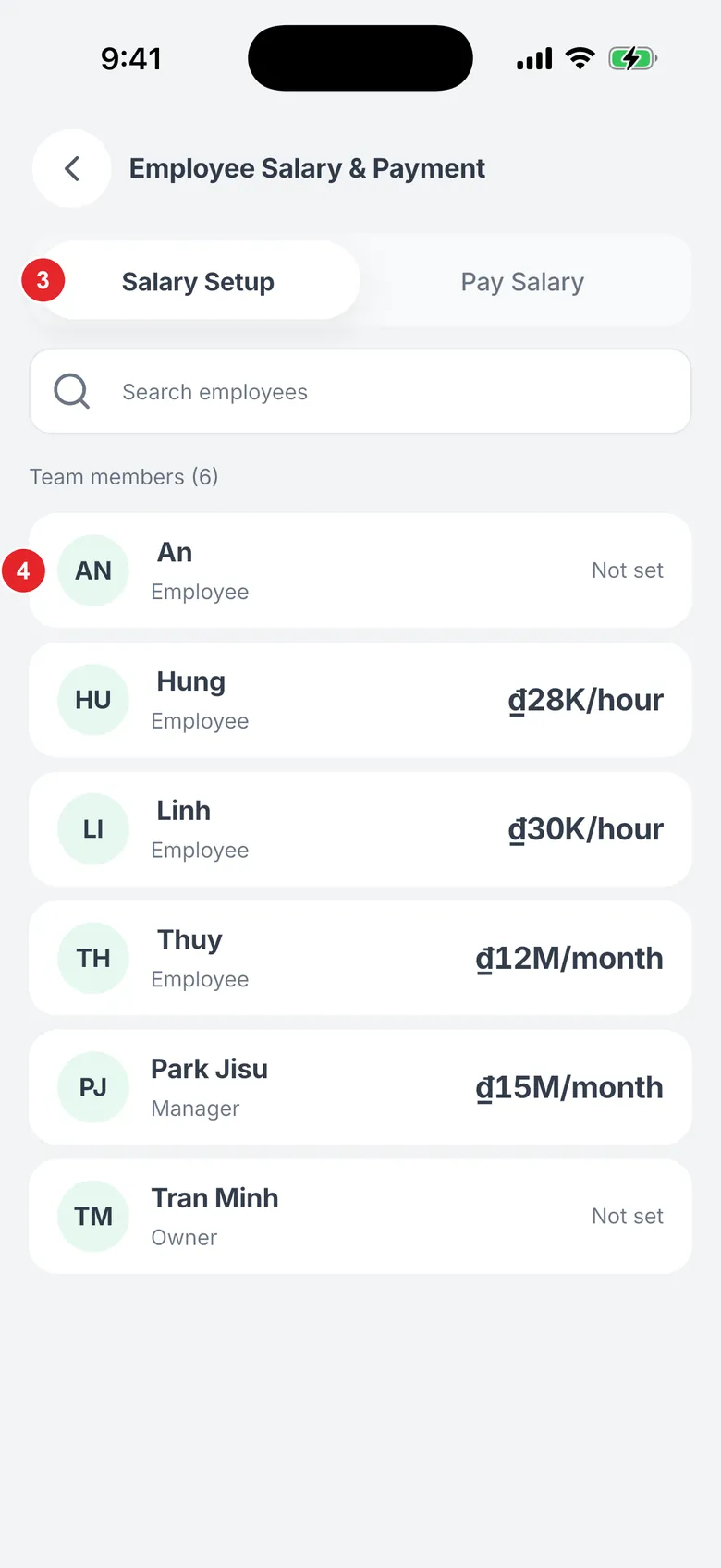
- Open the «Salary Setup» tab.
- Tap the employee.
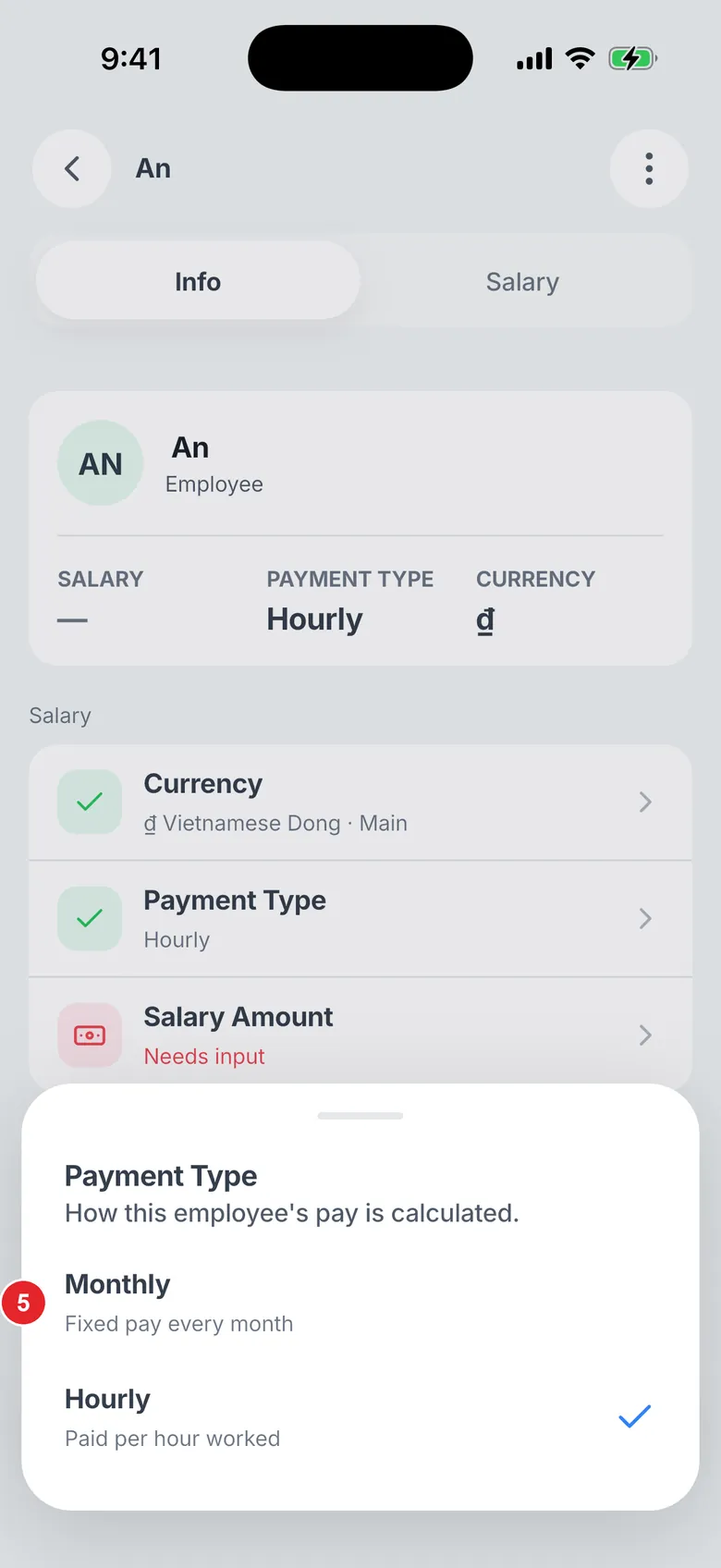
- On the «Info» tab, tap «Payment Type» and choose «Monthly». A «Work Schedule» row then appears.
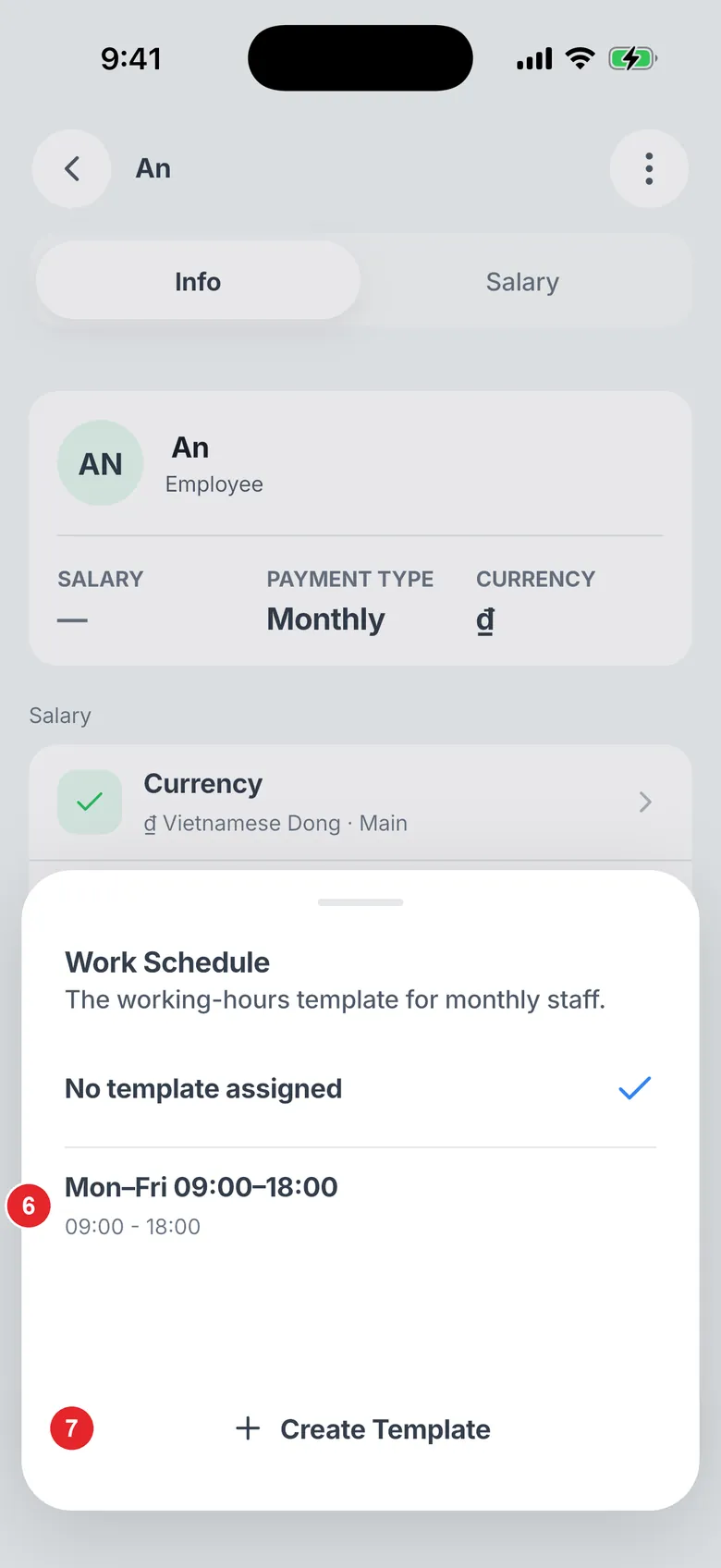
- Tap «Work Schedule» and choose a schedule you made.
- If there is no schedule, you can tap «Create Template» here.
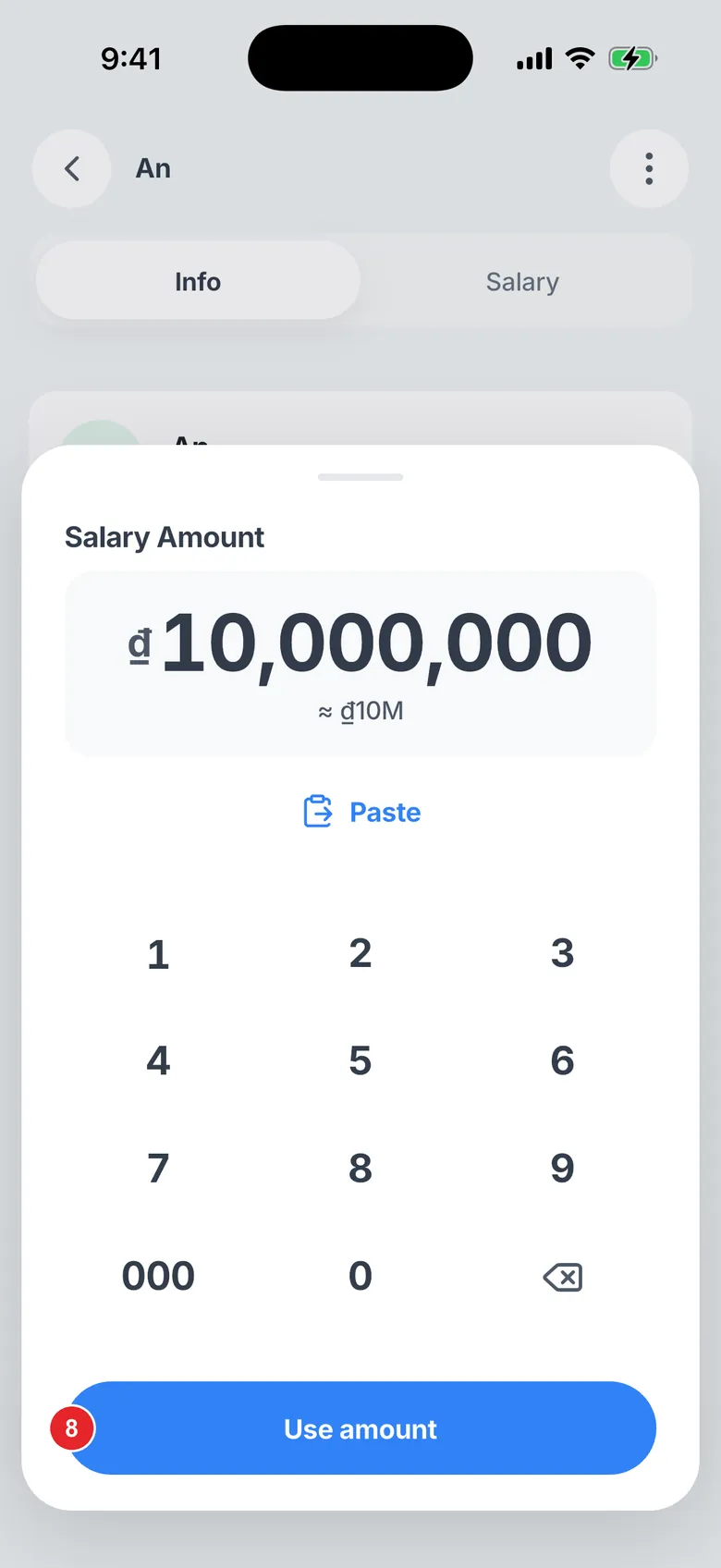
- Tap «Salary Amount», enter the monthly amount and tap «Use amount».
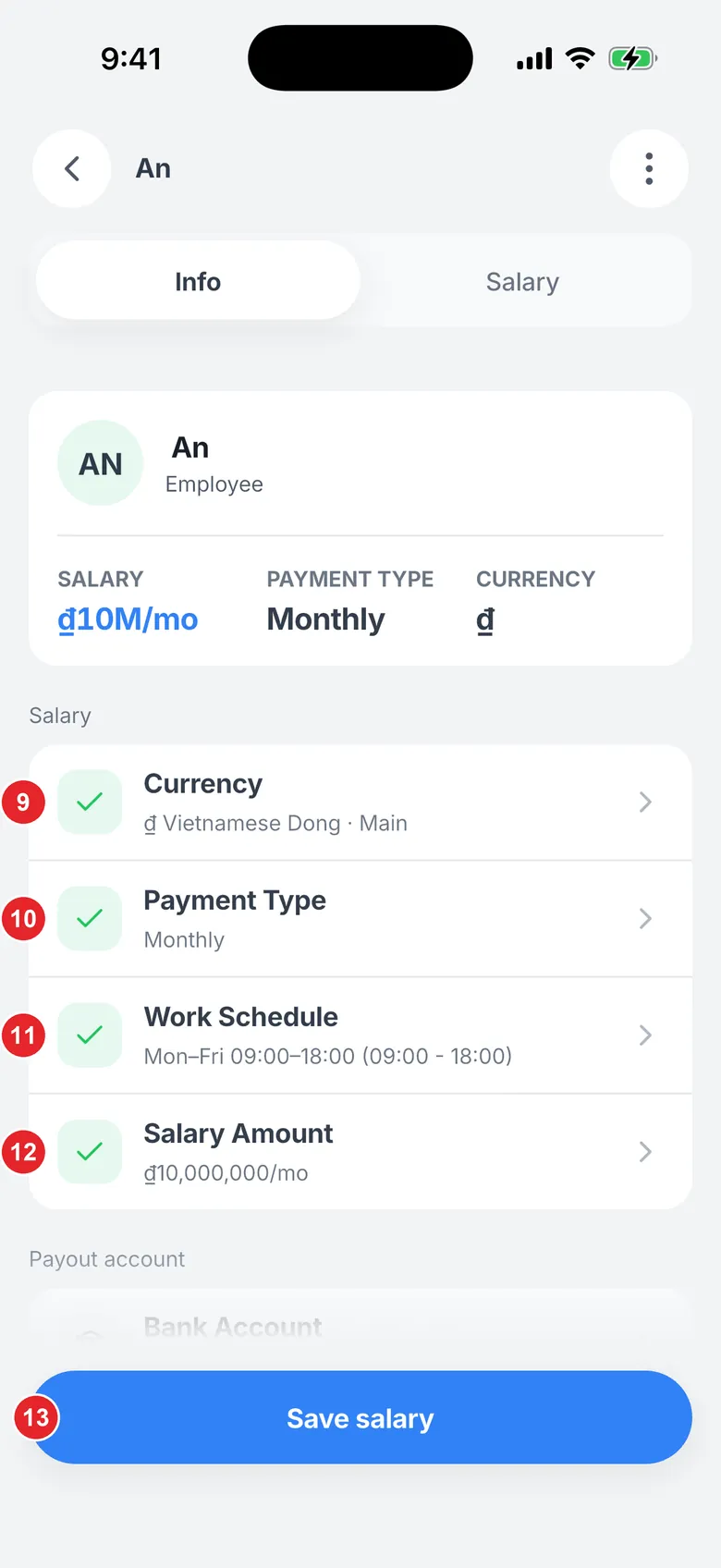
- Check «Currency».
- Check that «Payment Type» is «Monthly».
- Check that the «Work Schedule» is right.
- Check that the «Salary Amount» is right.
- Tap «Save salary».