
Show contents
Staff & shifts › Work out & pay salary
Check the salary amount
- Who
- Owner
- When
- Month end
- Where
- App · Web
What you get
- For hourly staff, the app adds up the amounts of approved, confirmed shifts. You don't work it out by hand from the attendance sheet and the rate.
- Amounts show by store, so you also see which store the money was earned at.
- Before paying, see this month's money ahead with «Expected pay».
What it solves
- «Who do I pay how much this month?» Multiplying each staff member's hours by their rate and adding it all up is easy to get wrong.
Why this way
- The amount is counted from the hours and rate saved on each shift. If it is not what you expected, check the shifts in the order of «The salary is not what I expected».
- Do unapproved shifts count? No. Only approved and confirmed shifts are added.
- If I raise the rate, do past shifts change? No. Each shift is saved with the rate at the time it was confirmed, so the new rate starts from shifts that end after you raise it.
- Do staff see this screen too? The pay screen opens only with the «Employee Salary & Payment» permission. The starting «Employee Default» has pay permissions off.
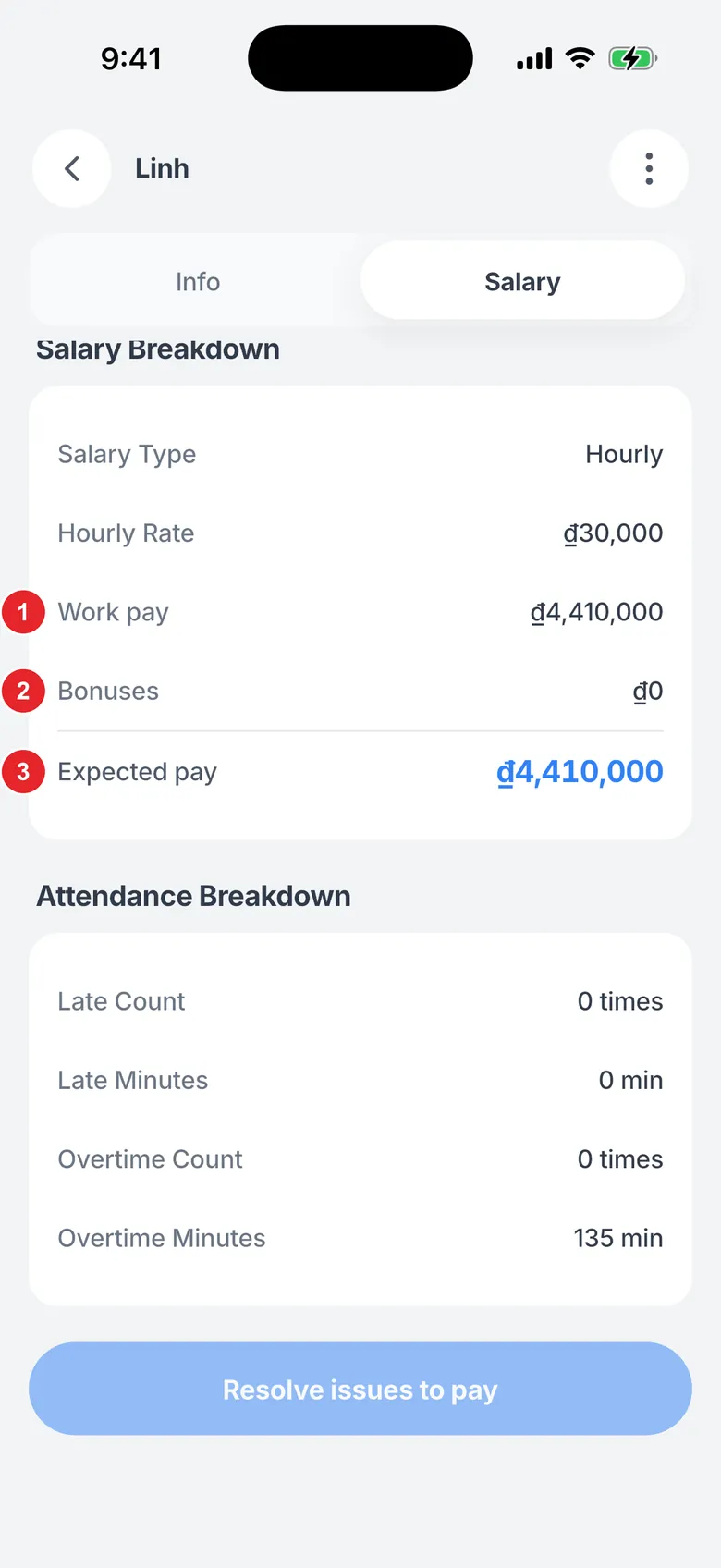
For hourly staff: at the bottom of the app, go to «Staff» → «Employee Salary & Payment» → the «Pay Salary» tab, tap the staff member and scroll down.
- «Work pay»: the amounts of that month's shifts added up.
- «Bonuses»: the bonuses added to shifts.
- «Expected pay»: the amount to pay as of now.
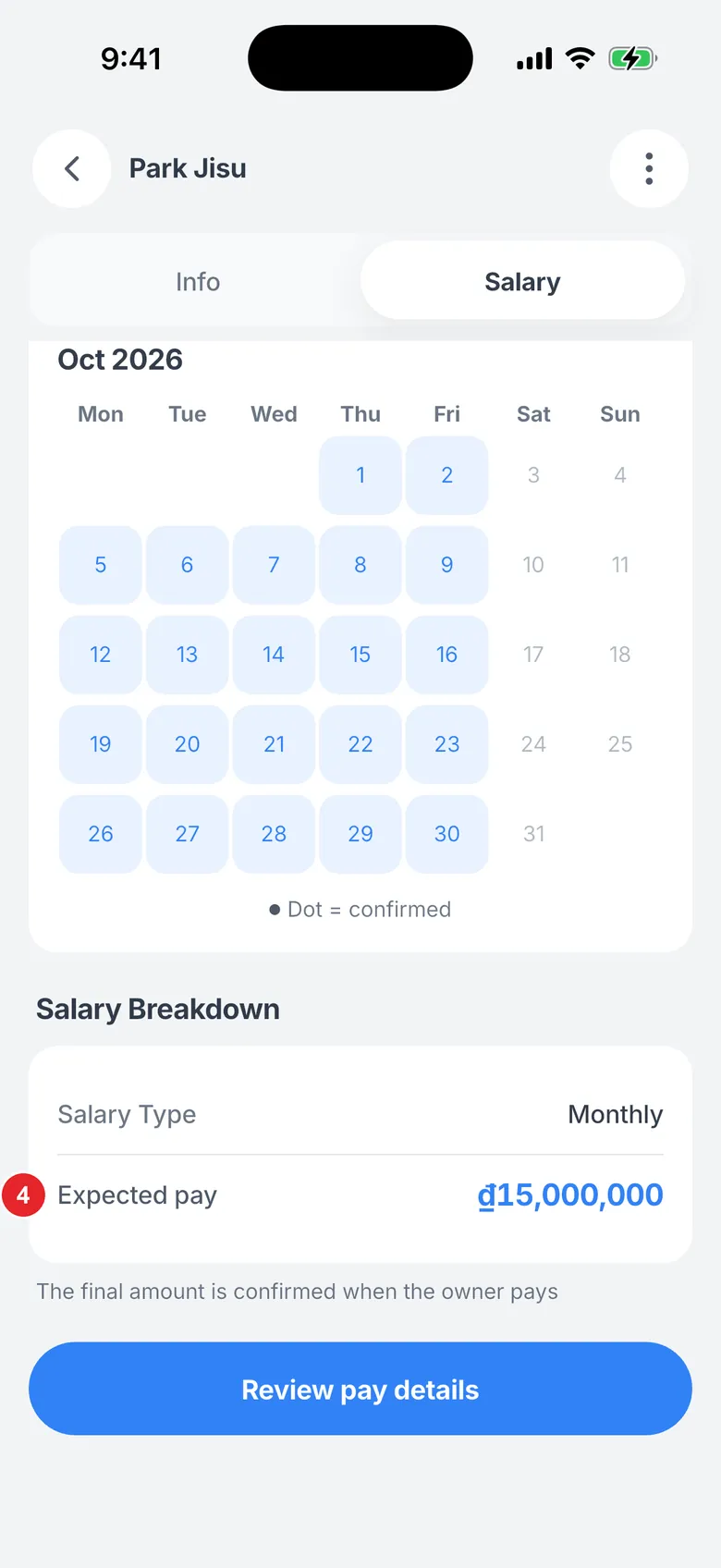
- For monthly staff, «Expected pay» is the set monthly salary. It says «The final amount is confirmed when the owner pays».
- Hourly staff: all approved and confirmed shift amounts are added up. They show by store.
- Monthly staff: the set salary as it is. Absences and unpaid leave don't come off by themselves.
- When paying, you can add to or take off the amount. Write the reason with it.