
Show contents
Staff & shifts › Hourly staff
Set hourly pay
- Who
- Owner
- When
- Each time someone joins
- Where
- App · Web
What you get
- Once the hourly rate is in, each shift's pay is worked out automatically when the shift is confirmed.
- Staff see this month's money under «THIS MONTH (ESTIMATED)» on the app home, and the hours and rate under «Pay breakdown» in «Stats».
- To pay one shift at a different rate, change the rate in that shift's details. Every other shift stays as it is.
What it solves
- If the rate goes in late, shifts confirmed before it stay at ₫0 and that pay goes missing.
- Working out hours × rate by hand for every shift makes the month-end total easy to get wrong.
Why this way
- When a shift is confirmed, that day's rate is saved with the shift. So raising the rate never changes shifts already confirmed.
- Entered the wrong rate? Shifts that end after you fix it get the right rate. Open each shift already confirmed and change «Hourly rate · this shift».
- Can a manager change rates? Only someone whose role has both «Edit Employee Salary» and «Employee Salary & Payment» turned on.
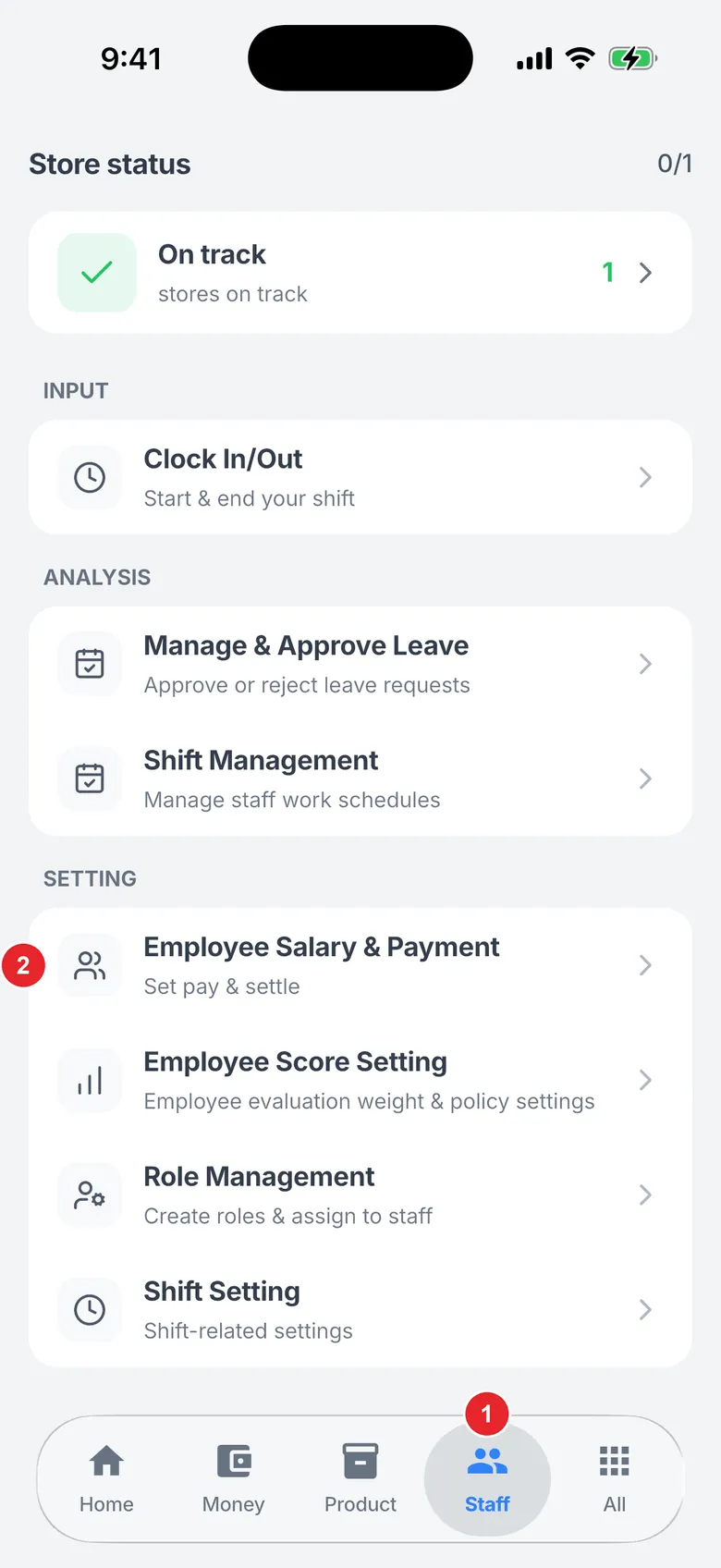
- Tap «Staff» at the bottom of the app.
- Scroll down and tap «Employee Salary & Payment».
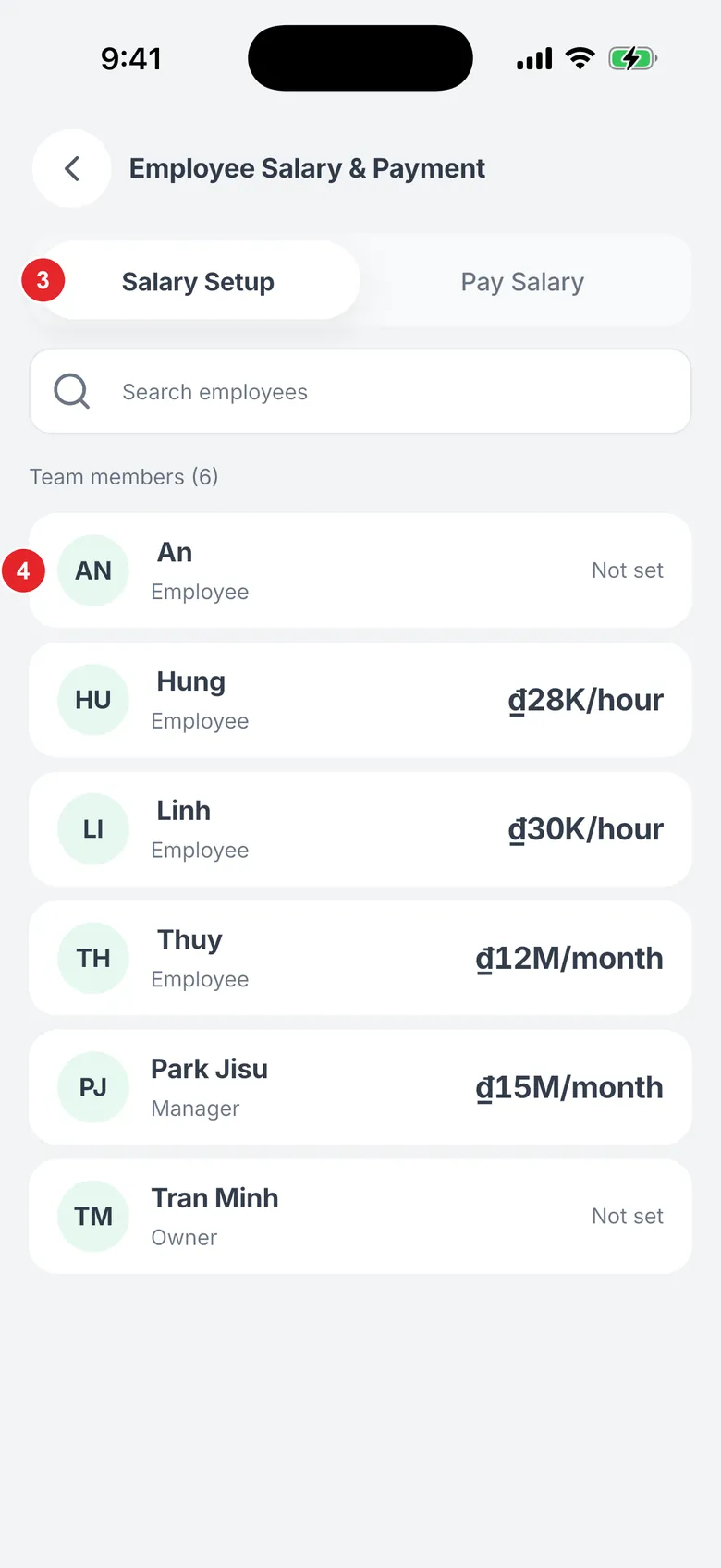
- Open the «Salary Setup» tab.
- Tap the employee. Anyone without pay yet shows «Not set» on the right.
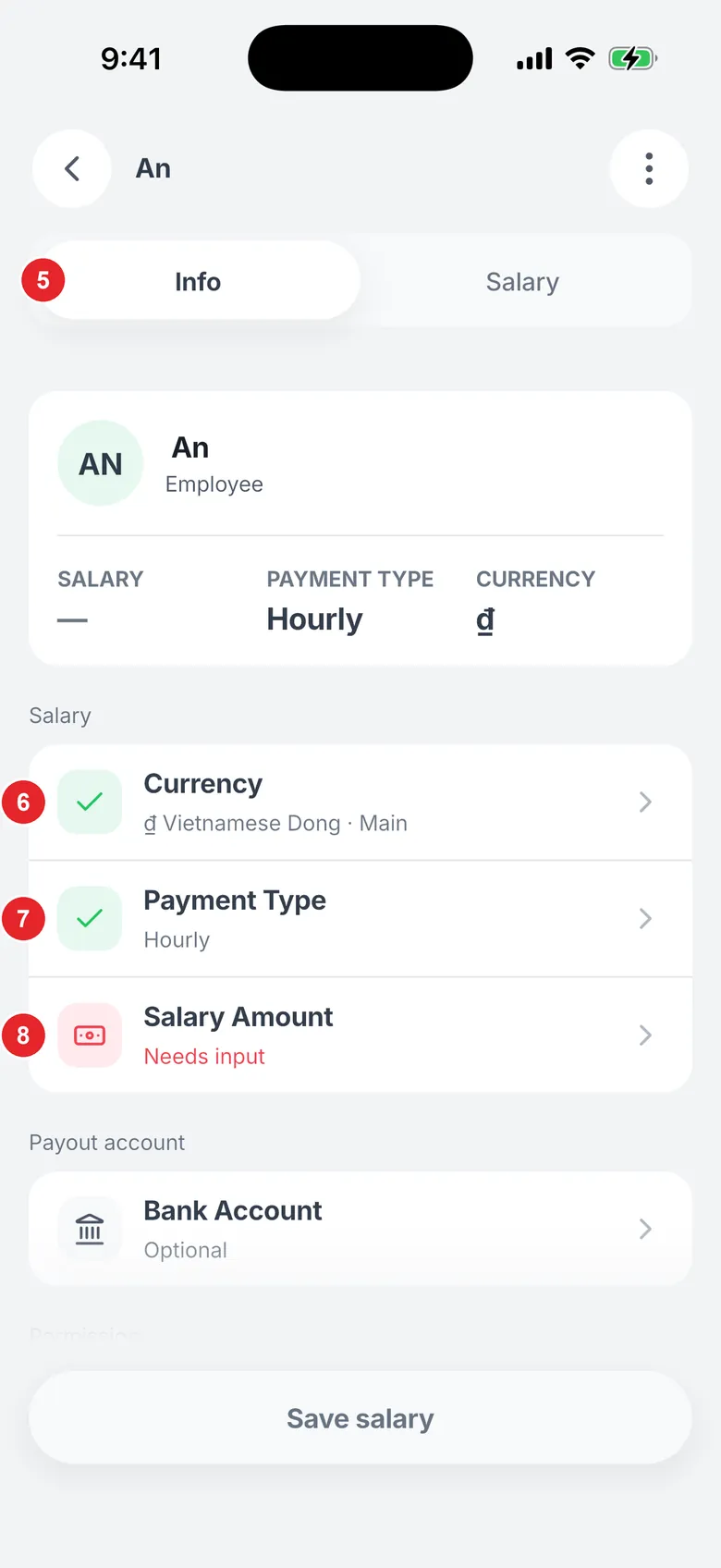
- Make sure the «Info» tab is open. If «Salary» is showing, tap «Info».
- Check «Currency».
- Check that «Payment Type» is «Hourly». If not, tap it and pick «Hourly».
- Tap «Salary Amount».
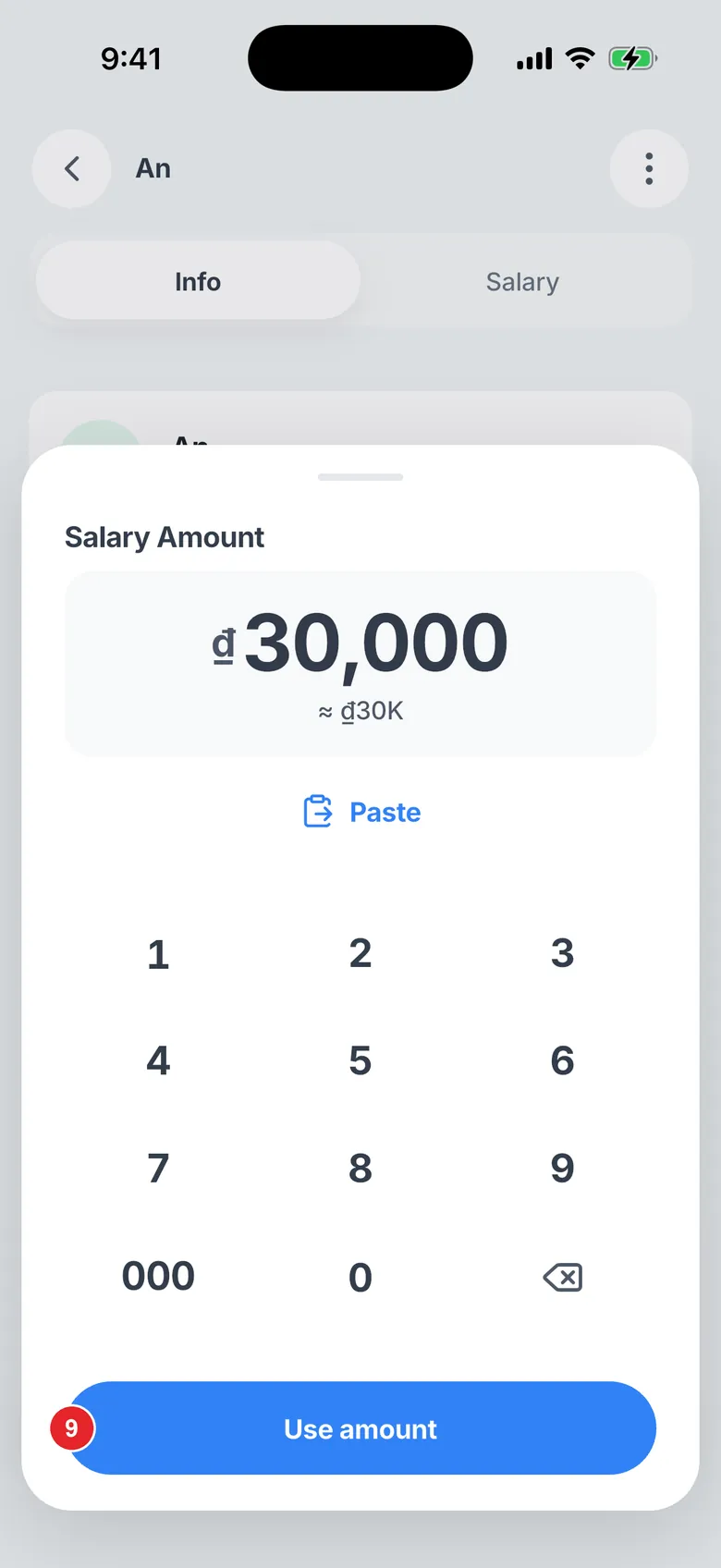
- Enter the amount per hour and tap «Use amount».
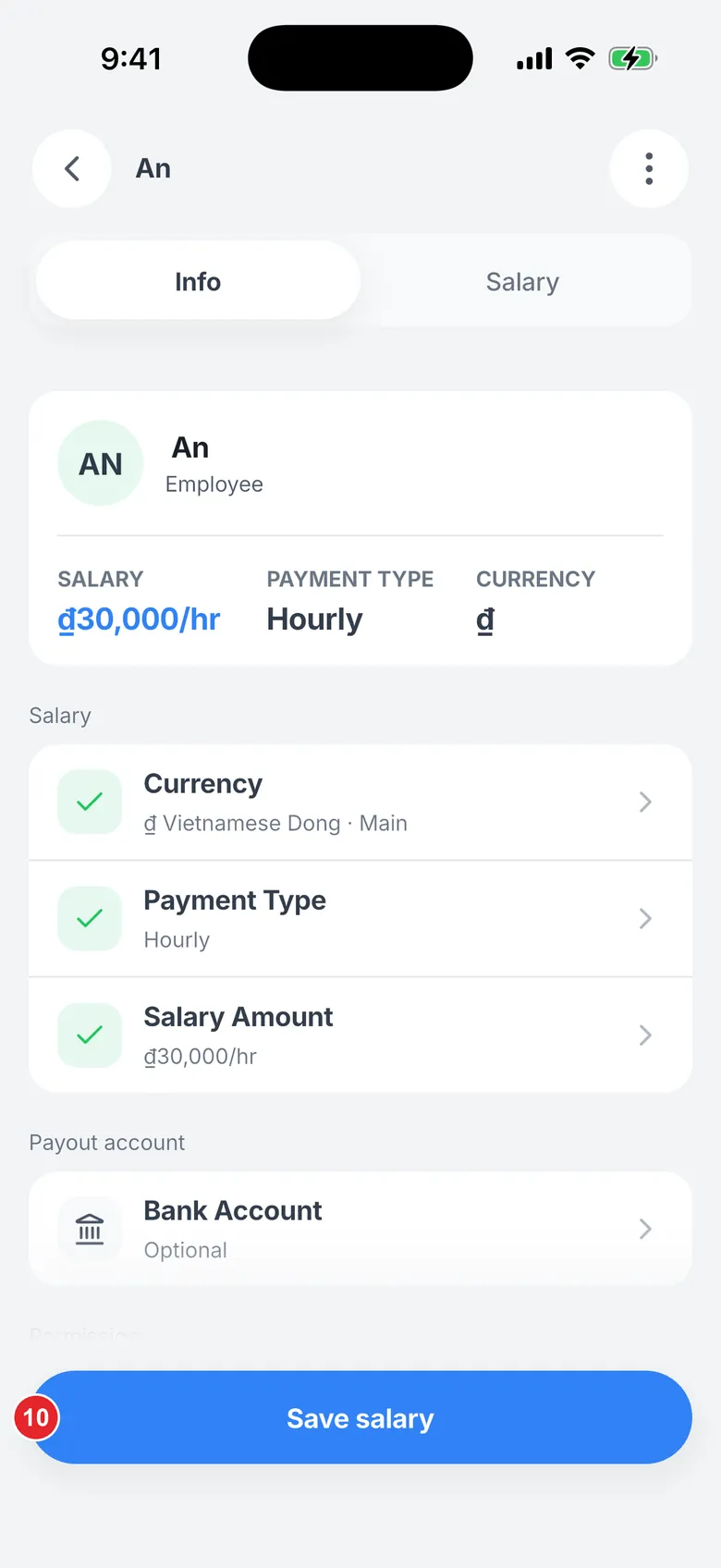
- Tap «Save salary».
Remember
- Enter it before the first shift. The rate is saved when a shift is confirmed. A shift confirmed without a rate stays at ₫0, even if you add the rate later.
- Raising the rate does not change past shifts. To fix one past shift, change the rate in that shift's details.