
Show contents
Staff & shifts › Store & shift setup
Set up your store (location · opening hours · late rules)
- Who
- Owner · Manager
- When
- Once, at the start
- Where
- App · Web
What you get
- Set the late rule once, and the time to cut from each late shift is worked out by that rule.
- With the store location and «Check-in distance» set, a clock-in made far from the store shows with its distance.
- In the app's «Late deduction» window, a picture shows how many minutes are cut for how many minutes late, before you save.
What it solves
- If you decide late cuts case by case, staff lose different amounts of time and people complain.
- Without a location, you can't create shifts in the app, so you get stuck on day one.
Why this way
- Late time is counted in blocks. Example: with one block every 10 minutes and 15 minutes per block, a shift 23 minutes late is three blocks, so 45 minutes are cut.
- Is clock-in blocked when staff clock in far away? No. If it is farther than «Check-in distance», it is only marked as a clock-in outside the store, and pay stays the same.
- If I change the rule later, do past shifts change too? Shifts whose paid hours have not been set are counted again with the new rule. Before you change it, set the paid hours of past late shifts first.
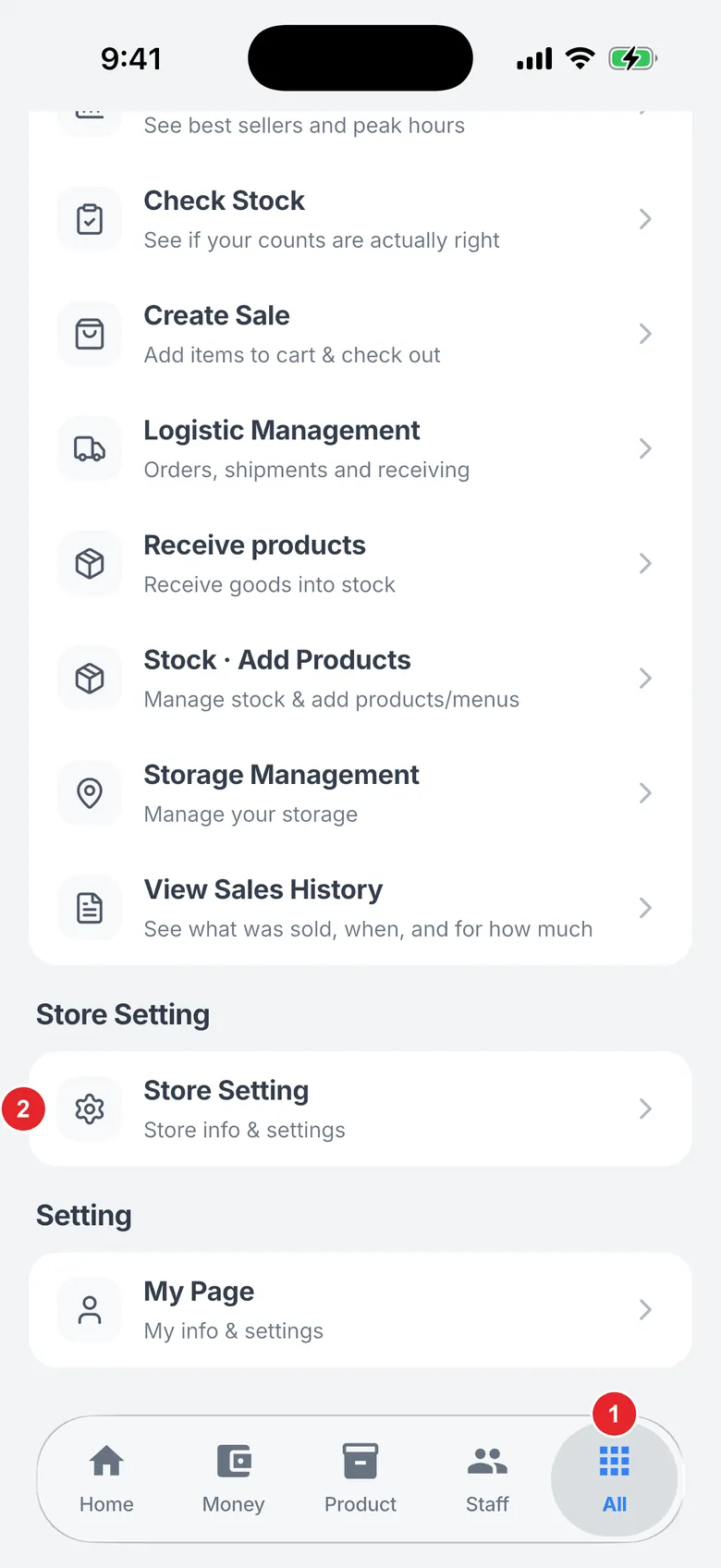
- Tap «All» at the bottom of the app.
- Scroll down and tap «Store Setting». If you have several stores, first choose one under «Store» at the top of the screen.
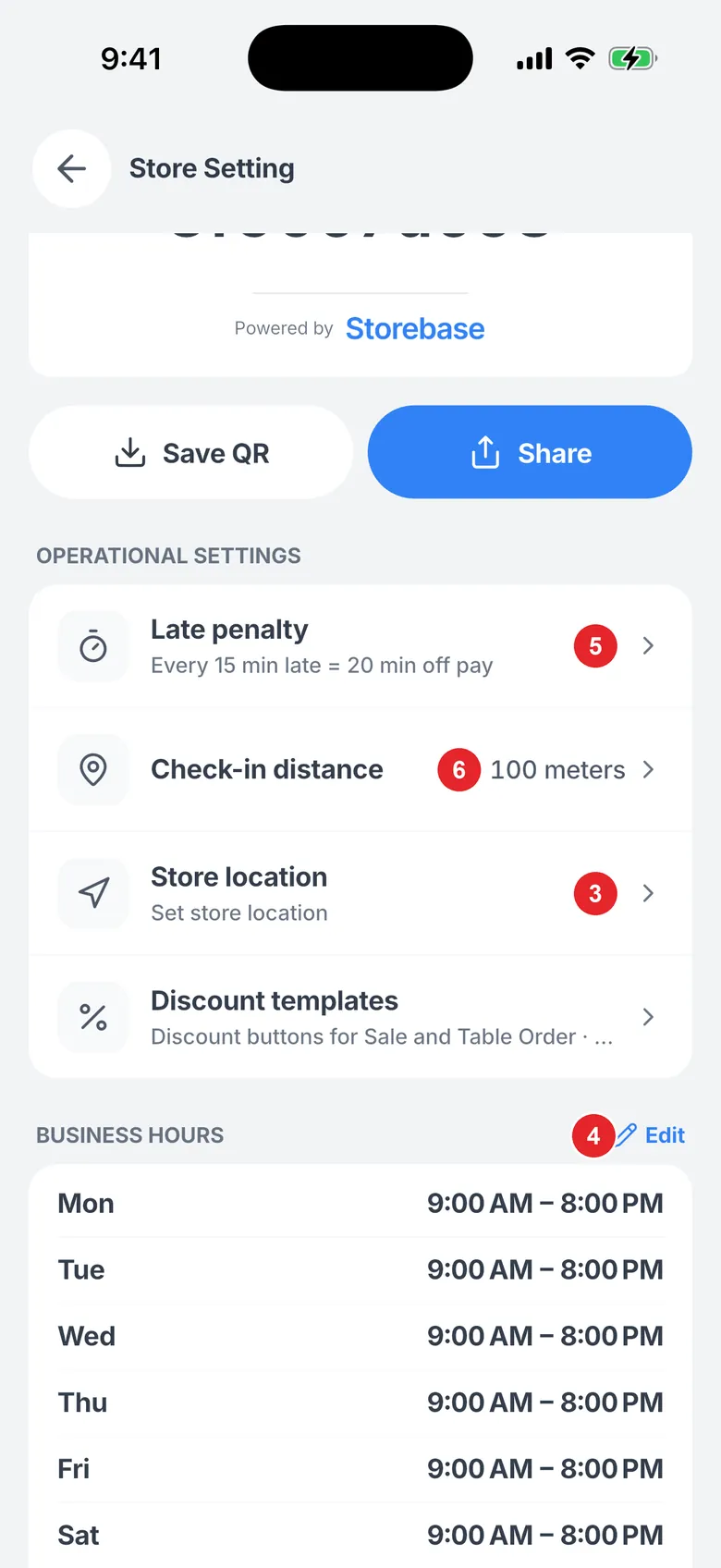
- If «Store location» says «Set store location», the store has no location yet. Tap this row.
- To change the opening hours, tap «Edit» in «BUSINESS HOURS».
- For the late rule, tap «Late penalty».
- To set how far from the store still counts as inside the store, tap «Check-in distance».
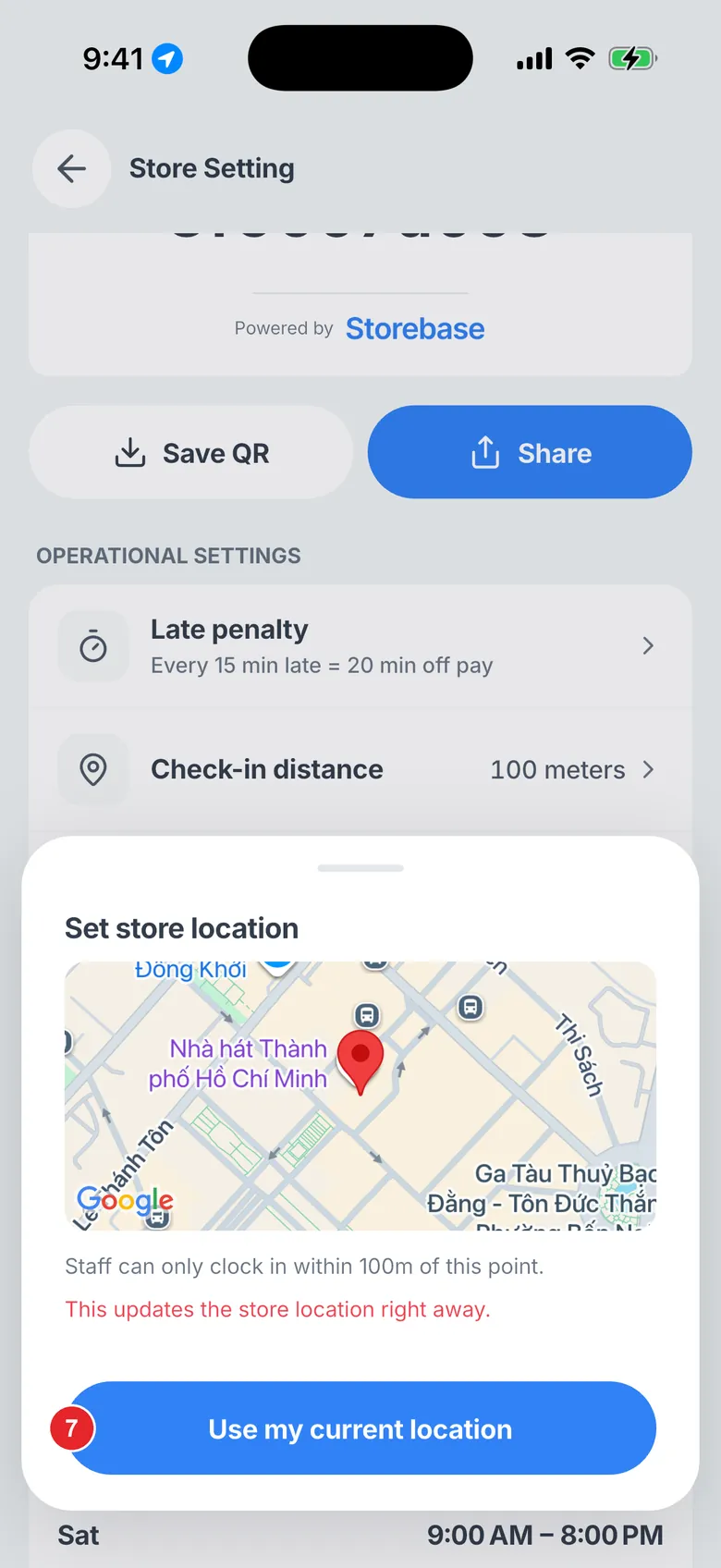
- Inside the store, tap «Use my current location». It is applied right away, with no save button.
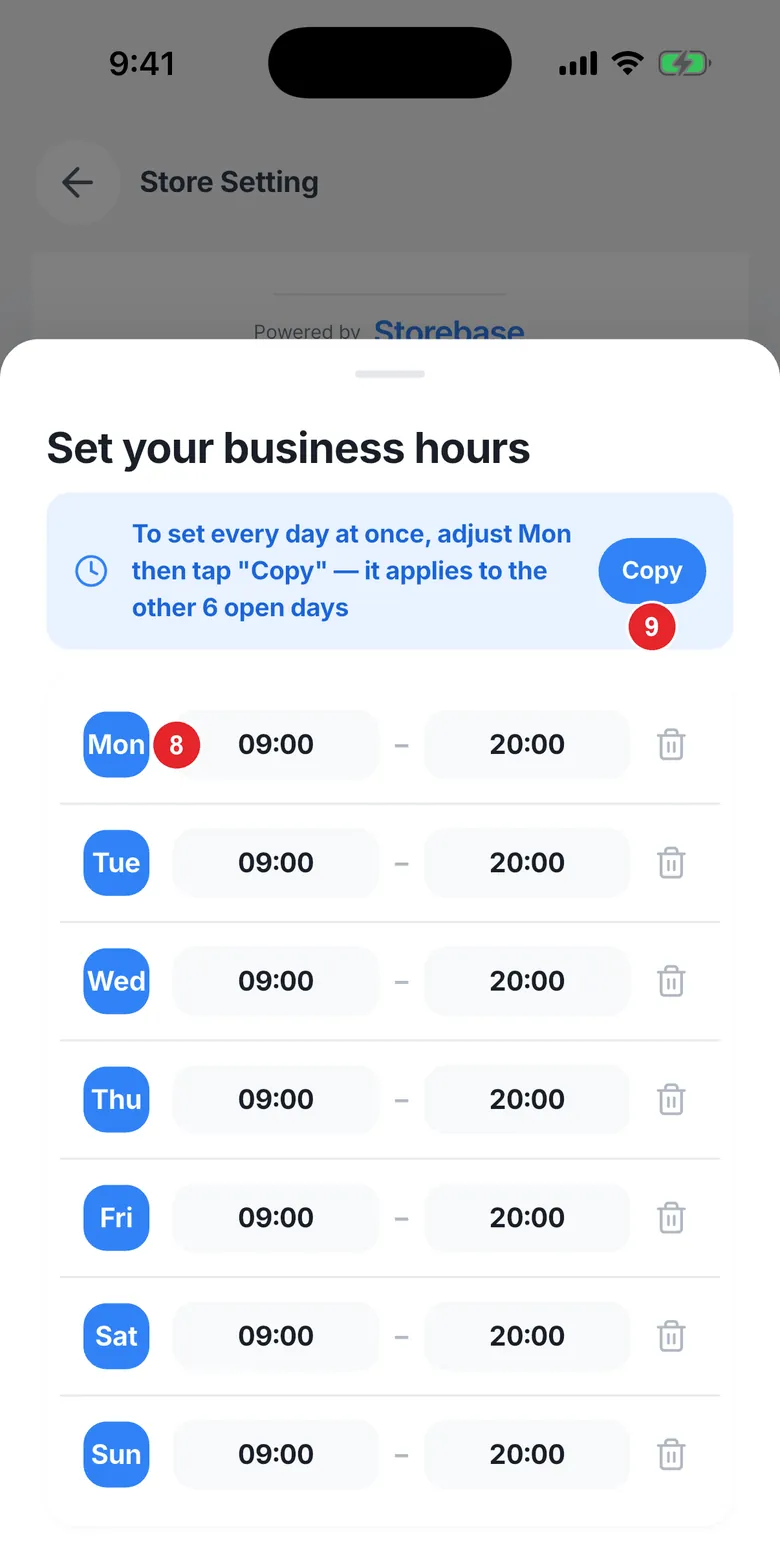
- For each day, tap the opening and closing times to choose them. For a day the store is closed, tap the trash can on the right.
- To make every day the same, set Monday and tap «Copy».
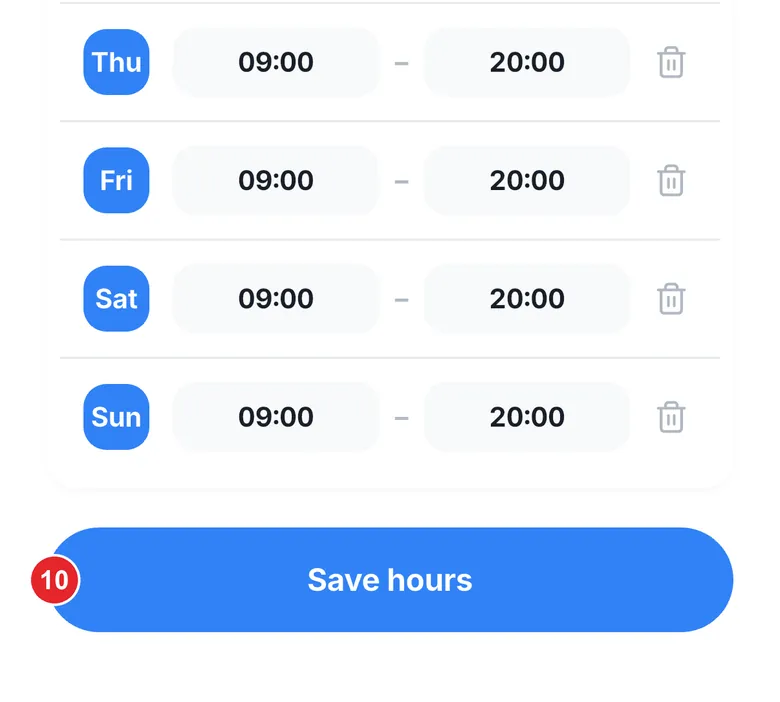
- Tap «Save hours».
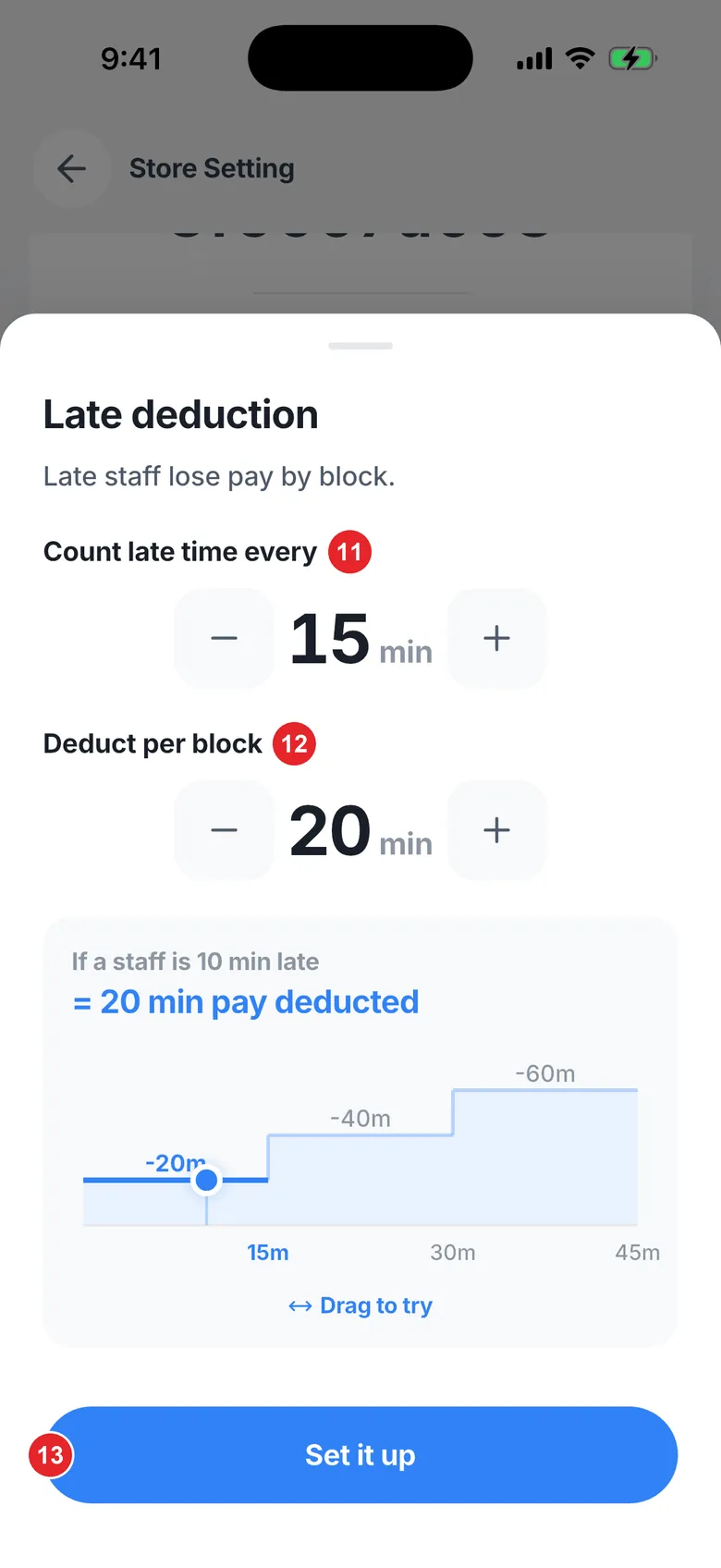
- Set «Count late time every» with − +.
- Set «Deduct per block» with − +. The picture below shows how many minutes of pay are cut for how many minutes late.
- Tap «Set it up».
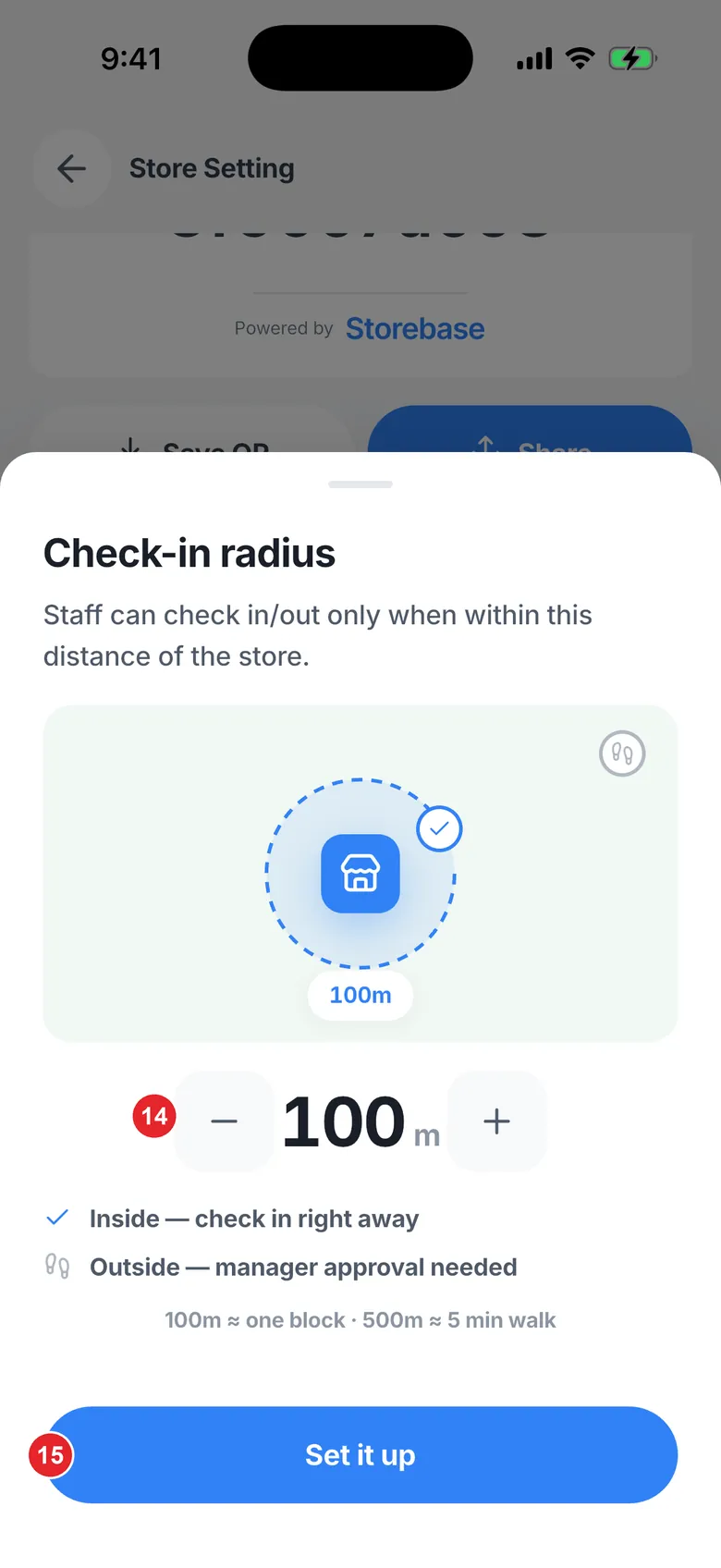
- Set the distance with − +.
- Tap «Set it up».
Remember
- Enter the location first. In the app you can't create shifts without a location.
- The app saves each item on its own («Use my current location» saves as soon as you tap it, opening hours with «Save hours», operating rules with «Set it up»). On the website it is one «Save settings» at the bottom.