
Show contents
Staff & shifts › Staff training
Work guide to send to staff
- Who
- Owner → Staff
- When
- When someone joins
- Where
- App
What you get
- Staff know what to do from day one, in five lines. You don't have to explain it every time.
- Staff request shifts, clock in and out with the QR and report problems themselves, so you don't have to write down clock-in times by hand.
- Staff see their own money for this month on the app home. If a shift is missing, they find out before month end.
What it solves
- If staff don't know the rules, they work without approval or forget the QR. Those shifts don't go into the salary, or stay as a «Problem».
Why this way
- Only approved shifts turn into money. Tell them at the start to request first, so days worked don't go missing.
- If staff send a «Report Issue» on the day something is missed, problems don't pile up until month end. Staff with problems left can't be paid.
- Can staff fix their own times? No. Staff only send the reason with «Report Issue», and the manager decides the hours to count for pay.
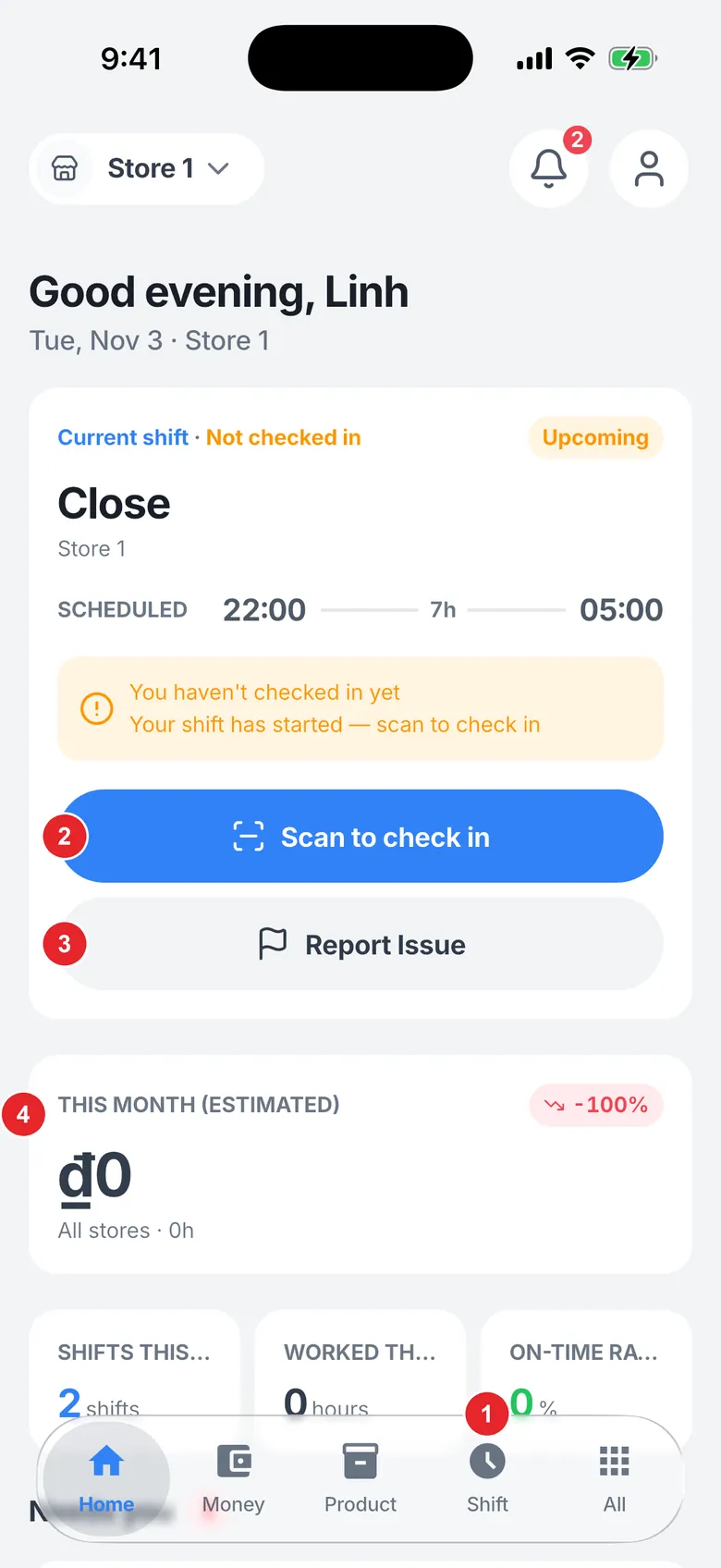
- To request a shift, tap «Shift» at the bottom and open the «Sign up» tab.
- To clock in and out, tap «Scan to check in» on the home screen and point the camera at the store QR.
- If you missed one, tap «Report Issue» and send the reason.
- See your money for this month under «THIS MONTH (ESTIMATED)» on the home screen.
- Install the app and join with the code you received.
- Hourly staff: request your shifts. Only approved shifts turn into money.
- Scan the store QR when you start and when you finish work.
- If you missed one, send a «Report Issue» that same day.
- See your money on the app home.