
Show contents
Cost of goods › F&B cost
See menu cost when ingredient prices rise
- Who
- Owner · Manager
- When
- When a supplier raises prices, after receiving ingredients
- Where
- App · Web
What you get
- The ingredient's unit price is worked out again from the received unit price, and the cost of menus that use it changes too.
- The recipe shows how much it went up and because of which ingredient, like «Up ₫1,400 since 10/6 — Beef +7%.»
- Every sale puts «Sell Inventory (COGS)» into the books by itself, at the cost at that time.
What it solves
- Meat prices went up but the menu cost stayed the same, so you find out late that each sale leaves less.
- The order price, the shipment price and the received price differ, so you can't tell which one is the cost.
Why this way
- The cost is set when goods are received, not when you order. Receive at the unit price on the shipment, and the store's average unit price is worked out again from it. Beef at ₫250/g with 5 kg on hand, plus 5 kg received at ₫285/g, becomes ₫268/g.
- Does confirming a different amount owed change the cost? No. F&B doesn't fix the ingredient cost; the whole difference from the received price is kept separately as price variance. So enter the right unit price on the shipment or when you receive.
- Does the food cost change too? Yes. Beef pho went from ₫27,300 to ₫28,700 per serving, and its food cost became 44%.
Place the order
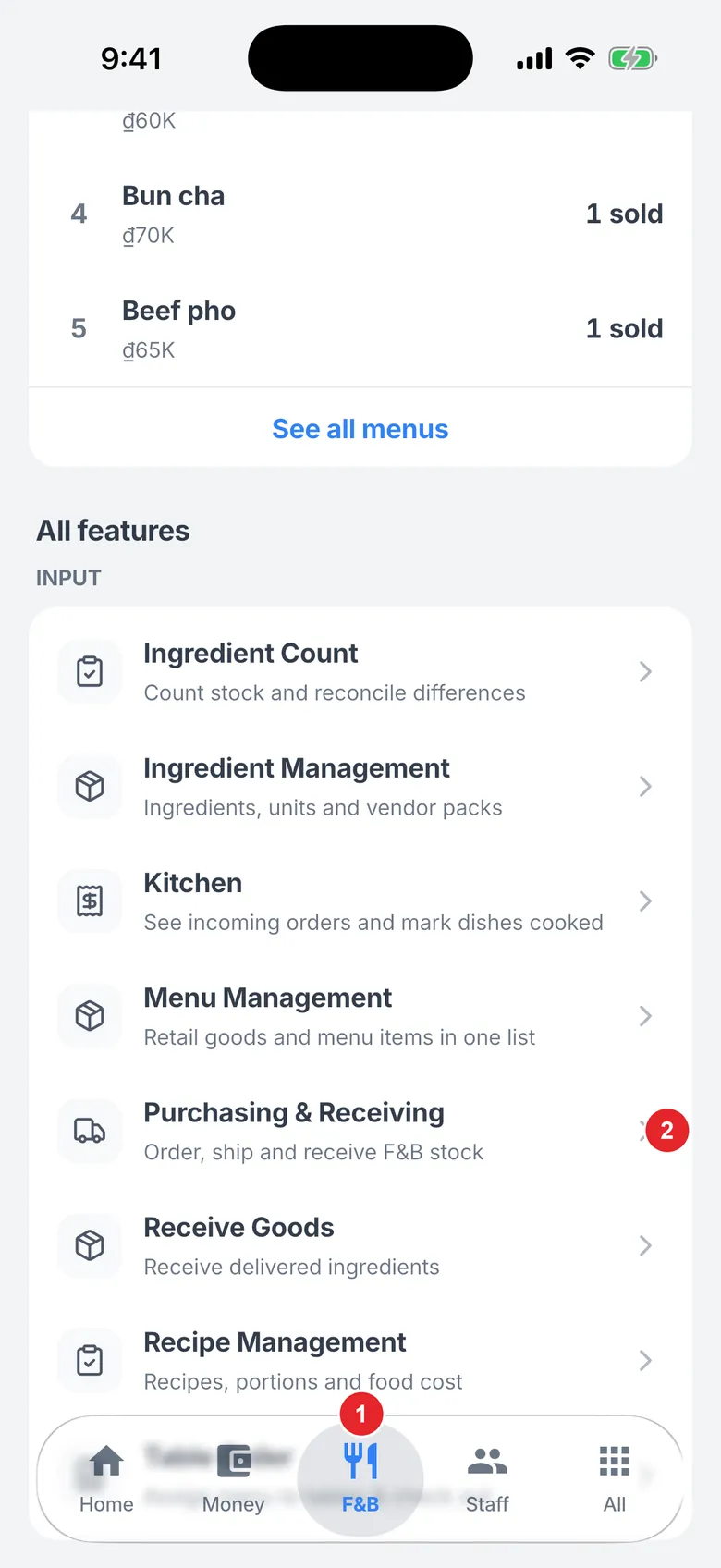
- Tap «F&B» at the bottom of the app and scroll down.
- Under «All features», tap «Purchasing & Receiving».
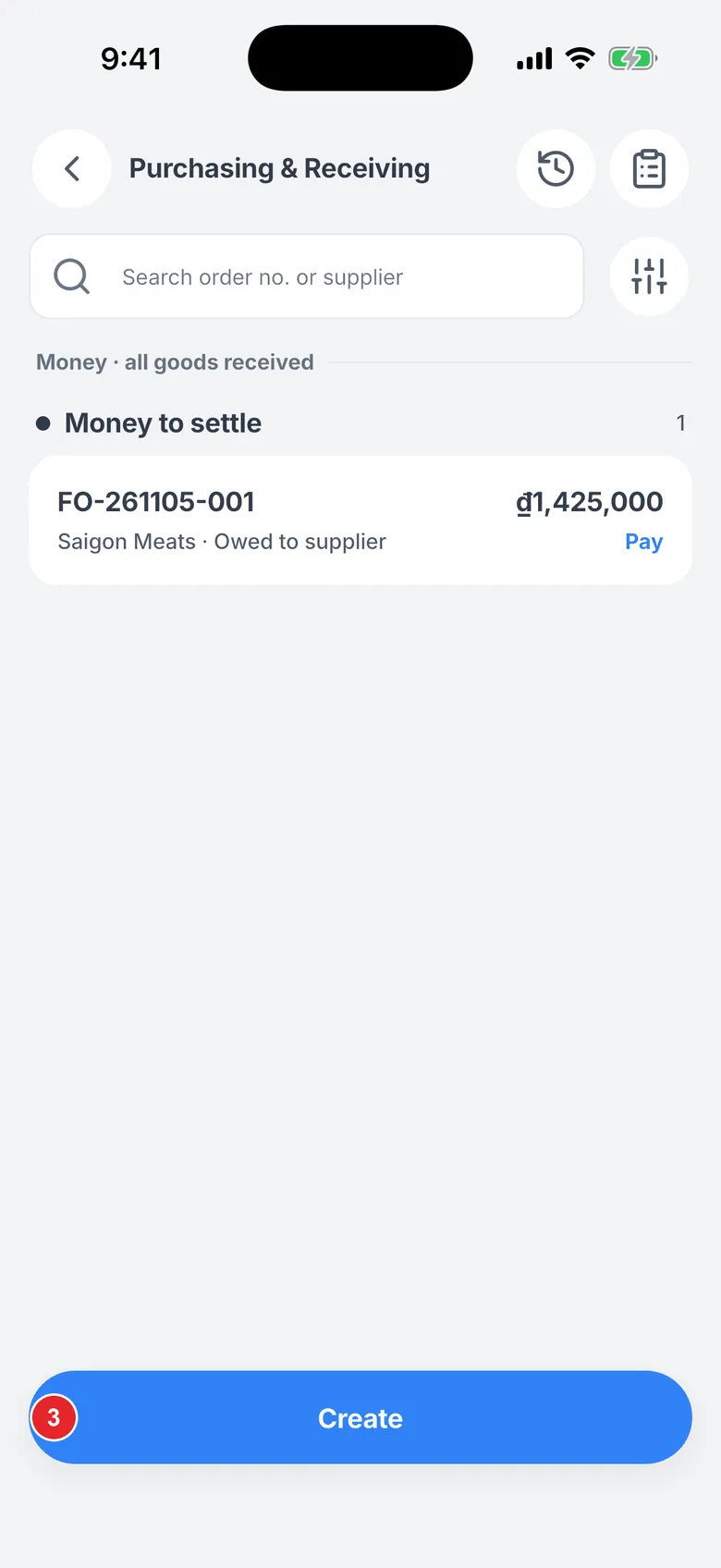
- Tap «Create» at the bottom.
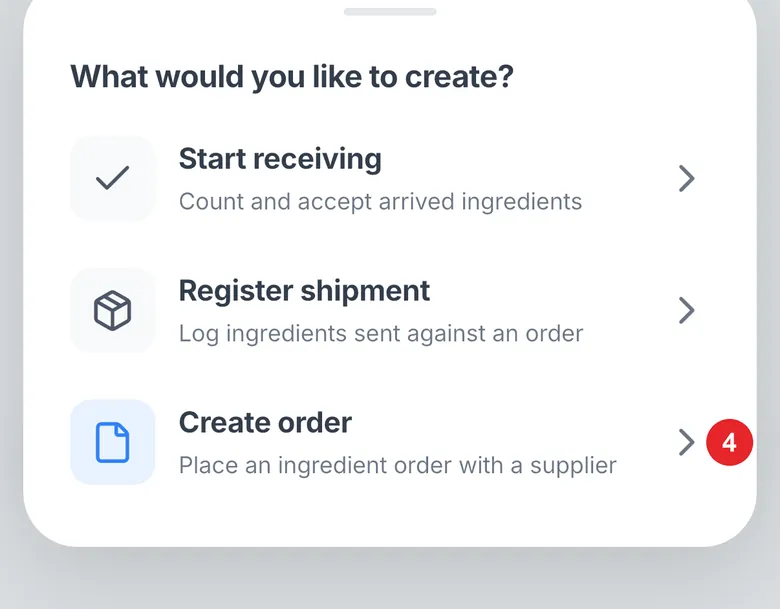
- Tap «Create order».
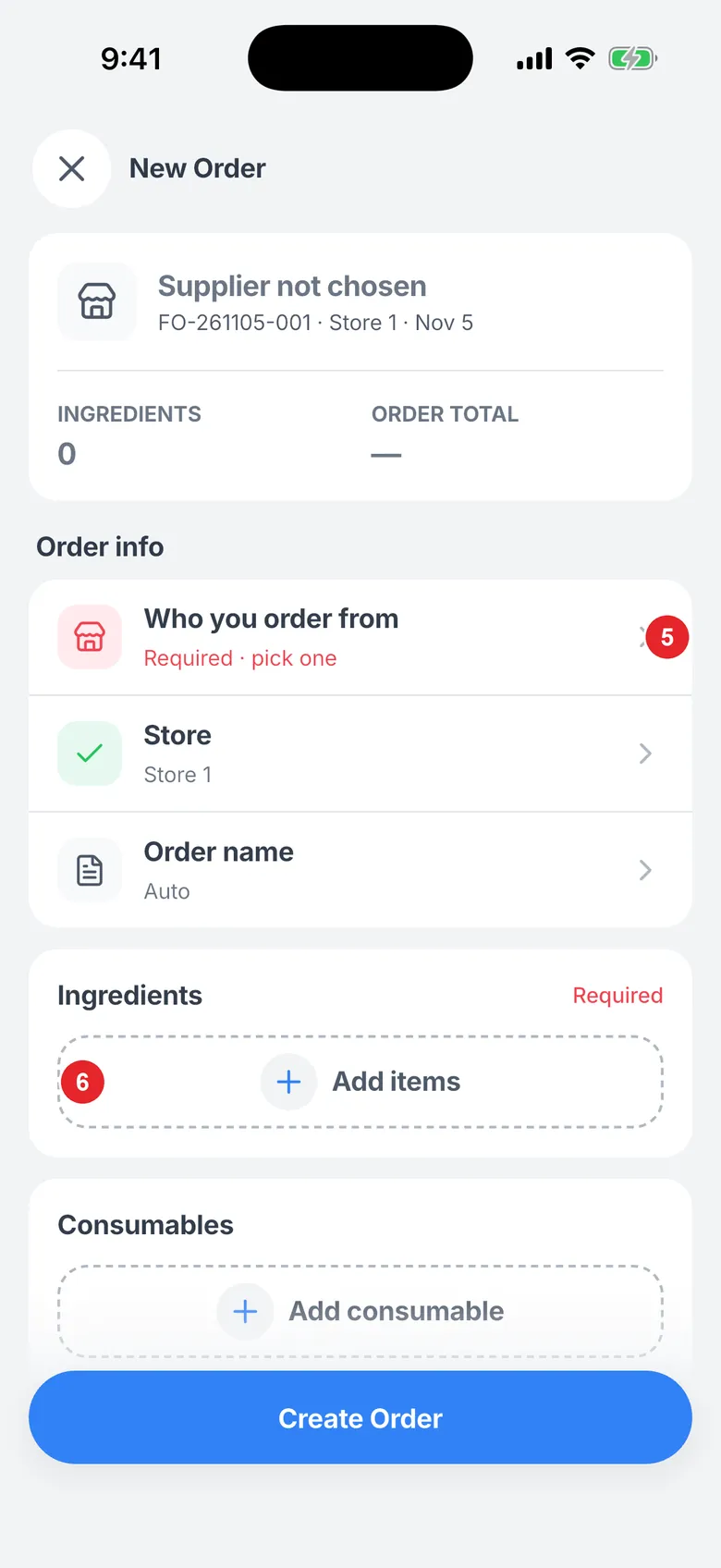
- Tap «Who you order from».
- After choosing the supplier (steps 7–8), tap «Add items».
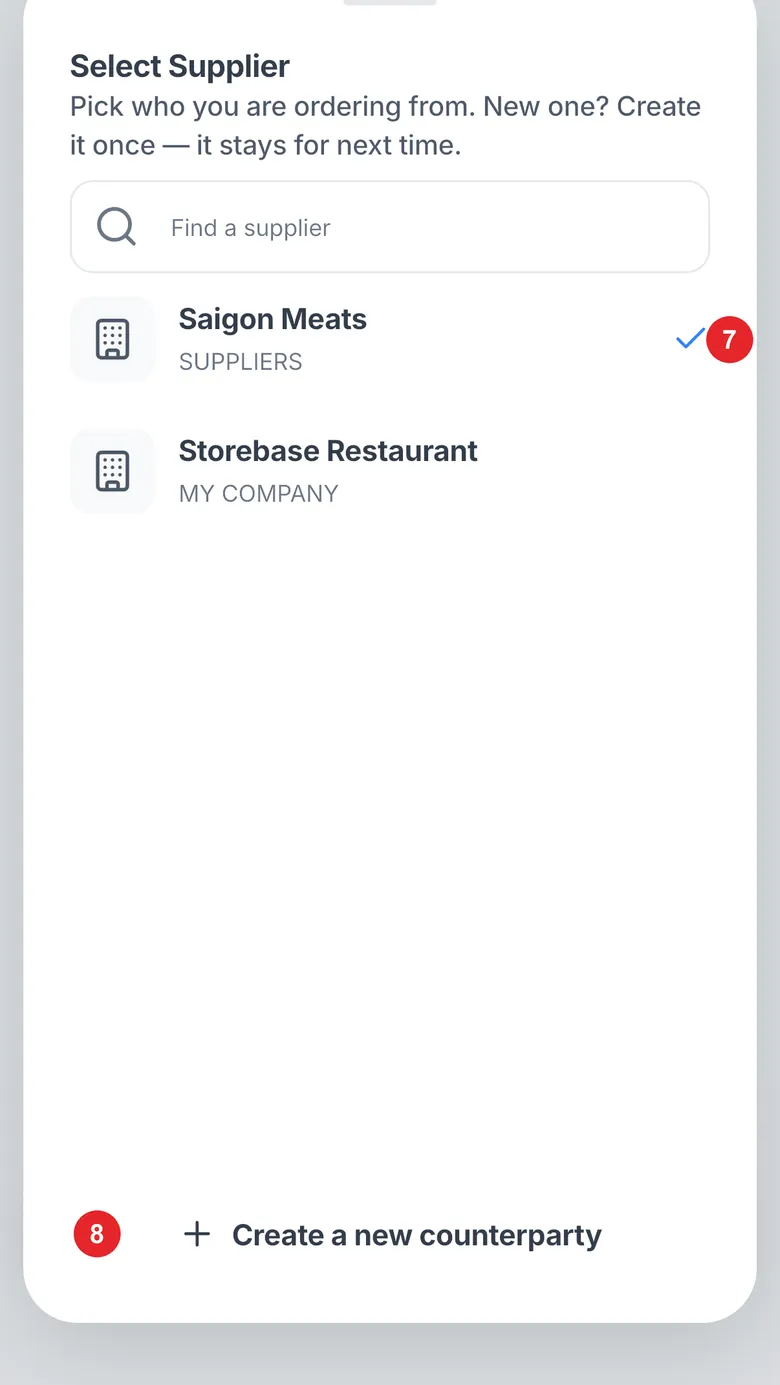
- Tap the supplier you are ordering from. Here it is «Saigon Meats».
- If this is your first order from this supplier, make it once with «Create a new counterparty». You use it next time too.
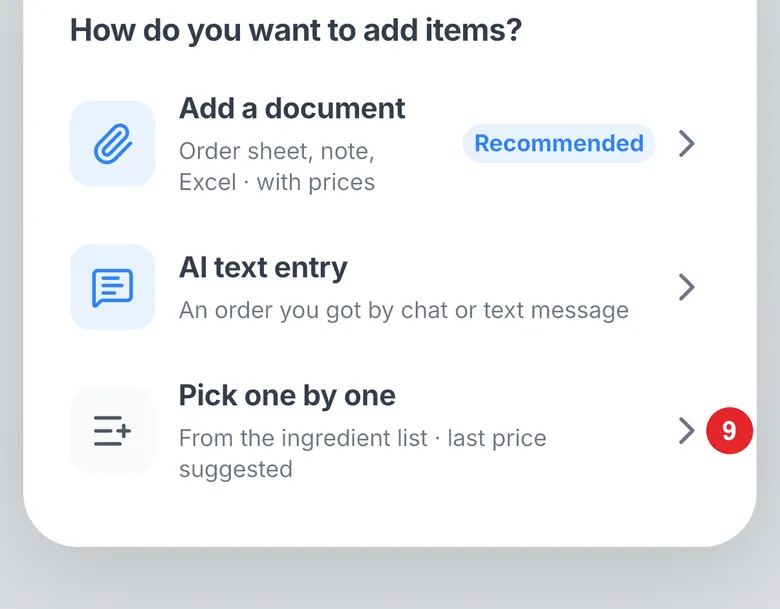
- Tap «Pick one by one».
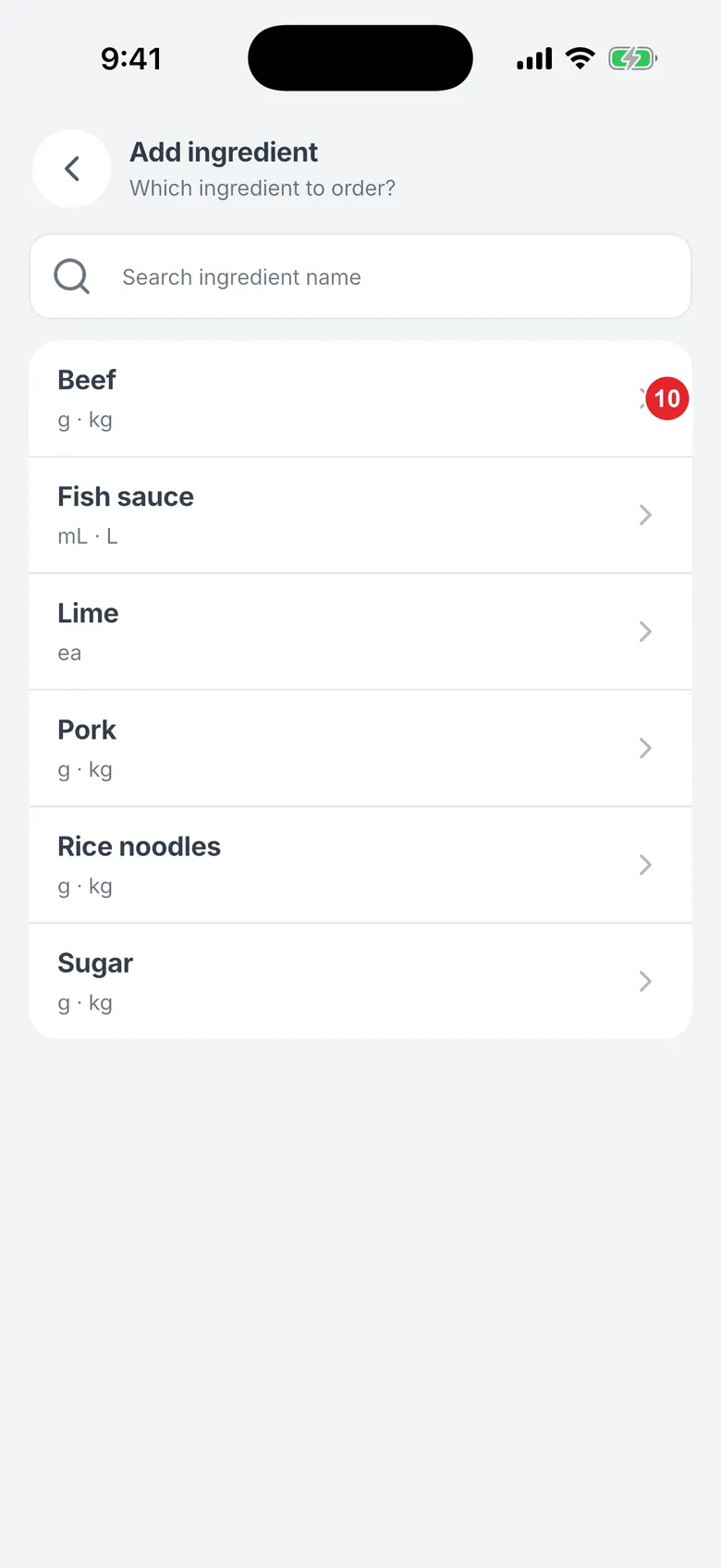
- Tap the ingredient to order. Here it is «Beef».
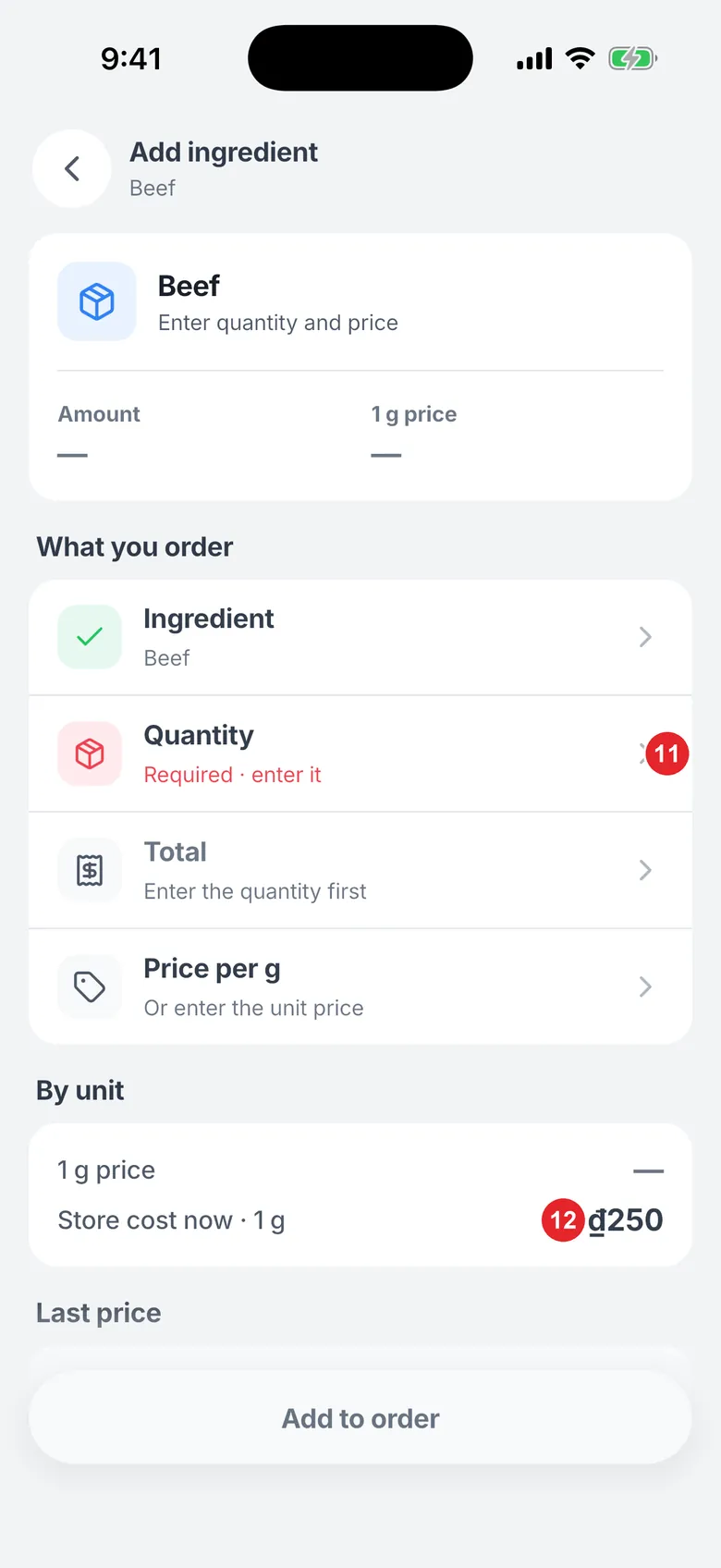
- Tap «Quantity».
- «Store cost now · 1 g» is ₫250. That is what beef costs now.
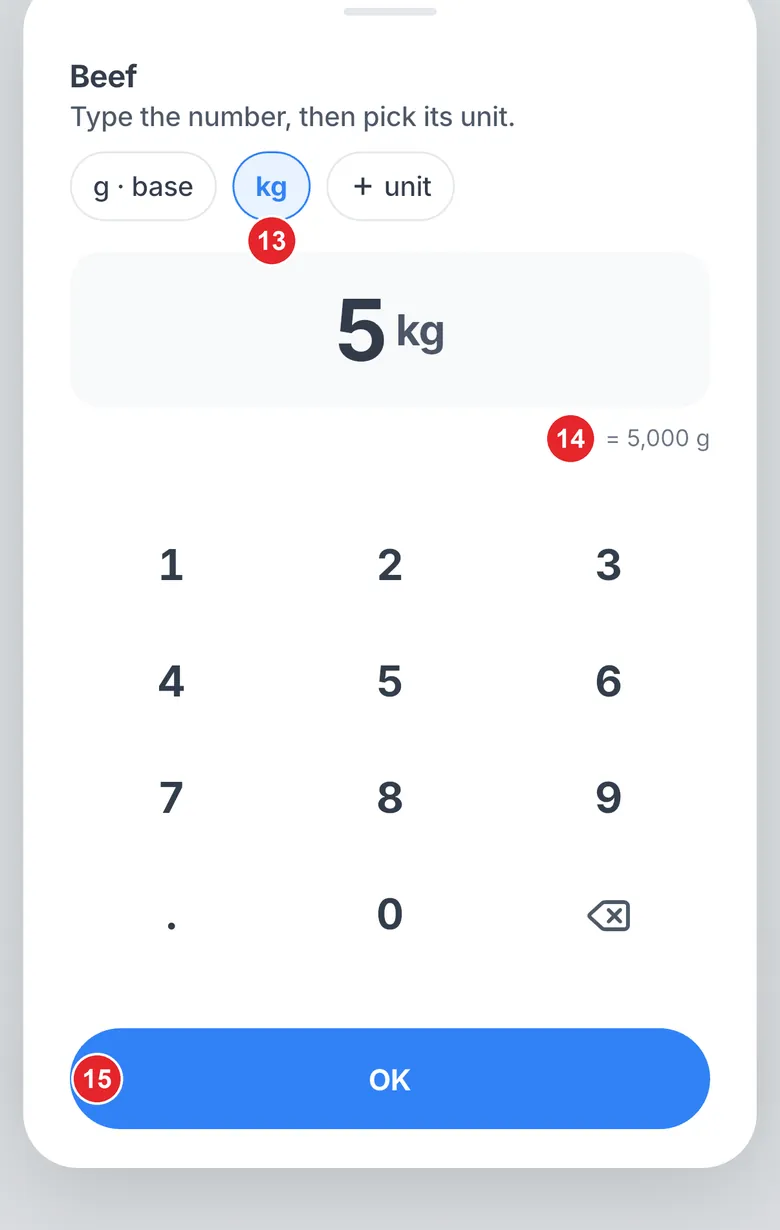
- Tap «kg» and enter the quantity. Here it is 5.
- The amount in g shows, like «= 5,000 g».
- Tap «OK».
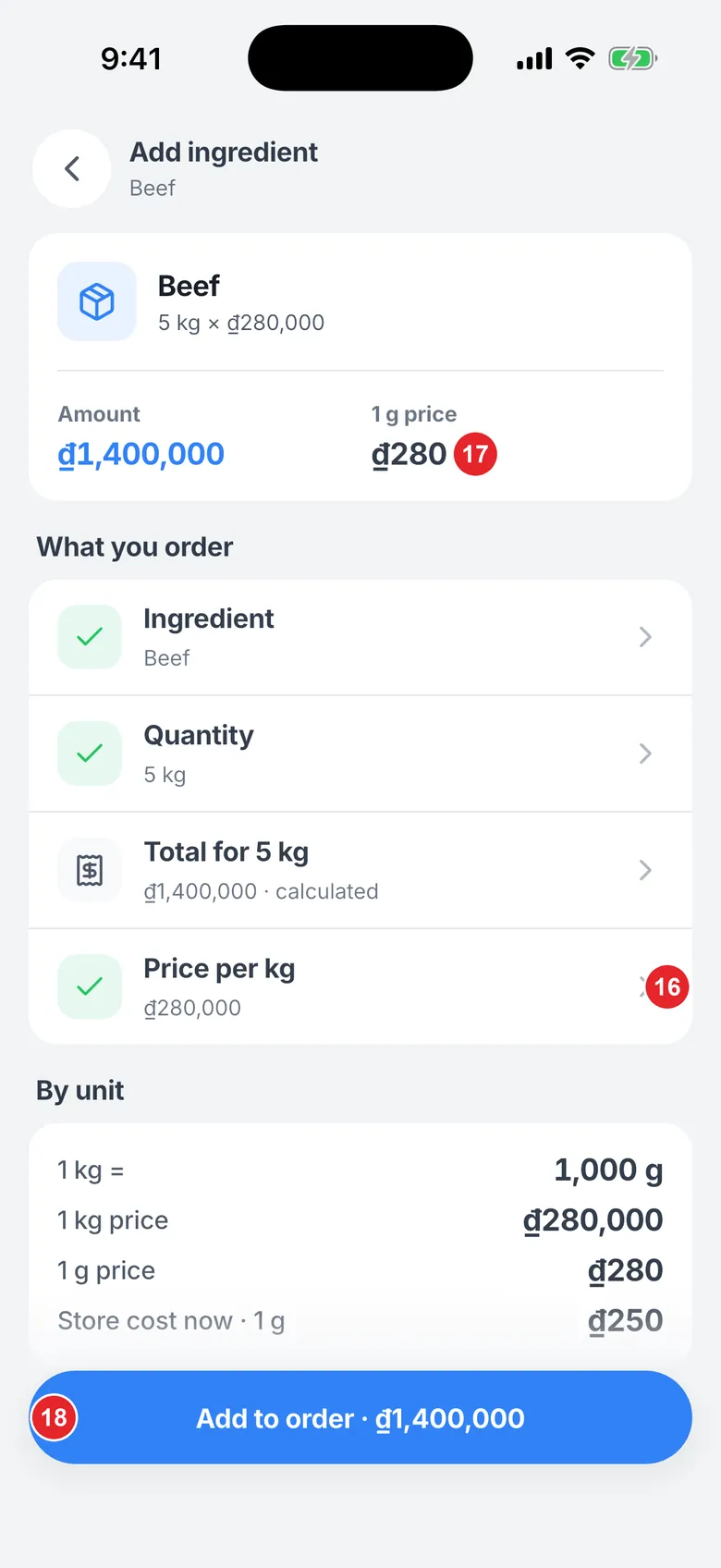
- Tap «Price per kg» and enter the price the supplier gave you. Here it is ₫280,000.
- «1 g price» is ₫280. That is more than «Store cost now · 1 g» below, ₫250.
- Tap «Add to order · ₫1,400,000».
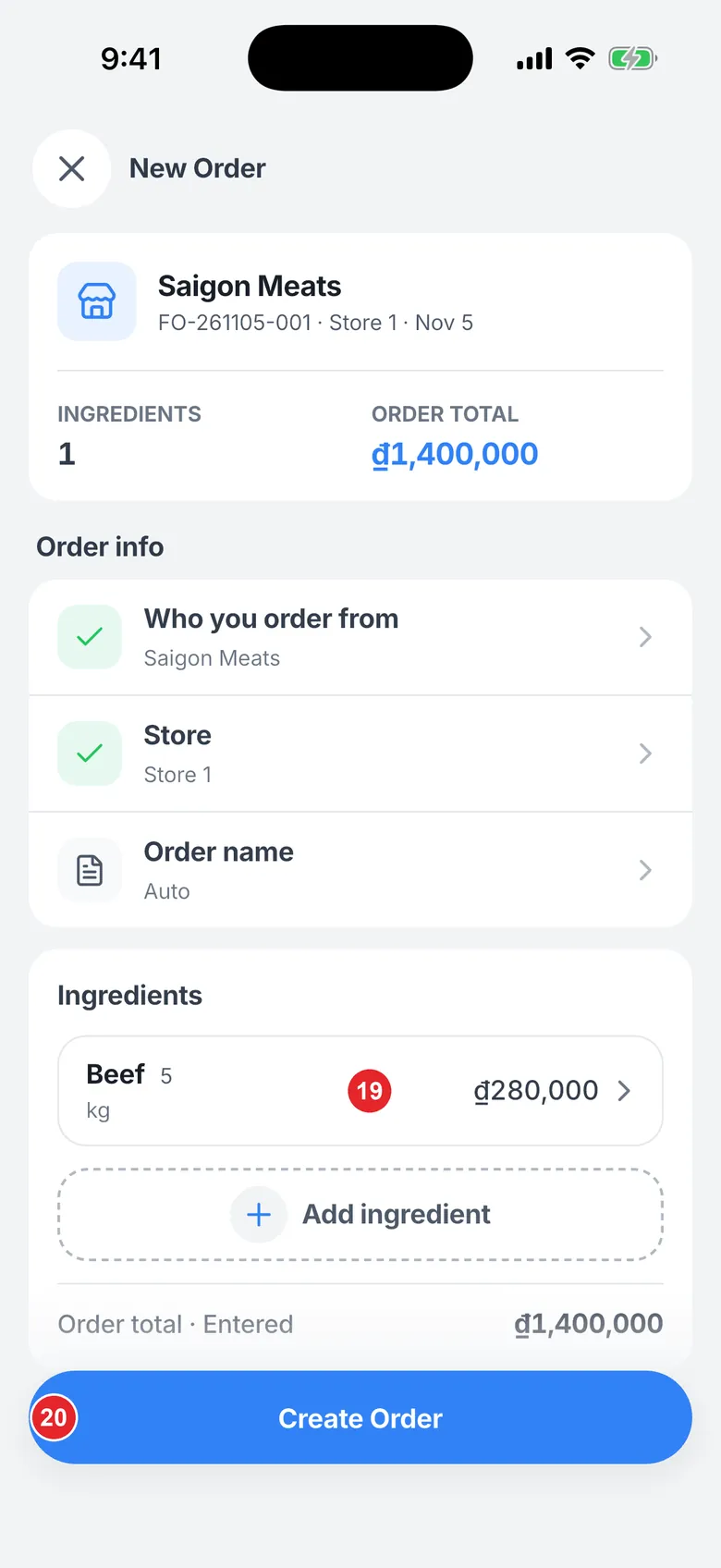
- The added line shows under «Ingredients». To change it, tap the line.
- Tap «Create Order» at the bottom.
Log the shipment
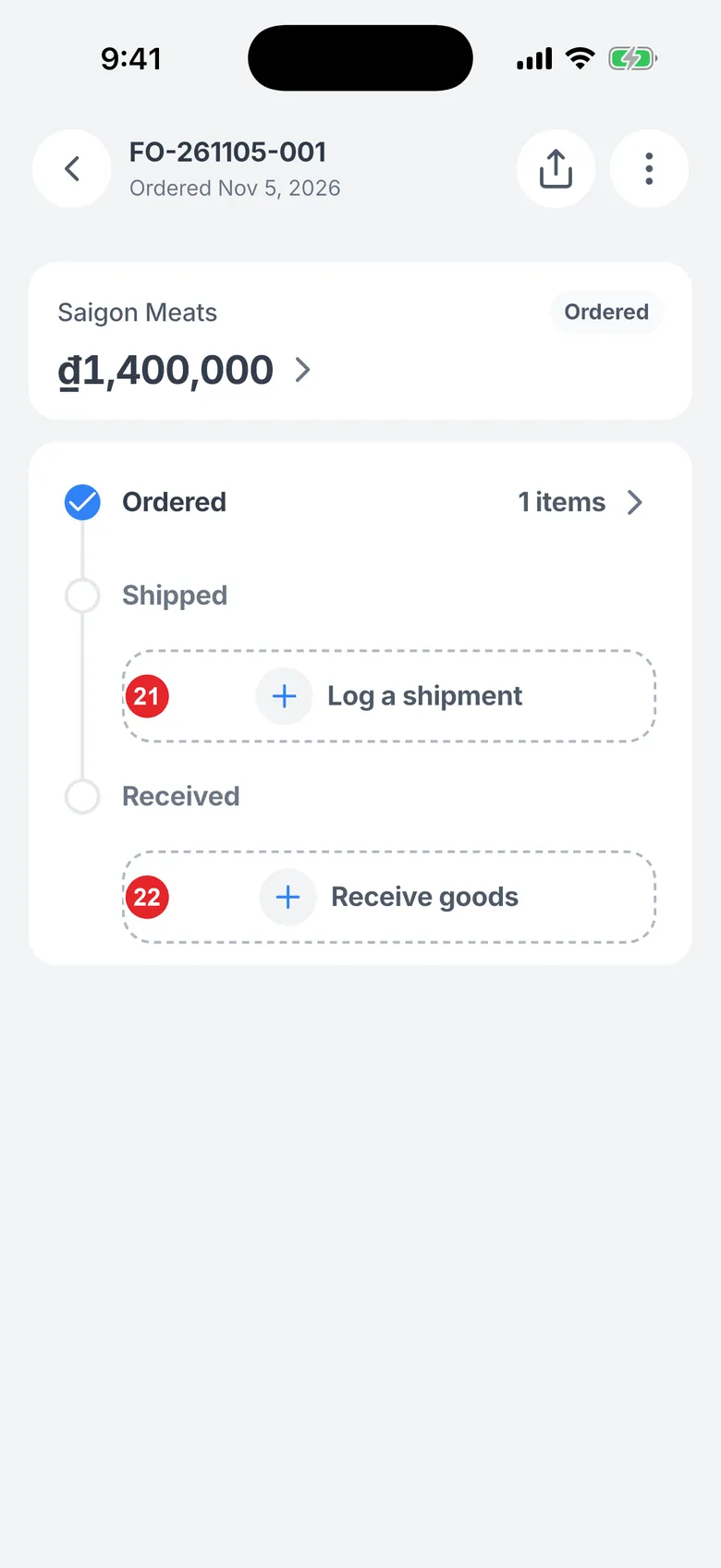
- When the supplier sends the shipment details, tap «Log a shipment».
- When the goods arrive, tap «Receive goods» (steps 31–32).
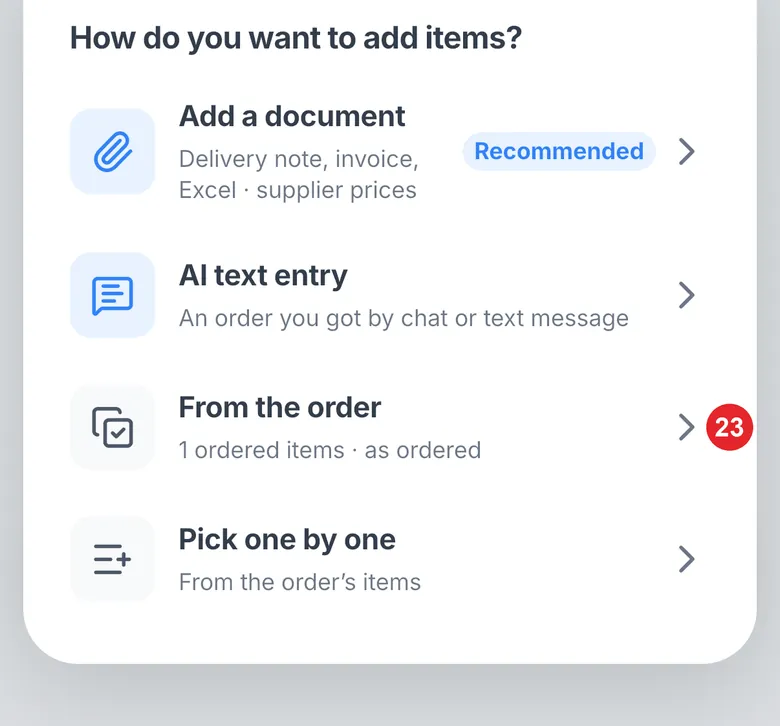
- On the shipment screen, tap «Add items», then tap «From the order». The ordered items and quantities come in as they are.
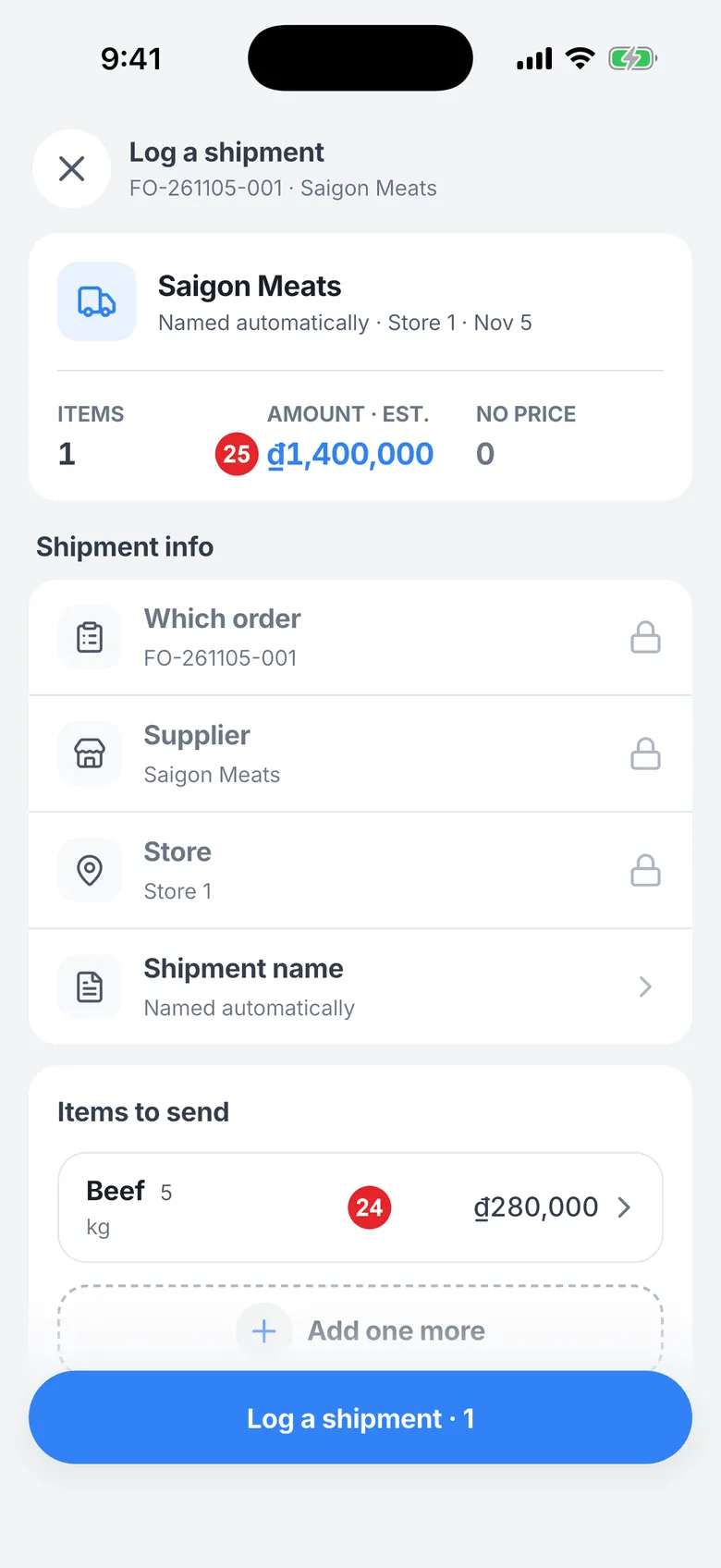
- If the supplier changed the price, tap that line.
- The amount at the top, «AMOUNT · EST.», is still worked out from the order's prices.
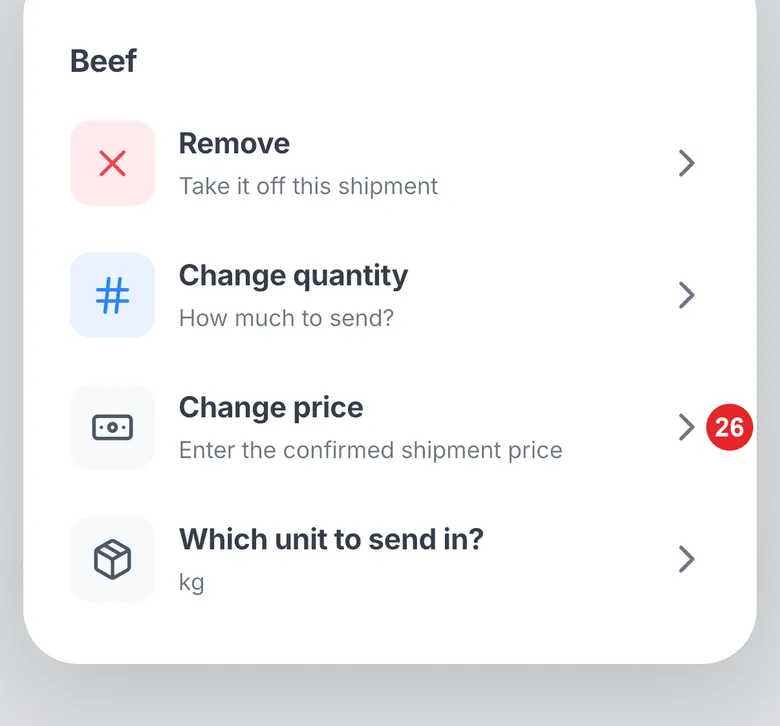
- Tap «Change price».
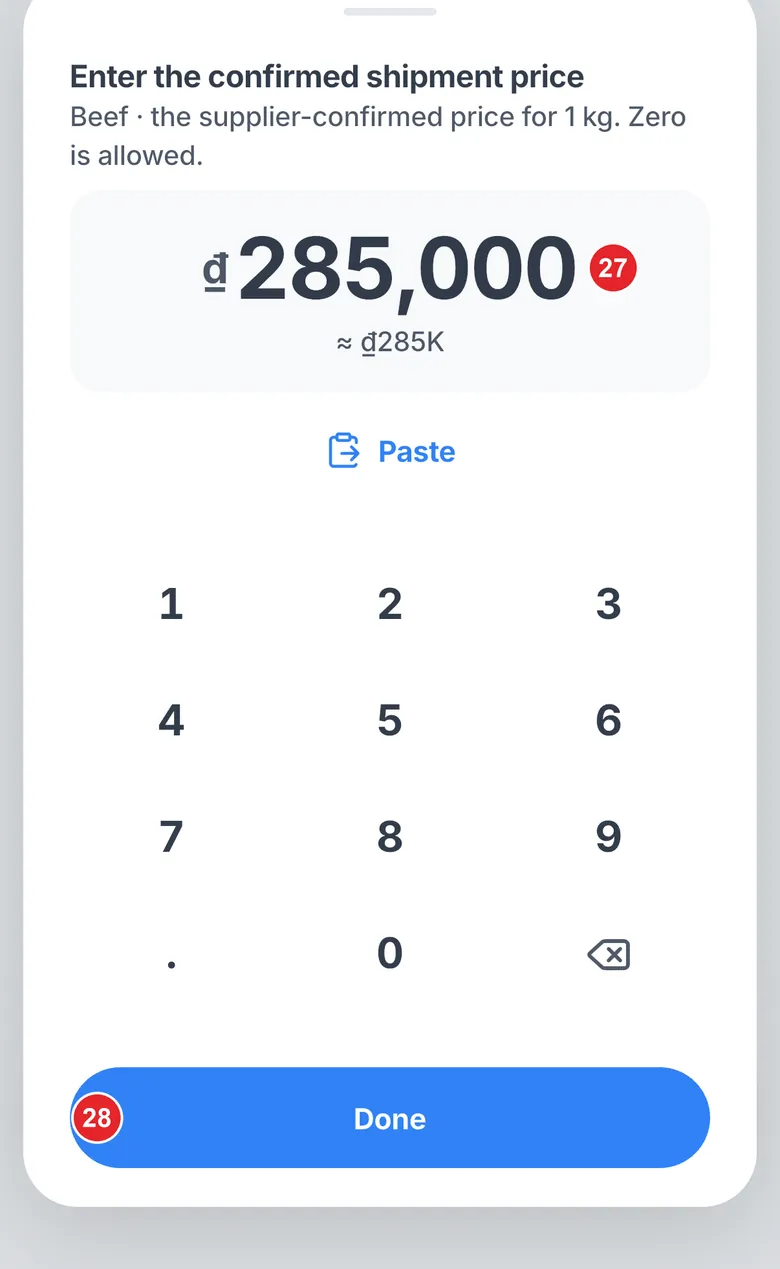
- Enter the price for 1 kg on the shipment. Here it is 285,000.
- Tap «Done».
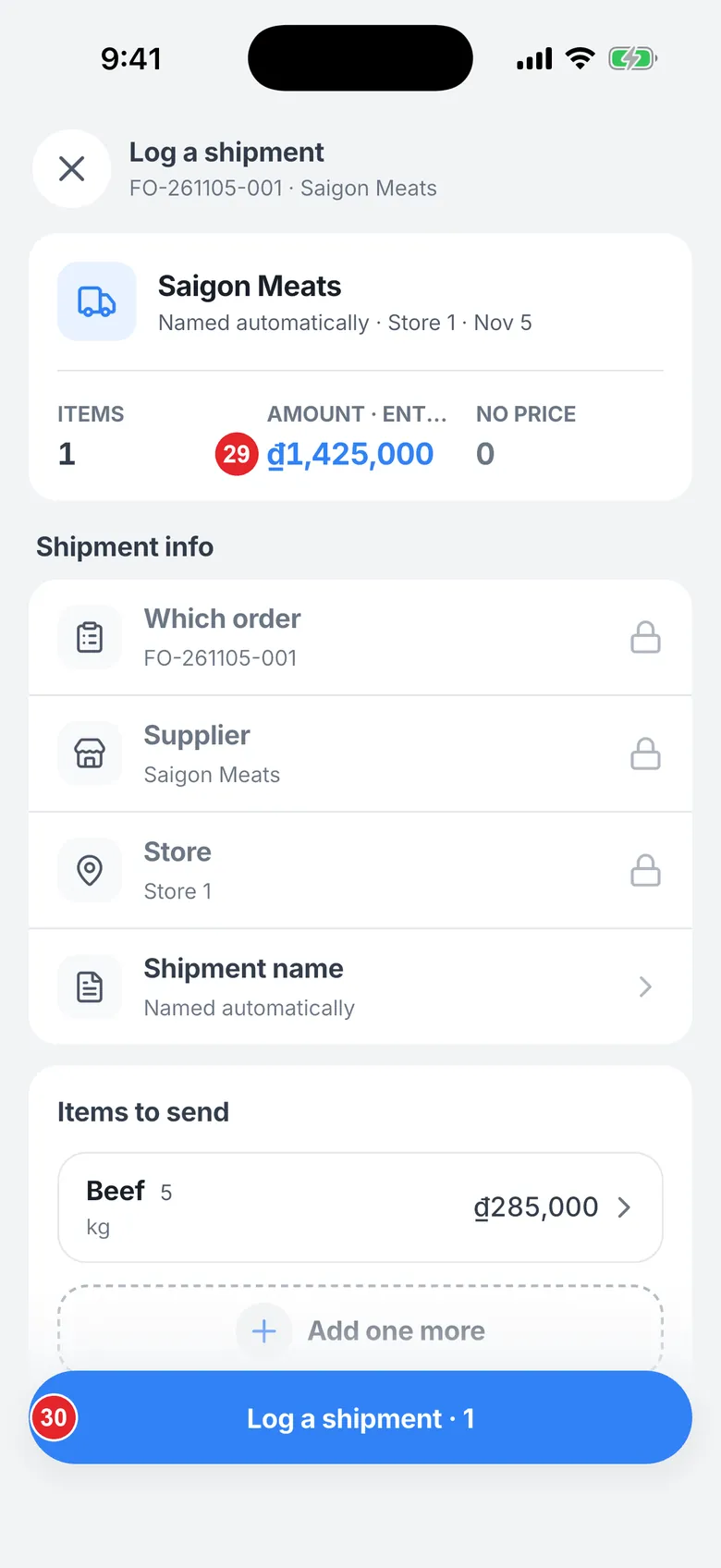
- The amount at the top changes to «AMOUNT · ENTERED» and becomes ₫1,425,000.
- Tap «Log a shipment · 1».
Receive the goods
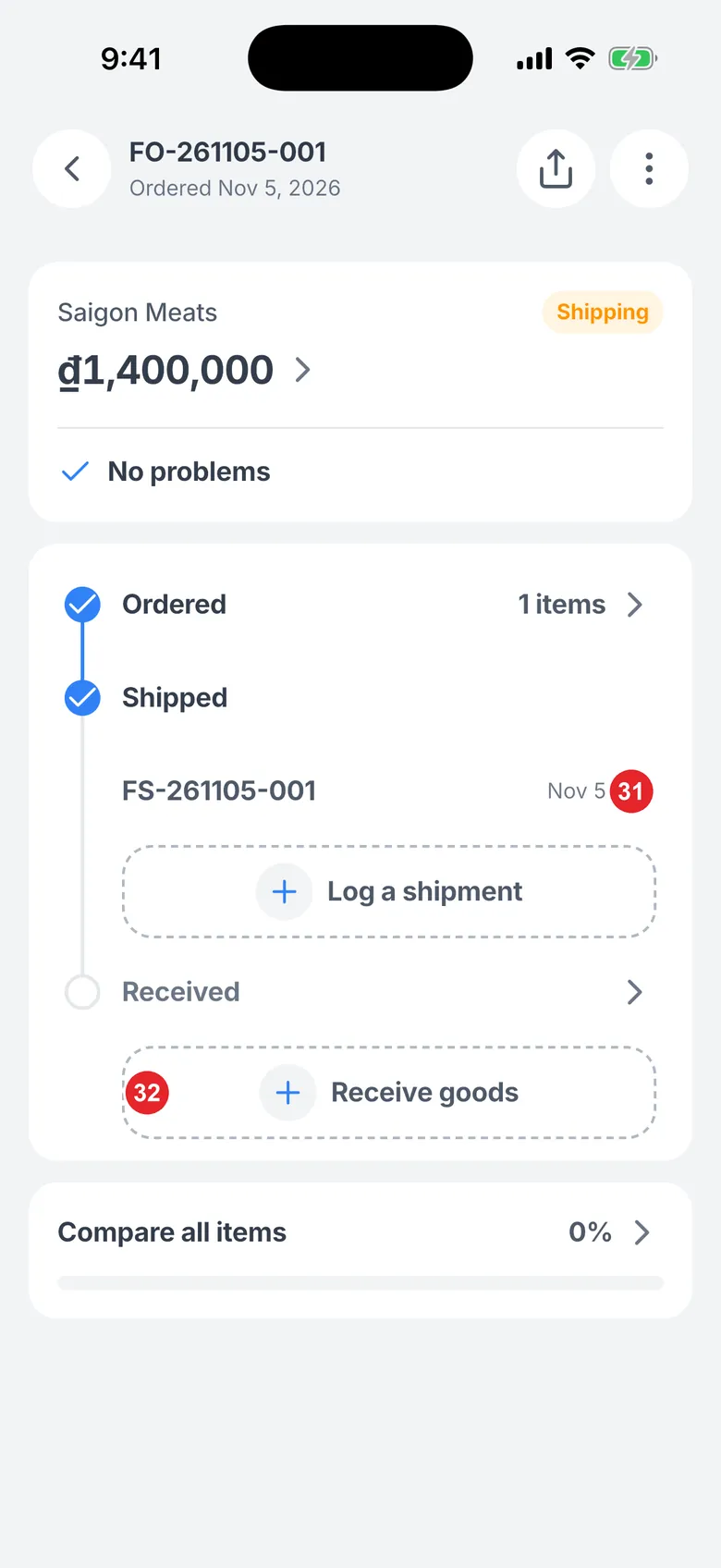
- «FS-261105-001» now shows under «Shipped».
- When the goods come, tap «Receive goods».
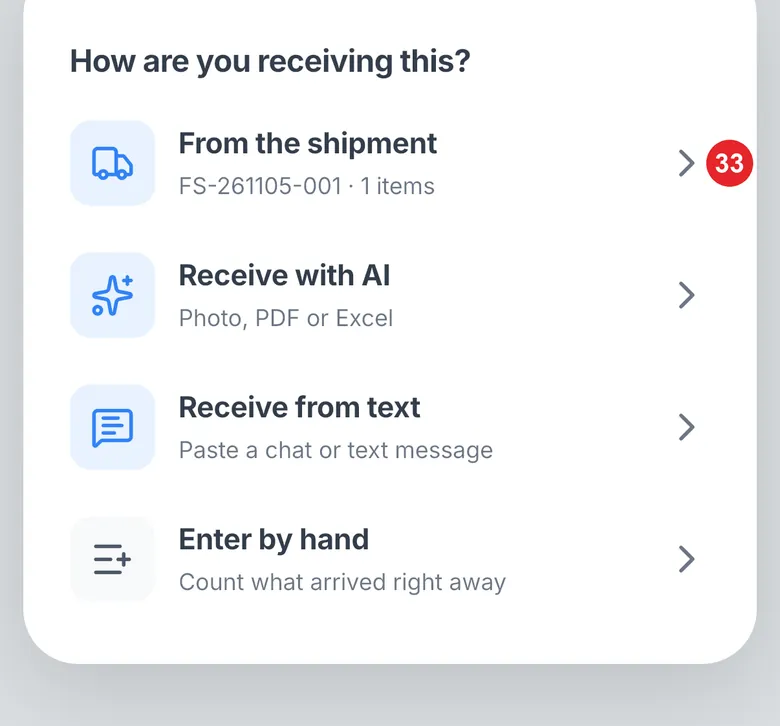
- Tap «From the shipment».
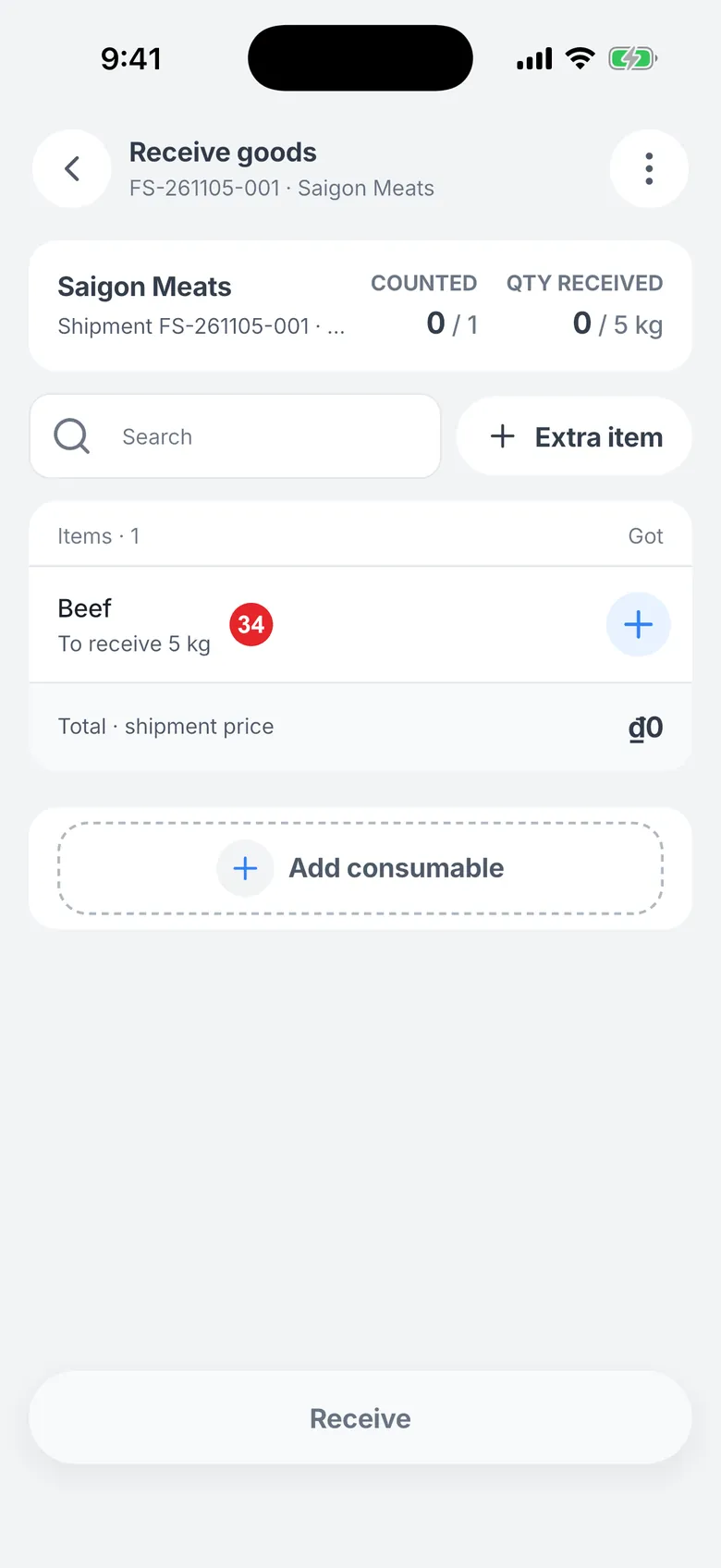
- Each tap on the ingredient's row adds 1 kg. After the first tap a number appears; tap it to open the number pad.
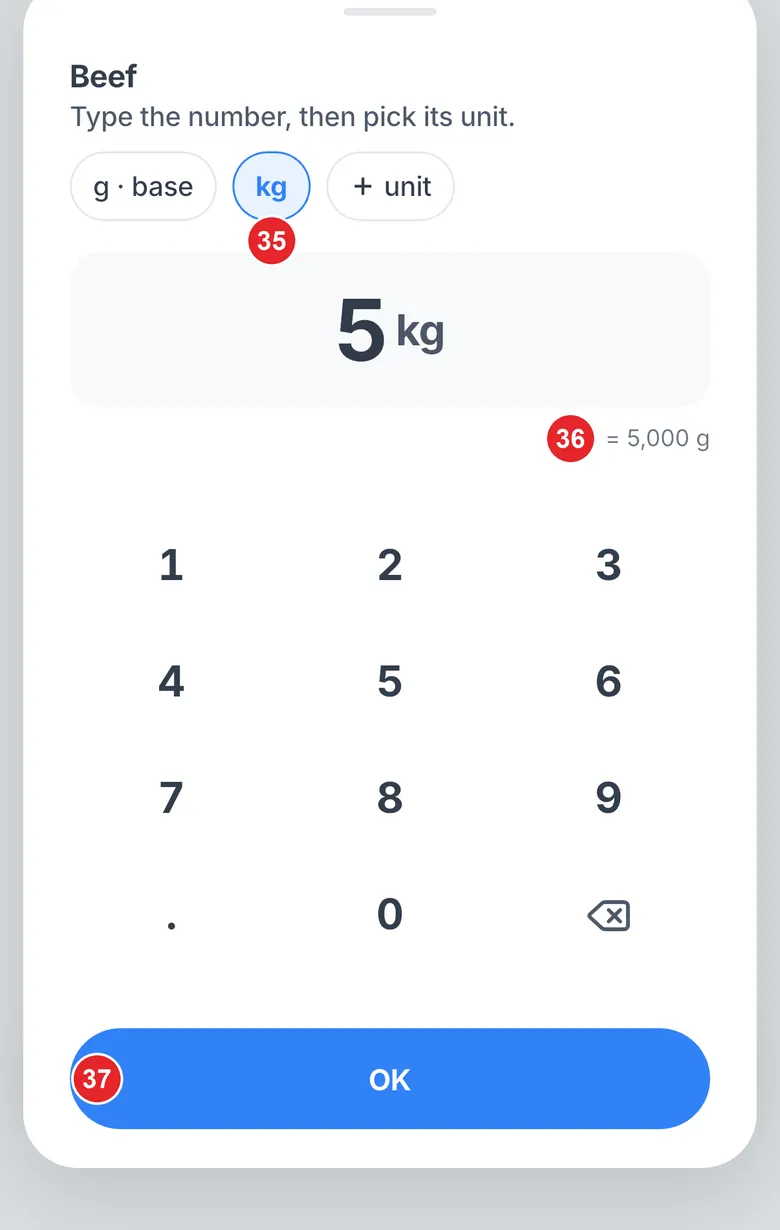
- Tap «kg» and enter the count. Here it is 5.
- See «= 5,000 g».
- Tap «OK».
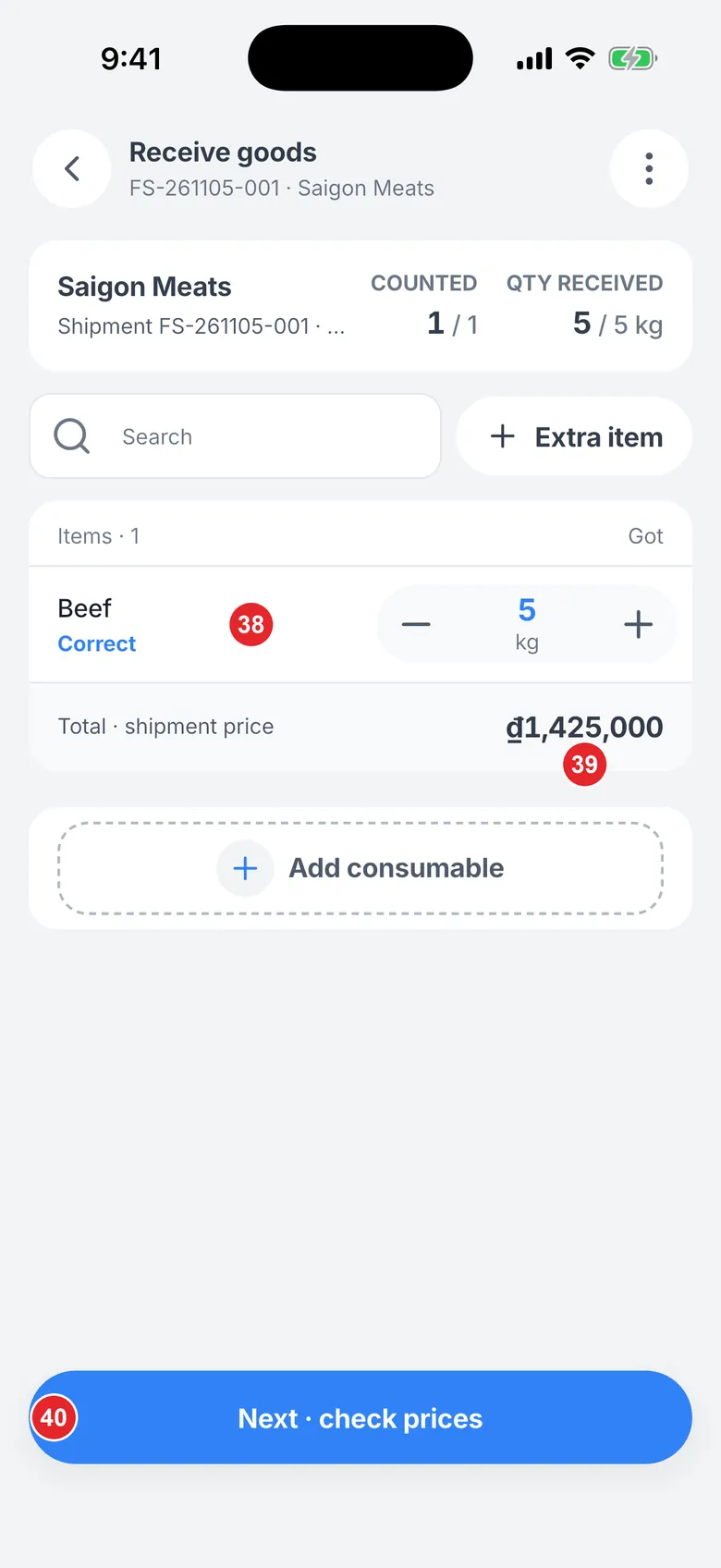
- If it matches the shipment, the row shows «Correct».
- «Total · shipment price» is ₫1,425,000.
- Tap «Next · check prices».
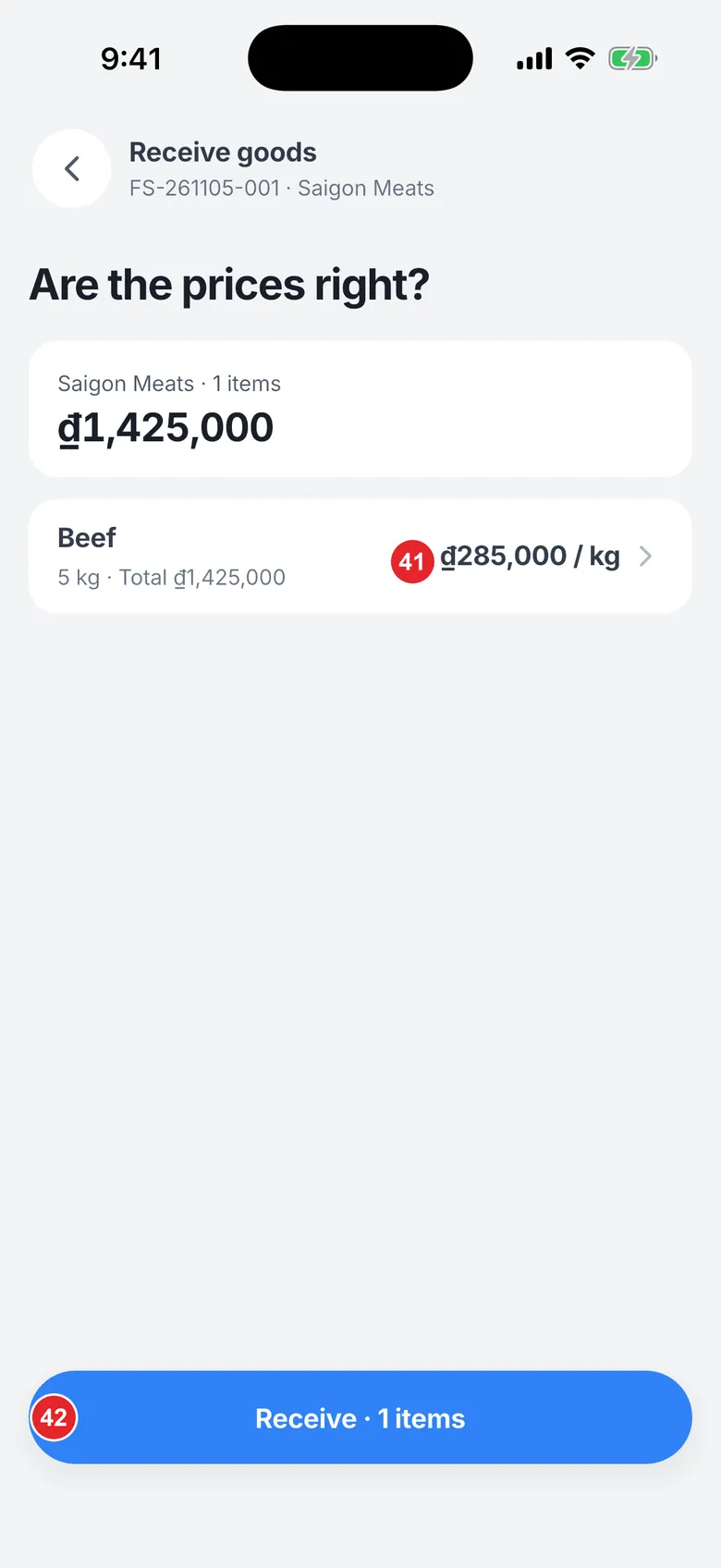
- Check the received unit price, «₫285,000 / kg». Beef's cost is worked out again from this price.
- Tap the blue button at the bottom, which shows how many items you received.
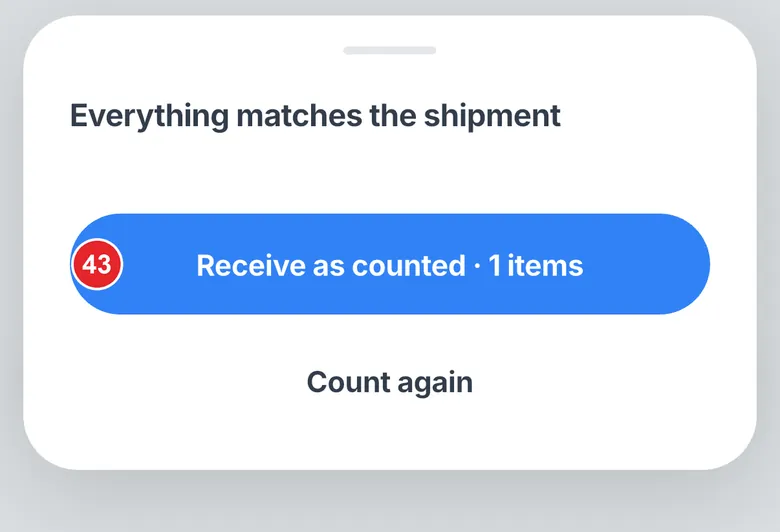
- Tap the blue «Receive as counted» button.
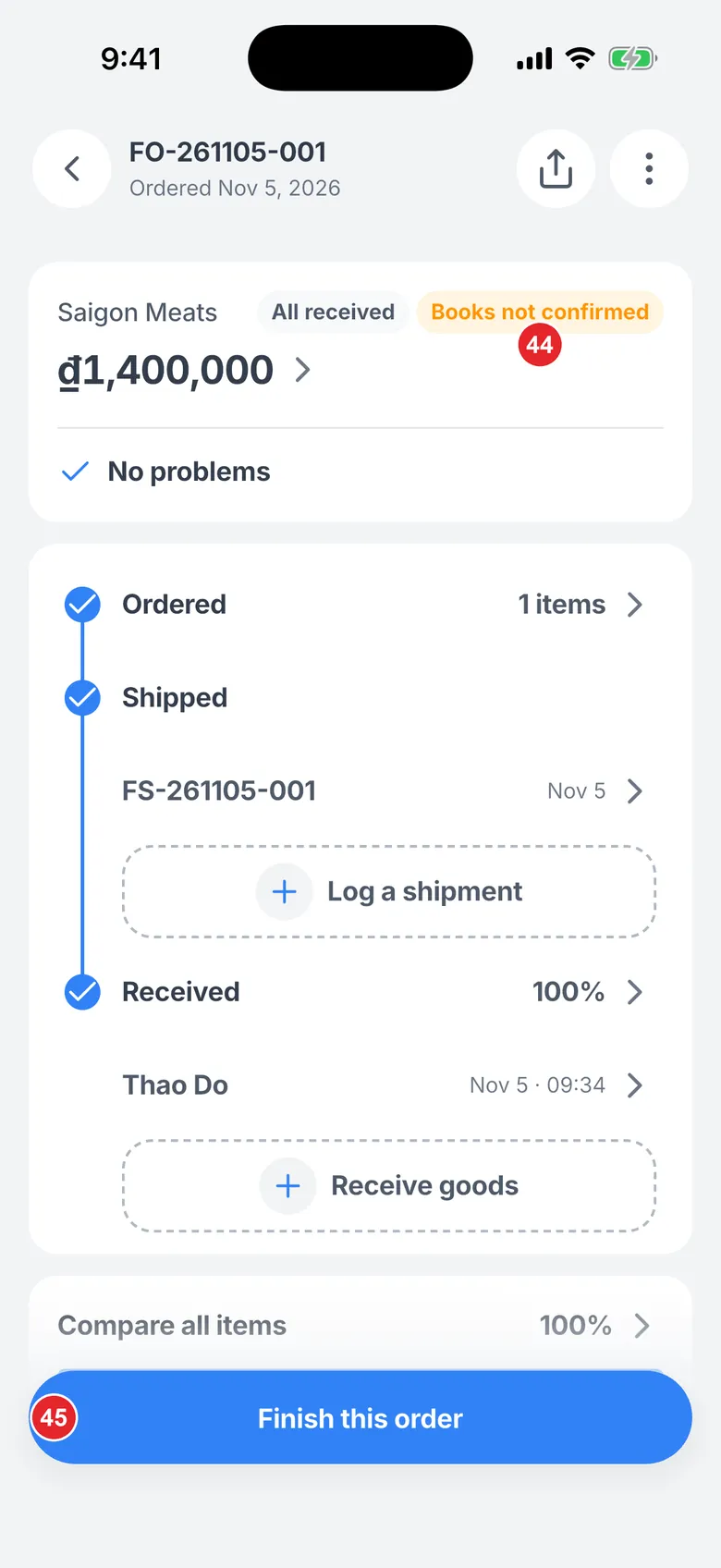
- The order becomes «All received» and «Books not confirmed».
- Tap «Finish this order».
Confirm what you owe
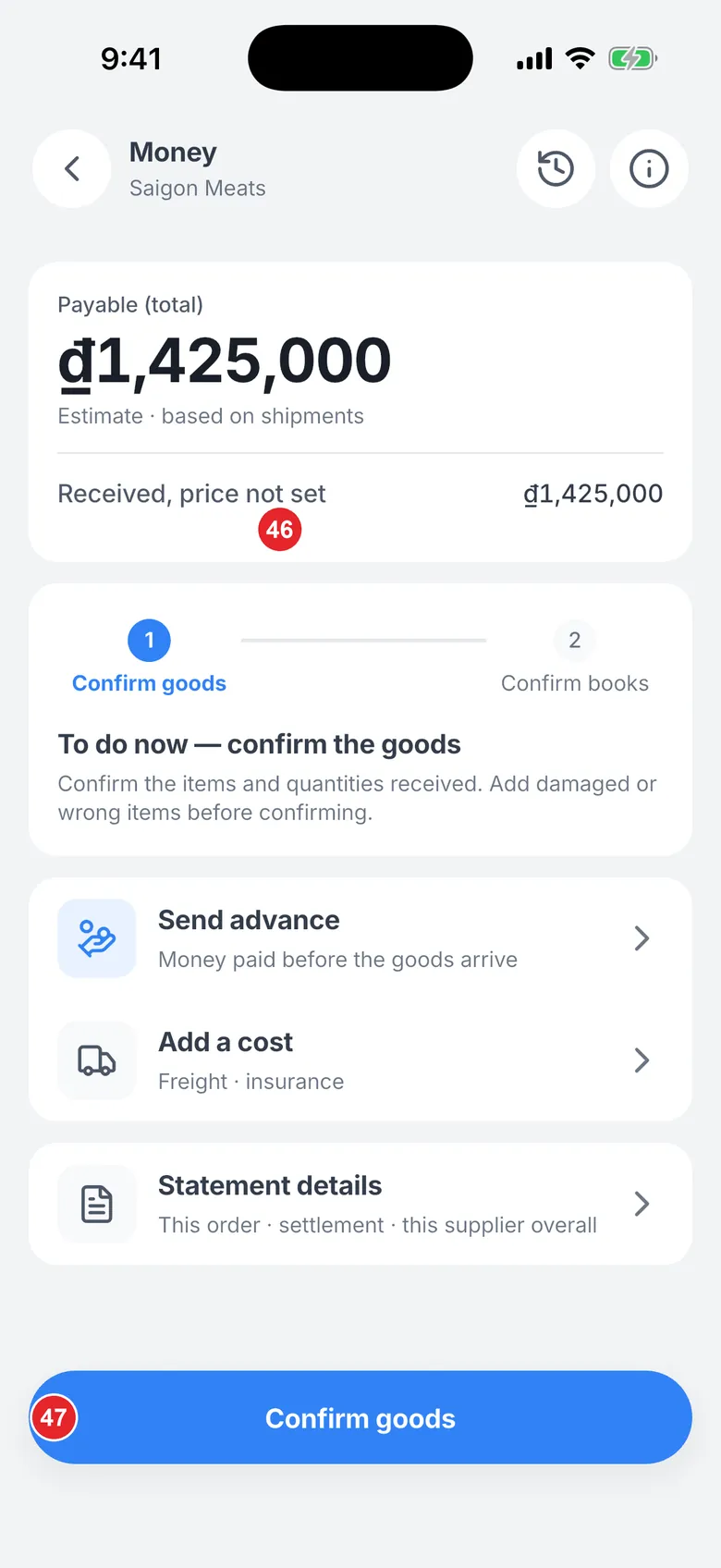
- «Received, price not set» shows the received value, ₫1,425,000.
- Tap «Confirm goods».
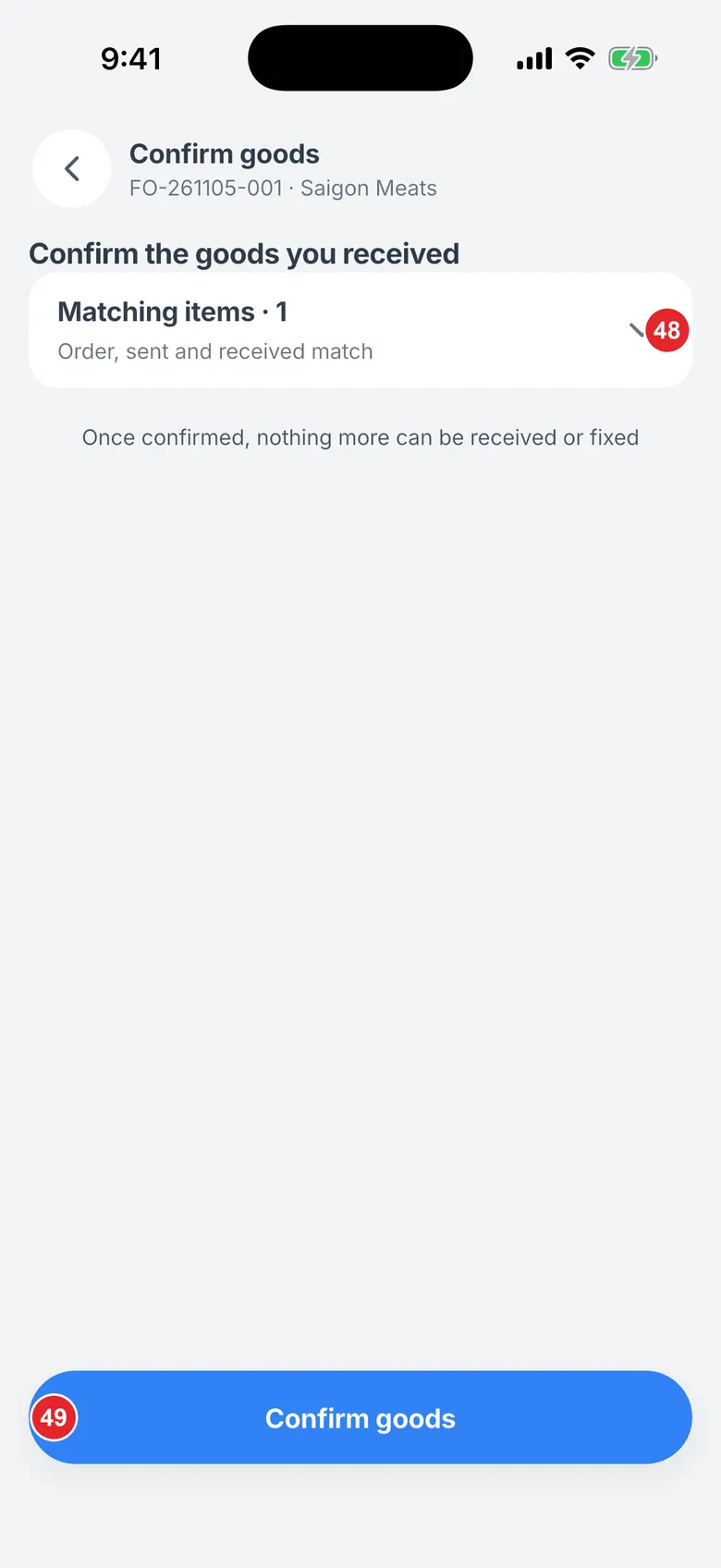
- When the order, shipment and receipt match, it shows as «Matching items · 1».
- Tap «Confirm goods» at the bottom.
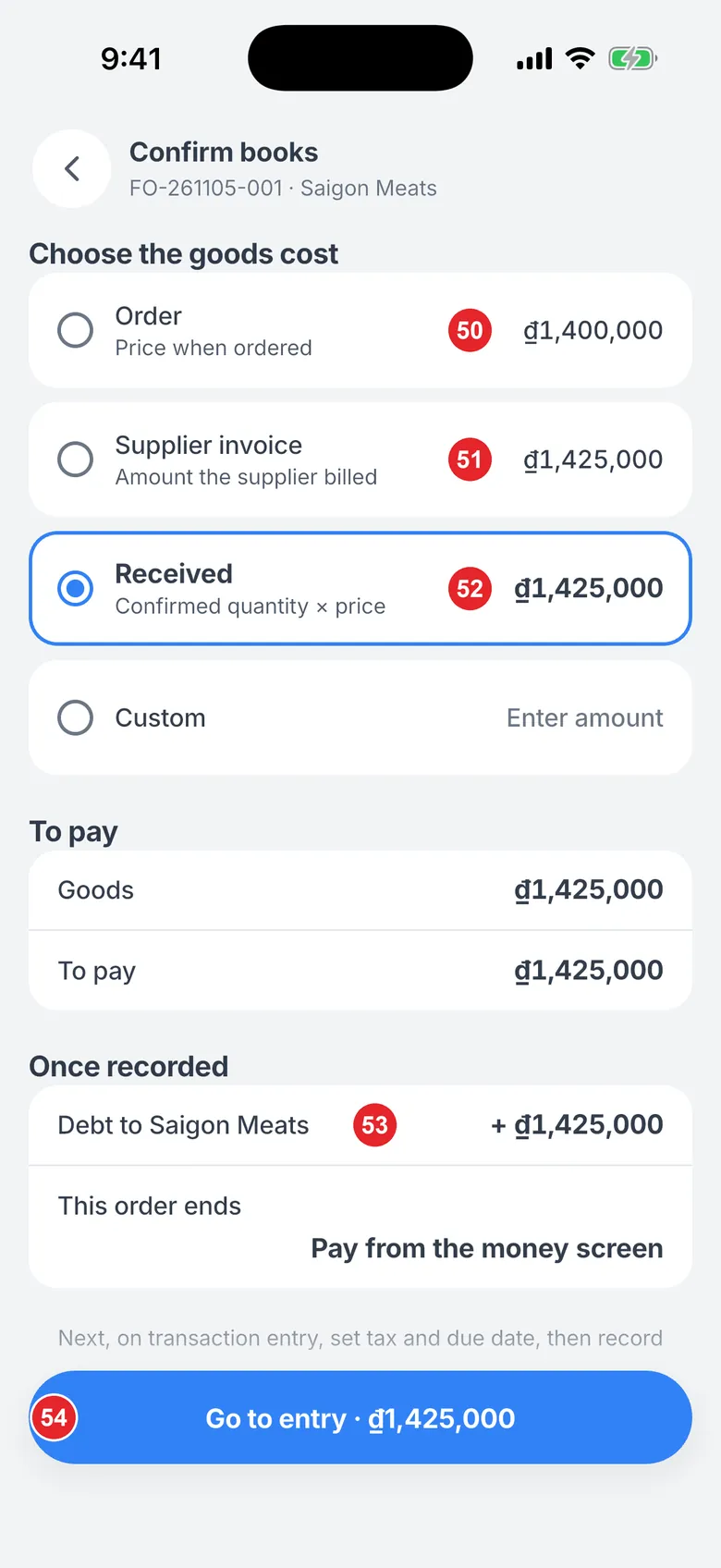
- «Order» is the price when you ordered.
- «Supplier invoice» is the price the supplier sent.
- «Received» is the confirmed quantity × price. Tap the amount you really owe. Here it is «Received», ₫1,425,000. If all three differ, tap «Custom».
- See what you owe in «Debt to Saigon Meats». Even if you choose an amount different from the received price, the ingredient cost doesn't change, and the difference is kept separately as price variance.
- Tap «Go to entry · ₫1,425,000».
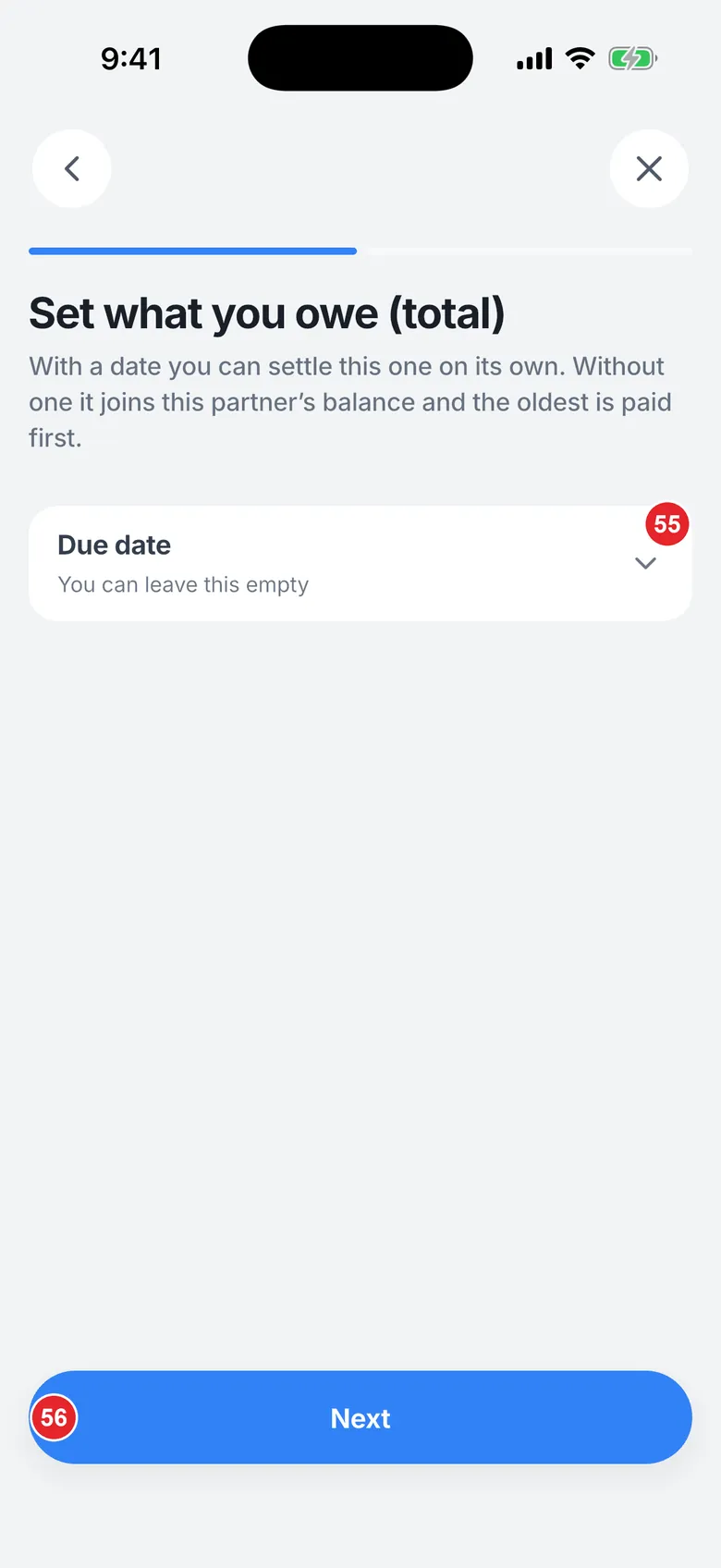
- You don't have to set «Due date».
- Tap «Next».
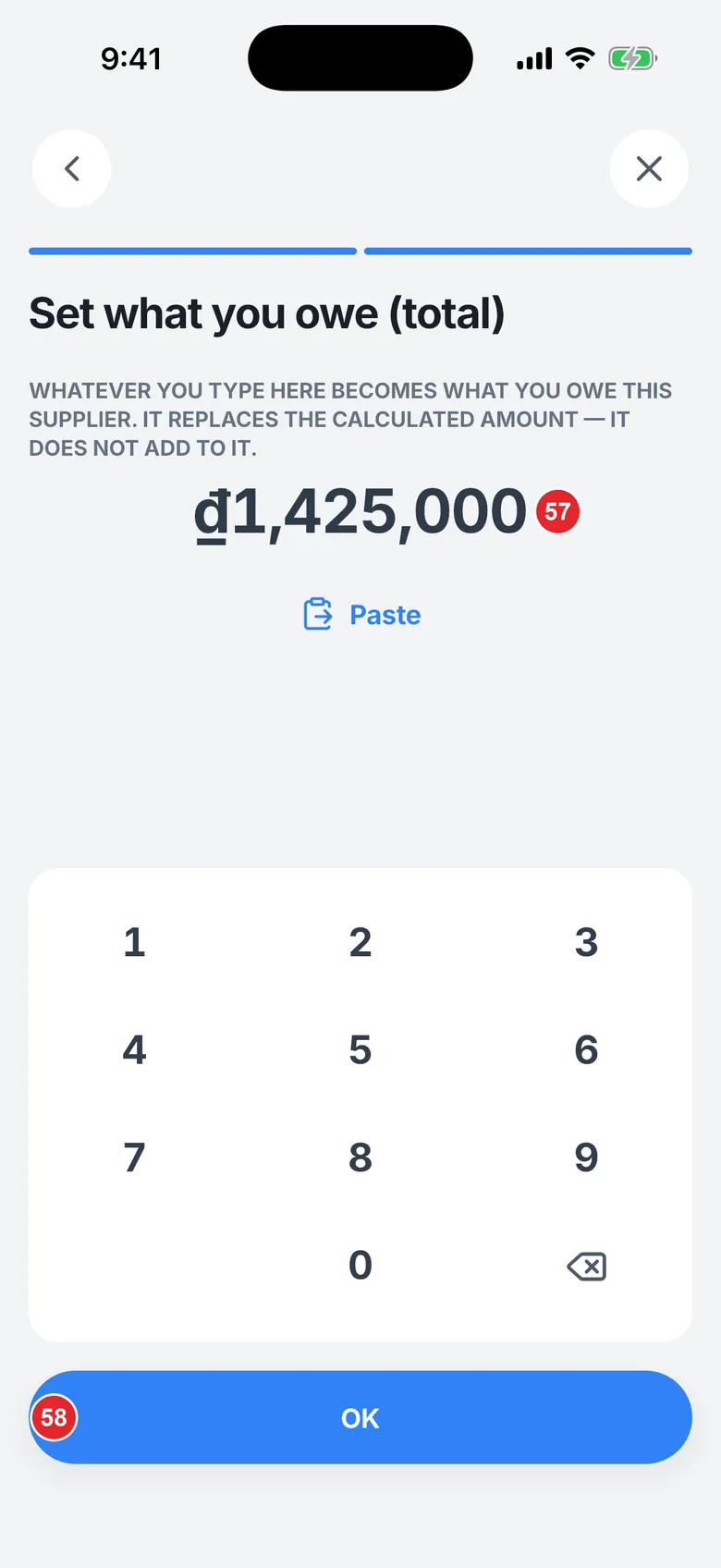
- Check the amount. The amount here becomes what you owe the supplier.
- Tap «OK».
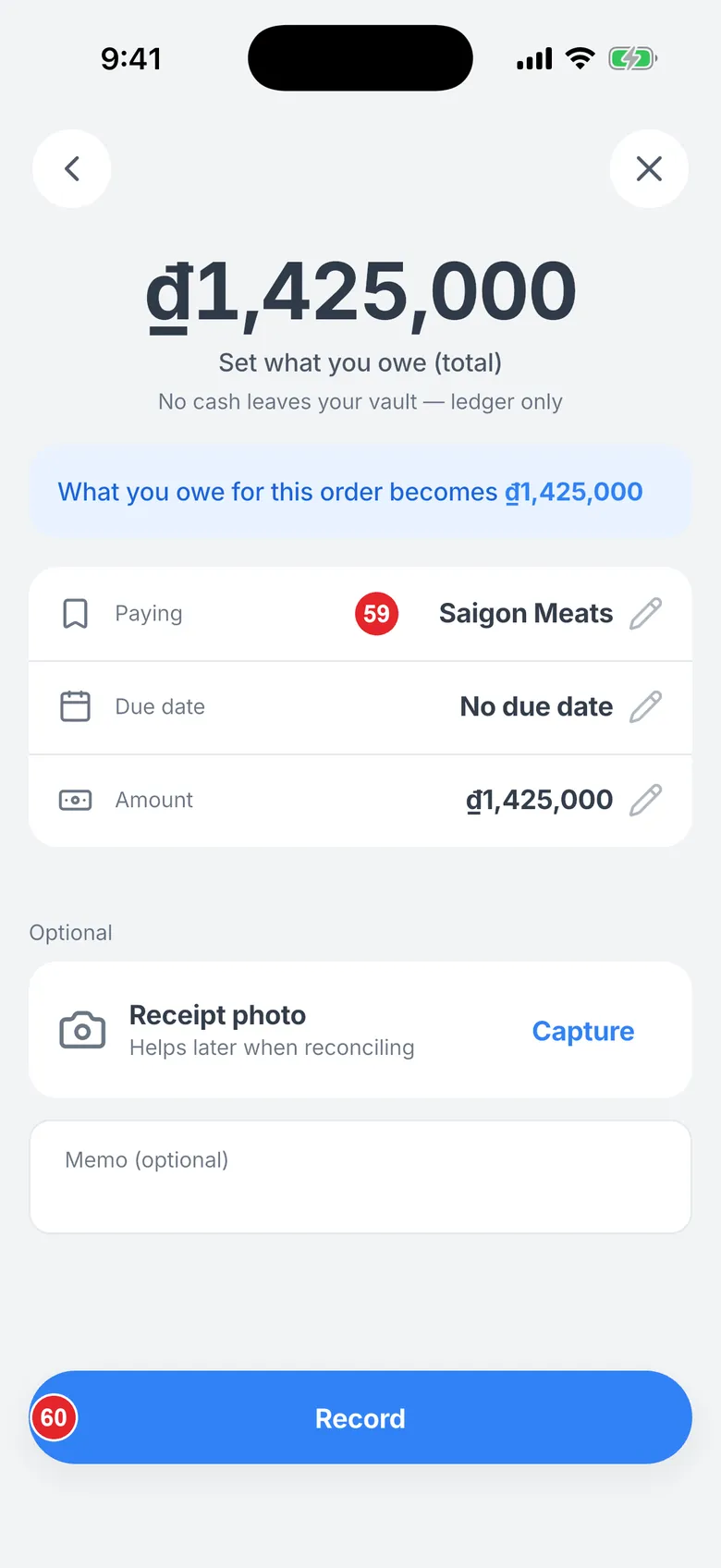
- Check that «Paying» is «Saigon Meats».
- Tap «Record». No money leaves your vault; it is only written in the books.
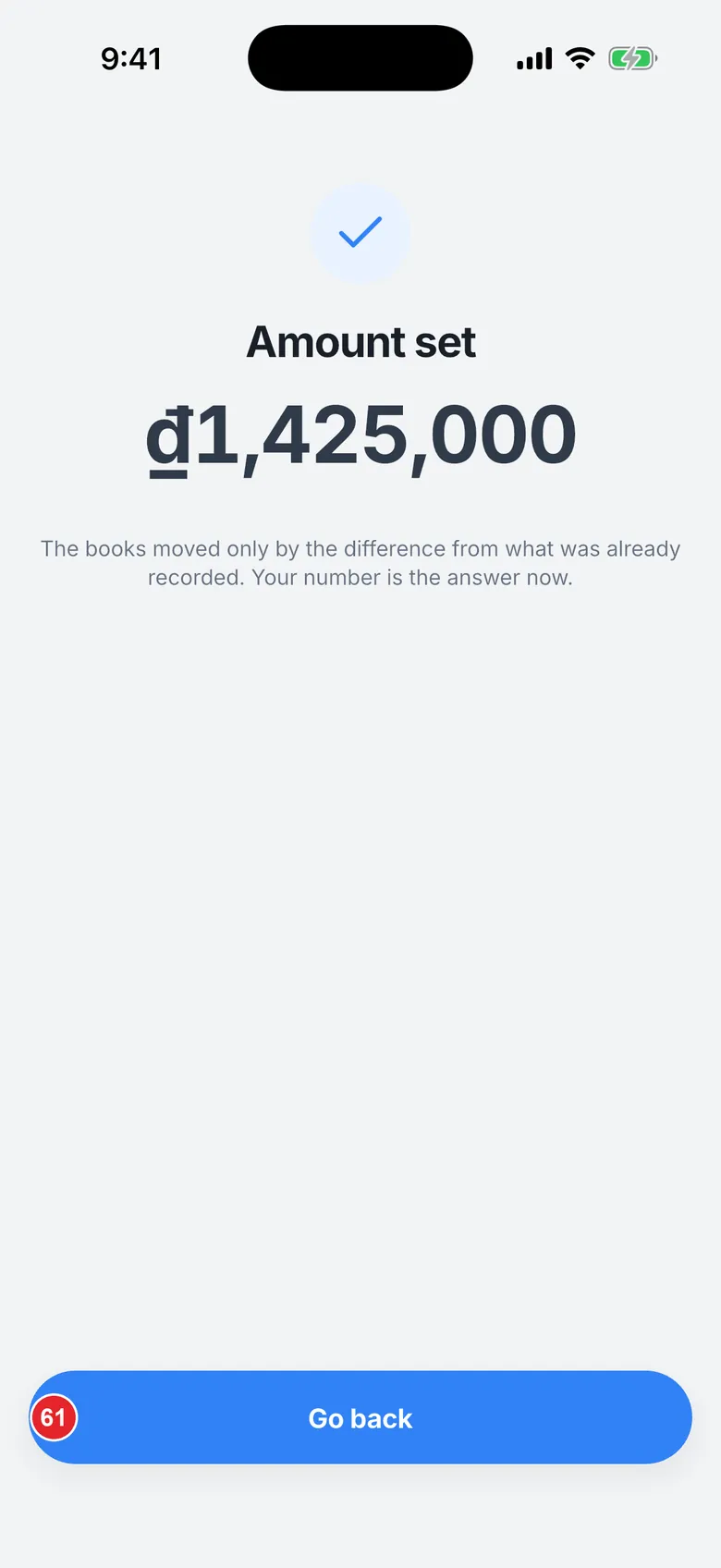
- Tap «Go back».
How the cost changed
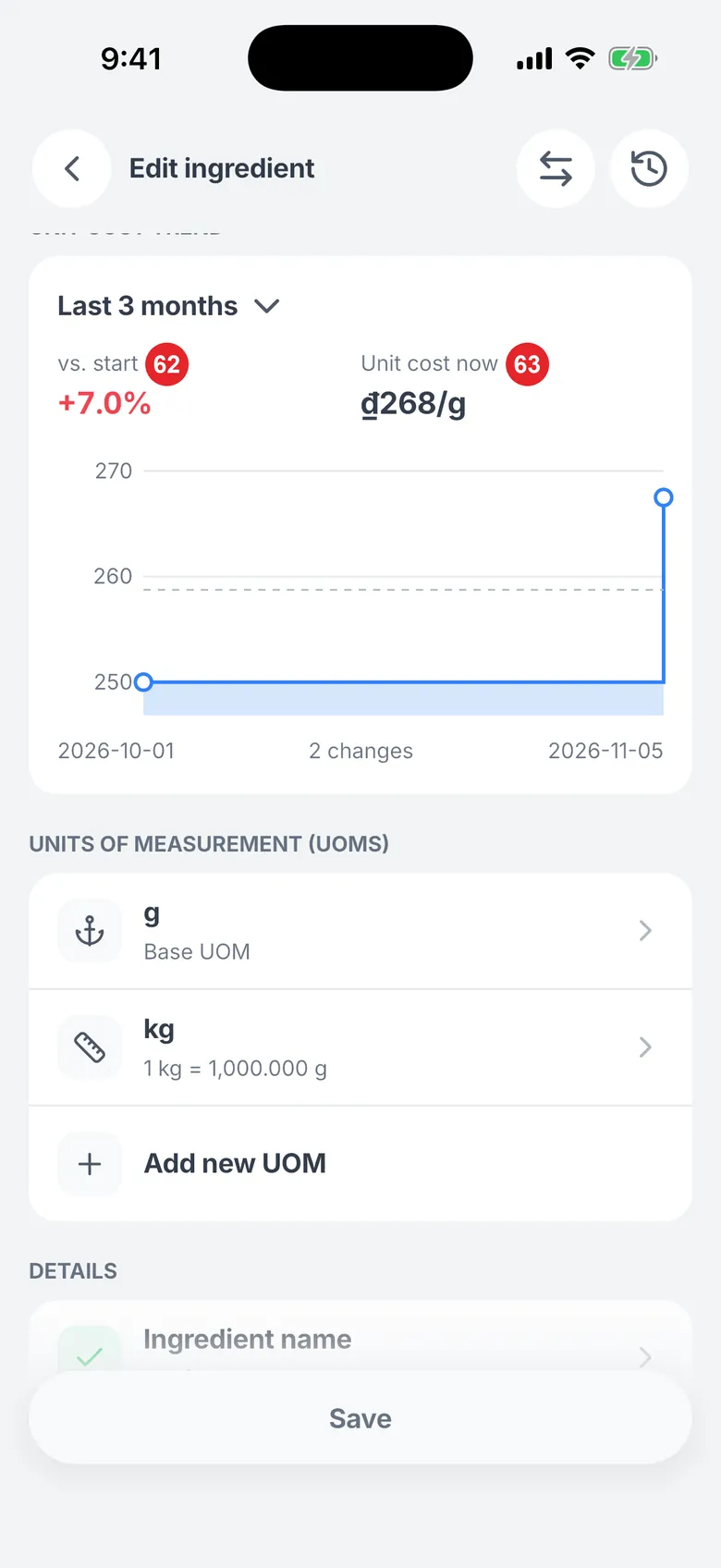
- In «Ingredient Management», tap beef and scroll down. In «UNIT COST TREND», «vs. start» is +7.0%.
- «Unit cost now» is ₫268/g. The average went up because you had 5 kg at ₫250/g and received 5 kg at ₫285/g.
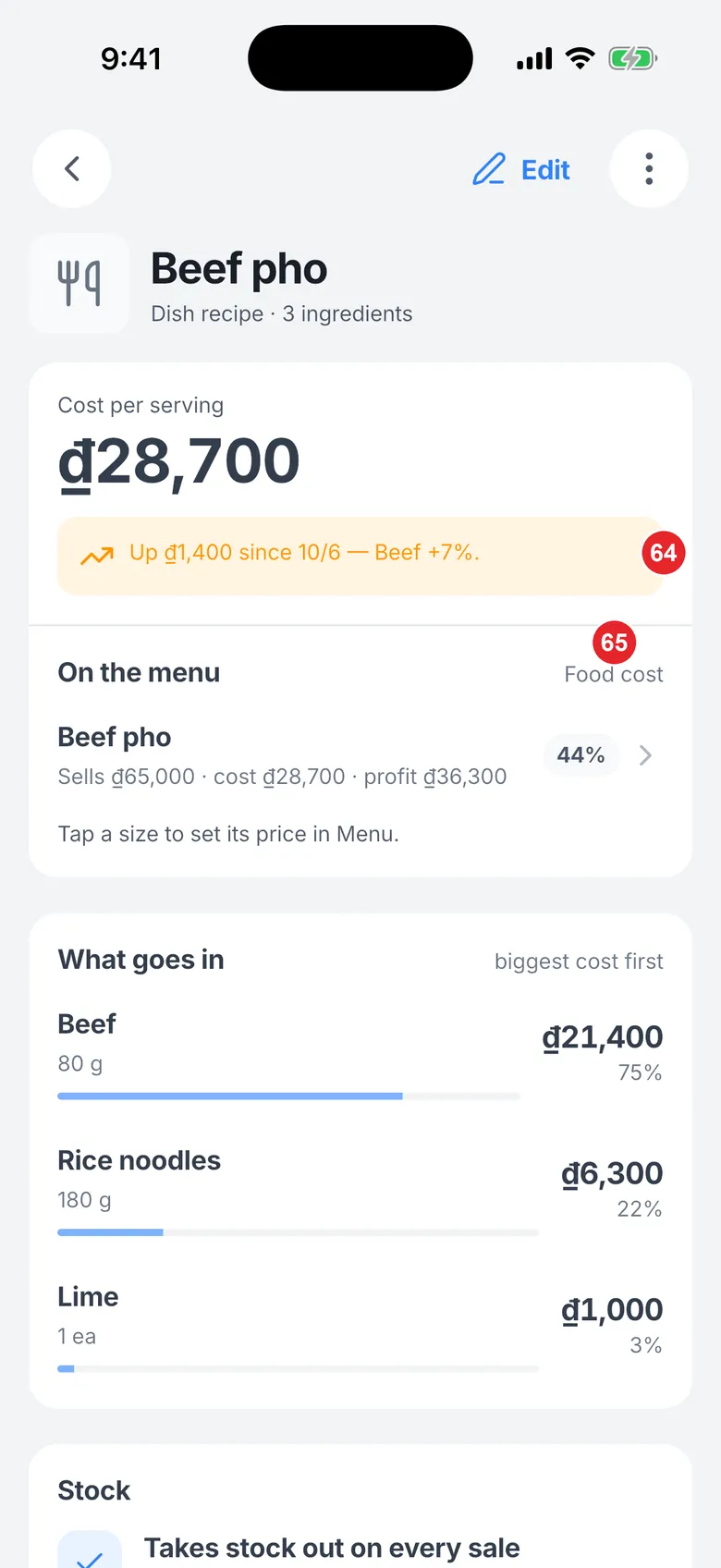
- In «Recipe Management», open «Beef pho». «Up ₫1,400 since 10/6 — Beef +7%.» shows. The cost per serving went from ₫27,300 to ₫28,700.
- «Food cost» is now 44%. It is time to look at the selling price again.
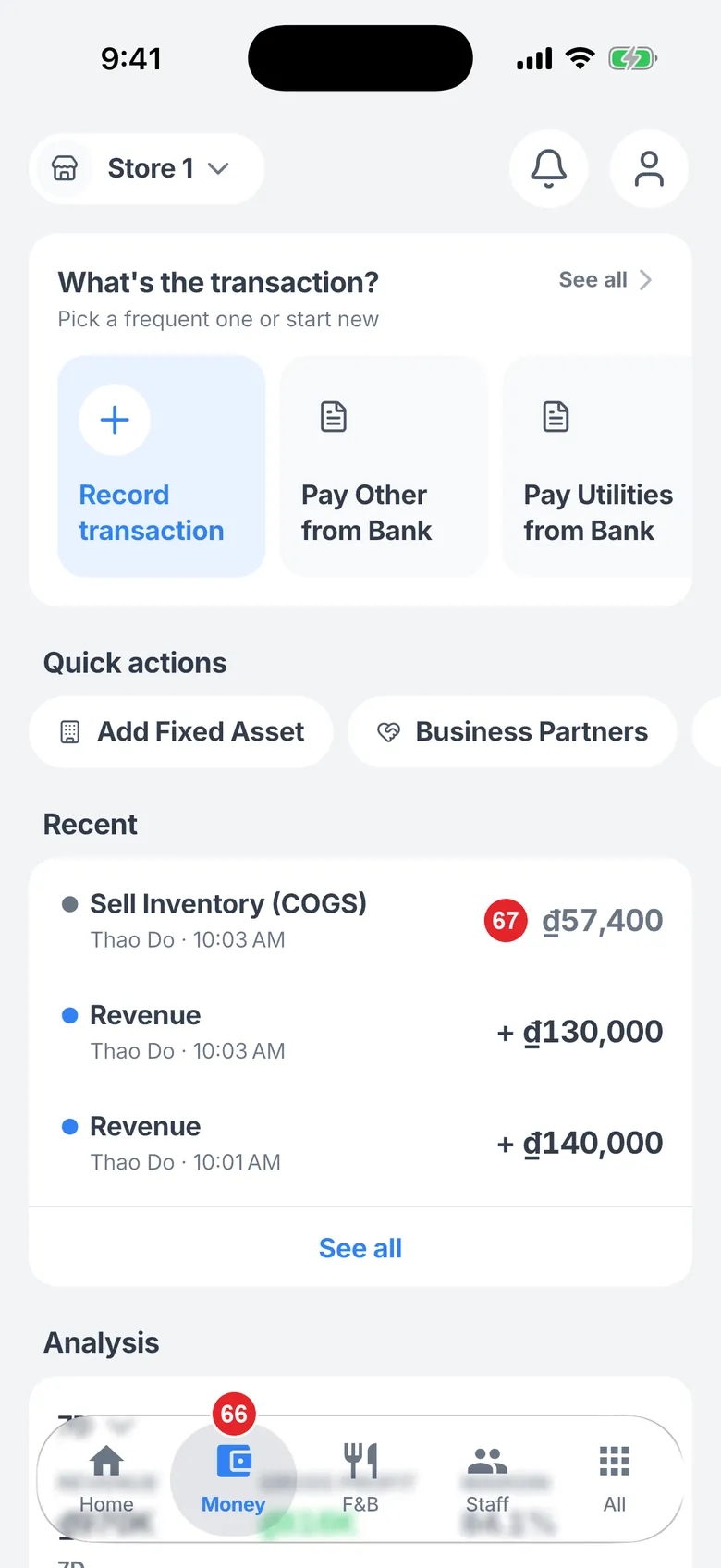
- After selling, tap «Money» at the bottom of the app.
- Under «Recent», each sale gets its own «Sell Inventory (COGS)». Tap this row. ₫57,400 is the cost of 2 bowls of Beef pho (₫28,700 × 2).
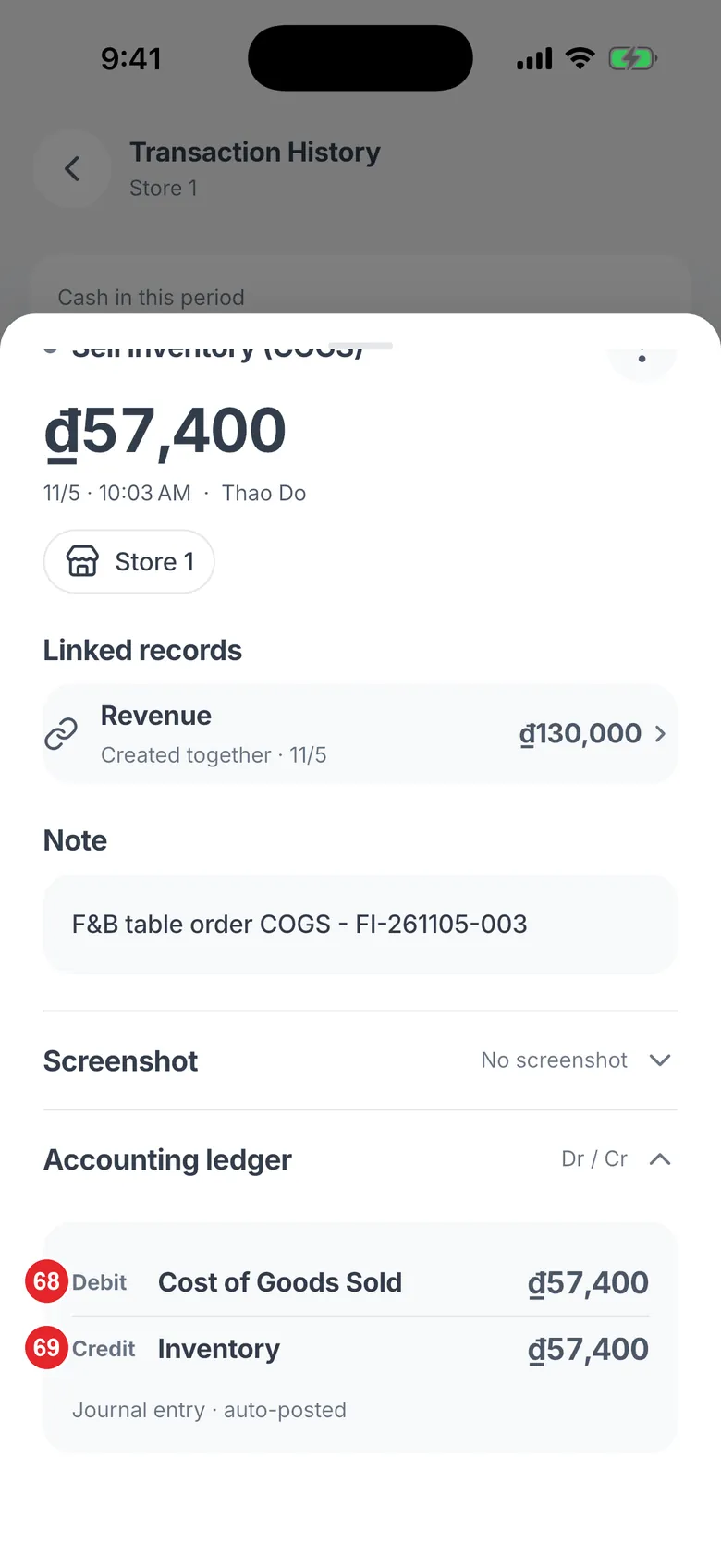
- In «Accounting ledger», «Cost of Goods Sold» ₫57,400 is written under «Debit».
- Under «Credit», the same amount comes out of «Inventory».