
Show contents
Cost of goods › F&B cost
Add ingredients
- Who
- Owner · Manager
- When
- When you start, when you start using a new ingredient
- Where
- App · Web
What you get
- A restaurant company has auto costing on from the start. Even if the empty screen says «To calculate sale costs from ingredients & recipes, turn on auto costing first.», go ahead and add with «Add ingredient».
- Set only the «Ingredient name» and the «Base UOM» (base unit of measure), and the ingredient is made. You use it right away in orders, stock counts and recipes.
- Add the units you buy in, like kg or L, and it converts them to grams for you.
- In the app, enter what you have «In stock» now and its «Unit cost», and its value is set right away. At ₫130/g, 3 kg is ₫390,000.
What it solves
- You buy in kg and use in g, the units get mixed up, and you work out the cost by hand.
- With no ingredient list, you can't work out recipe costs.
Why this way
- Recipe costs need ingredients, and every sale takes the ingredients out of stock.
- What do I use as the «Base UOM»? The smallest unit you measure in: g for meat and noodles, mL for sauces, «ea» for things you count, like limes. Stock and cost are all worked out in this unit.
- When do I enter the unit cost? Once, at the start, and only for ingredients you have never received. After that, every time goods arrive, the received price changes the store's average unit cost by itself.
- What about the unit cost when I add on the website? The website's «Add ingredient» has no unit cost field. The cost is set from the received price when goods arrive. Enter the starting unit cost in the app's «New ingredient».
- How does the starting stock show in the books? The books' stock goes up by its value, written as capital the owner brought in.
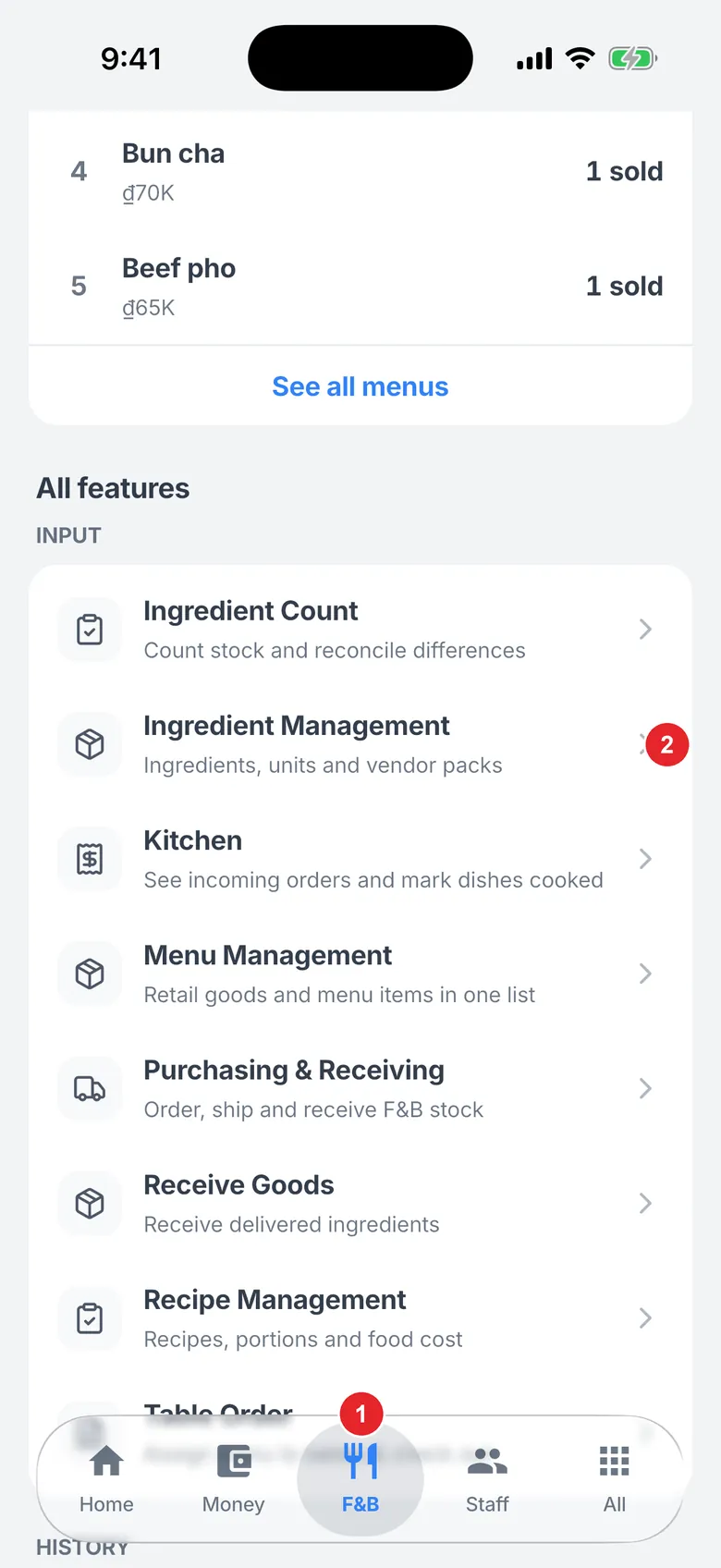
- Tap «F&B» at the bottom of the app and scroll down.
- Under «All features», tap «Ingredient Management». If you have no ingredients yet, the screen says «Ingredients power auto costing» with a «Turn on auto costing» button. A restaurant company already has it on, so you don't need that button.
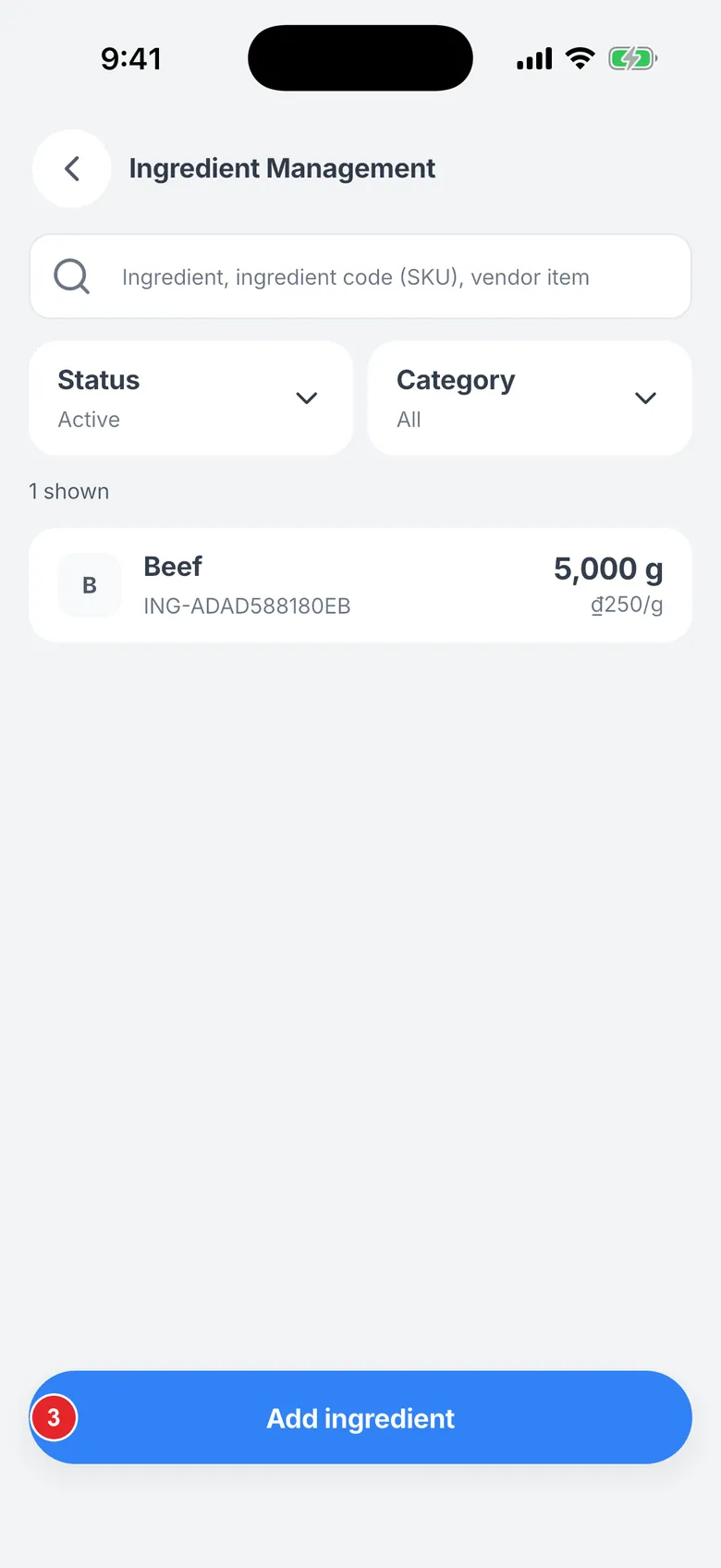
- Tap «Add ingredient» at the bottom.
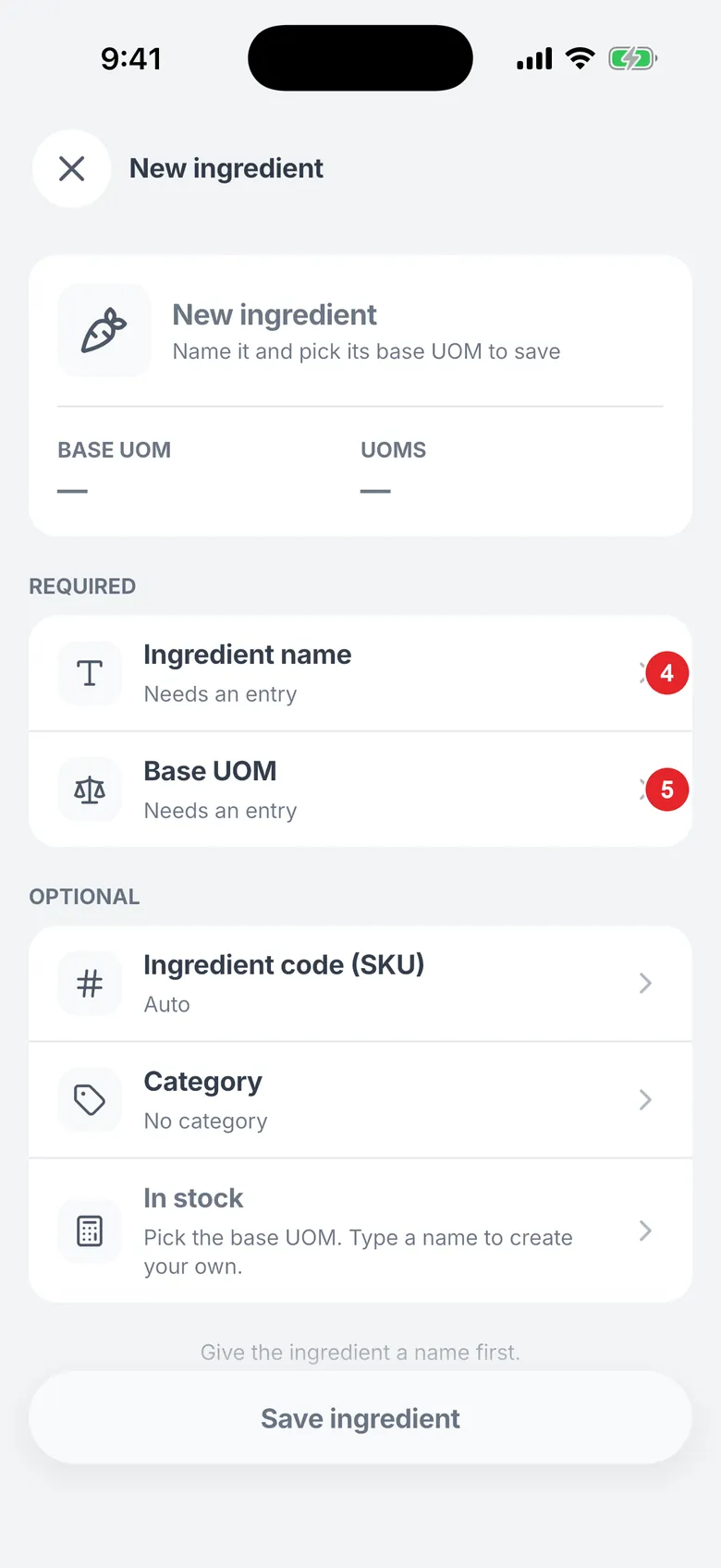
- Tap «Ingredient name».
- After entering the name (step 6), tap «Base UOM».
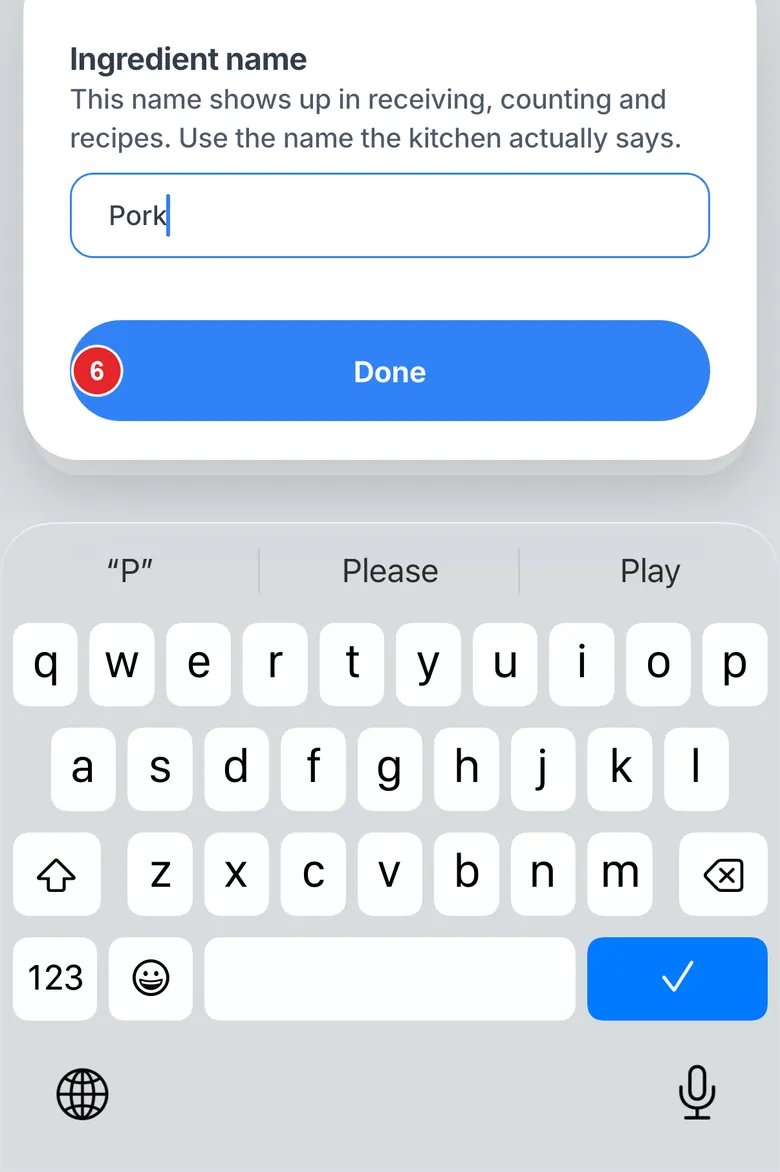
- Enter the name your kitchen calls it and tap «Done». Here it is pork.
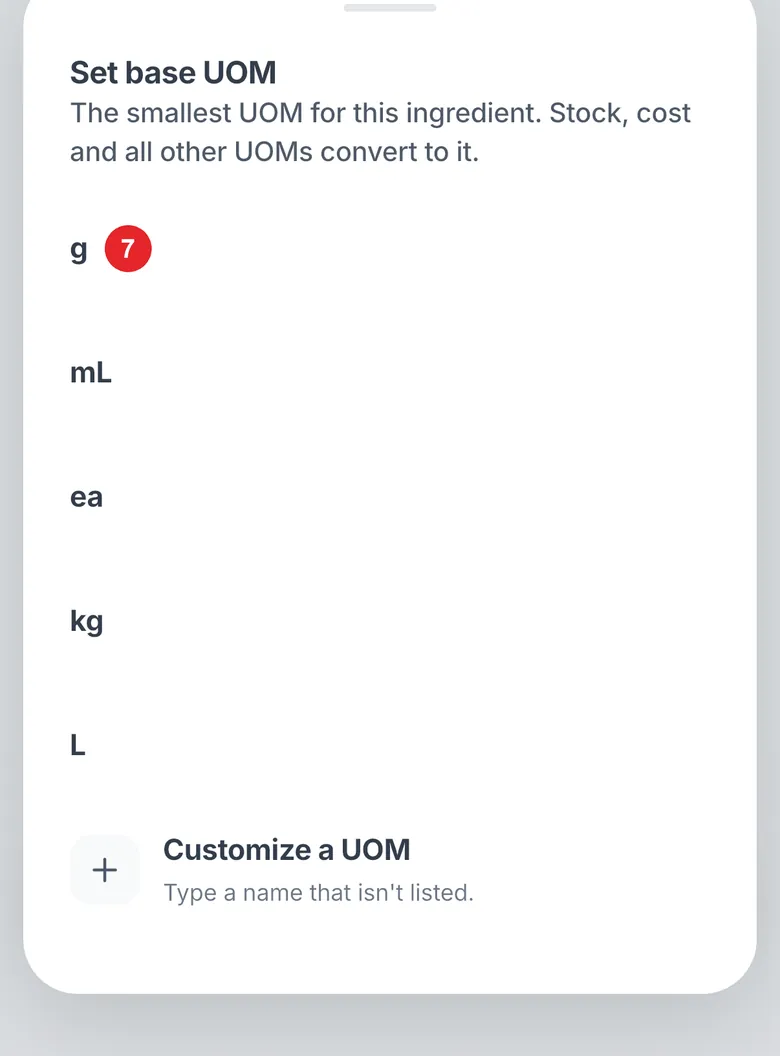
- Tap the smallest unit you measure in. Here it is «g». Stock and cost are all worked out in this unit.
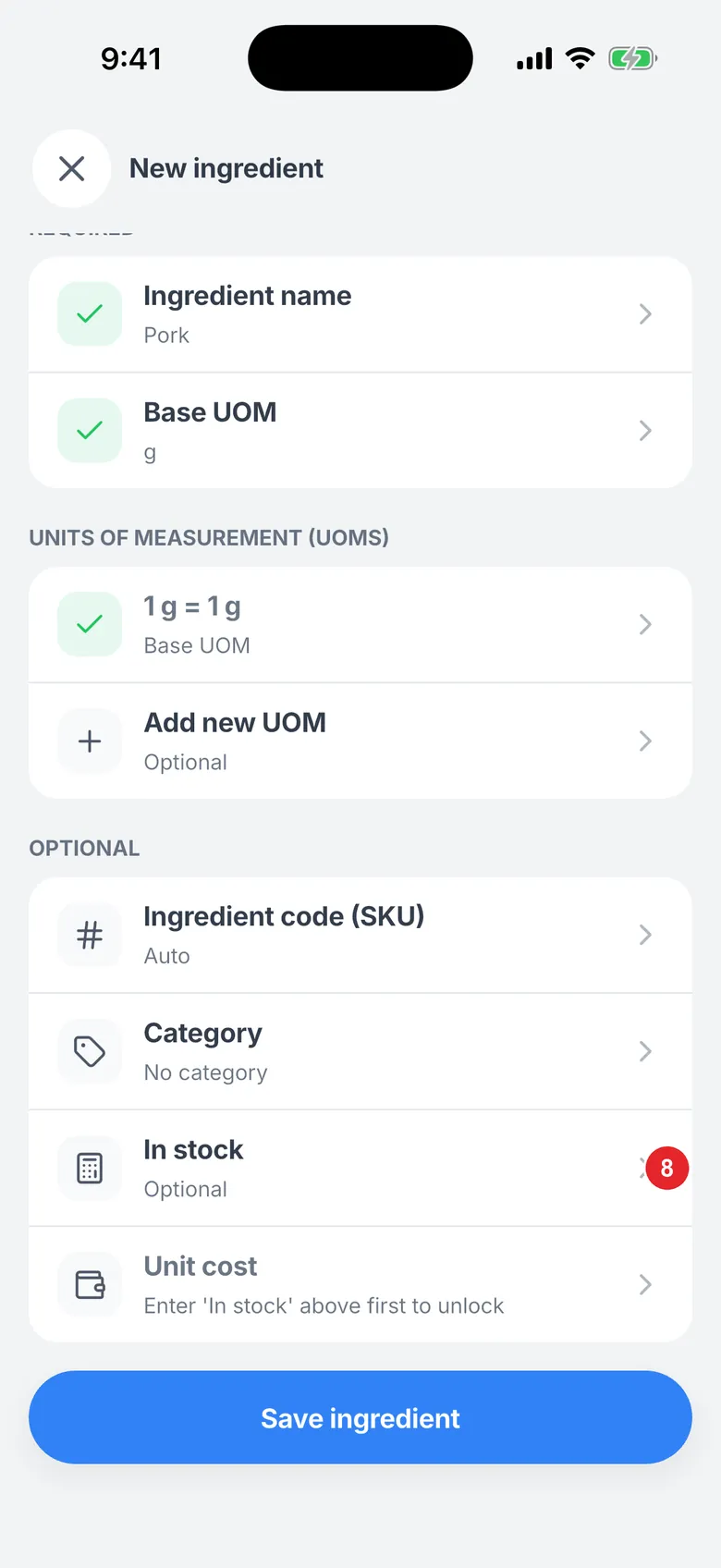
- If you have some now, tap «In stock».
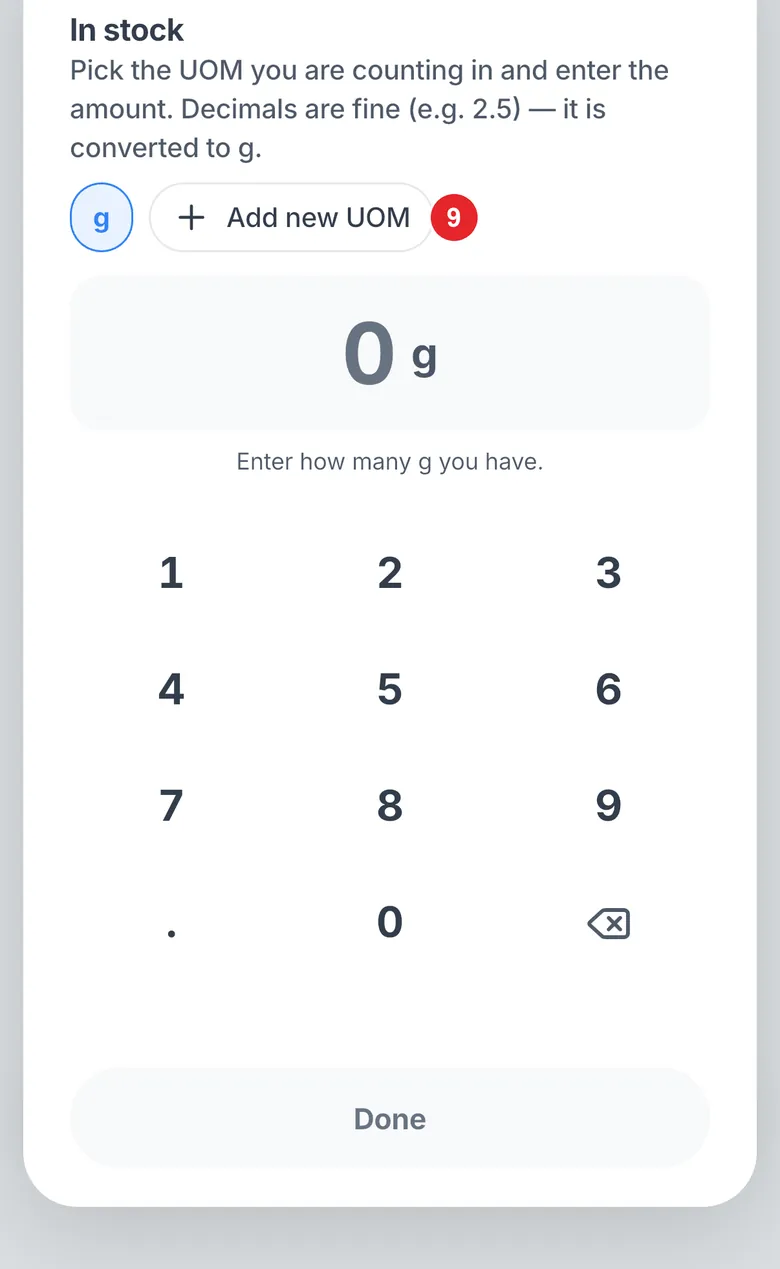
- To count in a unit you buy in, like kg, tap «Add new UOM».
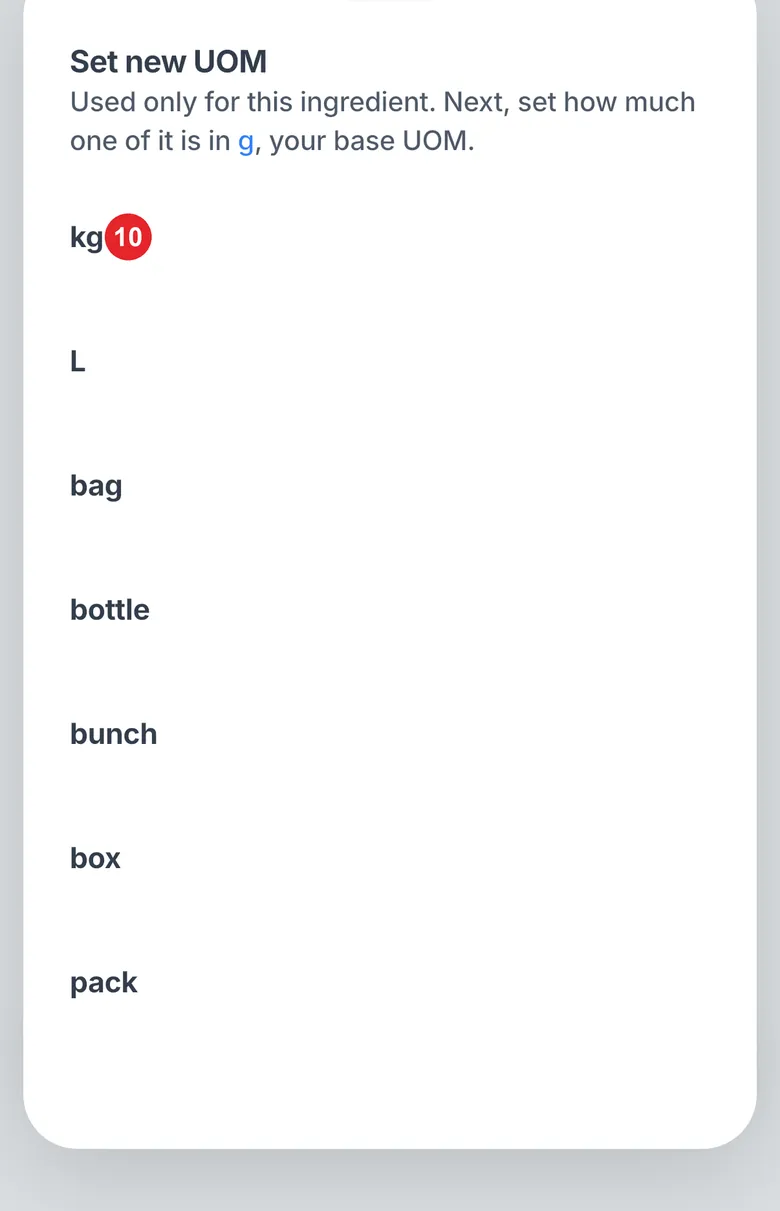
- Tap «kg».
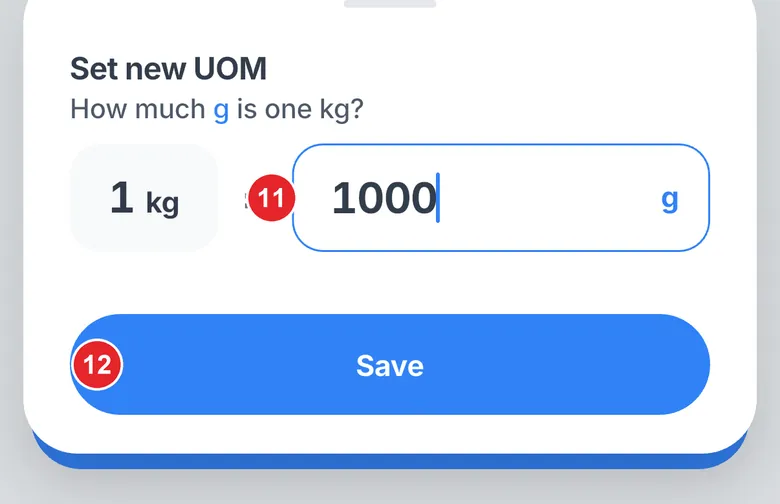
- How many g make 1 kg is filled in. Here it is 1000. Check that it is right.
- Tap «Save».
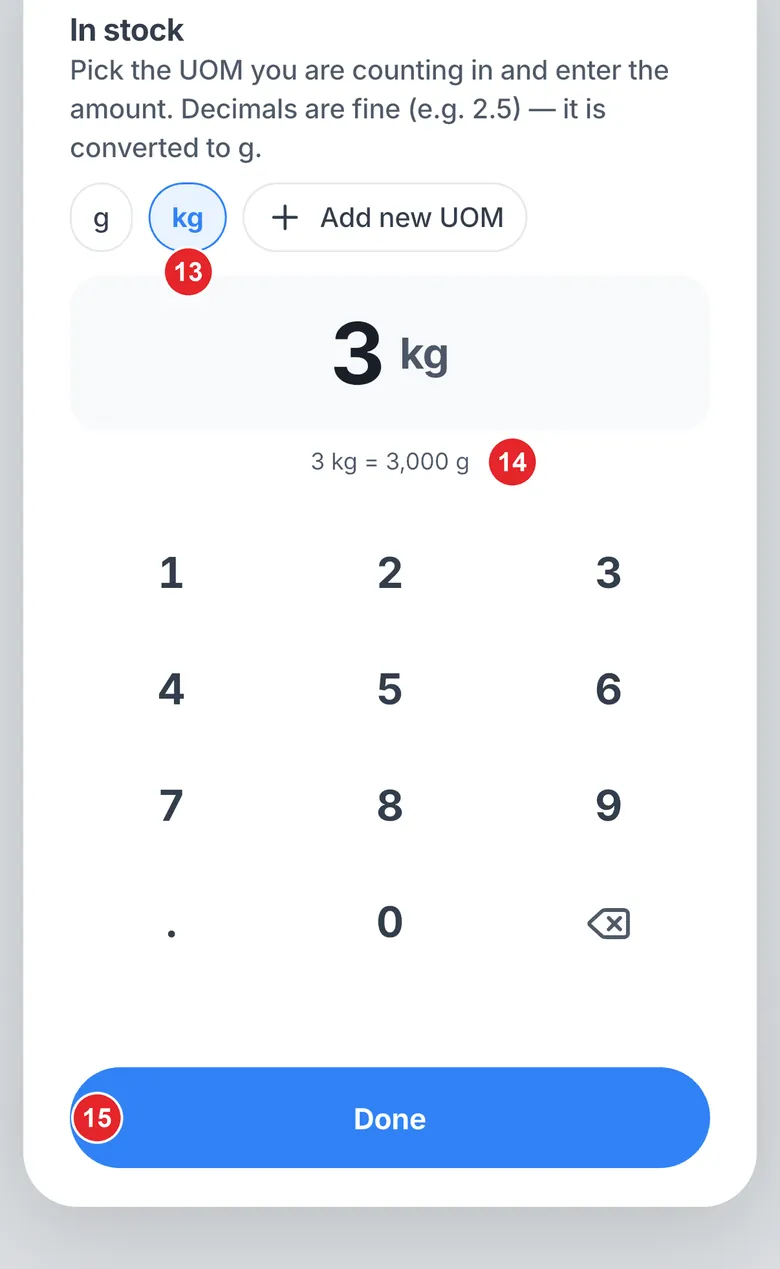
- Tap «kg» and enter how much you have. Here it is 3.
- The amount in g shows, like «3 kg = 3,000 g».
- Tap «Done».
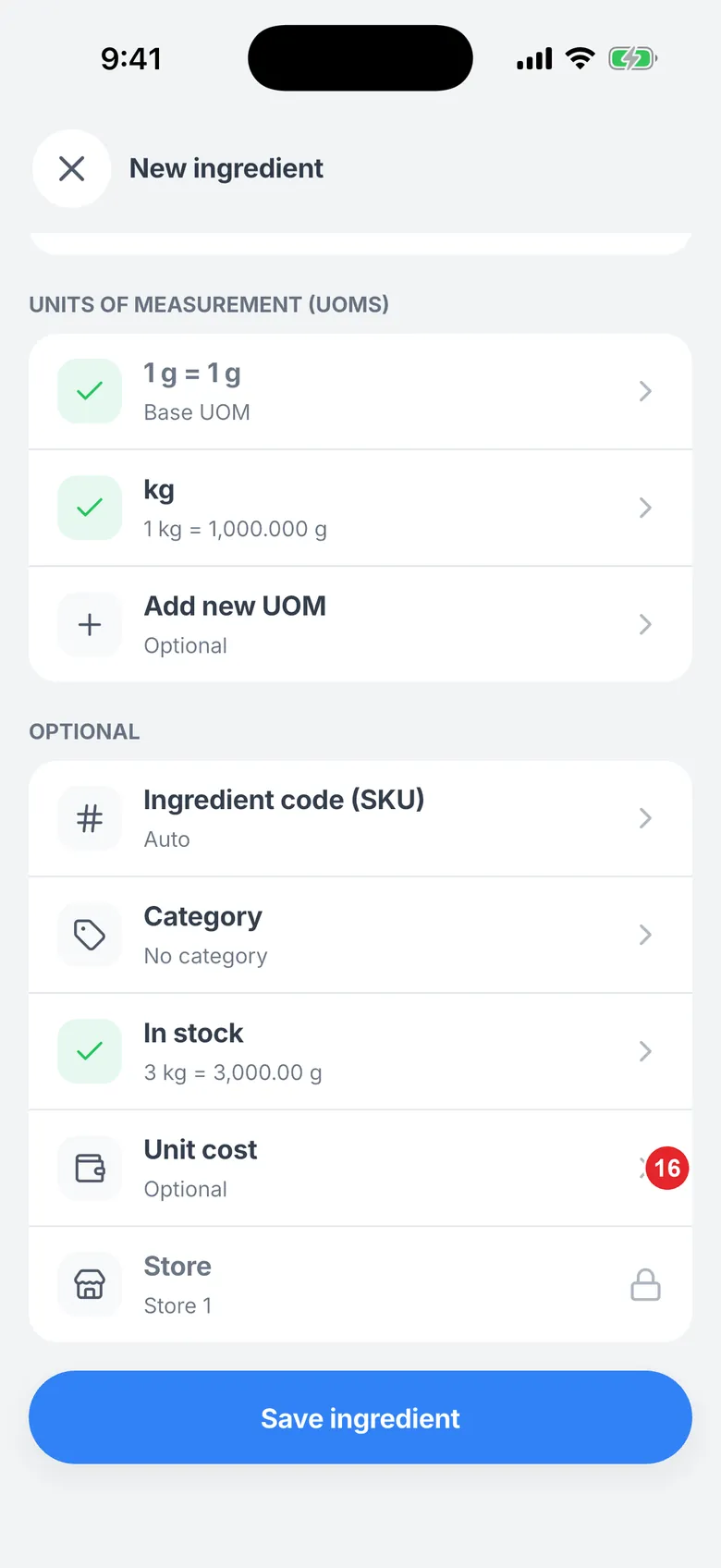
- Scroll down a little and tap «Unit cost». It opens only after «In stock» is entered. Scroll so that «Save ingredient» below doesn't cover it, then tap.
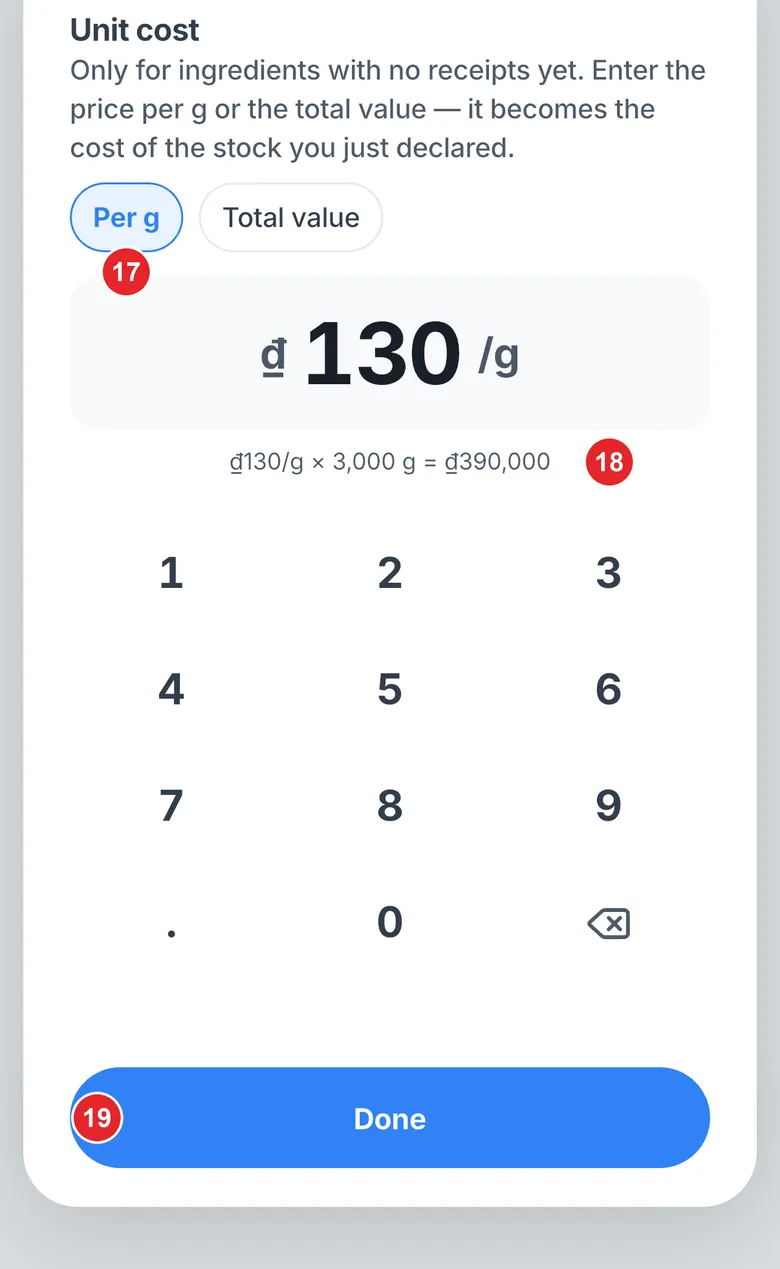
- Tap «Per g» and enter what you paid for 1 g. Here it is 130. If you know the total amount, tap «Total value».
- In «₫130/g × 3,000 g = ₫390,000», see what your stock is worth.
- Tap «Done».
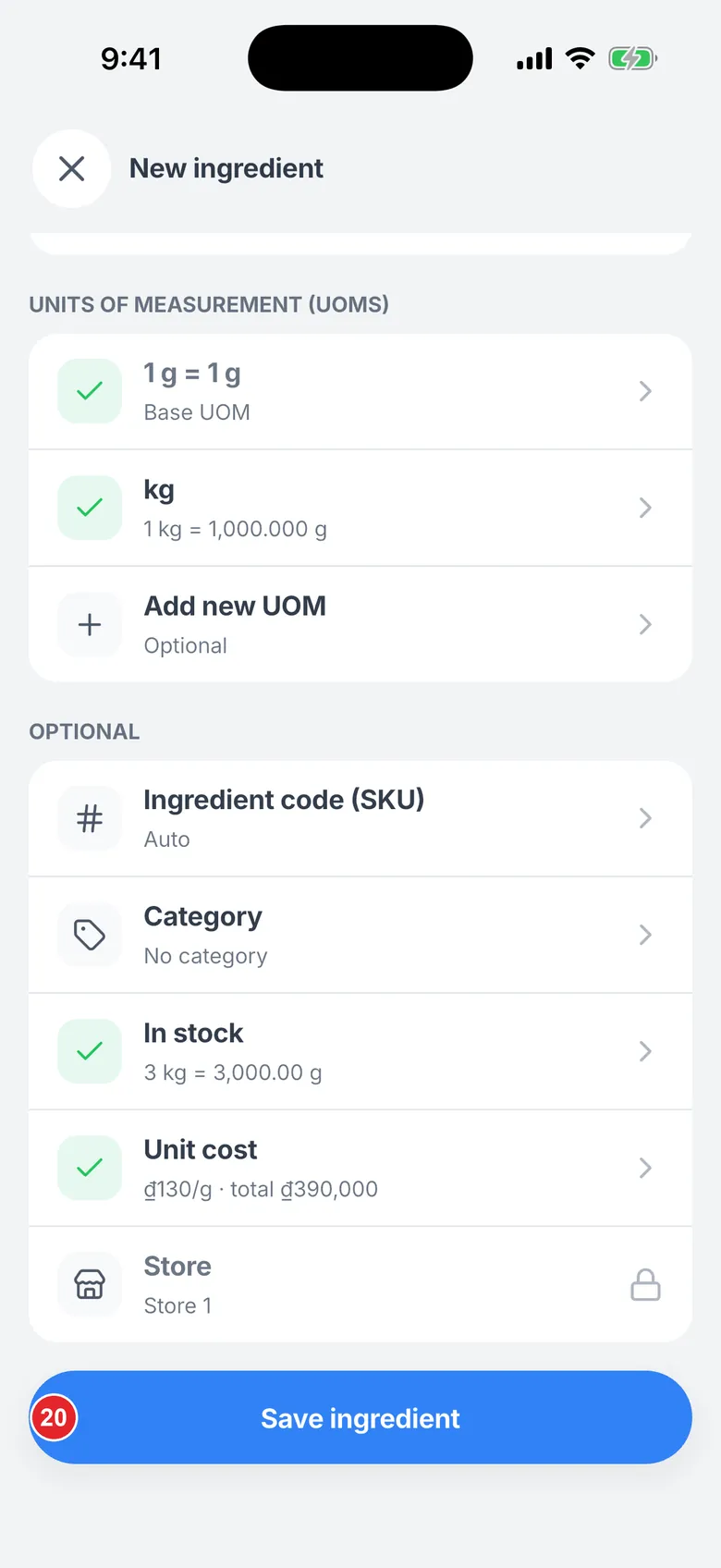
- Tap «Save ingredient».
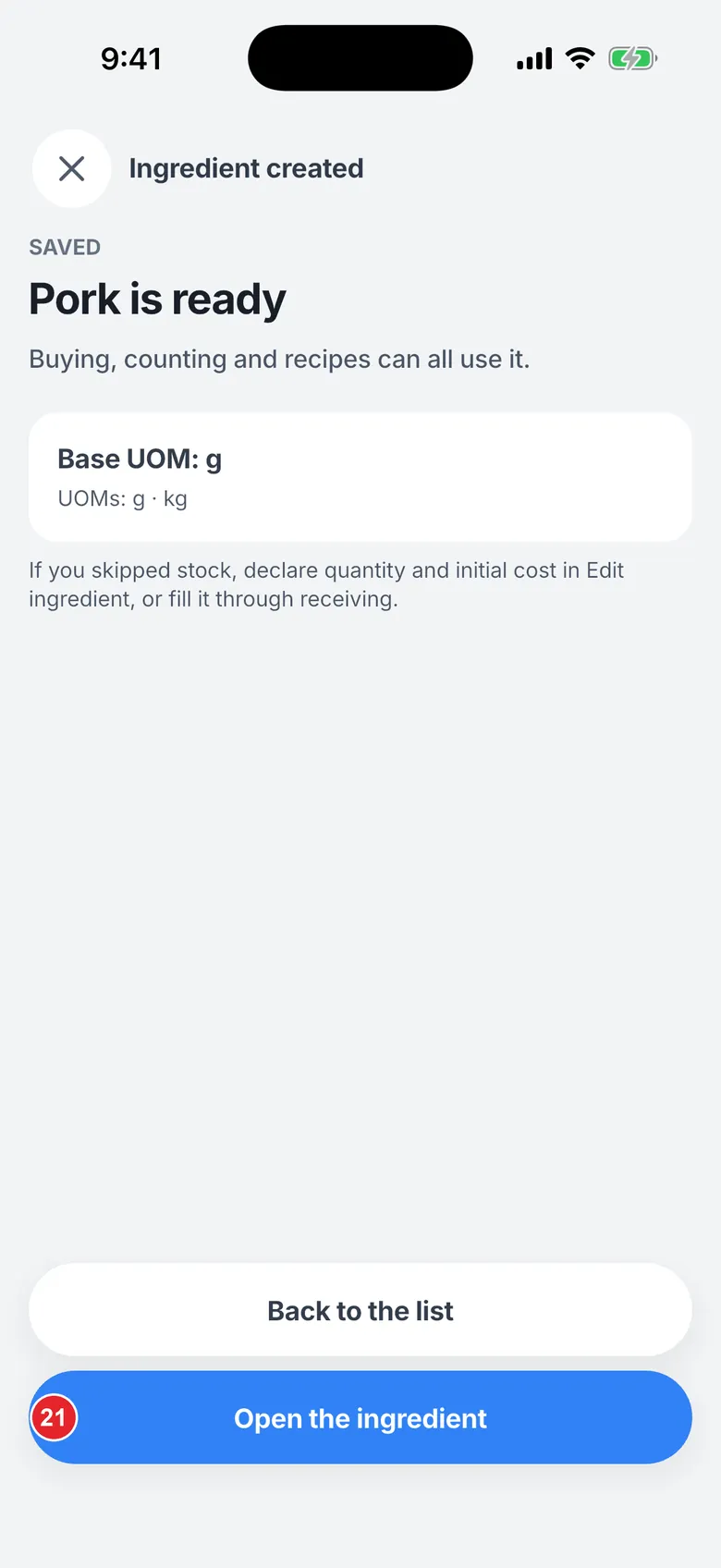
- «Pork is ready» appears. To change the ingredient you just made, tap «Open the ingredient». To add another, tap «Back to the list».