
Show contents
Daily cash & closing › Close without our POS
Set up sales templates
- Who
- Owner · Manager
- When
- Once, at the start
- Where
- App · Web
What you get
- Keep the POS or books you use now as they are, enter only the day's sales, and close the day in Storebase.
- Make them once, and every day you tap one card and enter just the amount.
- The sales you enter are added to the drawer money and bank money right away, so the app works out the money that should be there at closing.
What it solves
- If you sell with another POS, Storebase has no sales, so you can't tell how much should be in the drawer at closing.
- If you write cash and card as one lump, you can't match the drawer money and the bank money separately.
Why this way
- There is a separate template for each place the money is received, so cash goes exactly into the drawer and card money into the bank account.
- Do I have to move all my products in? No. Enter just the amount with «A service / something else». Products and stock stay as they are.
- What if staff enter the wrong amount? Before recording, it first shows which money changes and to how much: the app in «What this affects», the website in one sentence under the amount box. Cancel sales entered wrong in «Transaction History» («I entered sales twice»).
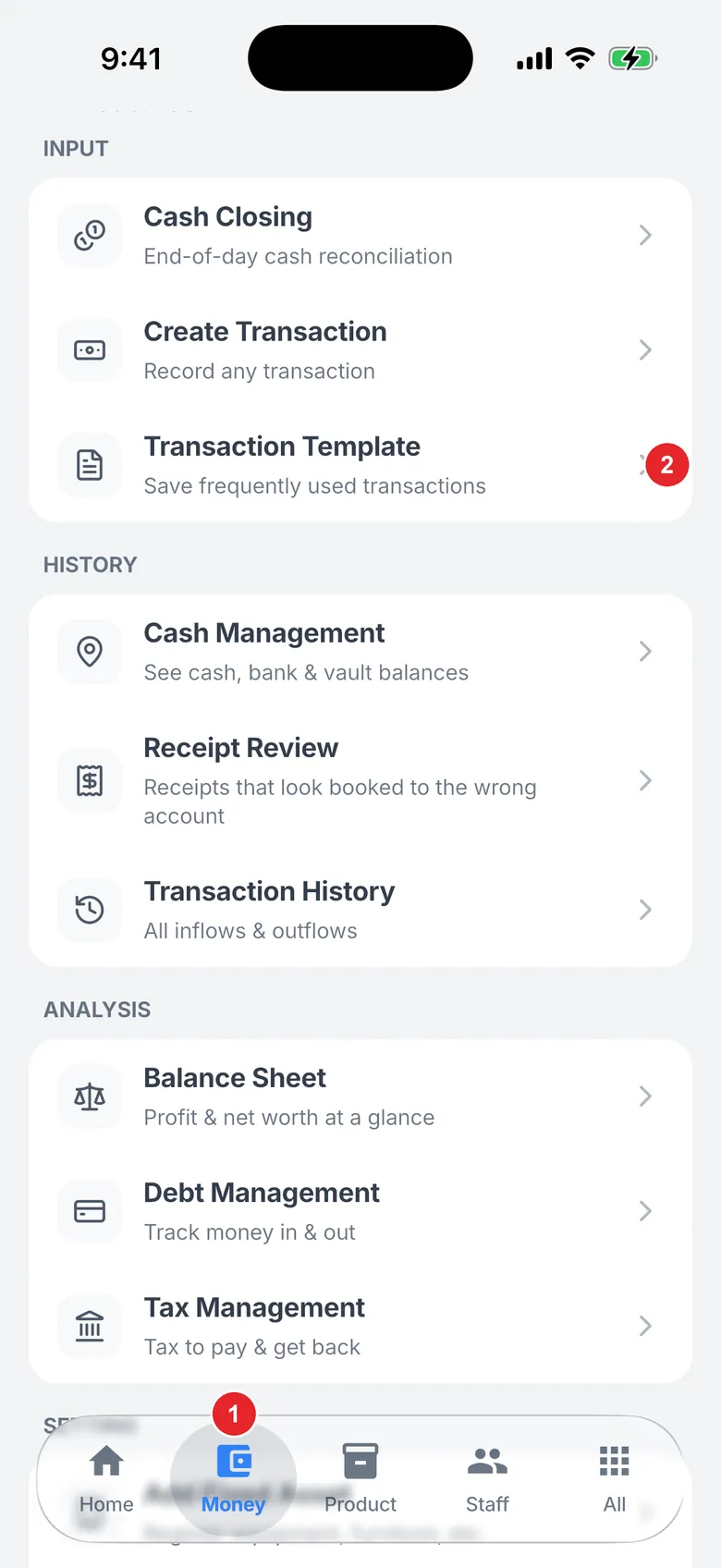
- Tap «Money» at the bottom of the app.
- Scroll down and, in «All features», tap «Transaction Template».
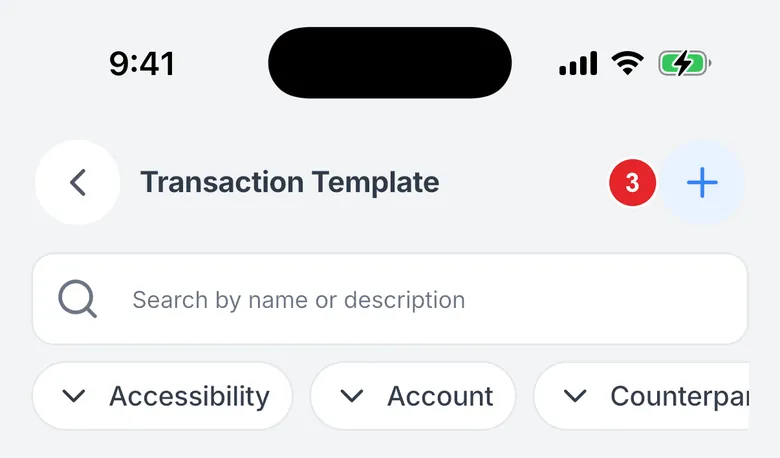
- Tap the + button at the top right.
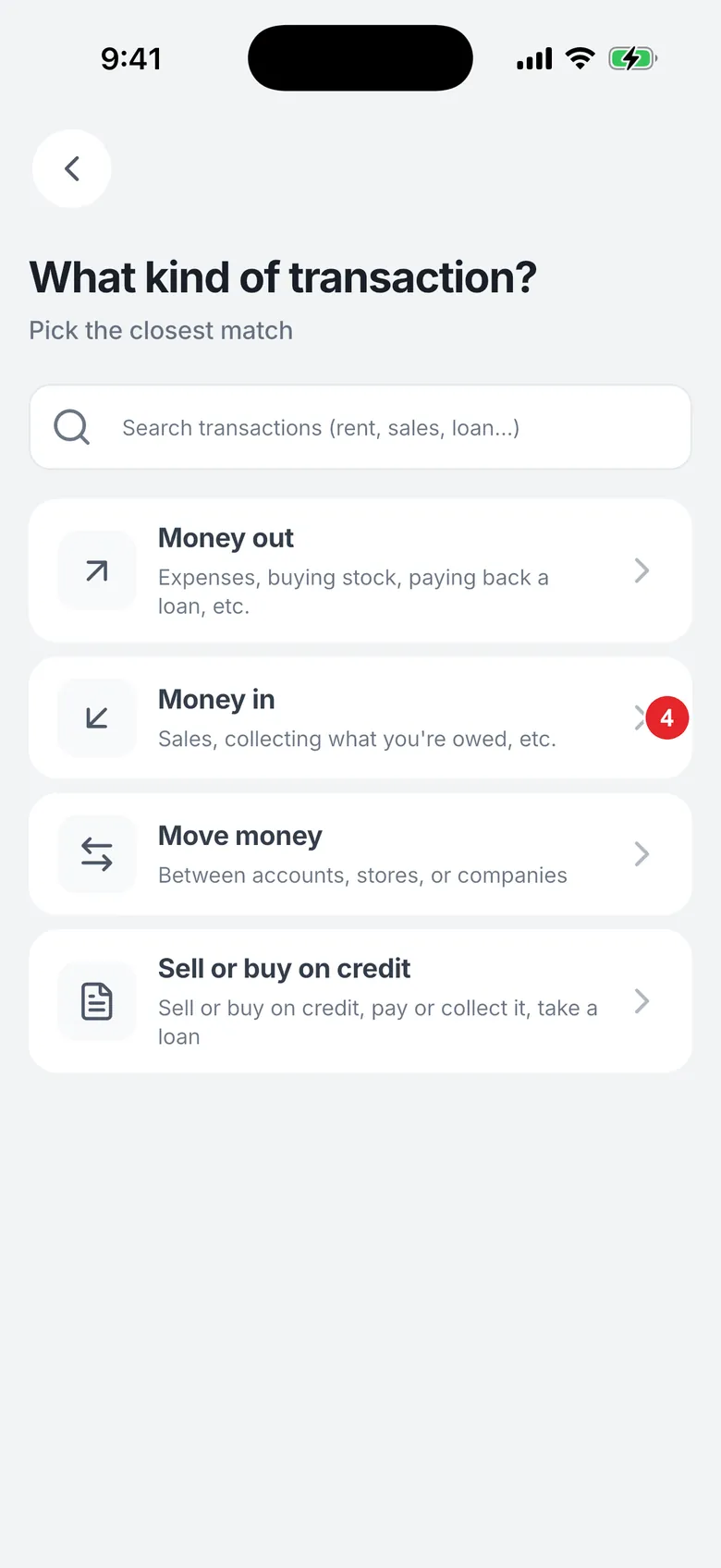
- Tap «Money in».
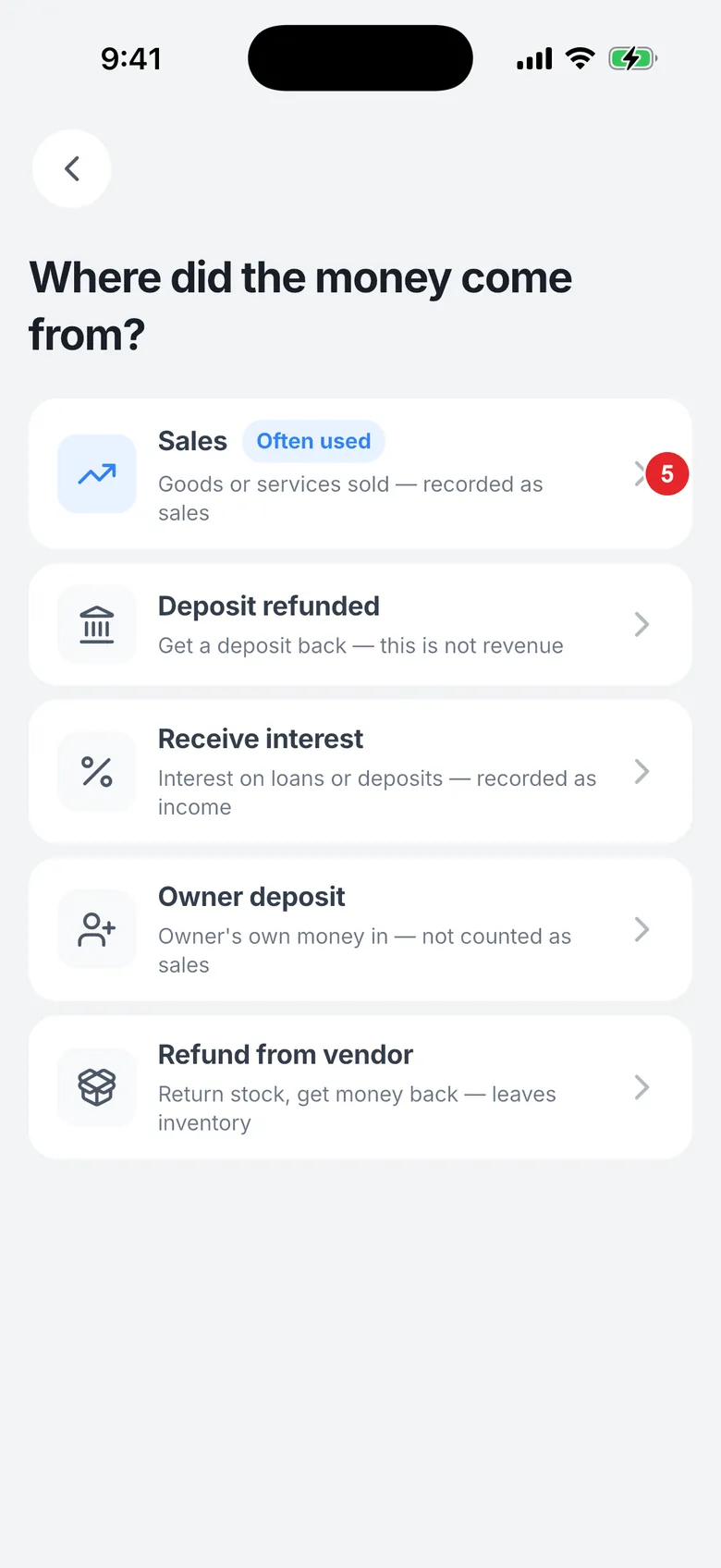
- Tap «Sales».
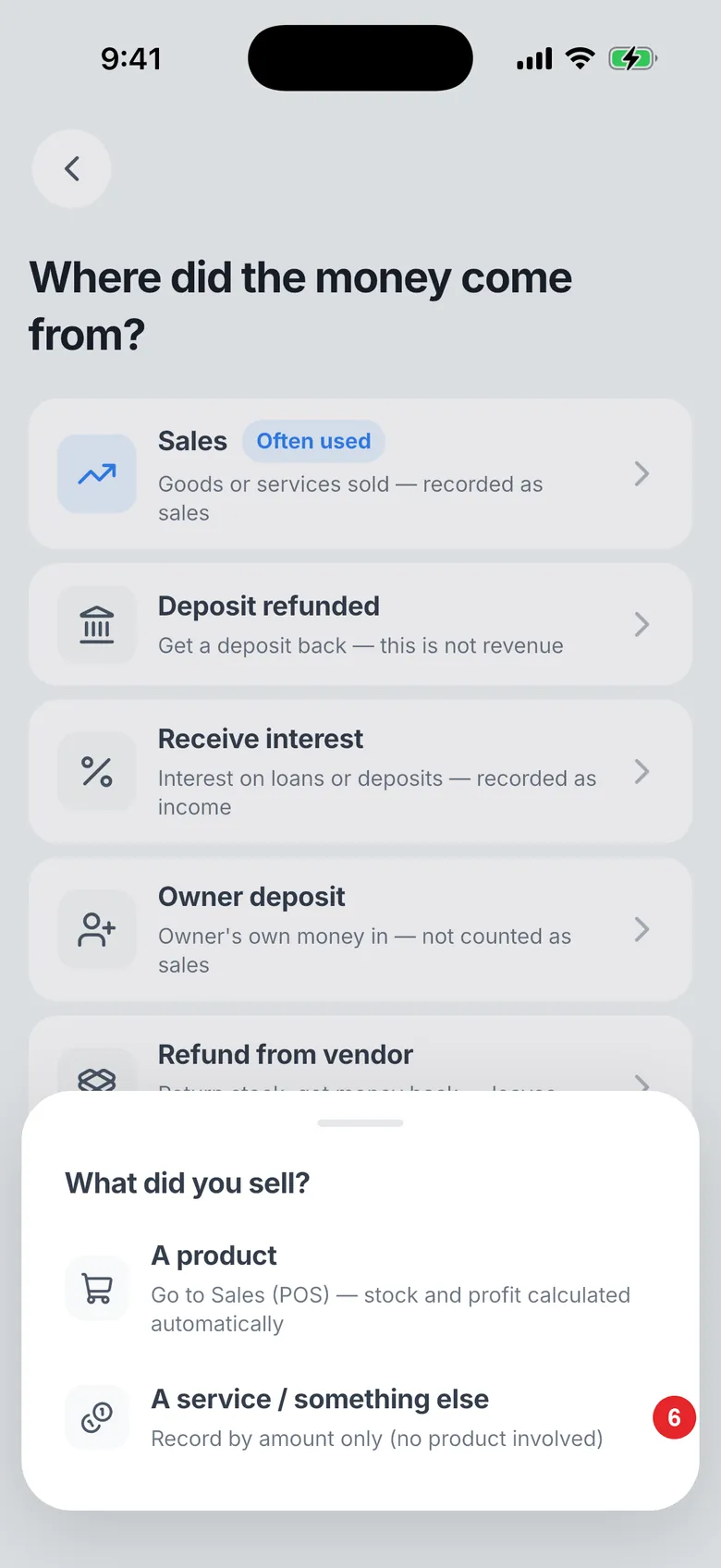
- Tap «A service / something else». This way records the amount only.
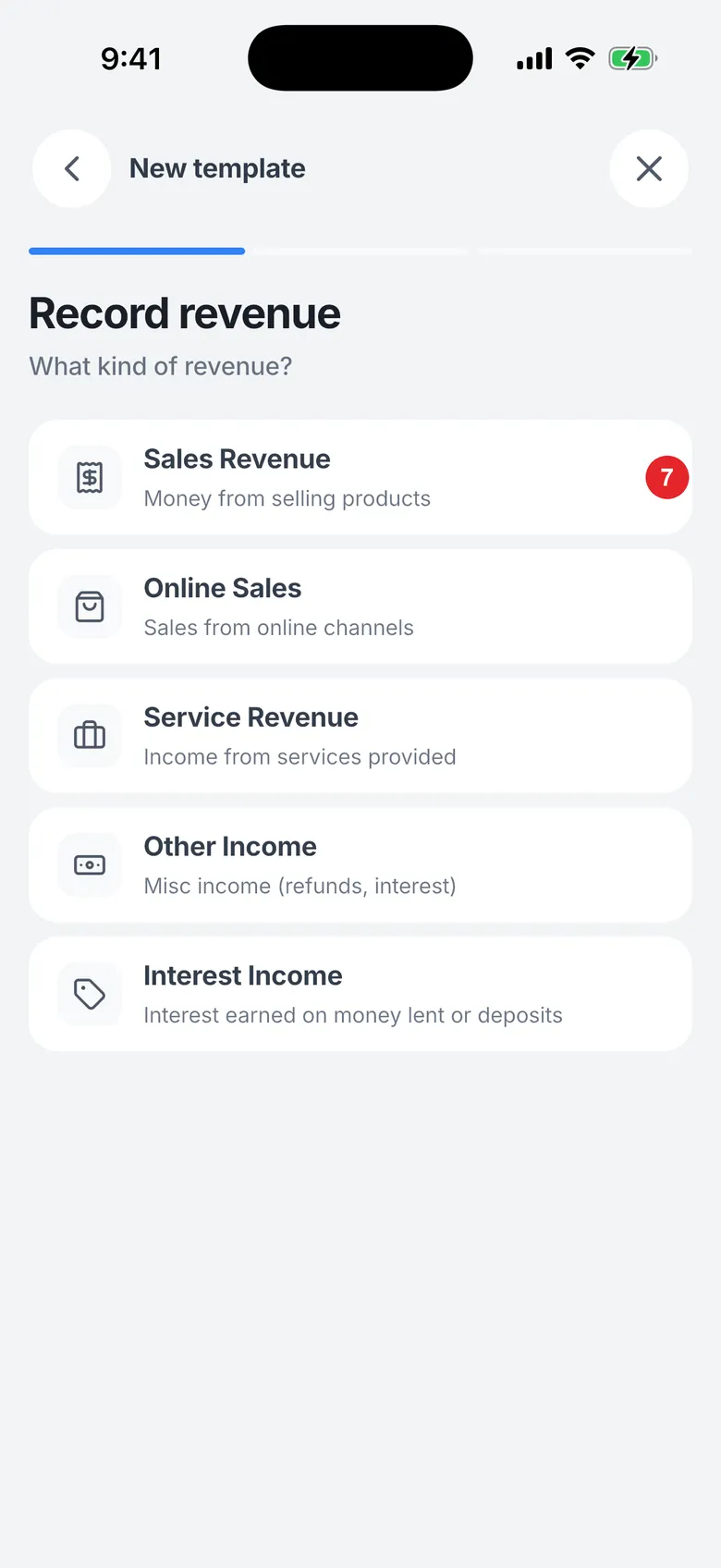
- Tap «Sales Revenue».
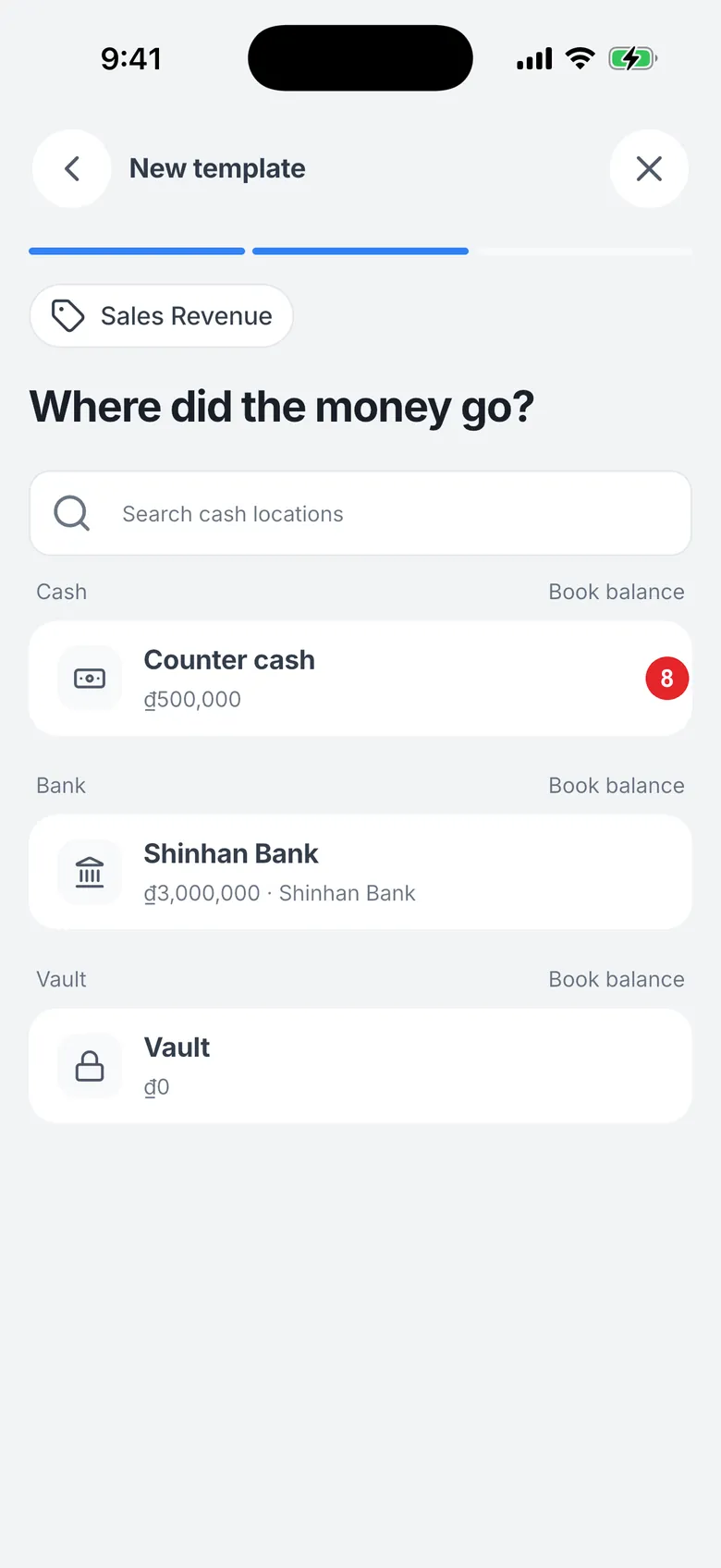
- Tap the place the sales go into. For cash sales, it is «Counter cash».
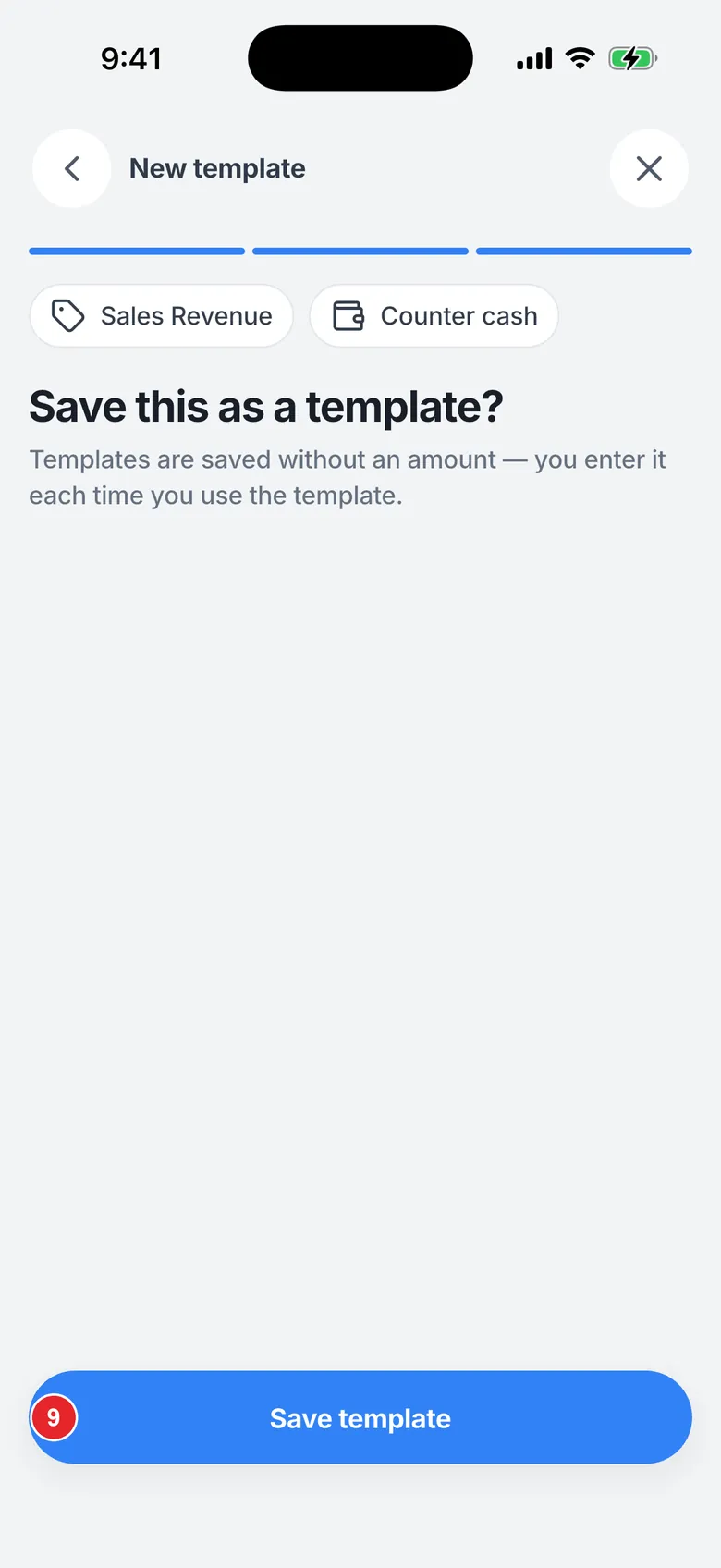
- Don't enter an amount; you enter it each time you use it. Tap «Save template».
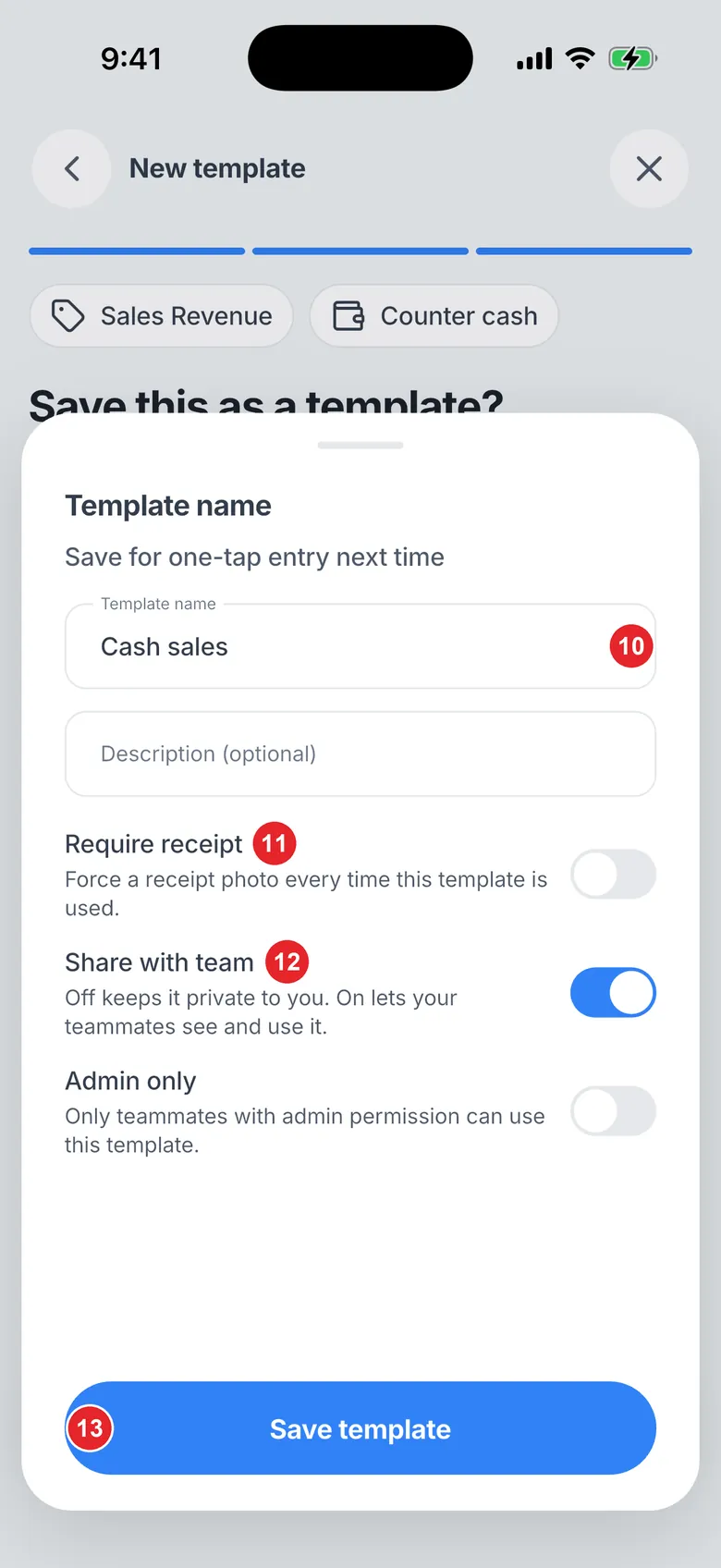
- At first, «Template name» holds «Sales Revenue». Clear it and enter «Cash sales».
- Turn off «Require receipt». If it is on, you have to attach a receipt photo every time you record.
- To let staff use it too, keep «Share with team» on.
- Tap «Save template». When «Template saved» shows, tap «OK».
- Do it again from step 3 to make «Card sales». In step 8, tap the bank account that card money goes into. Here it is «Shinhan Bank».
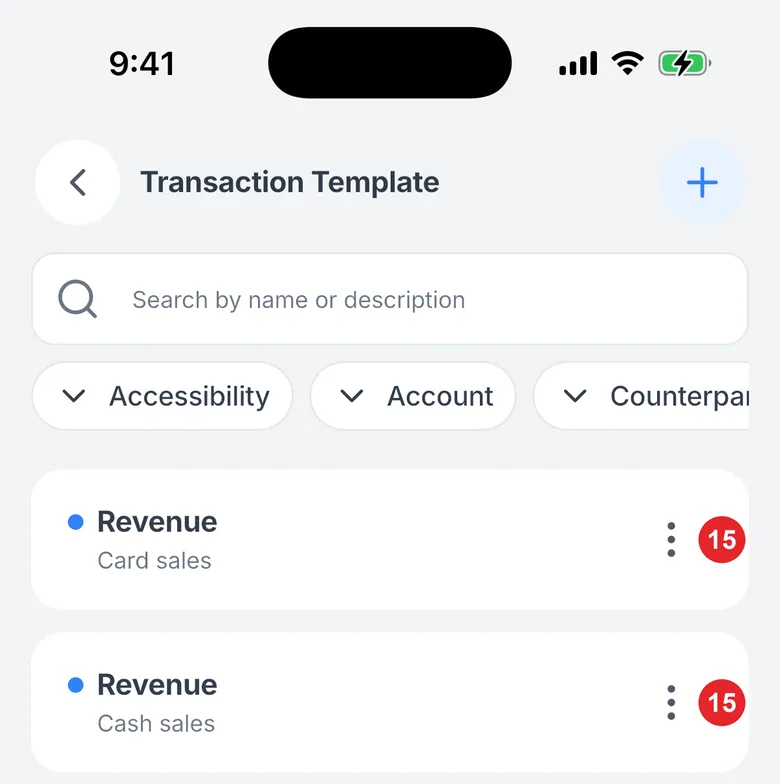
- When «Card sales» and «Cash sales» show in the list, you are done.
Even if you sold with another POS or with books, entering the day's sales at once for each place the money was received makes the closing match. So make one template for each place the money is received.
| Template name | Where the sales go in |
|---|---|
| Cash sales | Counter cash |
| Card sales | The bank account that card money goes into |
If you receive money in other places, like bank transfers or delivery apps, make one more for each of them.
Remember
- In «What did you sell?», choose «A service / something else». Only the amount is recorded. If you choose «A product», it takes you to our POS sales screen.
- Sales entered this way keep only the amount. Product stock and cost don't change.
- If staff do the closing, keep «Share with team» on.