
Show contents
Daily cash & closing › Staff training
Sales & closing guide to send to staff
- Who
- Owner → Staff
- When
- When someone joins
- Where
- App
What you get
- Send staff the four things they do, in short, and even new staff handle sales, expenses and closing on their own in the app.
- When staff choose the right place for the money received and enter expenses right away, the drawer money and the books match at closing.
- Differences are checked and sorted out by the owner, not by staff.
What it solves
- If staff enter the sales they made into «Create Transaction» again, sales are counted twice.
- If staff match a difference themselves, it turns into a cost or a profit before the cause is found, and the profit figure goes wrong.
Why this way
- Sales made with «New sale» on the «Product» tab at the bottom of the app go into the books automatically. That is why staff don't enter sales separately.
- Do staff apps show the match button too? If there is a difference when closing is saved, «Match to count» shows. That is why step 4 of the guide says not to match it yourself.
- Do I need to teach the website too? Staff can't use the website by default, so teach only the app.
- Can I see what staff did? See who entered and who counted under «Created by» in the website's «Transaction History» and «Counted by» in «Cash Management».
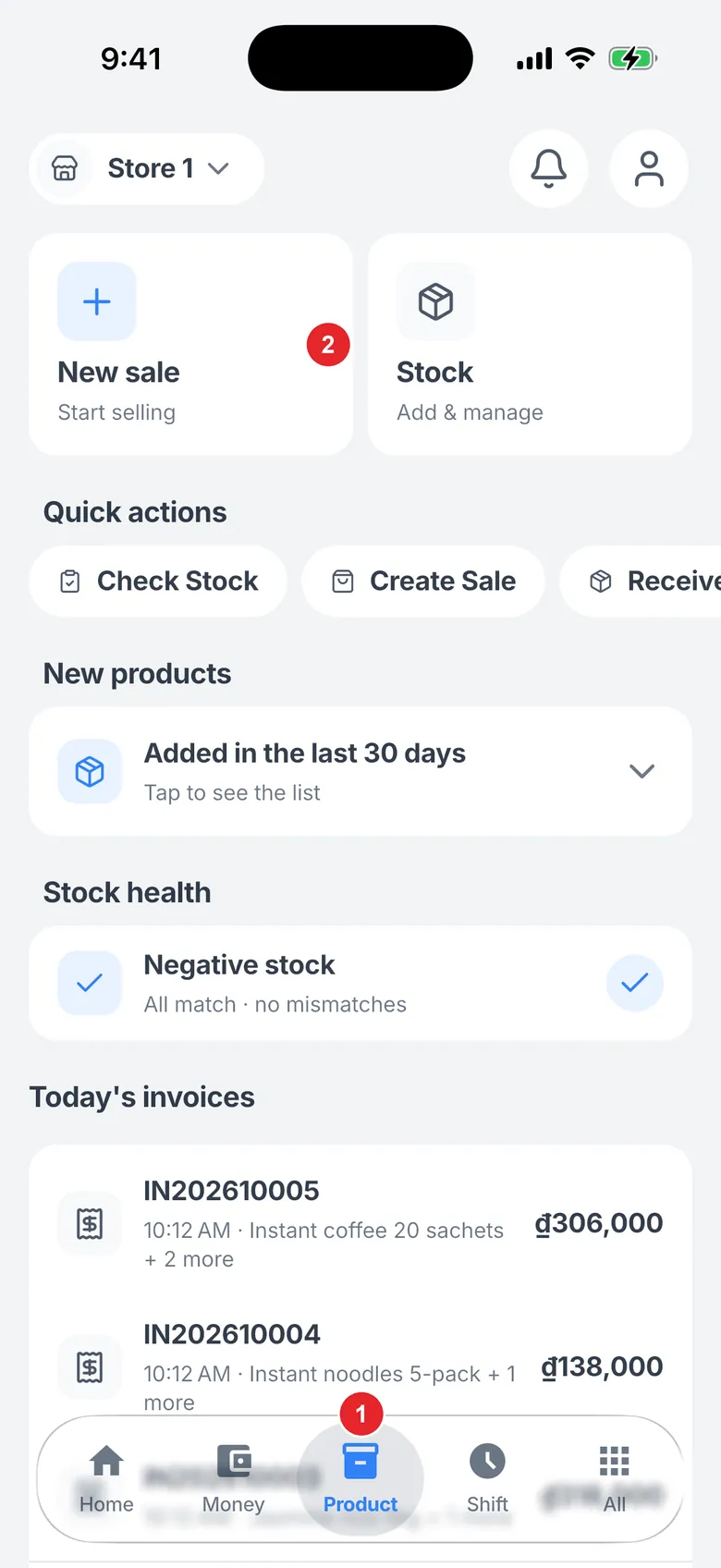
- To make a sale, tap «Product» at the bottom of the app.
- Tap «New sale». In the payment method, choose the right place where the money was received. Follow the steps as in «Make a sale · the books fill in themselves».
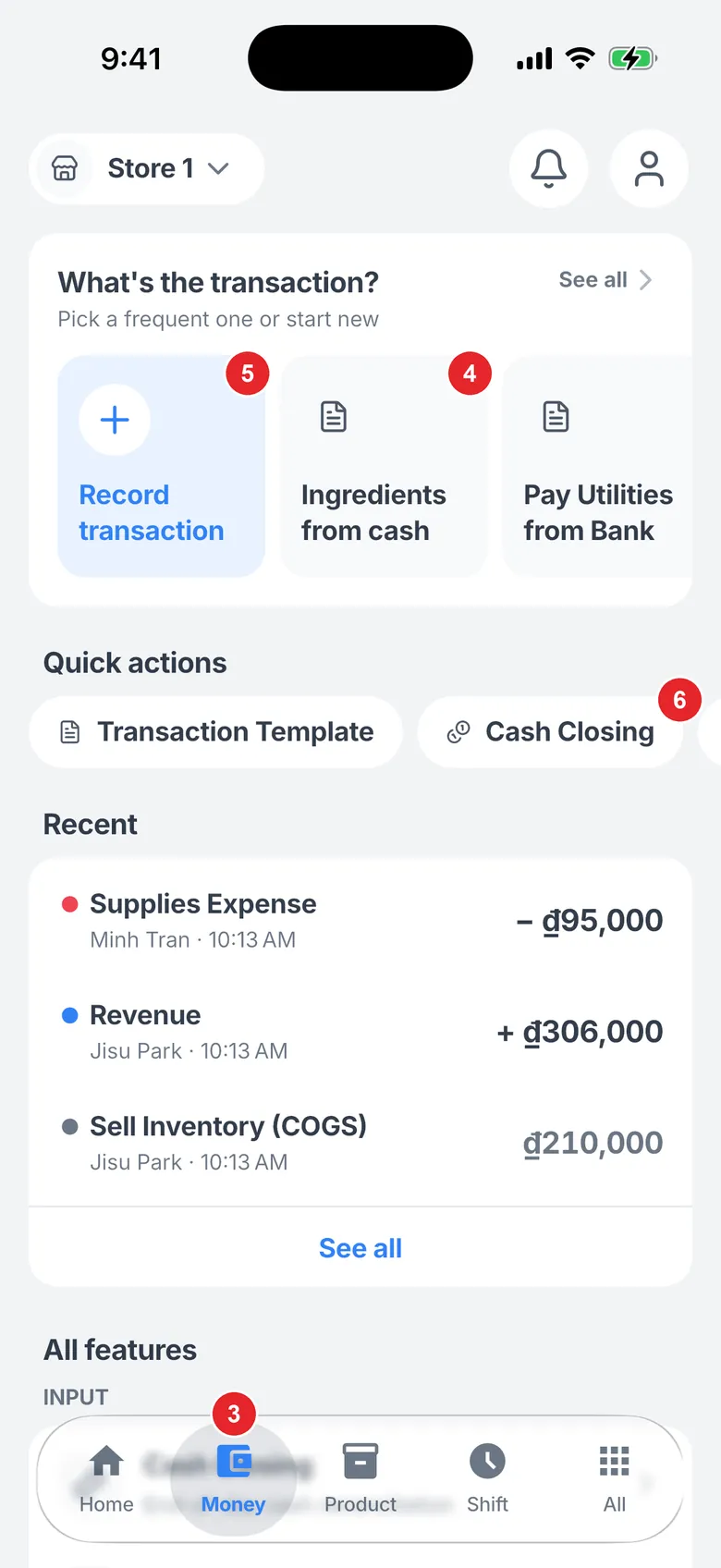
- When money goes out, tap «Money» at the bottom of the app.
- Transactions you use often show as cards. Tap the right card and enter the amount.
- If there is no right card, tap «Record transaction». Don't enter sales here.
- At closing, tap «Cash Closing» in «Quick actions» and enter how many notes · coins you have. If there is a difference, don't match it yourself; tell the owner.
- When you sell, choose the right place where the money was received.
- When money goes out, enter it in «Create Transaction» right away. Don't enter sales.
- At closing, count the notes and coins and enter them in «Cash Closing».
- If there is a difference, tell the owner. Don't match it yourself.