
Show contents
Daily cash & closing › Cash & bank setup
Set up cash, bank and vault
- Who
- Owner
- When
- Once, at the start
- Where
- App · Web
What you get
- When you create a store, Cash · Bank · Vault are already there. Just rename them in your store's own words and start using them.
- When staff make a sale, they see familiar names like «Counter cash» and «Shinhan Bank» and choose where the money was received.
- The drawer, bank account and vault are kept apart, so at closing you know which one is short.
What it solves
- If you write drawer money and bank money as one lump, you can't tell where money went missing when it is short.
- If a name stays as «Bank», staff get confused about which account it is when you have several.
Why this way
- Cash is matched by counting it, a bank account by entering its balance. Keeping the places apart lets you match each one the right way.
- If I rename it, does the money recorded so far disappear? No. Only the name of the same place changes.
- What if I have more bank accounts or drawers? Make more places: on the website click «Add account» at the top right of «Cash Management»; in the app tap the add button under the tab's list, such as «Add Cash Account».
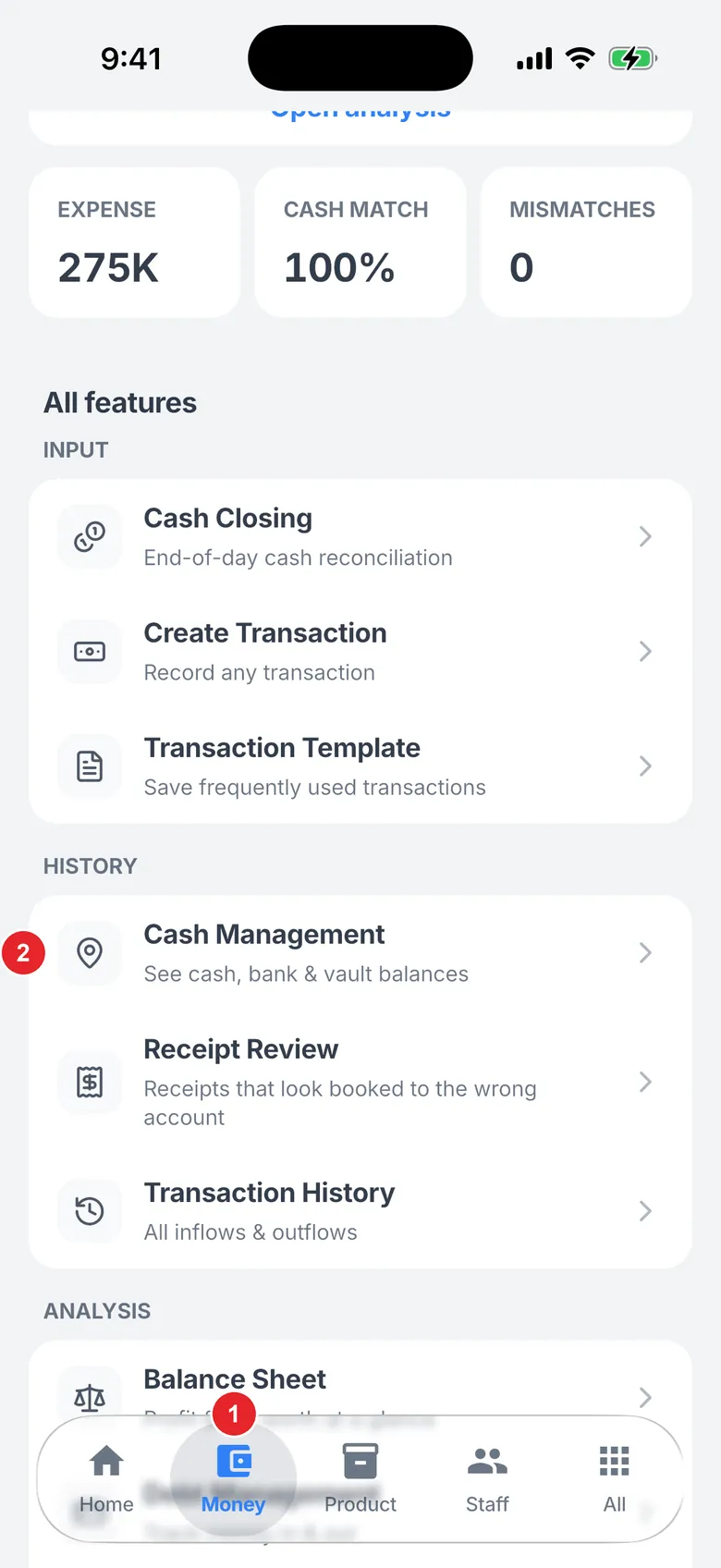
- Tap «Money» at the bottom of the app.
- Scroll down and, in «All features», tap «Cash Management».
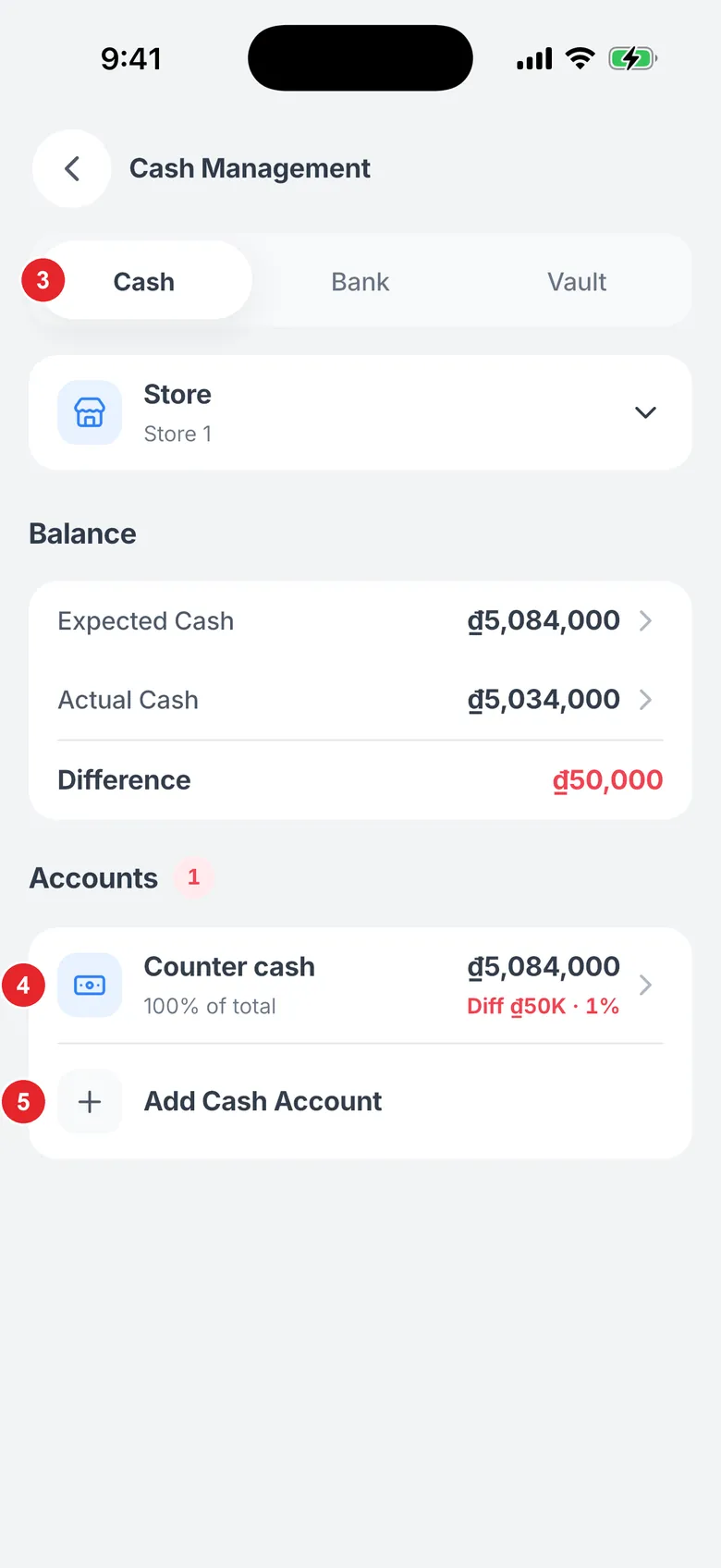
- At the top, choose one of «Cash» · «Bank» · «Vault».
- Tap the place you want to rename.
- If you need more places, tap the add button below. On the «Cash» tab it is «Add Cash Account».
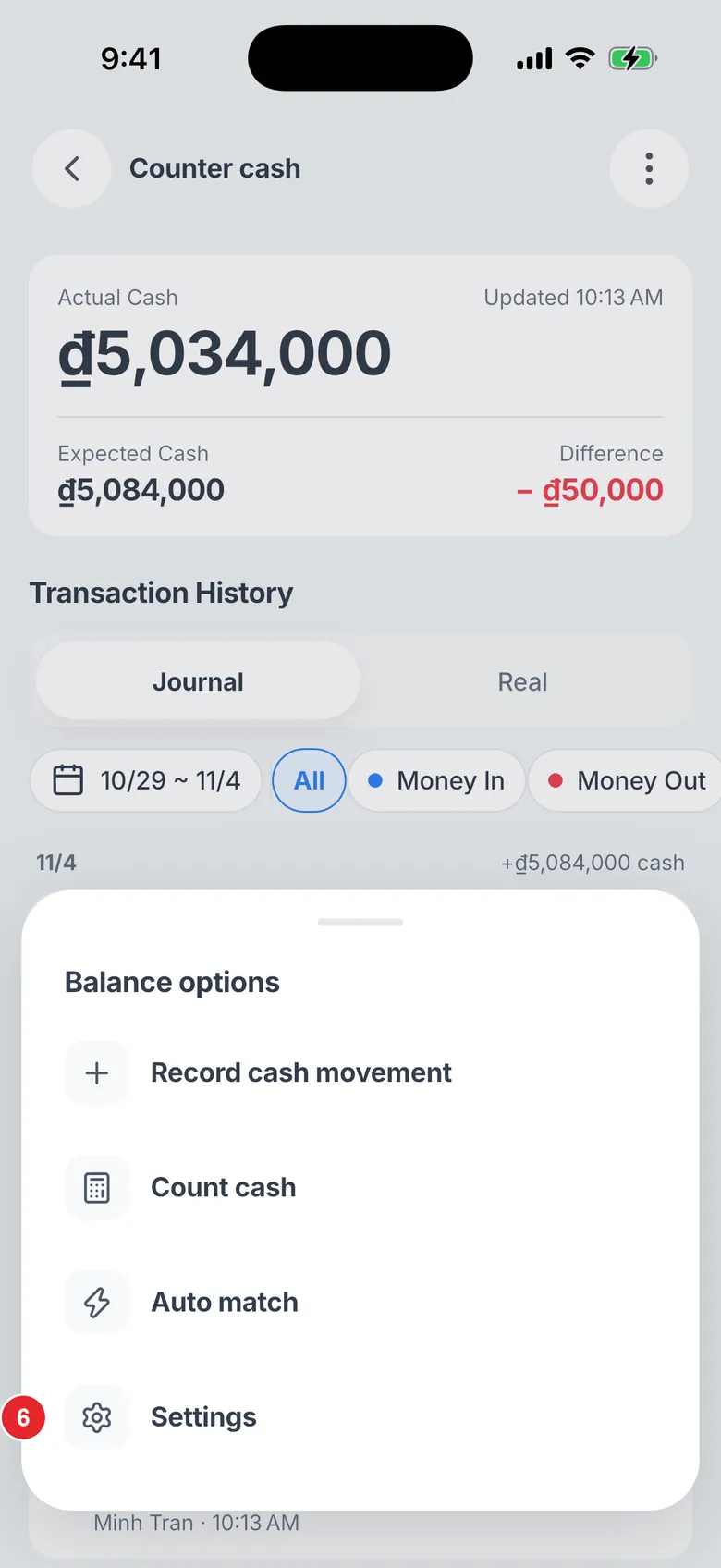
- Tap ⋮ at the top right, then tap «Settings».
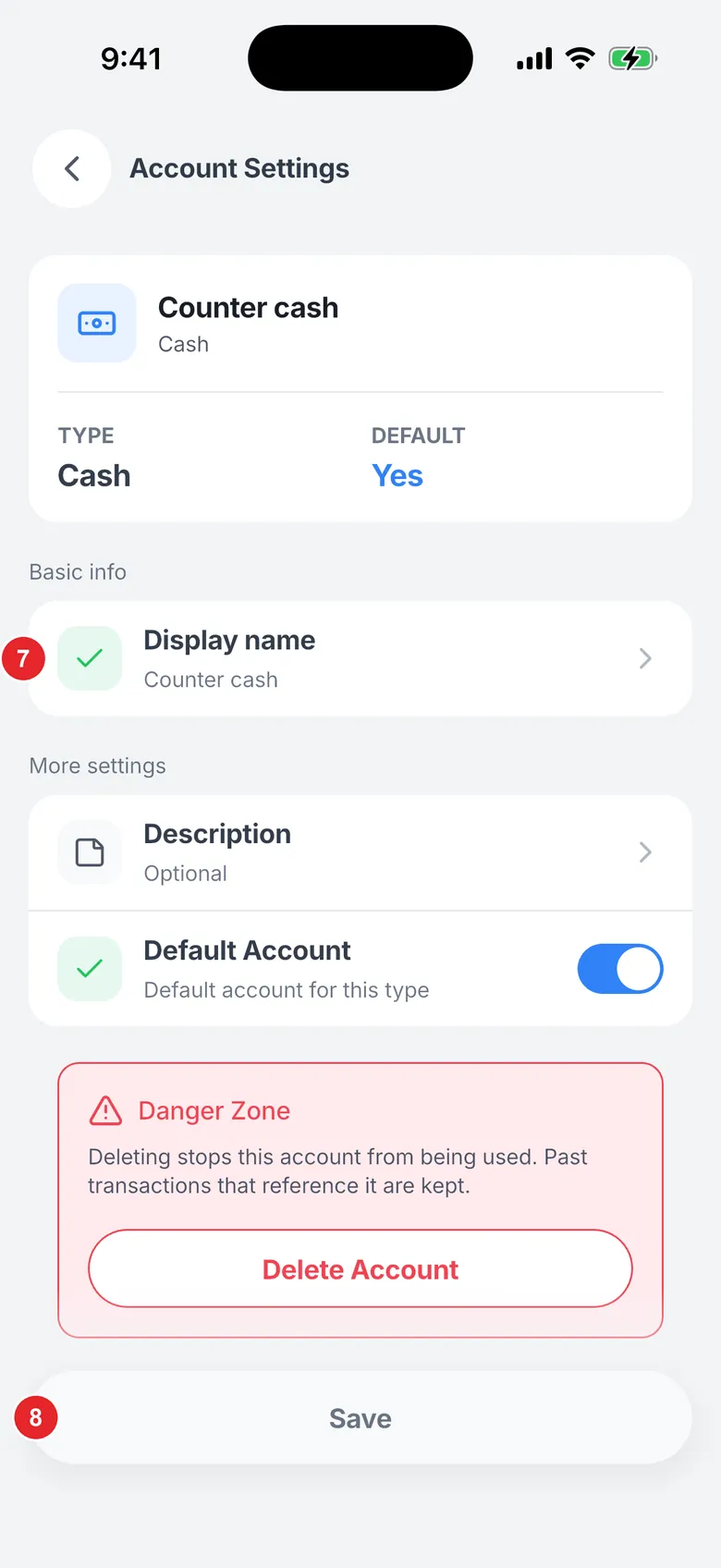
- Tap «Display name» and change it to the name your store uses.
- Tap «Save» at the bottom (faded in the picture; you can tap it once you change the name).
When you create a store, three places, Cash · Bank · Vault, are made automatically. You don't need to make new ones; just rename them to fit your store.
- Cash: the counter drawer. Matched by counting.
- Bank: the bank account. Matched by entering the balance.
- Vault: spare cash you can't keep in the drawer.