
Show contents
Daily cash & closing › Today's results
Check daily sales
- Who
- Owner · Manager
- When
- Every day
- Where
- App · Web
What you get
- See the day's «Net sales» and the number of invoices, items sold and refunds on one screen.
- «Closing summary» shows tax, cost and even gross profit, so you know how much is left from what you sold.
- See past days on the same screen by just changing the date.
What it solves
- Unless you add up the receipts one by one, you can't tell how much was sold that day.
- Looking only at sales, you don't know how much is left after taking off the cost.
Why this way
- It is built from the sales records, so staff don't need to write down totals.
- If something is returned later, do that day's numbers change? No. The sales on the day sold stay as they are, and a return comes off the sales of the day it is returned.
- Does this number mean it matches the money in the drawer? No. It is a number built from sales records. Whether the money really matches, check in «Cash Management» («Check the money matches»).
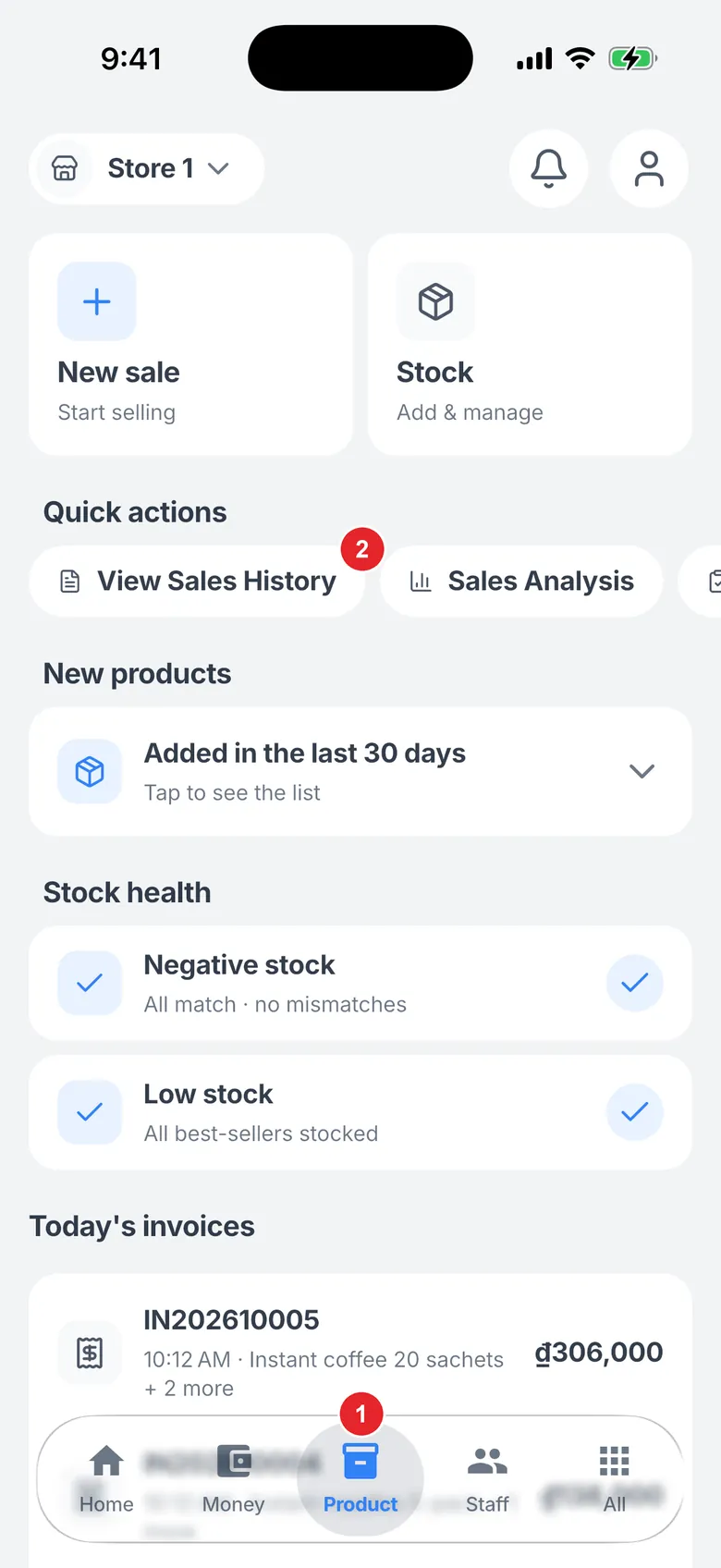
- Tap «Product» at the bottom of the app.
- In «Quick actions», tap «View Sales History».
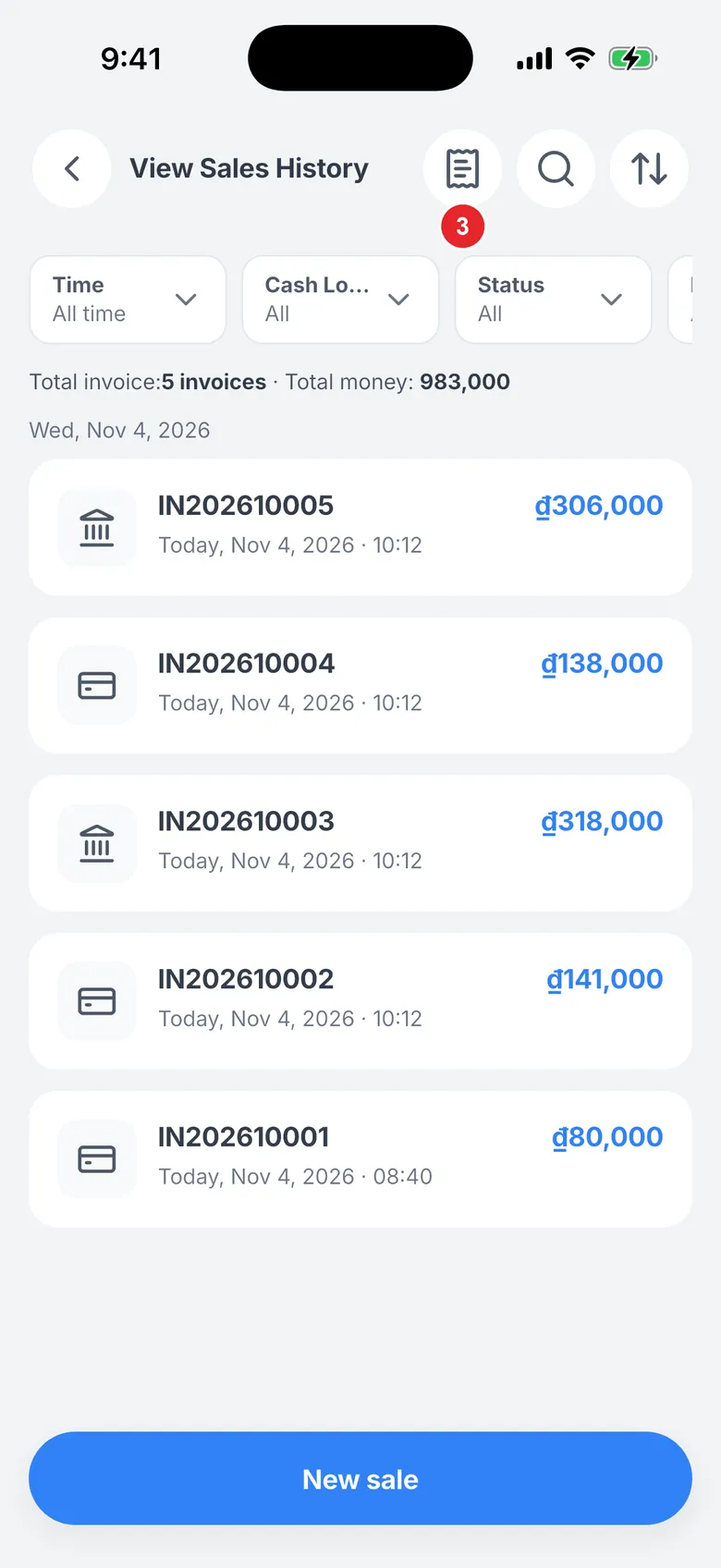
- Tap the receipt-shaped button at the top right («Daily sales»).
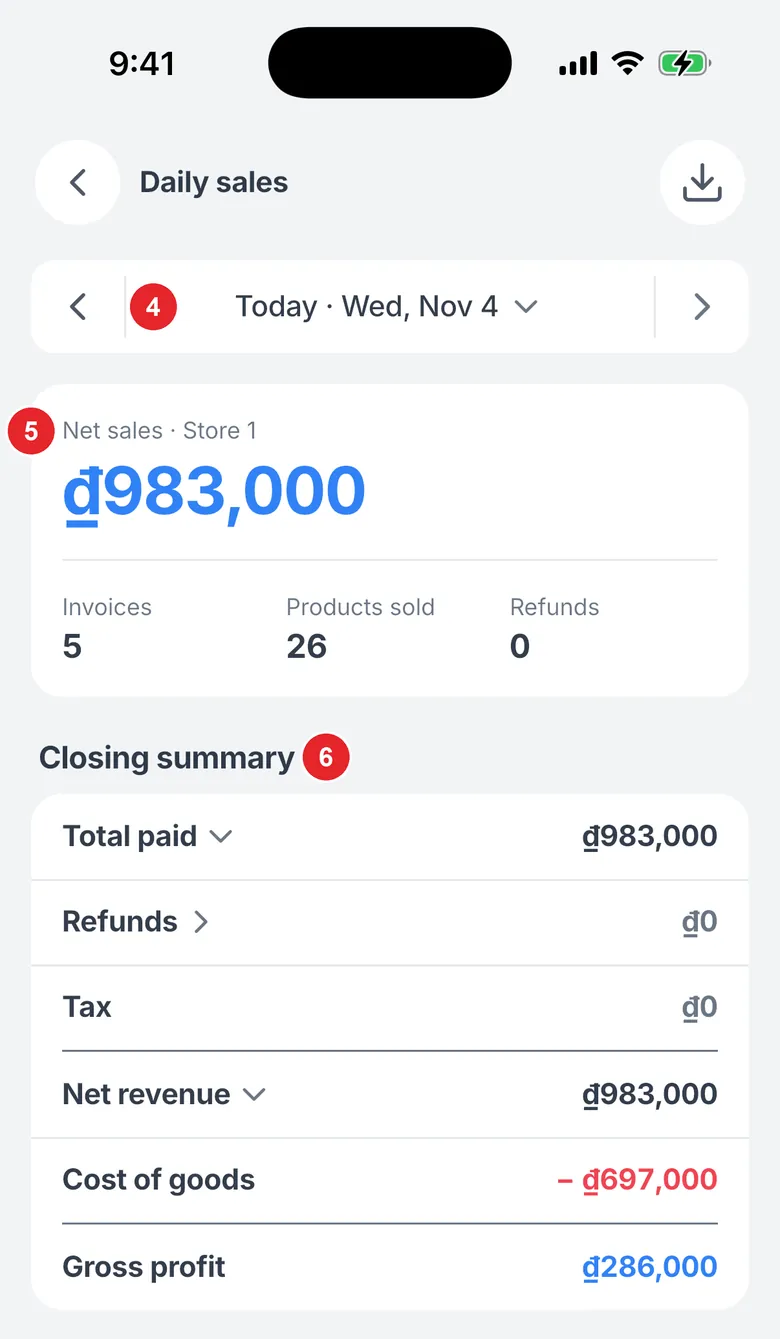
- Today shows first. For another day, use the arrows on either side, or tap the date to choose one.
- Check the «Net sales» and the number of invoices · products sold · refunds.
- In «Closing summary», check the total paid · refunds · tax · net revenue · cost of goods · gross profit.
Remember
- This screen is built from sales records. Whether the money really matches, check in «Cash Management».