
Show contents
Daily cash & closing › Today's results
Check the money matches
- Who
- Owner · Manager
- When
- Every day
- Where
- App · Web
What you get
- For each drawer, vault and bank account, the difference between the money that should be there and the counted money shows on one screen.
- Open a place with a difference, and the money that came in and went out of it shows below, so you can trace where it went missing.
- In «Transaction History», choose «In» · «Out» · «Move» to see only the money you want.
What it solves
- The app home doesn't show cash differences, so unless you open this, you don't know money is missing.
- The daily sales figure alone can't tell you whether the money is really in the drawer.
Why this way
- Each place is matched on its own, so you know right away whether the difference is in the drawer, the vault or the bank account.
- Can I see who counted? In the website's «Cash Management» table, «Counted by» shows the last person who counted, and «Since» shows when it was counted.
- What about places not counted for a long time? A place not counted for more than 7 days shows «Count again» under «Status». That difference can't be trusted, so count it again.
- Can I see who entered a transaction? It shows under «Created by» in the website's «Transaction History».
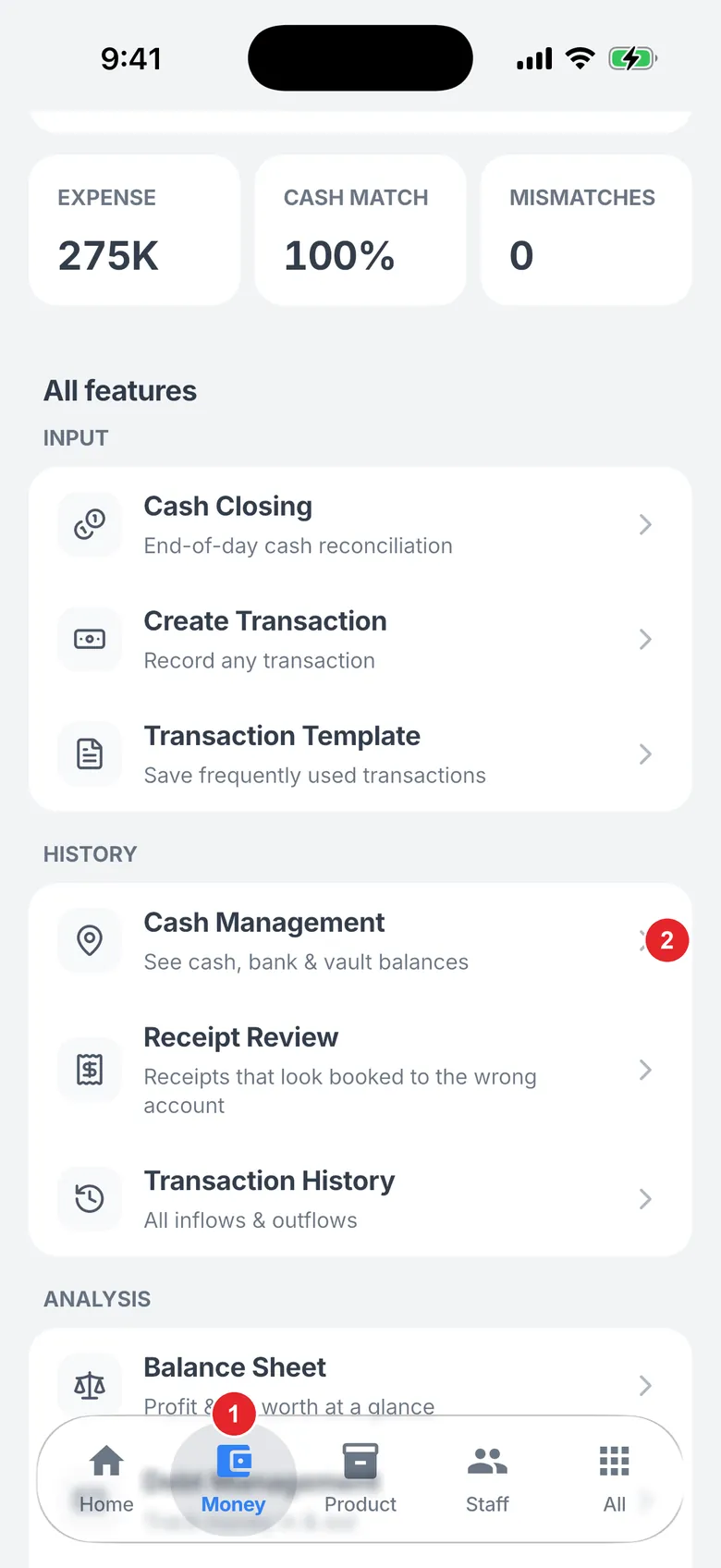
- Tap «Money» at the bottom of the app.
- Scroll down and, in «All features», tap «Cash Management».
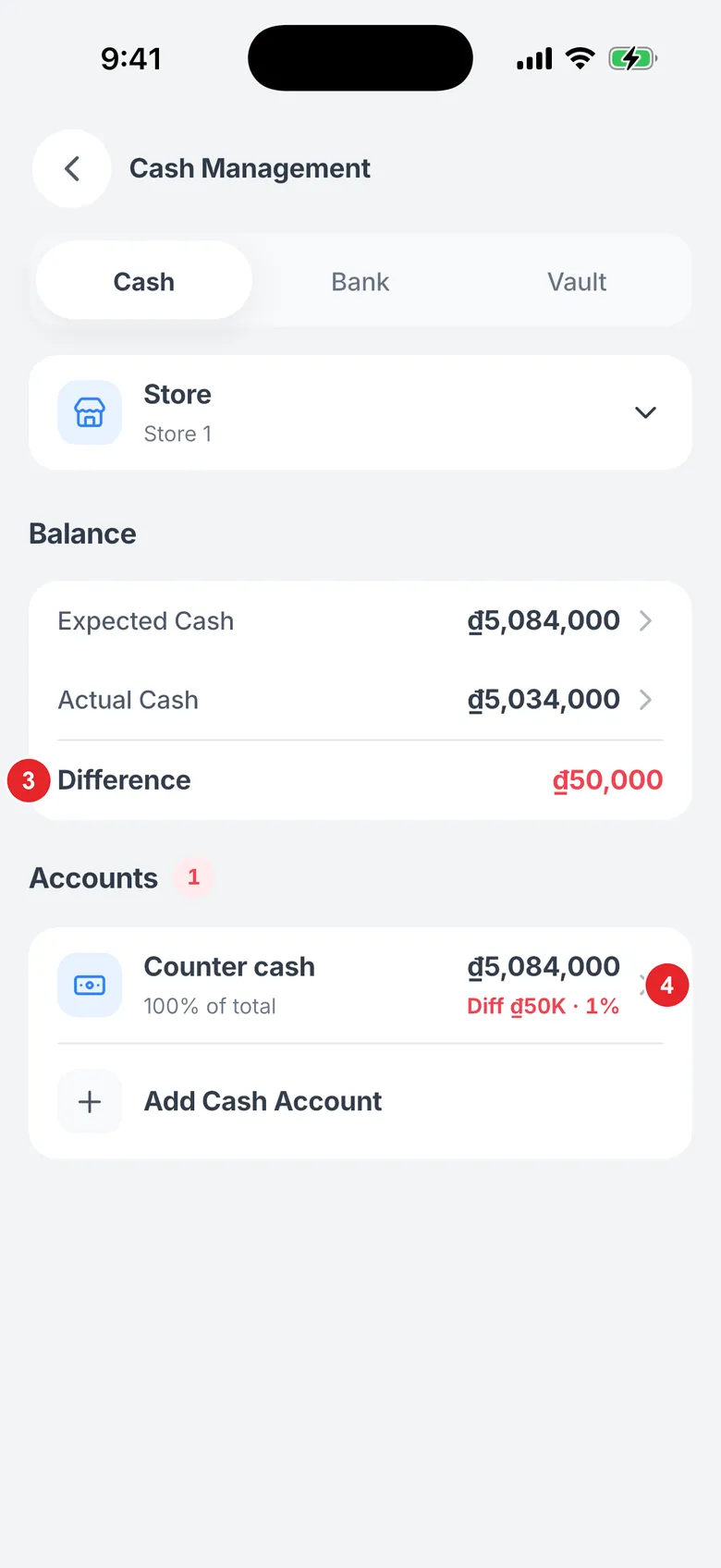
- «Expected Cash» is the money that should be there, going by the books; «Actual Cash» is the counted money. Check the «Difference» between them. Look at the «Bank» · «Vault» tabs at the top the same way.
- Each place shows its own difference. Tap a place with a difference.
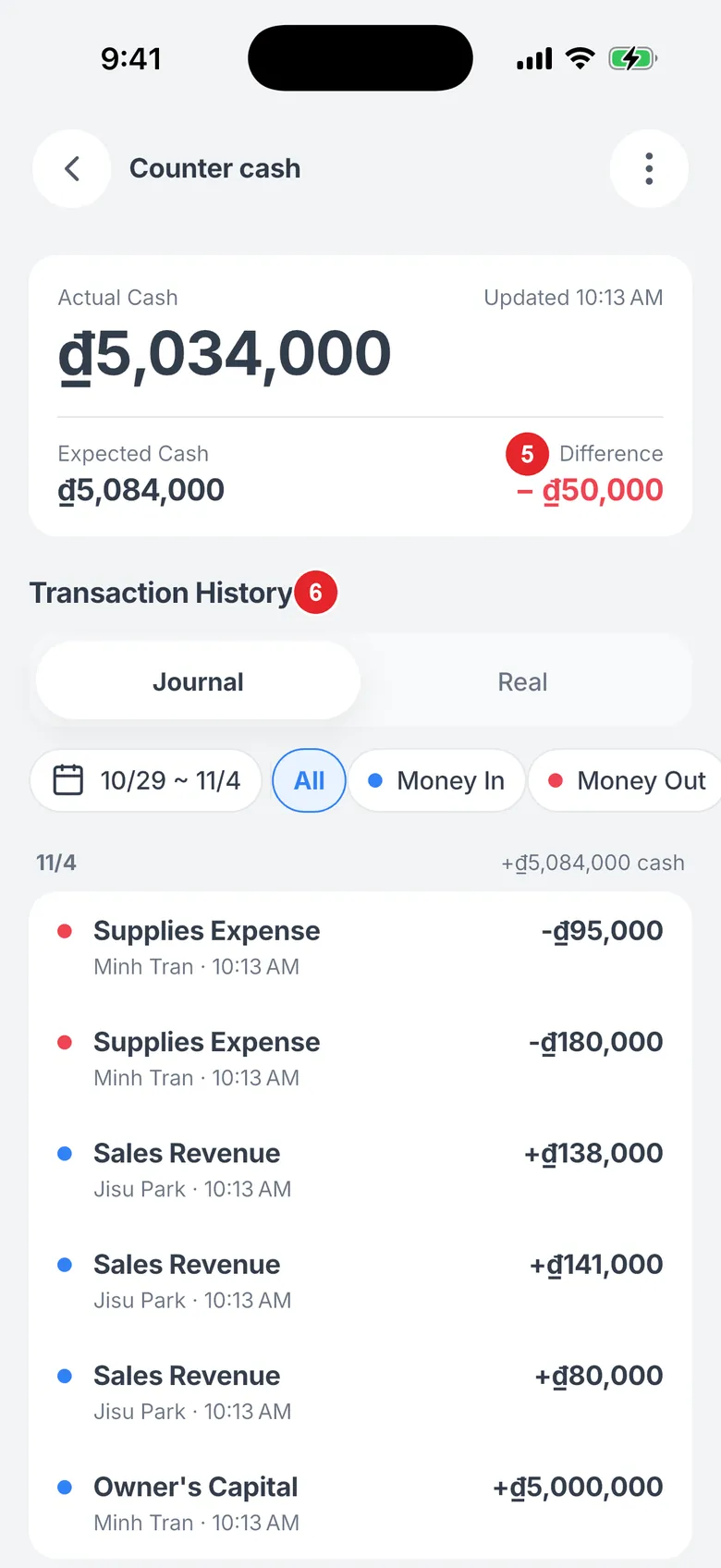
- Check the «Difference».
- Below, «Transaction History» shows the money that came into and went out of this place.
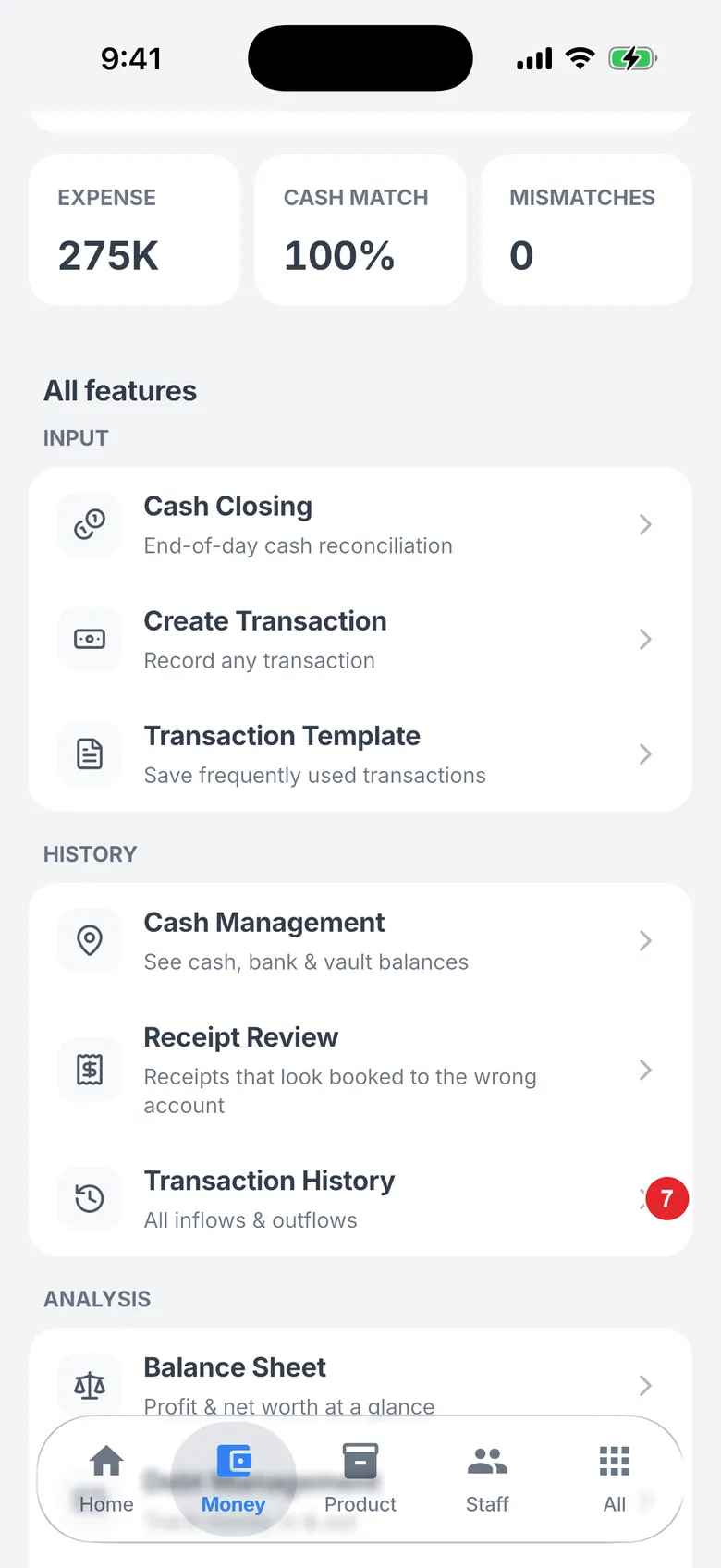
- See all of the store's transactions in «Transaction History». Go back and tap «Transaction History» in «All features» on the «Money» tab.
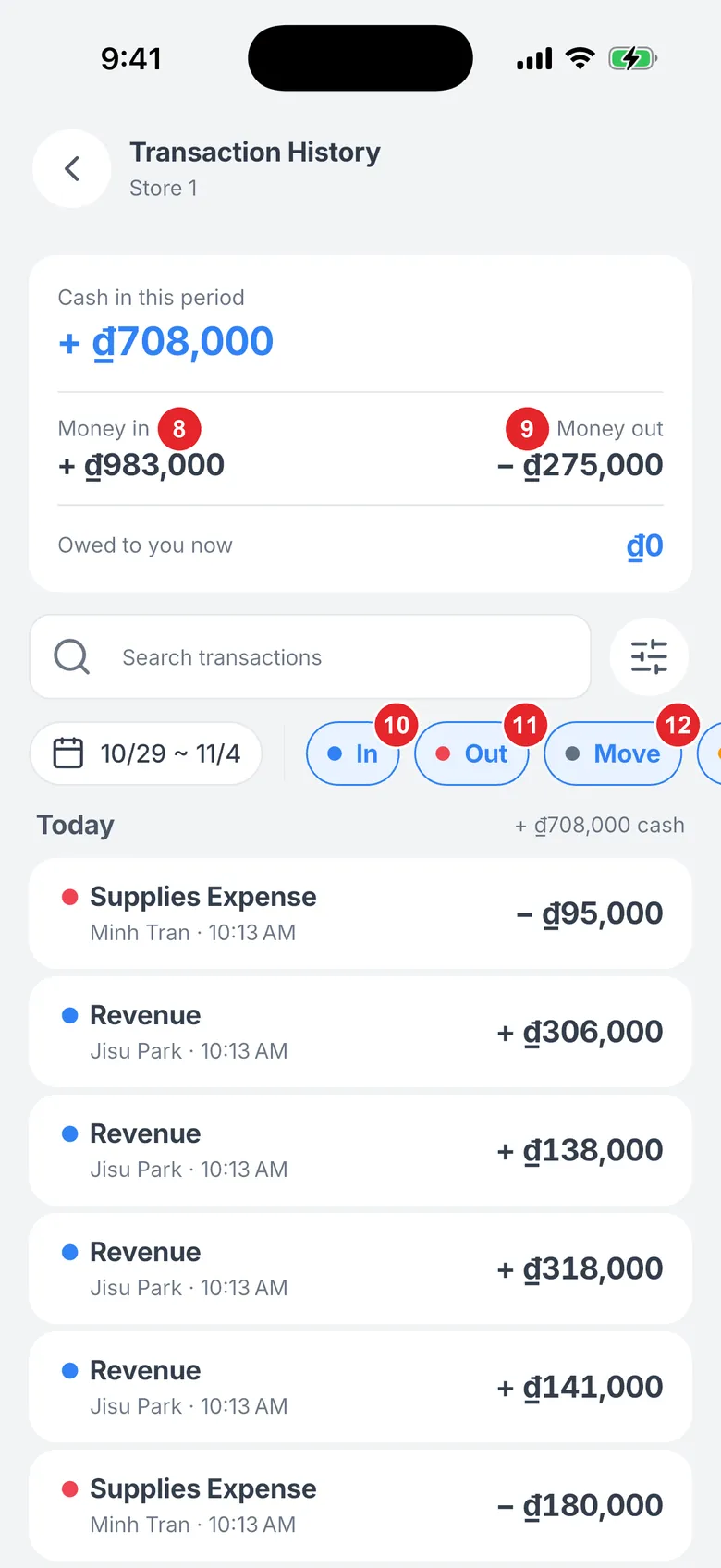
- Check «Money in».
- Check «Money out».
- When «In» is on, money that came in shows in the list.
- When «Out» is on, money that went out shows.
- When «Move» is on, money that was moved shows. Each tap turns it on or off.
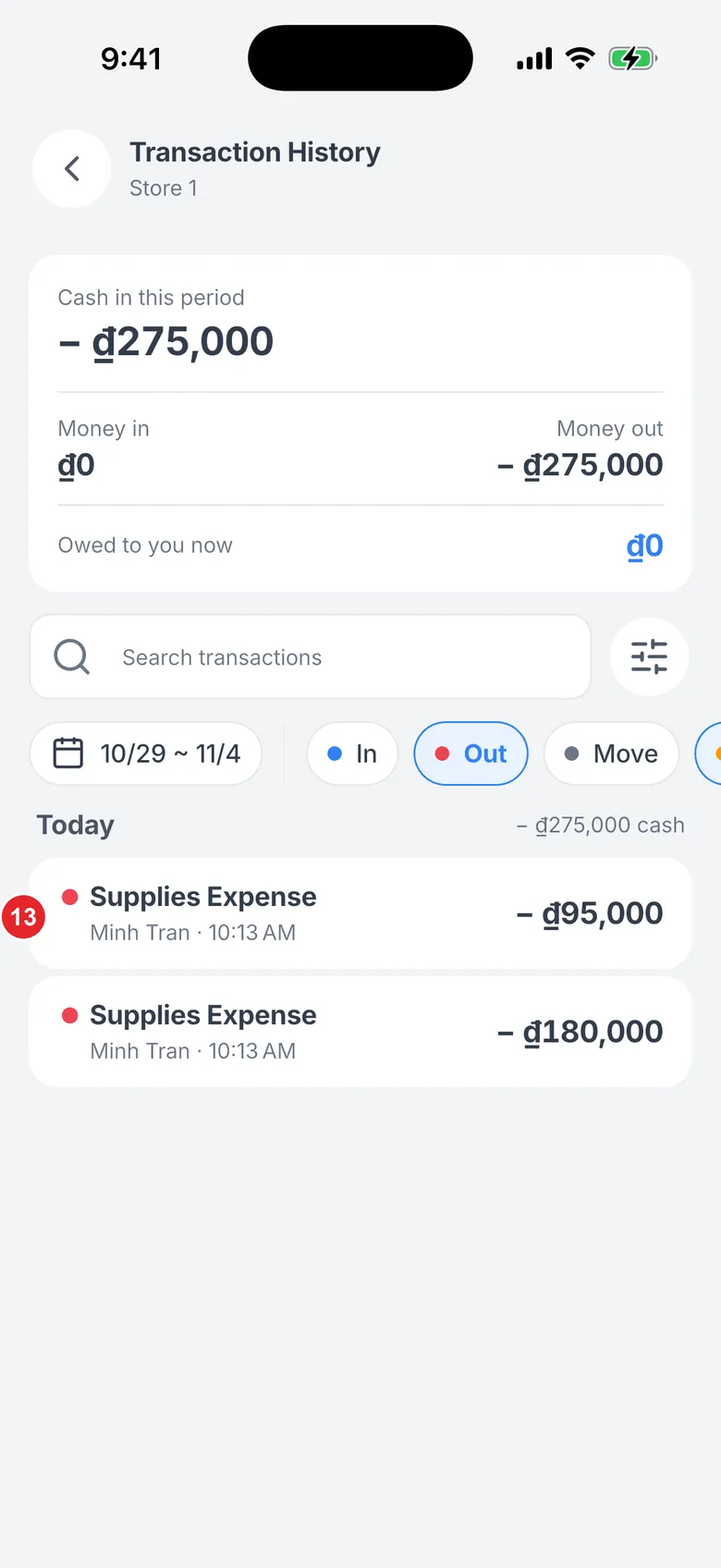
- To see only money that went out, tap «In» and «Move» to turn them off. Tap a row to open its details.
Start with the places that show «Differs». The app home doesn't show cash differences, so check «Cash Management» yourself.