
Show contents
F&B menu & sales › Menu setup
A menu item doesn't show on the order screen
- Who
- Owner
- When
- When taking orders
- Where
- App · Web
What you get
- Without making the menu item again, just set its status back in menu management, and you take orders for it again right away.
- A menu item taken off the menu keeps its selling price, so just press «Put back».
What it solves
- If the dish a guest asks for isn't on the order screen, staff can't take it, so you lose that sale.
Why this way
- Menu items taken off the menu and sold-out menu items are gathered in their own places, so you find them without searching the whole list.
- Can't I just make the same menu item again? Menu items can't be deleted, so you'd be left with two of the same. Put back the one you have.
- It shows in another store? The selling price and sold out are separate for each store. Check that the store chosen at the top is the right one.
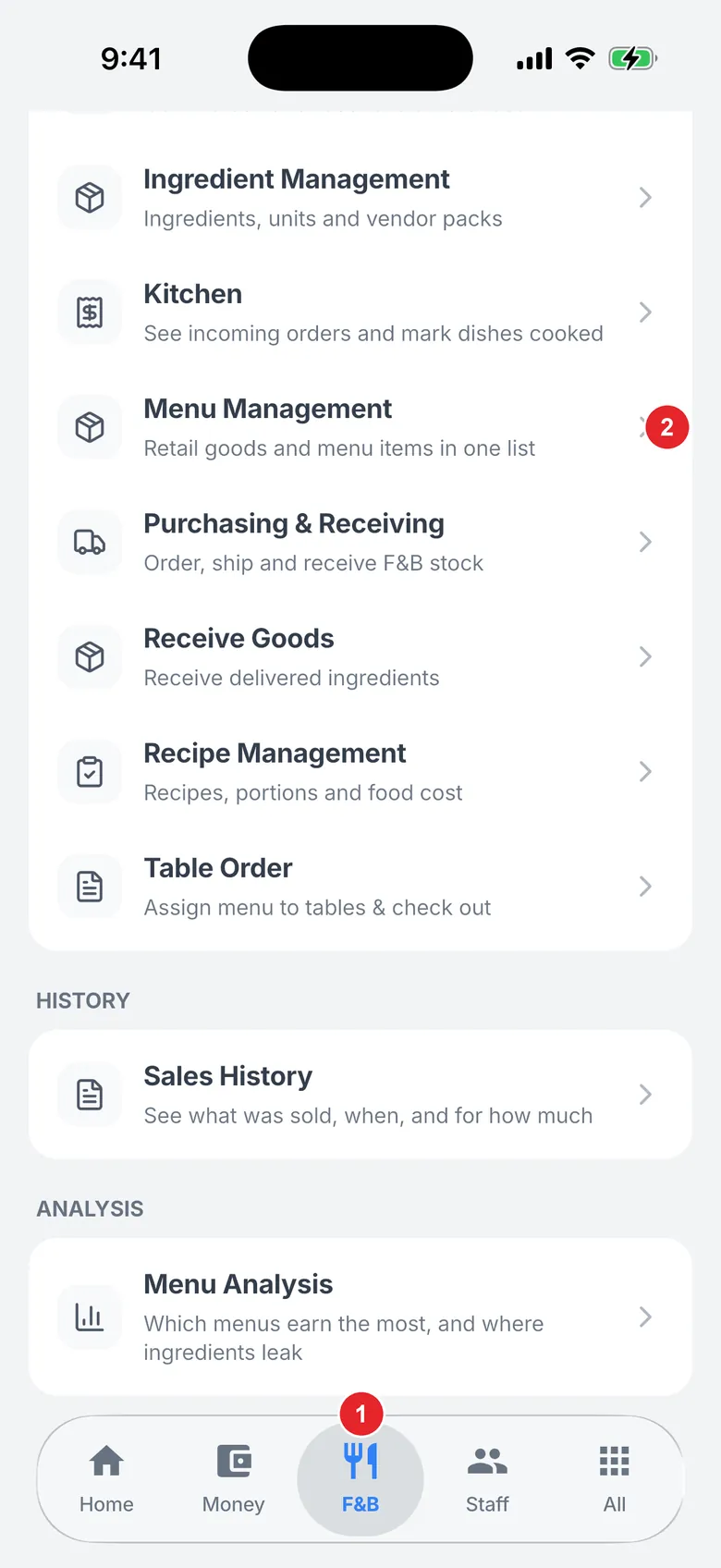
- Tap «F&B» at the bottom of the app.
- Scroll down and tap «Menu Management».
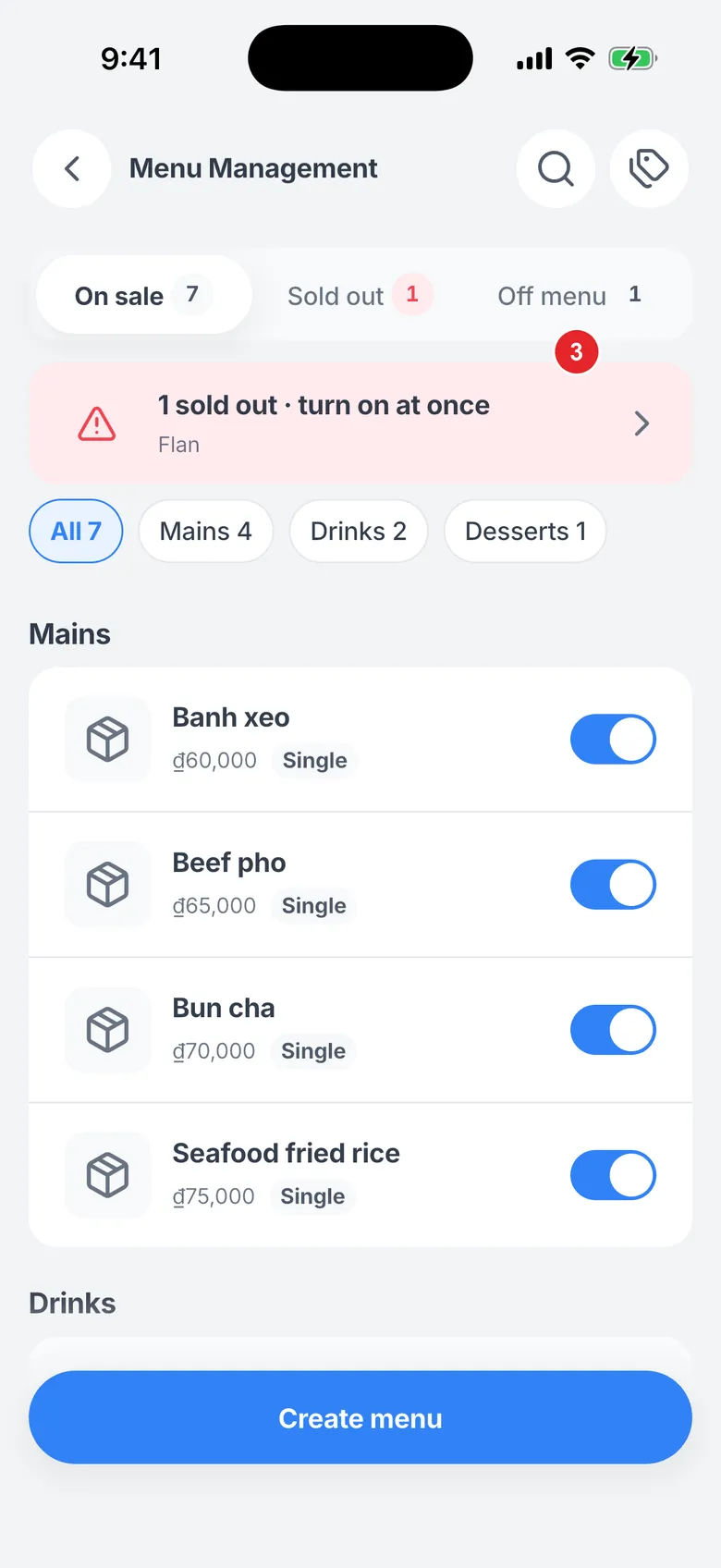
- Tap the «Off menu» tab.
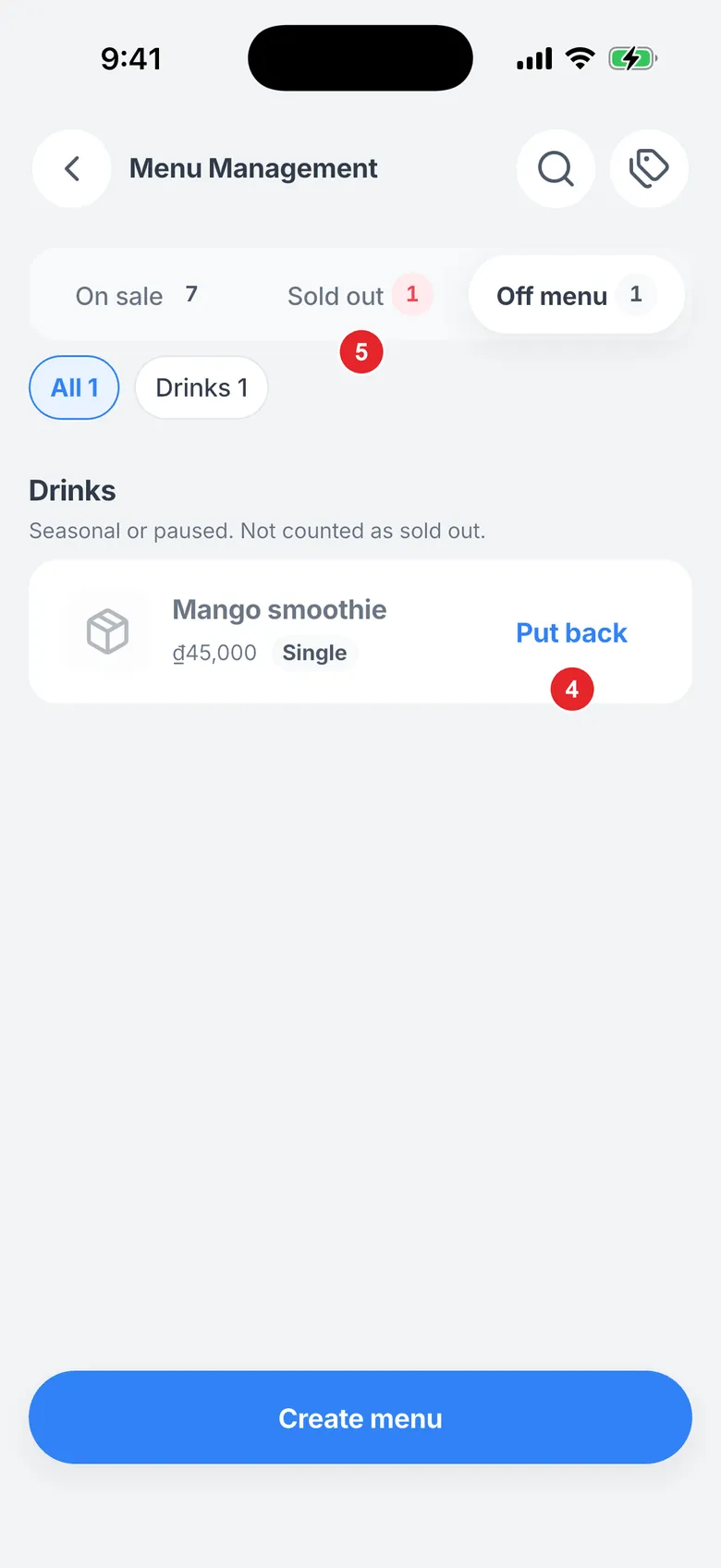
- If the missing menu item is here, tap «Put back».
- If it shows as «Sold out» on the order screen, tap the «Sold out» tab.
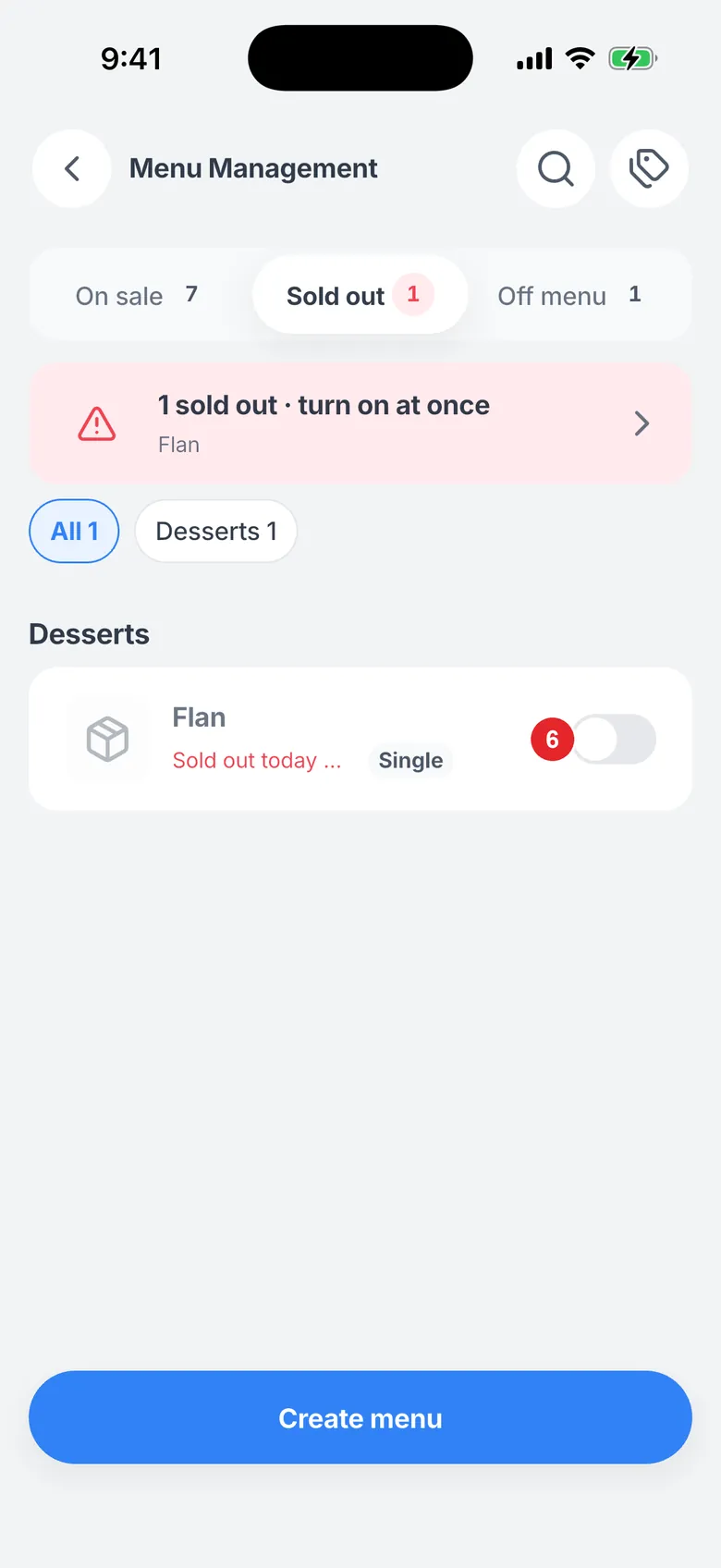
- Turn on that menu item's switch, and it is on sale again.
Why it works this way
If a menu item is «Off the menu», it is hidden from the order screen. If it is «Sold out», it shows as «Sold out» on the order screen and can't be added. Both can be set back right away in menu management.
Remember
- A menu item taken off the menu keeps its selling price, so you can sell it as soon as you put it back.
- The selling price and sold out are separate for each store. Check that the store chosen at the top is the right one.