
Show contents
F&B menu & sales › Menu setup
Mark menu items sold out · hide them
- Who
- Owner
- When
- When ingredients run out · When you rest a menu item
- Where
- App · Web
What you get
- Switch it to sold out, and it shows as «Sold out» on the order screen and can't be added. You don't take orders for dishes you don't have.
- Hide seasonal menu items with «Off the menu». The selling price stays, so you can sell it again as soon as you put it back.
- When ingredients come in, choose only the menu items to sell again in the app's «Sold out» tab and turn them all on at once. Each menu item shows when it sold out.
What it solves
- If you take an order for a dish whose ingredients ran out, the kitchen can't make it, and you have to go back to the guest and ask them to change.
Why this way
- Sold out and off the menu are kept apart, so dishes you can't sell just today don't mix with dishes resting for a while. Menu items taken off the menu aren't counted as sold out.
- Pressed it by mistake? Press the switch again, and it goes back to on sale. In the app, «Status» changes right away, with no confirm window.
- Are other stores sold out too? No. Sold out is separate for each store.
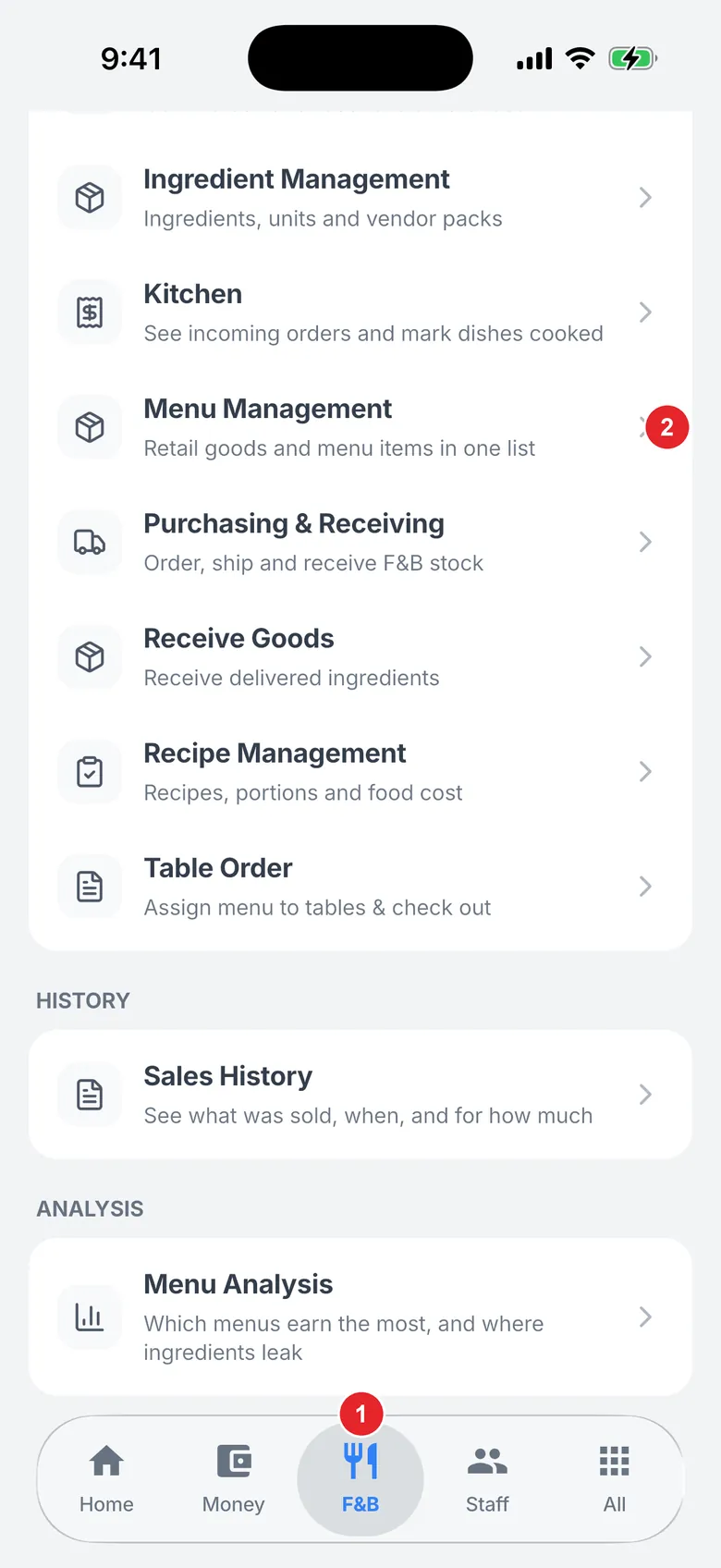
- Tap «F&B» at the bottom of the app.
- Scroll down and tap «Menu Management».
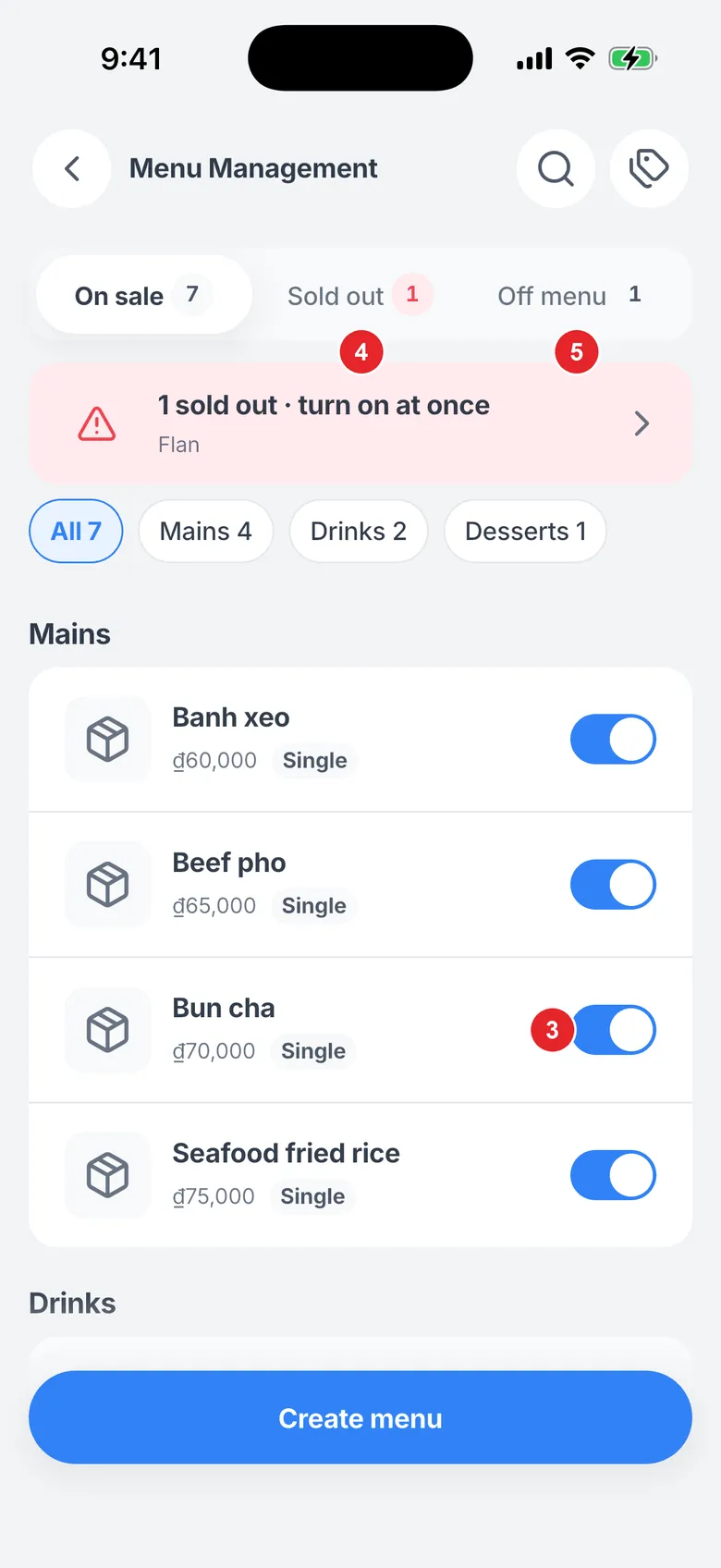
- Turn off the switch on the right of a menu row, and it is sold out; turn it on, and it is on sale again.
- Sold-out menu items are gathered in the «Sold out» tab.
- Menu items taken off the menu are gathered in the «Off menu» tab.
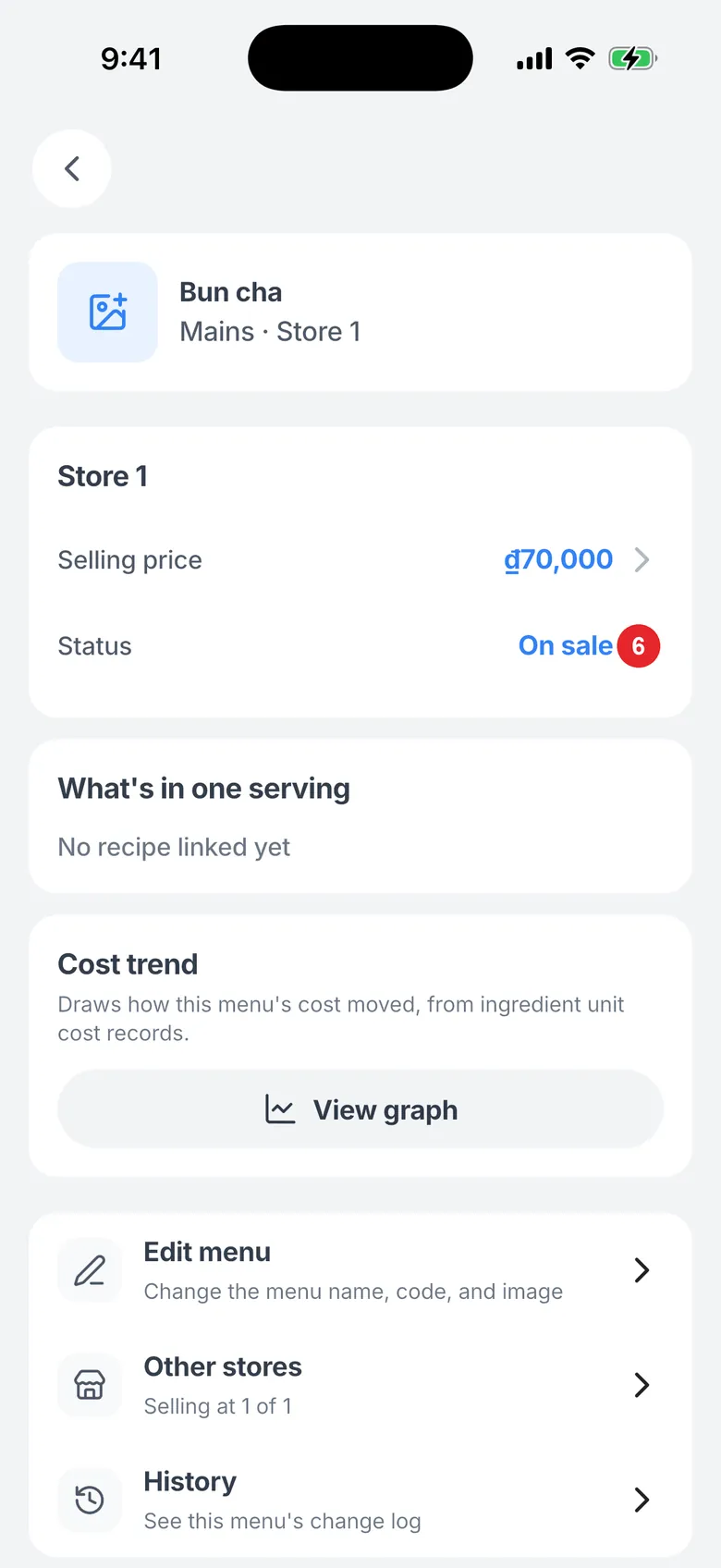
- Tap a menu item, then tap «Status».
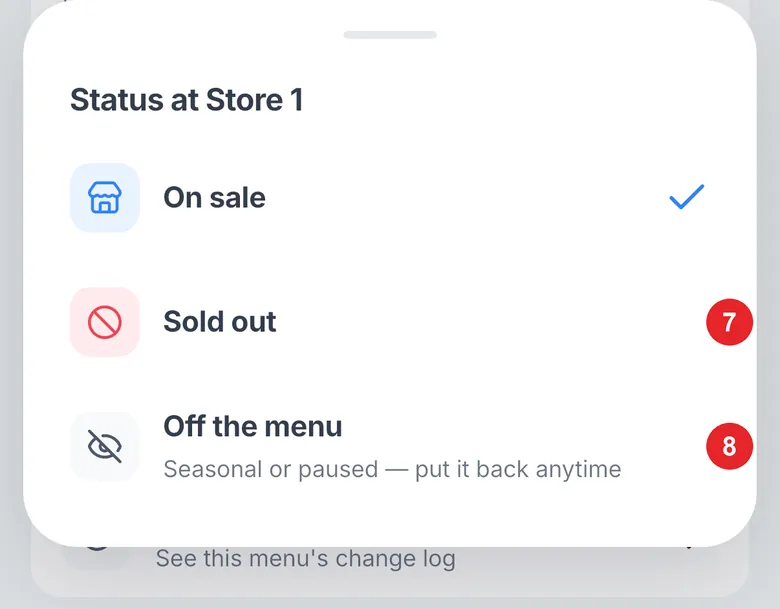
- If you can't sell it for a short time, like today, tap «Sold out».
- For seasonal menu items or ones resting for a while, tap «Off the menu». It changes as soon as you tap.
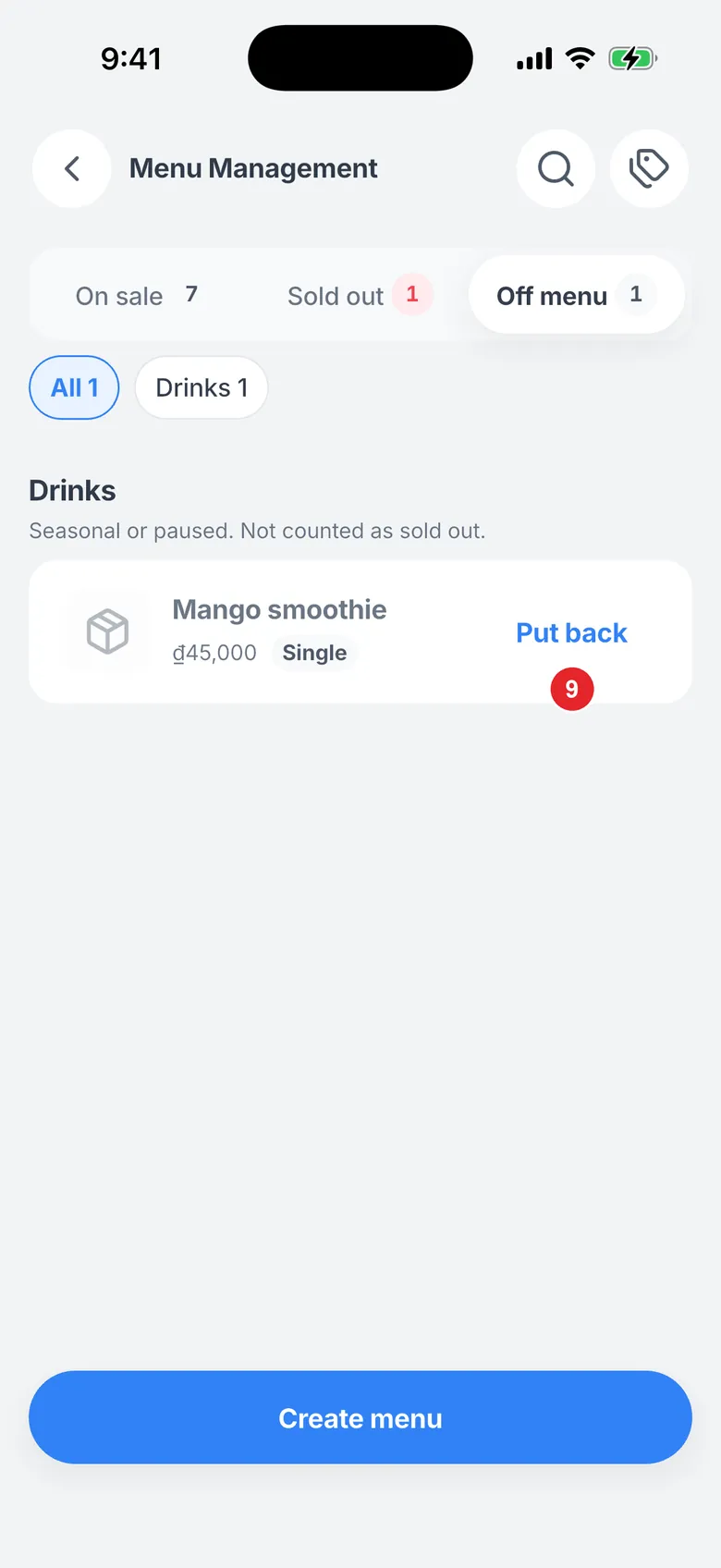
- To sell a menu item taken off the menu again, tap «Put back» in the «Off menu» tab.
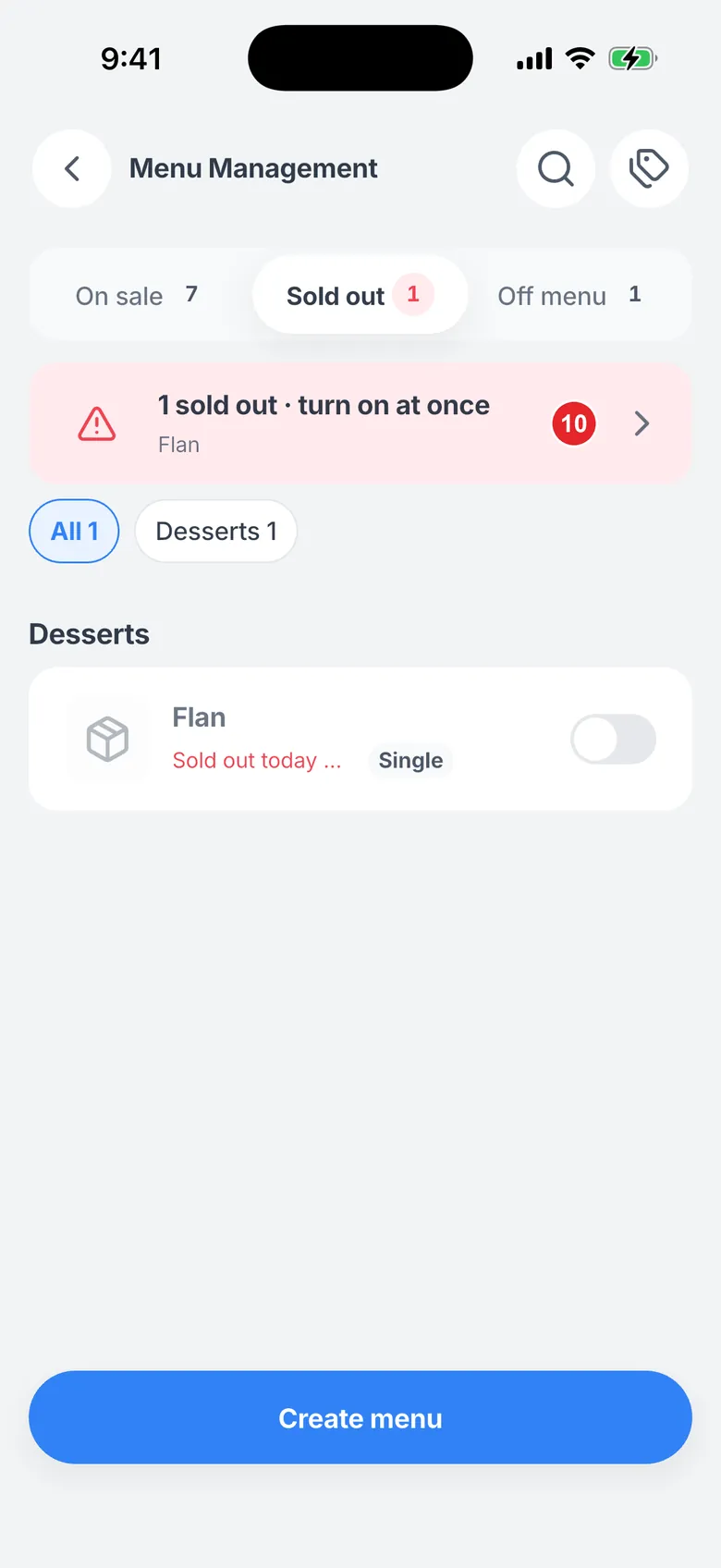
- If there are sold-out menu items, the number shows at the top, like «1 sold out · turn on at once». Tap it.
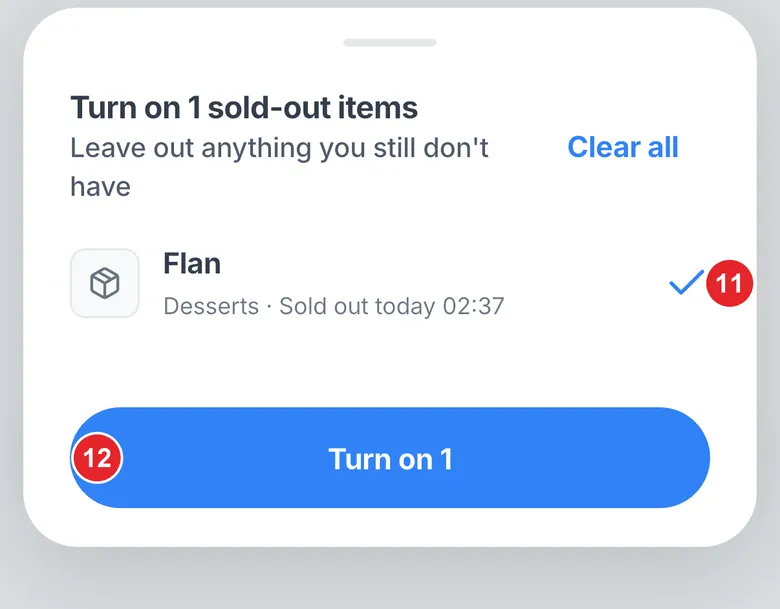
- Keep only the menu items you will sell again checked. Uncheck the ones whose ingredients haven't come in yet.
- Tap the button that shows how many you chose, like «Turn on 1».
A menu item has three sale states.
| Sale status | When to use it | What happens on the order screen |
|---|---|---|
| On sale | Normally | It shows on the order screen and takes orders |
| Sold out | When the ingredients ran out today | It shows as «Sold out» on the order screen. When stock is back, switch it to «On sale» |
| Off the menu | Seasonal menu items · menu items resting for a while | It is hidden from the order screen. The selling price stays, so you can sell it again as soon as you put it back |
Remember
- In the app, choosing a «Status» changes it right away, with no confirm window.
- The selling price and sold out are separate for each store.
- Menu items taken off the menu aren't counted as sold out.
- Menu items can't be deleted. Take menu items you won't sell off with «Off the menu».