
Show contents
Inventory › Count stock
Count by location
- Who
- Owner · Manager · Staff
- When
- When goods are split between storage and shelves, when you count the whole store
- Where
- App · Web
What you get
- «Where are you counting?» shows who is counting each place and how many places are done.
- Products counted in a place are saved to that place, so they come up right away the next time you count.
- Before you submit, «Compare places» finds products that are in storage but missing from the shelf.
What it solves
- Goods sit in storage and never make it to the shelf, so you can't sell them.
- When several people split the counting, a place gets counted twice or missed.
Why this way
- With one person per place, you split the counting and miss nothing.
- What happens to products nobody counted? When you submit a count by location, products nobody counted become 0. Count every place before you submit.
- Where do I make places? In the app, «Add location» under «Where are you counting?»; on the website, «Storage Management» in the left menu.
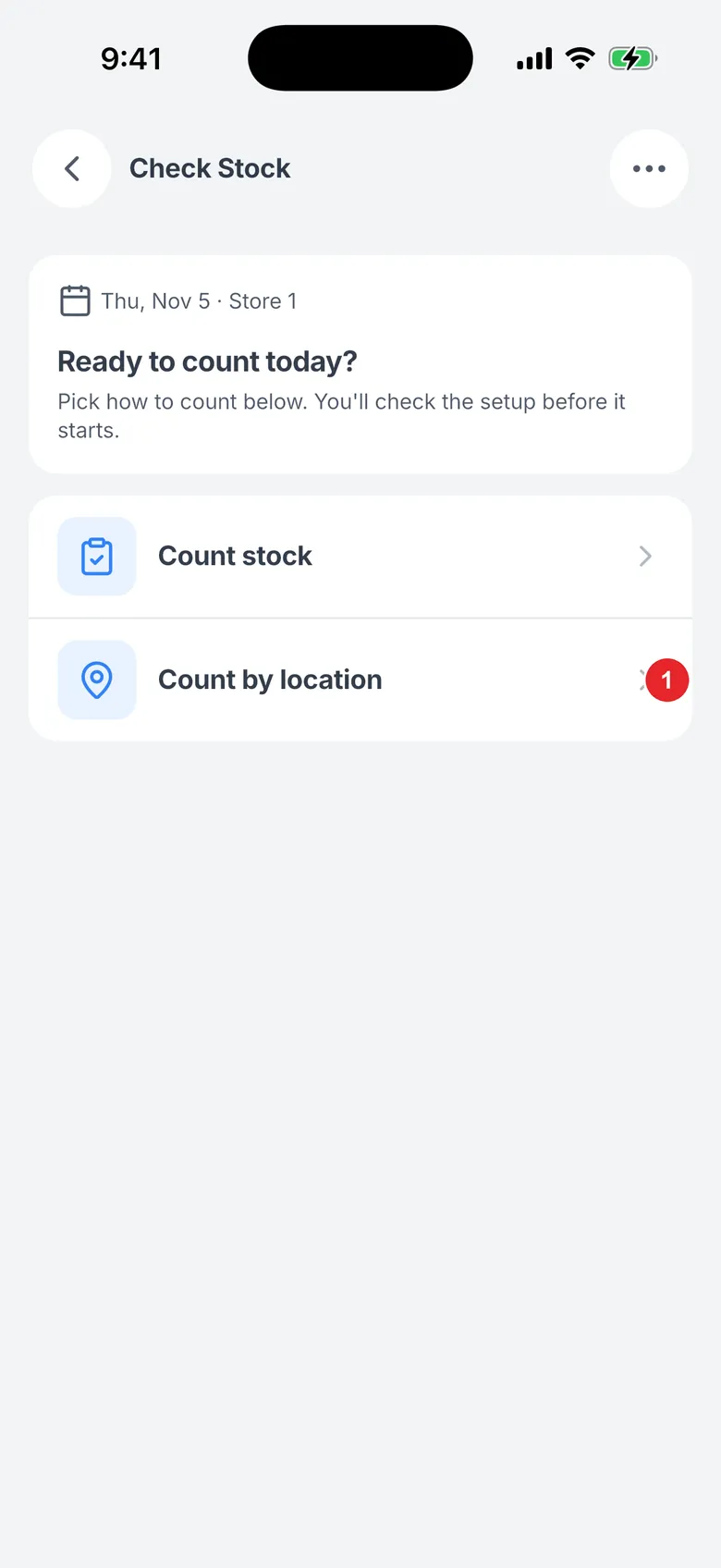
- In «Check Stock», tap «Count by location». Entering a title and starting is the same as steps 1–2 of «Count together».
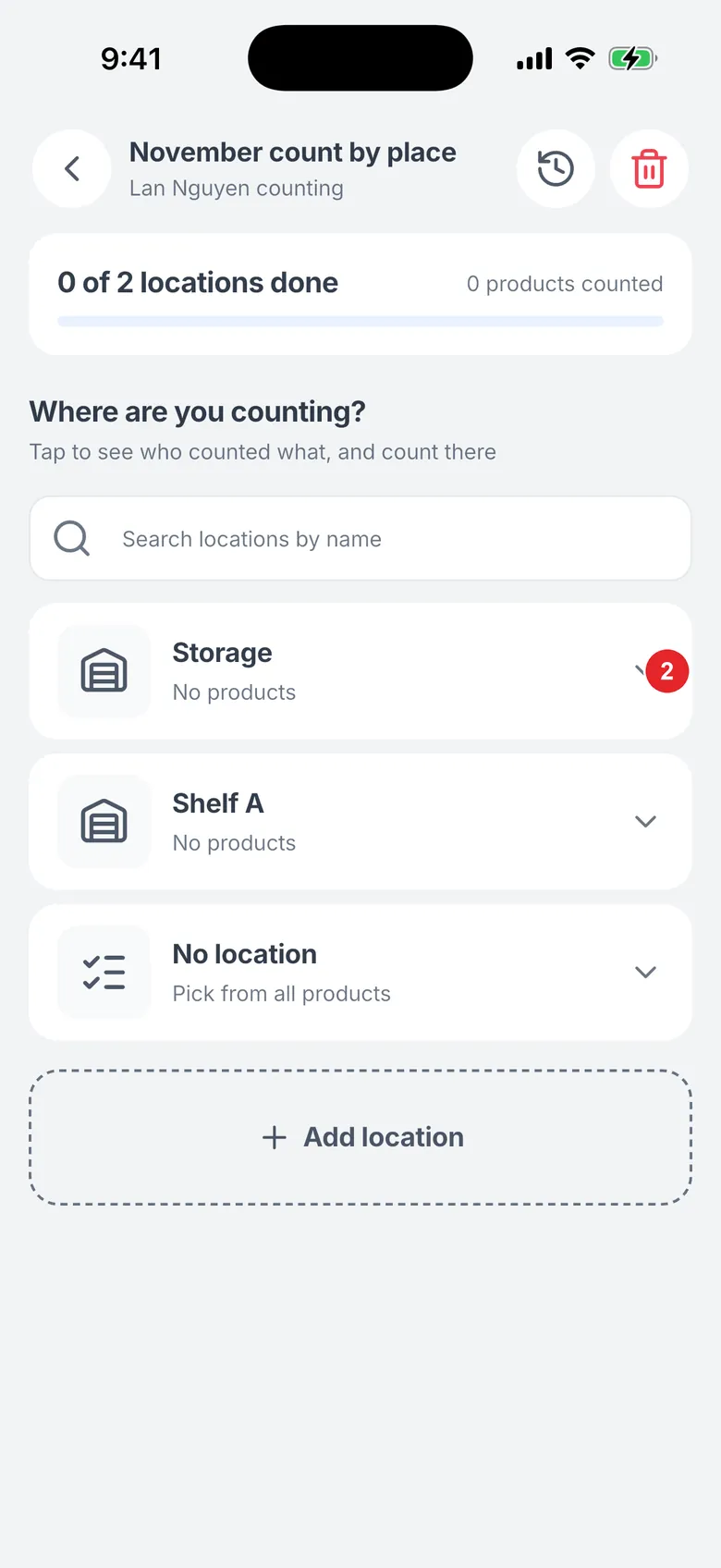
- Tap the location to count. Here it is «Storage». If there are no locations, make one with «Add location» below.
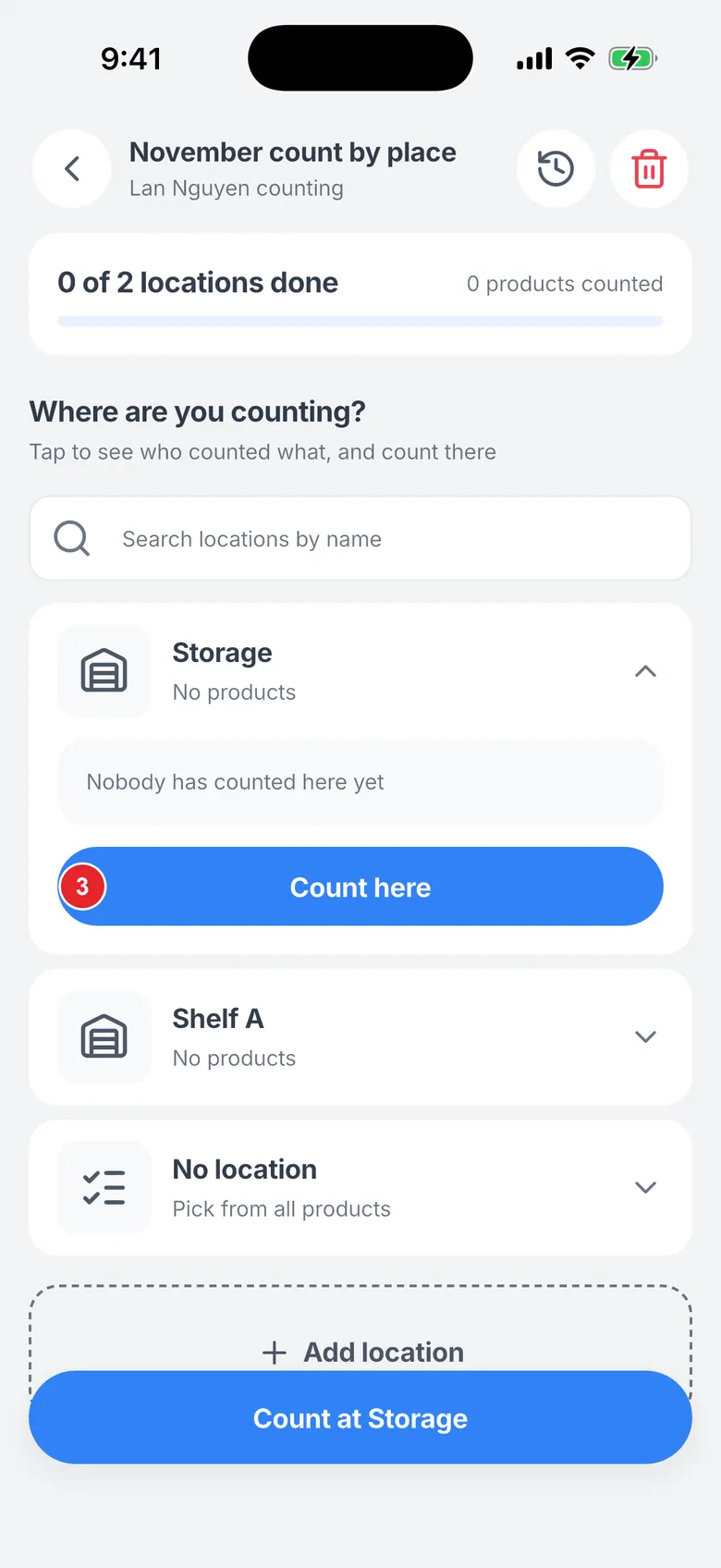
- Tap «Count here».
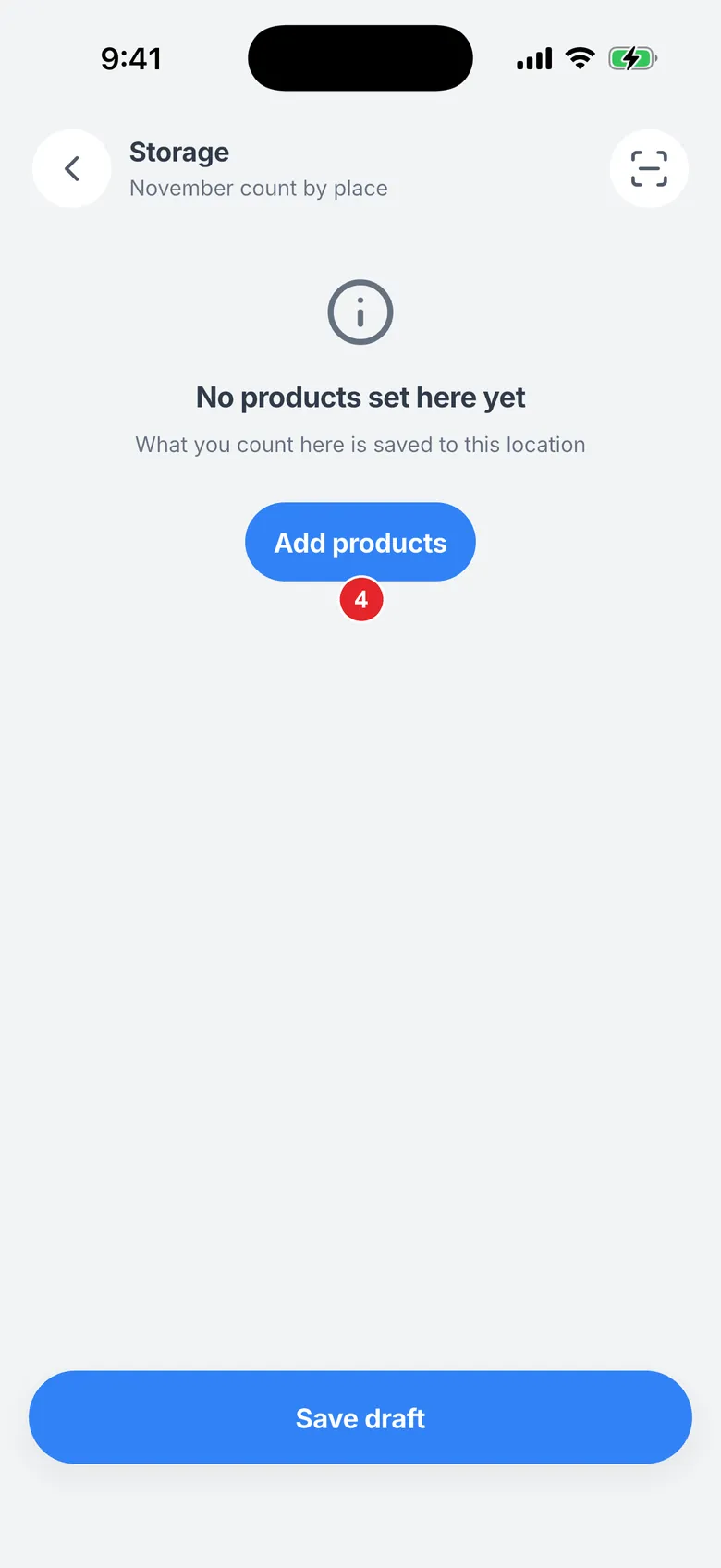
- Tap «Add products». Products counted here are saved to this location and come up right away next time.
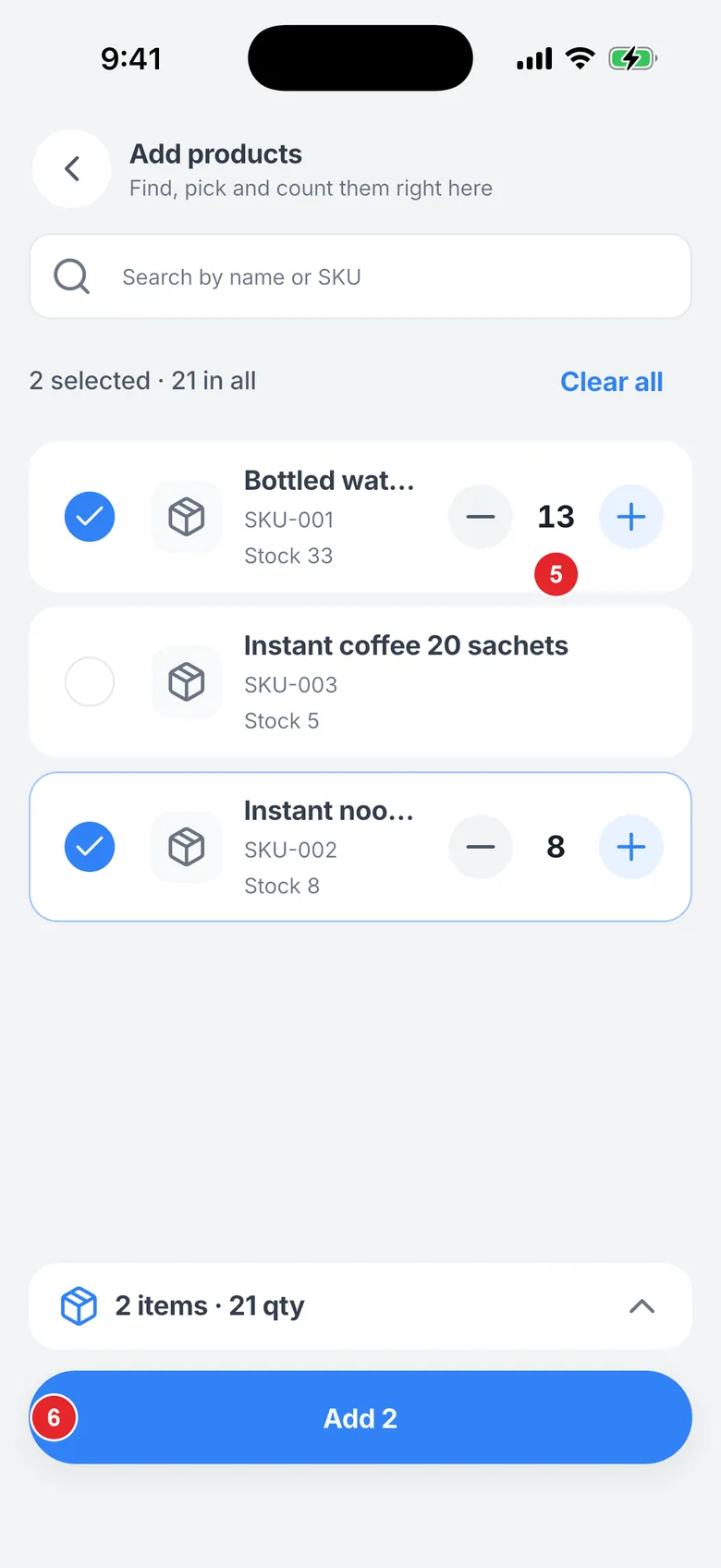
- Tap the products at this location and enter the counted quantity with the − + buttons. Here «Bottled water 1.5L» is 13 and «Instant noodles 5-pack» is 8.
- Tap «Add 2».
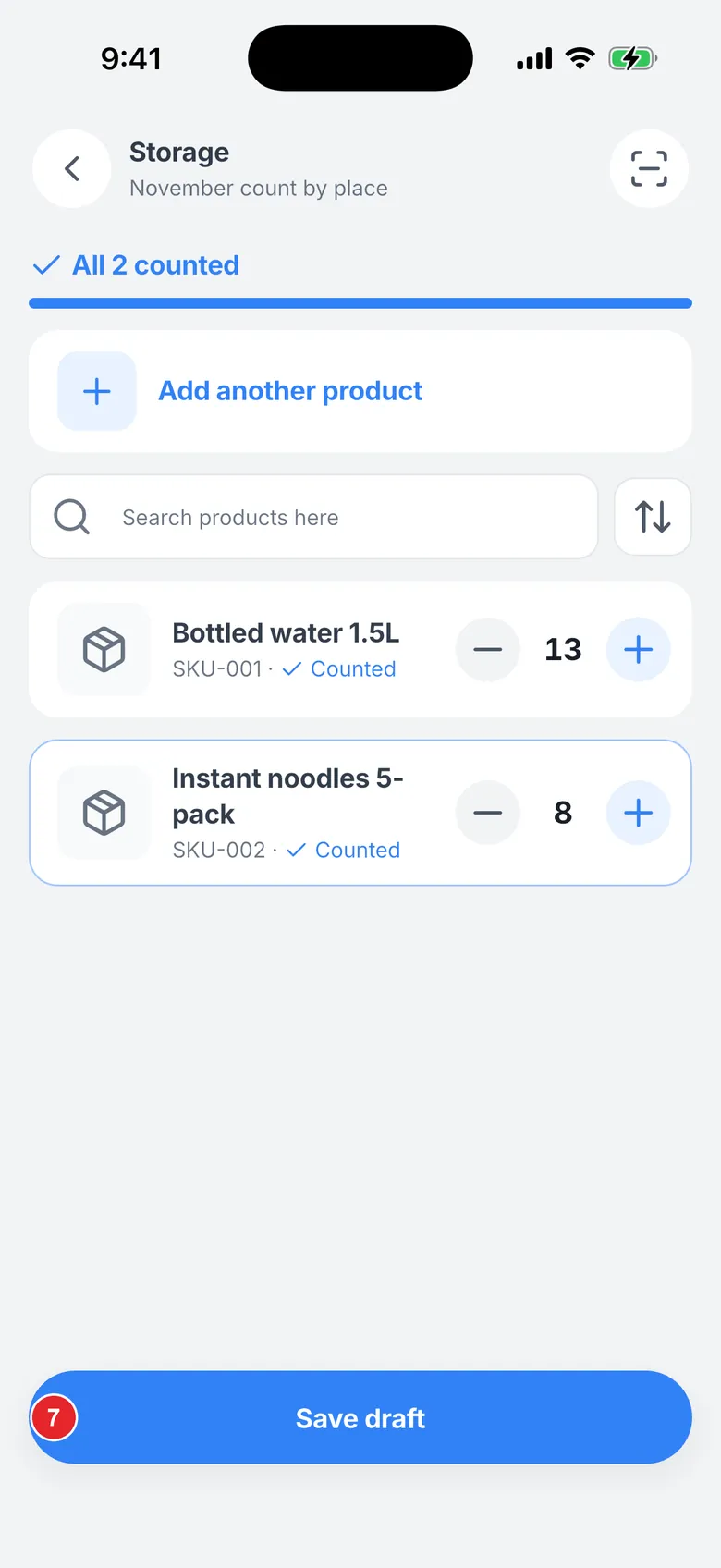
- Tap «Save draft». Go back and count the next location the same way.
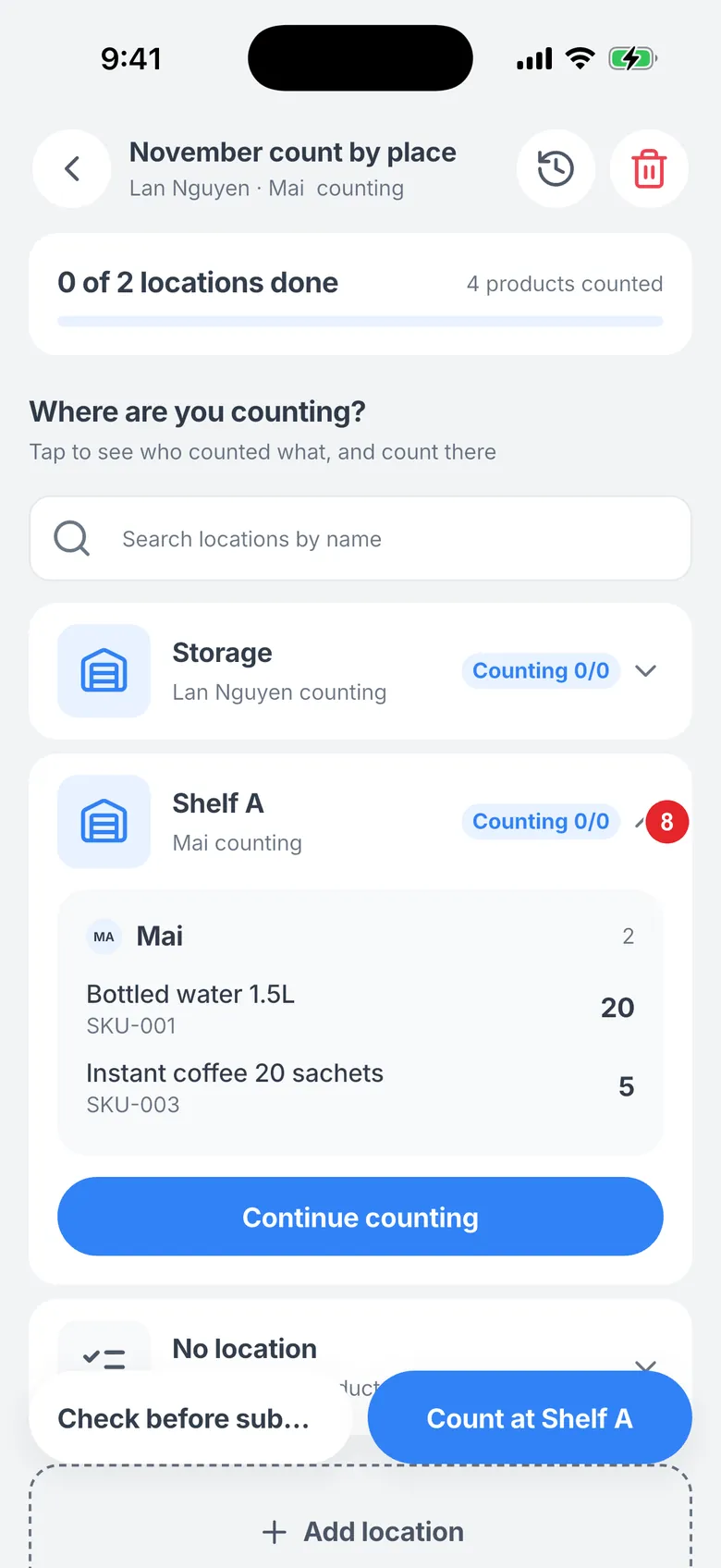
- You can also see locations others are counting. Tap «Shelf A», which says «Mai counting», to see the products and quantities Mai counted.
Can I submit even with «0 of 2 locations done»? Yes. A location only counts as done when every product set for it beforehand was counted in this count. A location counted for the first time has no products set, so it stays at «Counting 0/0», but the counts are saved. Once at least one product is counted, you can tap «Check before submitting» at the bottom. Products nobody counted become 0 when you submit, so tap it only after you've counted every location you mean to count.
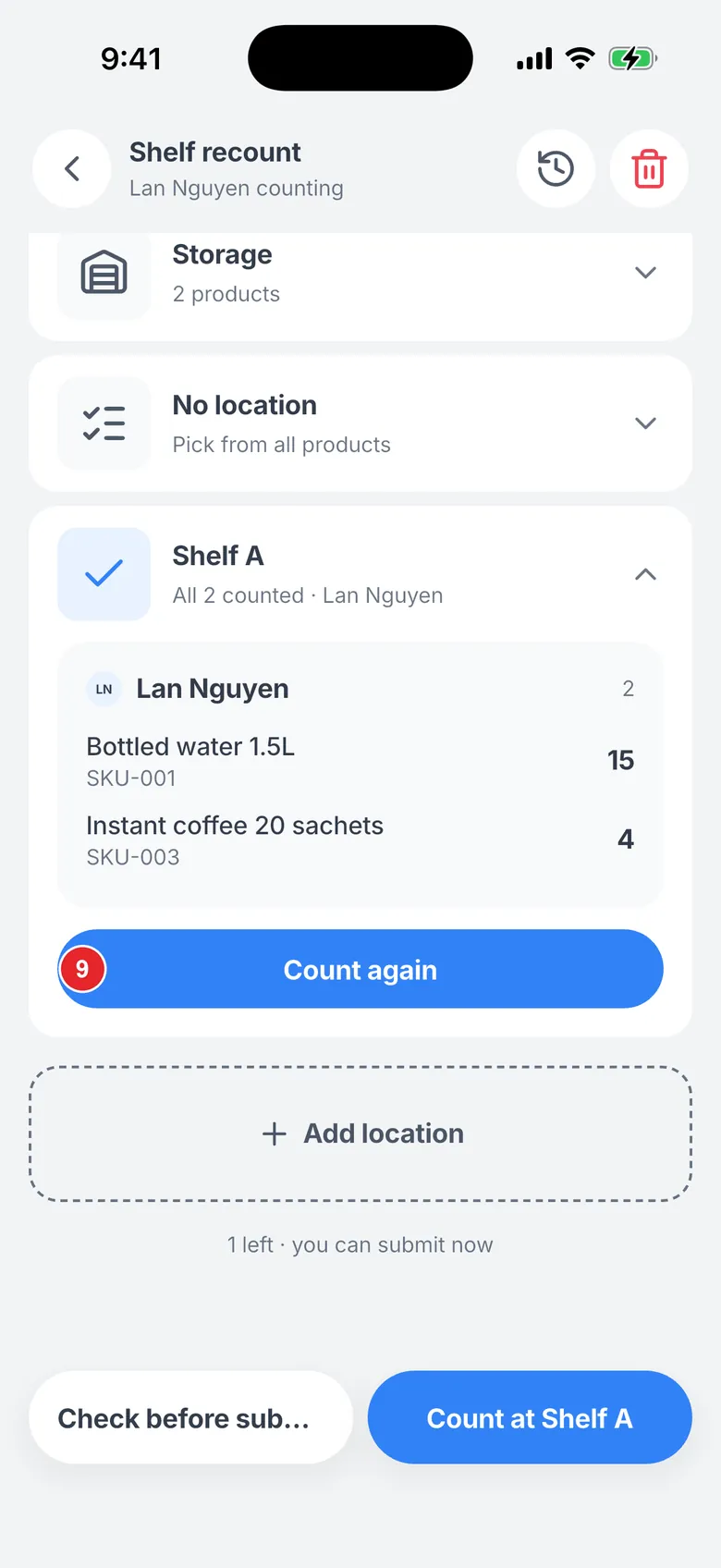
- To count a finished location again, open it and tap «Count again». This picture shows «Shelf A» finished in another count. When every location is counted, tap «Check before submitting» at the bottom. If a location has set products that nobody counted, the «Some locations weren’t counted» window opens first. For places that should keep their quantity now, choose «Keep last» or «Keep all» and tap «Review». Uncounted products at places you don't keep are filled with 0.
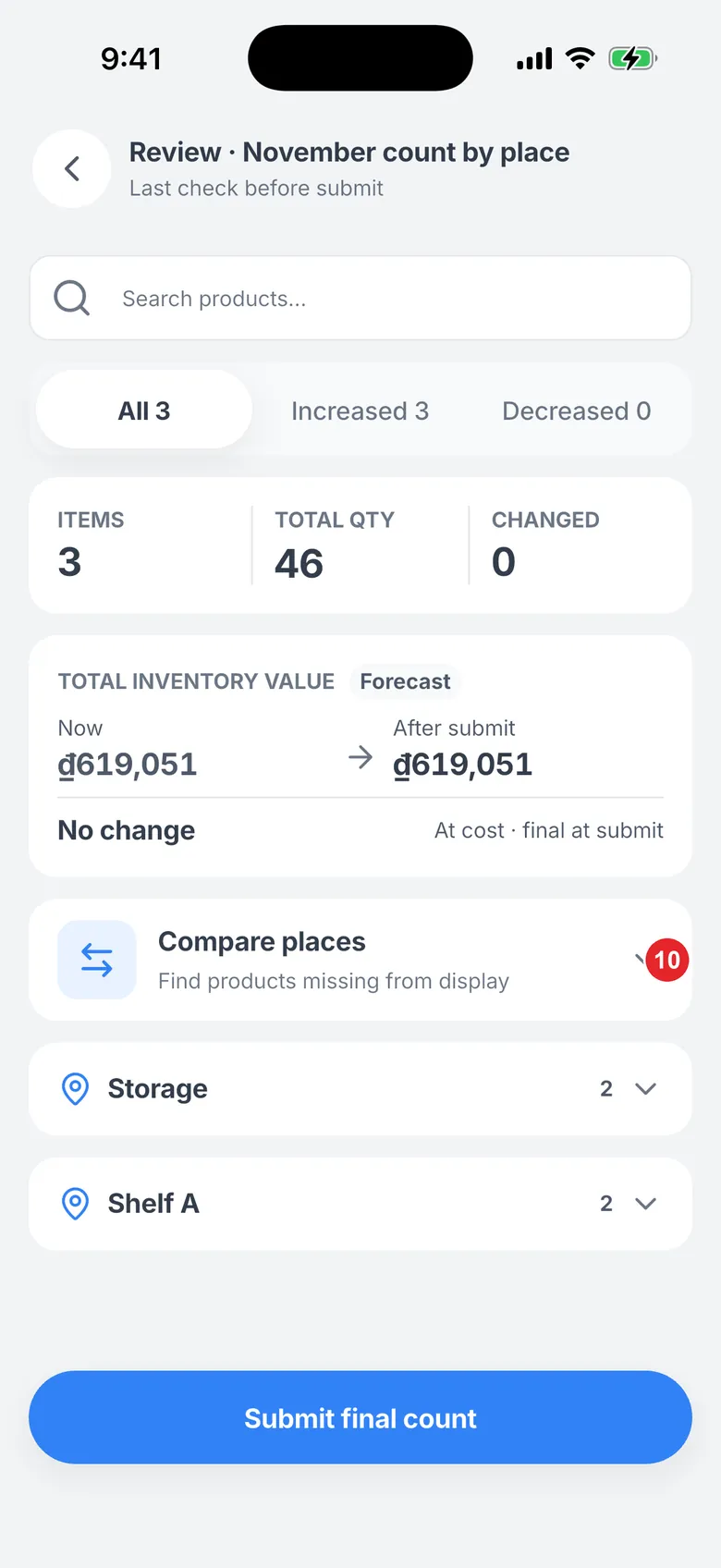
- On the review screen, tap «Compare places». It finds products that are in storage but missing from the shelf. «Increased 3» above is the number of products whose quantity went up by location, including products put in a location for the first time. «CHANGED» 0 is the number of products whose whole-store quantity changed.
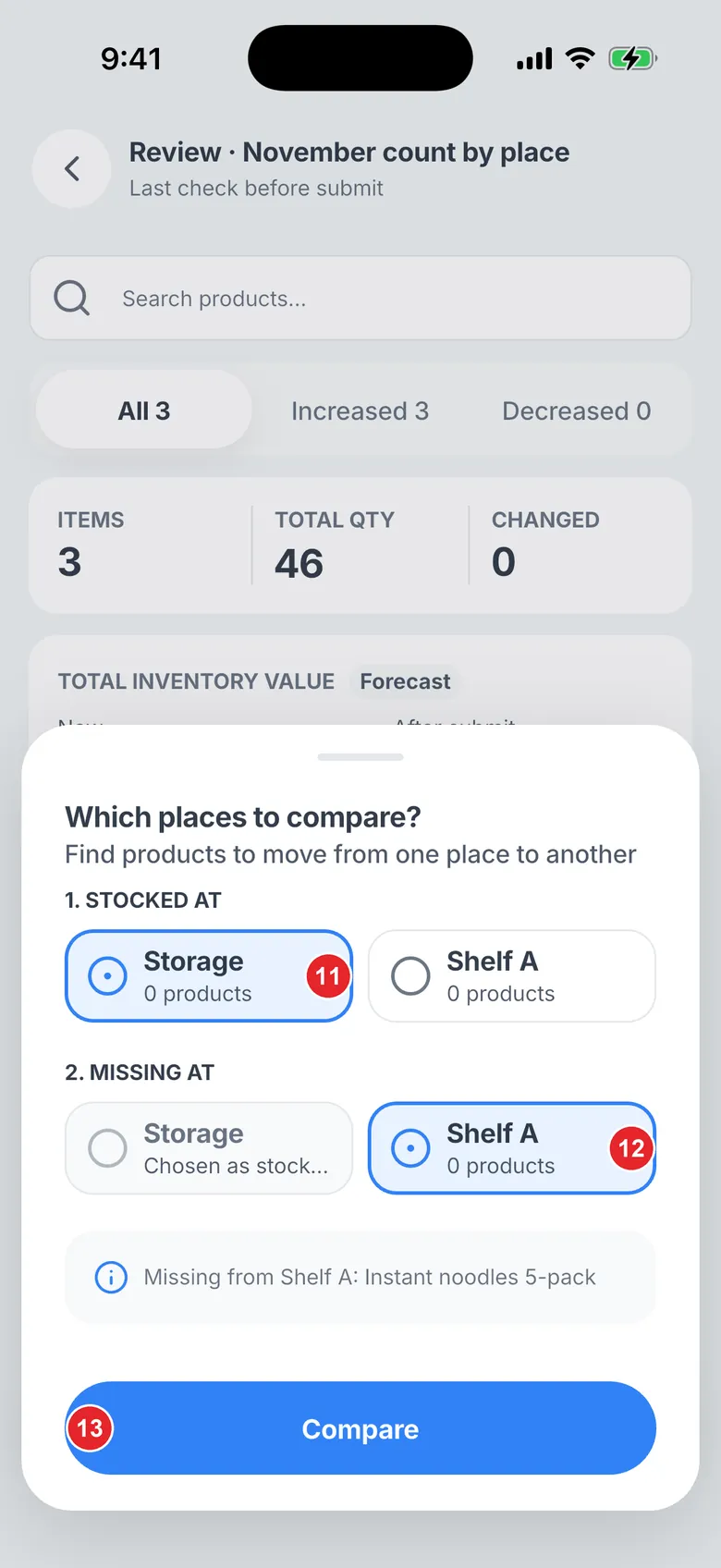
- Under «1. STOCKED AT», tap the location that has the goods. Here it is «Storage». «0 products» is the number of products set for that location beforehand. A location counted for the first time shows 0.
- Under «2. MISSING AT», tap the location where they should go on display. Here it is «Shelf A».
- Tap «Compare».
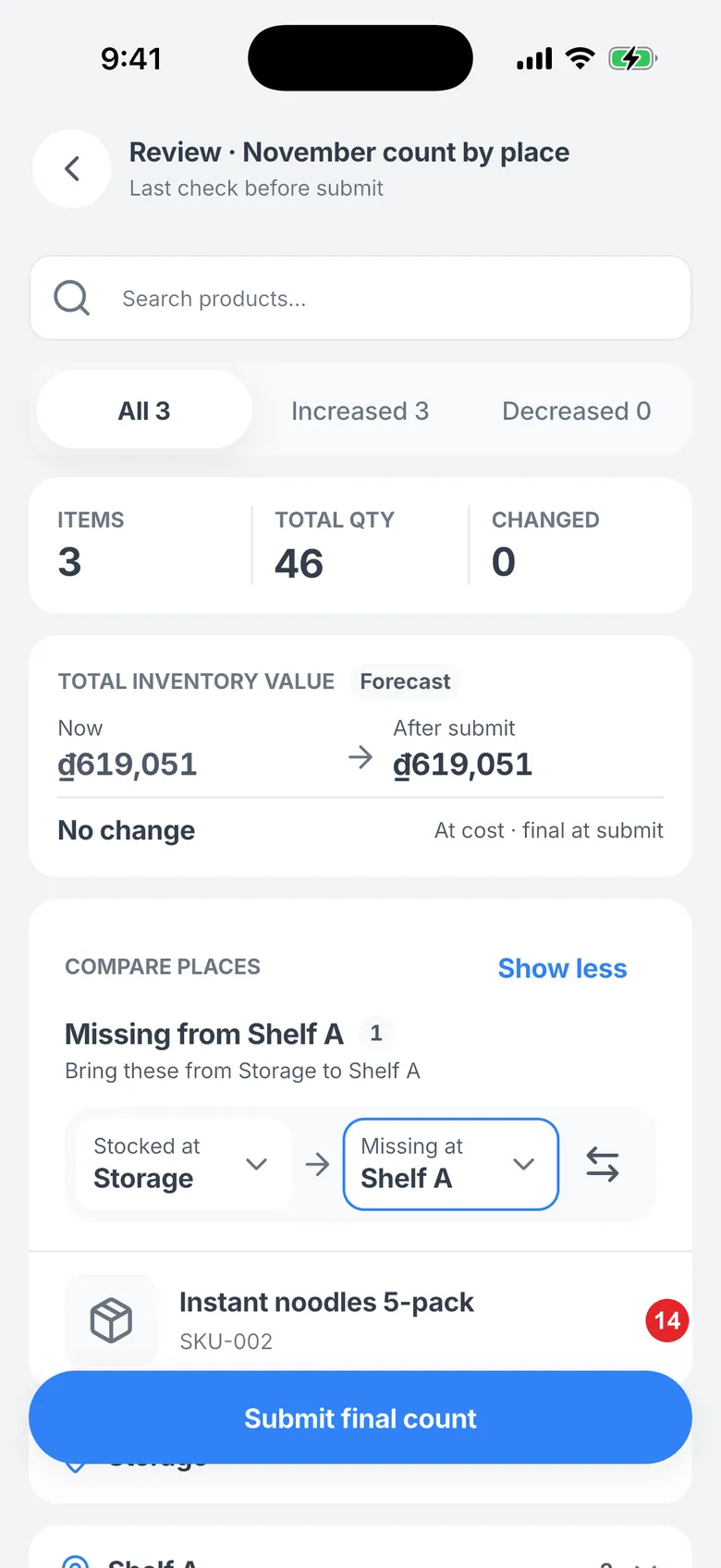
- «Missing from Shelf A» shows «Instant noodles 5-pack». Take them from storage and put them on Shelf A. When you have seen it all, tap «Submit final count», then tap «Submit final count» once more in the window that opens. Products nobody counted become 0 at this point.