
Show contents
Inventory › Order and receive
Count goods when they arrive
- Who
- Owner · Manager · Staff
- When
- When goods arrive
- Where
- App · Web
What you get
- Count «Got» next to the «Sent» quantity on the shipment, and anything short or extra shows right there.
- Each tap on a line adds 1; when a lot came, enter the number in one go.
- When a staff member counts in «Receive products» first, the manager joins the same receipt and counts too. What the staff counted shows as «Total counted», and the manager checks the unit prices and confirms.
What it solves
- If you don't count on arrival, you end up paying for goods that never came.
- If the person receiving writes it on paper, the manager has no way to check it again.
Why this way
- Only what you received goes into stock, and this quantity is what «Confirm goods» and «Confirm books» go by later.
- Where do I count damaged items? In the owner's or manager's «Receive goods», long-press a line to enter «Damaged». Damaged items don't go into stock. Staff «Receive products» has no damaged field; damaged items are counted separately as a refund.
- Does receiving pay out money? No. Receiving only adds stock and «Received, price not set». The amount you owe is set in «Confirm books».
An owner or manager counts alone
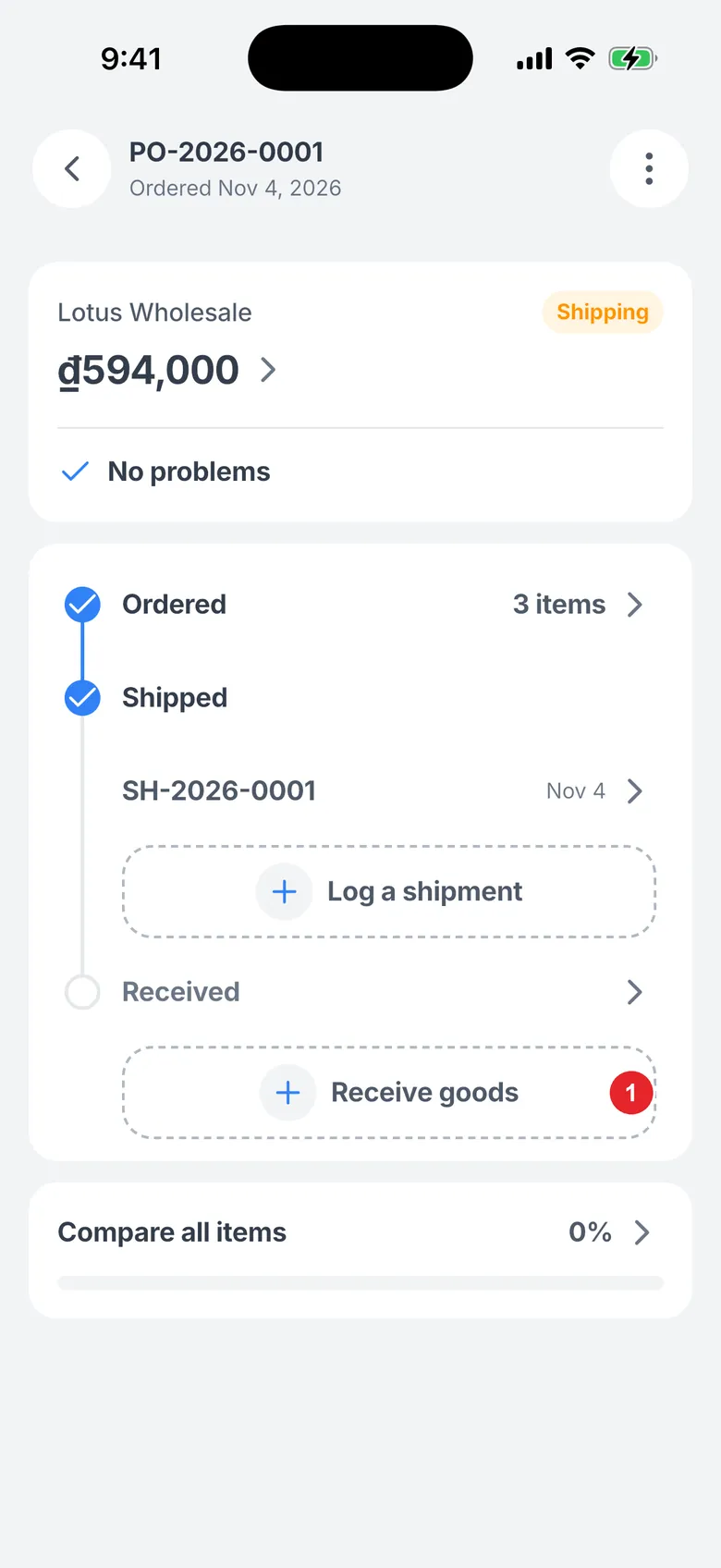
- When goods arrive, open the order in «Logistic Management» and tap «Receive goods».
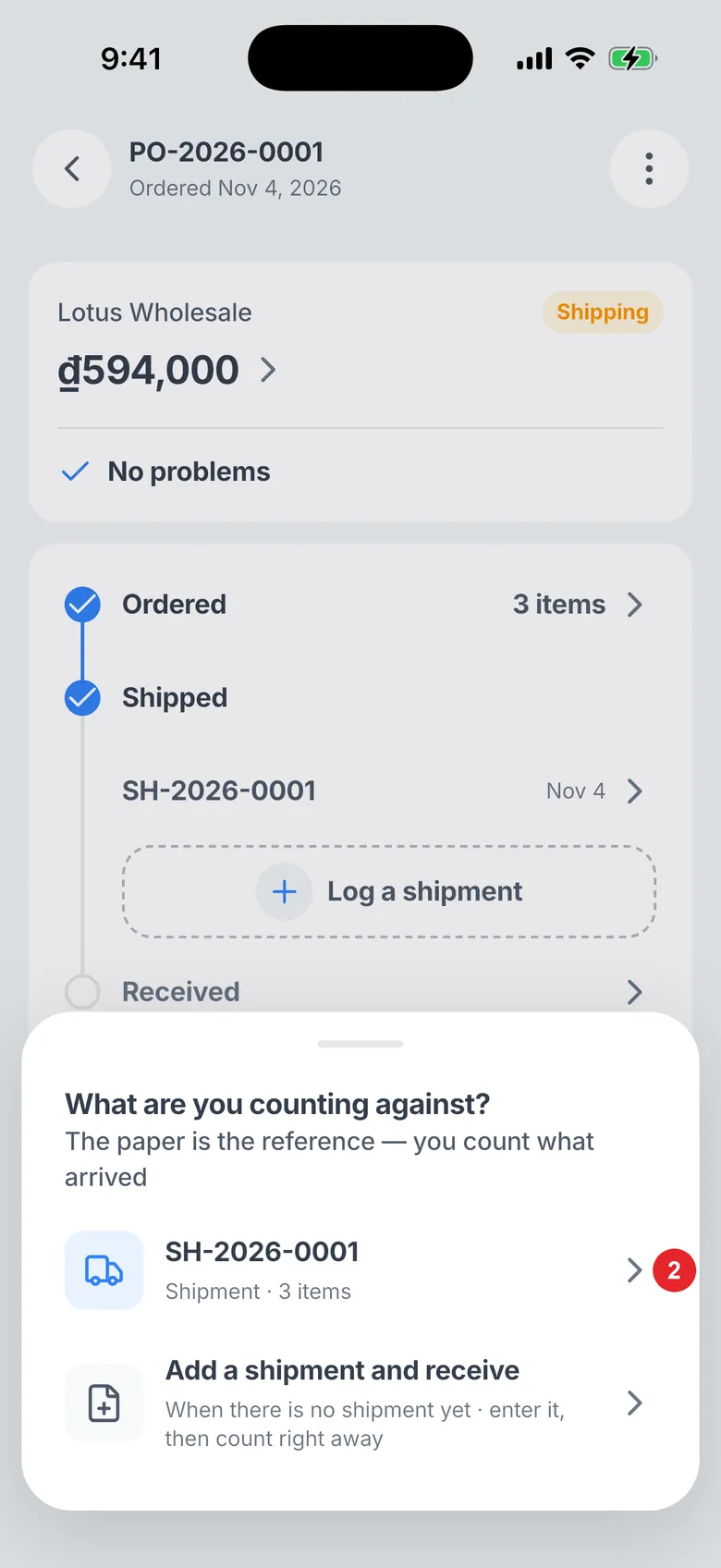
- Tap the shipment you received. Here it is «SH-2026-0001». If you have no shipment, tap «Add a shipment and receive» (at the bottom of «Order from a supplier»).
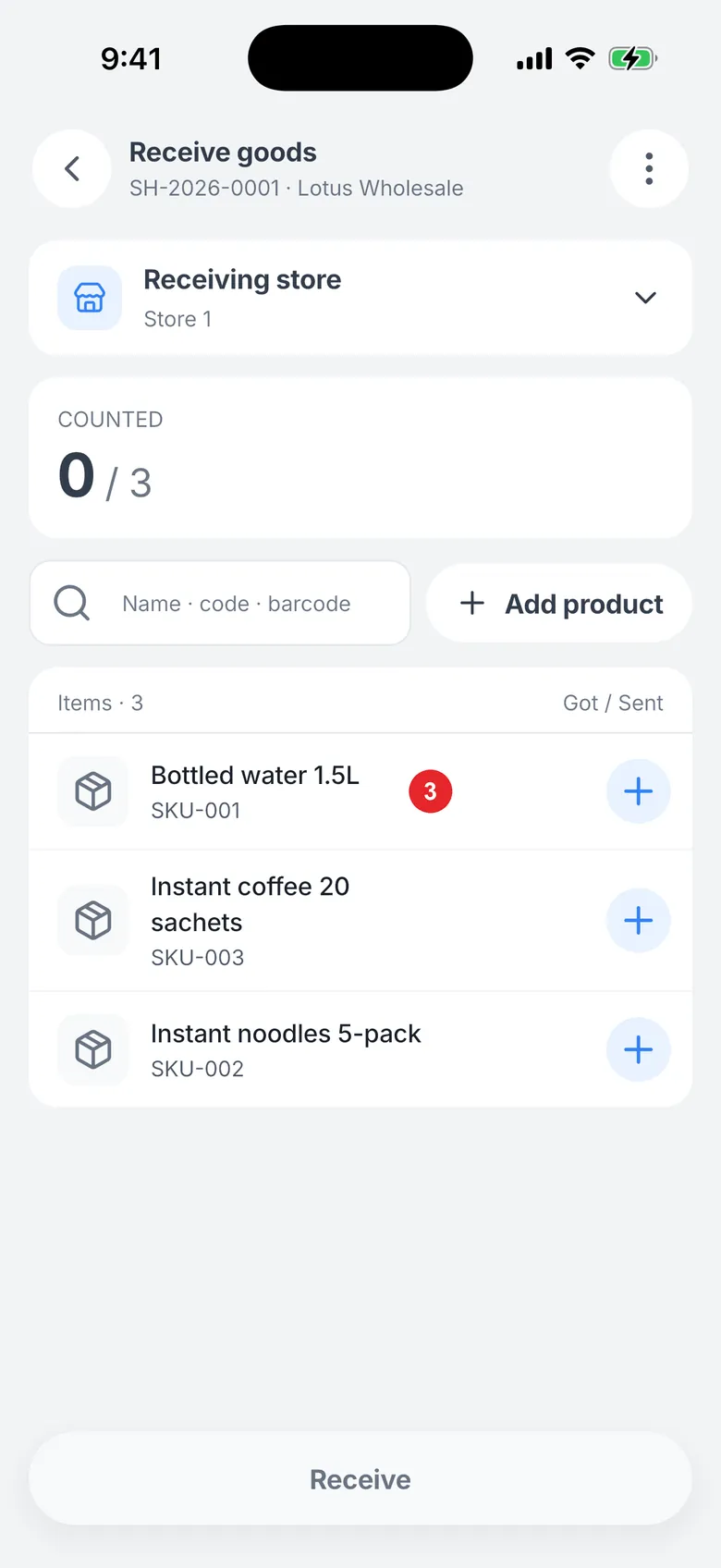
- Each tap on a product row adds 1 to the received quantity. The + button on the right does the same.
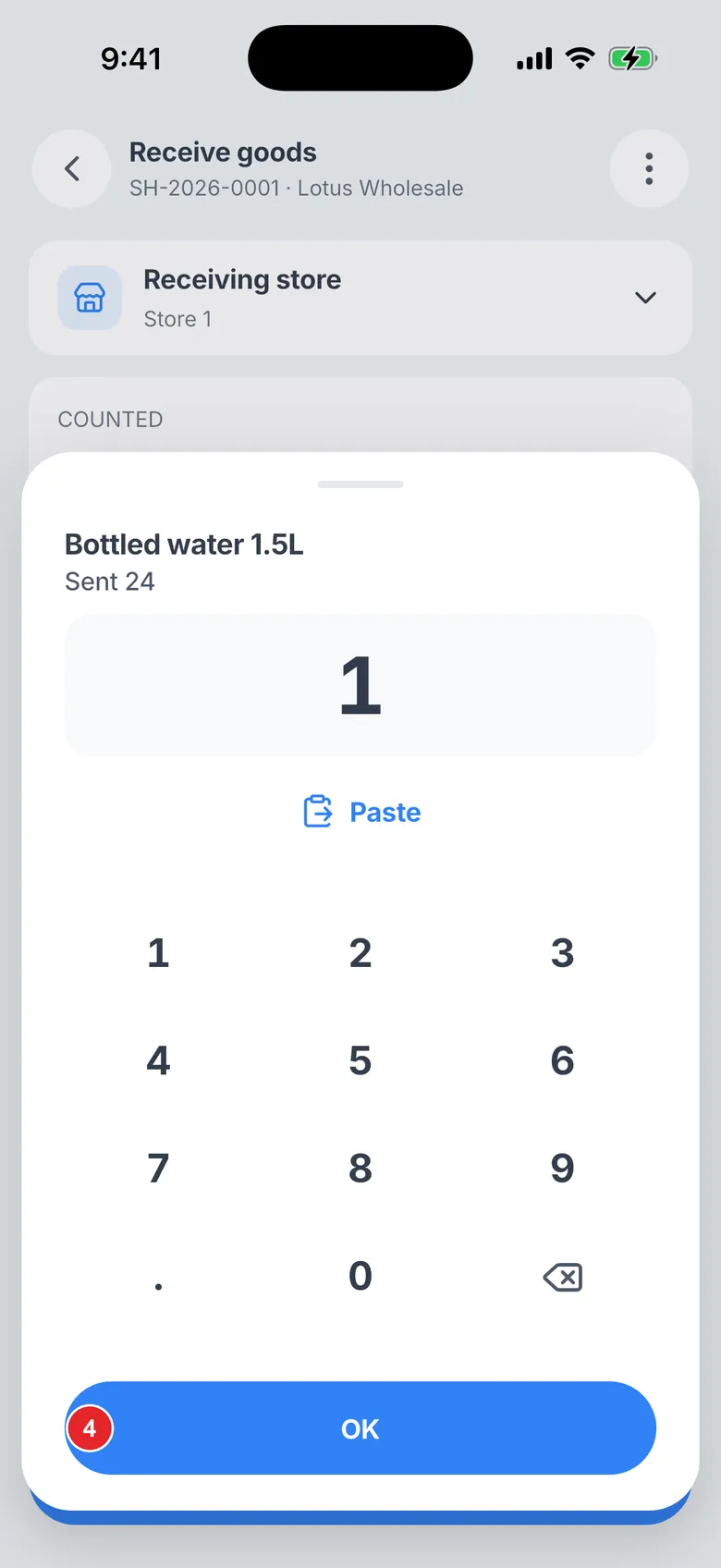
- Tap a row once and a number appears. For a large amount, tap that number. You can also press and hold the row and choose «Enter a number». Enter the received quantity on the pad and tap «OK».
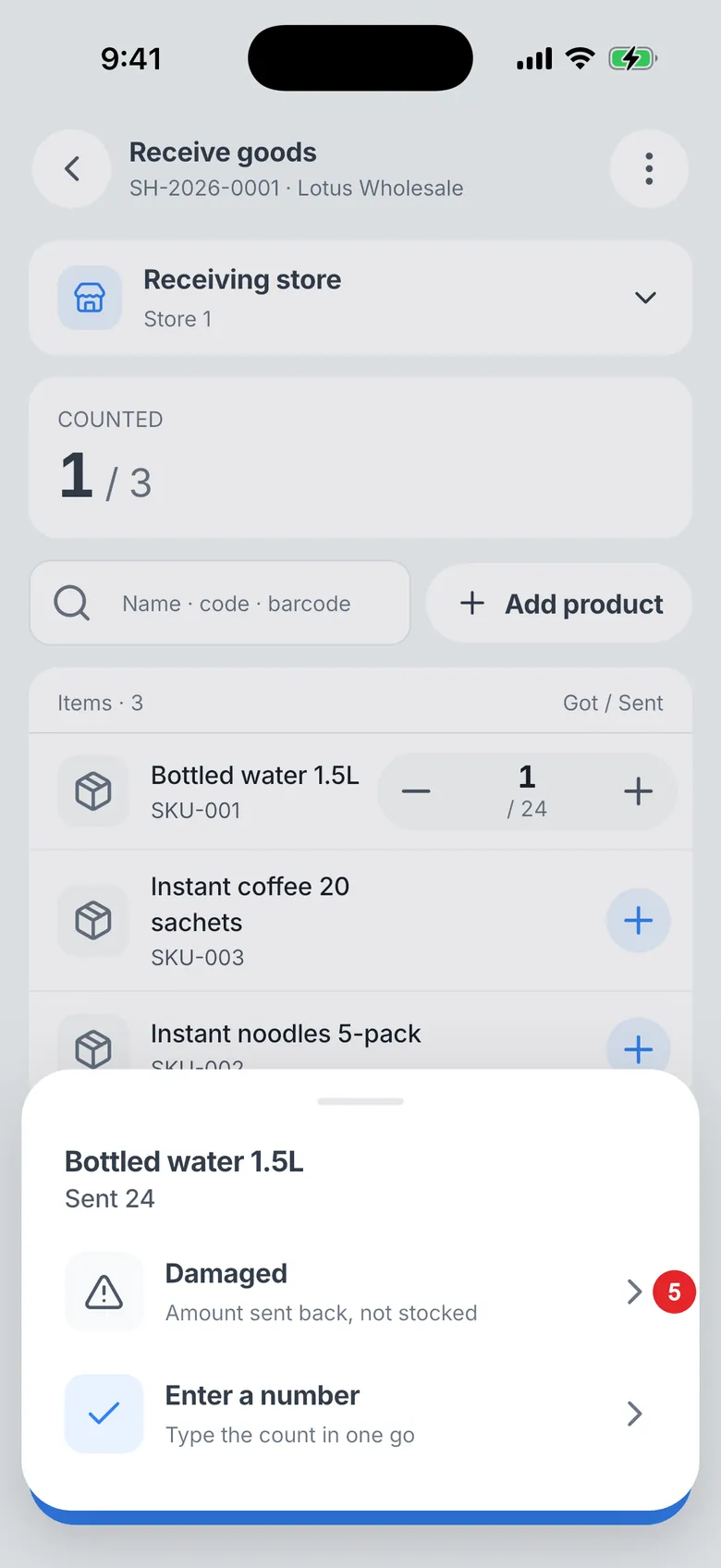
- If something is broken or wrong, press and hold its row and tap «Damaged».
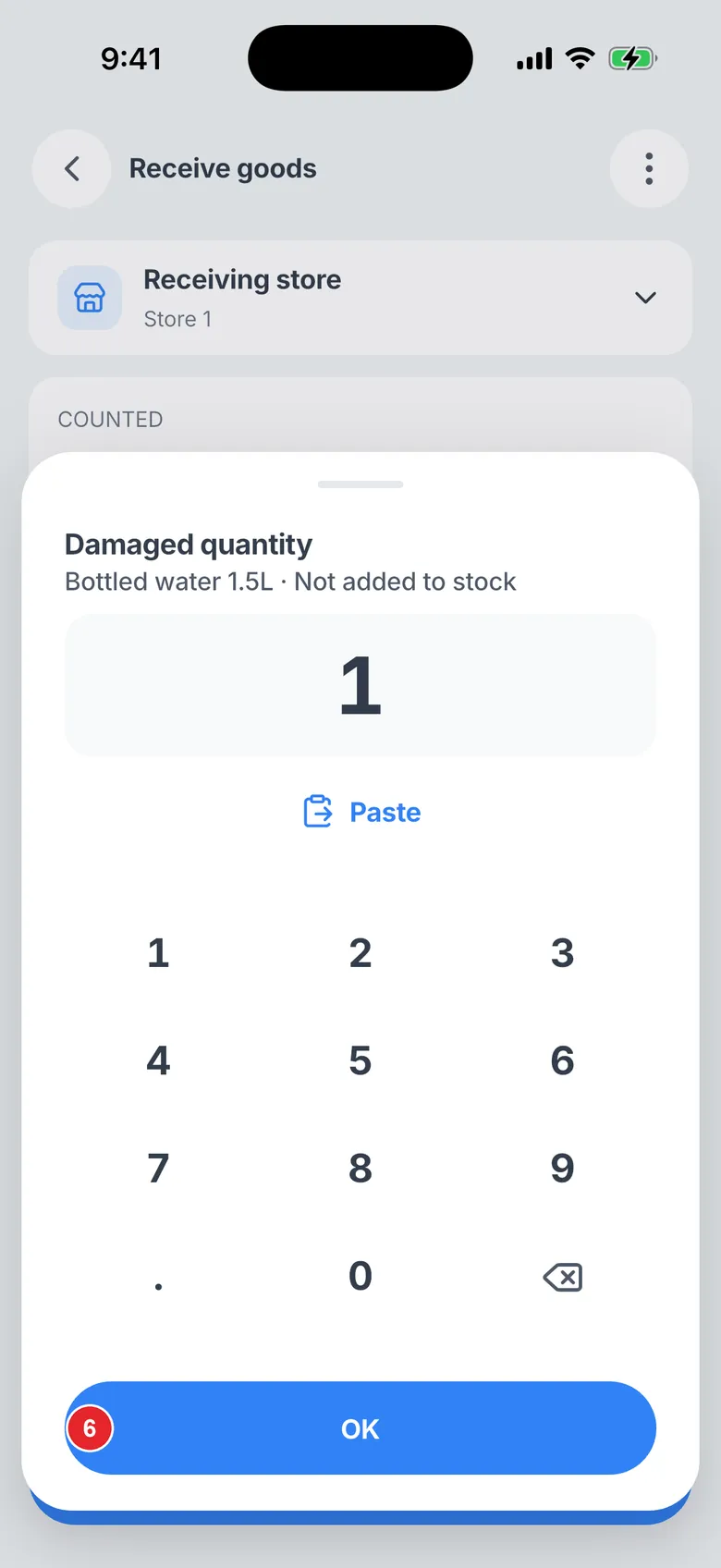
- Enter the damaged quantity and tap «OK». Damaged goods don't go into stock.
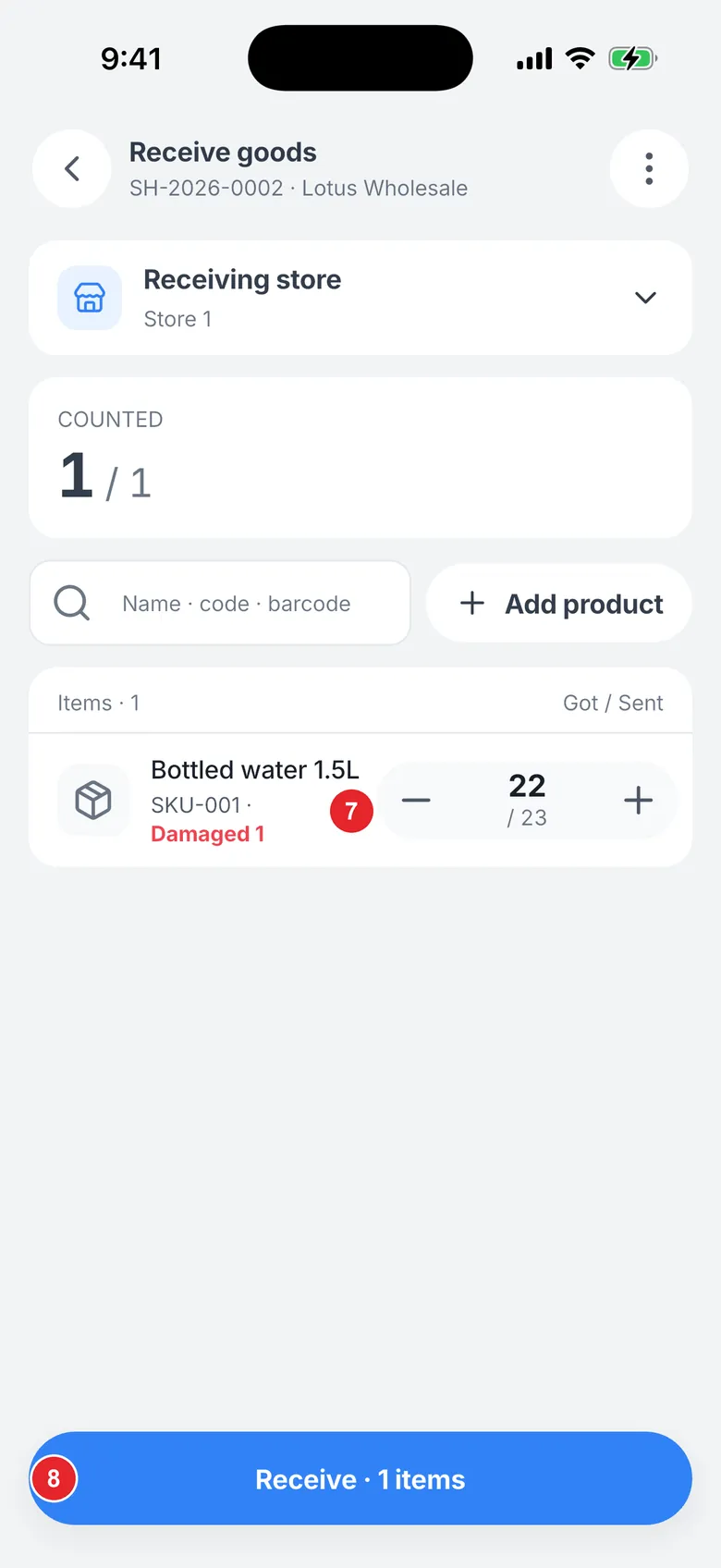
- «Damaged 1» appears on the row, and the sent quantity shows beside the received quantity. This picture shows a different shipment, «SH-2026-0002», being counted.
- When you've counted everything, tap the blue button at the bottom, which shows how many products you counted.
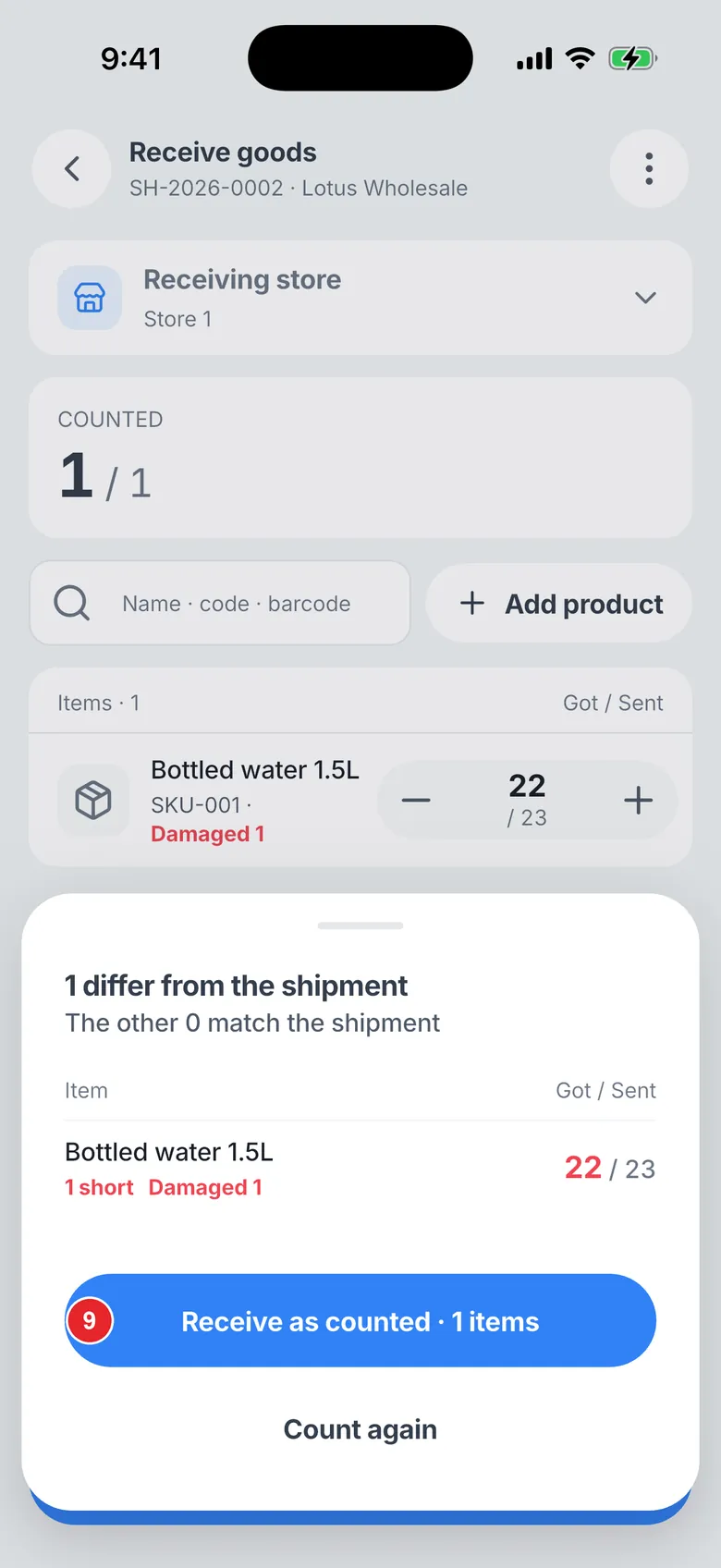
- The products received differently from what was sent are listed. If that is right, tap the blue «Receive as counted» button. To count again, tap «Count again». When «Added to stock» appears, the received quantity has gone into stock. When everything has come, go on to «Confirm goods». Even when everything came, it is the same screen as in «Confirm goods when some are missing».
Staff count, a manager confirms
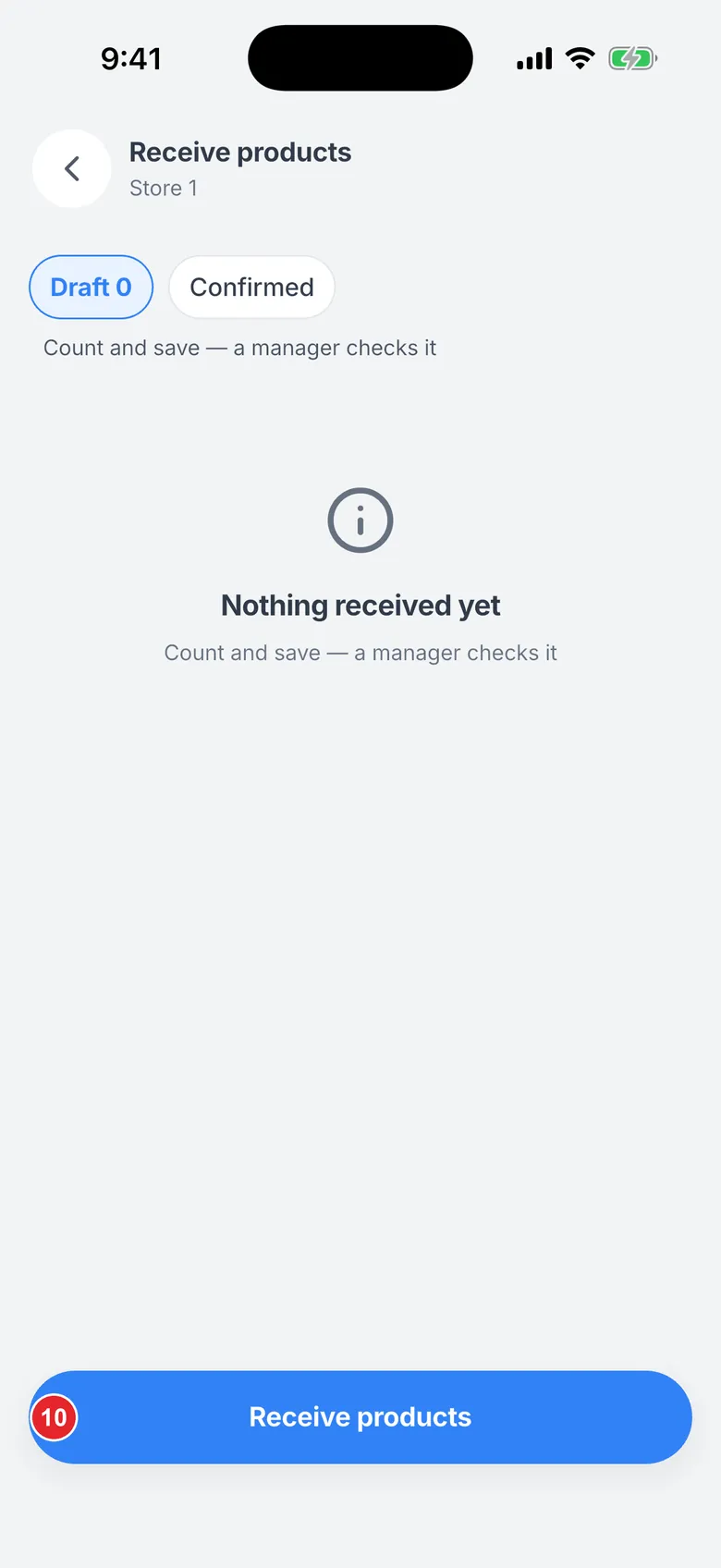
- Staff open «Receive products» from «All» at the bottom of the app and tap the «Receive products» button at the bottom.
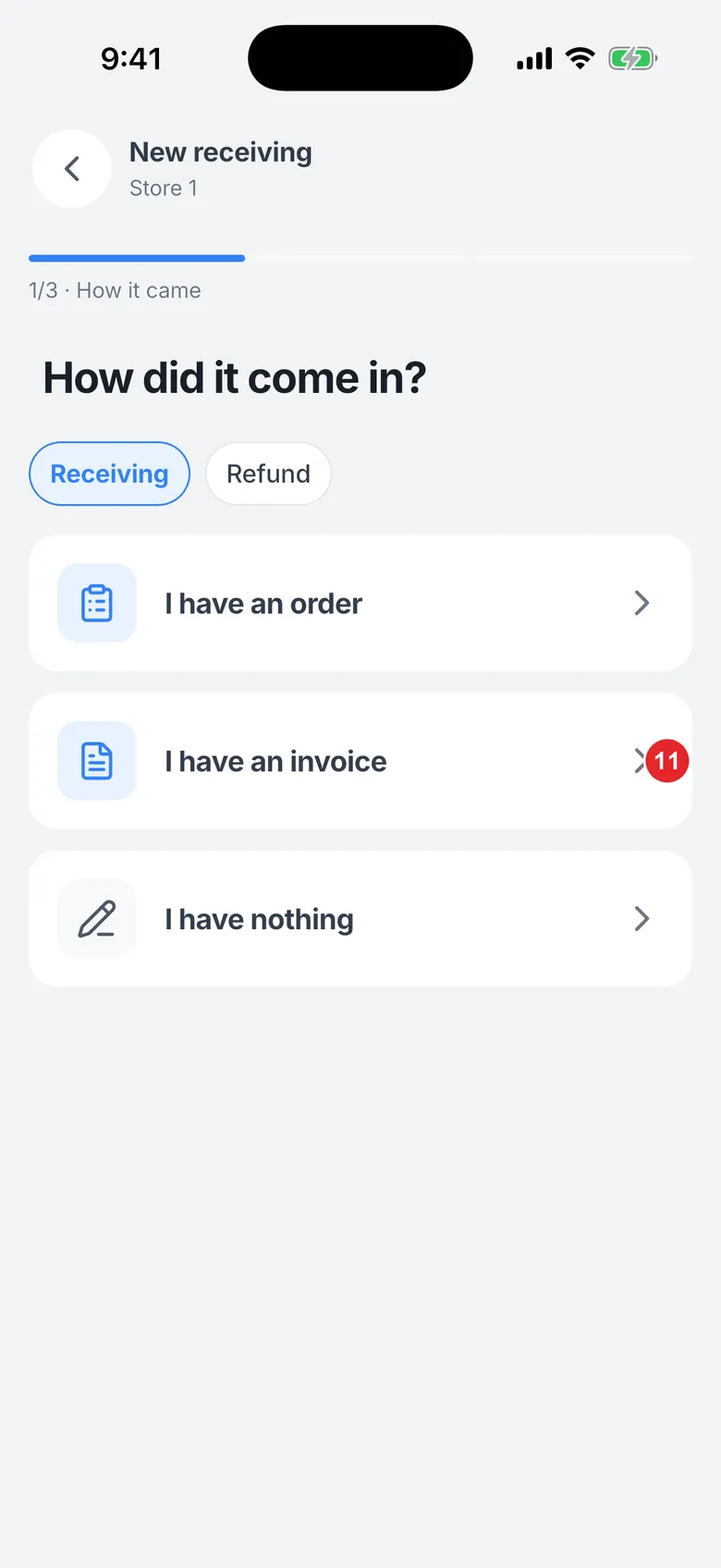
- Tap «I have an invoice». Here, invoice means the shipment paper.
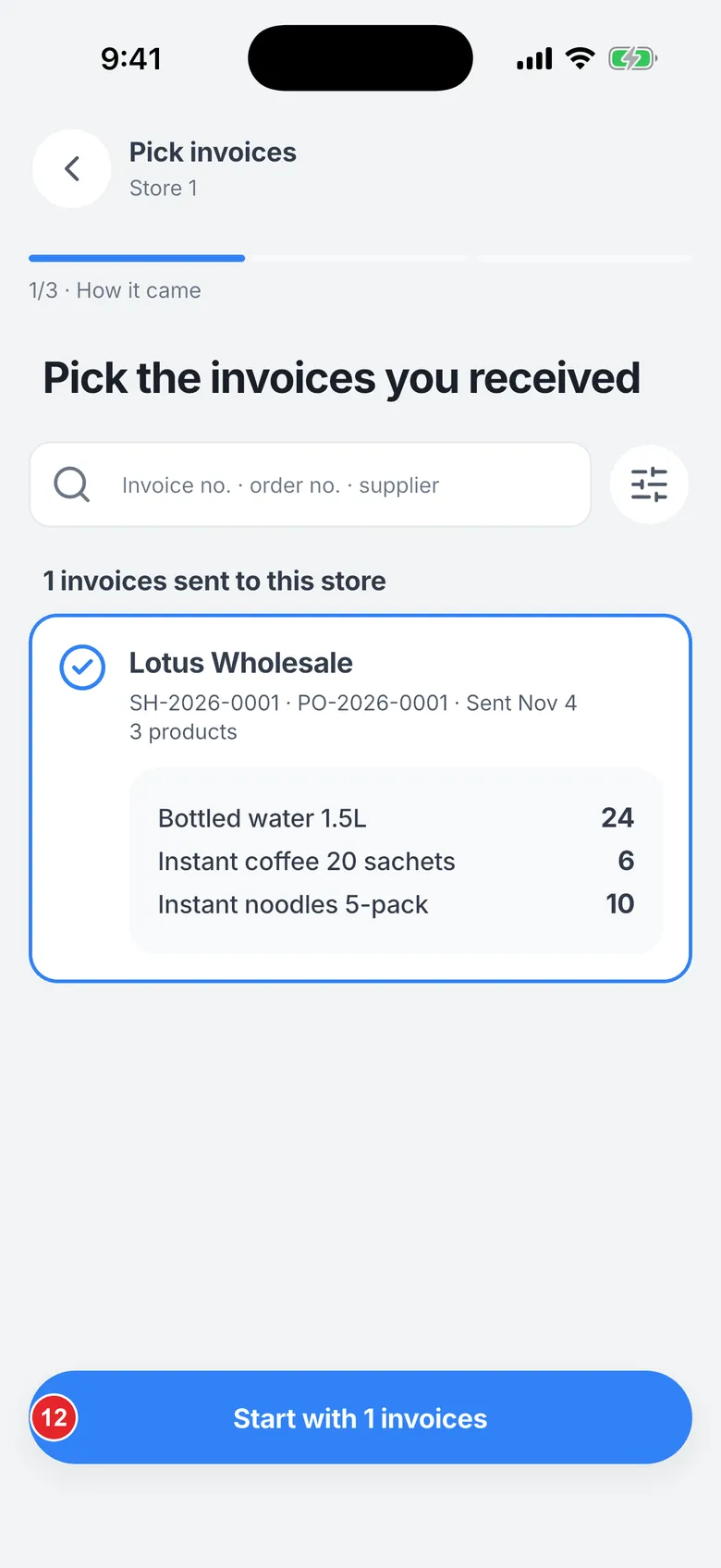
- Tap the invoice you received, then tap the blue start button at the bottom.
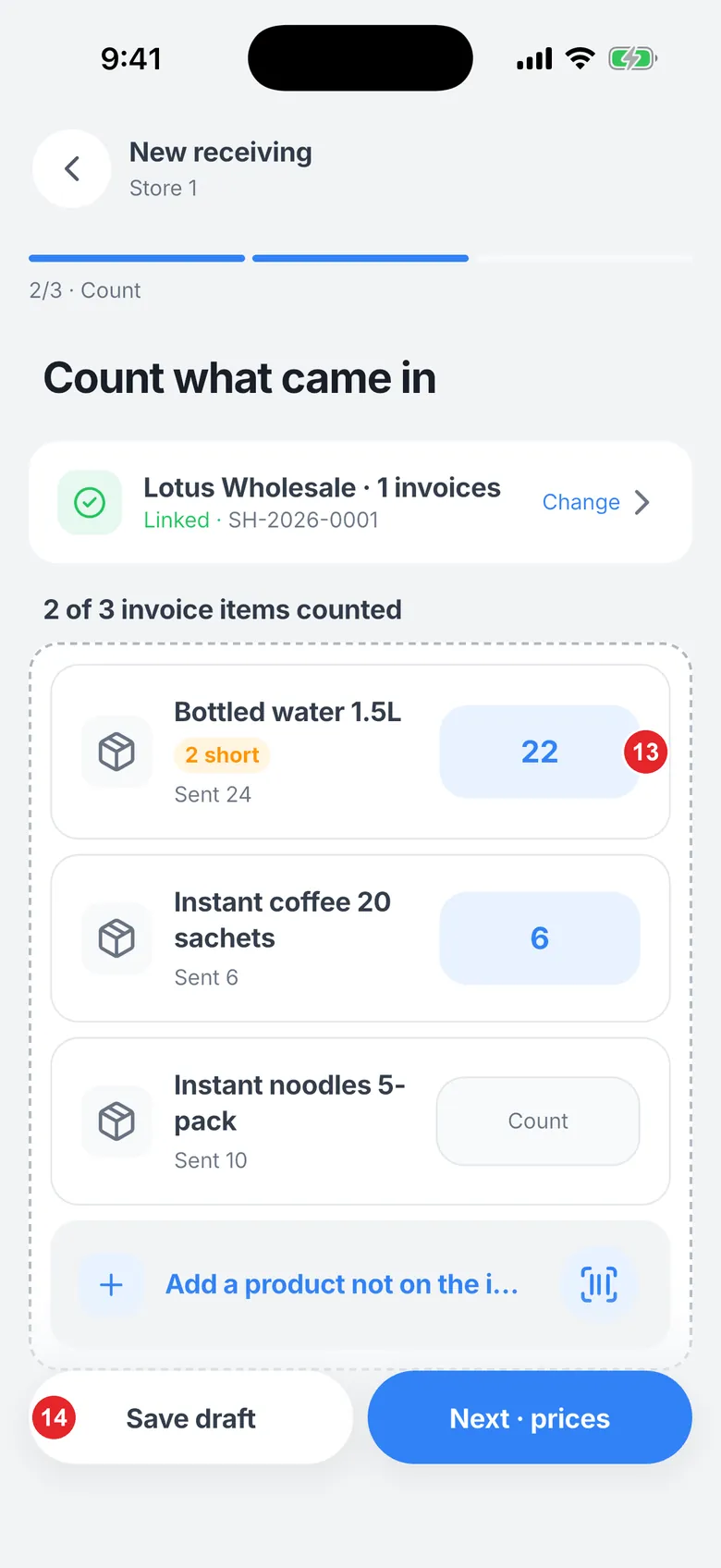
- For each product, tap the quantity box and enter the count. If it is less than what was sent, it shows like «2 short».
- Tap «Save draft». Once it is saved, a manager checks it.
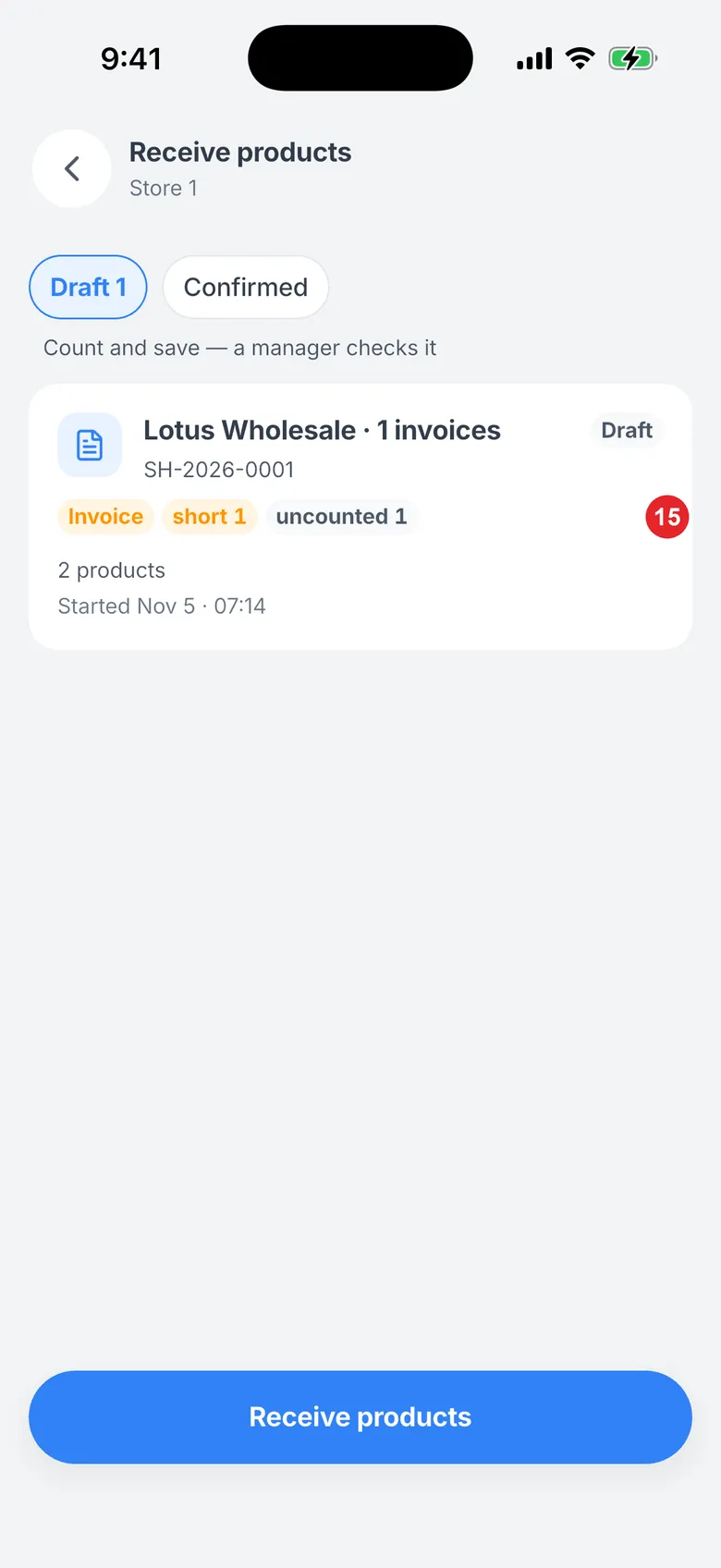
- The manager, under «Draft» in «Receive products», taps the row the staff member saved. Here it is the «Lotus Wholesale» row.
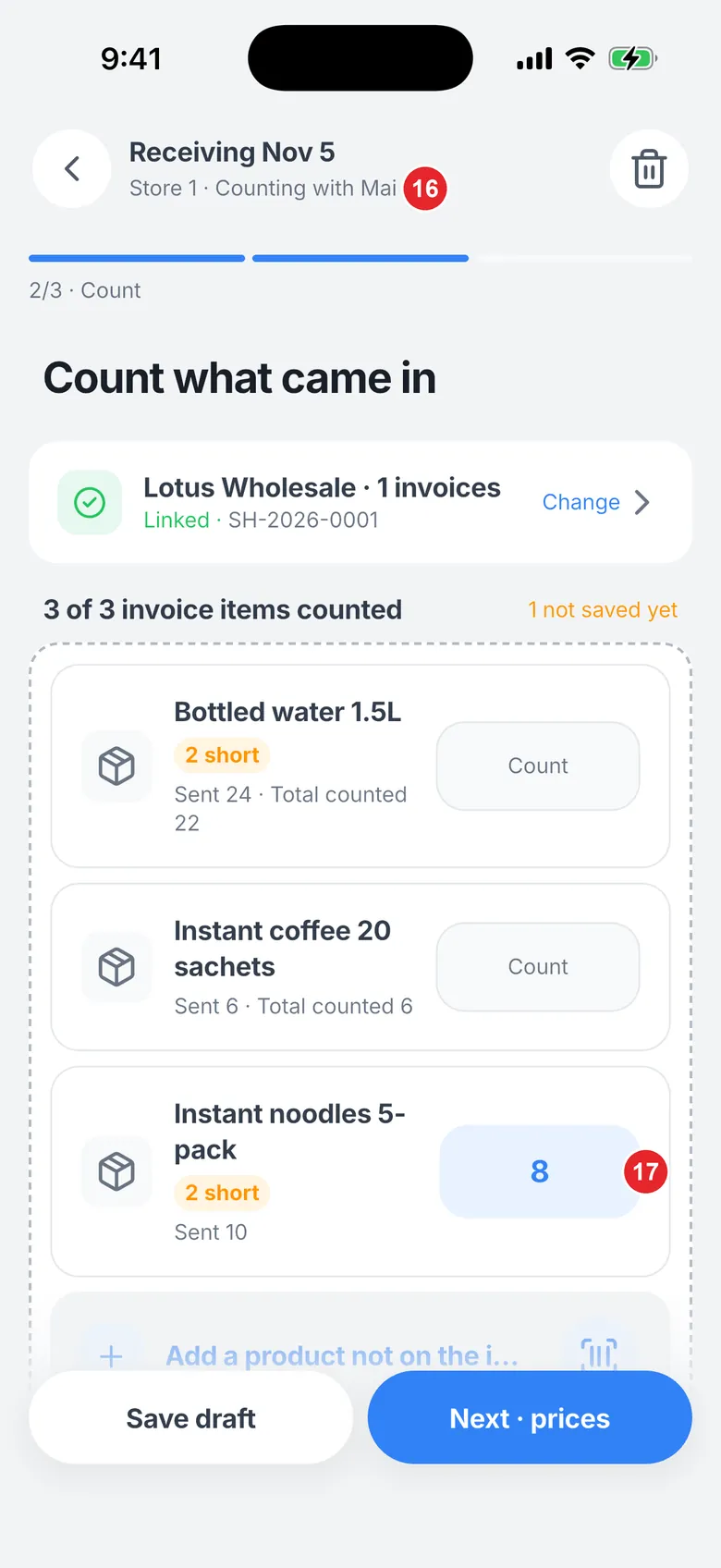
- «Store 1 · Counting with Mai» shows at the top. You are counting the same receiving together. What the staff member counted shows as «Total counted».
- Count the products not counted yet. Here «Instant noodles 5-pack» is entered as 8. When everything is counted, tap «Next · prices» and check the prices.
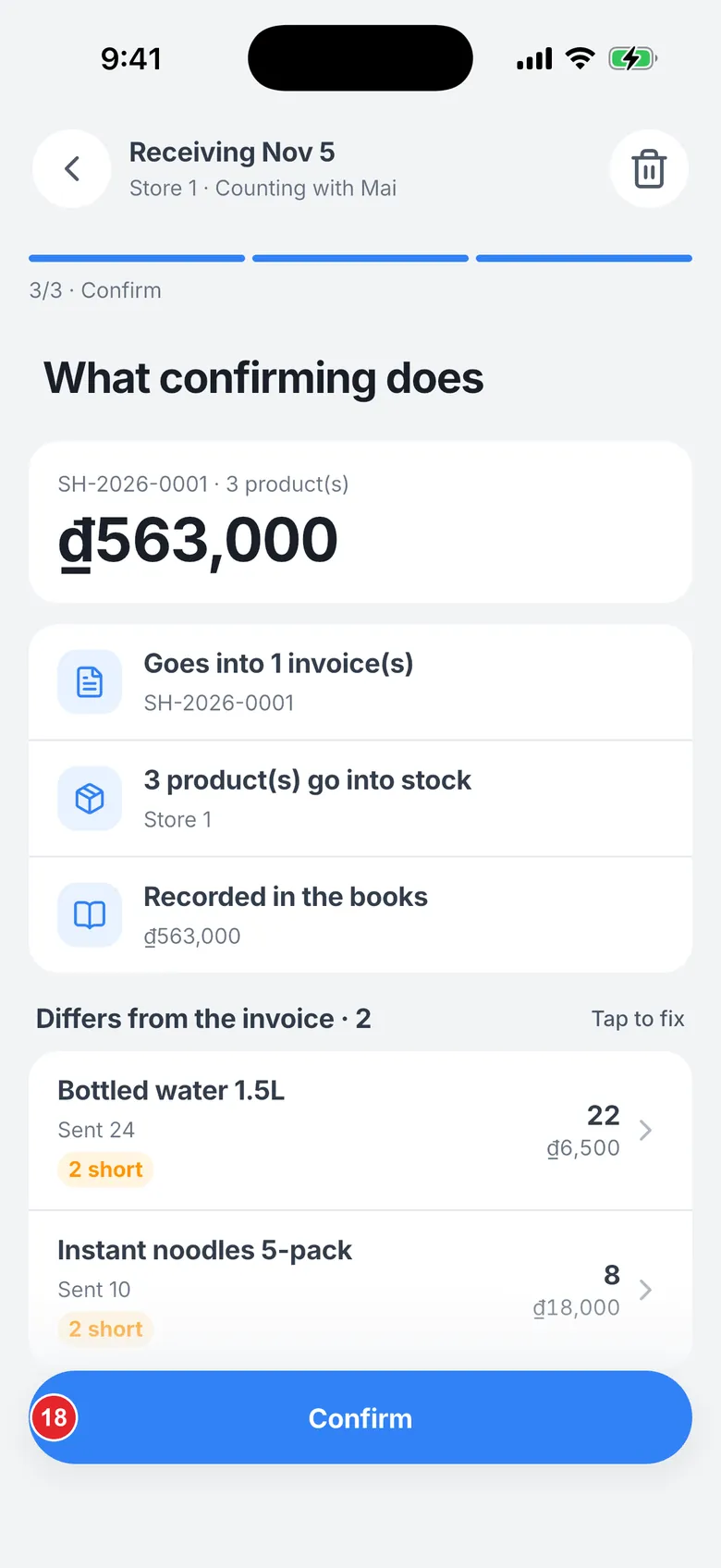
- Check that the products go into stock and the amount is recorded in the books, then tap «Confirm». What you owe the supplier isn't set here. You set it under the order › Money in «Logistic Management».