
Show contents
Inventory › Order and receive
Receive goods that came without an order
- Who
- Owner · Manager
- When
- When goods come without an order
- Where
- App · Web
What you get
- Even without an order, you receive right away with «Count by hand» or «Enter a shipment, then receive».
- Receiving with a shipment also makes an order, so confirming goods and confirming the books follow the same way.
What it solves
- If goods that came in a rush go on the shelf without a record, stock and the books are off from the start.
Why this way
- However the goods came in, the received quantity, damaged items and who received them are kept the same way.
- What if a count was left half done? Continue it. Starting a new one makes one more count.
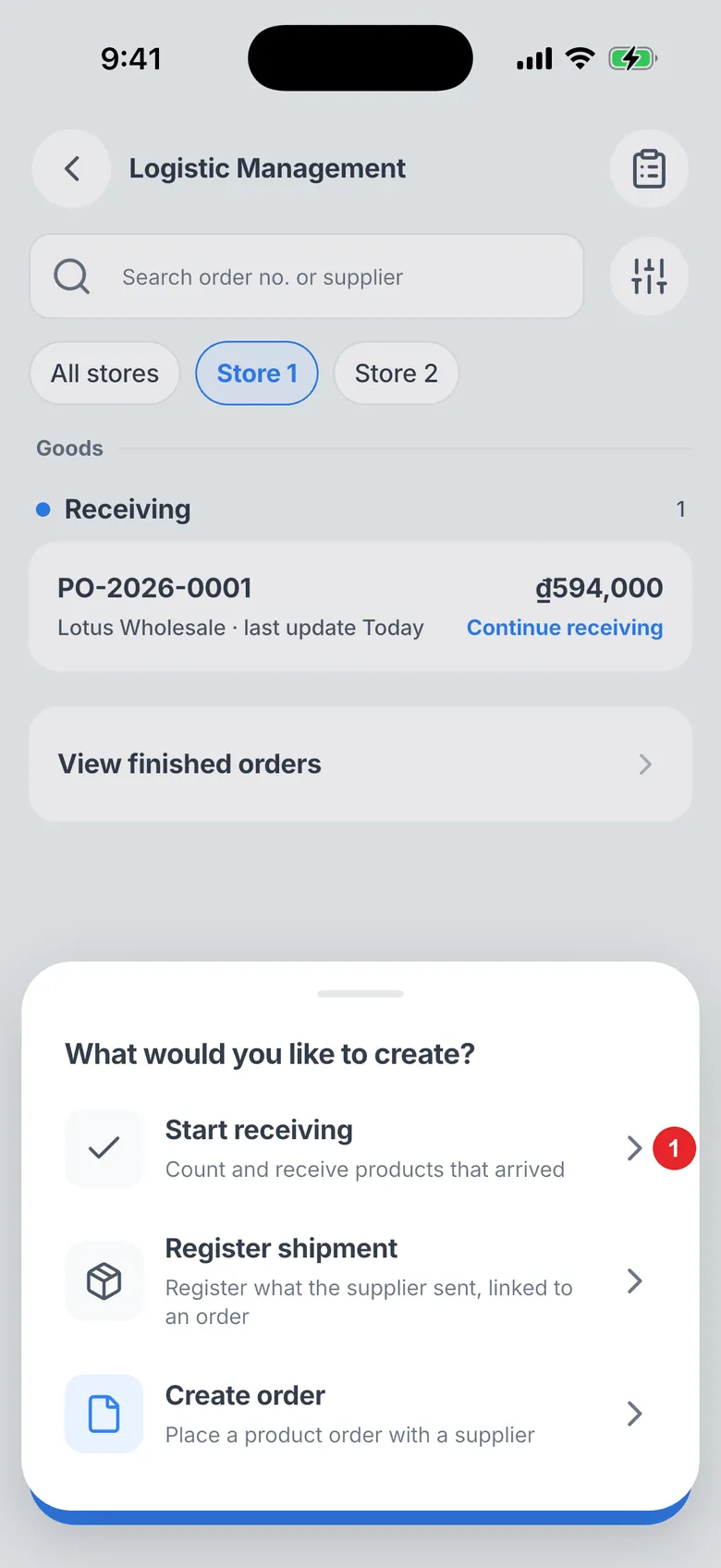
- In «Logistic Management», tap «Create» at the bottom and tap «Start receiving». If you see «Connect ERP» instead of «Create», it isn't connected yet. First do «Retail: Turn on automatic cost». To only receive goods without connecting, tap «Receive products».
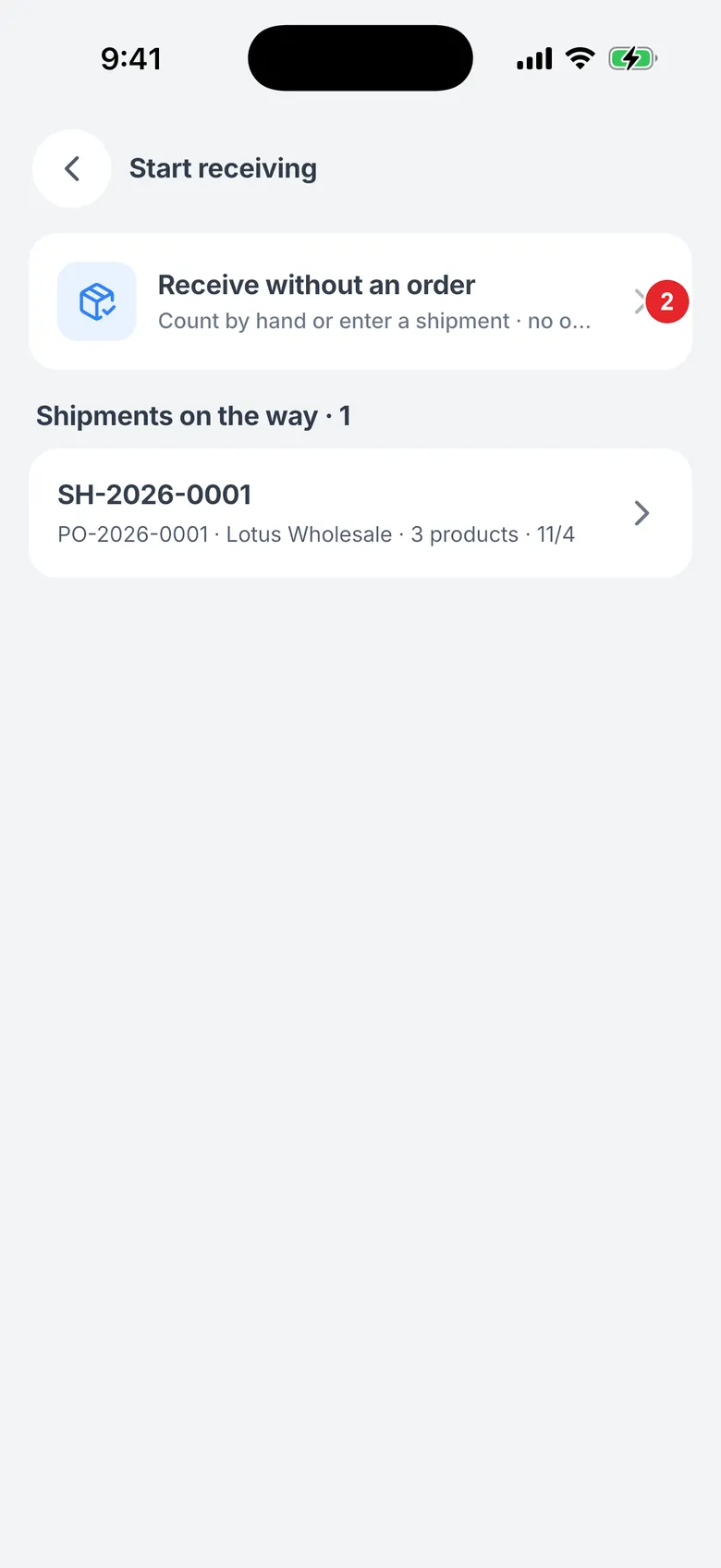
- Tap «Receive without an order».
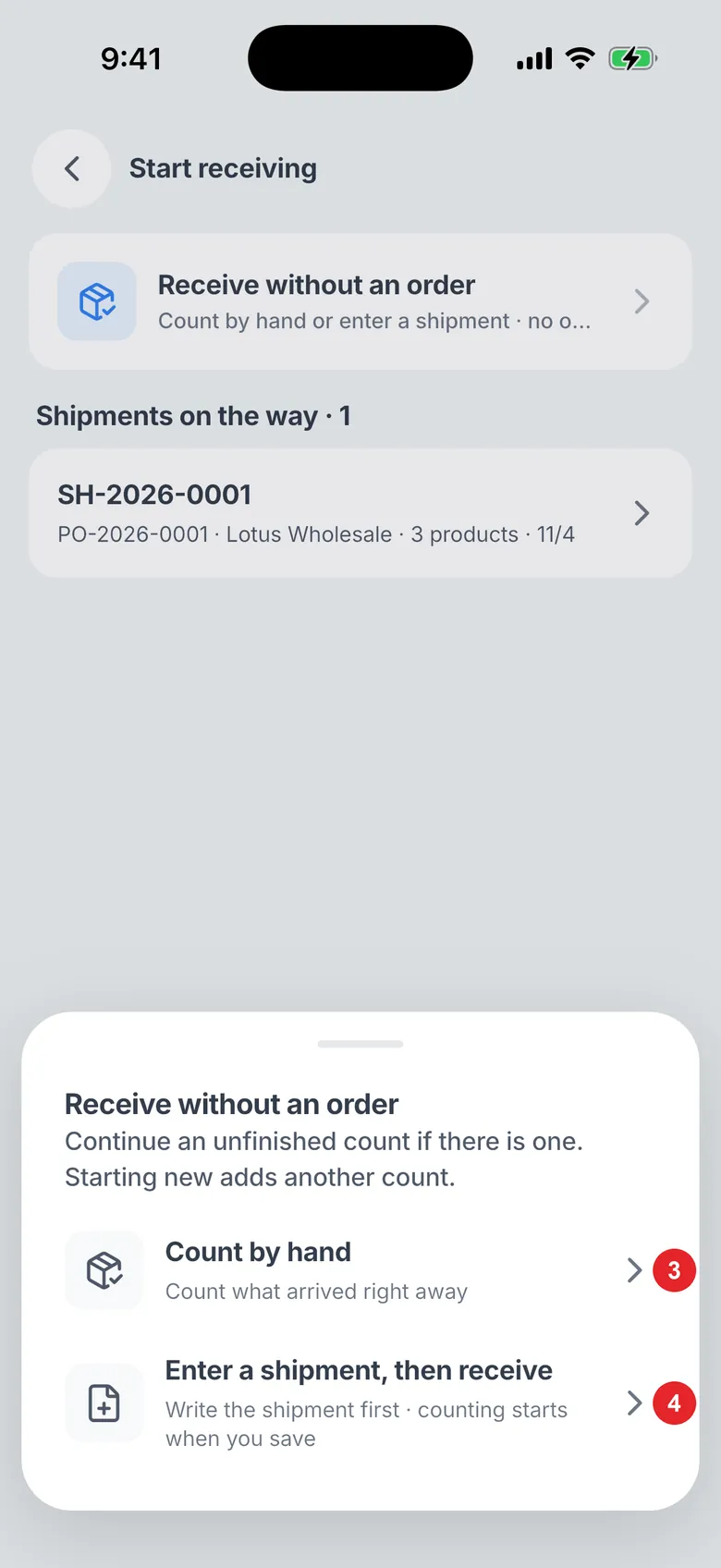
- If you have no shipment paper (delivery note), tap «Count by hand». Go to step 5 below.
- If the supplier gave you a delivery note, tap «Enter a shipment, then receive». Go to step 7 below.
Count by hand
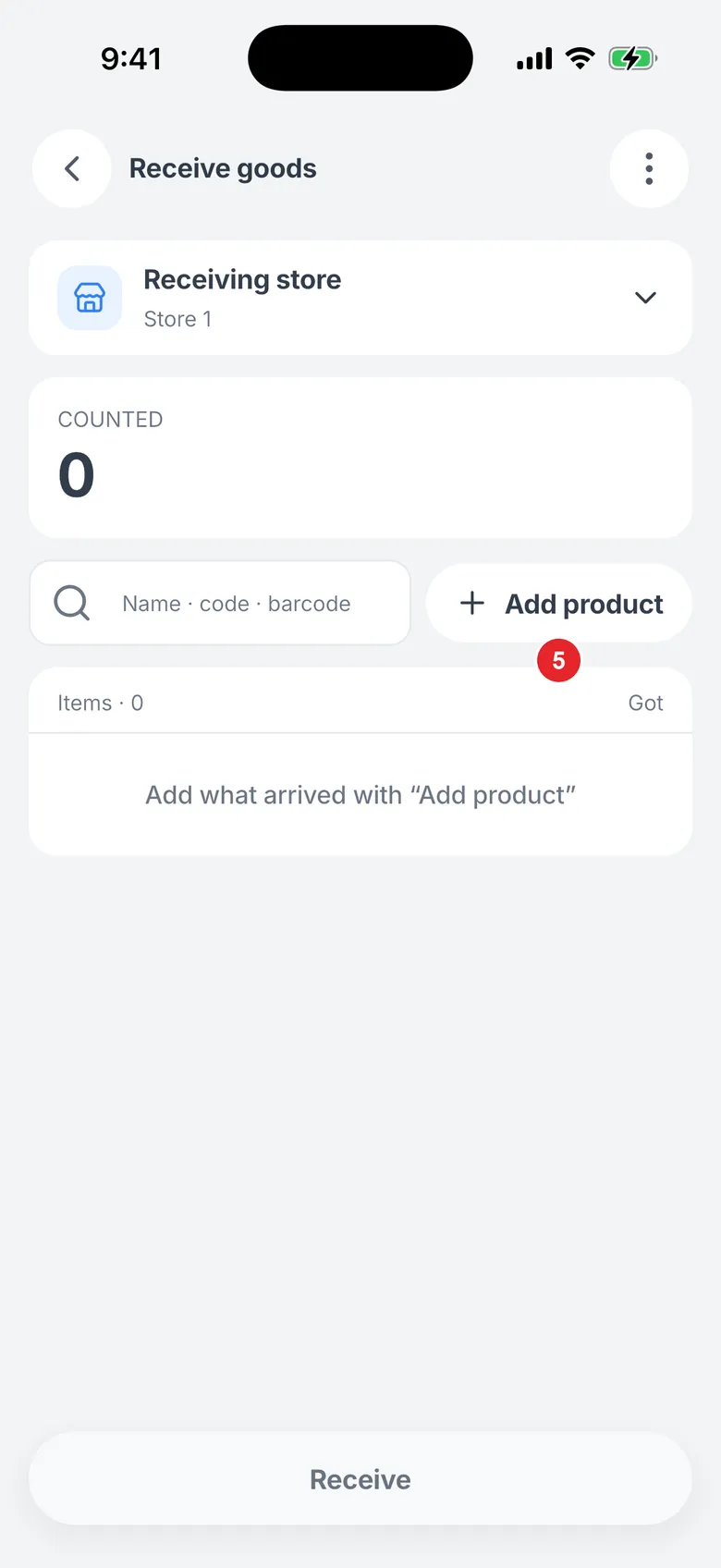
- Tap «Add product» and choose the product that came. Each tap on the row adds 1 to the received quantity.
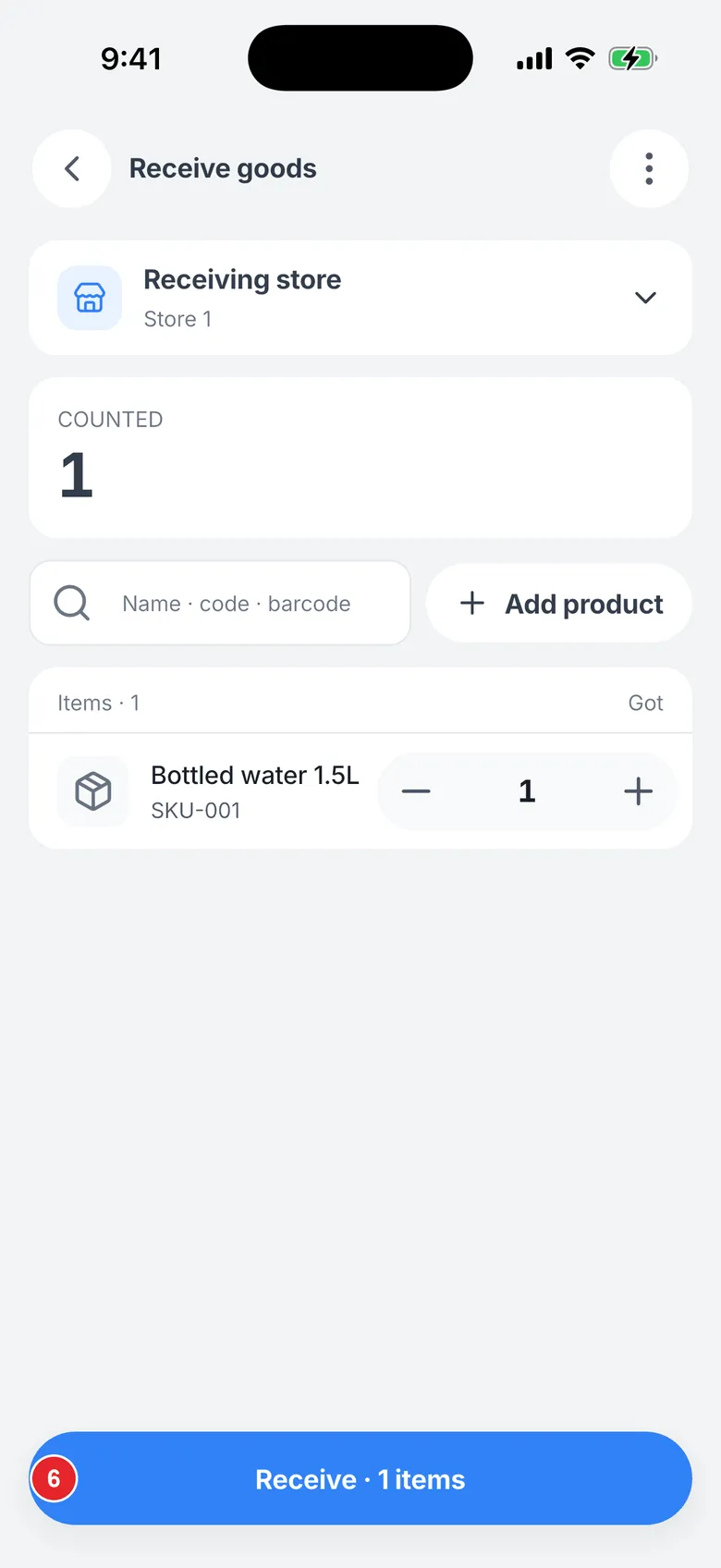
- When you've counted everything, tap the blue button at the bottom, which shows how many products you counted, then tap the blue «Receive as counted» button in the window that opens. The order and delivery note are made by themselves at this point. When it finishes, the screen in step 13 below appears.
Enter a shipment, then receive
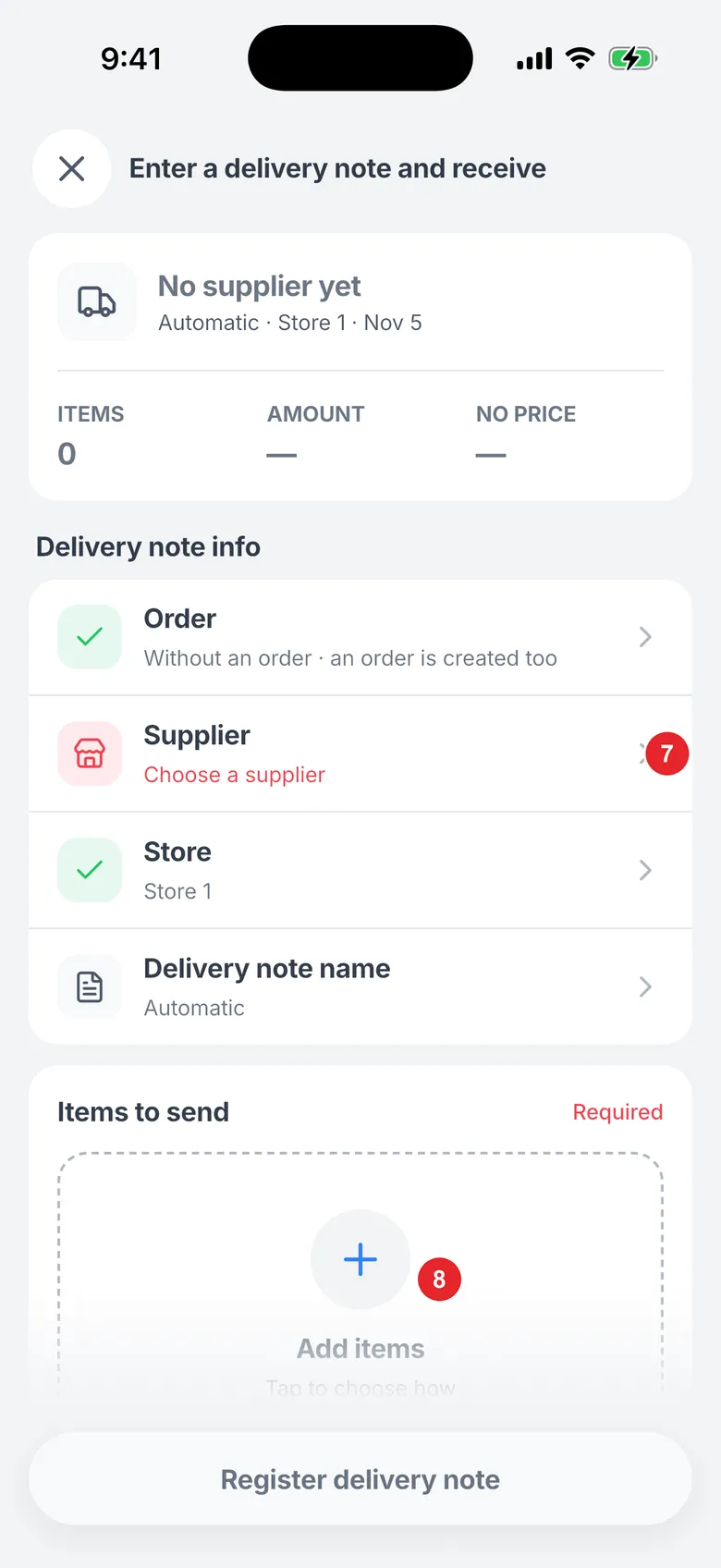
- Tap «Supplier» and choose who sent the goods.
- Under «Items to send», tap «Add items» and add the products on the delivery note.
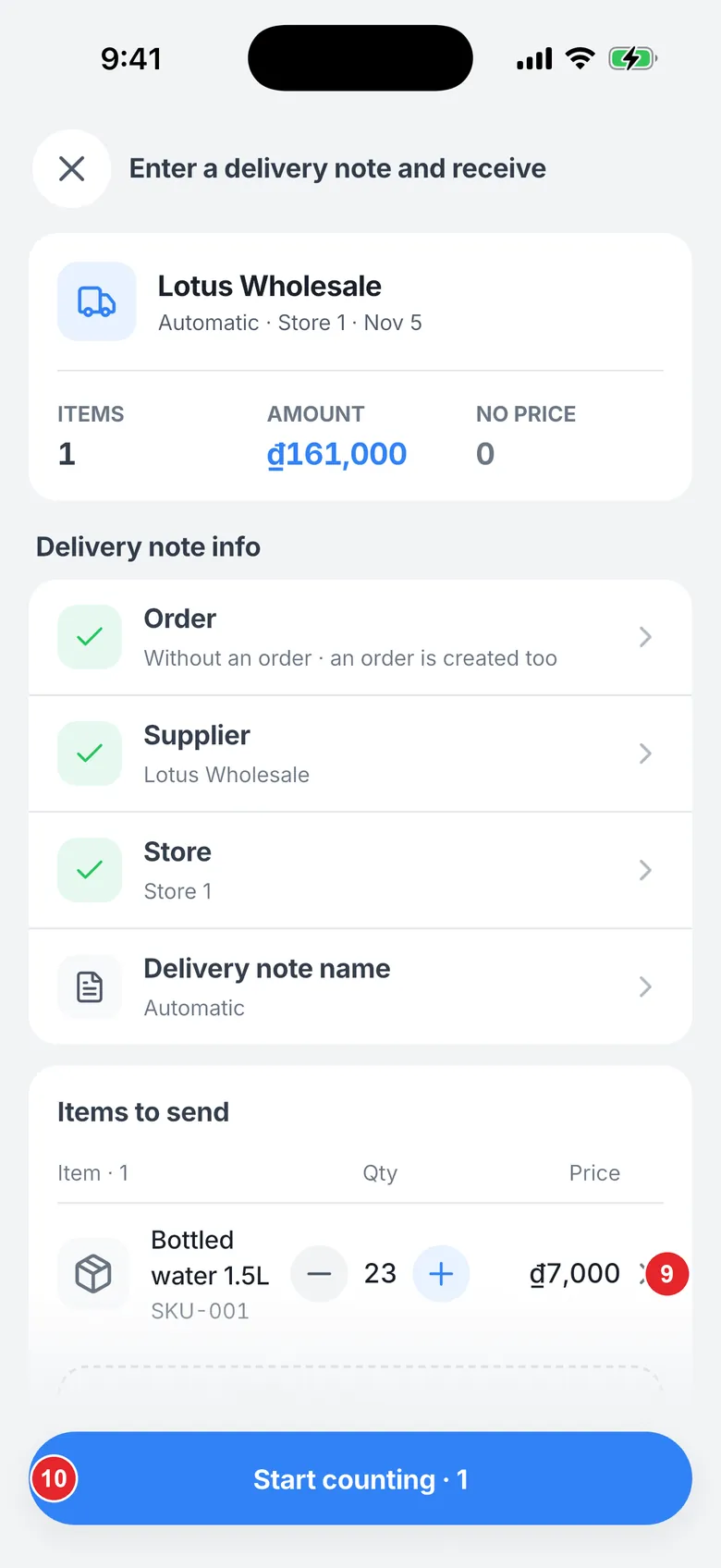
- For each product, enter the quantity and unit price on the delivery note. Here «Bottled water 1.5L» is 23 at ₫7,000.
- Tap «Start counting · 1». The delivery note and the order are made together, and counting opens right away.
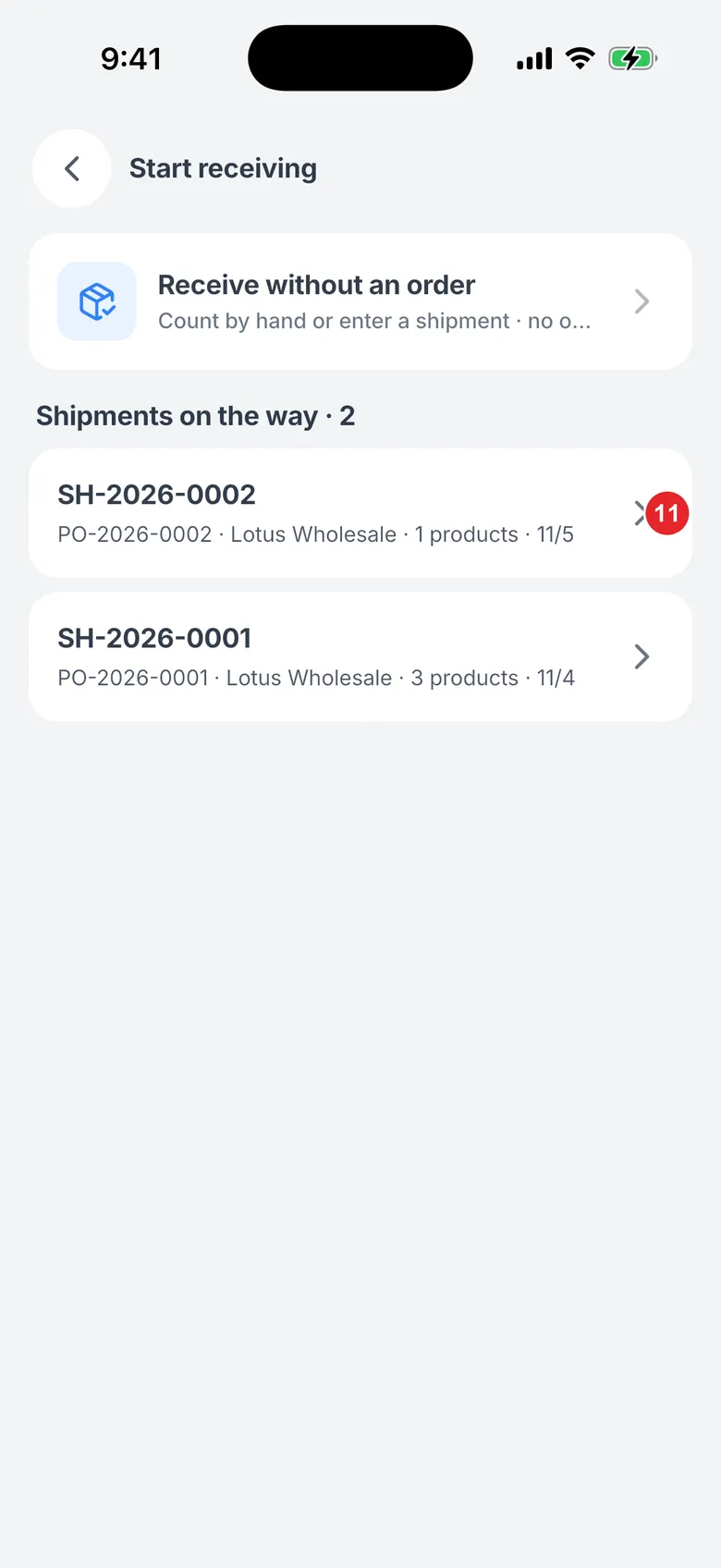
- The delivery note you made stays under «Shipments on the way · 2» in «Start receiving». Here it is «SH-2026-0002». If you stopped counting partway, tap this row to continue. Counting works the same as in «Count goods when they arrive».
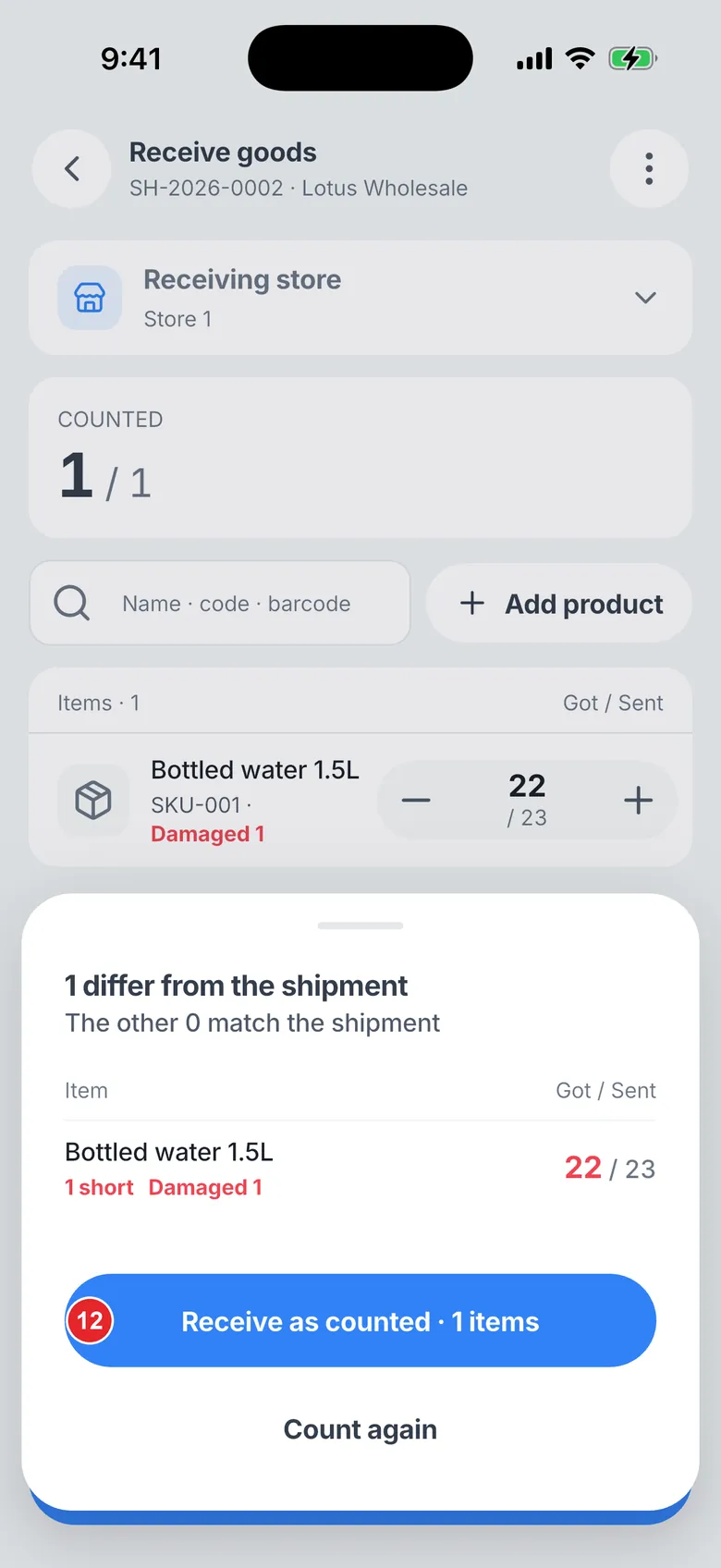
- After counting, see the products received differently from what was sent and tap the blue «Receive as counted» button.
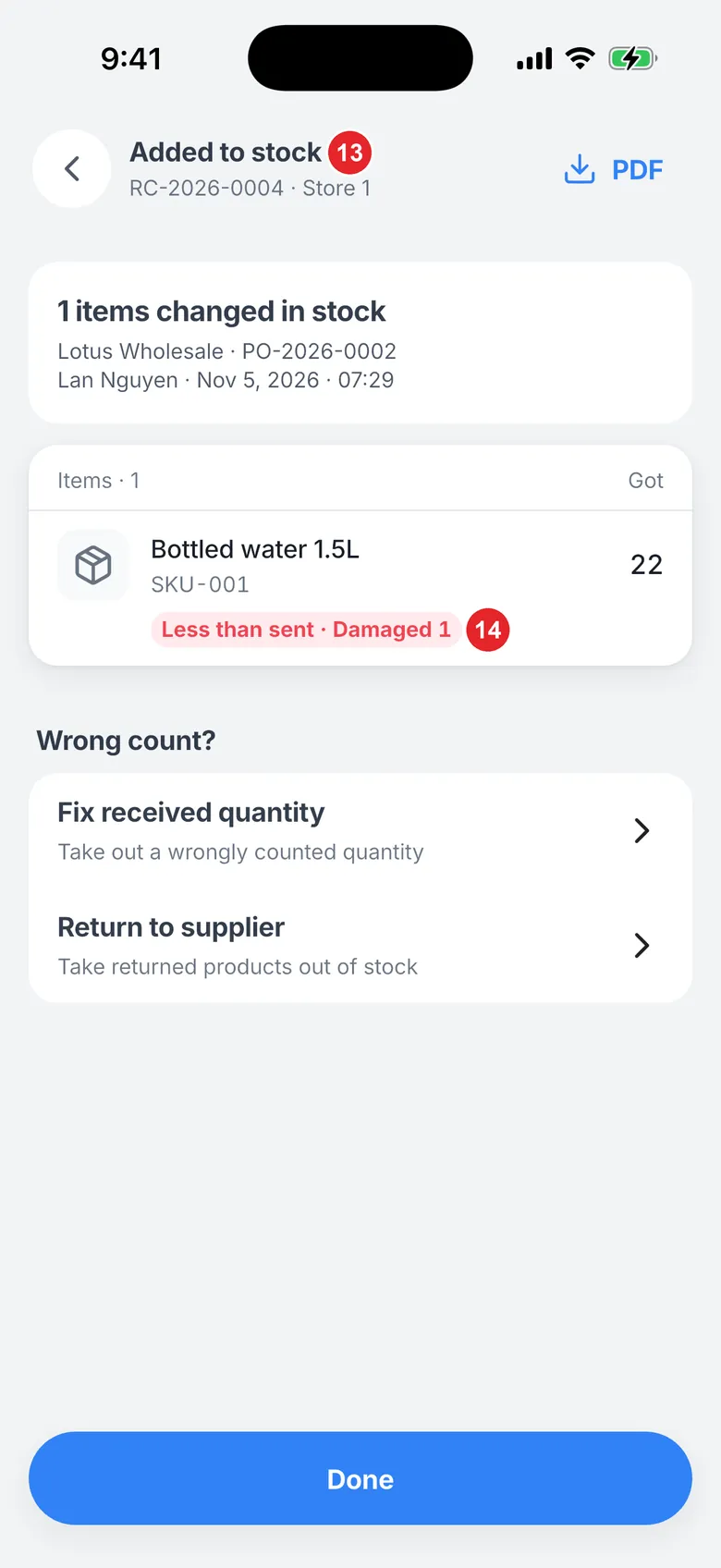
- When «Added to stock» appears, the received quantity has gone into stock.
- Each line keeps what was different, like «Less than sent · Damaged 1». When you have seen it, tap «Done».