
Show contents
Daily cash & closing › Expenses
I entered an expense wrong
- Who
- Staff · Manager
- When
- When you entered it wrong
- Where
- App · Web
What you get
- Cancel the wrong expense and enter it again with the right amount, and the money that should be there at closing is right.
- Both the original transaction and the reversing one stay, so you can see later what was fixed.
- On the website, write down why you cancelled in «Reason (optional)».
What it solves
- You entered the wrong amount or cost, but a transaction once entered can't be deleted.
- Left as is, the cash won't match at closing and the cost figure is wrong too.
Why this way
- Instead of deleting, a reversing transaction is added, so what was first entered and what was fixed both stay.
- Can staff cancel past expenses as they like? No. The person who entered it can cancel only within 6 hours. After that, someone with delete permission does it.
- Is cancelling enough? No. You have to enter it again with the right amount.
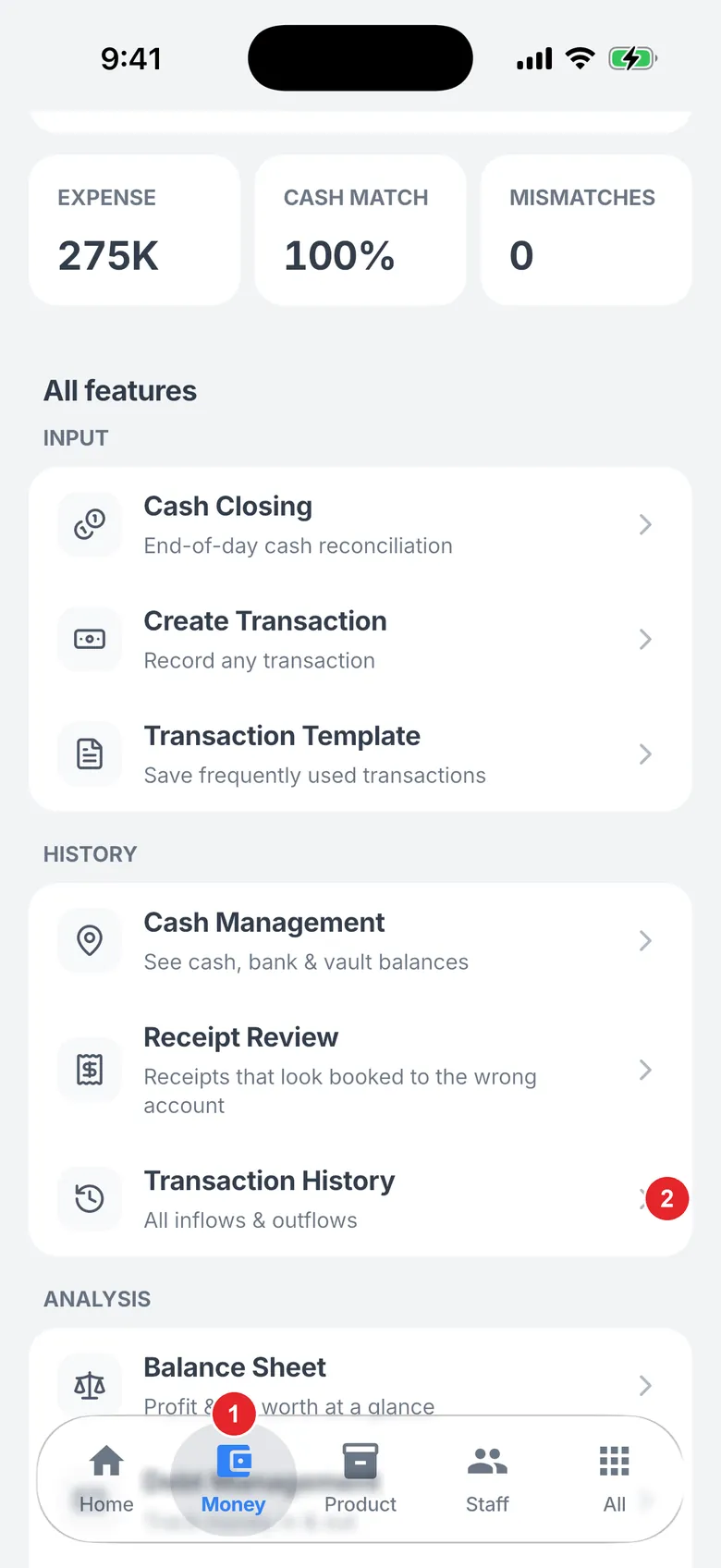
- Tap «Money» at the bottom of the app.
- Scroll down and, in «All features», tap «Transaction History».
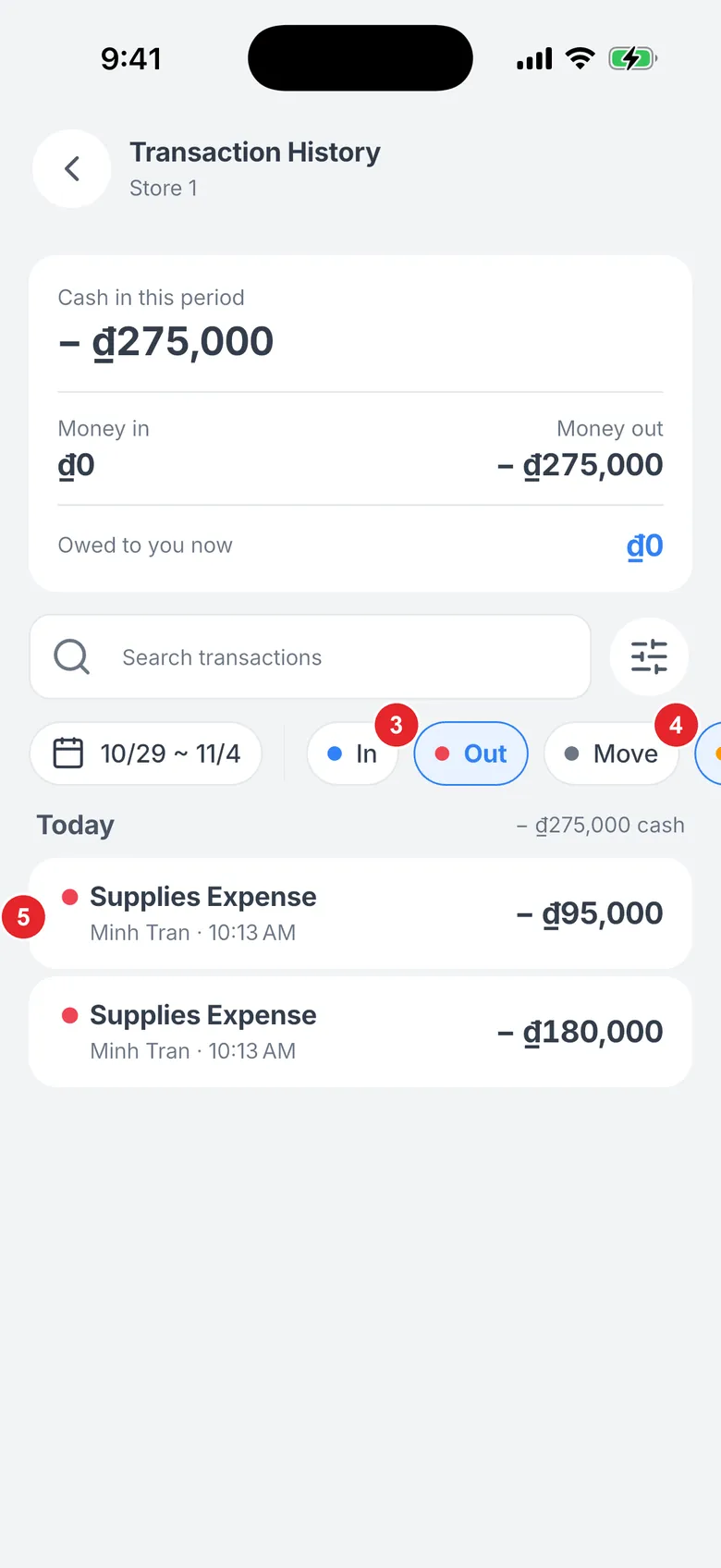
- Tap «In» to turn it off.
- Tap «Move» to turn it off. Only money out is left.
- Tap the row of the expense entered wrong.
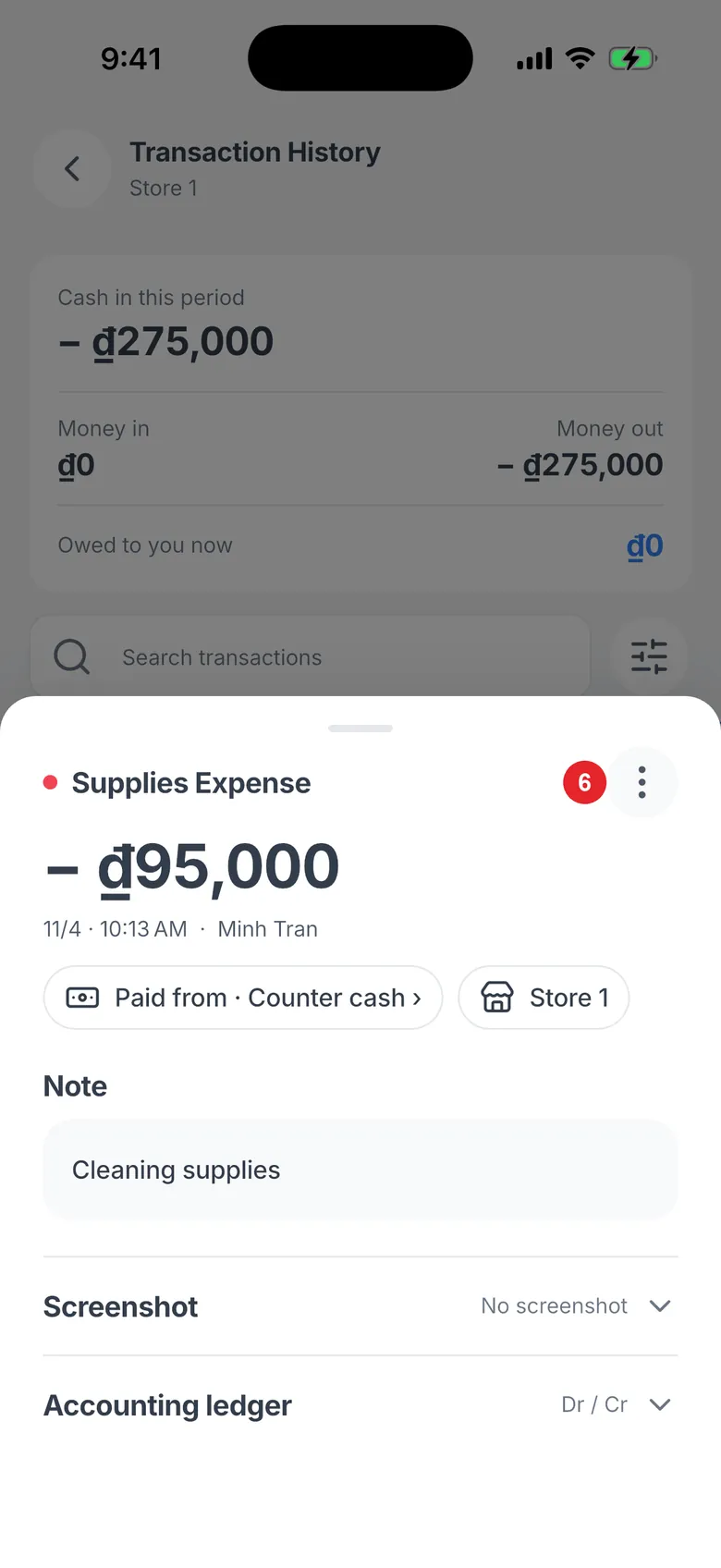
- Tap the ⋮ button at the top right («More»).
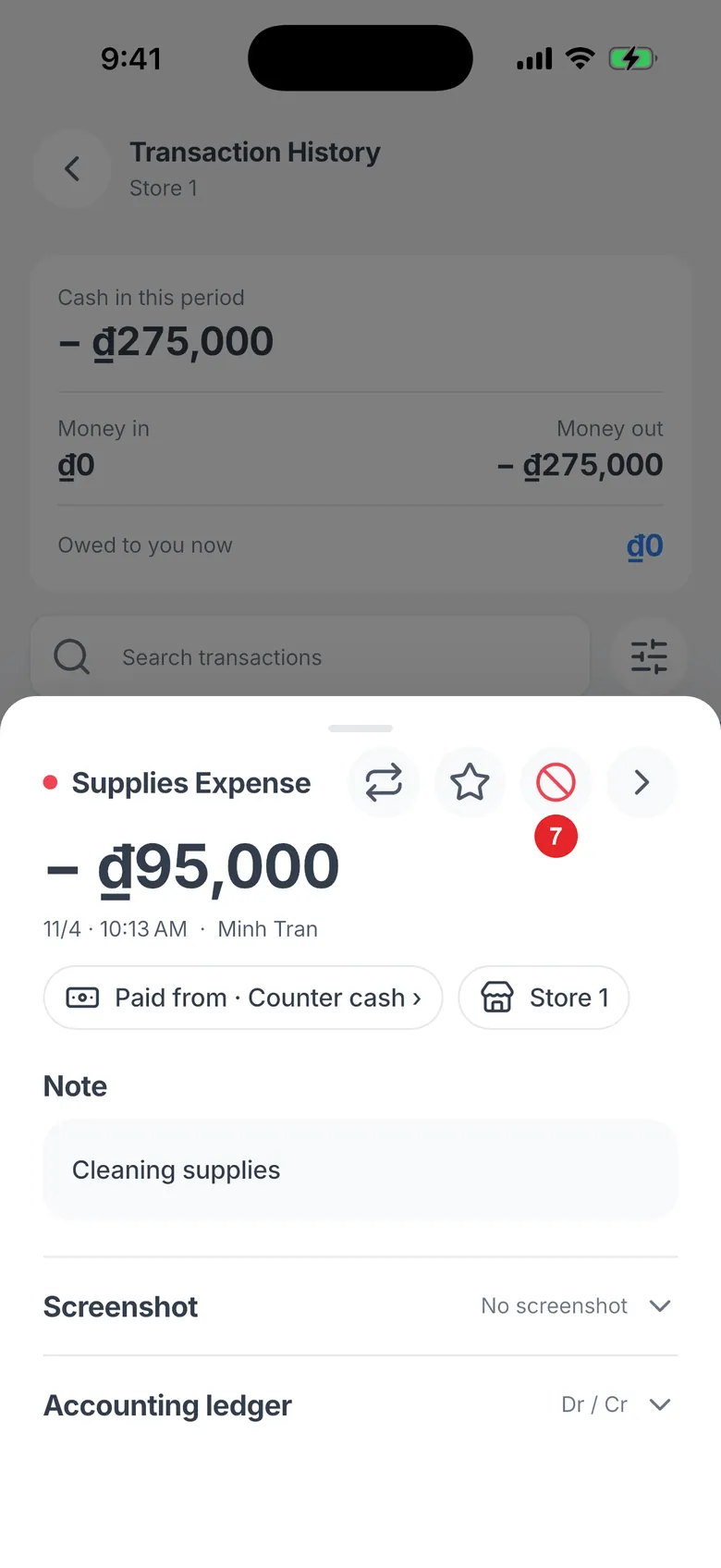
- Tap the red no-entry button («Cancel transaction»).
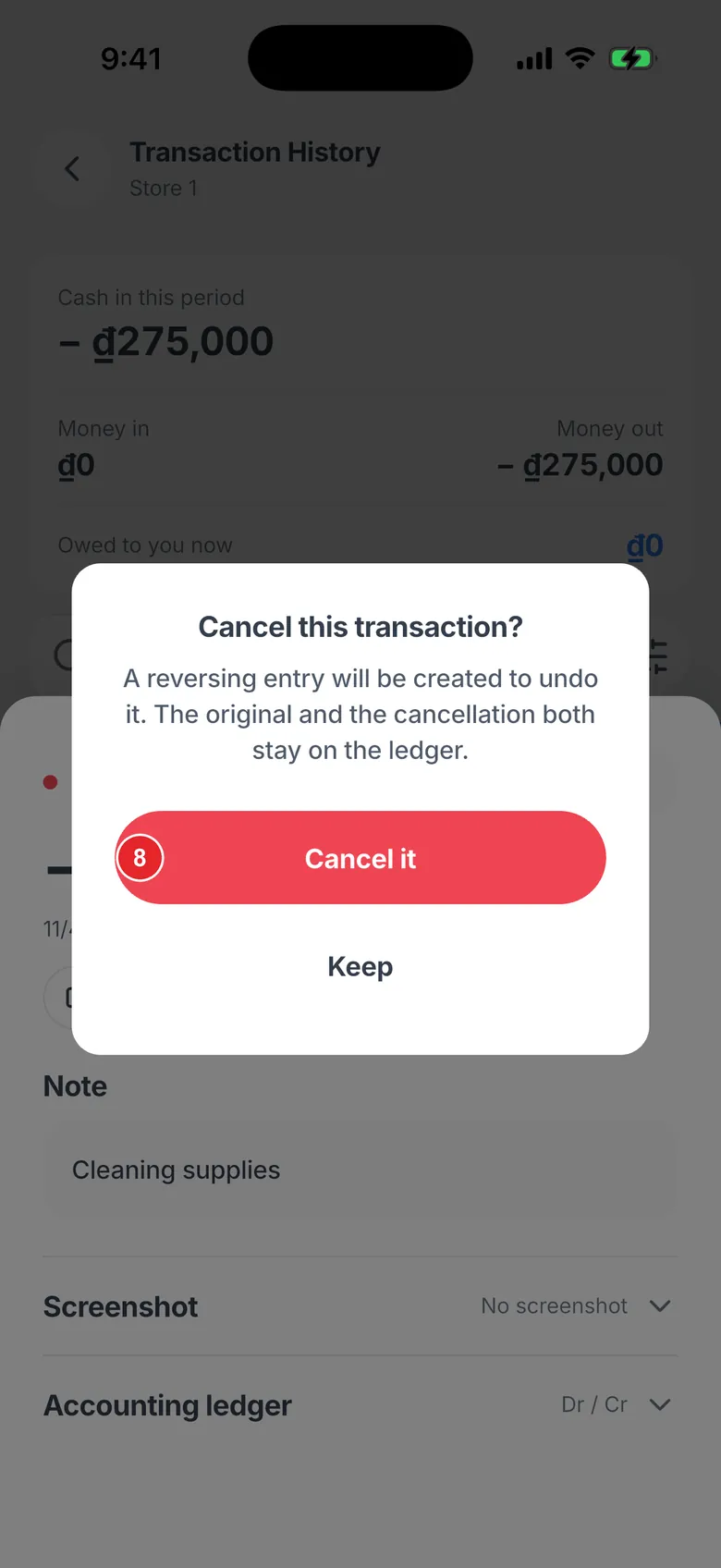
- Read the explanation in the window and tap «Cancel it». A new reversing record is made and stays in the books along with the original transaction. Enter the right amount again as in «Record an expense».
Why it works this way
A transaction once entered isn't deleted. «Cancel transaction» makes a reversing transaction, and both stay in the history.
Remember
- After cancelling, enter it again with the right amount.
- The person who entered it can cancel only within 6 hours. After that, ask someone with delete permission.