
Show contents
Daily cash & closing › Sales
Sell on credit
- Who
- Owner · Manager
- When
- When you sell to a partner and get the money later
- Where
- App · Web
What you get
- Even if you get the money later, the sale counts on the day you sold, so that day's sales are not missing.
- The money each partner owes stays in «Debt Management», so you see who still hasn't paid, and how much.
- If you set a «Due date», the date you should be paid by is kept as well.
What it solves
- If you write credit only in a notebook, it is easy to lose track of who still hasn't paid, and how much.
- If you enter credit as a cash sale, money that isn't in the drawer is recorded, and the cash won't match at closing.
Why this way
- Sales and the money that partner owes go up by the same amount while cash stays the same, so closing matches and the money owed is kept.
- Can I check before recording? In «What this affects» (on the website: «WHAT THIS CHANGES»), check that the partner and «Sales Revenue» go up by the same amount, then press «Record».
- Do I have to set a due date? In the app you can skip it with «Continue without a due date». On the website, «Next» works only after you choose a date.
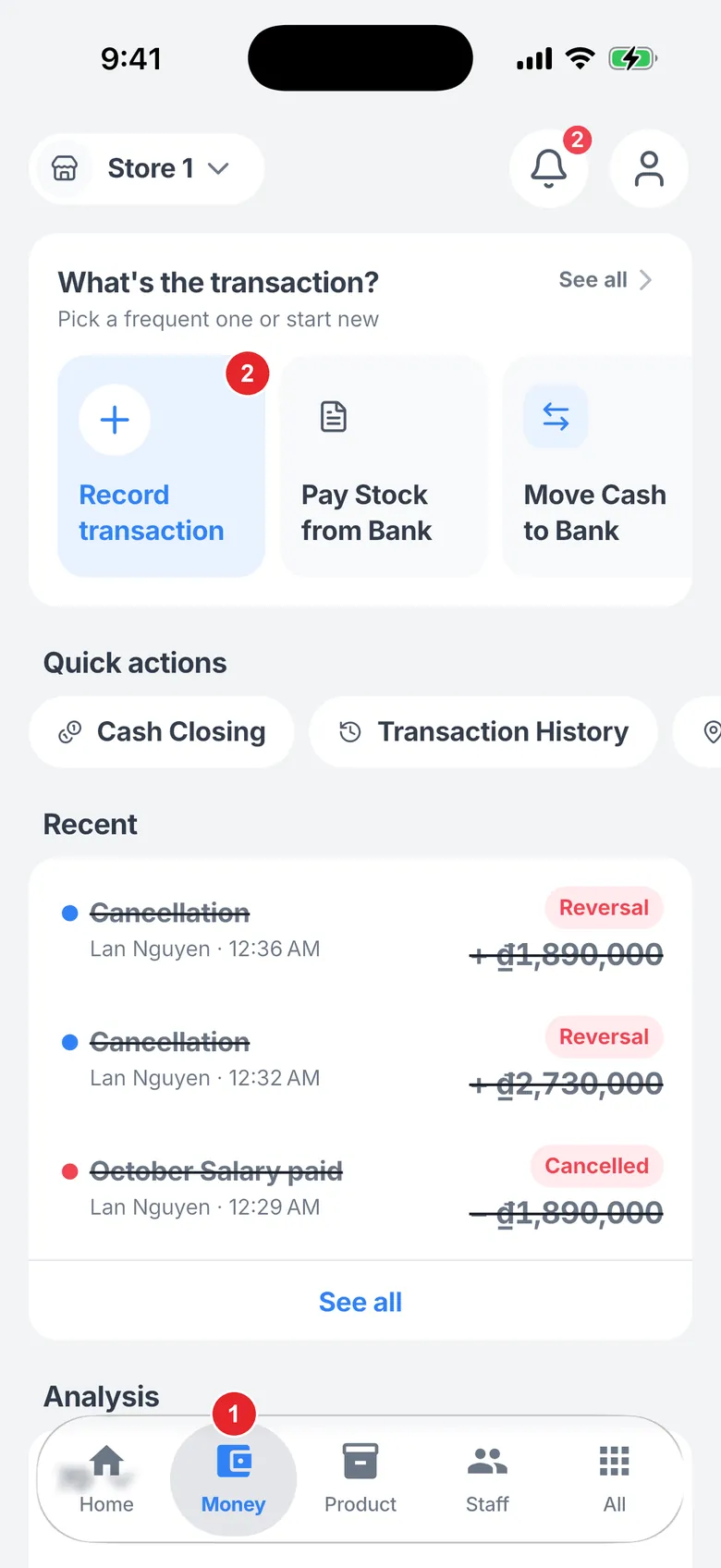
- Tap «Money» at the bottom of the app.
- Tap «Record transaction».
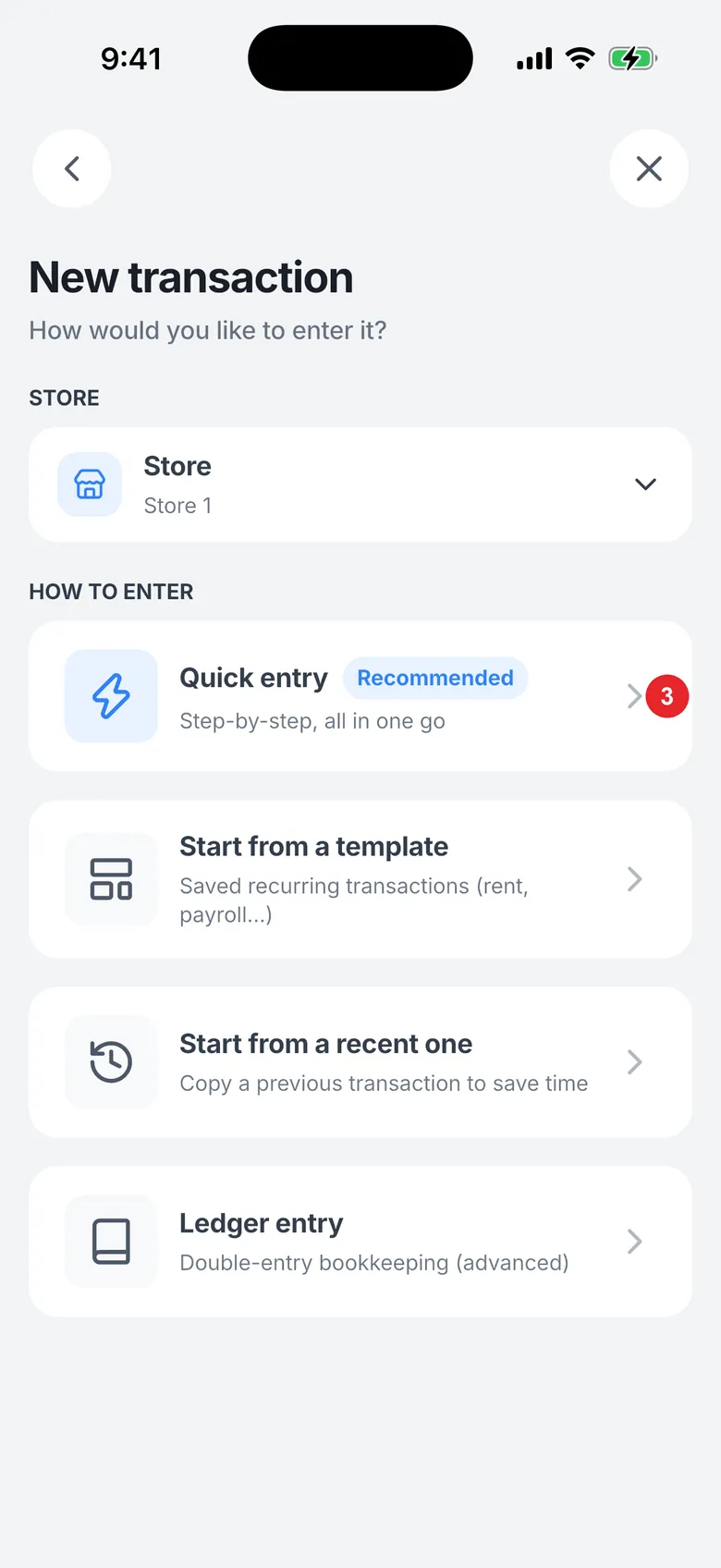
- Check that «Store» at the top is the store that made the sale, then tap «Quick entry».
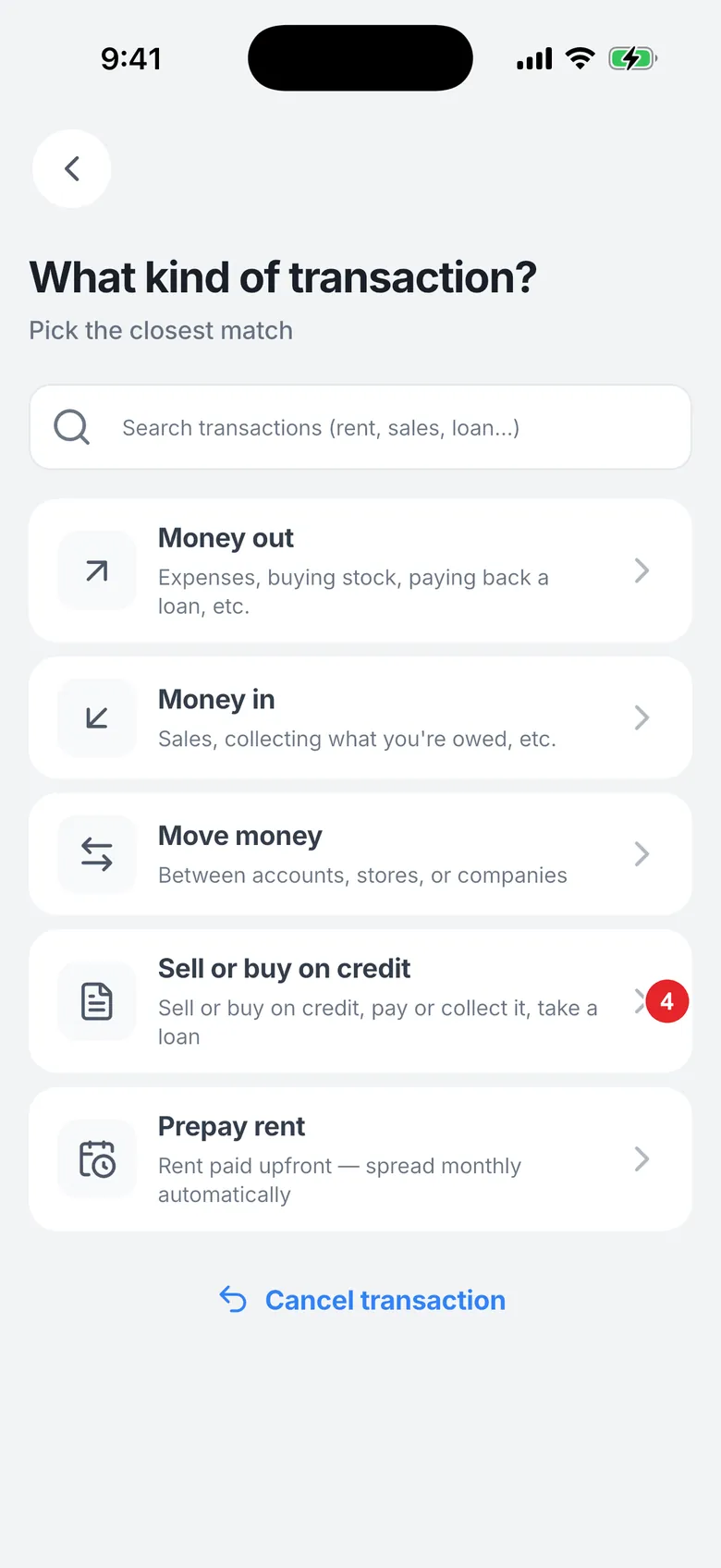
- Tap «Sell or buy on credit».
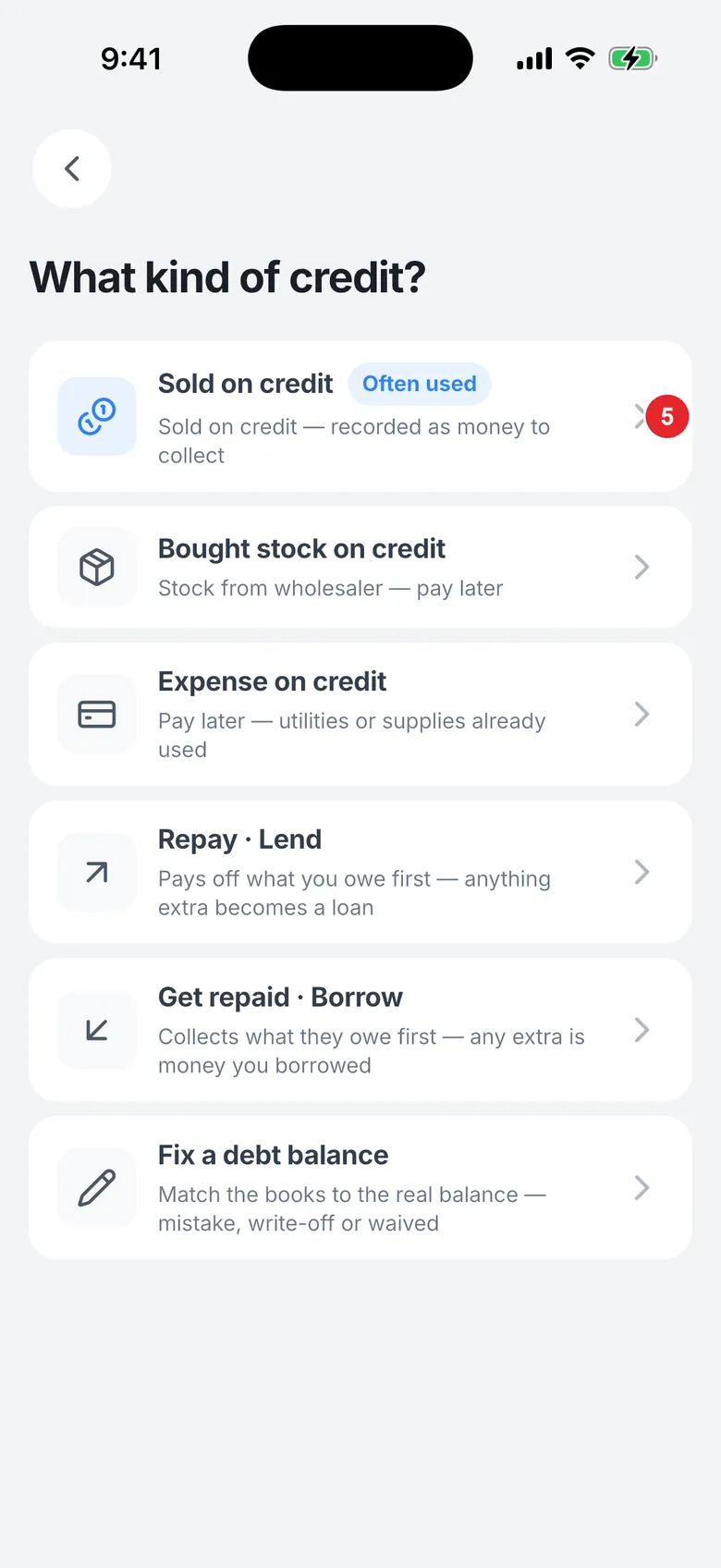
- Tap «Sold on credit».
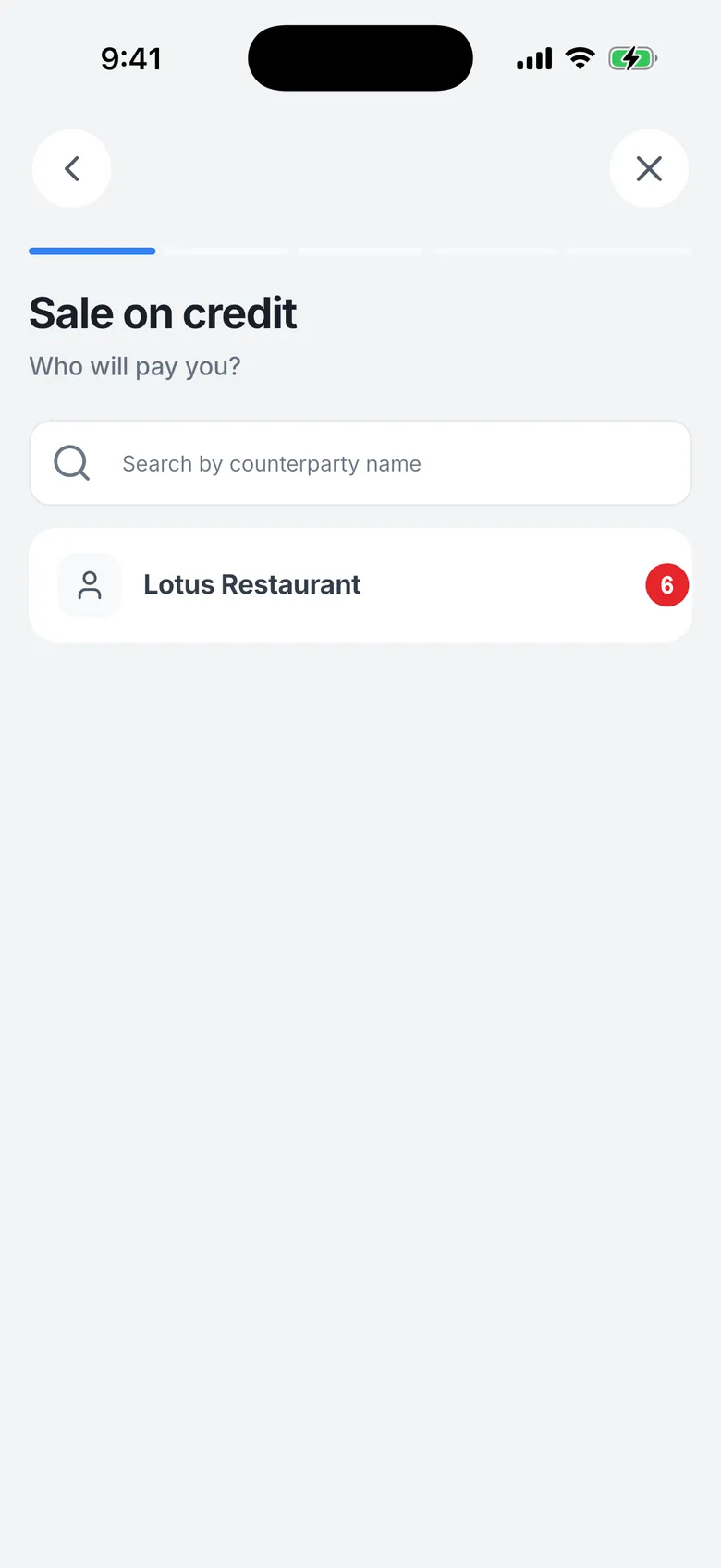
- Tap the partner who will pay you. Here it is «Lotus Restaurant».
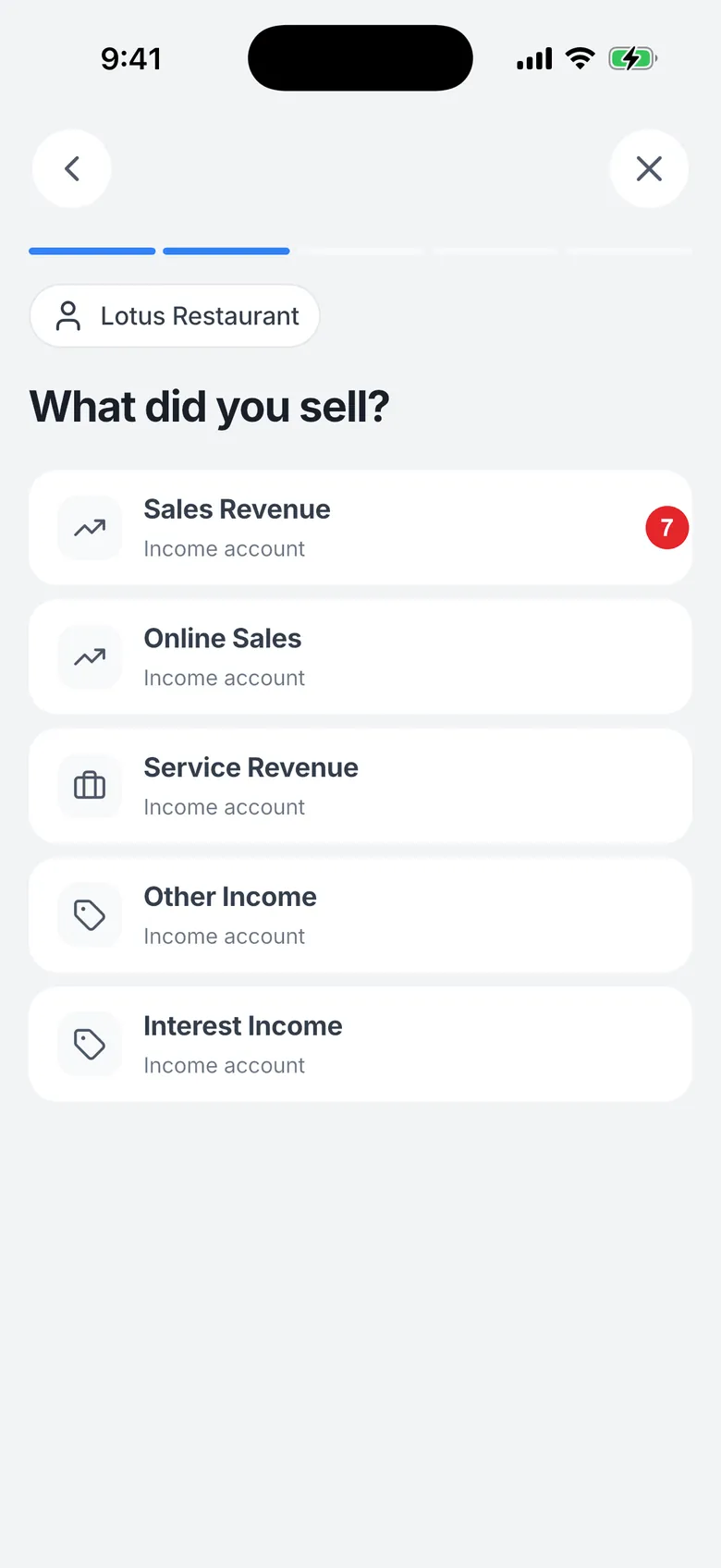
- Tap «Sales Revenue».
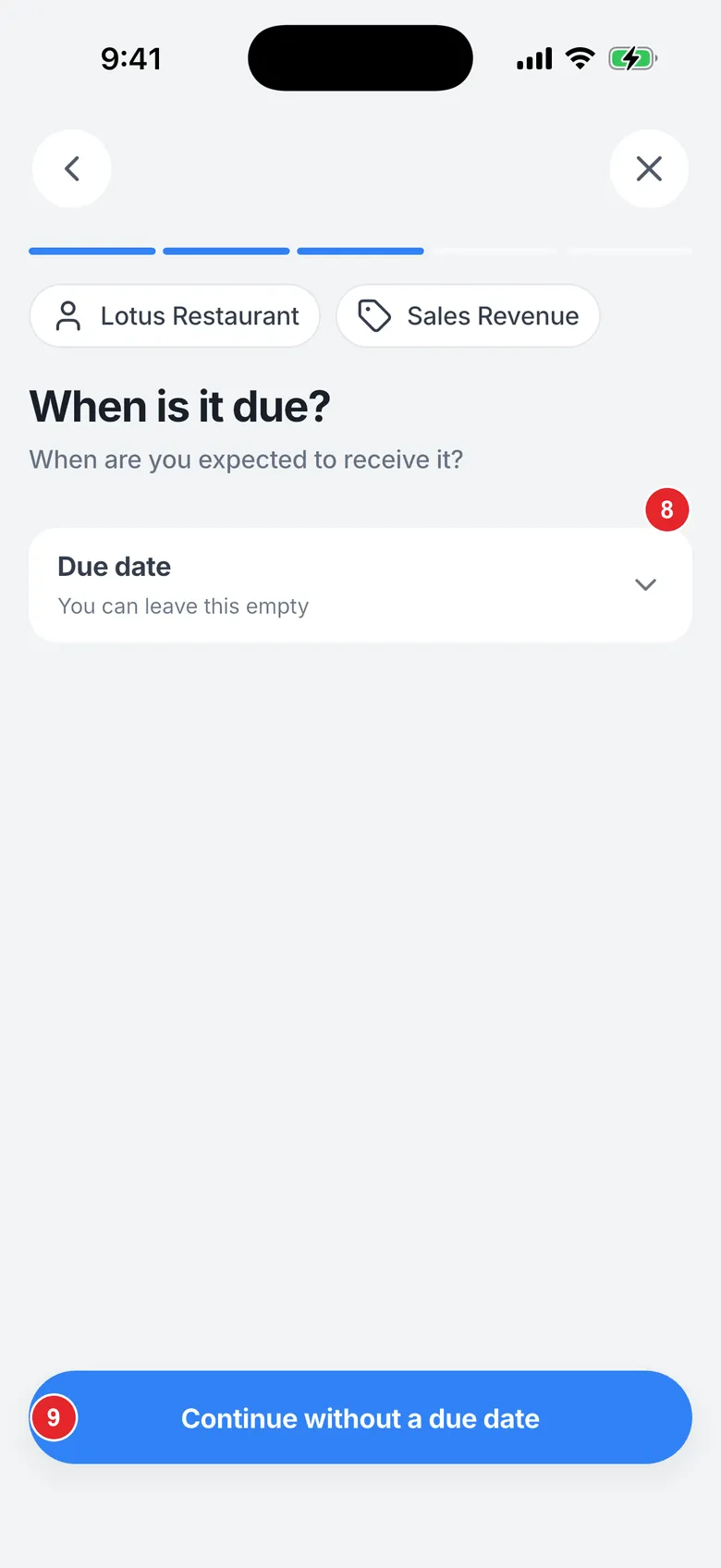
- To set the day you'll be paid, tap «Due date» and choose a date.
- To leave it unset, tap «Continue without a due date».
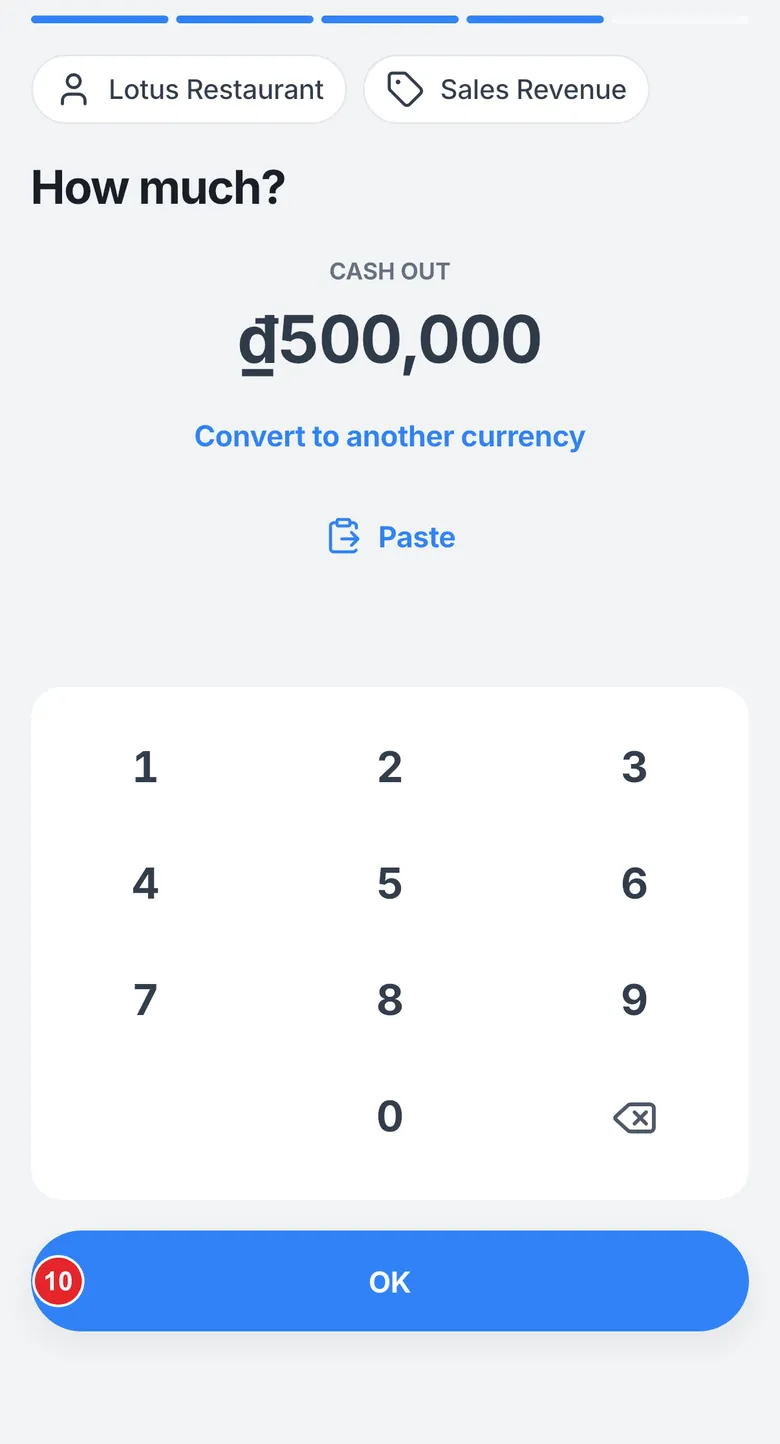
- Enter the amount sold and tap «OK».
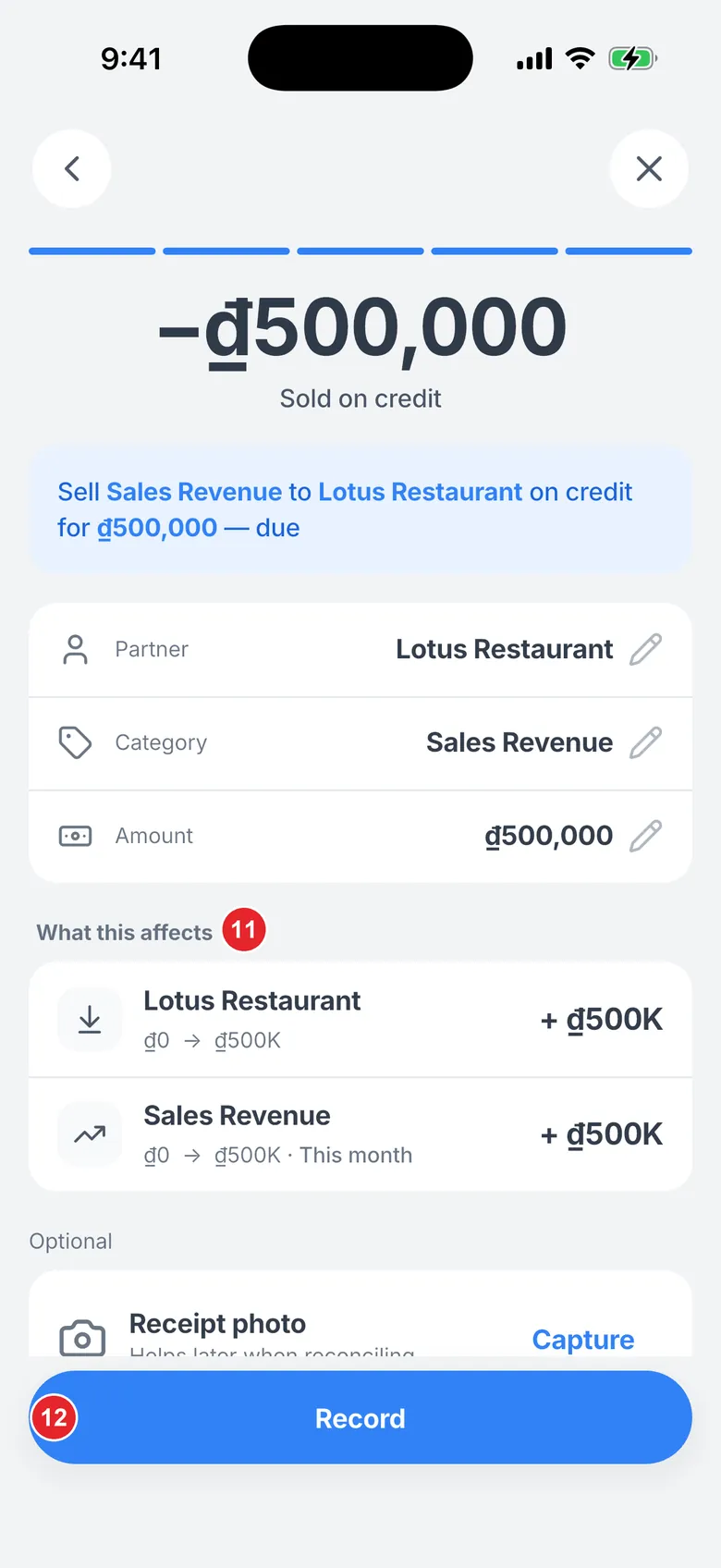
- In «What this affects», check that «Lotus Restaurant» and «Sales Revenue» go up by the same amount. Here both go from ₫0 to ₫500K.
- If it is right, tap «Record».
Record a sale you didn't get paid for right away as «Sold on credit». Sales go up today, and that partner now owes you money. No money came into the drawer, so cash doesn't change.
Remember
- If the partner isn't on the list, add them first in «Business Partners».
- To set when you'll be paid, choose a «Due date». In the app you can skip it with «Continue without a due date»; on the website, «Next» works only after you choose a date.
- Before recording, check in «What this affects» (on the website: «WHAT THIS CHANGES») that the money the partner owes and the sales revenue go up by the same amount.