
Show contents
Daily cash & closing › Sales
Sell at a discount
- Who
- Staff · Manager
- When
- When you take money off the price
- Where
- App · Web
What you get
- The amount taken off shows on the «Discount» line of the invoice, so you see right away what to receive after the discount (app «Total», web «Total Amount»).
- Take it off as a percent («%») or an amount («₫»), whichever is easier.
What it solves
- If you give a discount only by word and sell at the original price, more is recorded than you received, and the drawer looks short at closing.
Why this way
- You put it on the invoice when you sell, so the sale is recorded at the price after the discount, and the money in the drawer matches the books.
- What if I mix up «%» and «₫»? «%» is chosen at first. After entering it, check that the total matches what the customer pays, then finish.
- What if a discounted item is returned? The website's return screen works it out from «Paid each», the price with the discount spread over each item, so you give back only what the customer paid.
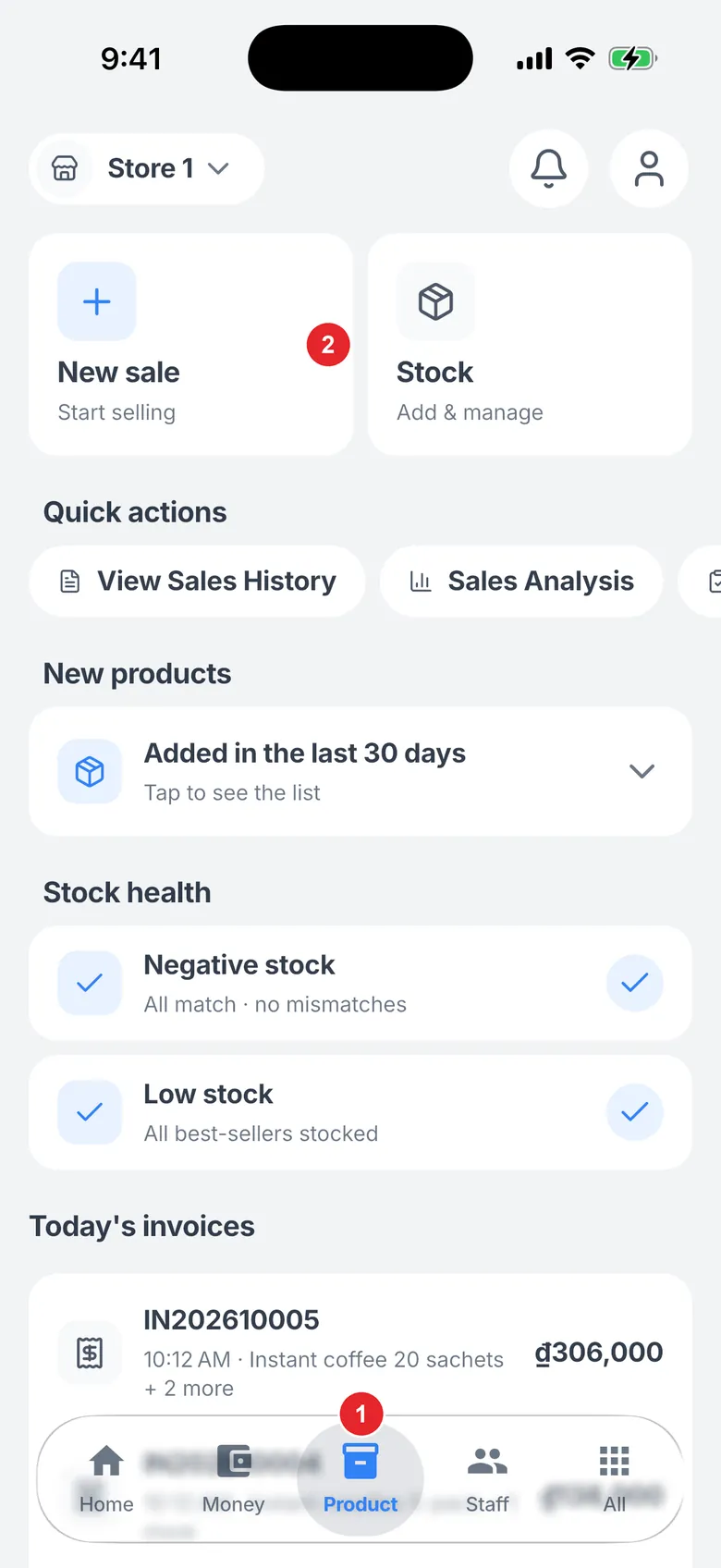
- Tap «Product» at the bottom of the app.
- Tap «New sale».
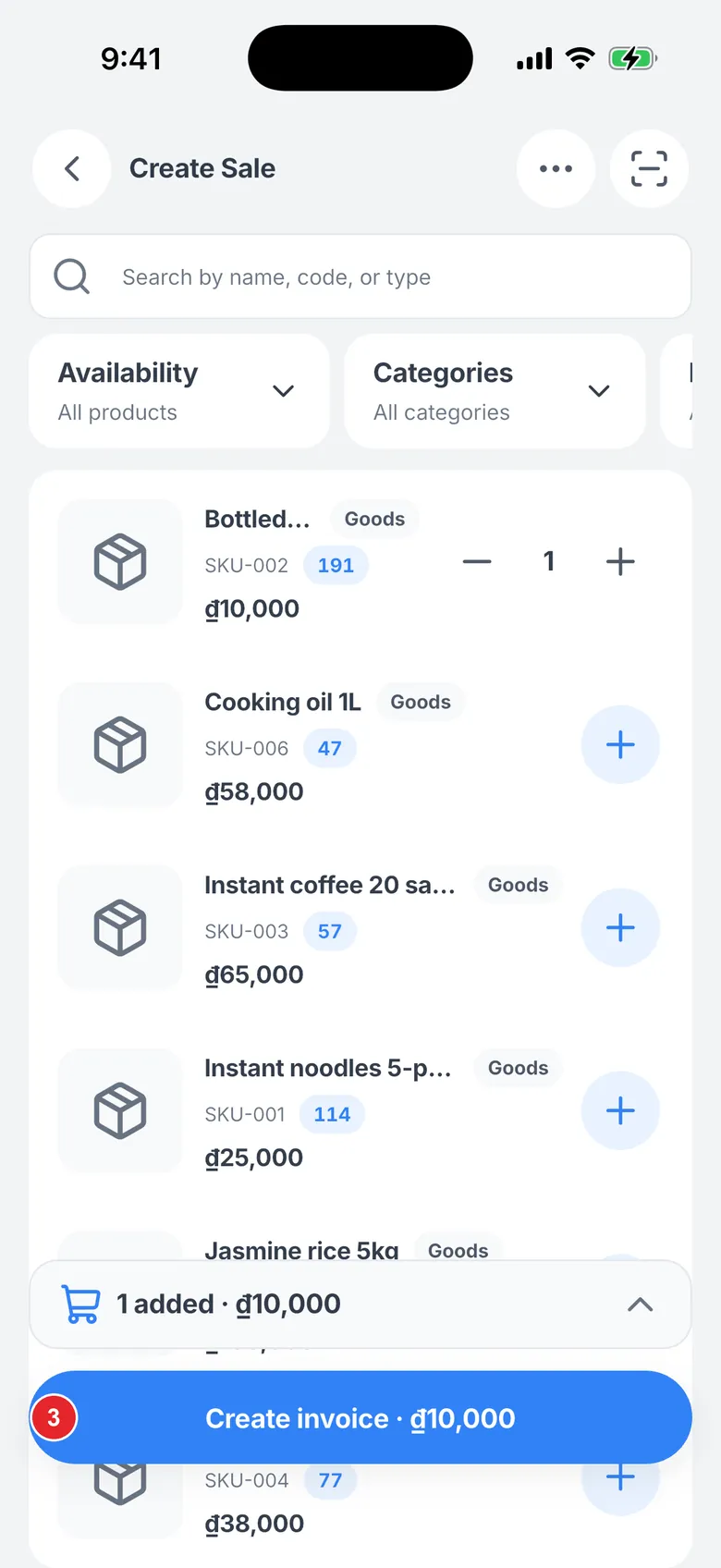
- Add the products sold with their + buttons, then tap the button at the bottom, here «Create invoice · ₫10,000».
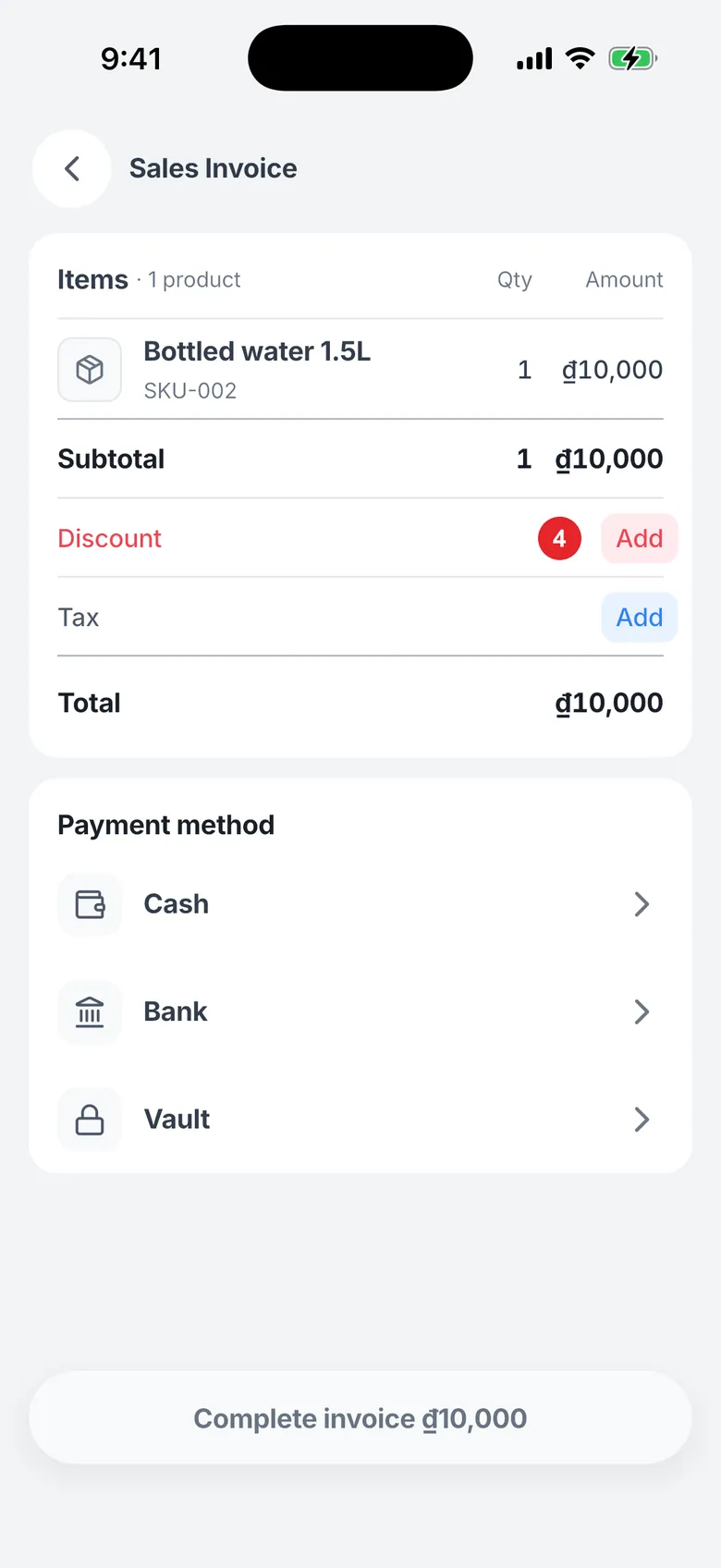
- Tap «Add» on the «Discount» row.
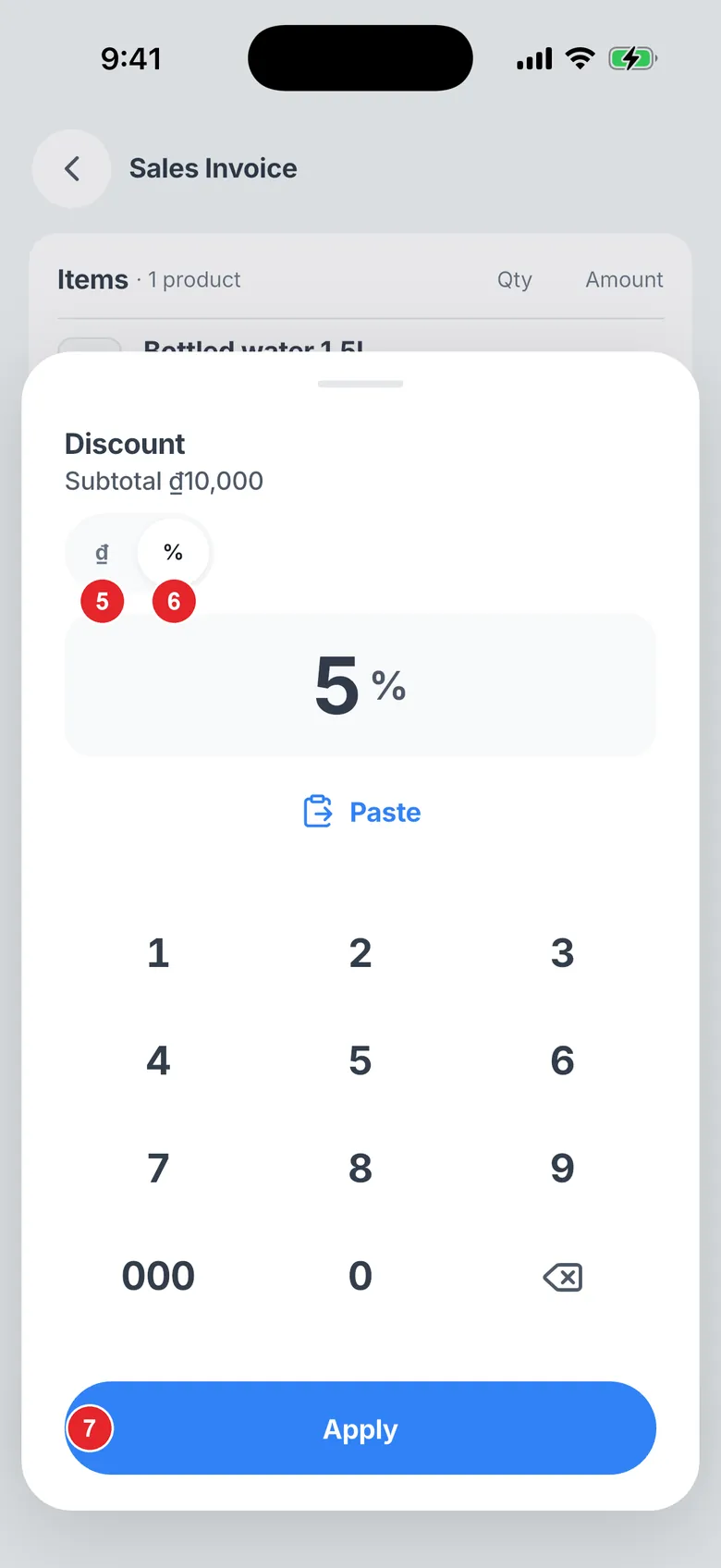
- To take off an amount, tap «₫».
- To take off a percent, tap «%». «%» is chosen at first. Enter how much to take off with the number pad.
- Tap «Apply».
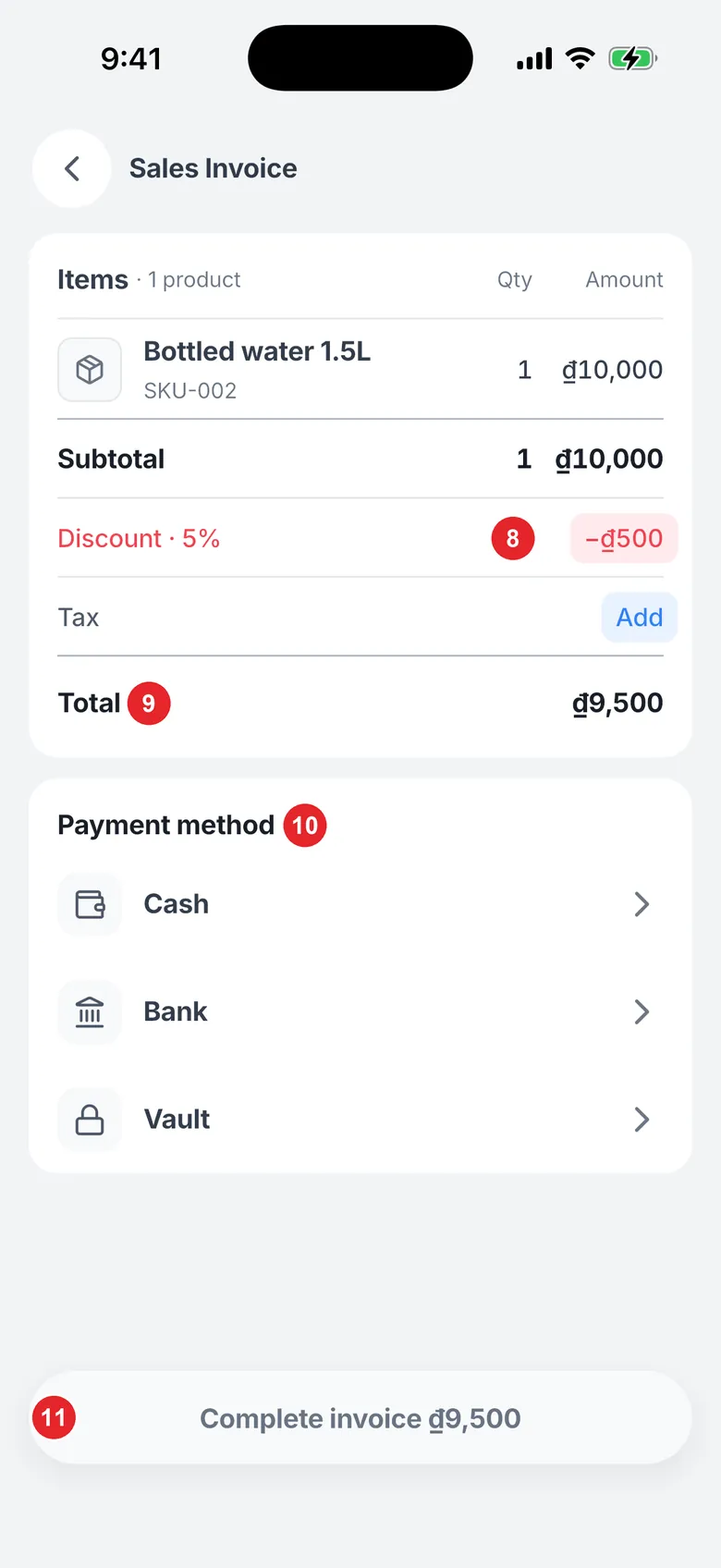
- The discount row now reads «Discount · 5%» and shows the amount taken off.
- Check that «Total» matches what the customer pays.
- In «Payment method», choose where the money was received. Until you choose, the button at the bottom doesn't work.
- Tap the button at the bottom, here «Complete invoice ₫9,500» (faded in the picture; you can tap it once you choose a payment method).
Put the discount straight on the invoice when you sell. The total goes down by that much.
Remember
- To take off a percent, choose «%» first; to take off an amount, choose «₫» first. «%» is chosen at first.
- After entering it, check that the total matches what the customer pays.