
Show contents
Staff & shifts › Monthly staff
Switch between hourly and monthly pay
- Who
- Owner
- When
- When needed
- Where
- App · Web
What you get
- You don't add the staff member again; you only change the pay type in their profile (web «Pay Type», app «Payment Type»).
- Every month not paid yet is worked out again with the new type.
- Months already paid stay «Paid», so past payment records don't change.
What it solves
- A staff member moved from hourly to monthly (or the other way), but if you don't know the order of steps, the amount seems to change suddenly.
- If you switch to monthly without paying last month first, the full monthly salary shows with «Pay» even for last month, when they did not work.
Why this way
- Paid months are not touched, so if you pay up to last month before switching, the old and new types don't mix.
- Can I switch back to hourly? Yes. Shifts go back to the rate saved on each one, and you only change the monthly number left in «Current Rate» to the hourly rate.
- Can a manager change it too? Pay can be changed only by the owner or someone with the «Edit Employee Salary» permission.
- Is there more to do if I switch on the website? The website does not ask for a work schedule. For monthly staff, also add them to a schedule as in «Set up work schedules for monthly staff».
At the bottom of the app, go to «Staff» → «Employee Salary & Payment» → the «Salary Setup» tab, tap the staff member and tap «Payment Type» on the «Info» tab.
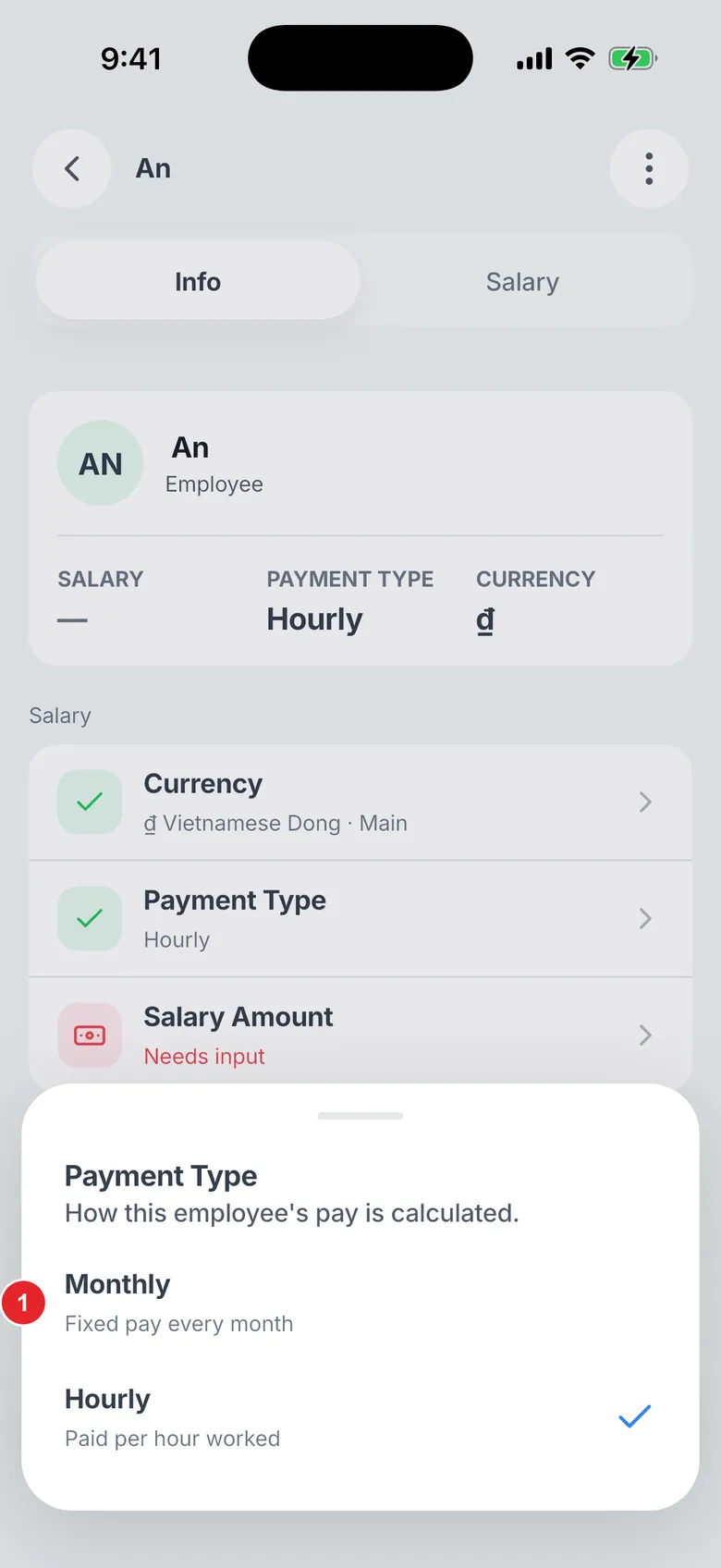
- Choose «Monthly» or «Hourly».
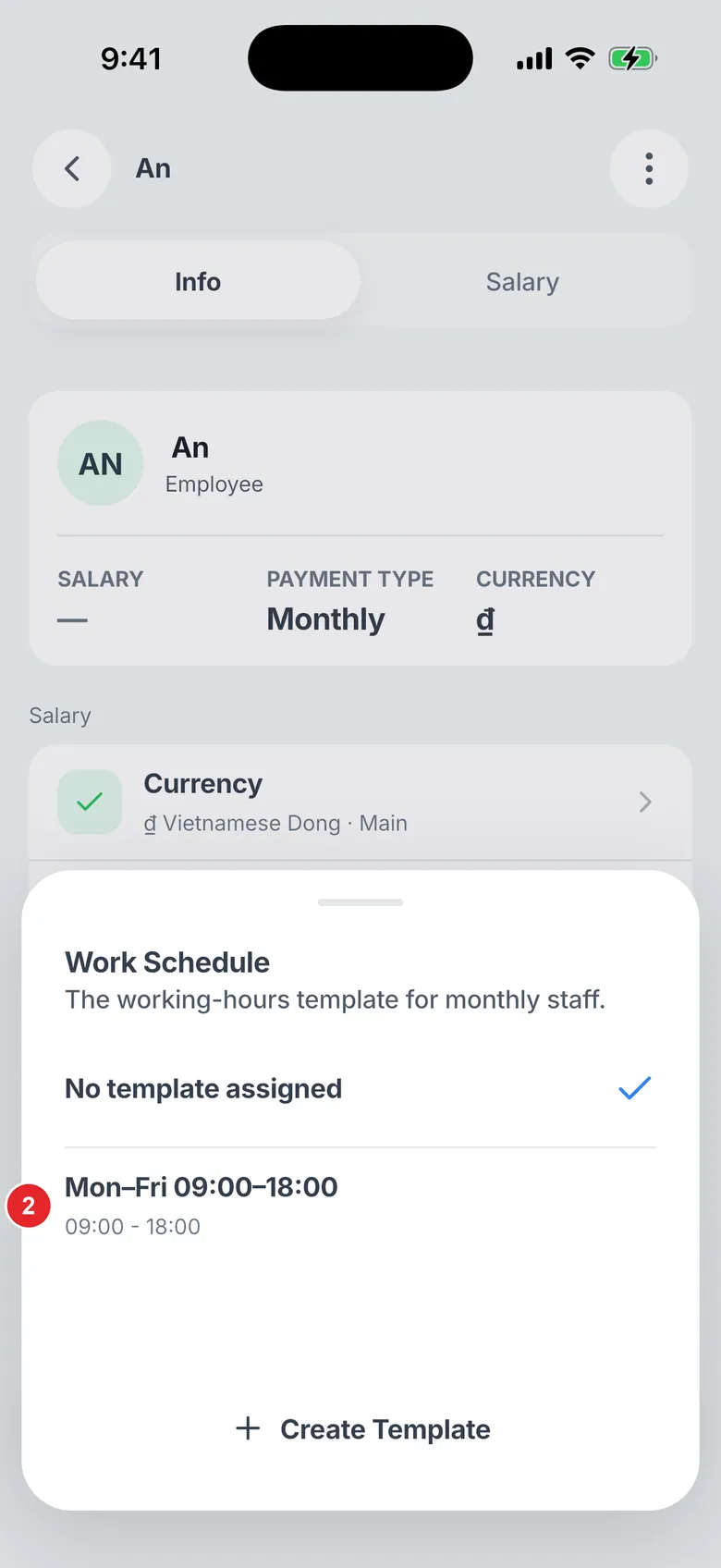
- If you switch to monthly, a «Work Schedule» row appears. Tap it and choose a schedule.
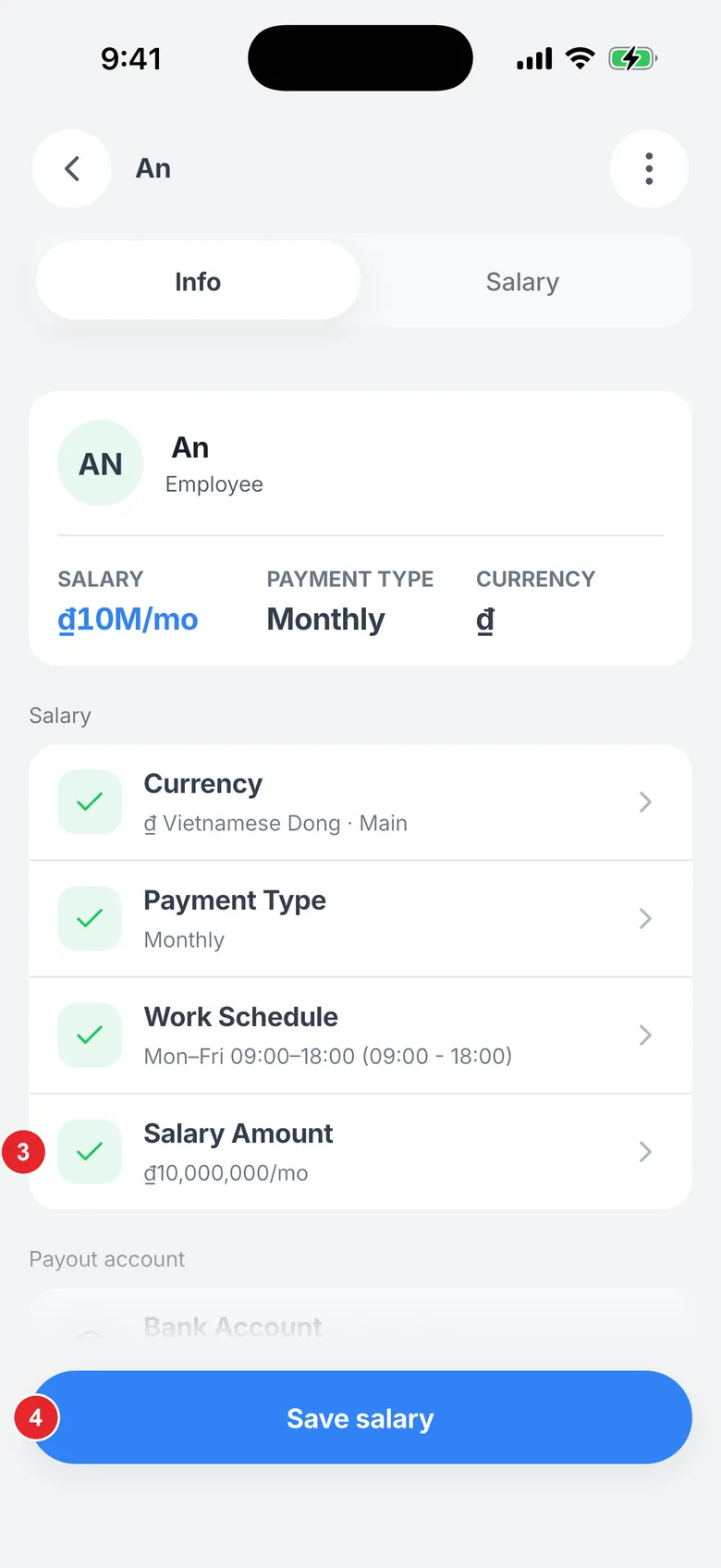
- Change the «Salary Amount» to fit the new type: per hour for hourly, the monthly amount for monthly.
- Tap «Save salary».
Why it works this way
When you change the pay type, every month not paid yet is worked out again with the new type.
Remember
- When you switch from hourly to monthly, the full monthly salary shows instead of the hourly shift pay already worked that month. Even last month, when they did not work, shows the full monthly salary with «Pay».
- Paid months stay «Paid». Pay up to last month before you switch.
- Switch back to hourly, and shifts go back to the rate saved on each one. The «Current Rate» box still has the monthly number, so change it to the hourly rate.
- The website does not ask for a work schedule when you switch to monthly. For monthly staff, also add them to a schedule as in «Set up work schedules for monthly staff».