
Show contents
Staff & shifts › Monthly staff
Set up and approve leave
- Who
- Owner · Staff
- When
- When needed
- Where
- App · Web
What you get
- Set the annual leave rule once, and each staff member gets leave by that rule. Before you save, the website shows in «If you save now» how many people get how many days.
- Leave that staff request piles up in the waiting list («Waiting (1) · soonest first»). You look at the dates · leave type · staff off in the same period · reason, then approve.
- When you reject, the reason you chose or wrote is shown to the staff member as it is.
What it solves
- If leave is only agreed by talking, you lose track of who got how many days and when they are off.
- If several people are off on the same day, the store is short of people.
Why this way
- Each request shows the staff off in the same period, so you see whether that day goes short before you approve.
- Do stores that don't use leave need this? No. Only stores that use leave need it.
- What if the rule can't be created? If any staff member's hire date is only estimated (shown like «Nov 3, 2026 · estimated»), you can't create the rule. Choose the real hire date first.
- Is unpaid leave taken off the salary by itself? No. Approved unpaid leave shows in the app's «Leave & attendance deduction», and comes off only when you tap «Apply (-amount)».
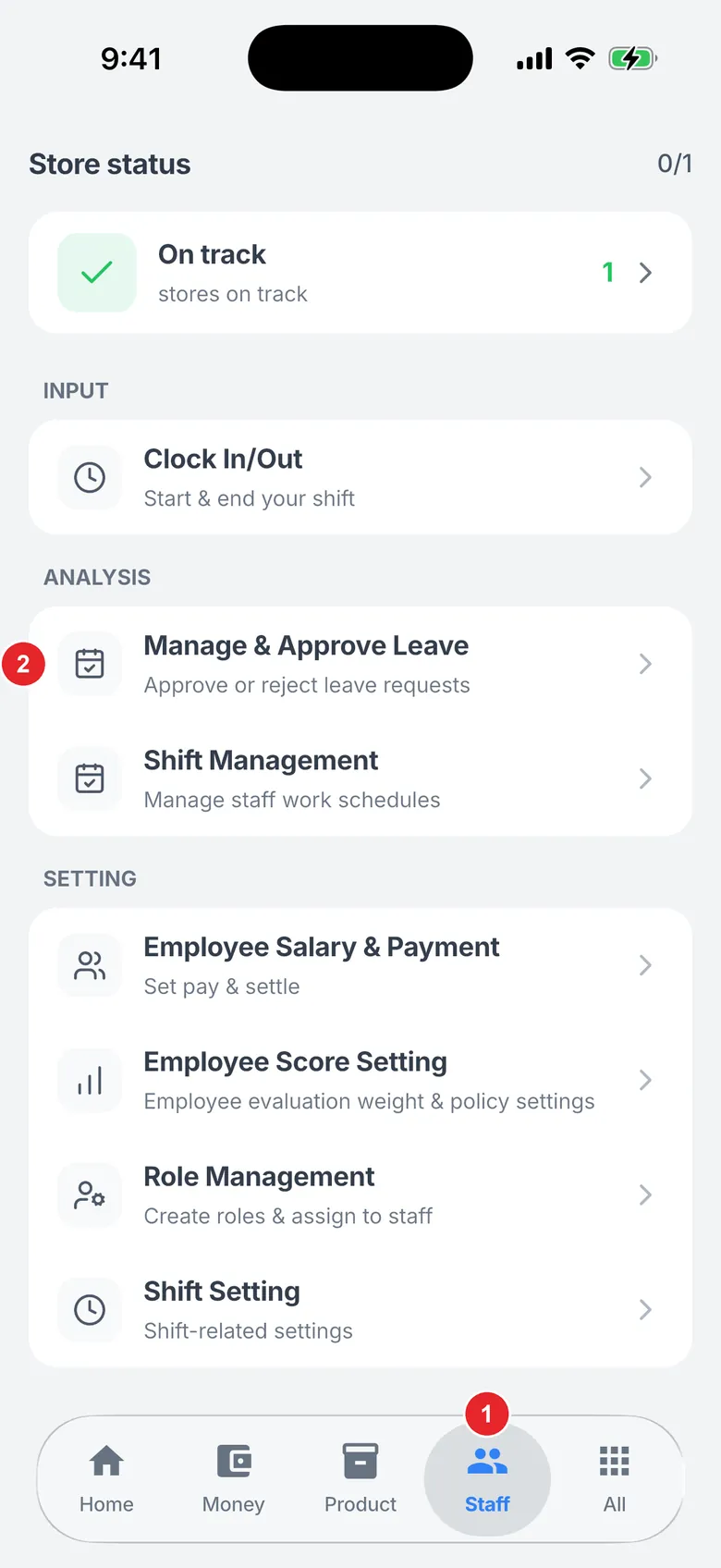
- Tap «Staff» at the bottom of the app.
- Scroll down and tap «Manage & Approve Leave».
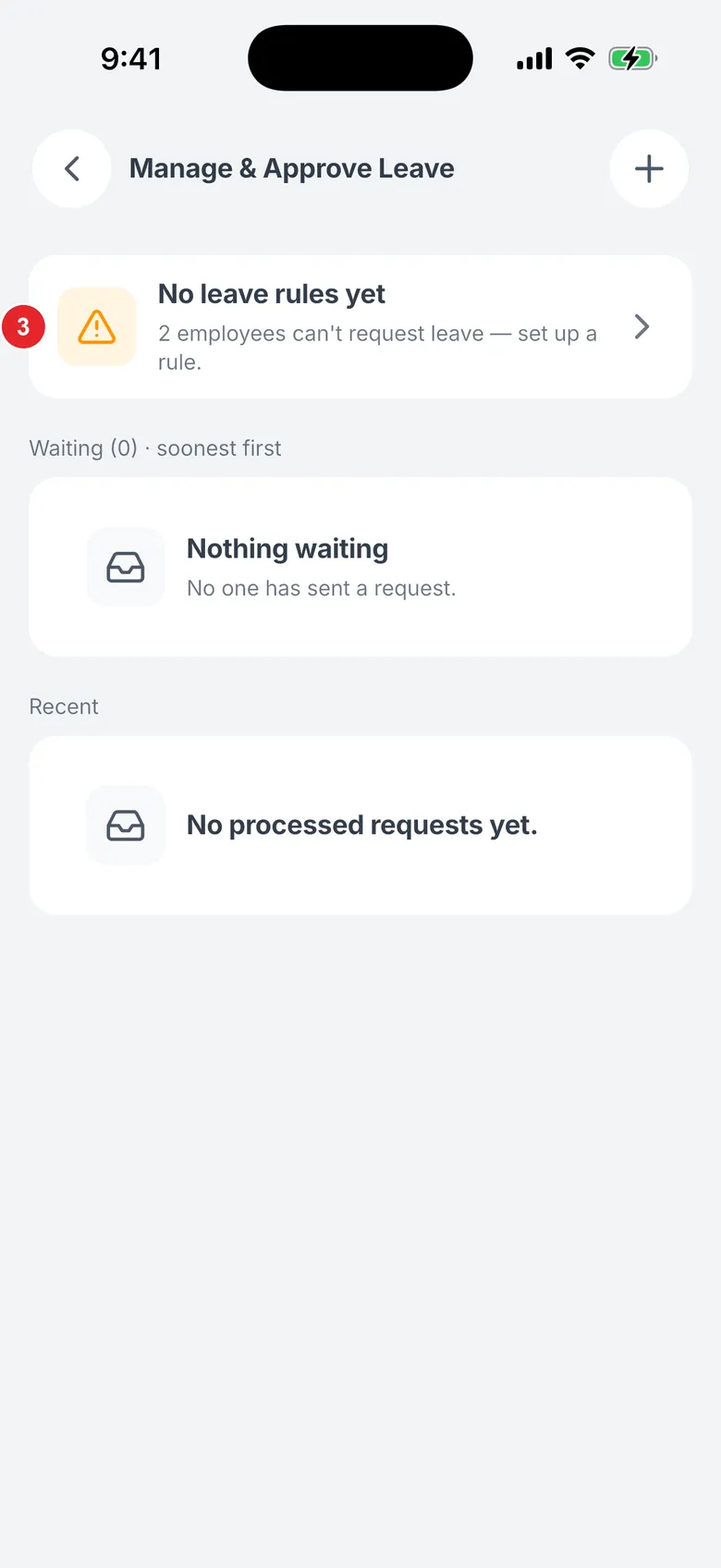
- If there is no rule, «No leave rules yet» shows at the top. Tap it to go and make a rule. Leave that staff request piles up on this screen under «Waiting (0) · soonest first».
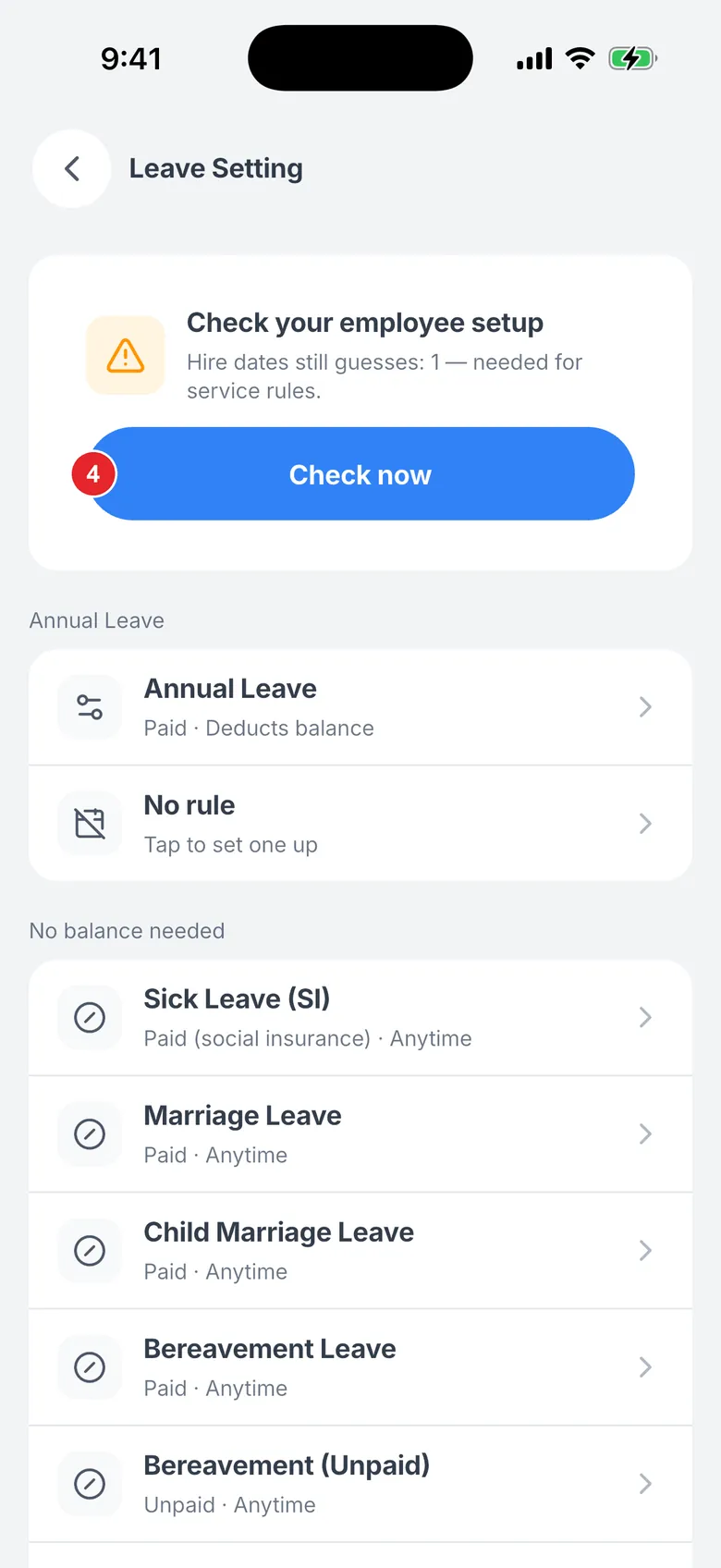
- If «Check your employee setup» shows, tap «Check now». If any staff member's hire date is a guess, you can't make the rule.
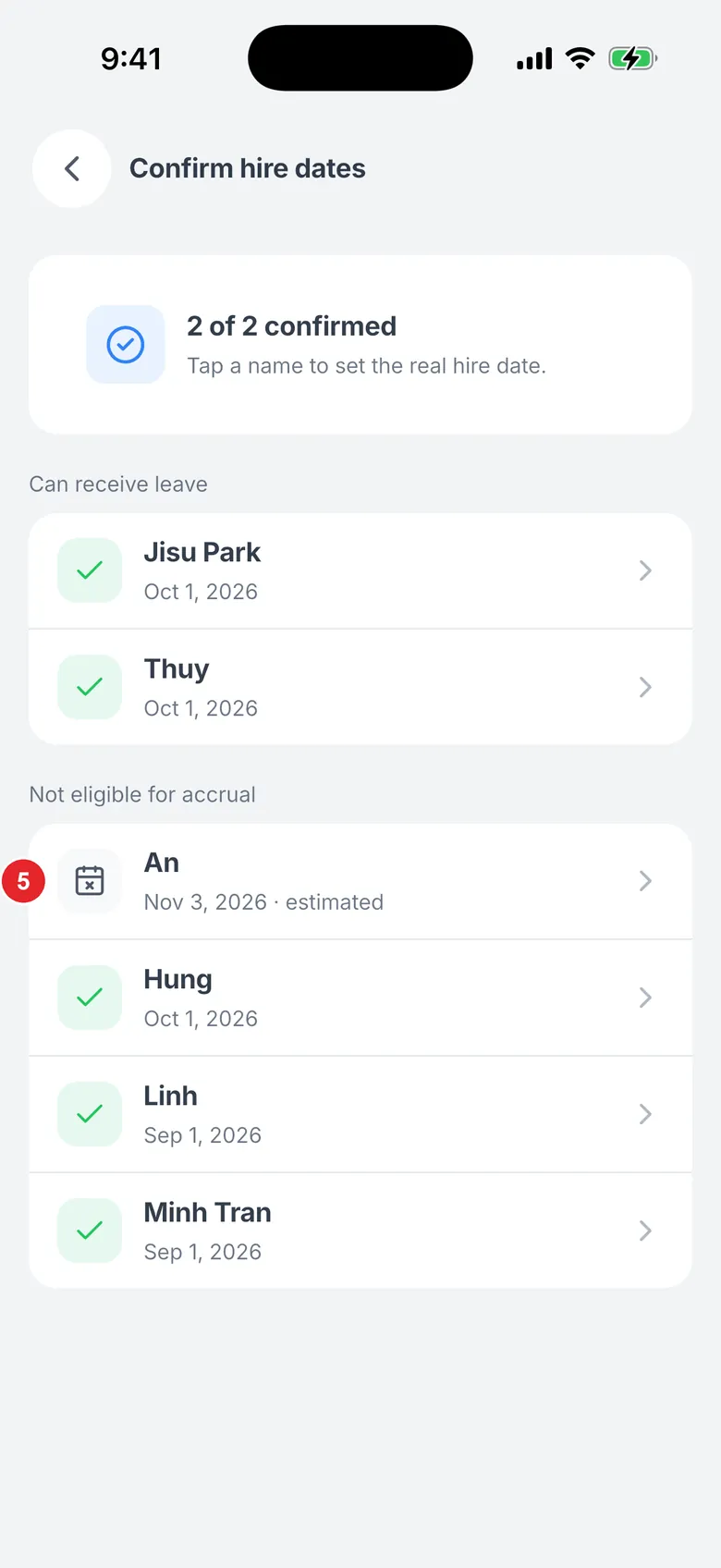
- Tap the staff member whose hire date reads like «Nov 3, 2026 · estimated». Even if the top looks as if everyone is confirmed, tap anyone whose date is still marked as estimated.
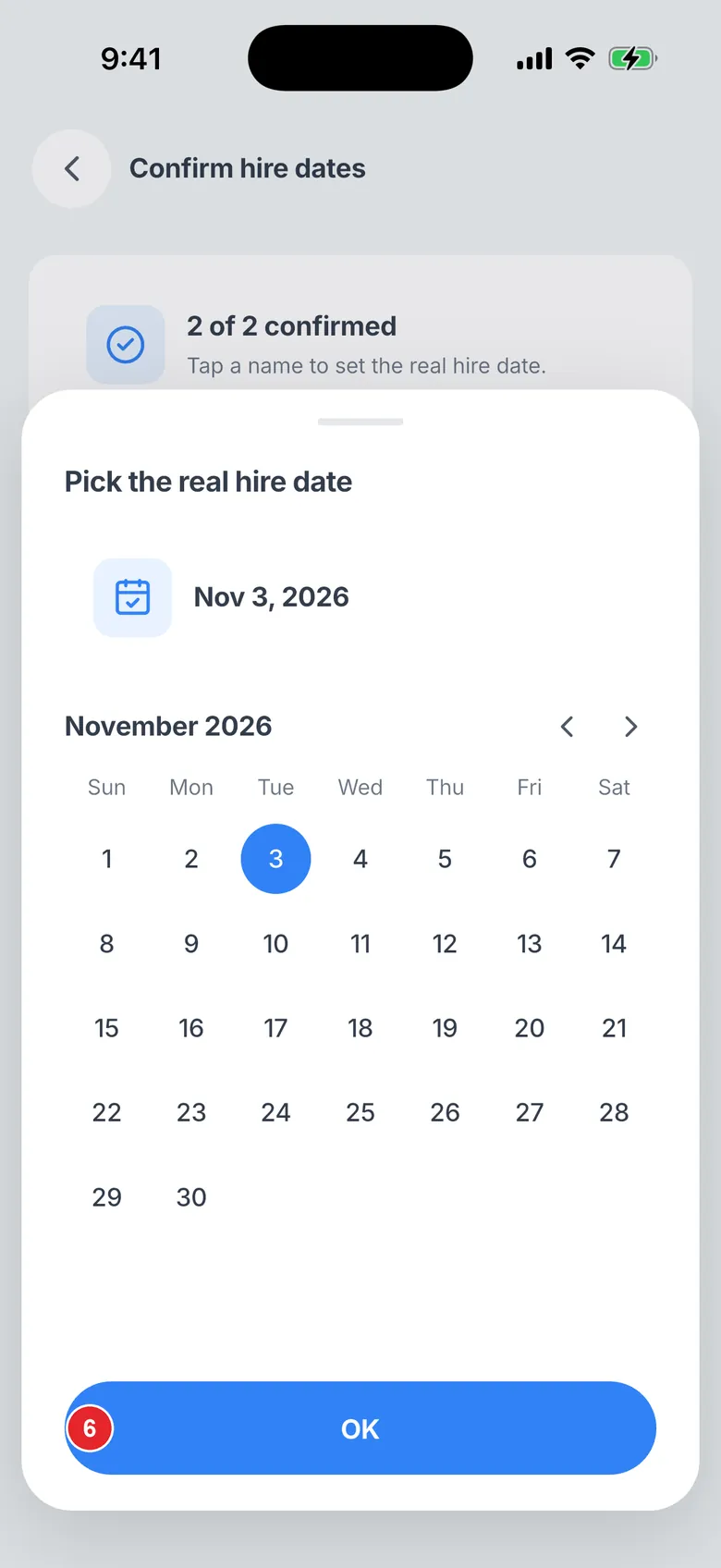
- Choose the real hire date and tap «OK». When everything is fixed, go back.
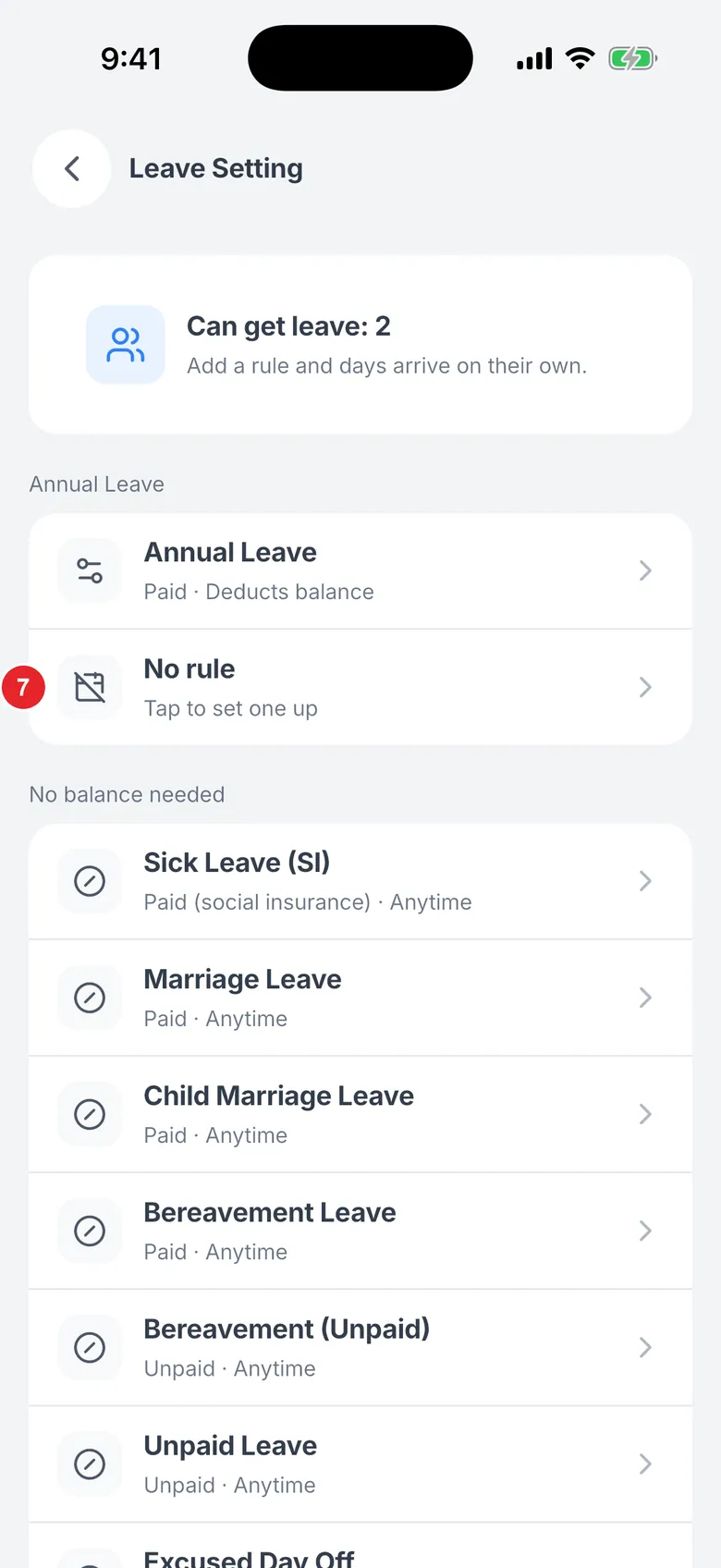
- Tap «No rule» under «Annual Leave».
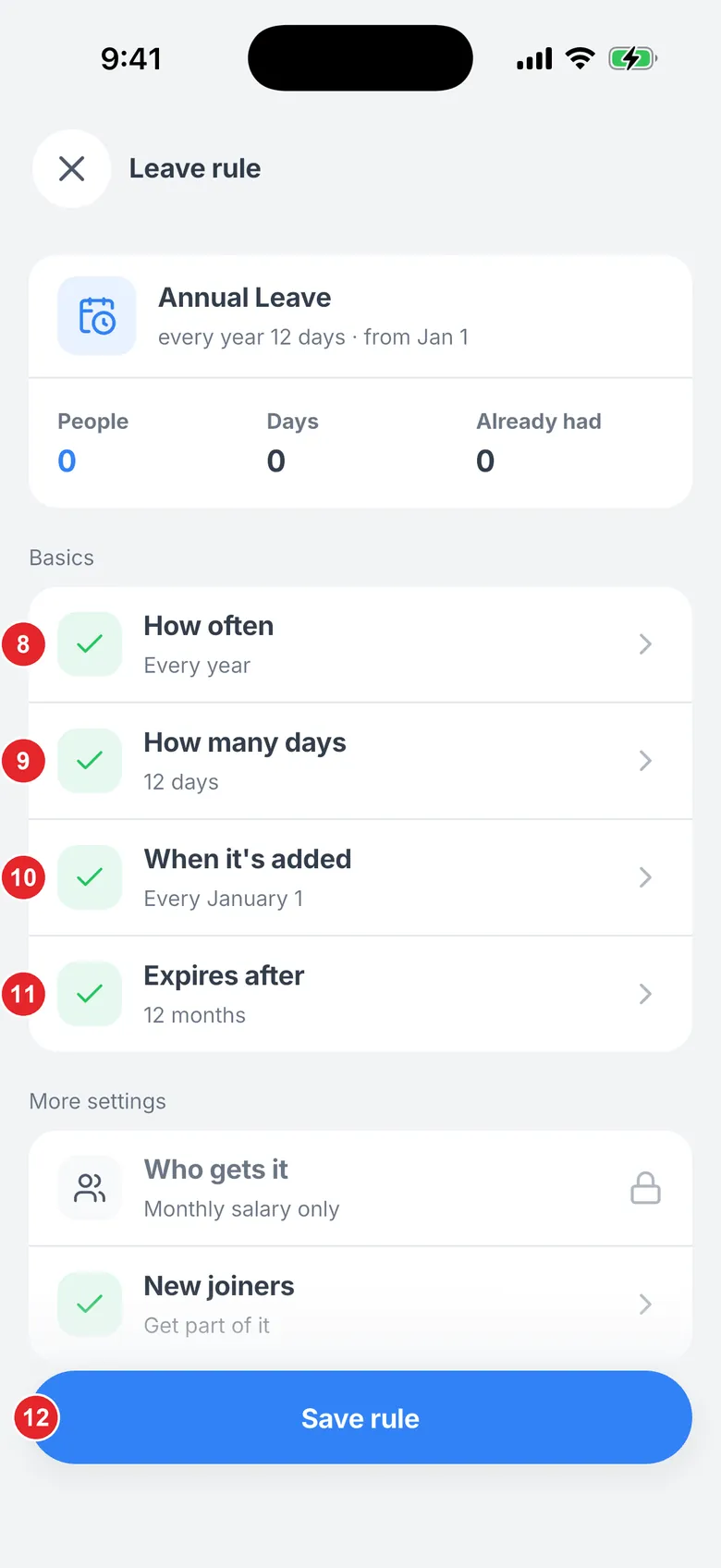
- In «How often», choose every year or every month.
- Enter the number of days in «How many days».
- In «When it's added», choose the day it is added.
- In «Expires after», set how long it can be used.
- Tap «Save rule».
When staff request leave
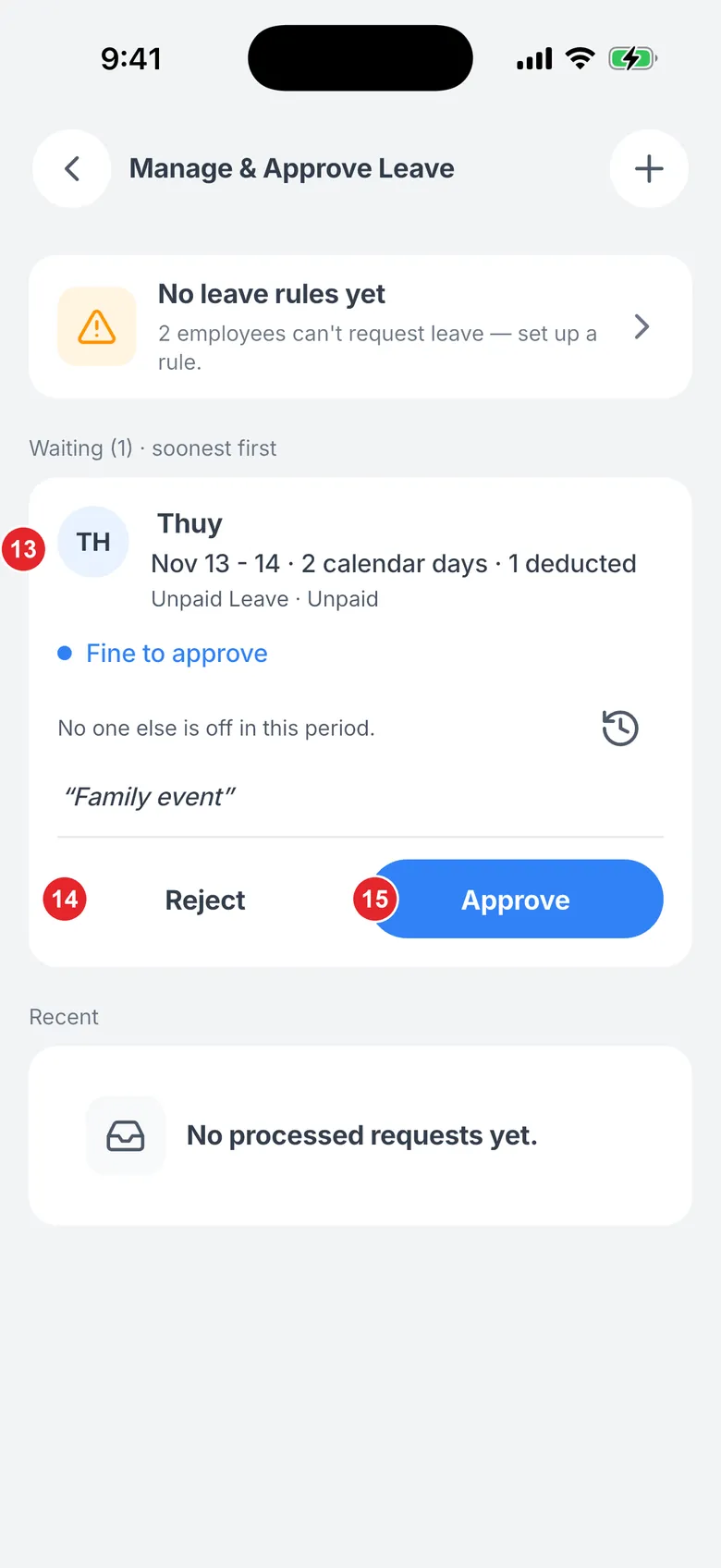
- Requests pile up under «Waiting (1) · soonest first» in «Staff» → «Manage & Approve Leave». Look at the dates · leave type · staff off in the same period · the reason the staff member wrote.
- If it can't be allowed, tap «Reject».
- If it is fine, tap «Approve». It is approved as soon as you tap.
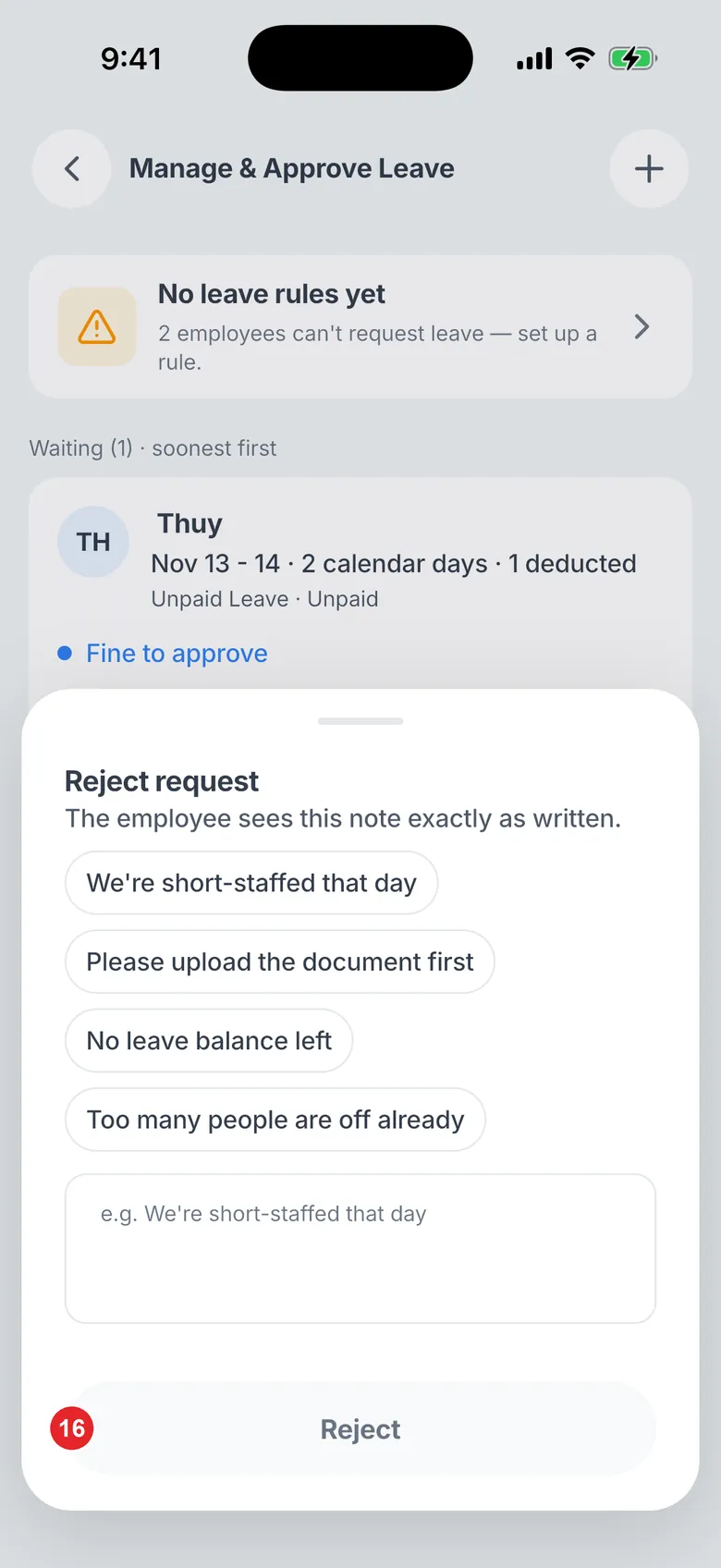
- When rejecting, choose or write a reason and tap «Reject». The staff member sees this reason exactly as written.
Remember
- Only stores that use leave need this.
- If the leave rule is blocked, check the staff's hire dates first.