
Show contents
Staff & shifts › Monthly staff
Clock in and out
- Who
- Staff
- When
- Every day
- Where
- App
What you get
- Scan the store QR, and the clock-in and clock-out times are saved to that shift. No separate attendance sheet.
- Staff see this month's money right on the app home. Hourly staff see «THIS MONTH (ESTIMATED)», monthly staff see «MONTHLY CONTRACT AMOUNT».
- If they clocked wrong or missed it, they tell you with «Report Issue» in that shift. The manager reads the report inside that shift.
What it solves
- If arrival and leaving times are matched from memory only, people disagree about paid hours at month end.
- Staff don't know how much they will get this month and have to ask the owner.
Why this way
- For hourly staff, once both clock-in and clock-out are recorded, the shift is confirmed and its pay is set at that day's rate.
- What if they clock in outside the store? Clock-in is not blocked. If they are farther than the store's «Check-in distance», it is marked as a clock-in outside the store, with the distance.
- What if hourly staff clock in on a day with no approved shift? «No approved shift today.» appears. Clock-ins only go to a shift approved for that day.
- Is the money on the home screen what they really get? For monthly staff, «MONTHLY CONTRACT AMOUNT» is before attendance deductions and final adjustments. To see money received, choose the month in «Stats» on the «Shift» tab.
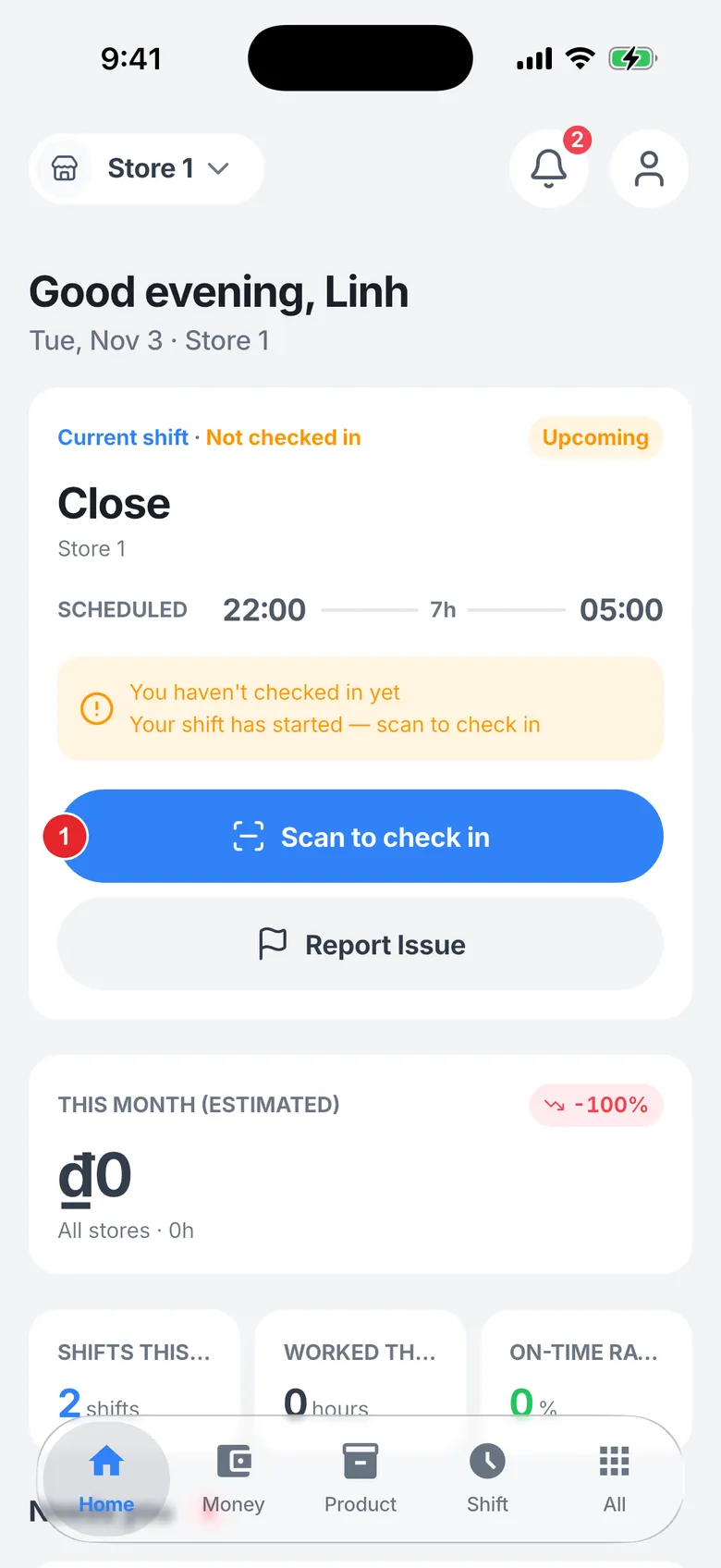
- On the shift card of the app home, tap «Scan to check in». The «Shift» tab at the bottom has the same button.
- Point the camera at the store QR code. Hold still for a moment, and it is read automatically.
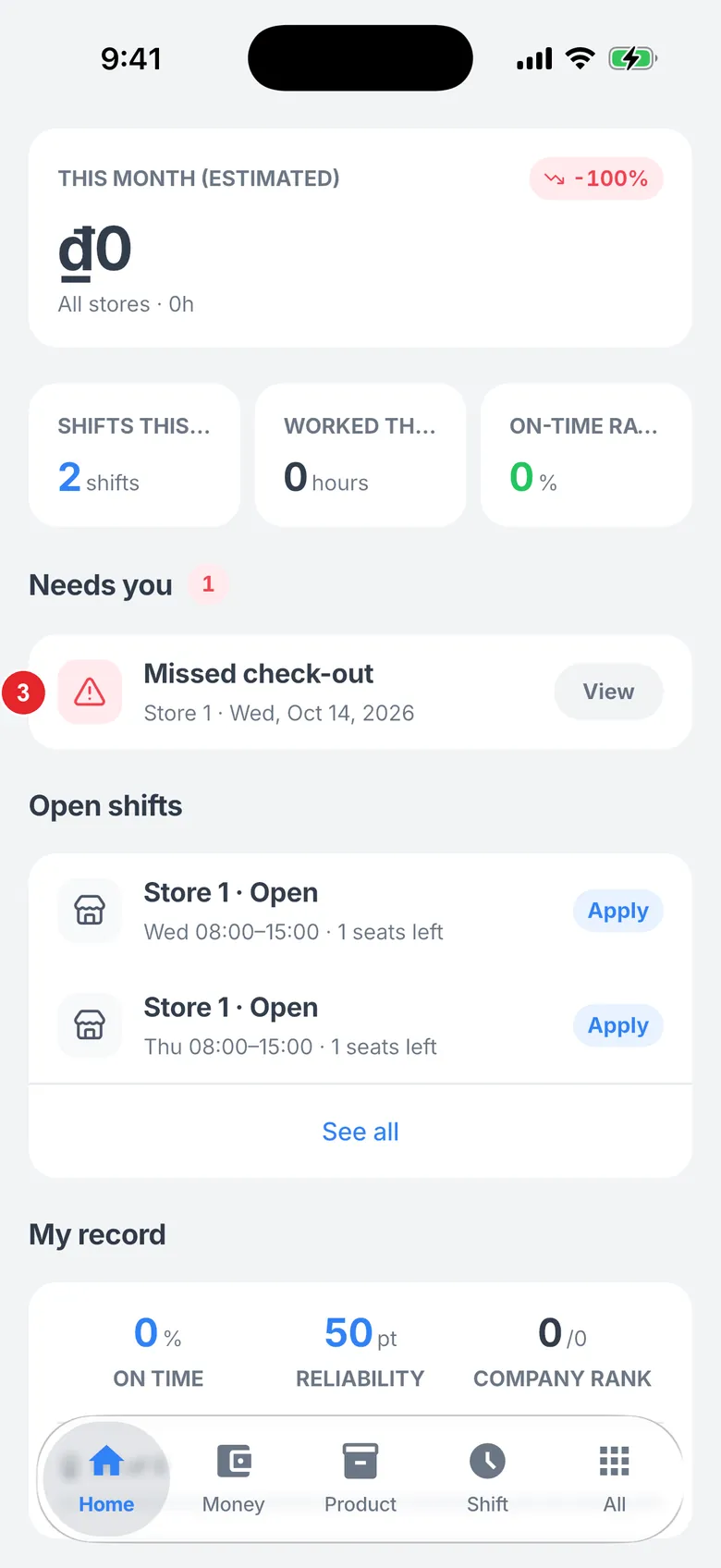
- If you missed a clock-out, scroll down the app home and tap that row under «Needs you». If it is today's shift, you can also tap «Report Issue» on the home card.
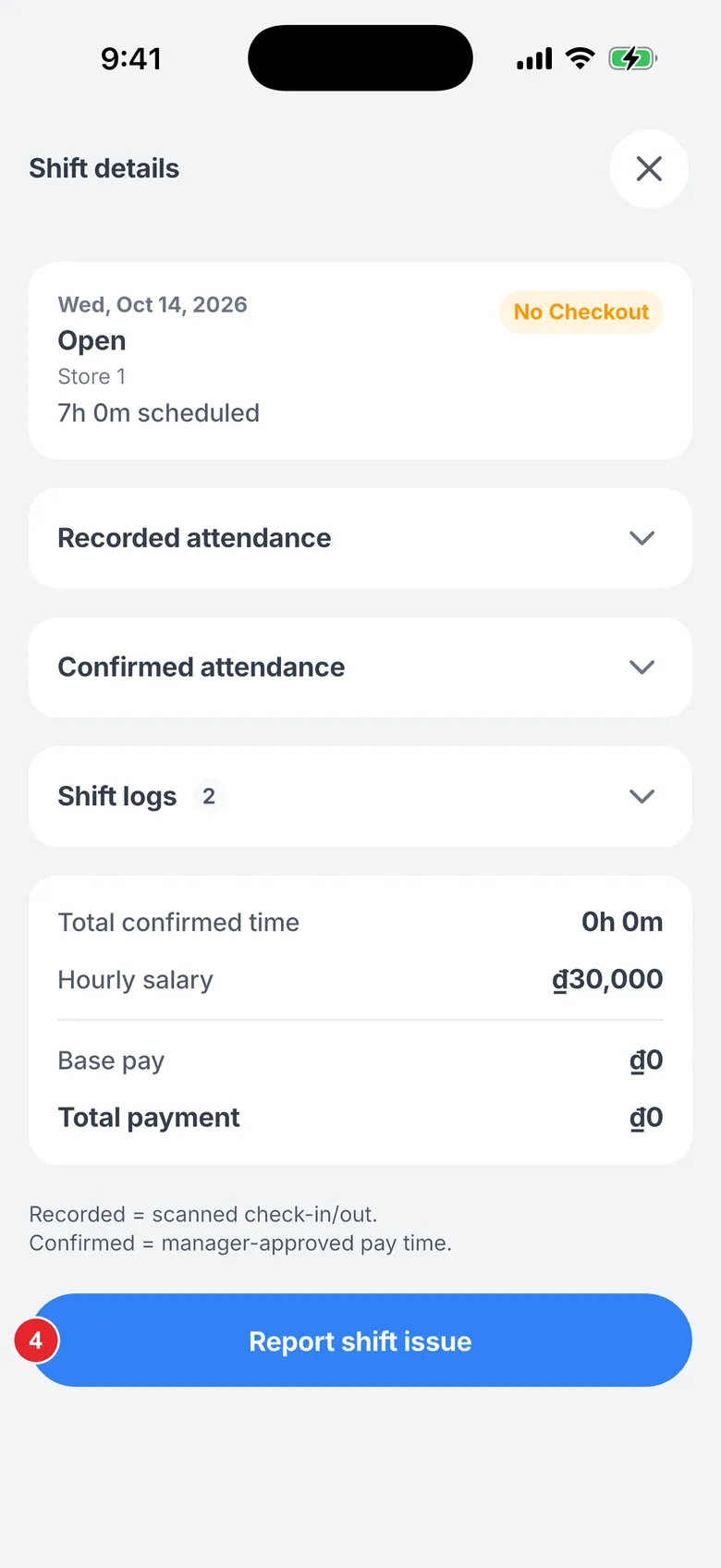
- In «Shift details», tap «Report shift issue».
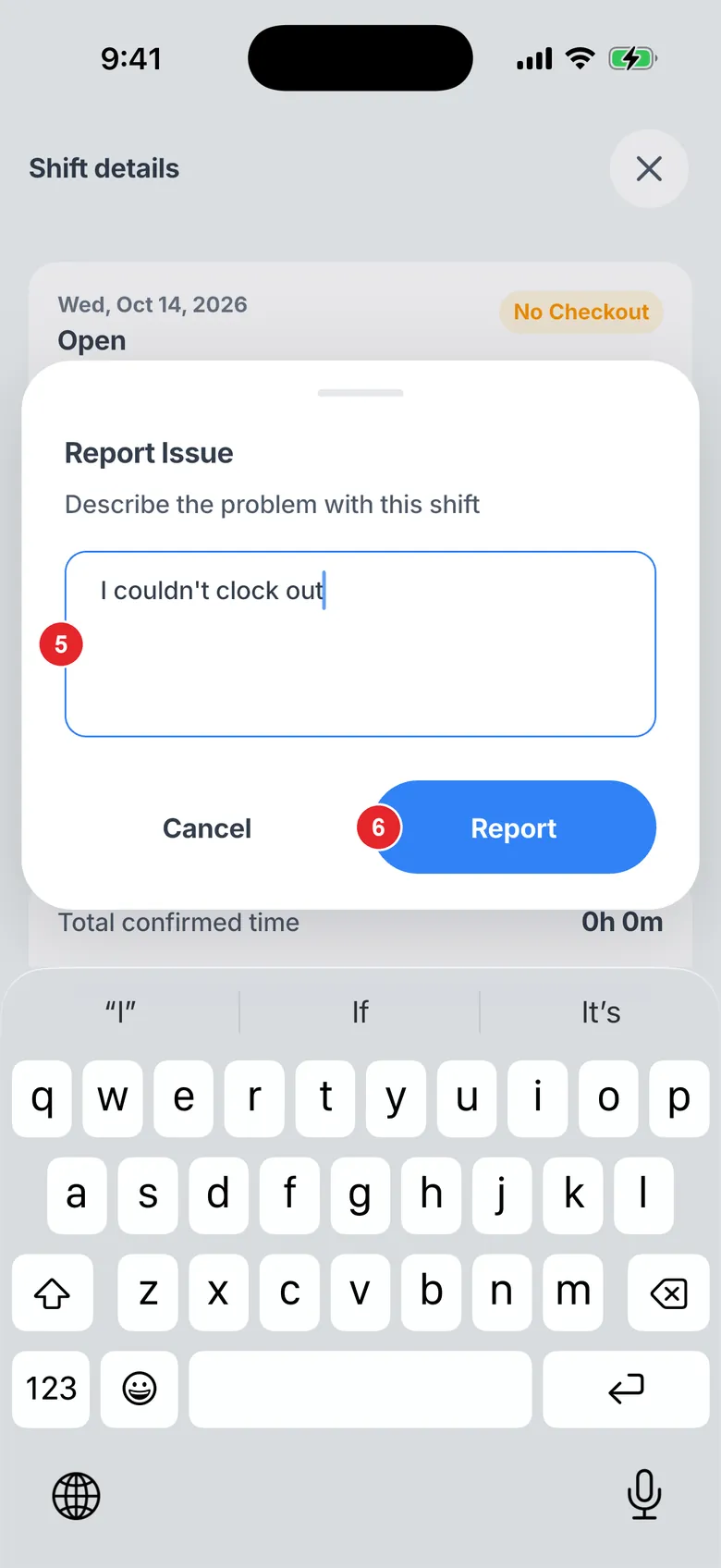
- Write what happened.
- Tap «Report».
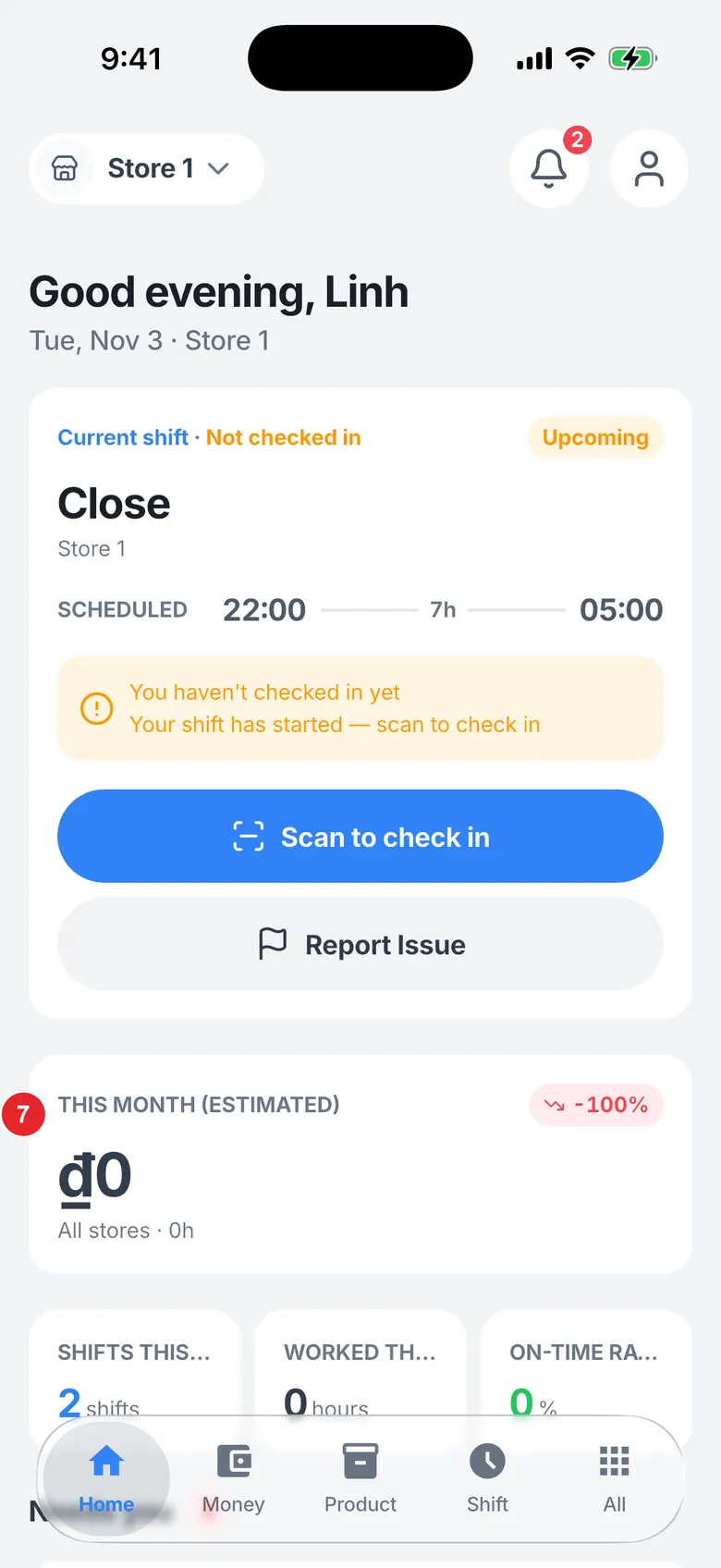
- Hourly staff see this month's money under «THIS MONTH (ESTIMATED)» on the app home.
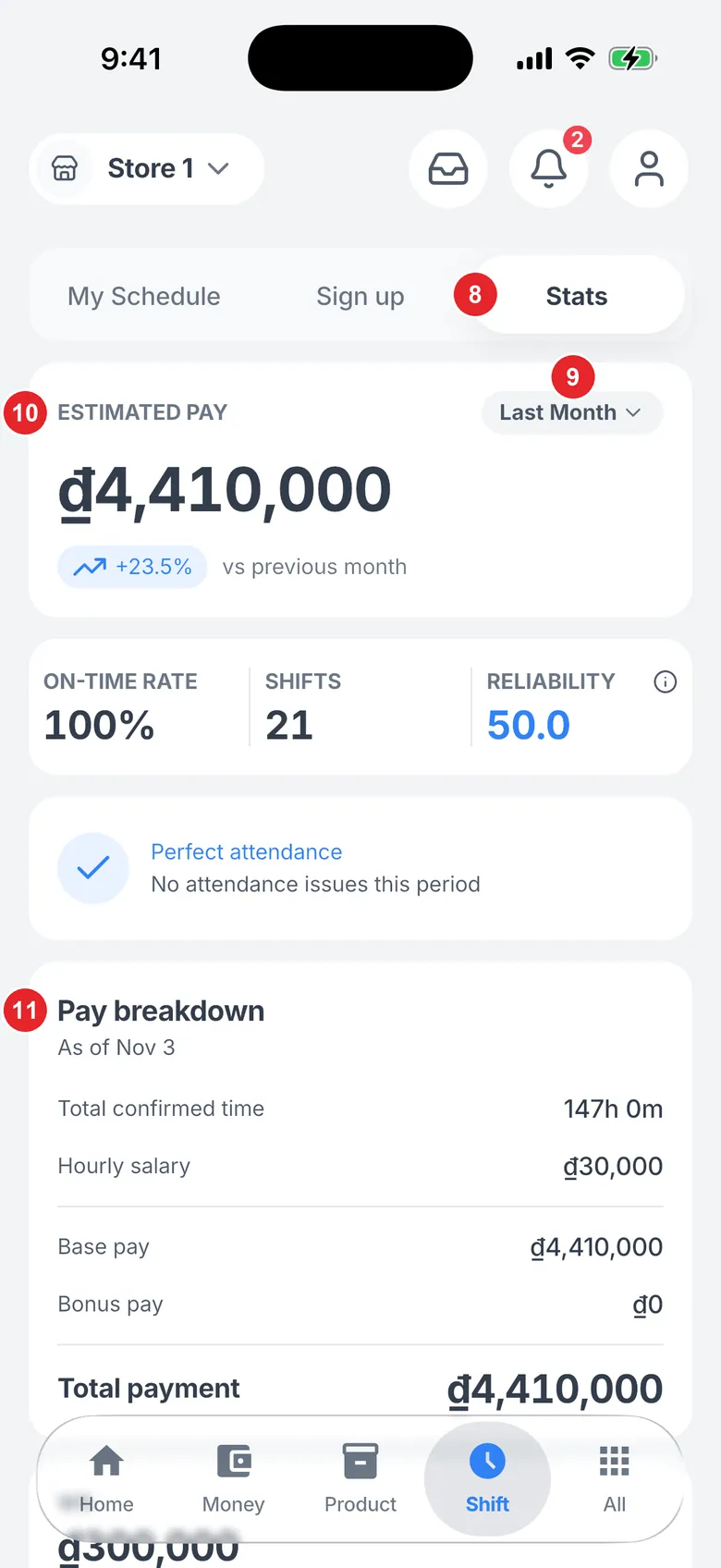
- To see more, tap «Shift» at the bottom and open the «Stats» tab.
- Choose the period at the top right. The choices are «Today» · «This Week» · «This Month» · «Last Month» · «This Year».
- See that period's amount in «ESTIMATED PAY».
- See the hours and rate in «Pay breakdown».
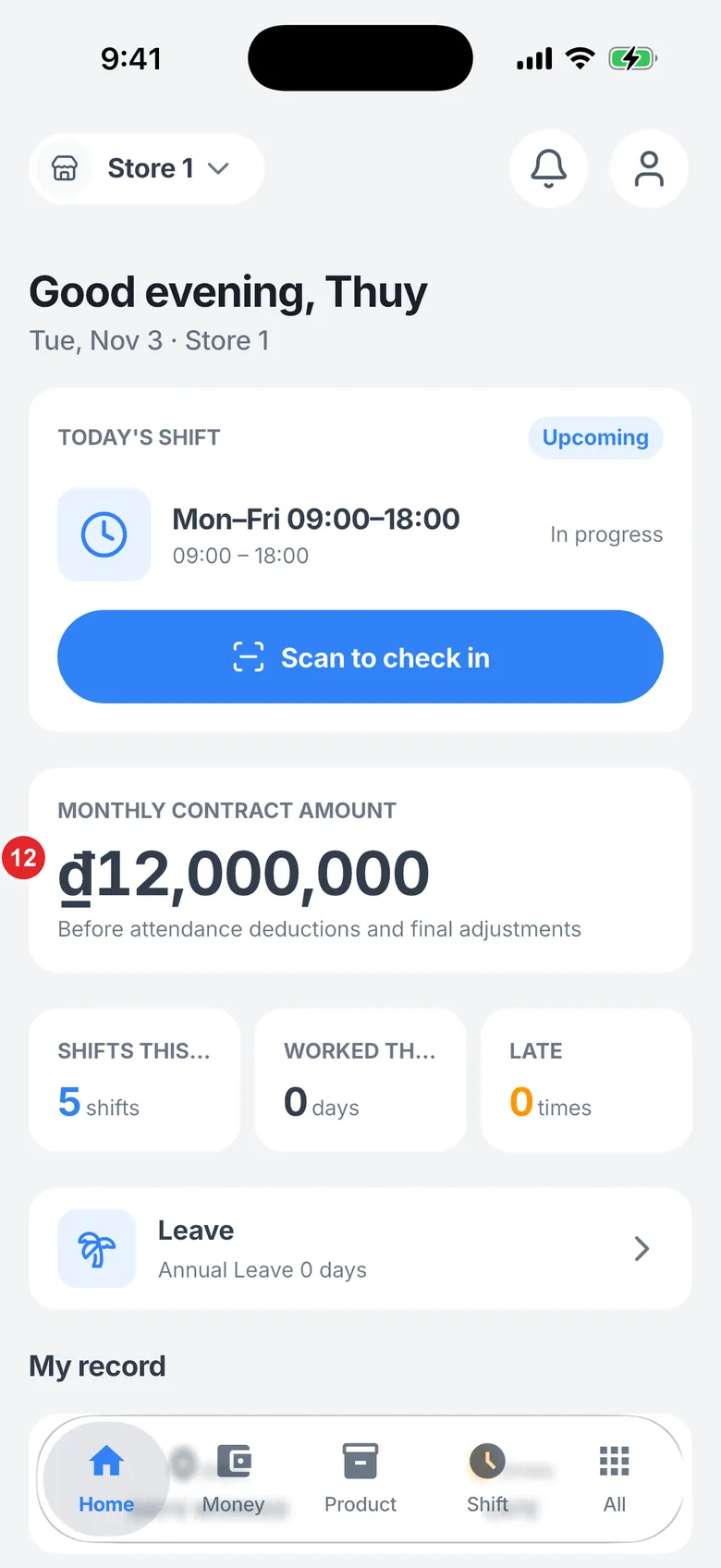
- Monthly staff see «MONTHLY CONTRACT AMOUNT» on the app home. It is the amount before attendance deductions and final adjustments.
If you clocked wrong or missed it
In the shift details, tap «Report shift issue» and write the reason.
See your money
- Hourly staff: «THIS MONTH (ESTIMATED)» on home
- Monthly staff: «MONTHLY CONTRACT AMOUNT» on home
- Money received: choose the month in «Stats» on the «Shift» tab at the bottom
If you get stuck
- «No approved shift today.» → Ask your manager to approve your shift.
- «No work schedule assigned.» → Ask the owner to add your work schedule.