
Show contents
Staff & shifts › Monthly staff
A monthly staff member has no attendance record
- Who
- Owner · Manager
- When
- Before month end
- Where
- App · Web
What you get
- Confirm each day with no record as worked or absent, one by one, so the monthly staff member's attendance sheet stays right.
- In the app, «Leave & attendance deduction» works out the amount to cut and the reason from the attendance sheet, and shows them.
- Once every day is confirmed, the app's pay button changes to «Review pay details», and you can pay right away.
What it solves
- «The monthly staff member's attendance record is empty.» While unconfirmed days are left, you can't pay that staff member's salary.
- Even if you set it to «Absent», the salary does not drop by itself. If you pay without knowing this, you pay for the missing days too.
Why this way
- A day with no record is finished only when a person confirms it. Even what the app picked ahead is set only when you tap «Confirm».
- The salary drops only when you add a deduction when paying, or tap «Apply (-amount)» in the app. You can also change the suggested amount yourself.
- Can staff set their own attendance? Setting present · late · absent is done by someone with the «Monthly Attendance Edit» permission.
- What if I set it wrong? On the website, click the same cell and click «Change».
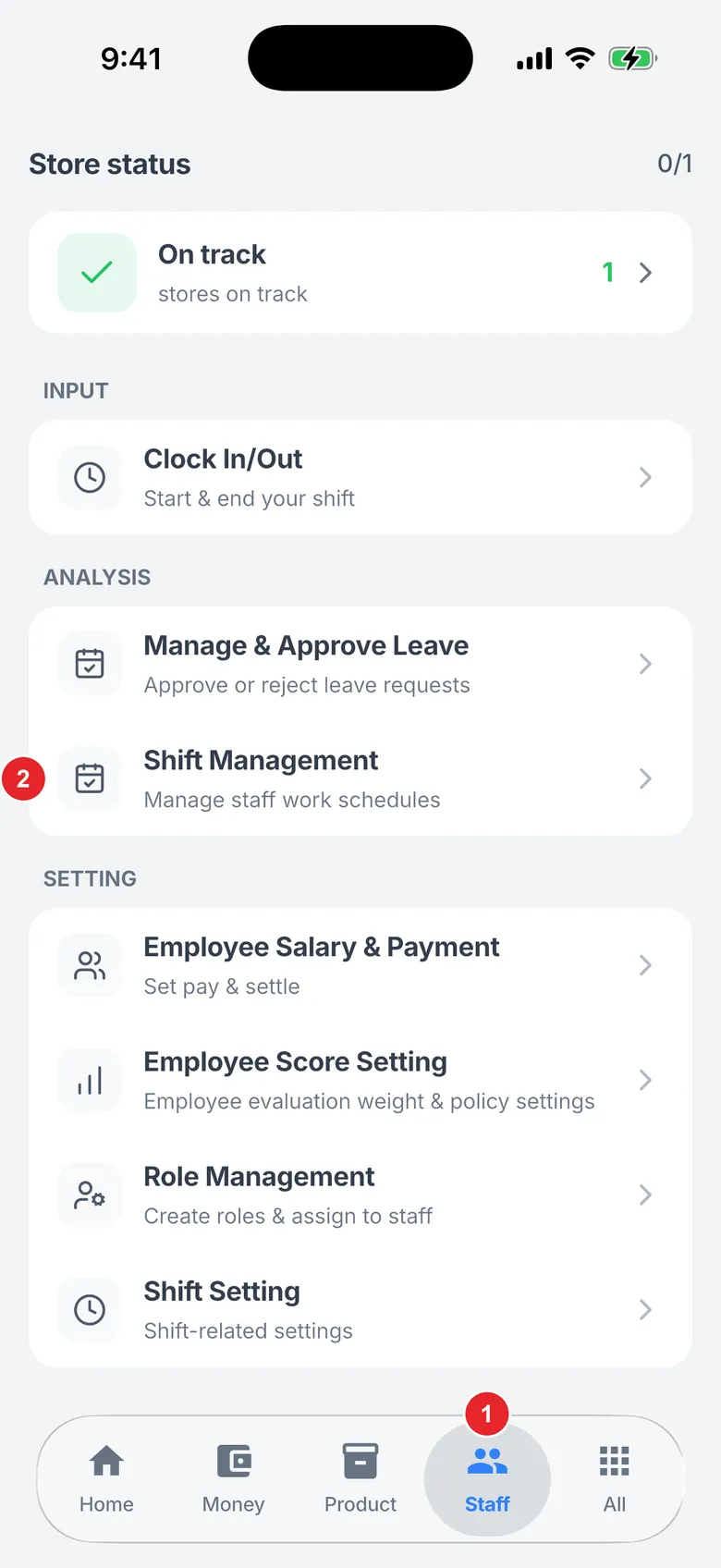
- Tap «Staff» at the bottom of the app.
- Scroll down and tap «Shift Management».
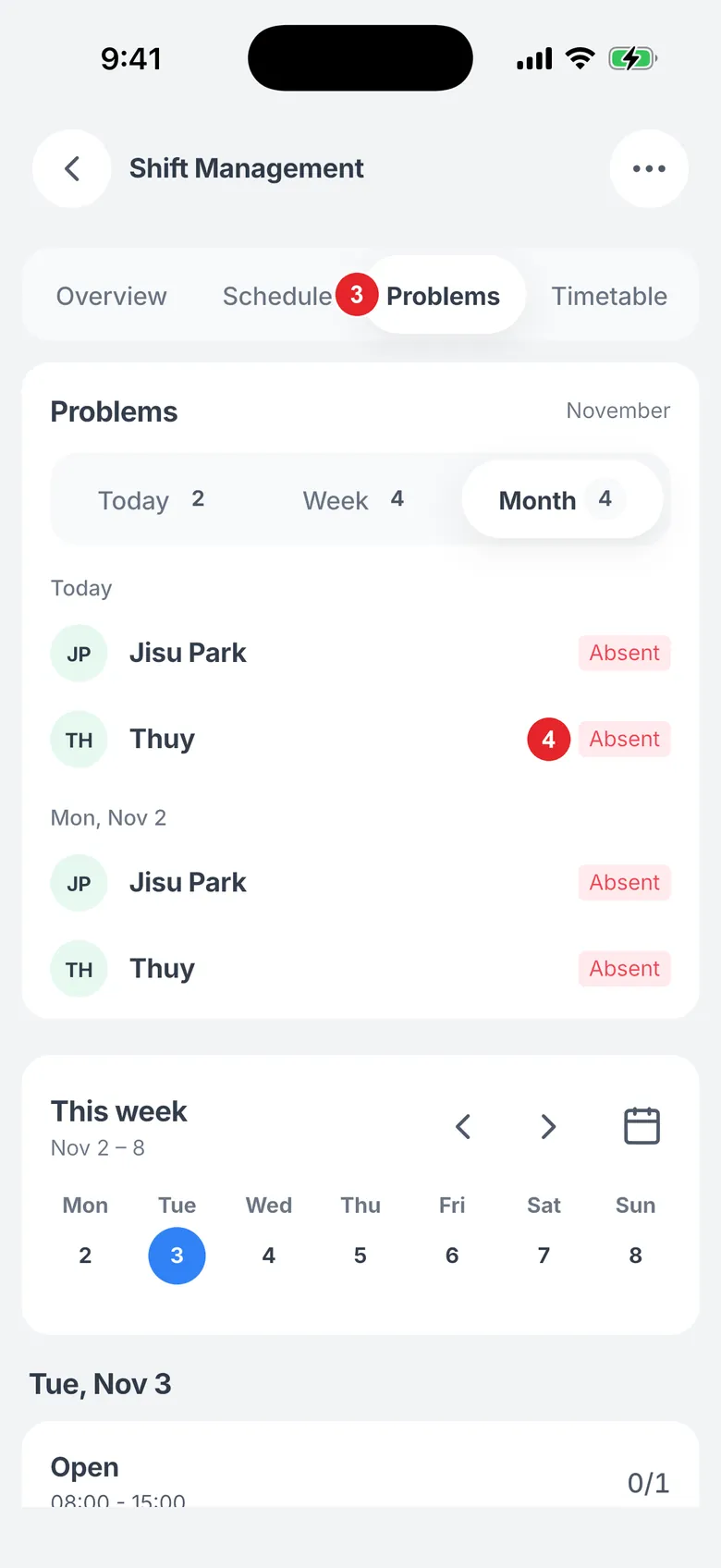
- Open the «Problems» tab.
- Tap the monthly staff member shown as «Absent» because there is no clock-in record.
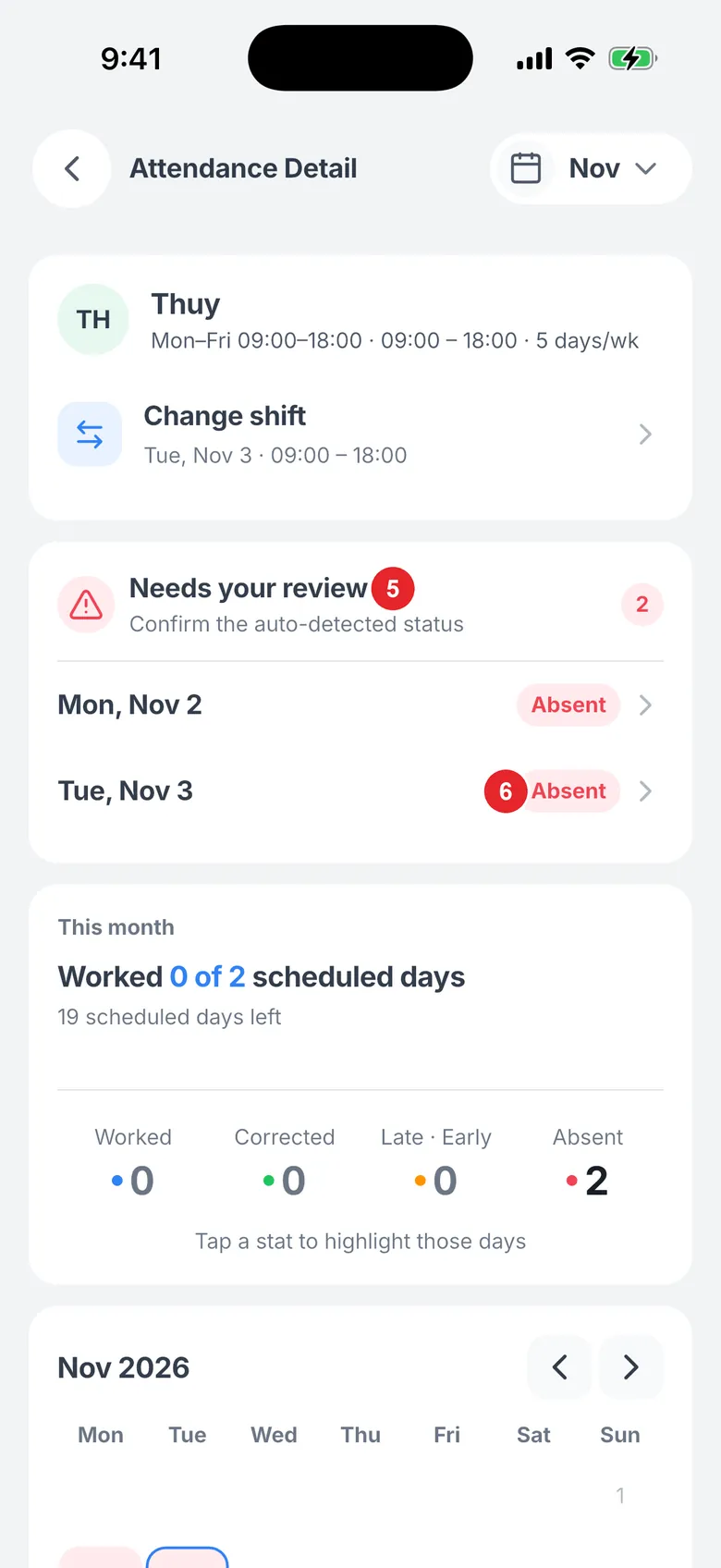
- The days to decide show under «Needs your review».
- Tap one day to decide. If there are several, repeat steps 6–8 for each day.
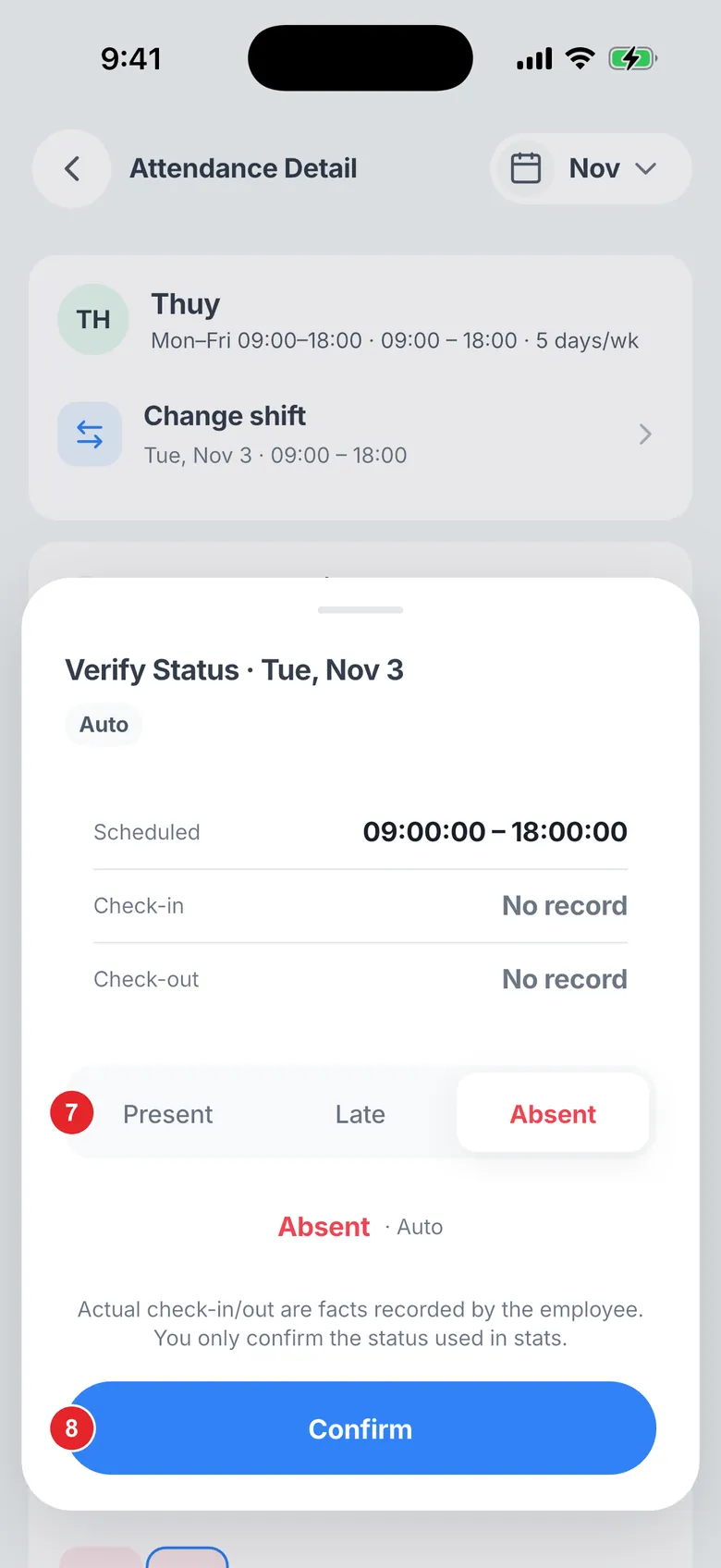
- If they really worked, choose «Present»; if they came late, «Late»; if they did not come, «Absent». What the app picked automatically is already chosen.
- Tap «Confirm».
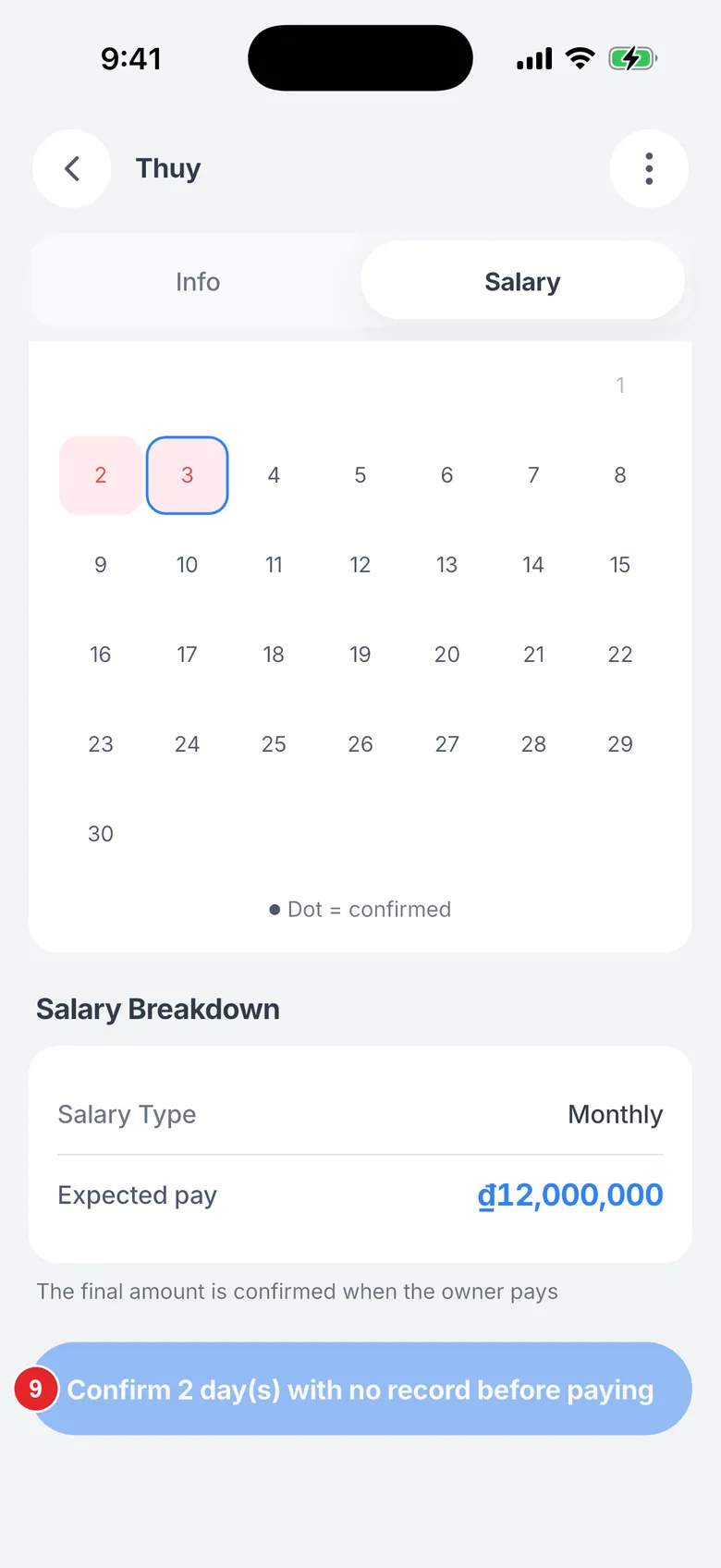
- While some days are not confirmed, the button in «Employee Salary & Payment» › «Pay Salary» › staff member › «Salary» looks faded and reads like «Confirm 2 day(s) with no record before paying».
- Once all are confirmed, this button changes to «Review pay details». Tap it, and in the «Confirm pay period» window that opens, tap «Open review» (pictures of these two screens are in «Pay salaries»).
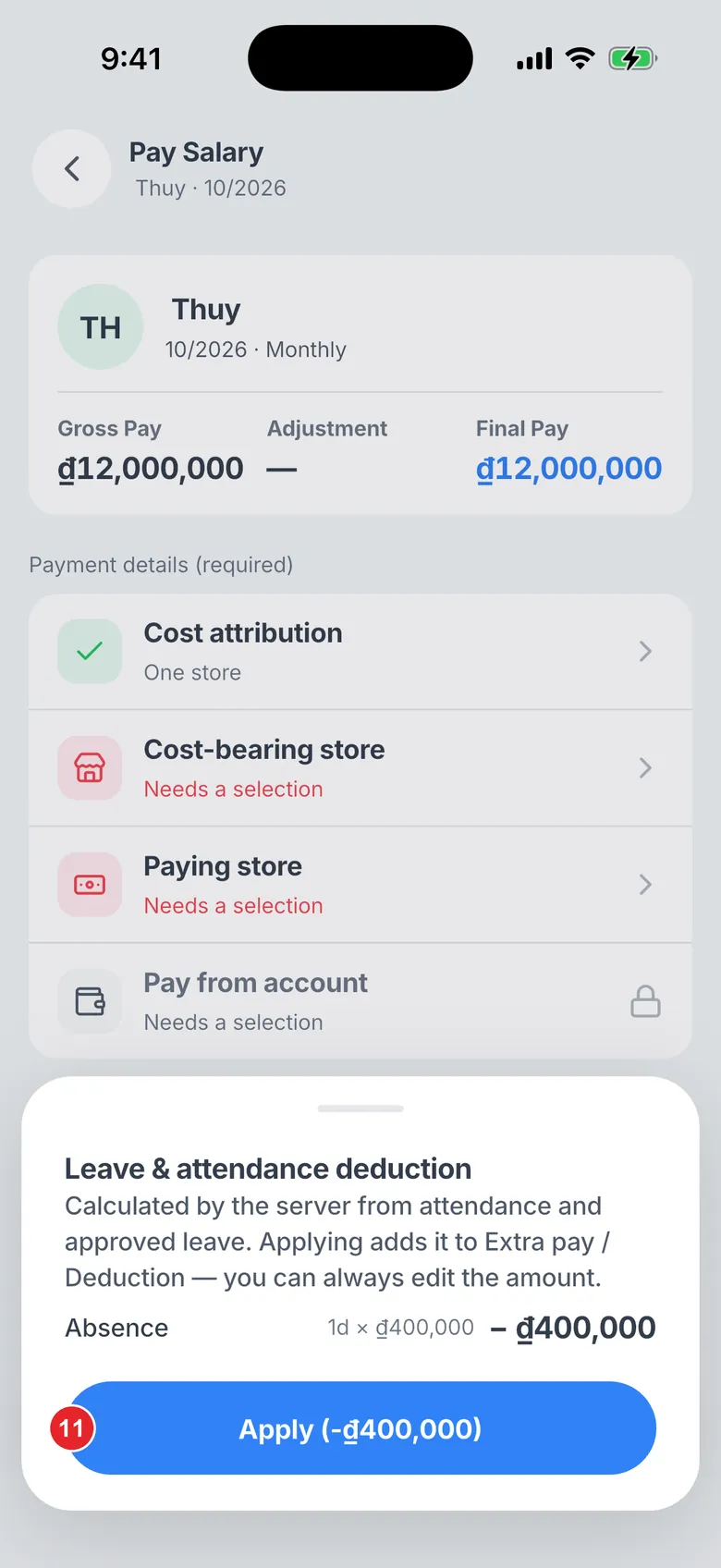
- On the pay screen, tap the «Leave & attendance deduction» row just above «Extra pay / Deduction», and the deduction worked out from the attendance sheet shows with its reason. The row shows only when there is something to deduct. The picture is the October pay screen: the absence on October 20 is 1 day, −₫400,000. Only when you tap «Apply (-amount)» does it go into «Extra pay / Deduction», and you can change the amount yourself. If you don't tap it, the salary stays the same.
Why it works this way
Monthly staff work by their work schedule. A day with no clock-in record must be set as «They came in» or «Absent». Until then, you can't pay that staff member's salary.
Remember
- Even if you set it to «Absent», the salary does not drop. To reduce it, enter the amount and reason in «− Deduction» when paying.
- In the app, «Leave & attendance deduction» on the pay screen works out the amount to cut from the attendance sheet. It goes in only when you tap «Apply (-amount)». Days before hiring · after leaving also come off as «Days outside employment», so check the amount and reason before you tap.
- The website does not work out the amount to cut.