
Show contents
Staff & shifts › Monthly staff
Check attendance for monthly staff
- Who
- Owner
- When
- Every week or before month end
- Where
- App · Web
What you get
- Only the days with no clock-in record are gathered and shown. In the app it is «Needs your review»; on the website it is the cell that reads «Absent».
- In the app, you look at the scheduled shift and the real clock-in · clock-out, then choose from «Present» · «Late» · «Absent».
What it solves
- If nobody decides the days a monthly staff member did not scan the QR, you can't pay that staff member's salary.
- If you check everything at month end, it is hard to remember whether they came that day or not.
Why this way
- You are blocked from paying until days with no record are decided. The salary never goes out with unchecked days left.
- Can any staff member change an absence to present? No. Only people whose role has «Monthly Attendance Edit» turned on decide it.
- Does setting it to absent reduce the salary by itself? No. To reduce it, take it off with «− Deduction» when paying, or tap «Apply (-amount)» in the app's «Leave & attendance deduction».
- Does the website also work out the amount to cut? No. The website does not work it out, so you enter the amount yourself.
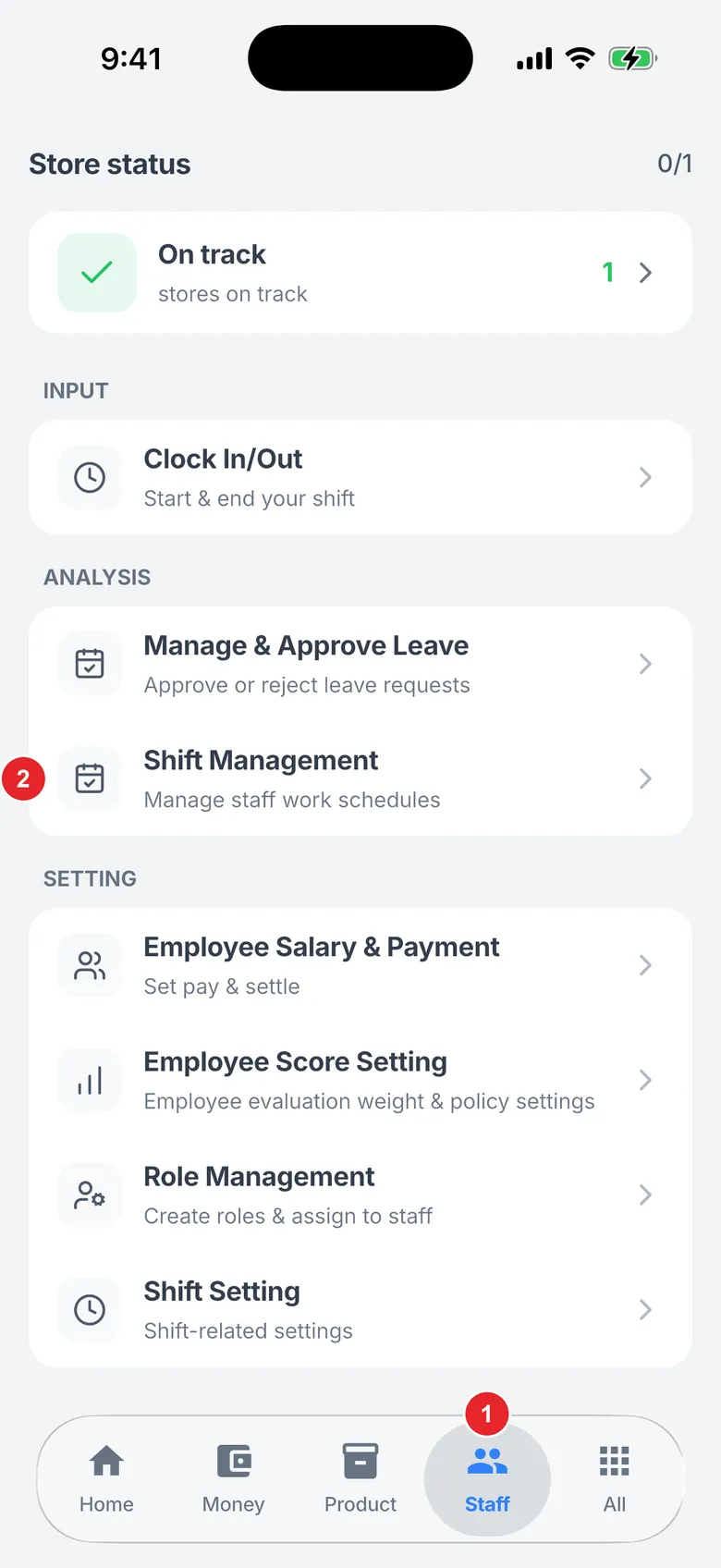
- Tap «Staff» at the bottom of the app.
- Scroll down and tap «Shift Management».
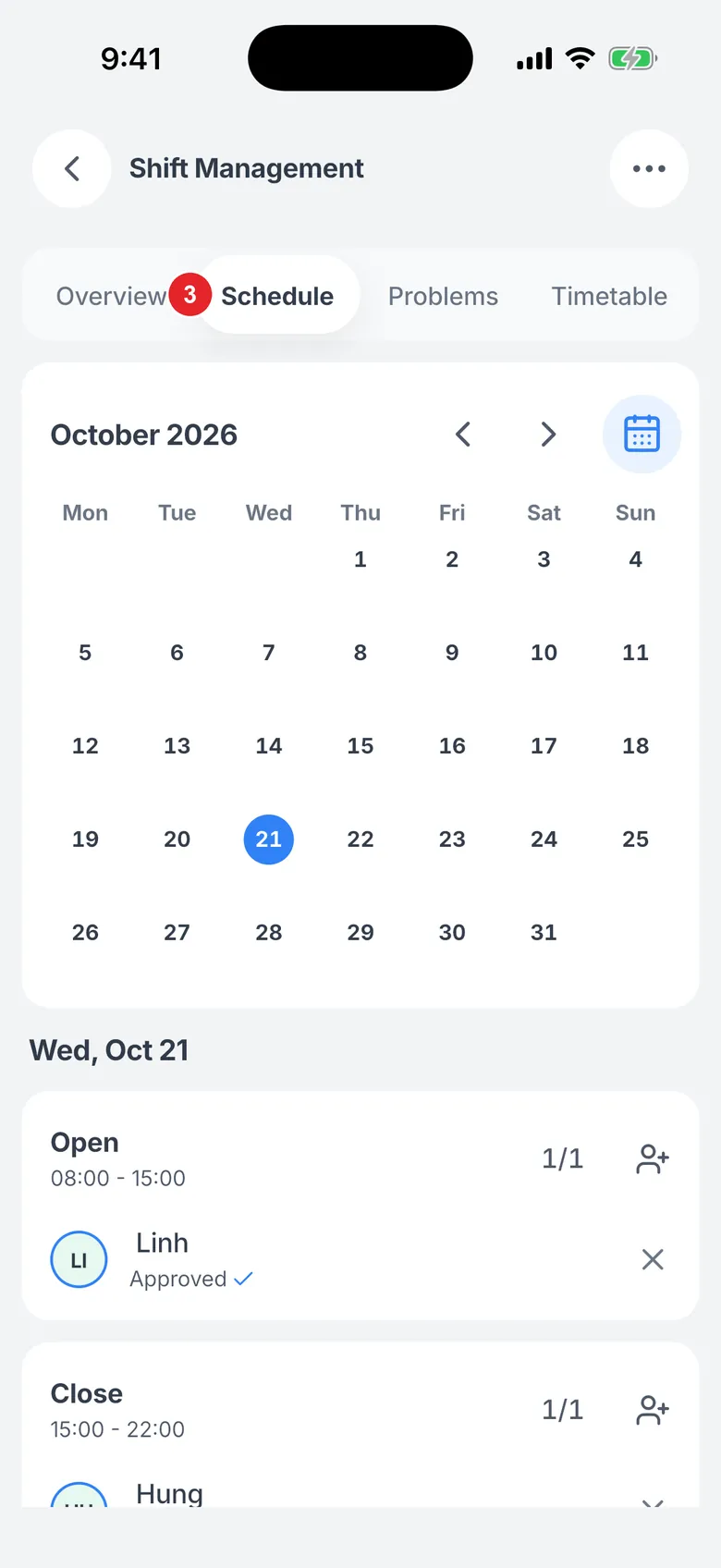
- Open the «Schedule» tab and, in the calendar, tap a date in the month you want to check.
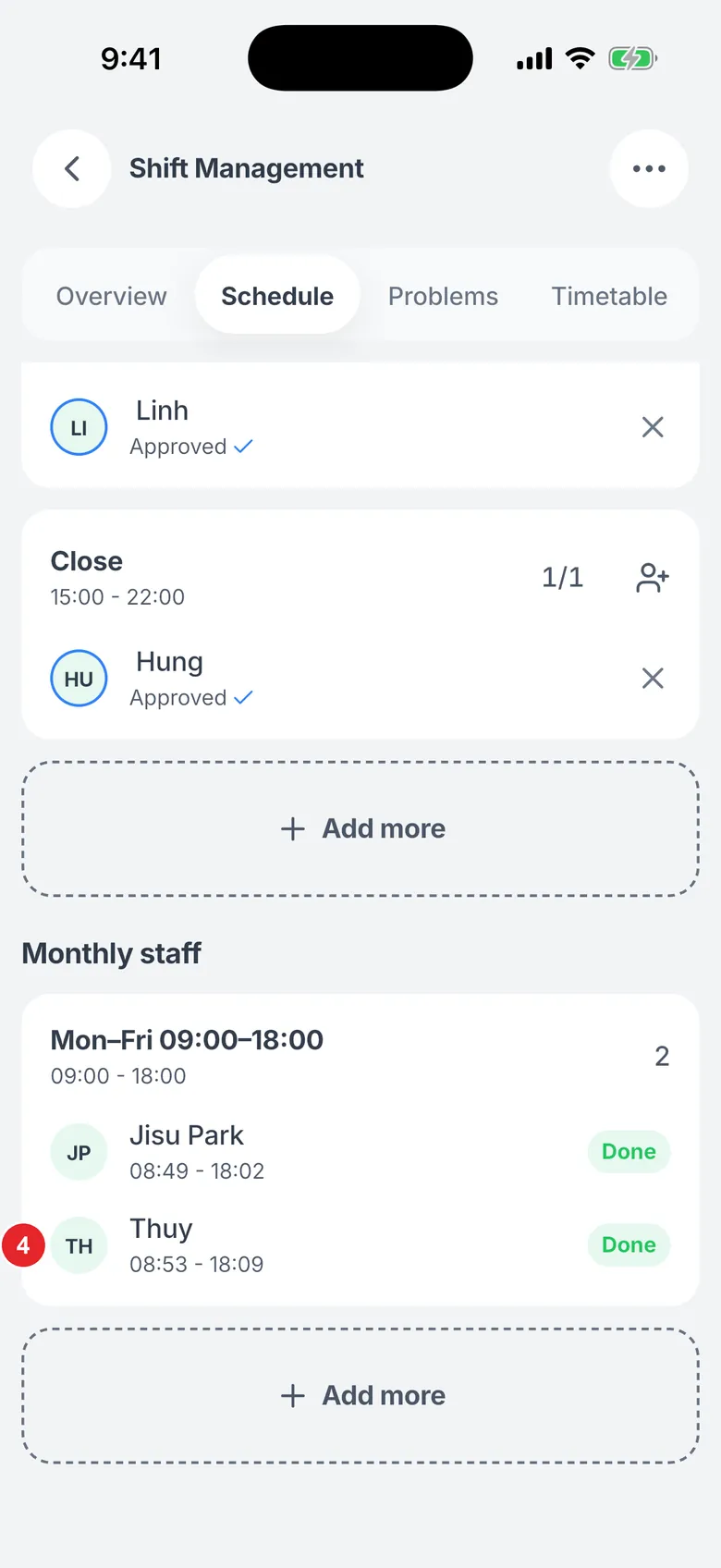
- Scroll down and tap the staff member under «Monthly staff».
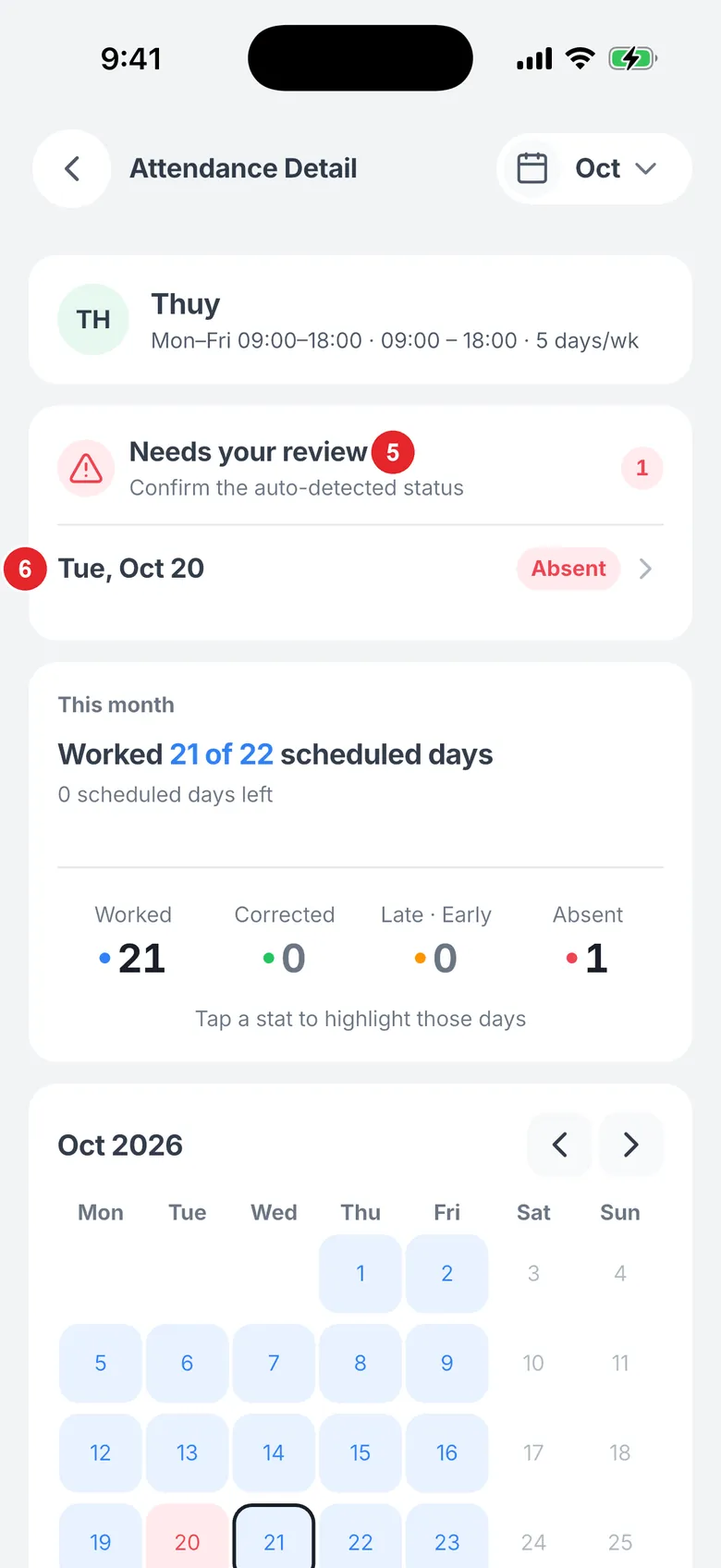
- In «Attendance Detail», find «Needs your review». The number on the right is how many days to check.
- Tap the date listed under it.
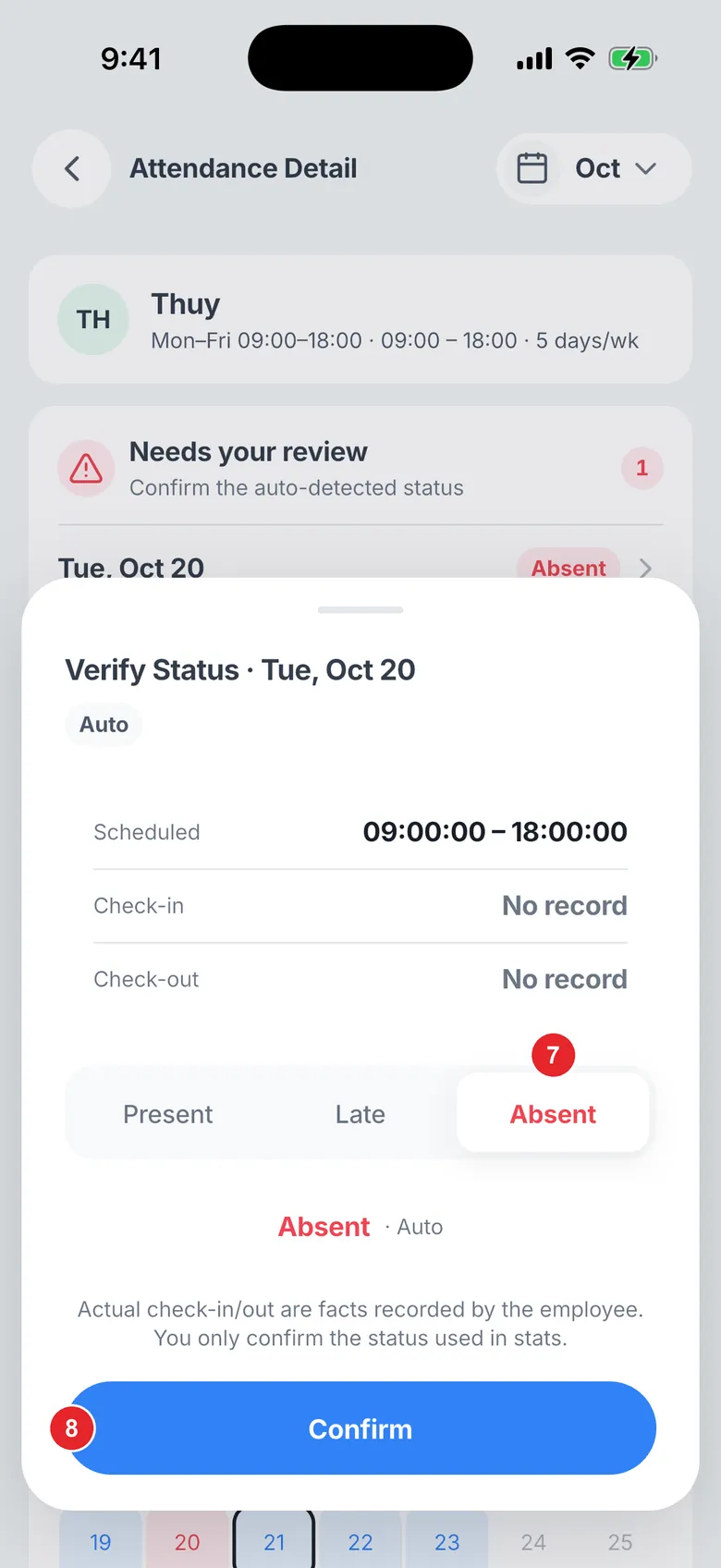
- Look at the scheduled shift and the real check-in · check-out, then choose one of «Present» · «Late» · «Absent».
- Tap «Confirm».
Remember
- If you don't confirm the days with no record, you can't pay the salary.
- Confirming an absence does not reduce the salary by itself. To reduce it, take it off with «− Deduction» when paying, or tap «Apply (-amount)» in the app.