
Show contents
Staff & shifts › Store & shift setup
Give staff their roles
- Who
- Owner
- When
- When someone joins · When duties change
- Where
- App · Web
What you get
- Give a person one role, and that role's permissions and app screen come with it. You don't turn on switches for each person.
- When duties change, just put them into another role. They leave their old role automatically.
What it solves
- Everyone who joins with the store code has the Employee role, so to have someone approve shifts or pay salaries, you must change their role.
- With the Employee role, the website shows only «My Page», so people who will work on the website need it opened for them.
Why this way
- One person has only one role. To know what that person can do, just look at that role's permissions.
- Can new staff see store work on the website? The Employee role has «Website» off, so only «My Page» shows in the website's left menu.
- What if I put someone in the wrong role? Put them into the right role, and they move to it.
At the bottom of the app, tap «Staff» → scroll down to «Role Management» → tap the role.
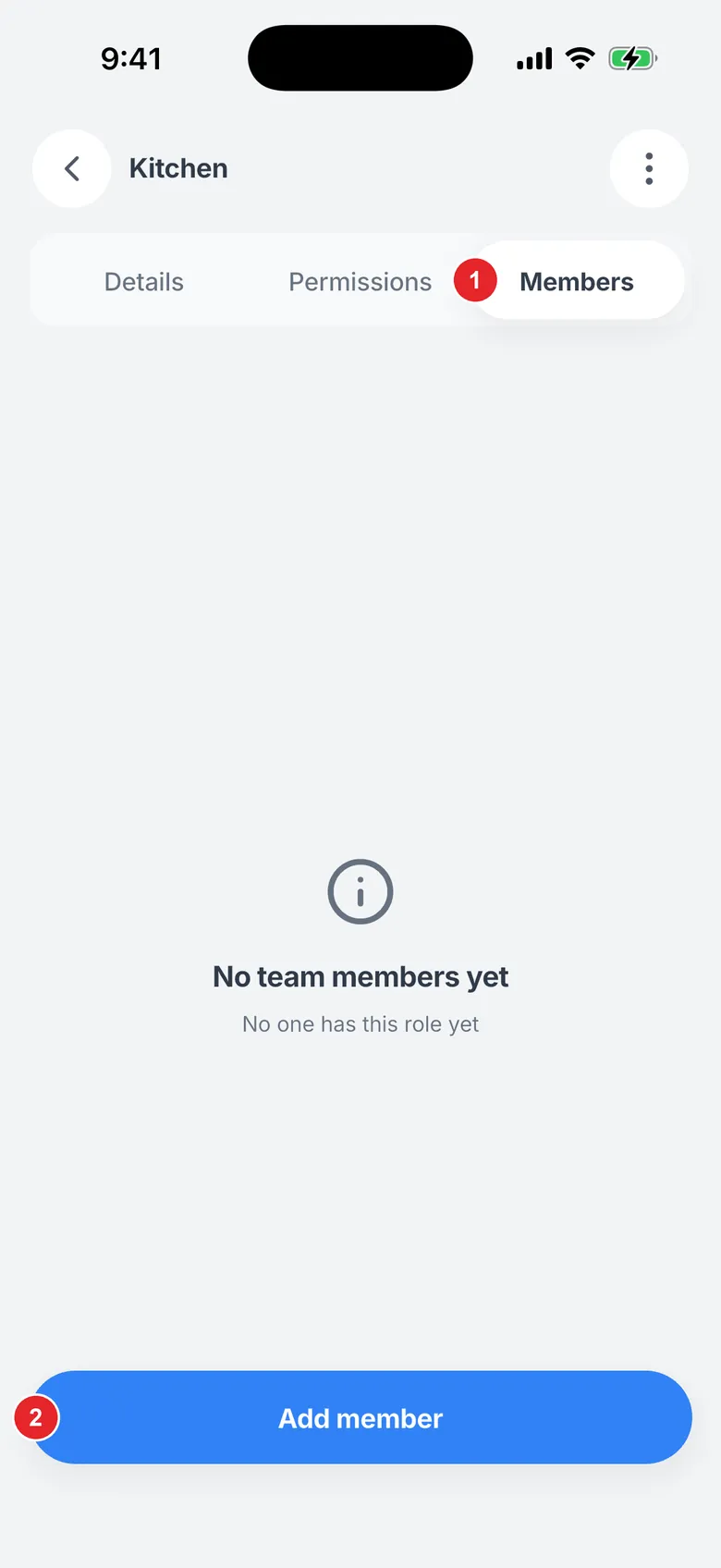
- Open the «Members» tab. The people with this role are listed.
- Tap «Add member».
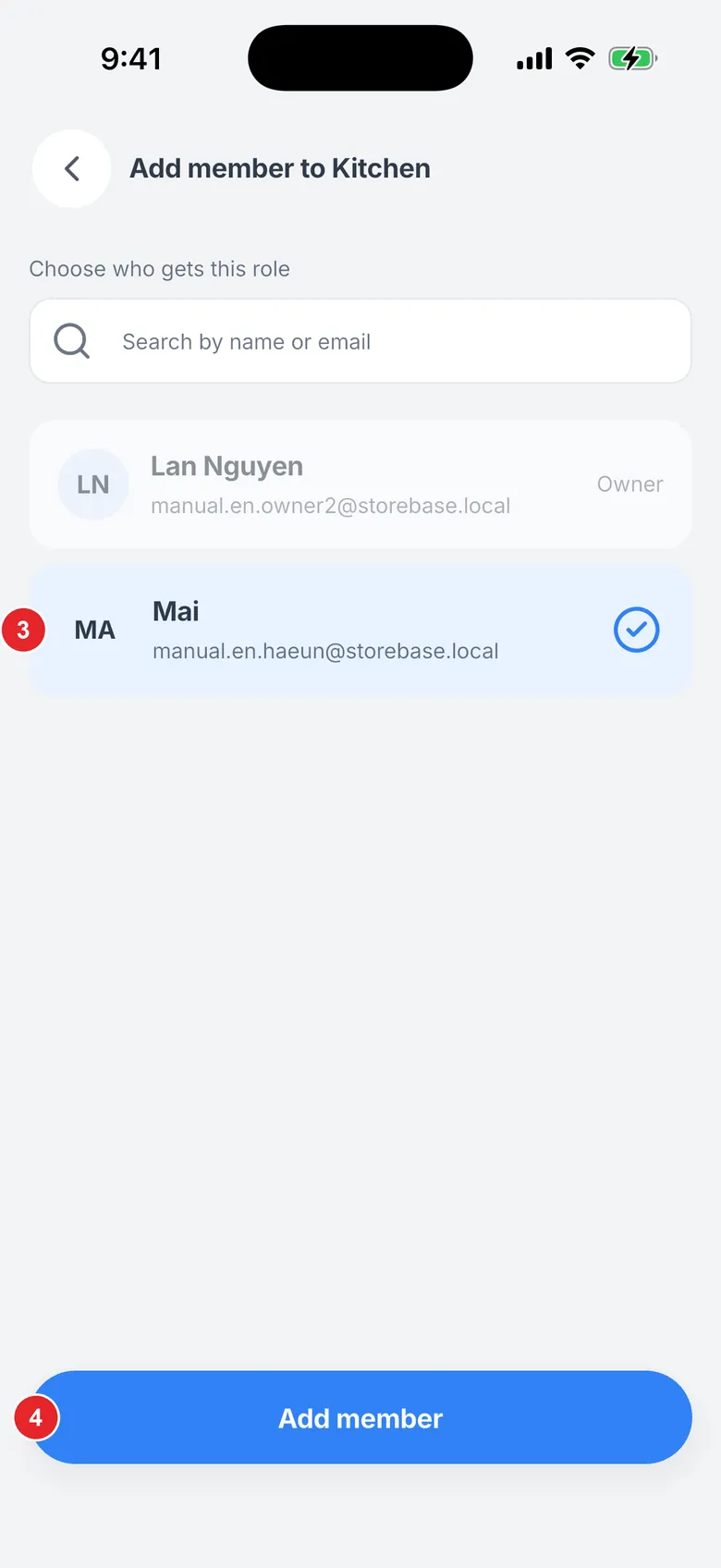
- Tap the person to give this role. A ✓ appears on the right. The words on the right are the role they have now.
- Tap «Add member». They leave their old role and move to this one.
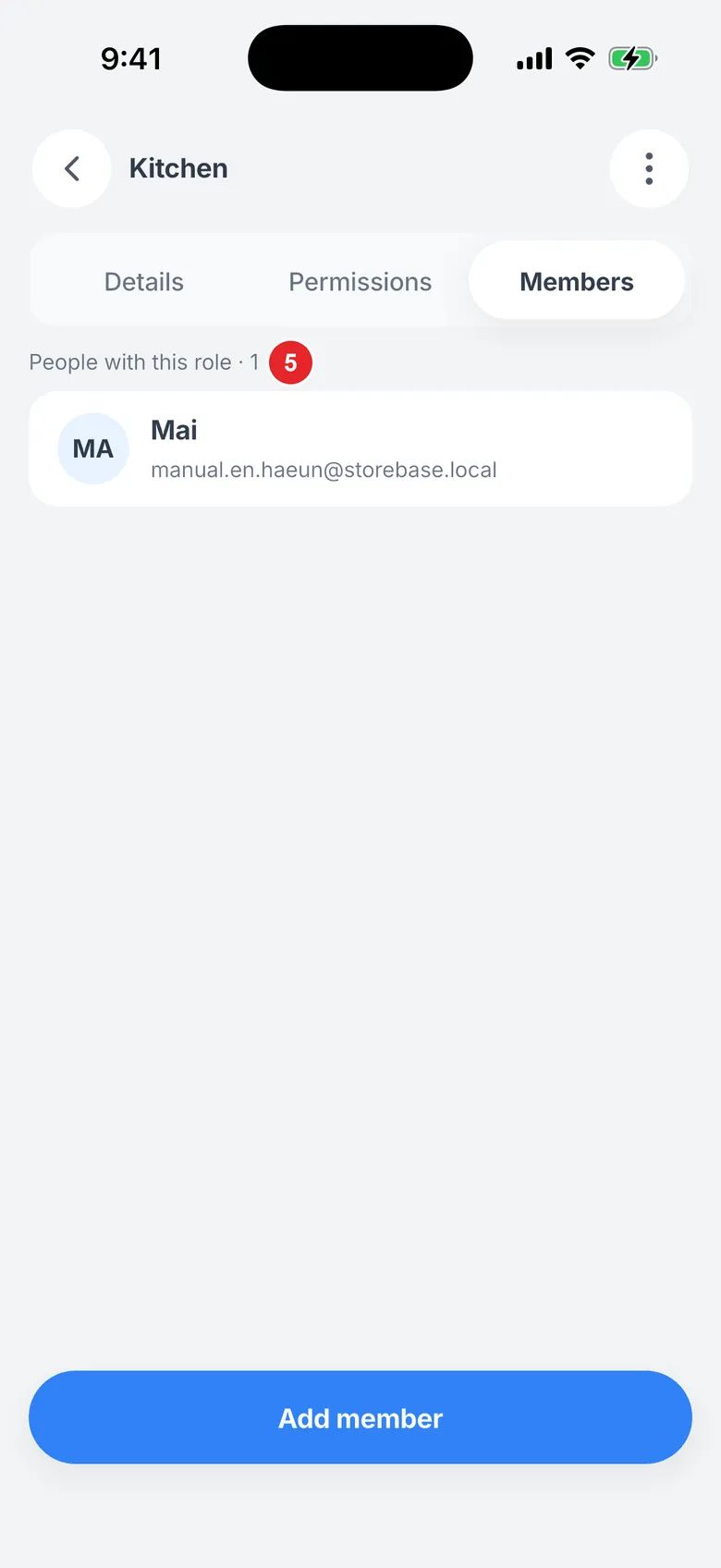
- The person you moved shows under «People with this role · 1».
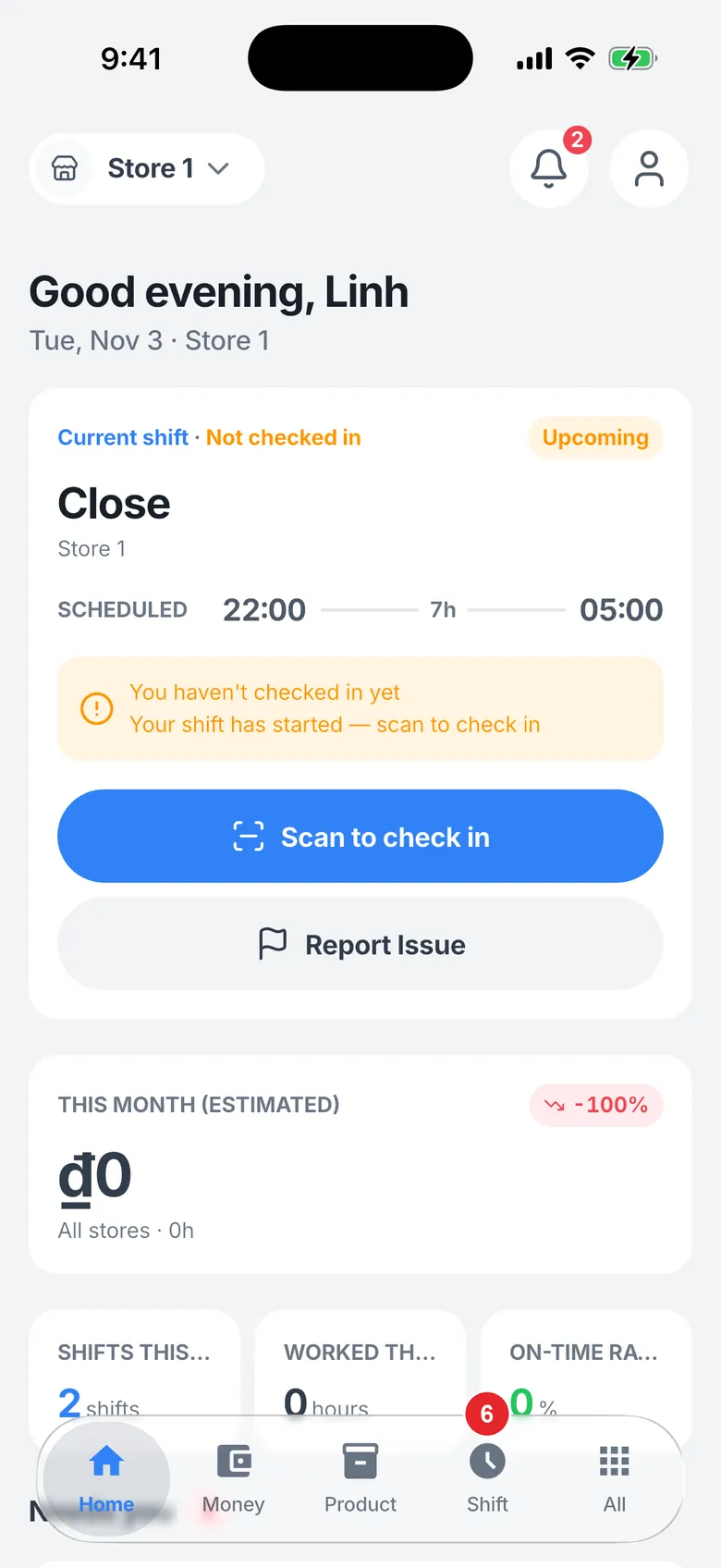
- The Employee role sees this «Staff screen». Under «Shift» at the bottom, they clock in and out, request shifts and see stats.
After you create roles, give each person a role. The role decides their app screen and what they can do.
Remember
- One person has only one role. Put them into another role, and they leave their old role and move to the new one.
- Staff who join with the store code start with the Employee role.
- The Employee role sees the «Staff screen» in the app. «Website» is off, so on the website only «My Page» shows in the left menu. To let them work on the website, turn on «Store Setting» › «Website» for that role and save.
- Deleting a role moves everyone in it back to the Employee role.