
Show contents
Staff & shifts › Store & shift setup
Set up departments (Service · Kitchen)
- Who
- Owner
- When
- Once, at the start · When you split teams
- Where
- App · Web
What you get
- Service staff see only Service shifts, and Kitchen staff see only Kitchen shifts, in «Sign up».
- «Shift Management» › «Timetable» shows each department on its own, so you see hour by hour whether Service or Kitchen is short of people.
- Put a role into a department, and all staff with that role join that department. You don't move staff one by one.
What it solves
- When Service and Kitchen shifts are mixed in one list, Service staff sign up for Kitchen shifts.
- The total headcount may look fine, but you miss the hours when the Kitchen is empty and only Service has people.
Why this way
- If even one department is short, «All» shows it as short too. It is not hidden by another department's people.
- I have only one team. Do I need this? No. A store with only one team doesn't need departments.
- Does making a department split things right away? No. You have to put roles into the department and choose a «Department» for each hourly shift.
- Does the owner also see only one department's shifts? No. The owner and staff without a department see every shift.
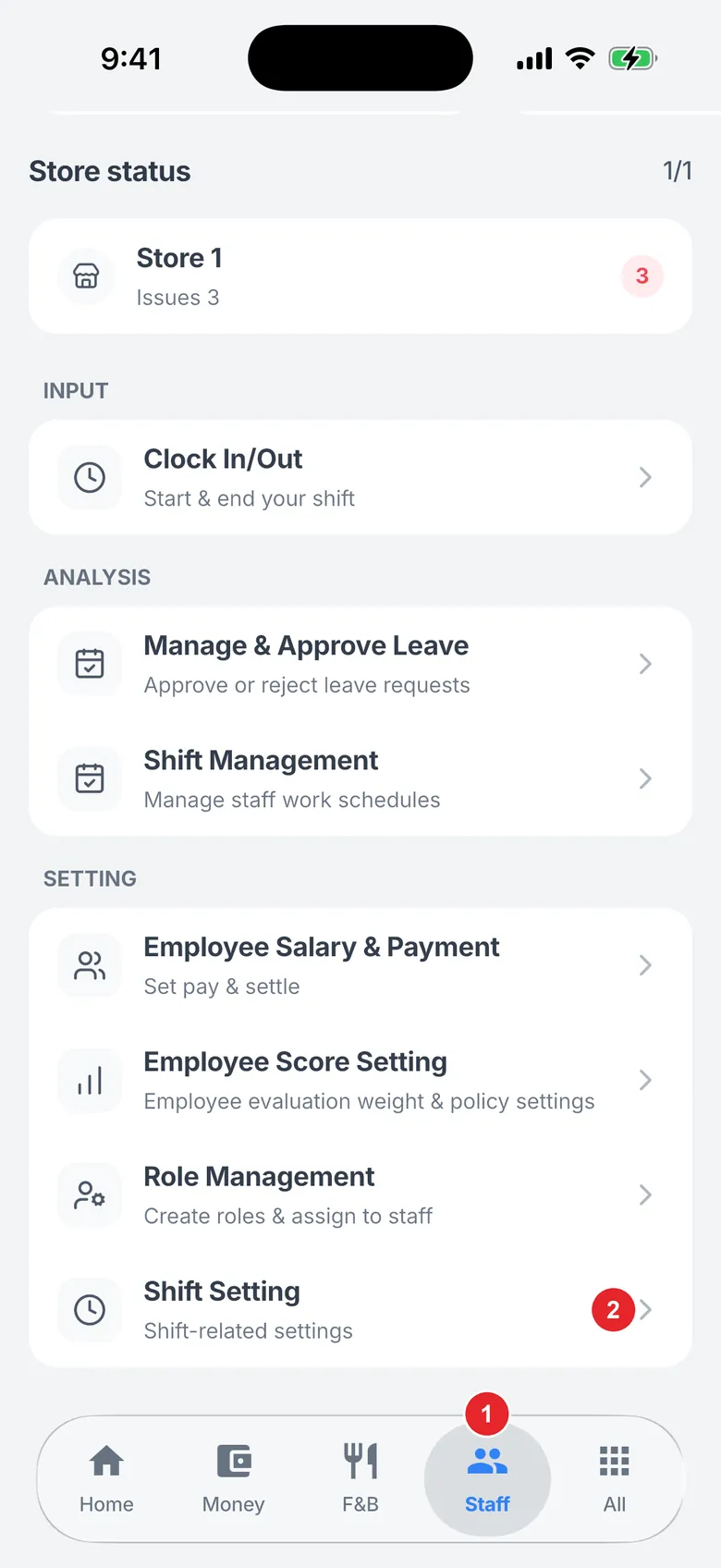
- Tap «Staff» at the bottom of the app.
- Scroll down and tap «Shift Setting».
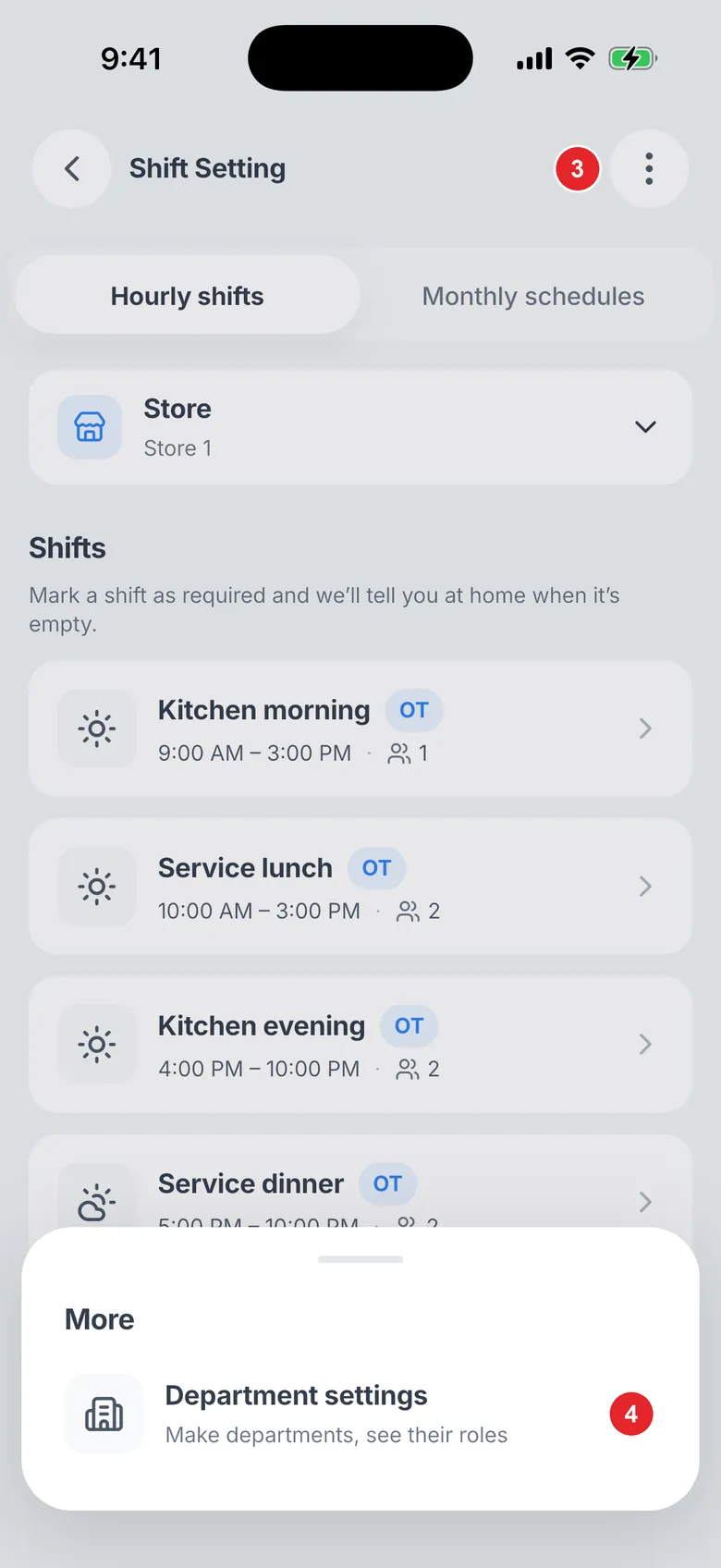
- Tap ⋮ at the top right.
- Tap «Department settings».
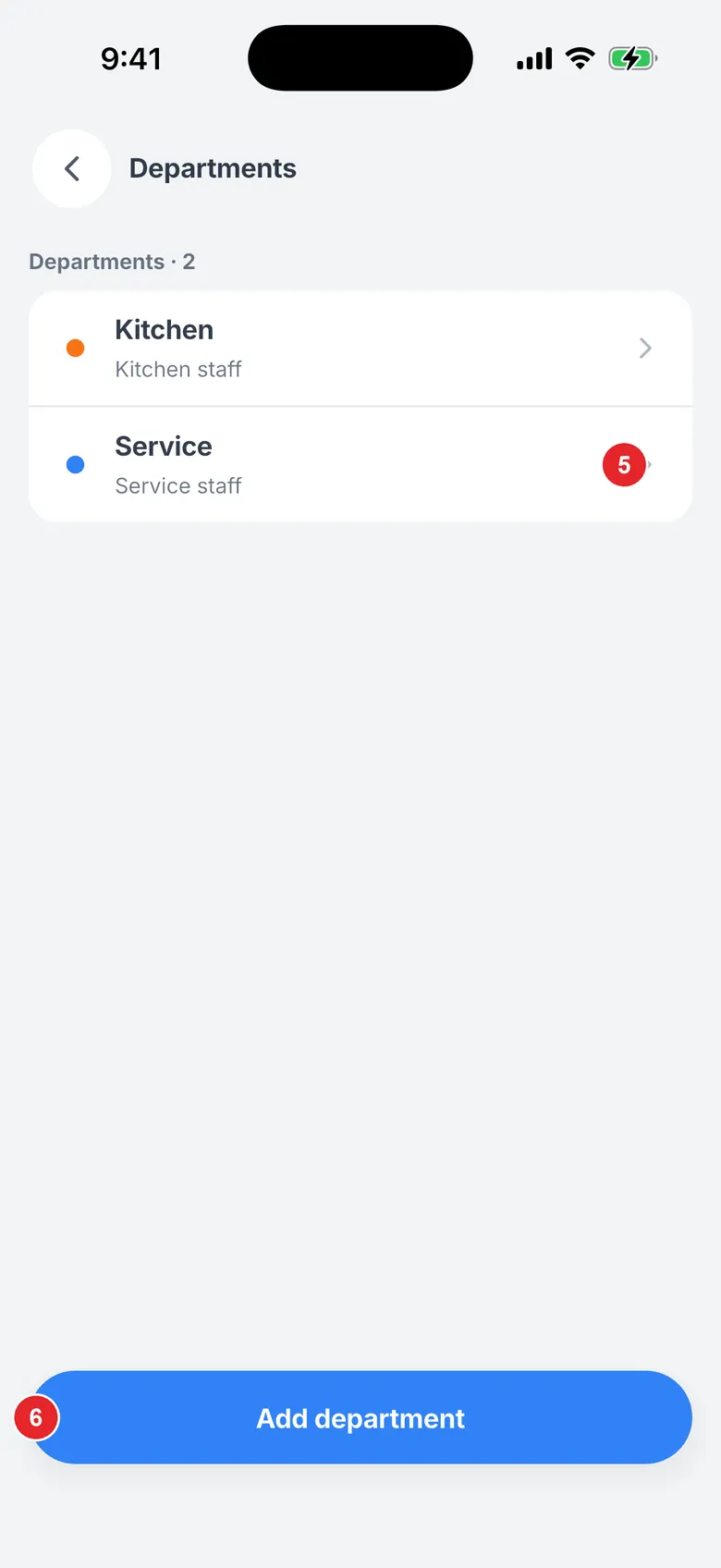
- Under each department name, the roles put into that department show. Example: Service = «Service staff». Tap a department, and «Edit name & color» · «Delete department» show.
- To create a new department, tap «Add department».
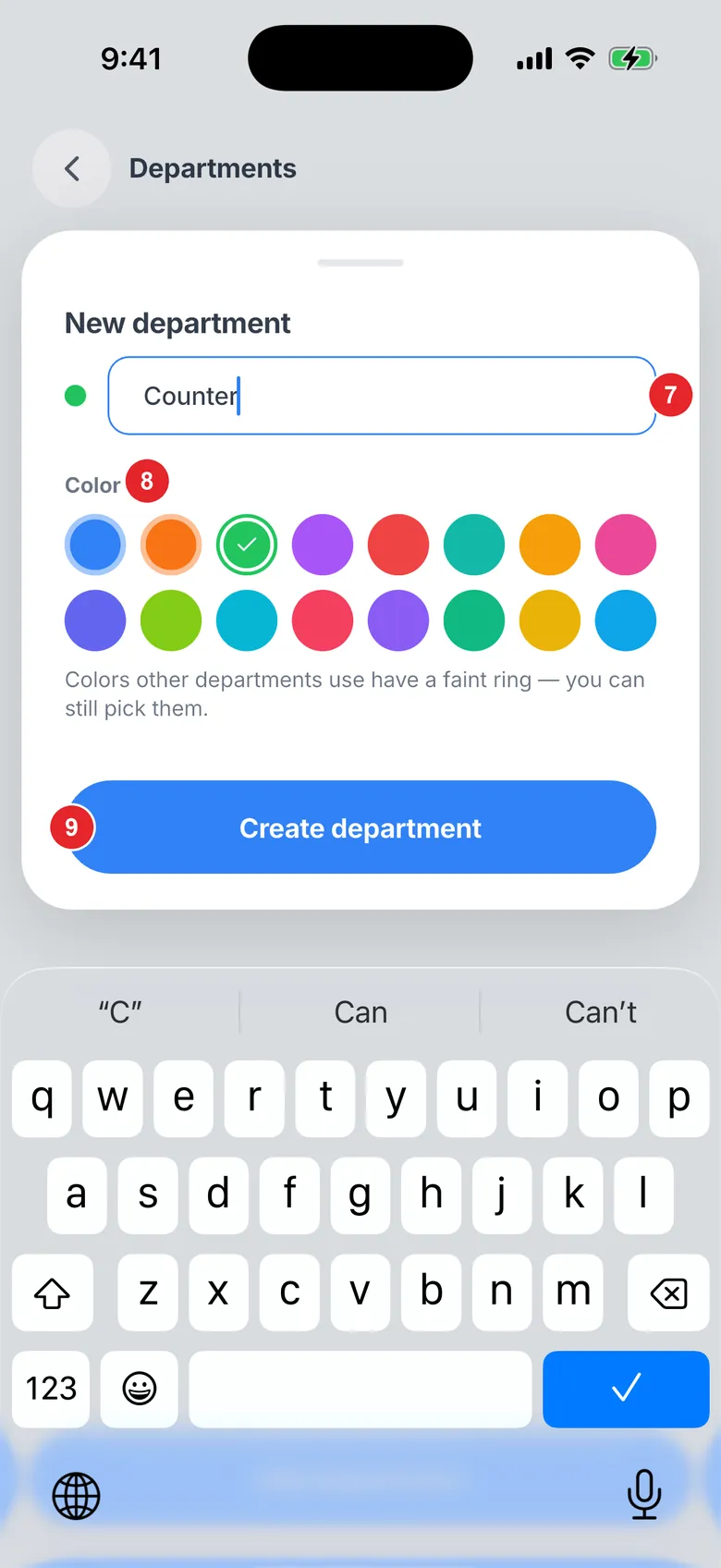
- Enter the department name. Example: Counter.
- Choose the department's color in «Color». A color with a faint ring is used by another department.
- Tap «Create department».
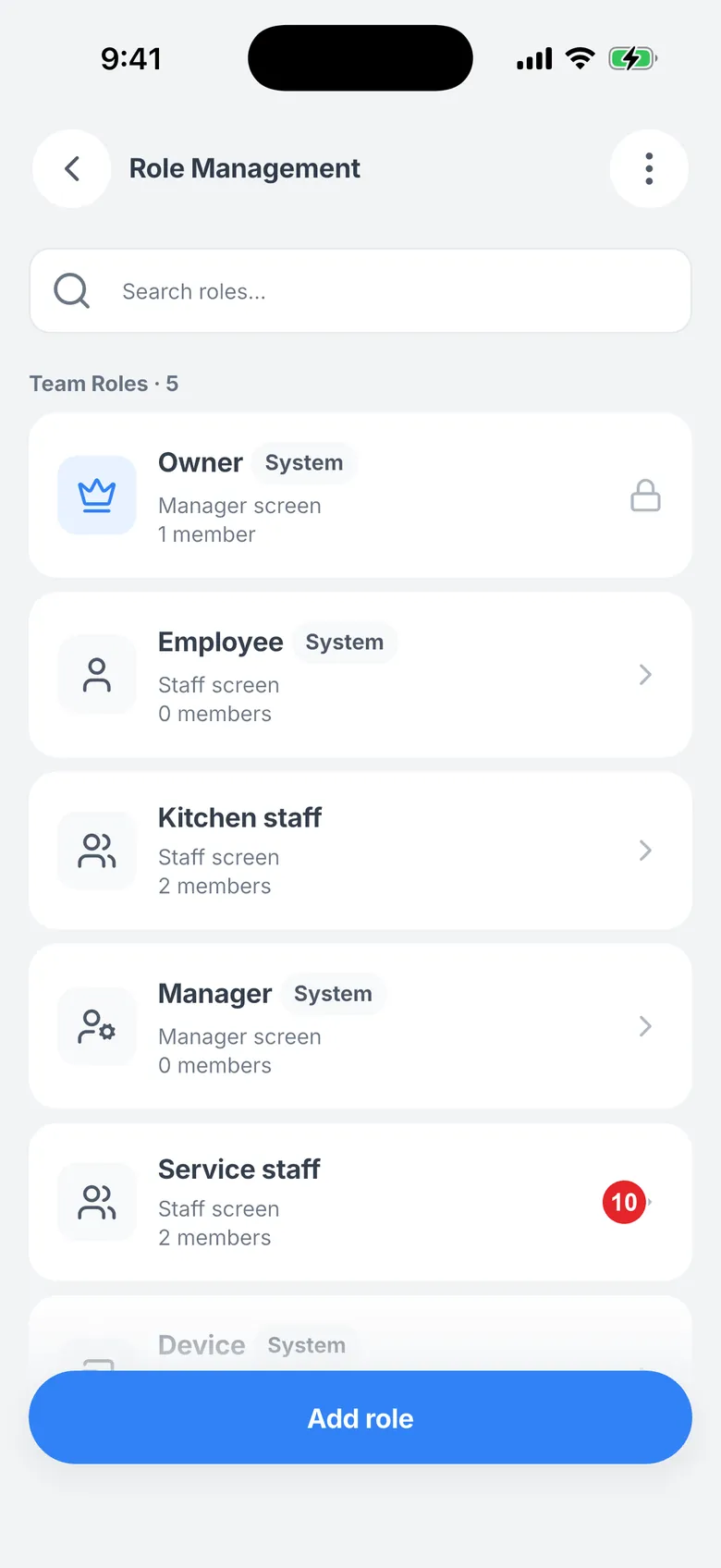
- Staff join a department through their role. In «Staff» › «Role Management», tap the role to put into a department. Example: «Service staff».
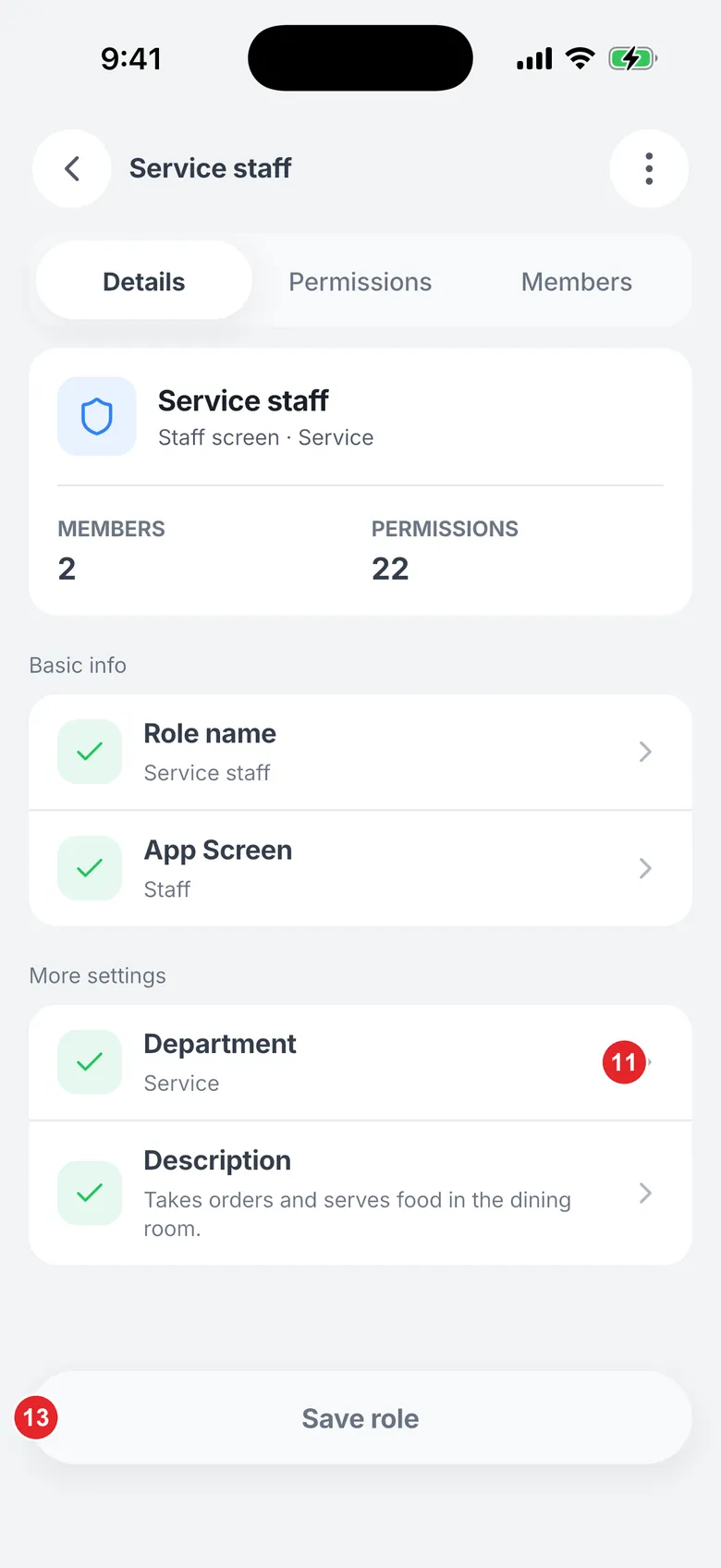
- Tap «Department».
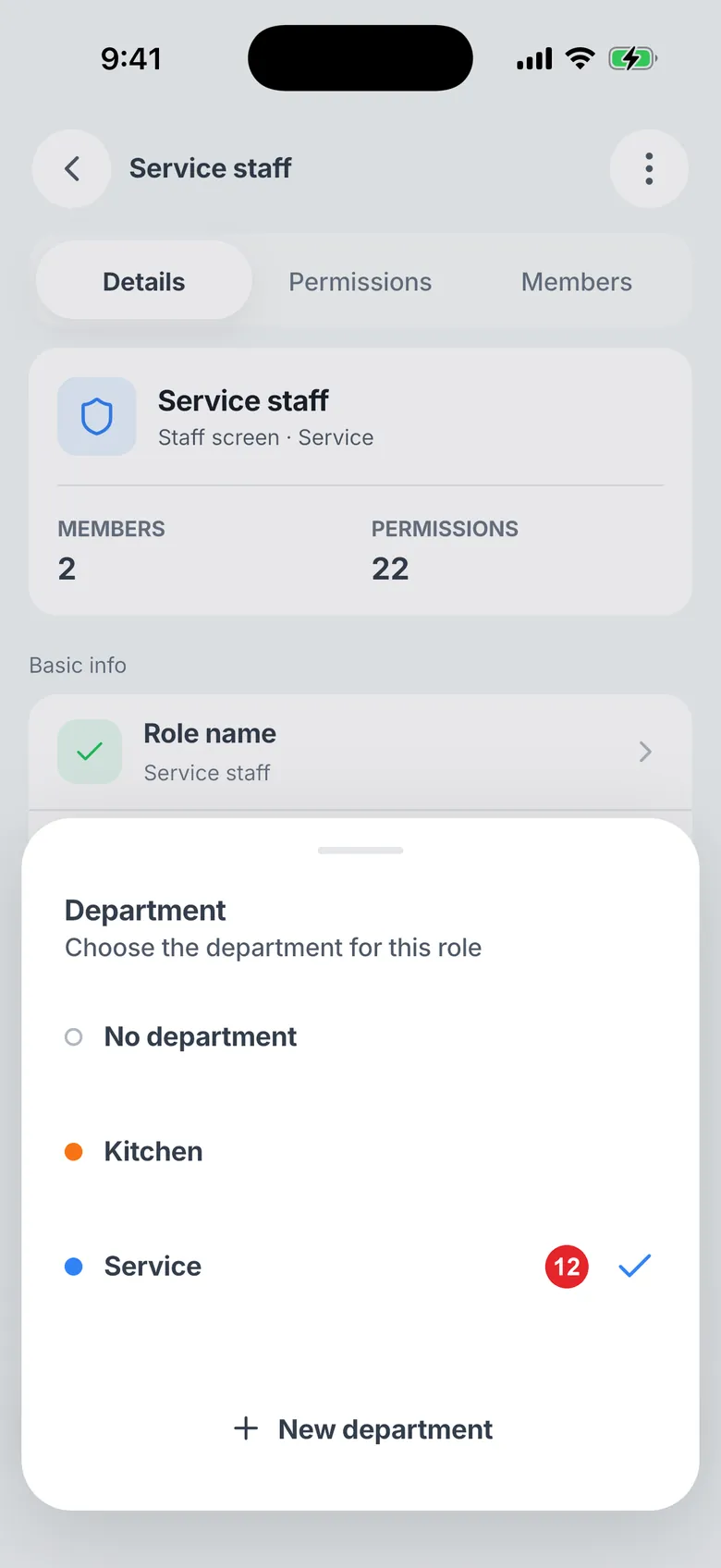
- Choose the department this role belongs to. If there is none yet, tap «New department».
- When the window closes, tap «Save role» (13 in the previous picture). All staff with that role join that department.
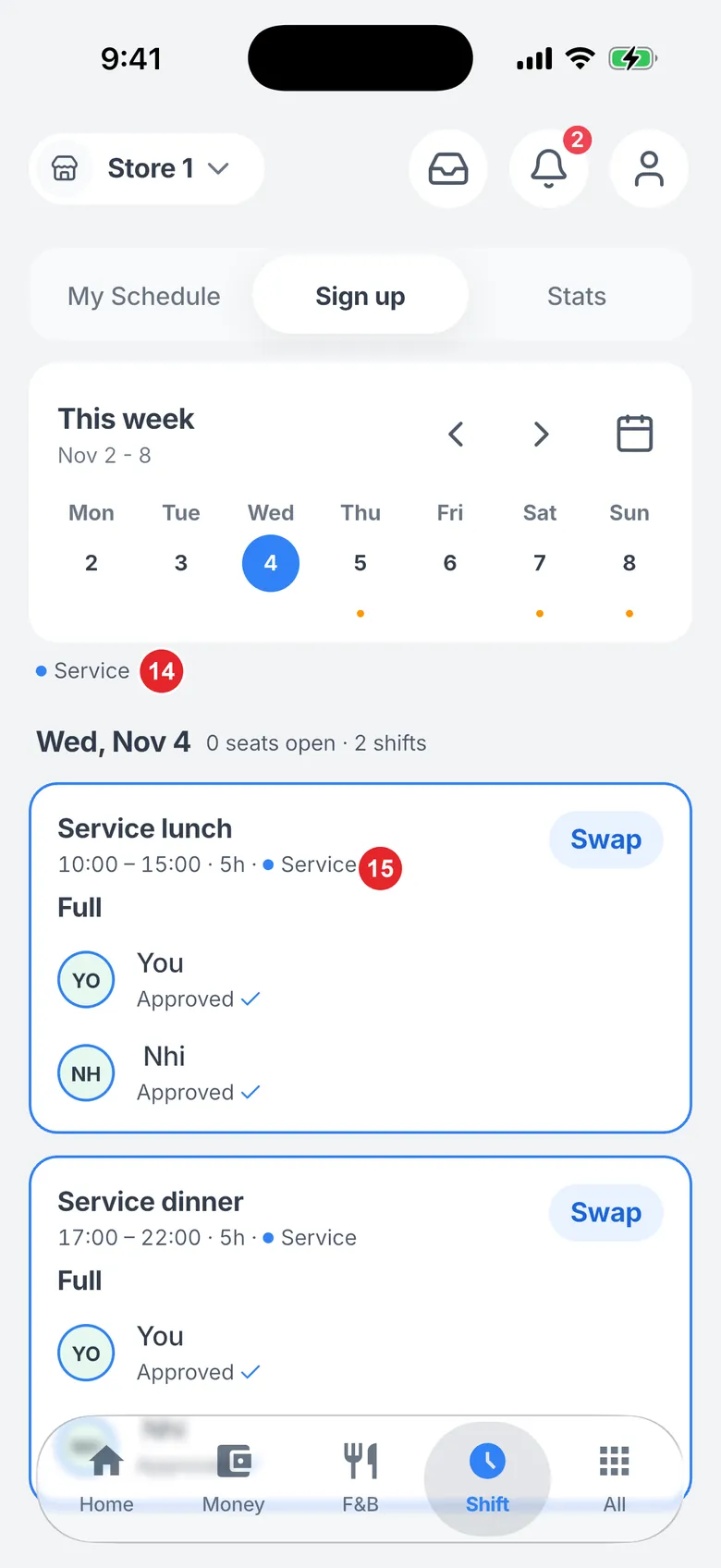
- In the staff app's «Shift» › «Sign up», the staff member's department shows at the top. Example: Trang = ● Service.
- Each shift carries its department, like «Service», and only the staff member's own department shifts and shifts with no department show. Trang does not see Kitchen shifts.
When to use departments
Use them to split teams that do different work, like Service and Kitchen. In a restaurant, Service takes orders and serves food, and the Kitchen cooks it. A store with only one team doesn't need departments.
When you split departments:
- Staff see only their own department's shifts in «Sign up». Service staff don't see Kitchen shifts.
- «Shift Management» › «Timetable» shows each department on its own, so you can see hour by hour whether Service or Kitchen is short of people. How to read it is in «Check for gaps hour by hour».
Order: create departments → put roles into departments (e.g. «Service staff» = Service) → put staff into that role → choose a «Department» for each hourly shift.
Where departments connect
| Where | What | What happens |
|---|---|---|
| Role | Put a role into a department | Staff with that role become part of that department. Staff join a department only through their role. |
| Hourly shift «Department» | Tie the shift to a department | The shift does not show in «Sign up» for staff of other departments. A shift with no department is visible to everyone. The owner and staff without a department see all shifts. |
| Hourly shift «Visible to departments» | Choose which departments see it | You can only choose a department that has a role in it. When we checked, staff of other departments could still see the shift. To hide a shift, use «Department». |
| Monthly schedule «Department» | Tie the schedule to a department | It shows in that department's row on the website's «Shift Setting» › «Departments» tab, and goes into that department's part of the timetable. |
| Shift Management «Timetable» | See each department | There is a column for each department, based on each shift's «Department». Choose «All» (website «All departments») · «Service» · «Kitchen» at the top. The people needed each hour are also set separately for each department. If even one department is short, «All» shows it as short too. Shifts with no department show on their own as «No department». |
Remember
- Creating a department alone changes nothing. Staff join a department only when you put their role into it.
- To put a staff member into a department, change their role. Put staff of the same department into the same role (e.g. «Service staff»).
If you get stuck
- If Service staff see Kitchen shifts: check that the staff member's role has a department, and that the shift has a «Department» chosen. «Visible to departments» alone does not hide it.