
Show contents
Staff & shifts › Store & shift setup
Set up work schedules for monthly staff
- Who
- Owner · Manager
- When
- Once, at the start
- Where
- App · Web
What you get
- Set the hours and days in one schedule, then add the monthly staff who work on it. You don't enter dates for each staff member.
- Clock-in records are compared with this schedule's hours, and the status is decided automatically.
- On a working day with no clock-in record, it shows as «Absent» and waits for the owner to check. A missed day does not slip by.
What it solves
- Monthly staff don't request shifts, so if you don't set when they work, there is nothing to tell late from absent.
- In the app you can't save a monthly salary without a schedule, so you get stuck when setting the salary.
Why this way
- Monthly staff work by this schedule, with no shift requests or approvals. You don't book shifts again every week.
- What if I skip checking the days with no record? You can't pay that staff member's salary until you confirm those days. The salary never goes out with a check missed.
- Does «Absent» cut the salary by itself? No. To reduce it, take it off with «− Deduction» when paying, or tap «Apply (-amount)» in the app.
- What if I delete a schedule by mistake while staff are still on it? It won't be deleted. Move the staff to another schedule first, then delete it.
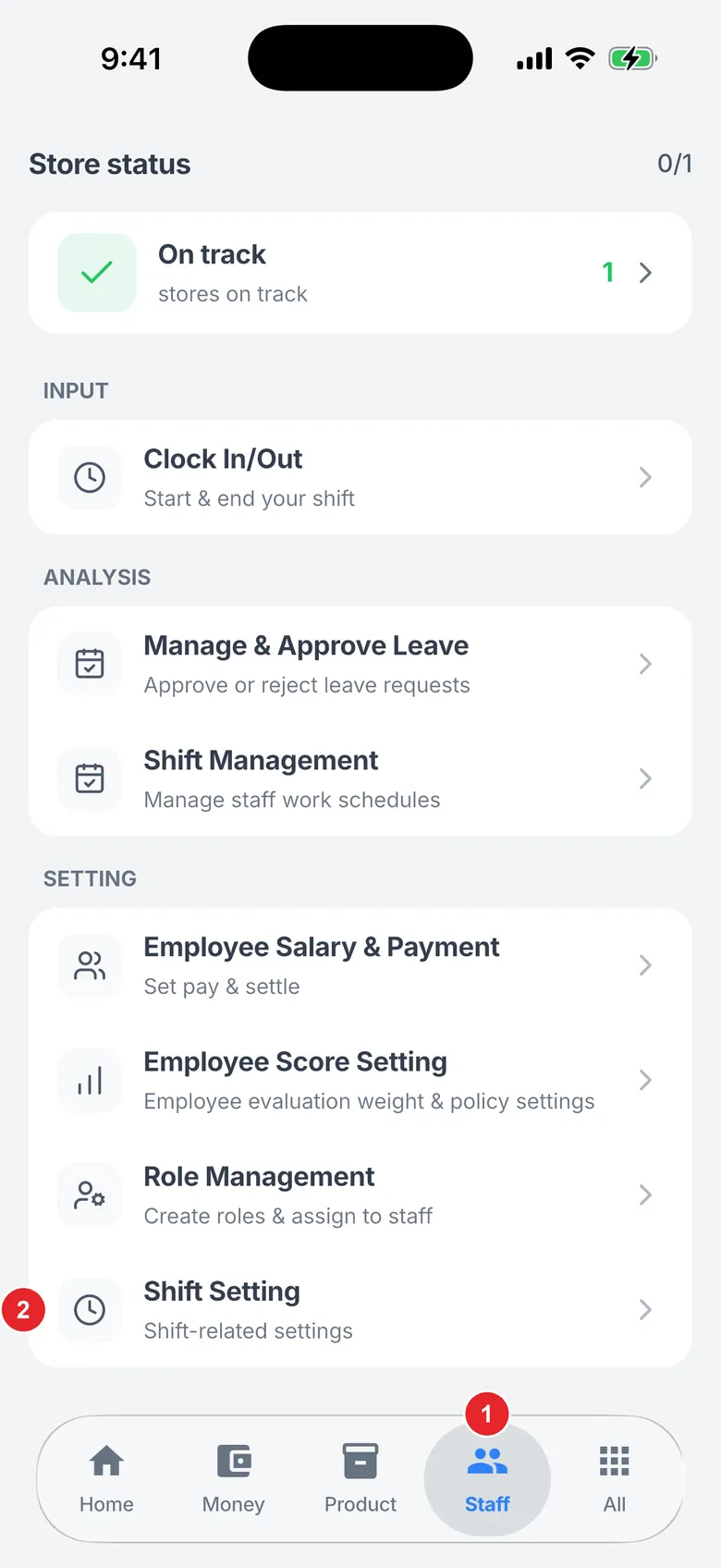
- Tap «Staff» at the bottom of the app.
- Scroll down and tap «Shift Setting».
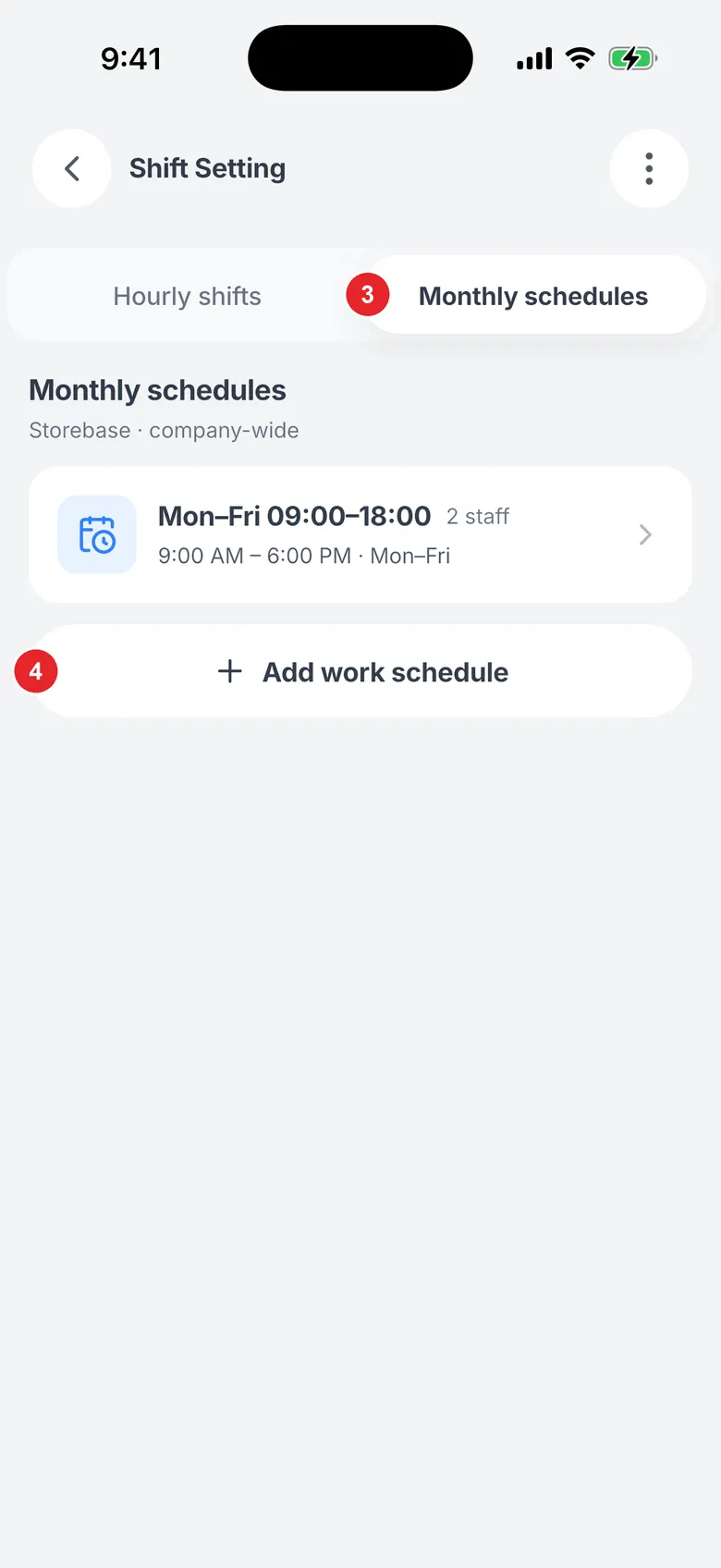
- Open the «Monthly schedules» tab.
- Tap «Add work schedule».
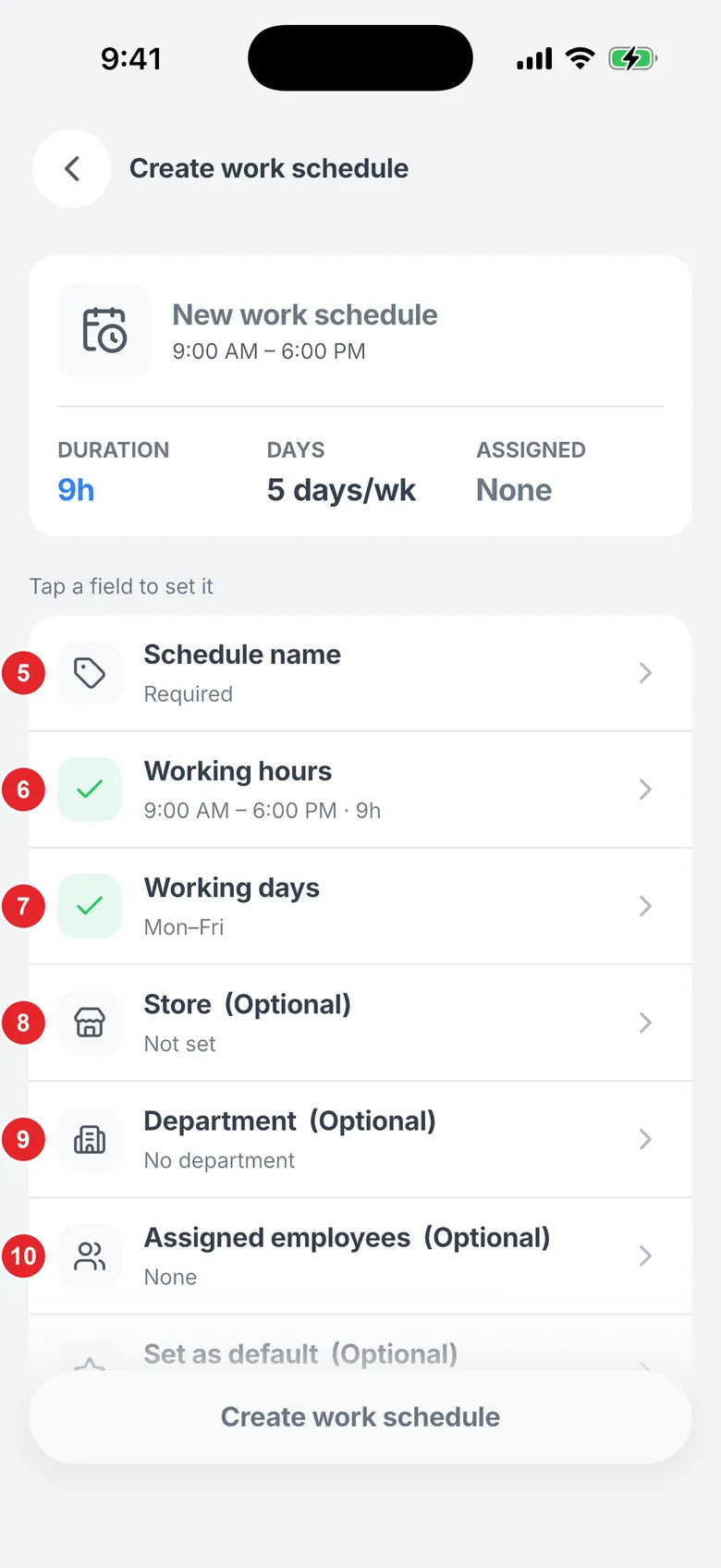
- Enter the «Schedule name».
- In «Working hours», choose the start and end times. At first it is set to 9:00 AM – 6:00 PM.
- In «Working days», choose the days they work. At first it is Mon–Fri.
- «Store»: choose which store this schedule belongs to. You can leave it empty.
- «Department»: choose which department this schedule belongs to.
- «Assigned employees (Optional)»: choose the monthly staff who work on this schedule. You can also do this later.
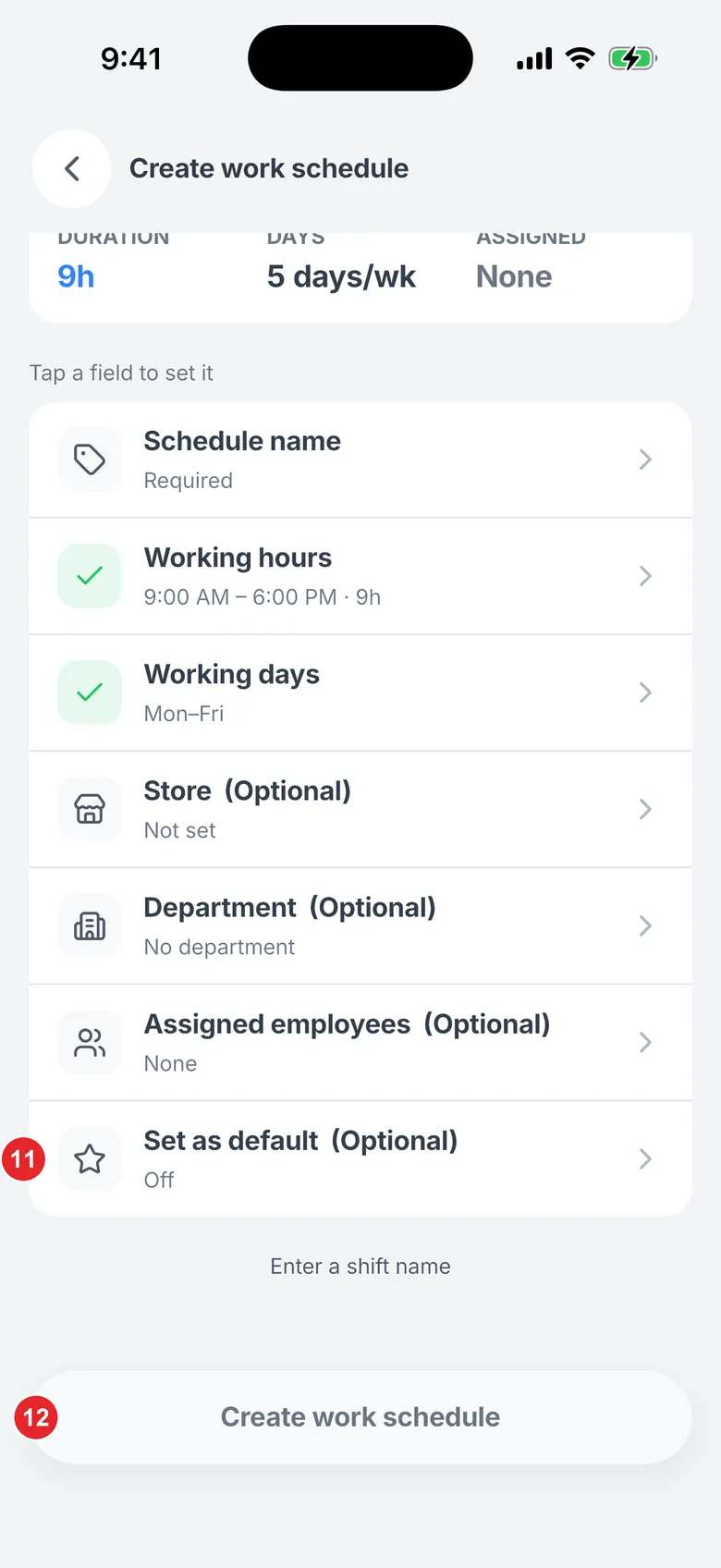
- «Set as default (Optional)»: turn it on, and this becomes the default schedule for monthly staff.
- Check the details on the card at the top and tap «Create work schedule». It looks faded until you enter a schedule name.
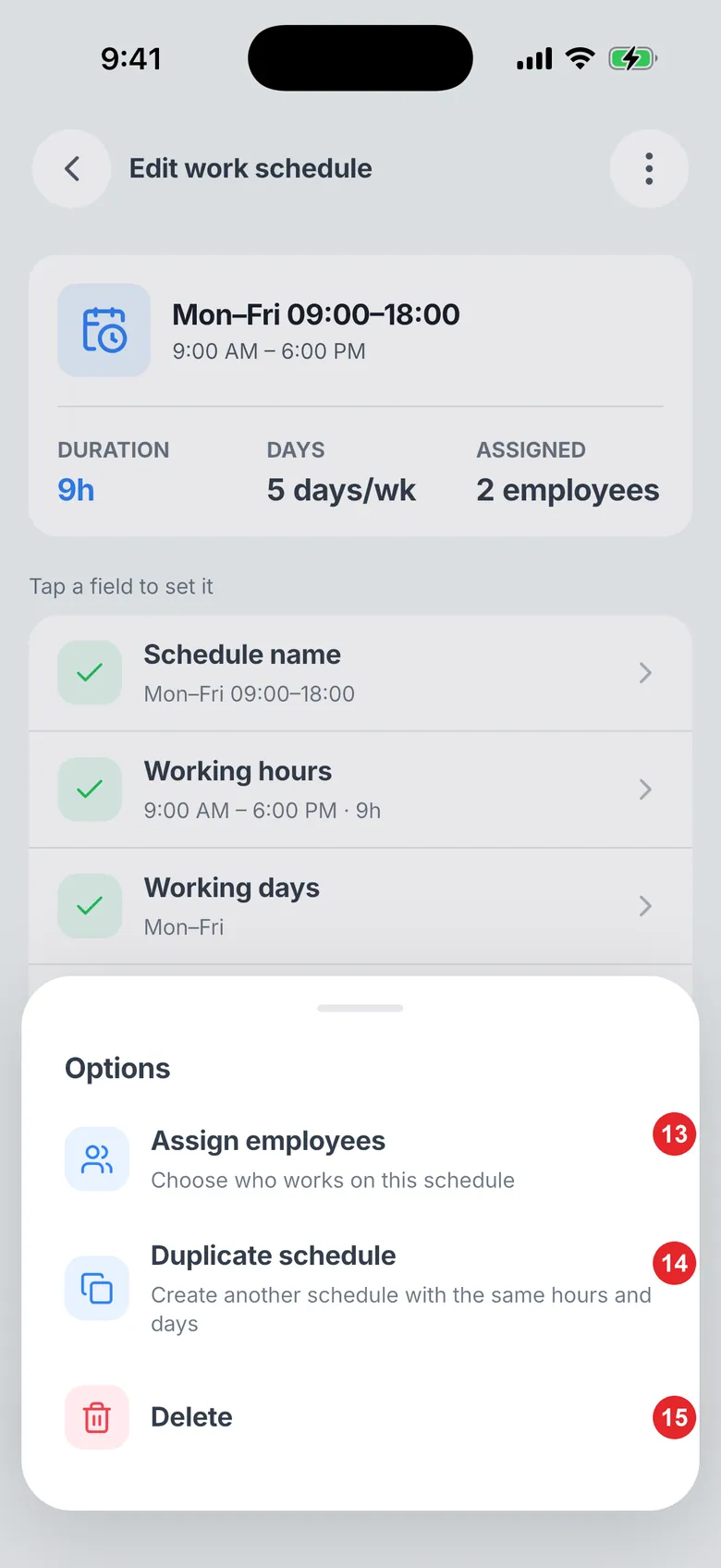
- Tap the schedule you made, then tap ⋮ at the top right. «Options» opens. Change this schedule's staff with «Assign employees».
- «Duplicate schedule» makes one more «… copy» schedule with the same hours and days. It does not add staff.
- Delete the schedule with «Delete». If staff are still on it, «Can't delete yet» appears. Move the staff, then delete it.
What each field does
| Field | What you set | What happens for staff and pay |
|---|---|---|
| Schedule name | The name staff and the owner see | This name shows in Shift Management «Monthly staff» and in attendance details. |
| Hours | Start · end of the day | «Scheduled» in attendance details is this time. Clock-in records are compared with this time, and the status is decided automatically. |
| Working days | The days they work | On these days, if there is no clock-in record, it shows as «Absent» and needs the owner's check. |
| Store | Which store's schedule it is | It can be left empty. |
| Department | Which department's schedule it is | It shows grouped by department on the Departments tab. |
| Assigned employees | Monthly staff who work on this schedule | The schedule shows in the chosen staff's attendance details, and clock-in is judged by its days and hours. |
| Set as default | The default schedule | Turn it on and save, and this becomes the default schedule for monthly staff. |
Remember
- Monthly staff have no shift requests or approvals. They work by this schedule.
- In the app you can't save a monthly salary without a schedule. Create the schedule first.
- You can't delete a schedule while staff are still on it. Move them to another schedule, then delete it.
- The app's «Duplicate schedule» makes a «… copy» schedule with the same hours and days, without staff. The website has no duplicate.