
Show contents
Staff & shifts › Store & shift setup
Put up the clock-in QR
- Who
- Owner
- When
- Once, at the start
- Where
- App · Web
What you get
- Put up one QR, and staff clock in and out with it every day.
- New staff can also join your store with this QR, so you don't have to send them the code.
What it solves
- Without a QR in the store, staff have no way to record their own clock-in and clock-out.
- The website's «Save QR» does not download a file, so people get lost looking for a QR to print.
Why this way
- The QR is put up in the store, so staff come to the store to scan it. If they scan farther away than the store's «Check-in distance», it is marked as a clock-in outside the store, with the distance.
- If a customer scans this QR, do they join my store? Someone who signs up as staff in the app and scans this QR joins with the Employee role, without approval. Remove anyone you don't know with «Remove from company» in the app.
- What if I have several stores? Each store has its own QR. Choose the store under «Store» at the top, save its QR, and put it up in that store.
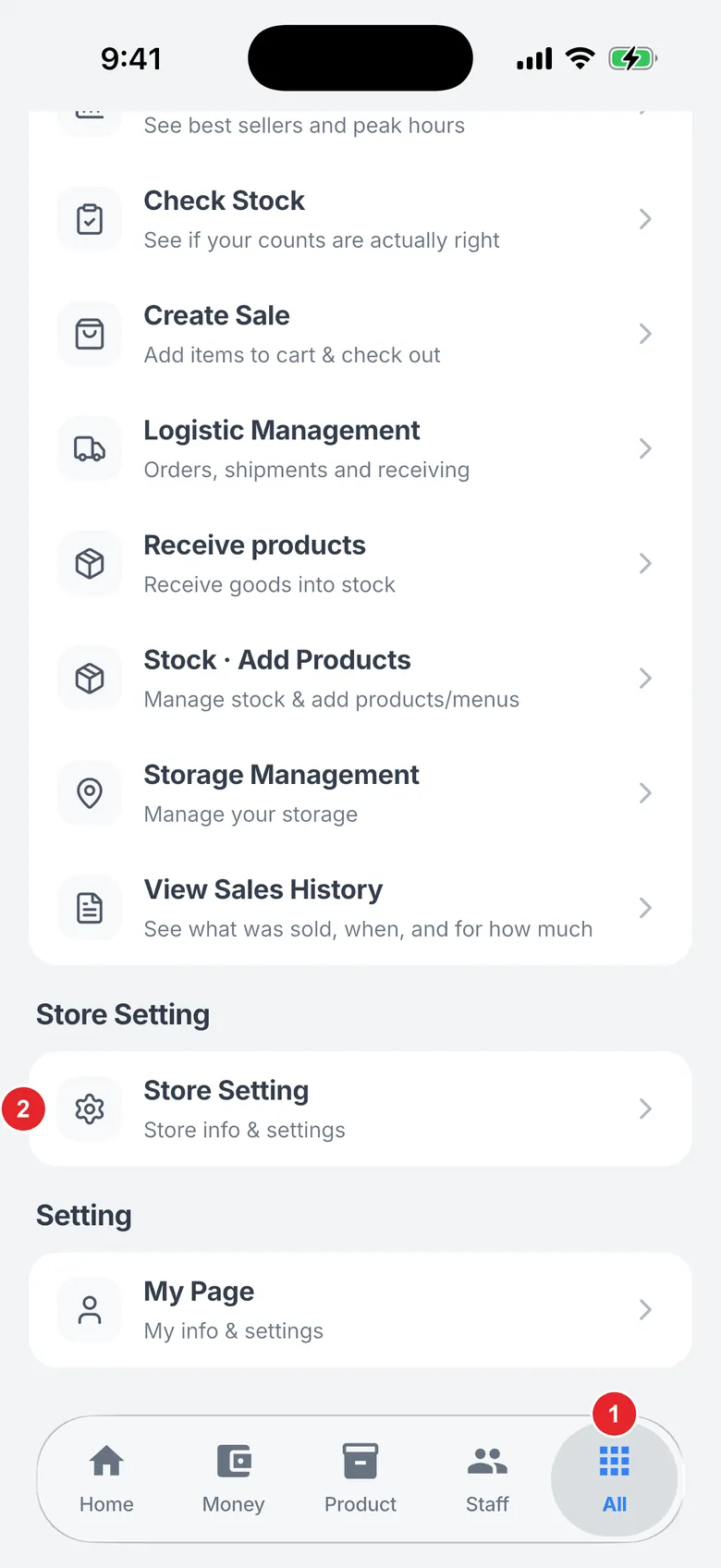
- Tap «All» at the bottom of the app.
- Scroll down and tap «Store Setting».
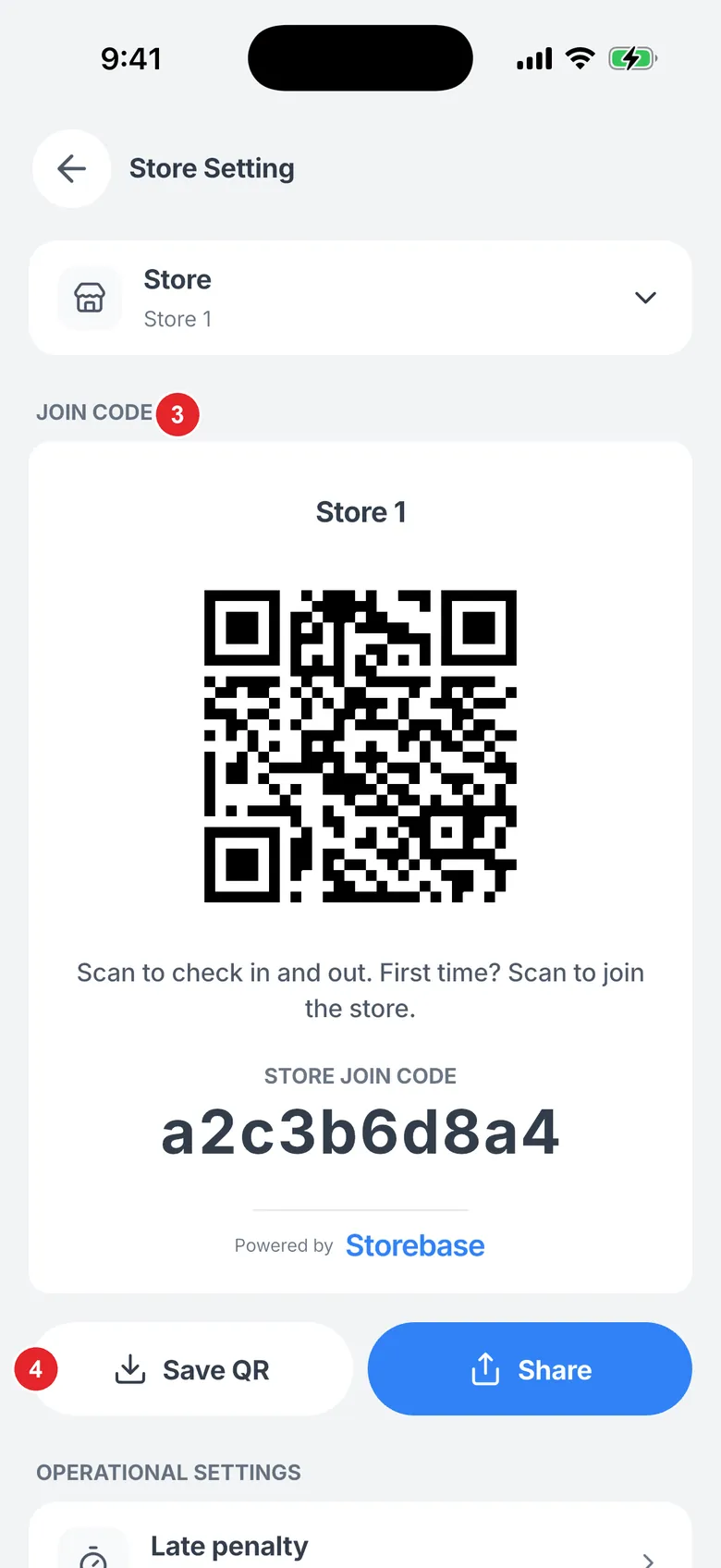
- Under «JOIN CODE», check the store name and the QR. If you have several stores, first choose one under «Store» at the top.
- Tap «Save QR».
- Print the saved QR and put it up where staff can easily see it.
Remember
- New staff can also join your store with this QR.
- To print only the QR, get it from the app. The website's «Save QR» does not download a file, and «Print poster» opens the browser's print window and prints this whole screen.