
Show contents
Staff & shifts › Store & shift setup
Change or delete shifts
- Who
- Owner · Manager
- When
- When shift times change
- Where
- App · Web
What you get
- When you change a shift's times, shifts already booked ahead change to the new times too. Approved shifts move over still approved, so you don't approve them again.
- If the shift you delete still has bookings ahead, you get one more warning. The website also shows how many.
What it solves
- If the shift times change but you leave the shift as it is, staff requests, the schedule and late checks all keep using the old times.
- If you leave a shift you no longer use, it keeps showing in staff «Sign up» and requests keep coming in.
Why this way
- You edit the shift you have instead of making a new one, so shifts already approved follow it to the new times.
- If I change the times, does pay for past shifts change? No. Only shifts that start from now on change to the new times. Shifts already started or past stay as they are.
- If I delete the shift, are the work records gone too? No. Shifts already started or past stay, even when you delete the shift.
- If I cancel bookings, do staff get a penalty? No. Canceling the bookings in that window and deleting gives staff no penalty.
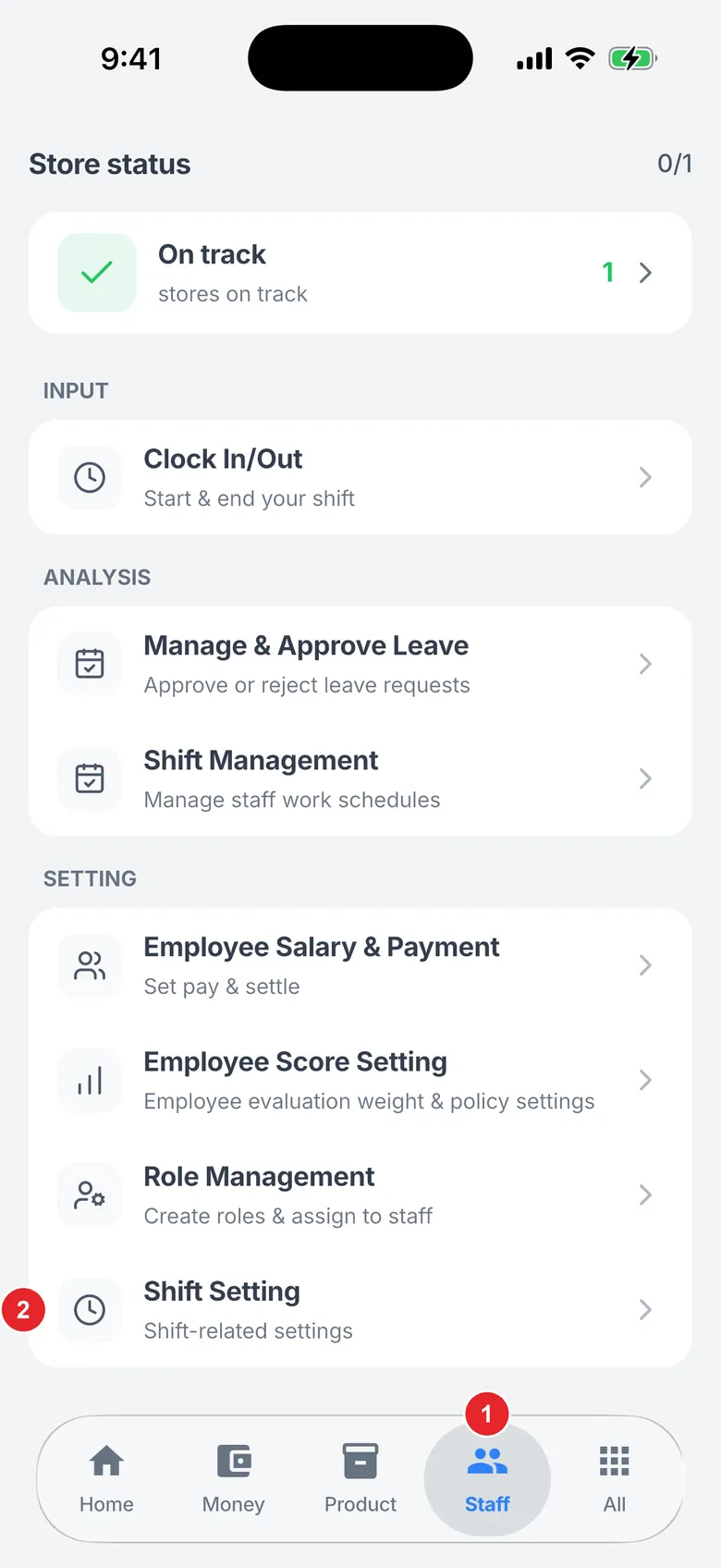
- Tap «Staff» at the bottom of the app.
- Scroll down and tap «Shift Setting».
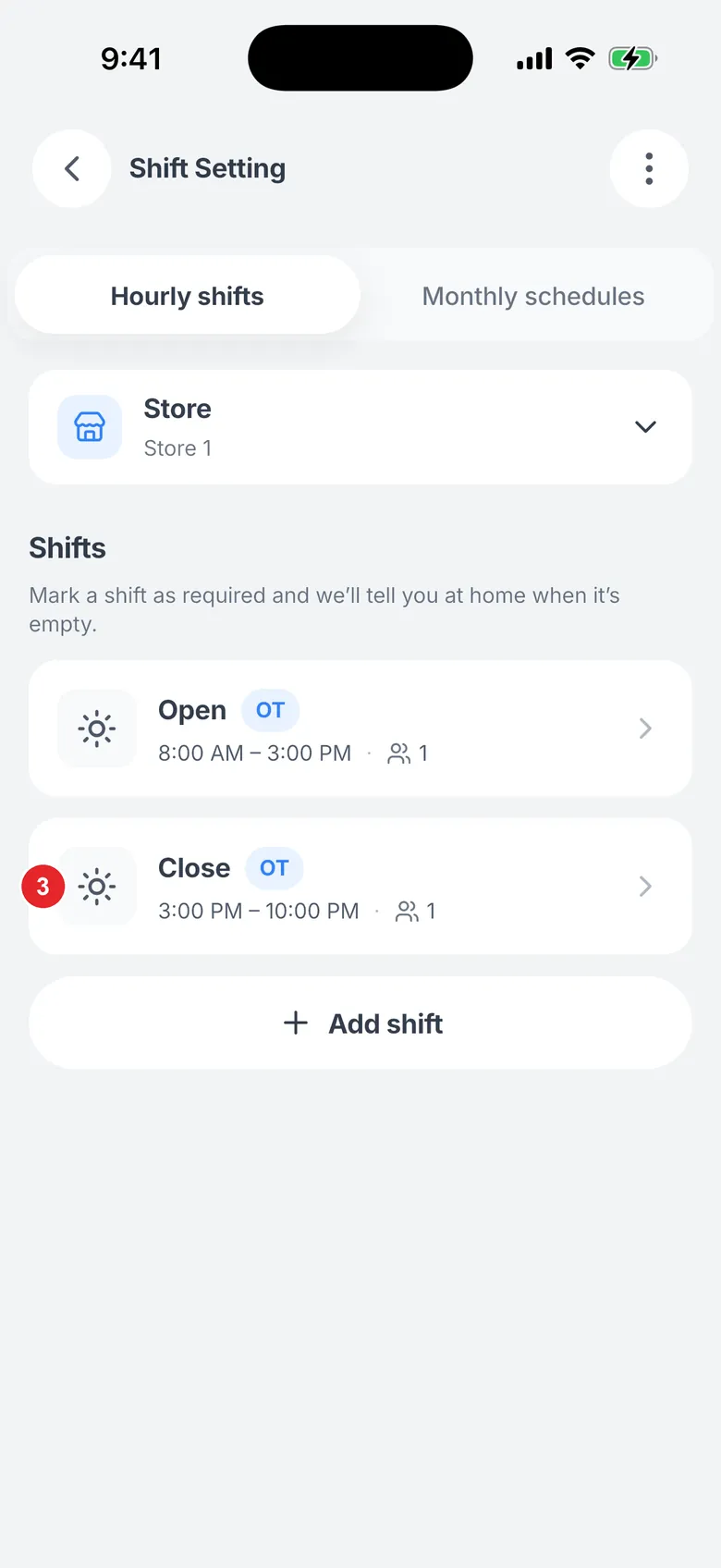
- Tap the shift you want to change.
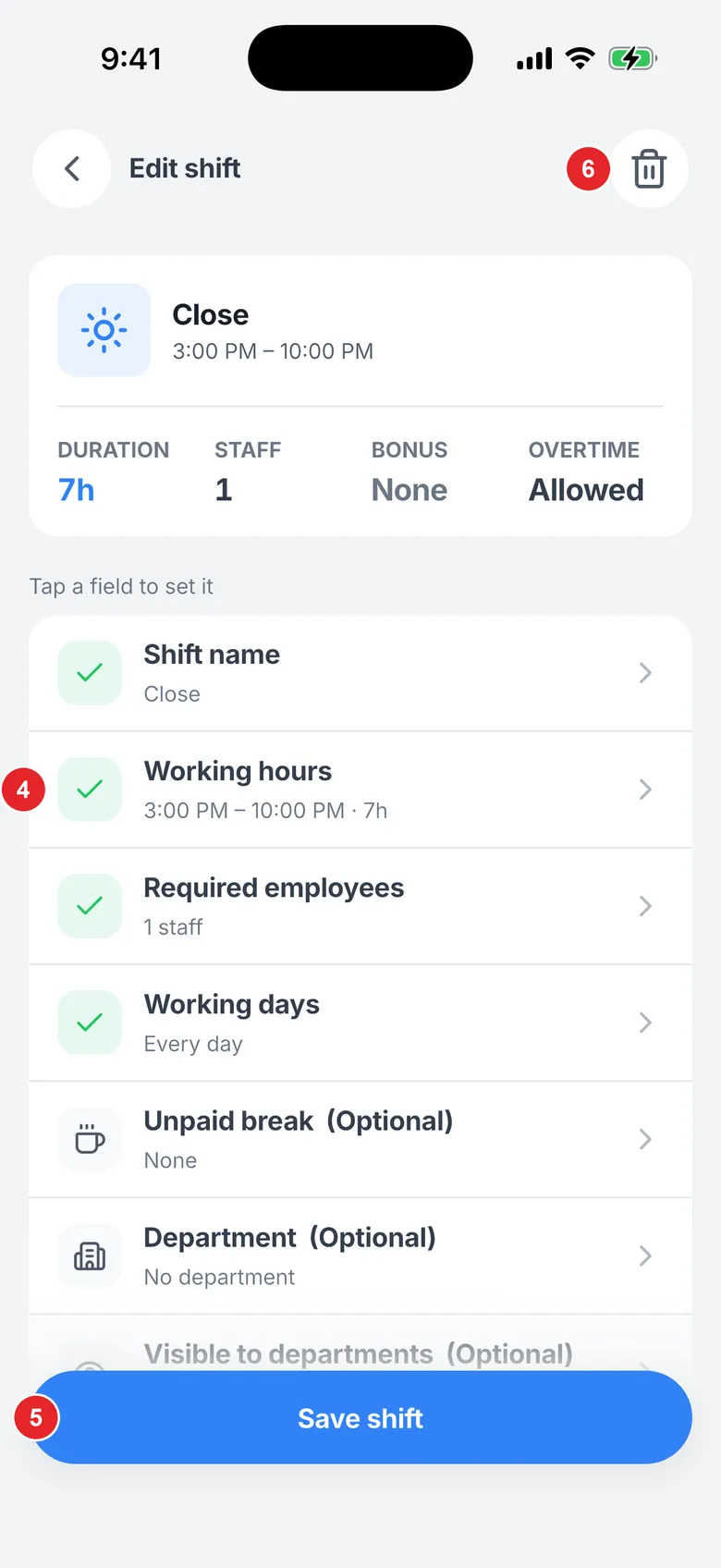
- Tap the field you want to change and fix it. The fields are the same as in «Create shift».
- When you have fixed it, tap «Save shift».
- To remove the shift, tap the trash can at the top right.
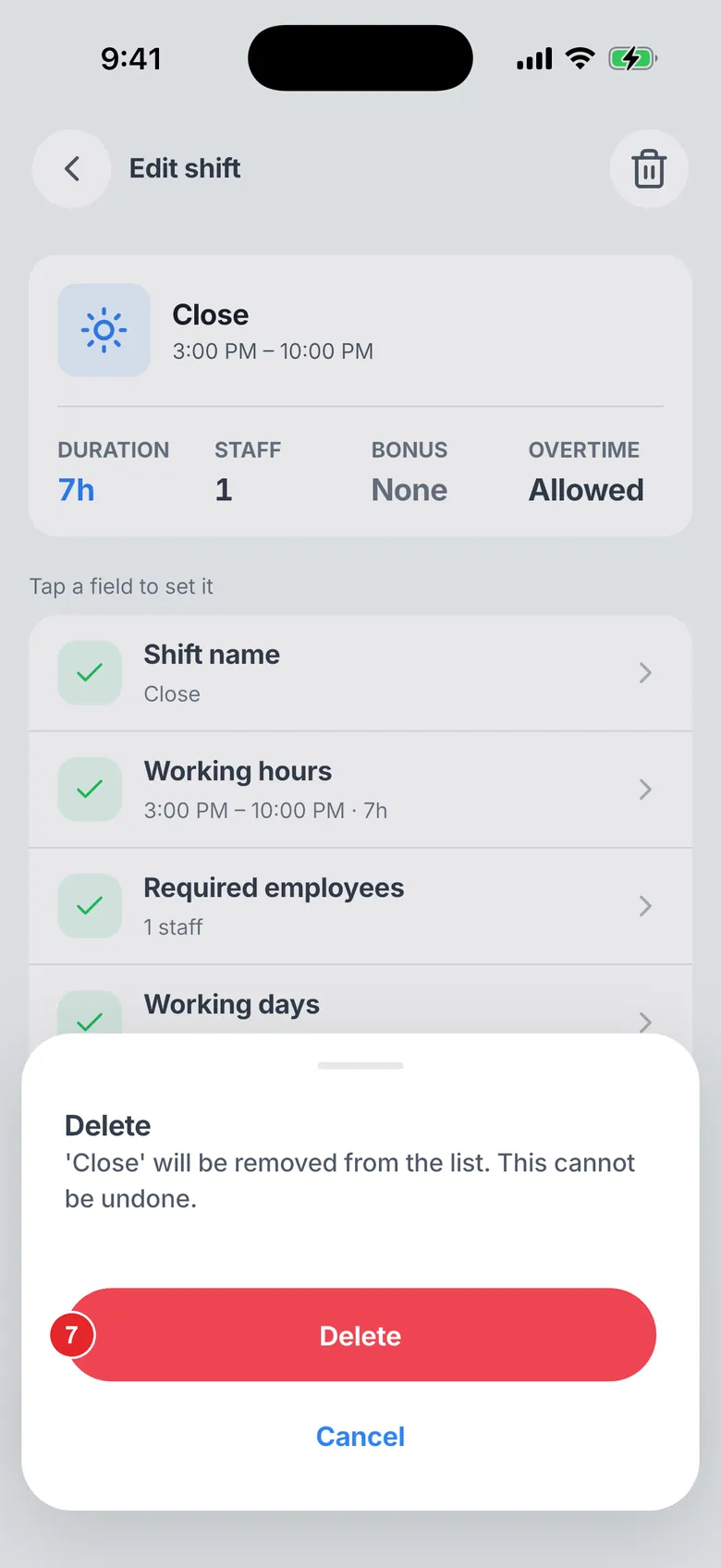
- Tap «Delete». If this shift has bookings ahead, «Work is already booked on this shift» appears once more. Tap «Cancel bookings and delete», and those bookings are canceled and the shift is deleted.
Remember
- When you change the times and save, shifts booked ahead change to the new times too. Approved shifts move over still approved.
- If this shift has bookings ahead, deleting it shows one more window. In the app, tap «Cancel bookings and delete» in «Work is already booked on this shift»; on the website, click «Cancel bookings & delete» in «Work is already booked». All those bookings are canceled and the shift is deleted. Staff get no penalty.
- Shifts already started or past stay, even when you delete the shift.