
Show contents
Staff & shifts › Store & shift setup
Invite staff
- Who
- Owner → Staff
- When
- Each time someone joins
- Where
- App · Web
What you get
- Send just the «STORE JOIN CODE» or the QR, and staff sign up and join your store by themselves. You don't create accounts for them.
- Everyone who joins starts with the Employee role. Later, change the role only for people who will do manager work.
What it solves
- Staff who have not joined your store can't request shifts or clock in and out with the QR.
Why this way
- Does someone with the code get in right away? Yes. They join with the Employee role right away, without your approval. Send the code only to people who will work for you.
- When do I enter their pay? New staff have no pay yet. Enter it before their first shift, so the shift does not stay at ₫0.
- What if my plan's staff limit is full? The staff member's app shows «Team is full», and you get a notice saying who tried to join.
- What if someone quits? Remove them with «Remove from company» in the app. Pay their last salary first, then remove them.
Owner
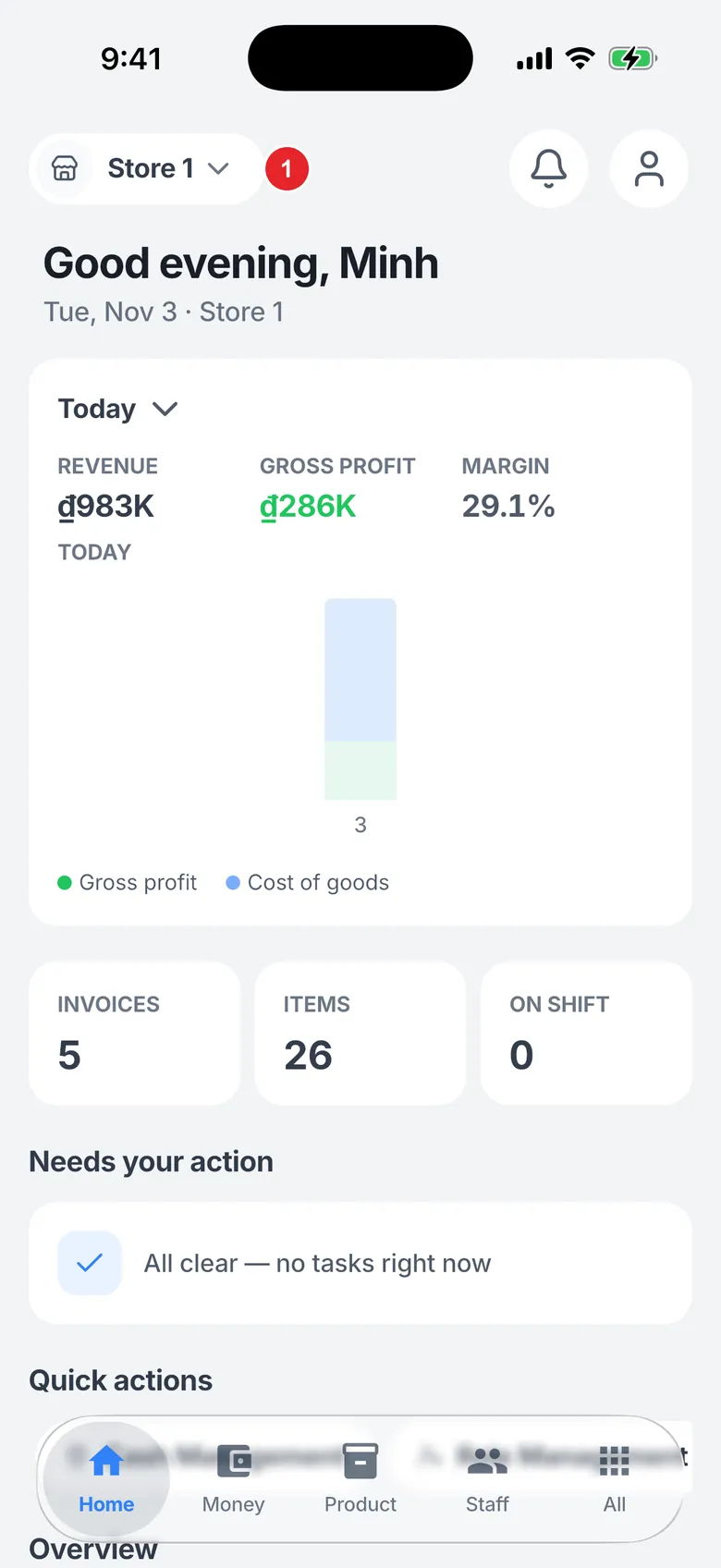
- Tap the store name at the top left of the app home.
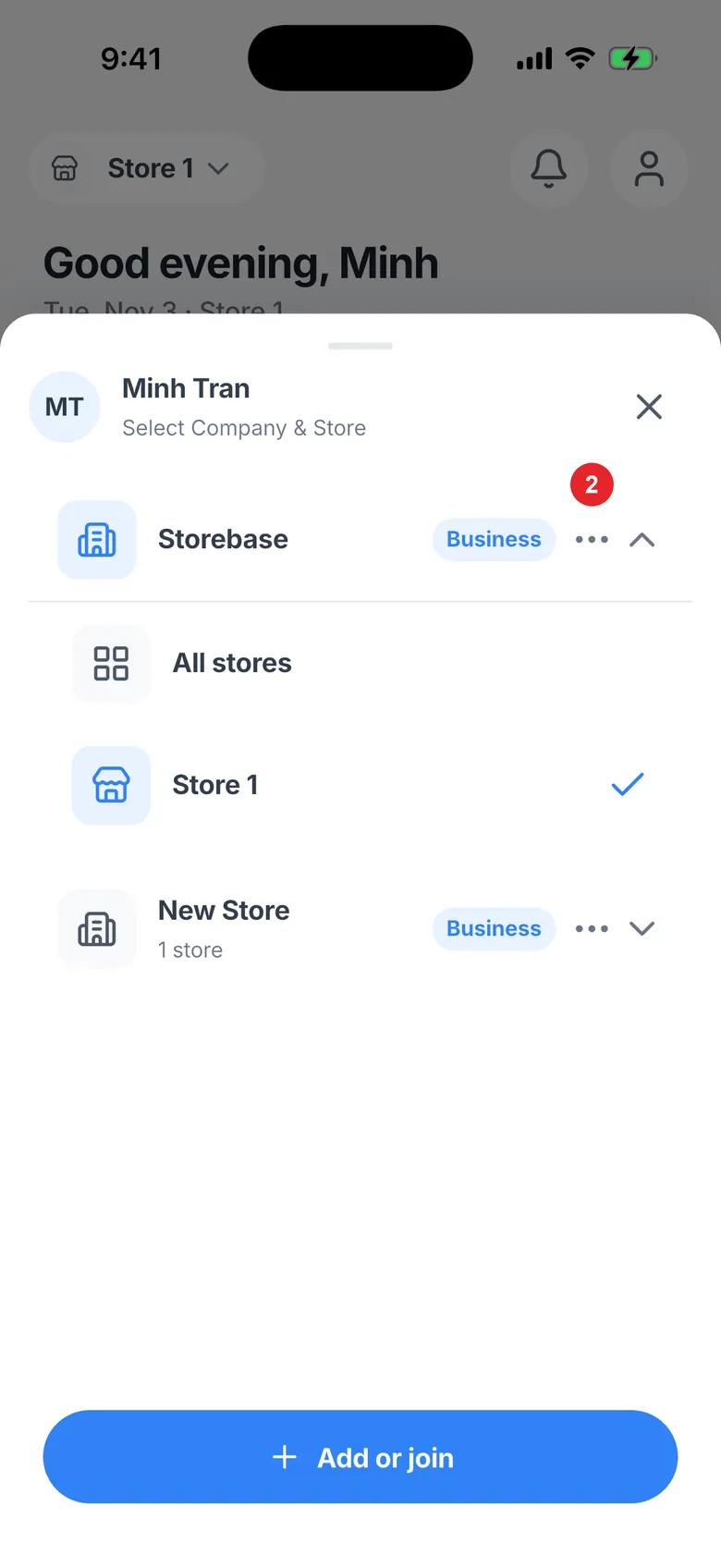
- Tap «⋯» next to the company name.
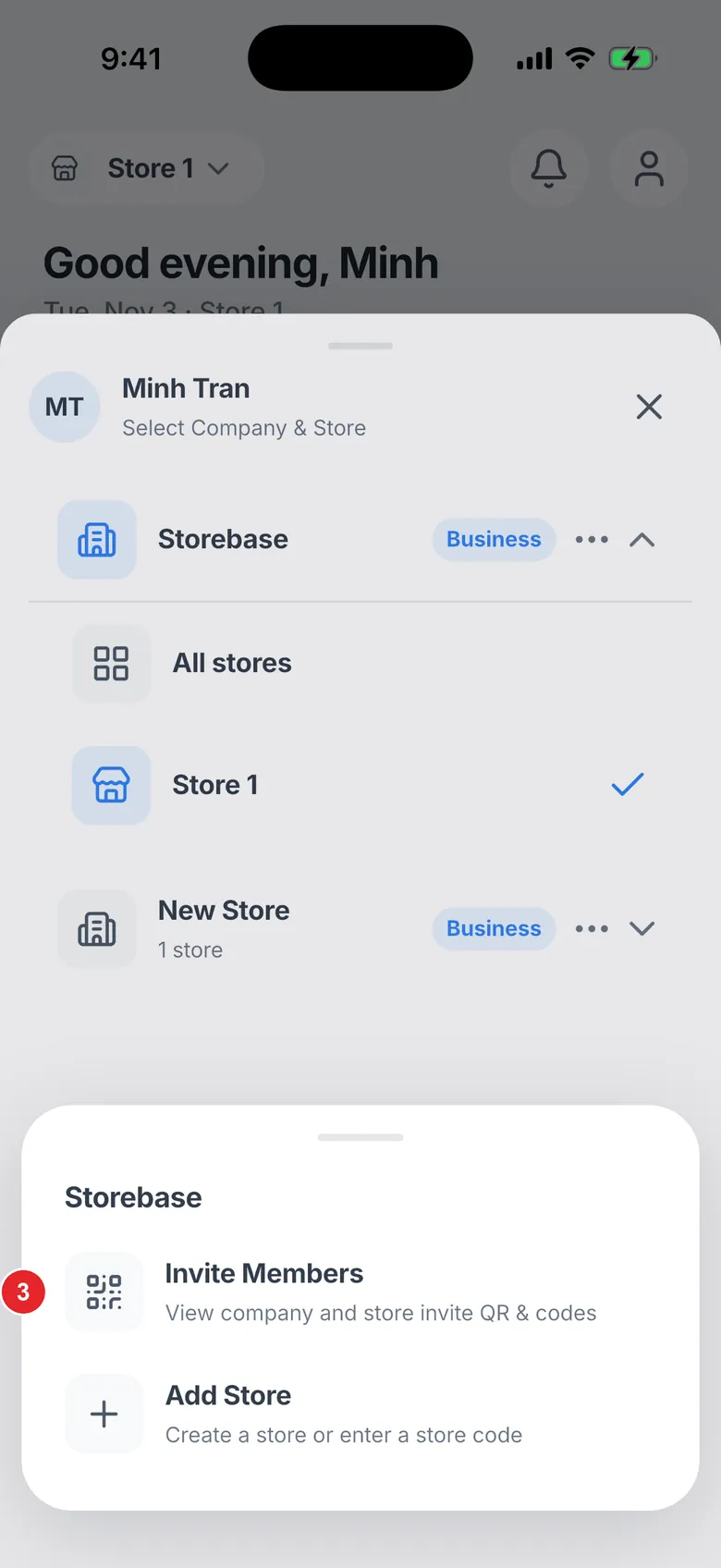
- Tap «Invite Members».
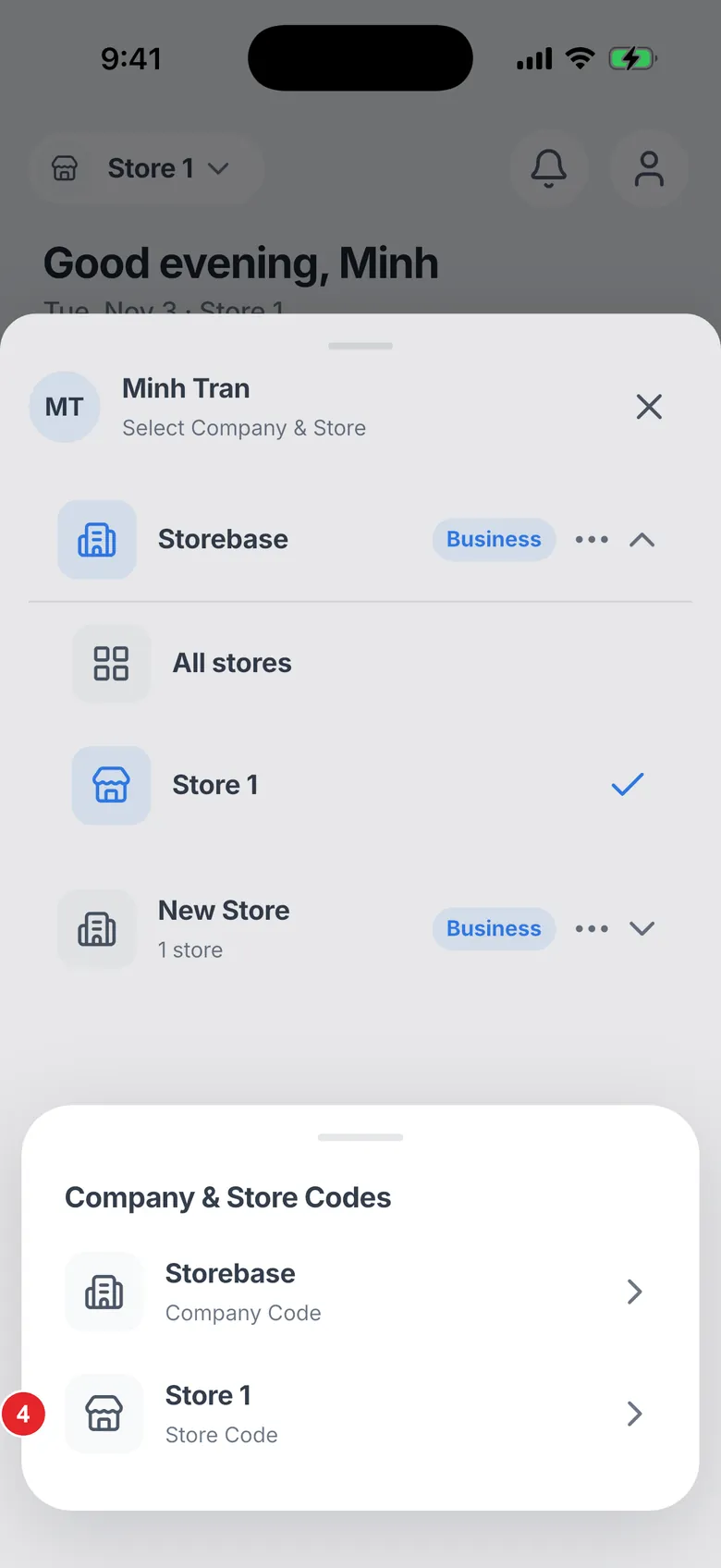
- Tap the store name row («Store Code»).
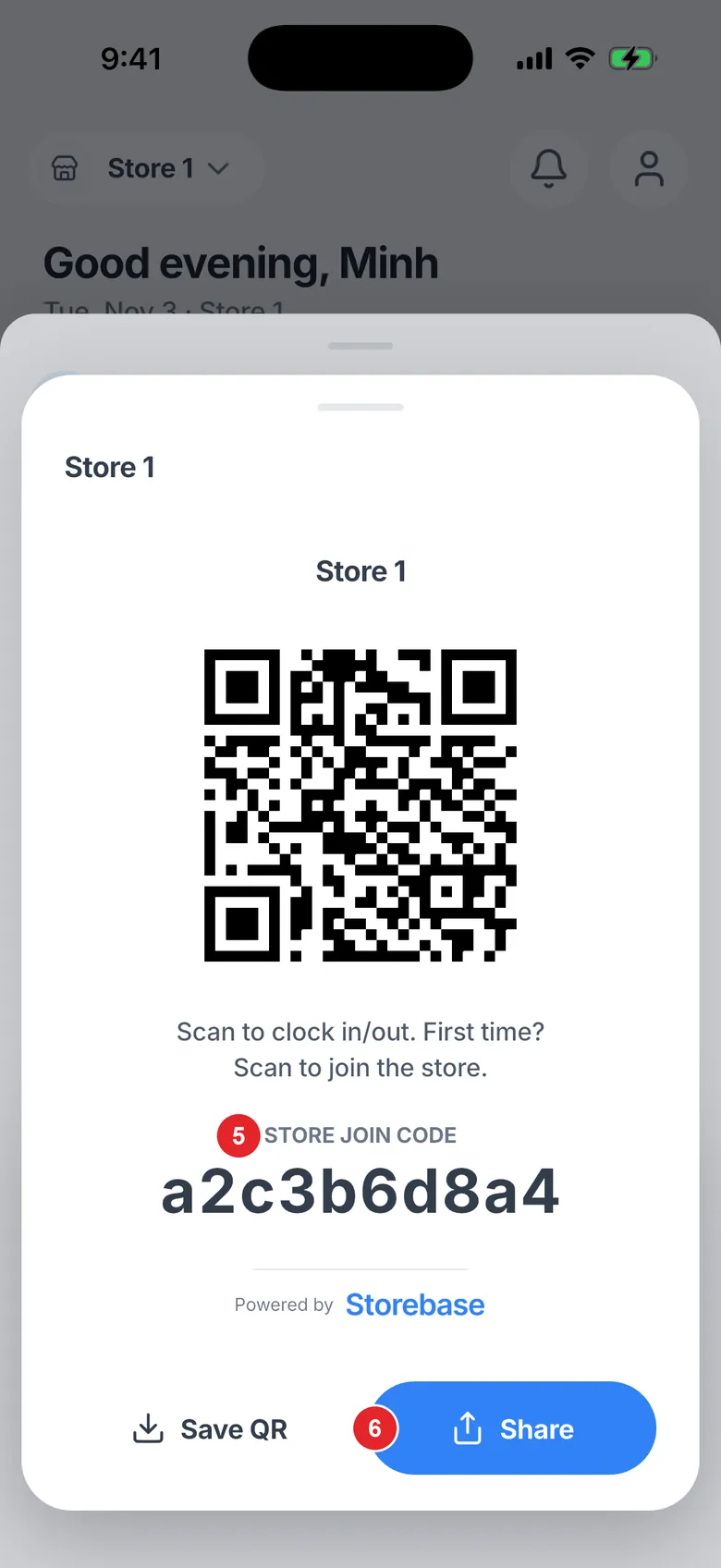
- Check the «STORE JOIN CODE».
- Tap «Share» to send it to the staff member. If they are next to you, you can also show them the QR on this screen.
Staff
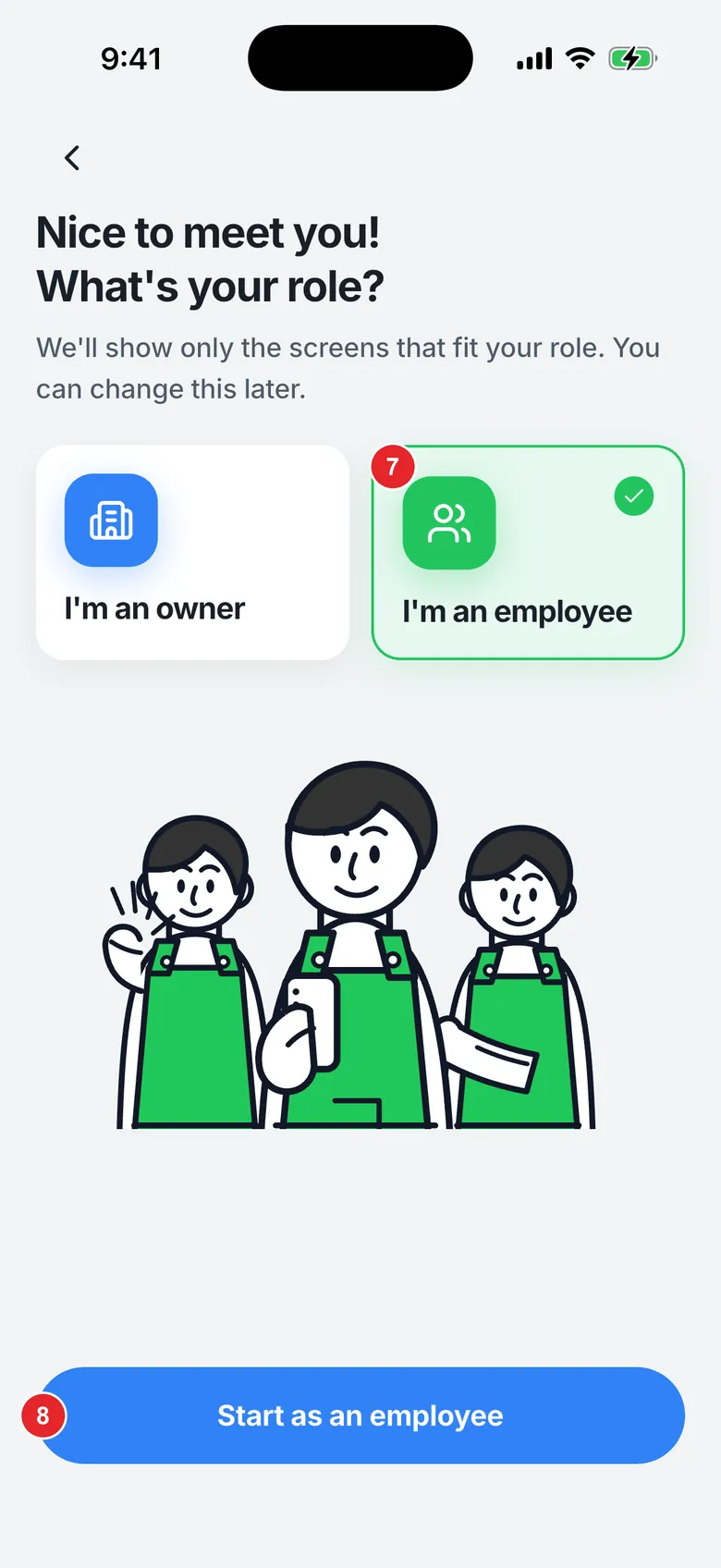
- Install the app, sign up and choose «I'm an employee».
- Tap «Start as an employee».
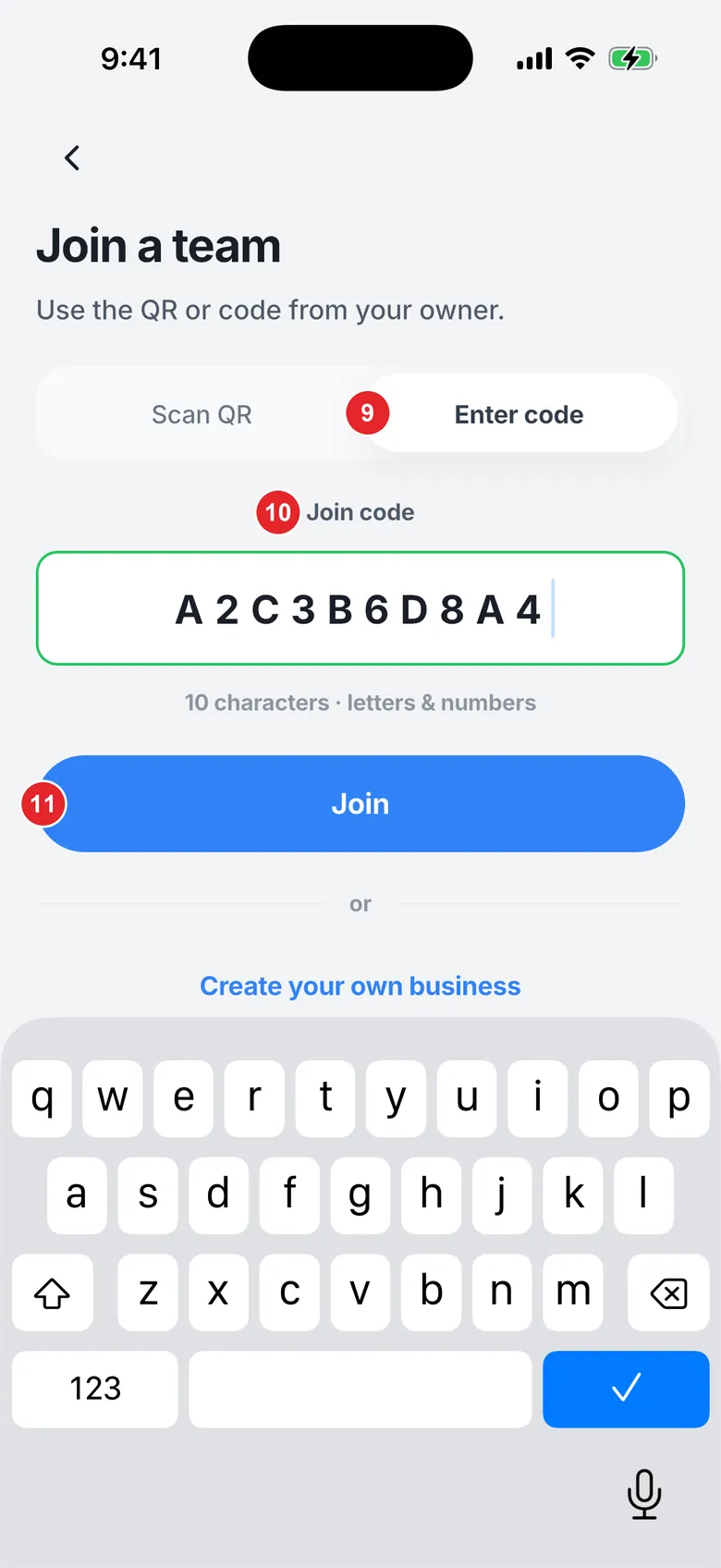
- Tap «Enter code». To scan the QR, use «Scan QR».
- Enter the code you received in «Join code».
- Tap «Join».
What staff do
- Install the app and sign up.
- Choose «I'm an employee», then tap «Start as an employee».
- Enter the code they received, or scan the QR.
Remember
- New staff do not have pay set yet. Be sure to enter it in the next step.
If you get stuck
- «Team is full» → Your current plan's staff limit is full.