
Show contents
F&B menu & sales › Take orders & get paid
Use the kitchen screen
- Who
- Kitchen staff
- When
- During business hours
- Where
- App · Web
What you get
- Menu items sent with «Send order» show right away, one card per table. Service staff don't come to the kitchen to say it out loud.
- It is split into «Orders» · «Cooking» · «Ready», so you see at a glance what to make first.
- Finished menu items show under «Ready» on the service staff's screen, so service staff take them without asking the kitchen.
What it solves
- Paper order slips go missing or get out of order, so a dish is forgotten or a table that came later gets its food first.
- If the kitchen doesn't know about something cancelled in the dining room, it makes food that won't be sold and the ingredients are wasted.
Why this way
- What if the dining room cancels or lowers the quantity? The kitchen screen shows «Order cancelled», or «Cancelled» and «Stop preparing this item». It stays until you press «Got it».
- Won't we miss options or notes? Chosen options show under the menu item, one line each, and notes in bold text of a different color, so they don't mix with the options.
- What about tables waiting a long time? For orders waiting long, the top of the card turns yellow, then red, so they stand out.
- Can I see who made what? The app's «Kitchen history» shows who made which menu item and when.
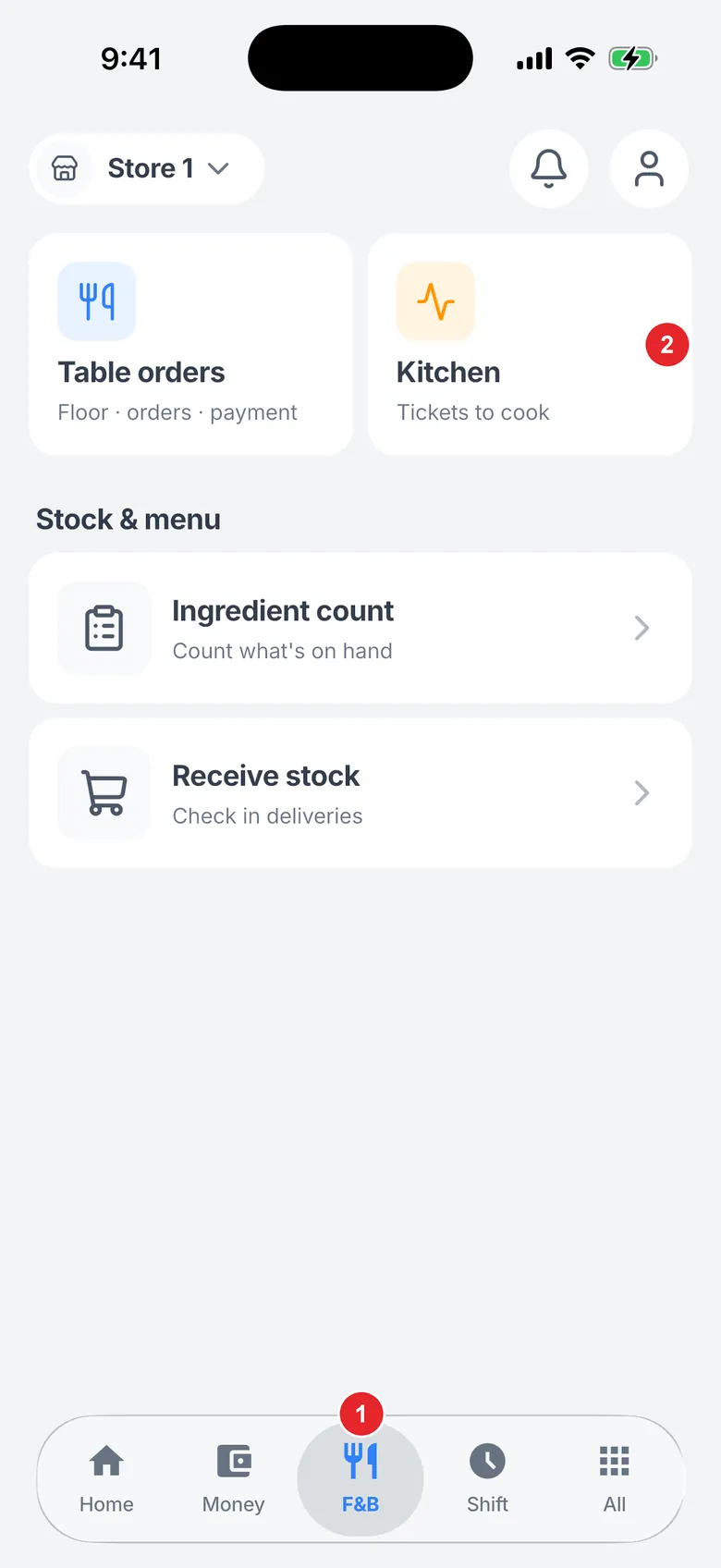
- Open the app with a kitchen staff account and tap «F&B» at the bottom.
- Tap «Kitchen».
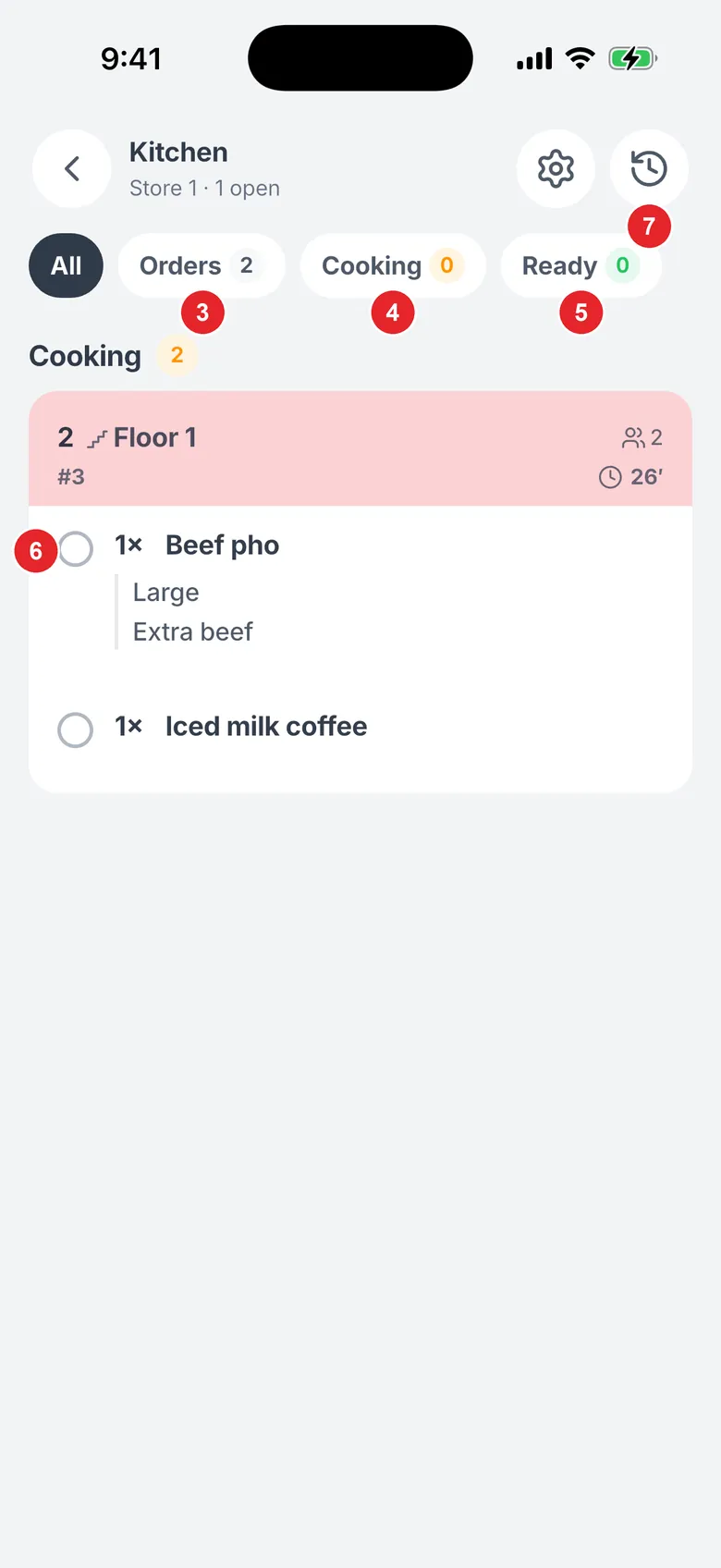
- «Orders» are menu items whose cooking hasn't started yet.
- «Cooking» are the menu items being made.
- «Ready» are the menu items that are finished and waiting to be served.
- Each table gets one card. At the top it shows the table number · floor · number of guests · time since the order. When a menu item is done, tap the circle in front of it. That menu item is grouped under «Ready», and when the whole card is done, it moves down to «Ready · waiting for the floor».
- Tap the clock button at the top right («Kitchen history») to see who made which menu item and when.
In the dining room, in «F&B» › «Table» › the «Orders» tab, tap a served menu item under «Ready». If an order is cancelled, the kitchen screen shows «Order cancelled», and it goes away when you tap «Got it».
Menu items sent with «Send order» show on the kitchen screen, one card per table. Press a finished menu item, and it moves to «Ready» and waits to be served.
Remember
- If the dining room cancels an order, the kitchen screen shows «Order cancelled». Stop cooking and press «Got it».
- Finished menu items show under «Ready» in the «Orders» tab of the service staff's screen. Service staff serve them and press that menu item.