
Show contents
F&B menu & sales › Take orders & get paid
Take payment
- Who
- Owner · Manager · Staff with payment permission
- When
- When guests pay the bill
- Where
- App · Web
What you get
- The money is recorded automatically to the place you choose in «Receive into» when taking payment. Cash goes into «Counter cash», a bank payment into the bank account you choose.
- Paid sales go into «Daily cash & closing» automatically. You don't write the day's sales again.
- Taking payment frees the table, so you can seat the next guests right away.
What it solves
- If you write cash and card mixed in one book, the drawer money and the bank money won't match at closing.
- If you write the sales separately again after the bill is paid, you miss some or write them twice.
Why this way
- You choose where the money goes the moment you receive it, so at closing you can match the drawer and the bank account separately.
- Can any staff member take payment? No. The app of staff without payment permission has no «Pay» button, only «Add food».
- What if two staff take payment for the same table at the same time? It is paid only once. The other one sees «This order is already paid or closed».
- What if I took a payment wrong? Refund the paid order («I took a payment wrong»).
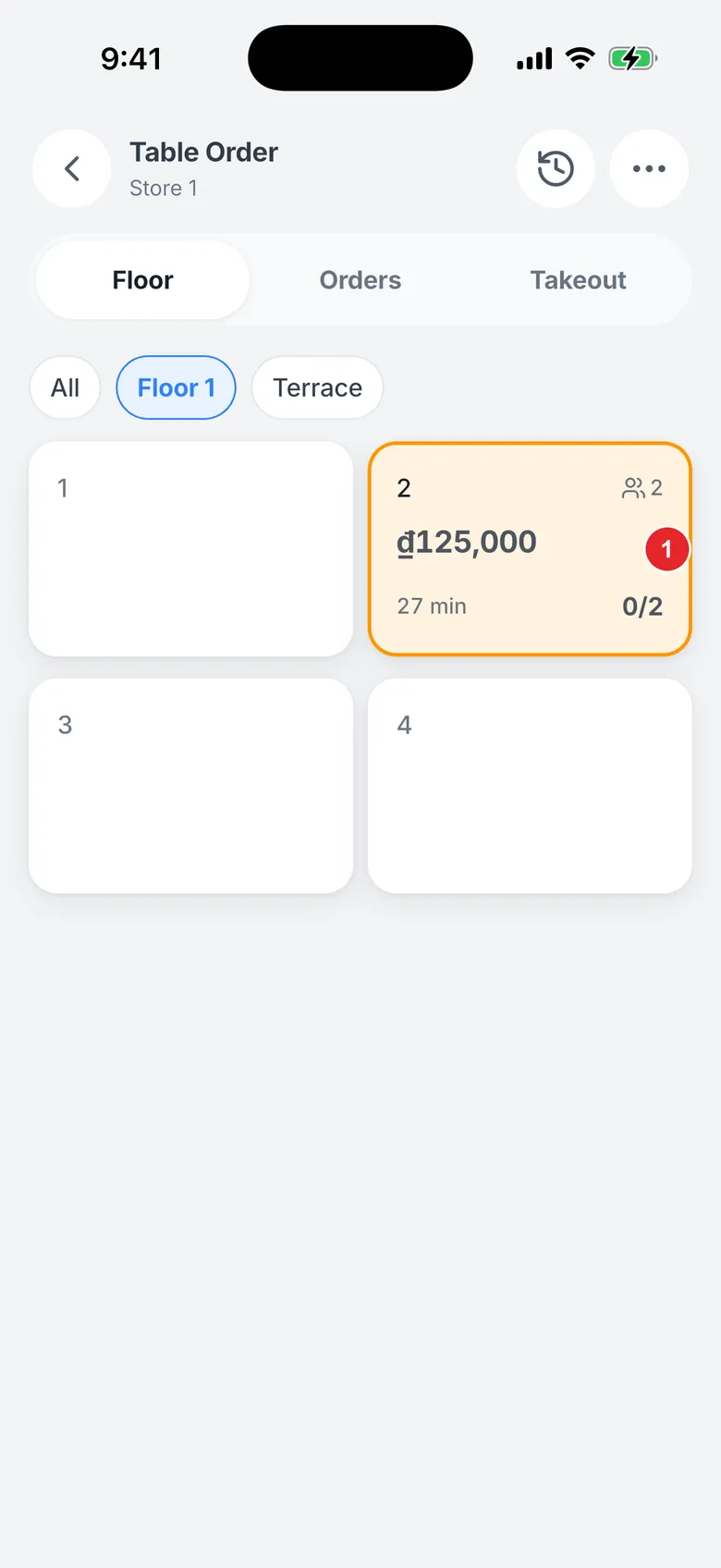
- In «F&B» › «Table», tap the table that is paying.
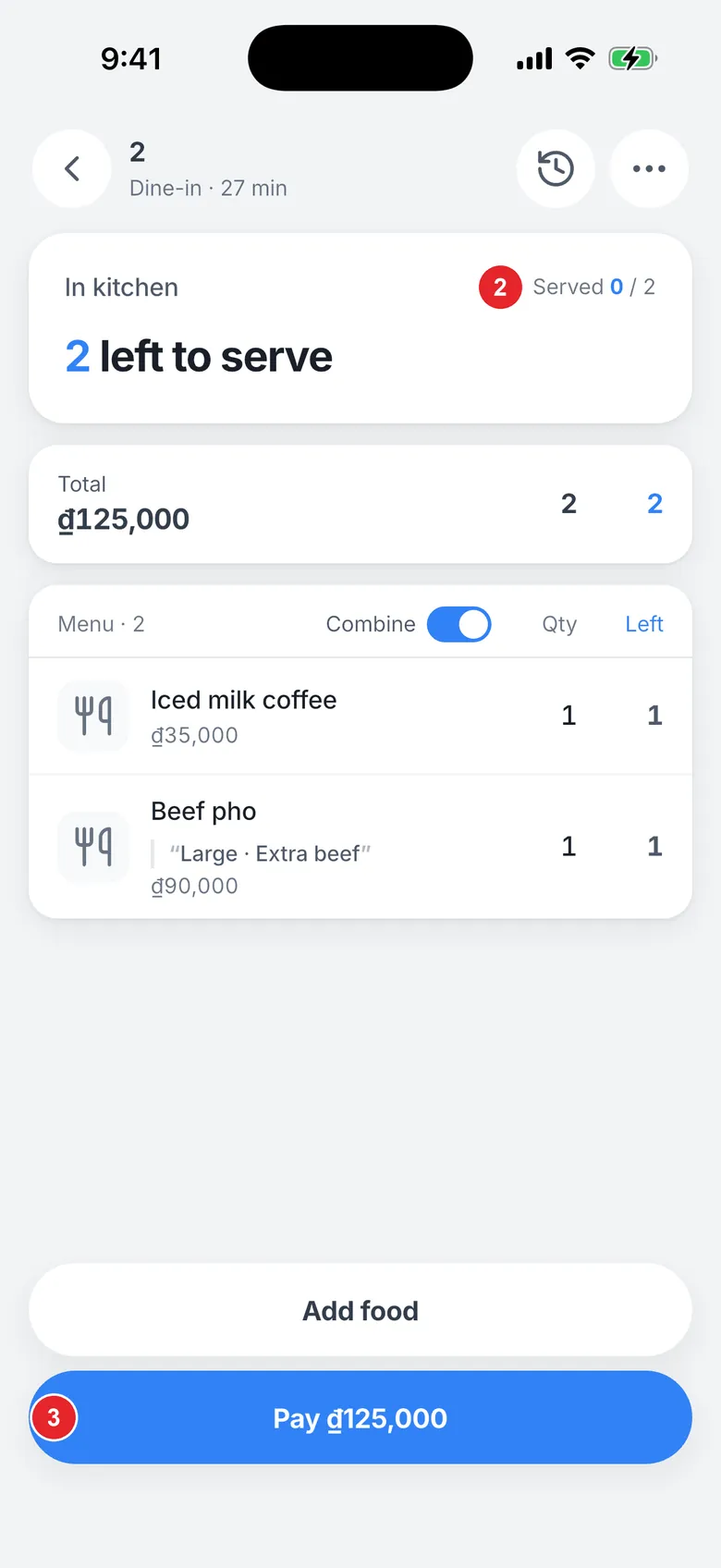
- Check how many dishes have gone out: here «Served 0 / 2».
- Tap the button at the bottom, here «Pay ₫125,000».
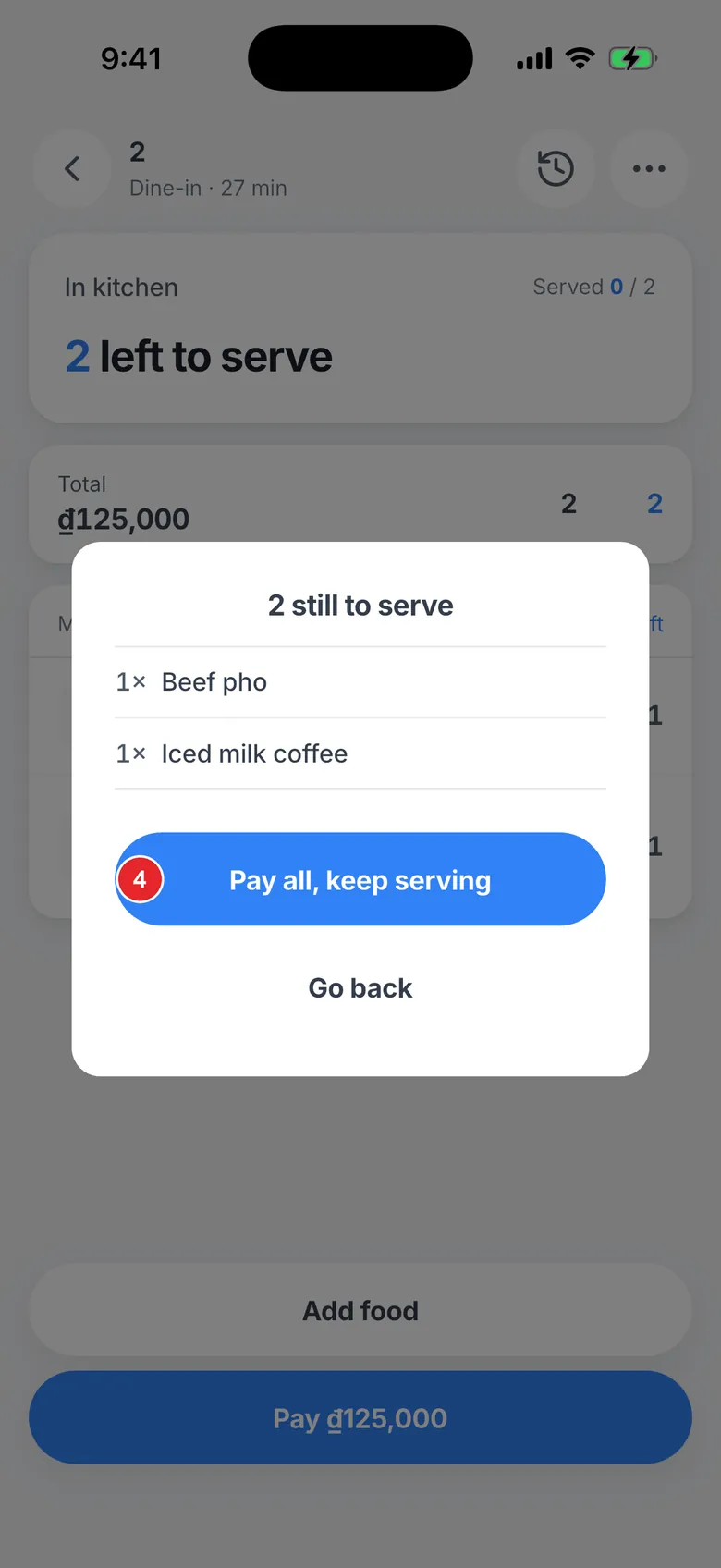
- If some food hasn't gone out yet, this window opens. To take payment anyway, tap «Pay all, keep serving». If not, tap «Go back».
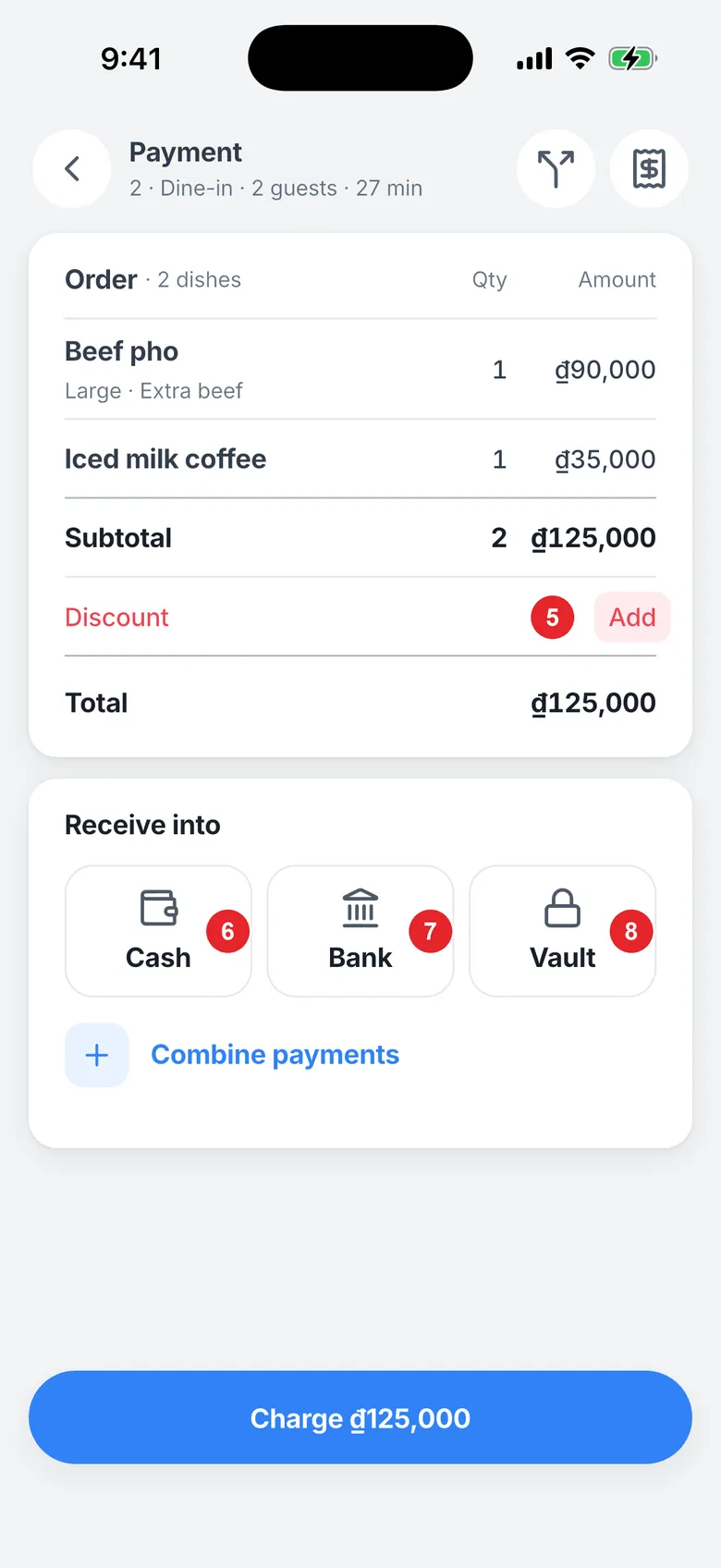
- To give a discount, tap «Add» on the «Discount» row.
- If you receive cash, tap «Cash».
- If you receive it by card or bank transfer, tap «Bank».
- To put it straight into the vault, tap «Vault».
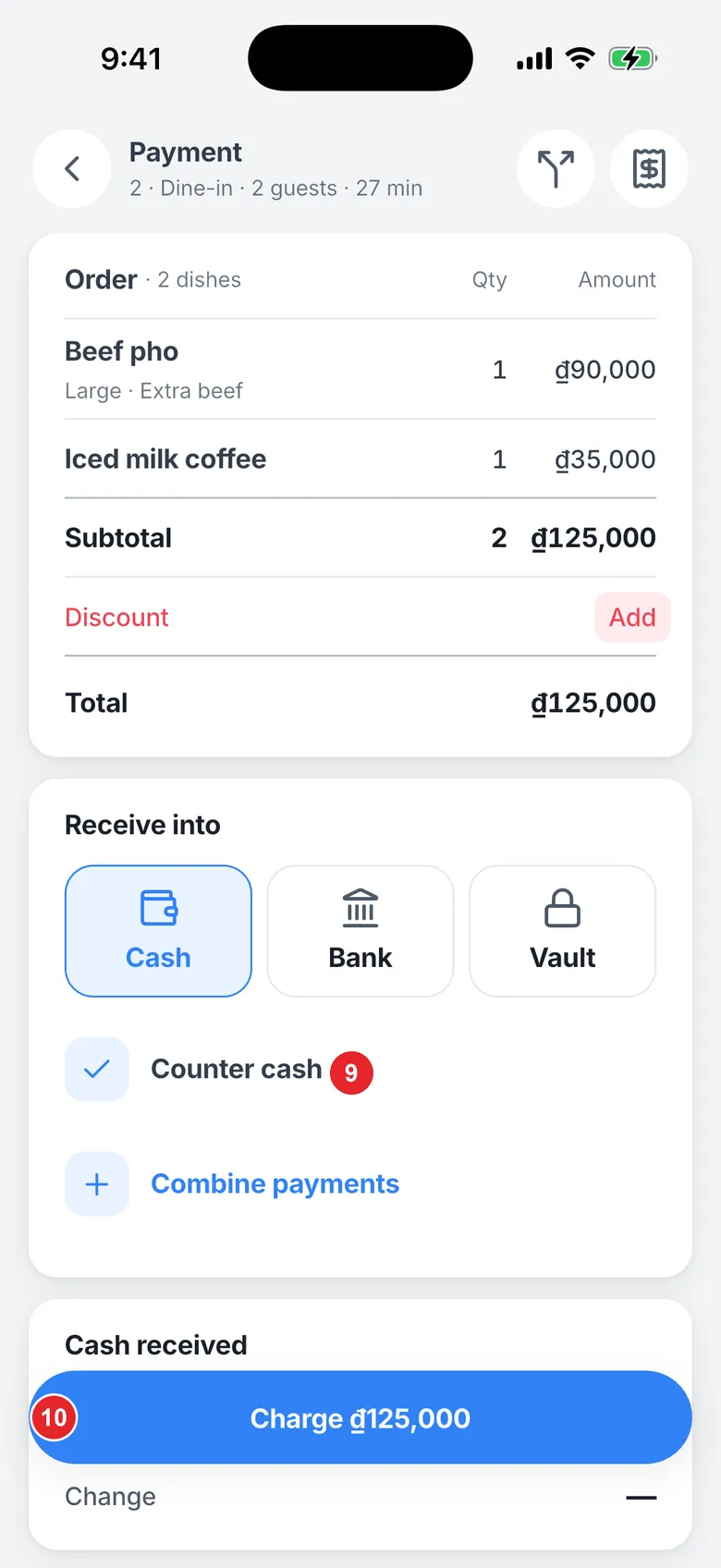
- When you choose «Cash», «Counter cash» is checked. The money received goes into this place.
- Tap the button at the bottom, here «Charge ₫125,000».
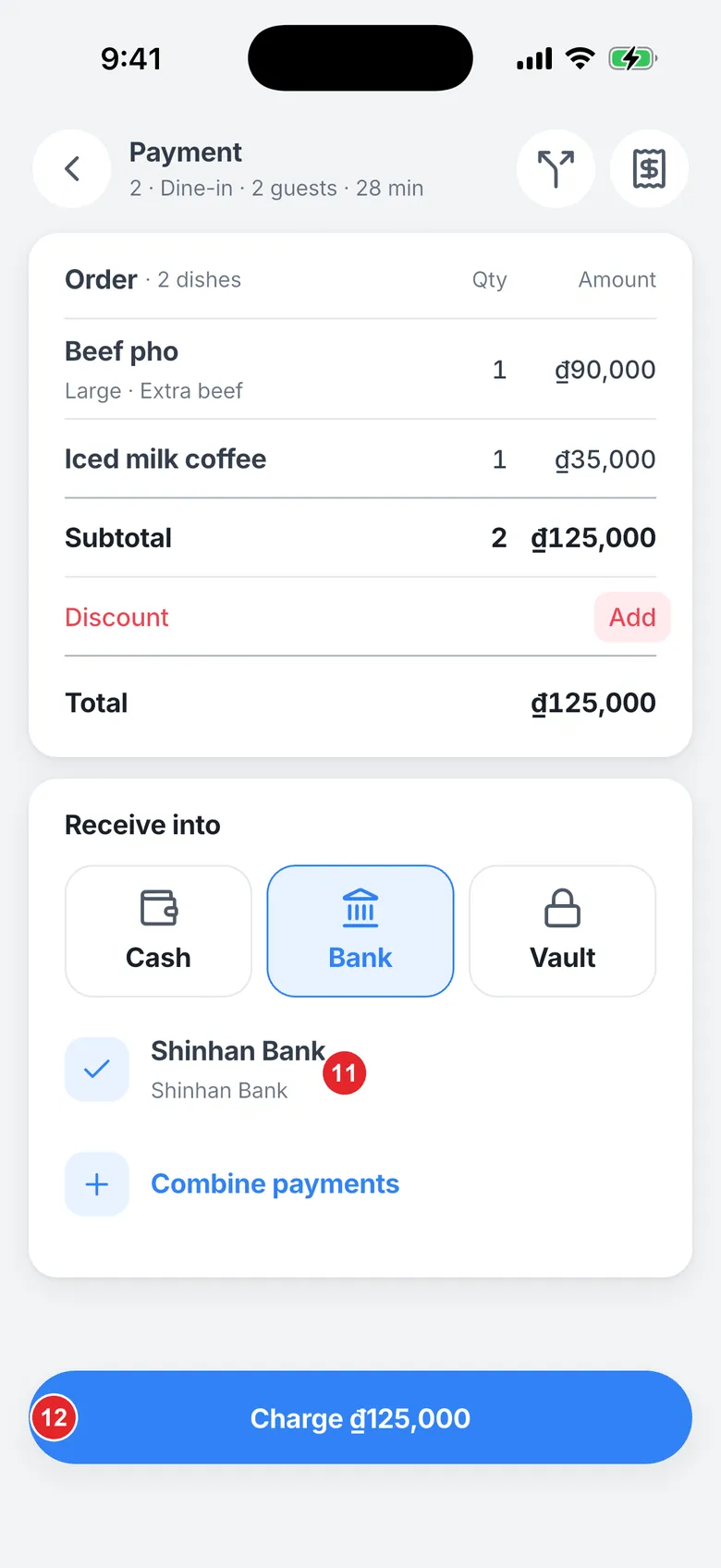
- When you choose «Bank», the bank account shows. Here it is «Shinhan Bank».
- Tap the button at the bottom, here «Charge ₫125,000».
The money is recorded automatically to the place you choose in «Receive into» when taking payment. «Cash» goes into «Counter cash», «Bank» into the bank account you choose, and «Vault» into the vault. Money received by card comes into the bank account, so choose «Bank».
Remember
- Taking payment frees the table. To change it after payment, refund it («I took a payment wrong»).
- Paid sales go into «Daily cash & closing» automatically. Don't enter them again with «Create Transaction».