
Show contents
F&B menu & sales › Take orders & get paid
Check F&B sales history
- Who
- Owner · Manager
- When
- Every day
- Where
- App · Web
What you get
- In the app, paid orders, orders cancelled before payment and refunded orders all stay in one place, «Order records».
- Open an order, and you see where the money was received and its menu items and amounts.
- See the day's total right away in «Daily sales» (website «Daily closing»).
What it solves
- If cancellations and refunds are kept nowhere, you can't tell why that day's sales went down.
Why this way
- Can staff cancel or refund in secret? Cancellations before payment and refunds stay in the records along with paid orders. In the app, open an order, and «Activity» shows who did what and when.
- Are tables cleared with no guests kept too? Yes. They stay as ₫0 «Cancelled before payment».
- If the sales history is right, is the money right too? Whether the money really matches, check separately in «Cash Management» in «Daily cash & closing».
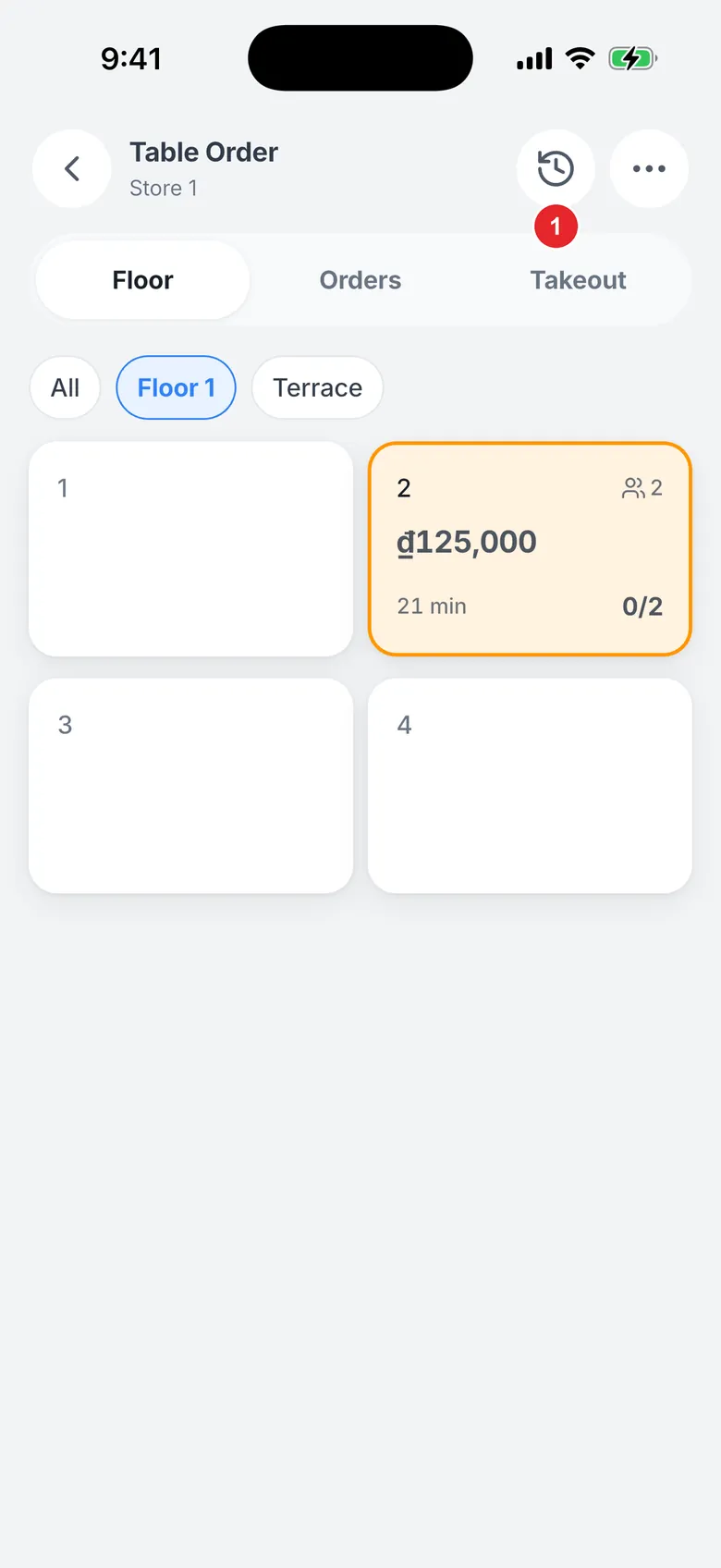
- In «F&B» › «Table», tap the clock button at the top right («Order records»).
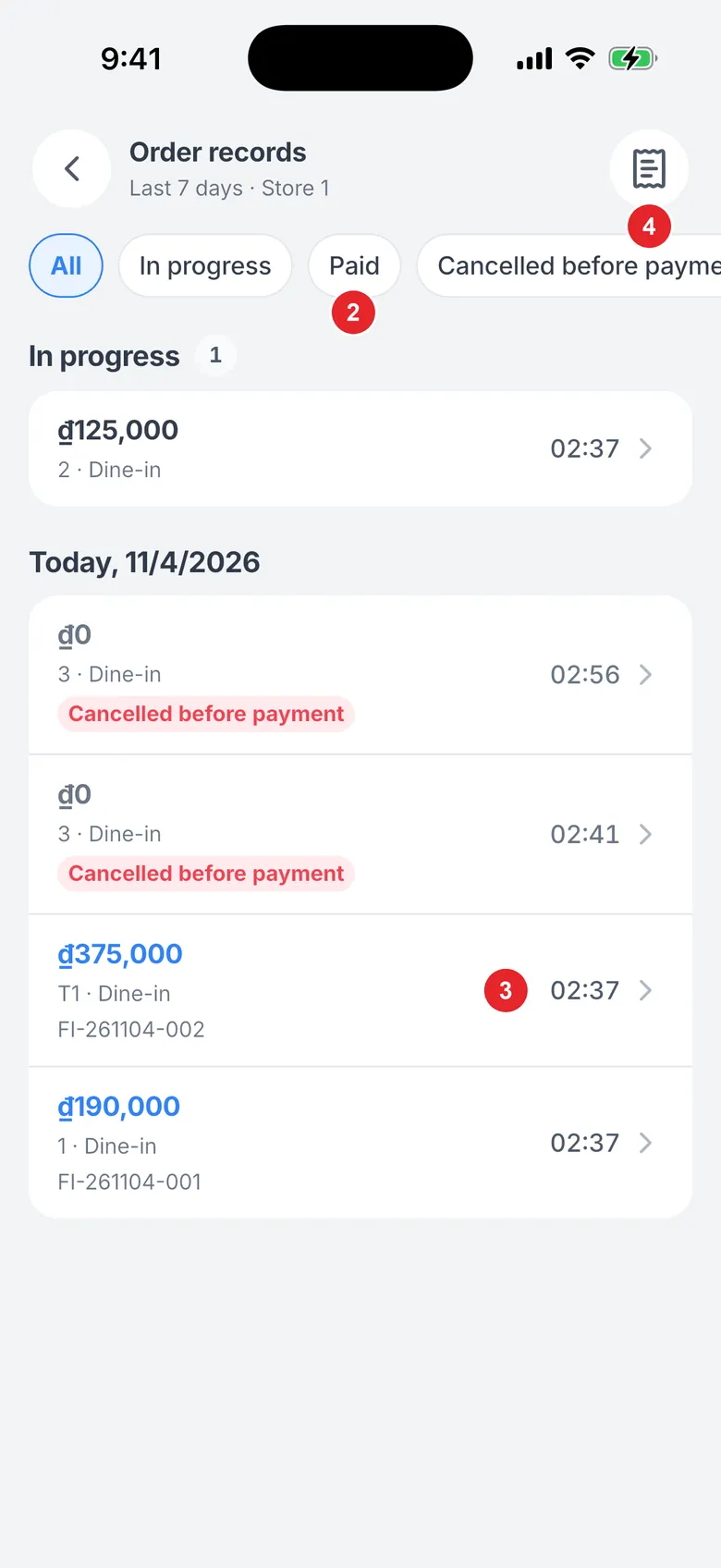
- At the top, you can choose just what you want to see, like «Paid» · «Cancelled before payment» · «Refunded» (swipe the row of filters to see the rest). The last 7 days show.
- Tap an order to open its details.
- Tap the button at the top right («Daily sales») to see the day's total.
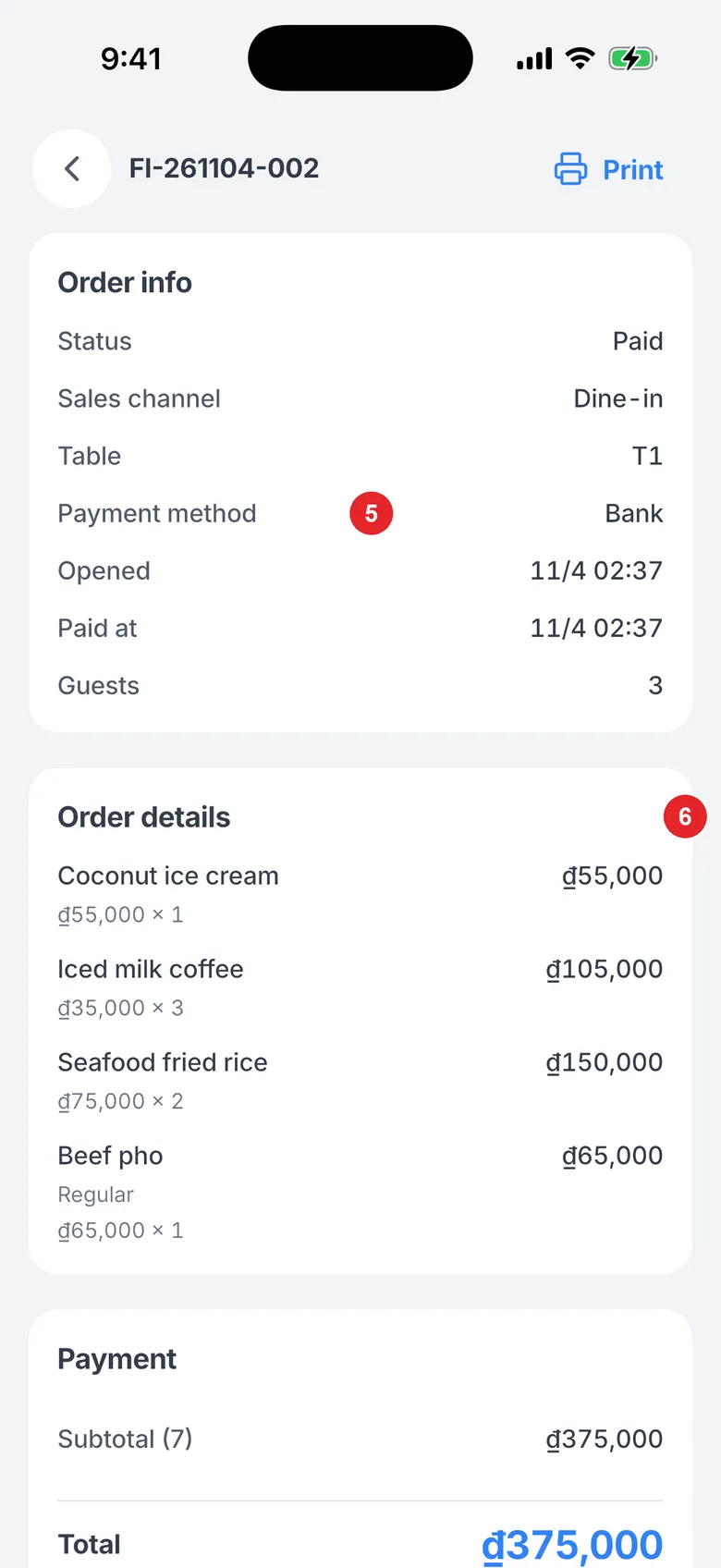
- See where the money was received in «Payment method».
- See the menu items and amounts in «Order details».
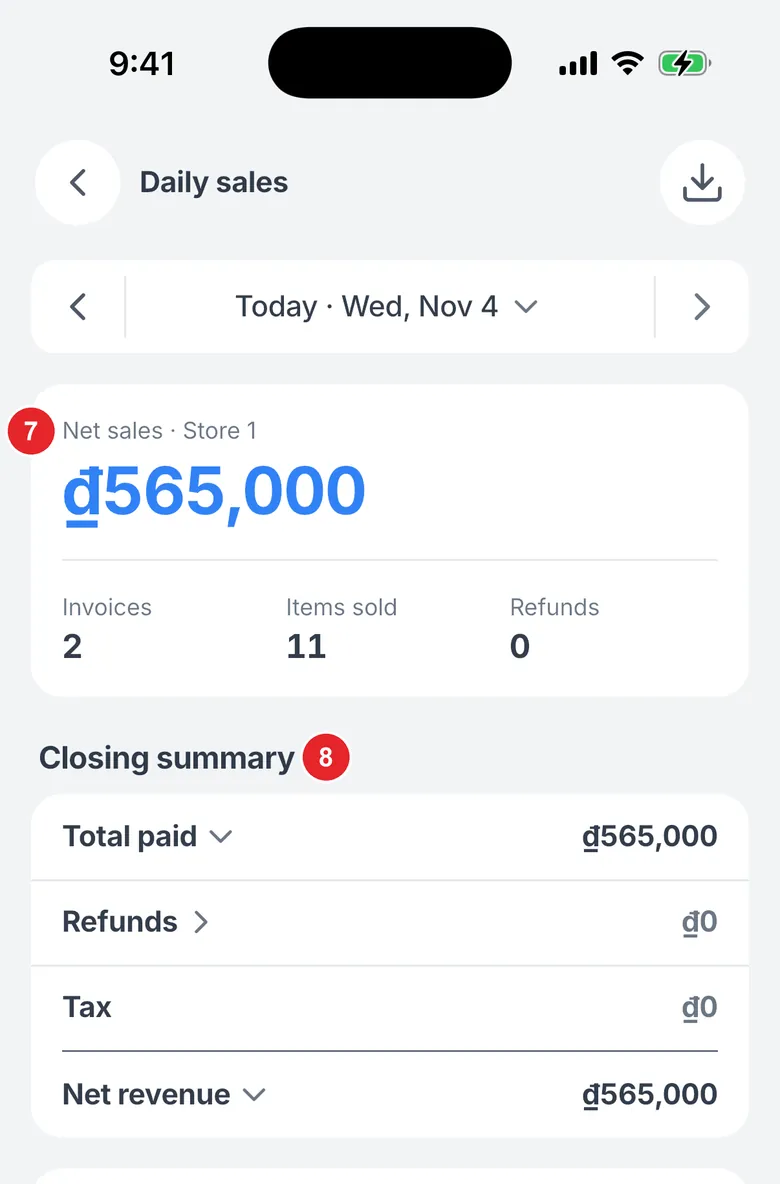
- See the «Net sales» and the number of invoices · items sold · refunds.
- In «Closing summary», see the total paid · refunds · tax · net revenue.
Paid orders, orders cancelled before payment and refunded orders all stay in the records. See the day's total in «Daily sales» (on the website, «Daily closing»).
Remember
- Tables where you only chose the number of guests and then cleared them also stay as ₫0 «Cancelled before payment».
- Whether the money really matches, check in «Cash Management» in «Daily cash & closing».