
Show contents
Daily cash & closing › Count money at closing
Fix a cash difference
- Who
- Owner · Manager
- When
- When there is a difference
- Where
- App · Web
What you get
- A difference whose cause you never found is settled in the books, so the books equal the counted amount.
- After matching, the next closing shows only the differences that came up after that.
- If you are still looking for the cause, you can close with the difference left as it is.
What it solves
- If you leave a difference whose cause you couldn't find, the books and the real money stay different, and the next closing shows «Differs» again.
Why this way
- Matching turns the difference into a cost or a profit. So look for missing transactions first, and match last.
- Matching uses the last counted amount. If money came in or went out after counting, count again so that money doesn't mix into the difference.
- Can I undo a wrong match? The match record stays in «Transaction History», and you can cancel it there.
- What if all the money counted on the first day shows as a difference? Don't match it. All the starting money would go into «Cash over/short» («There's a big difference on the first day»).
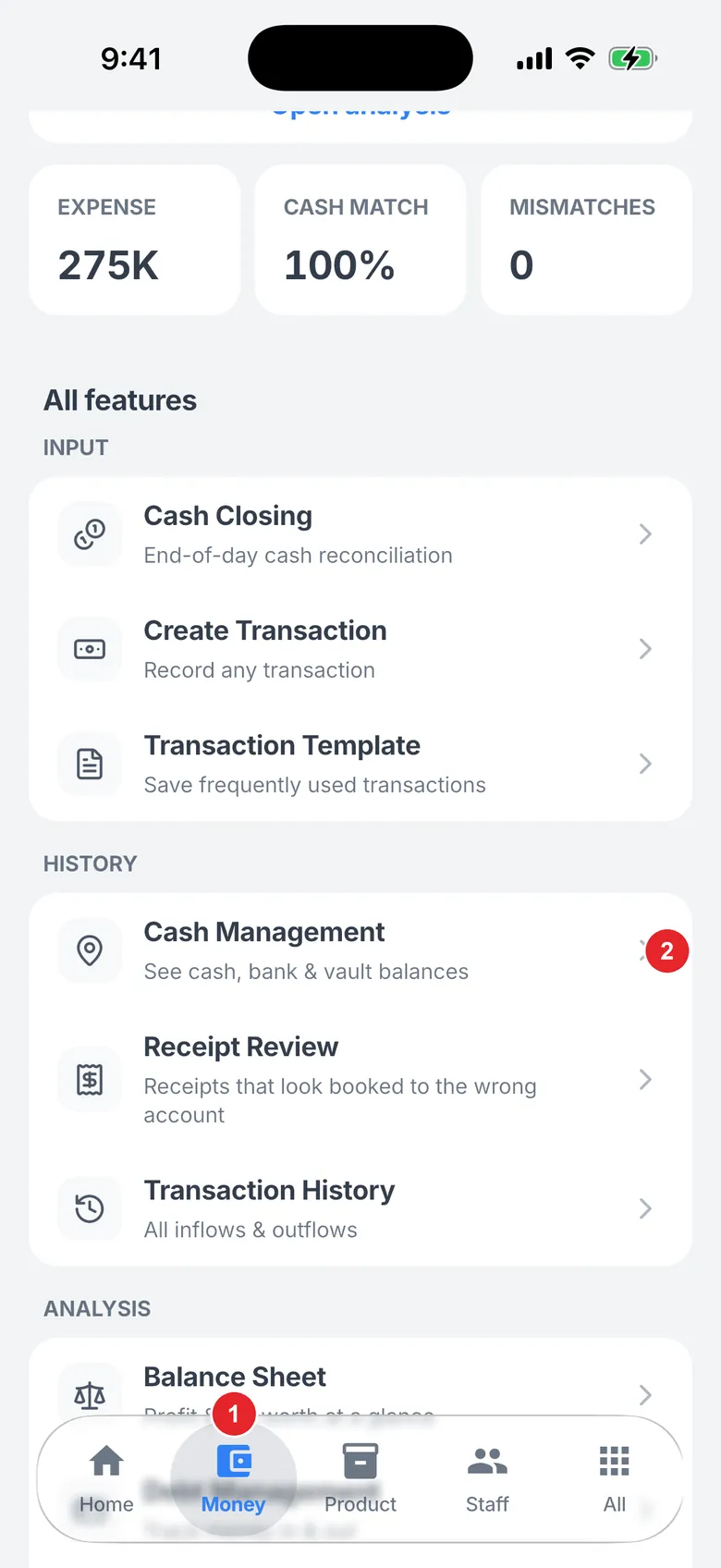
- Tap «Money» at the bottom of the app.
- Scroll down and, in «All features», tap «Cash Management».
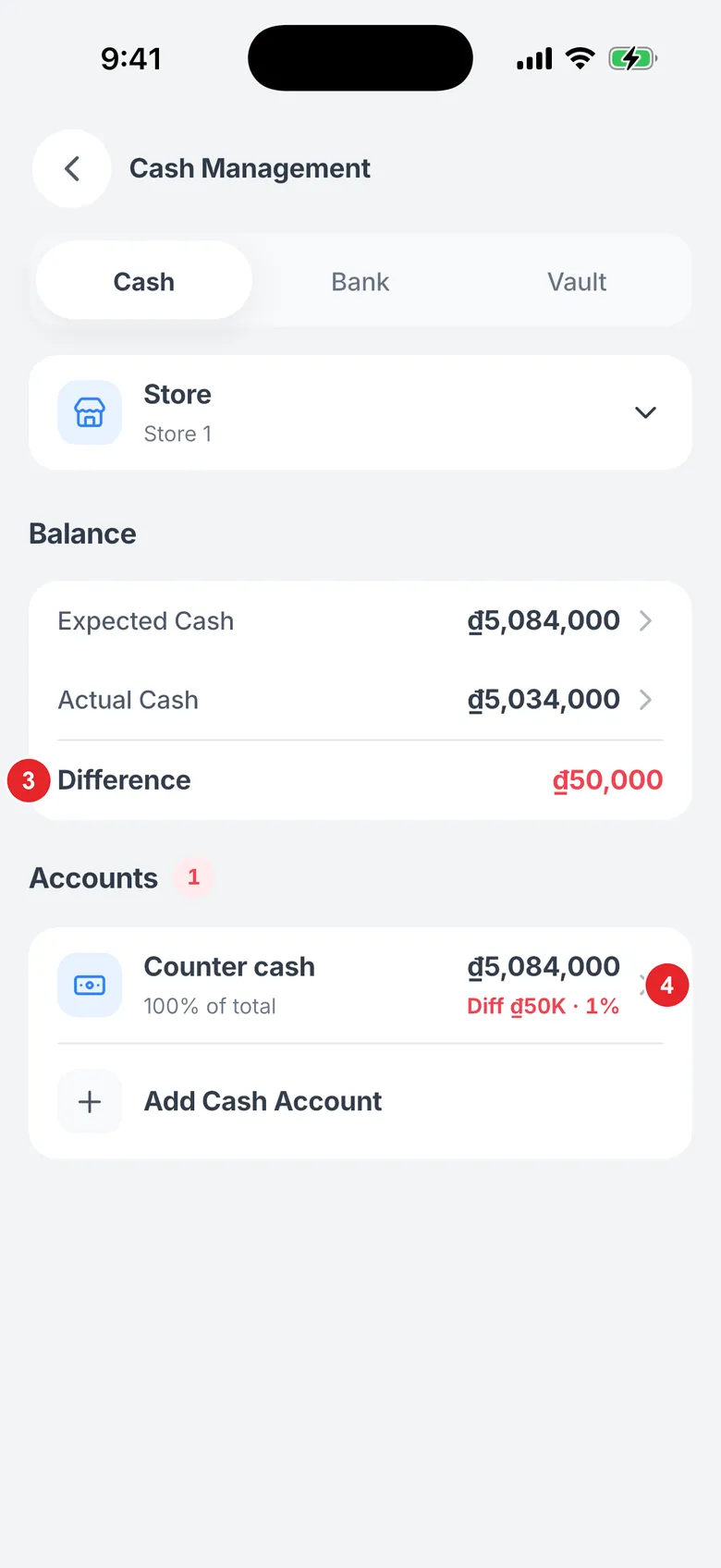
- Check the «Difference». It is the gap between «Expected Cash» and «Actual Cash».
- Tap the place with a difference. Here it is «Counter cash».
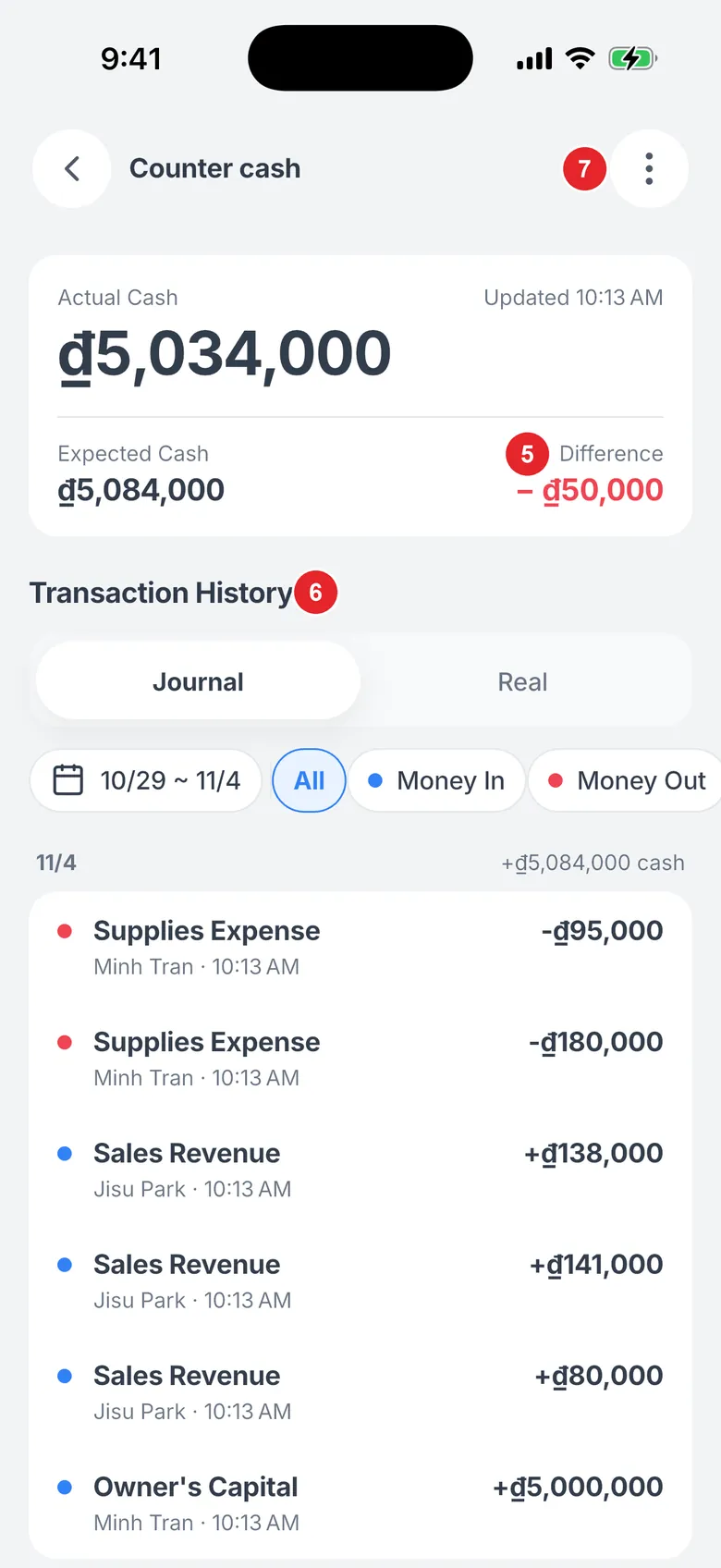
- Check the «Difference» again.
- First check «Transaction History» below for any missing sales or expenses. If something is missing, enter it and count again.
- If there is still a difference, tap the ⋮ button at the top right («Balance options»).
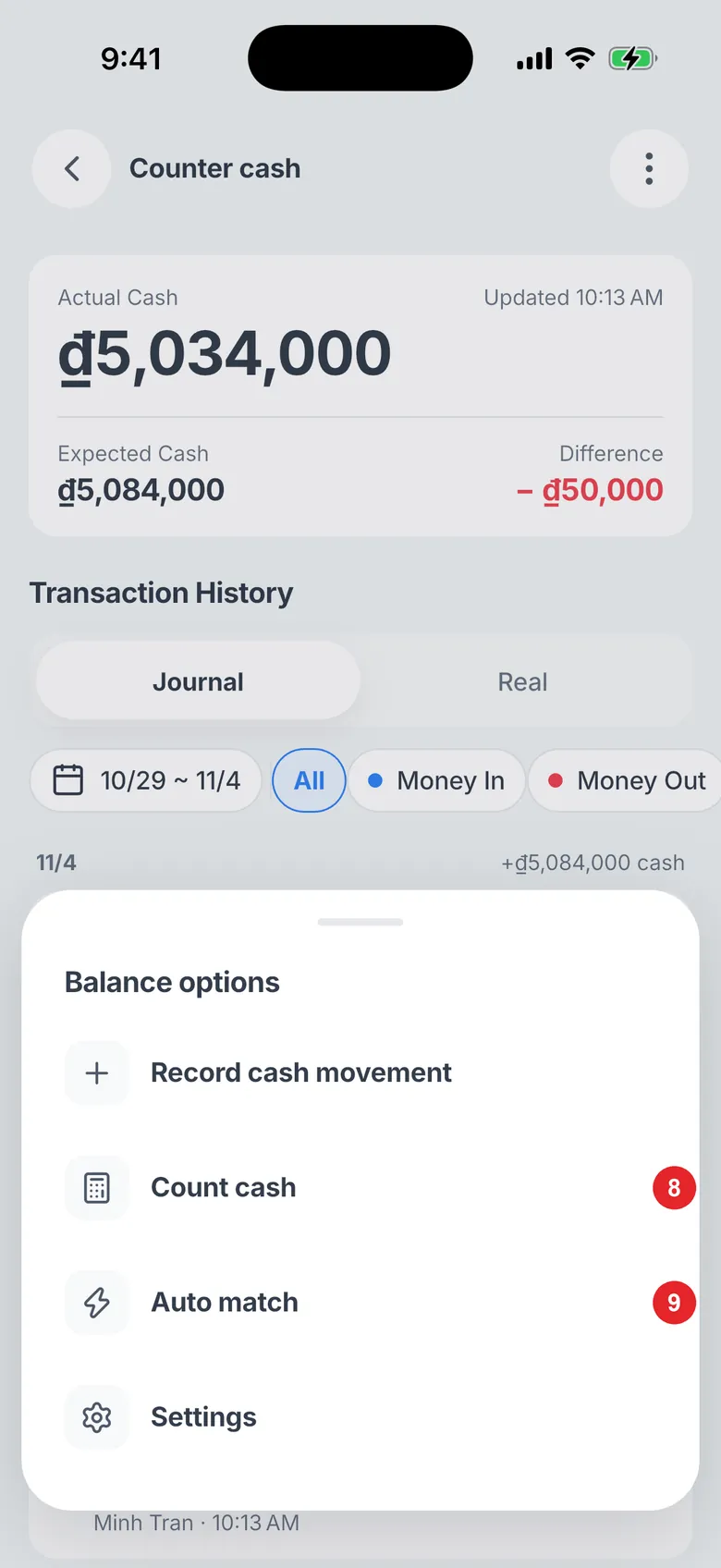
- To count again, tap «Count cash». The «Cash Closing» screen opens for this place.
- If you couldn't find the cause, tap «Auto match».
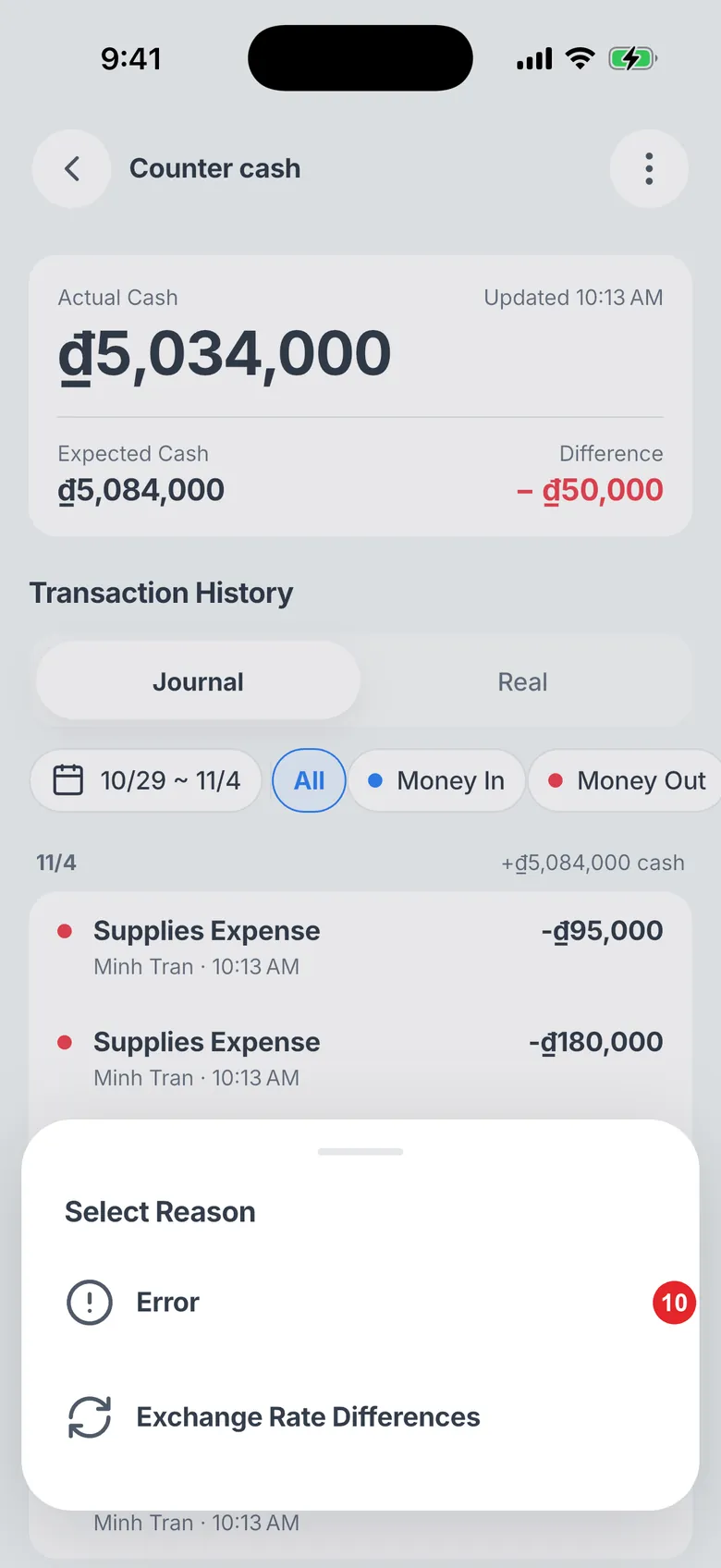
- Tap «Error». If it is a foreign-currency account and the difference comes from the exchange rate, tap «Exchange Rate Differences».
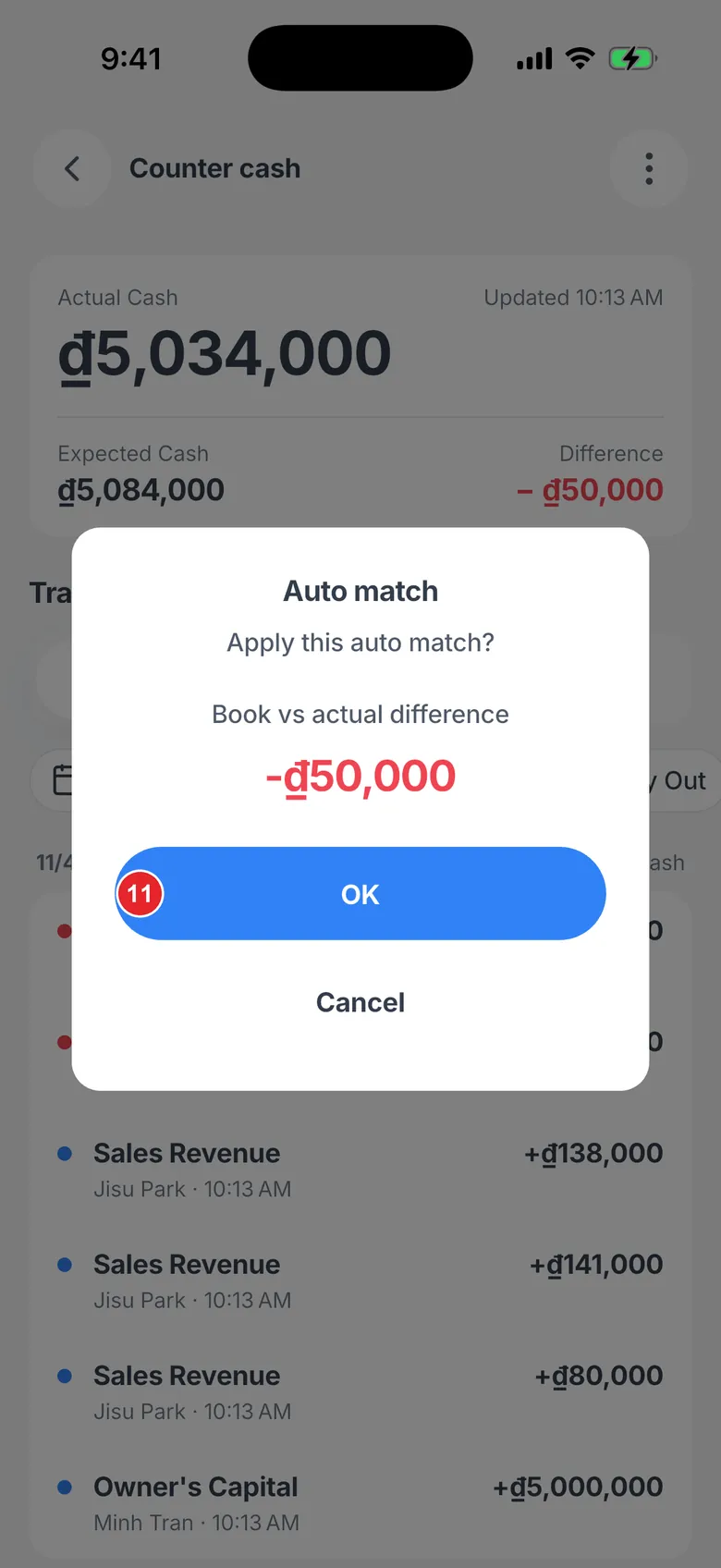
- Check the «Book vs actual difference» amount and tap «OK». The books are set to the actual cash.
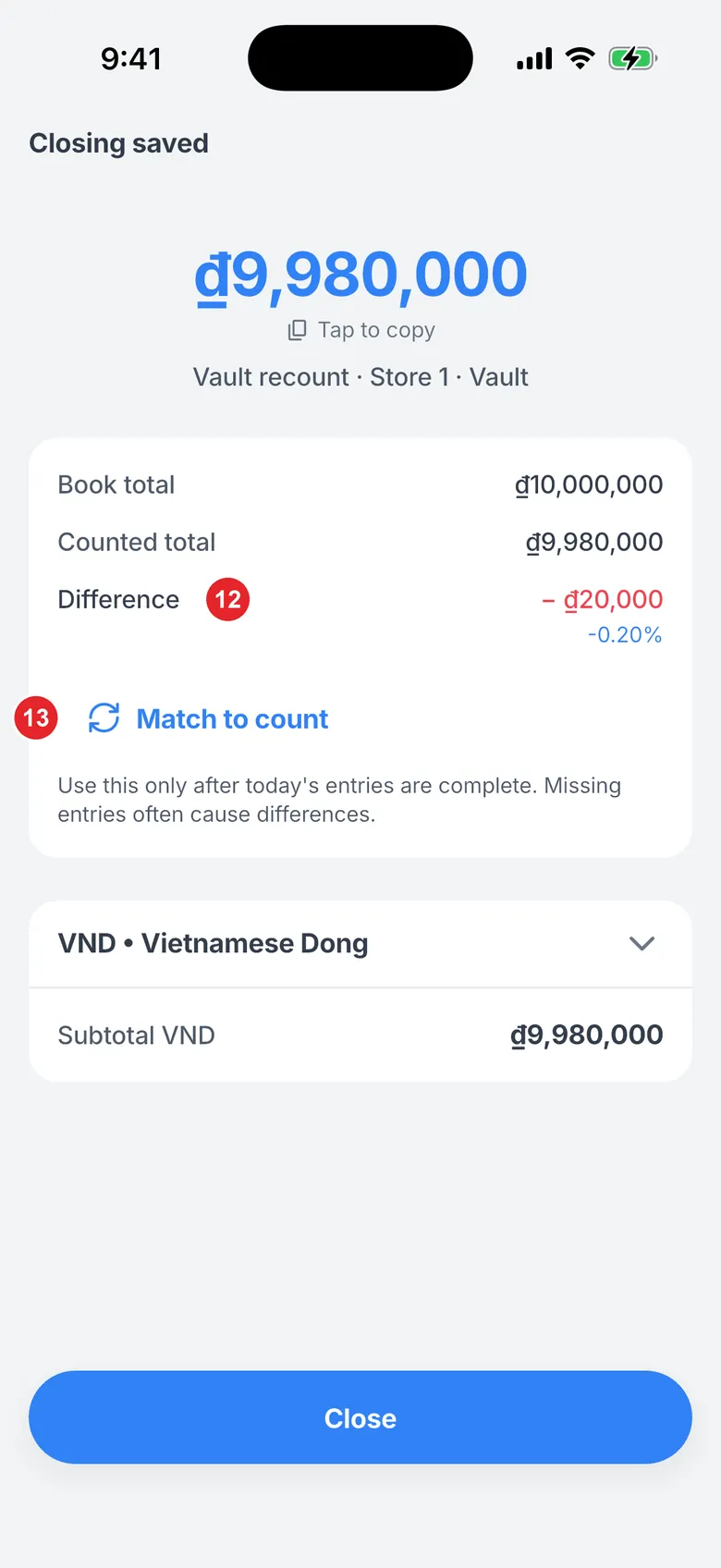
- If there is a difference when you save in «Cash Closing», this screen opens. Check the «Difference». If you are still looking for the cause, tap «Close» at the very bottom. The difference stays as it is.
- If you can't find the cause, tap «Match to count».
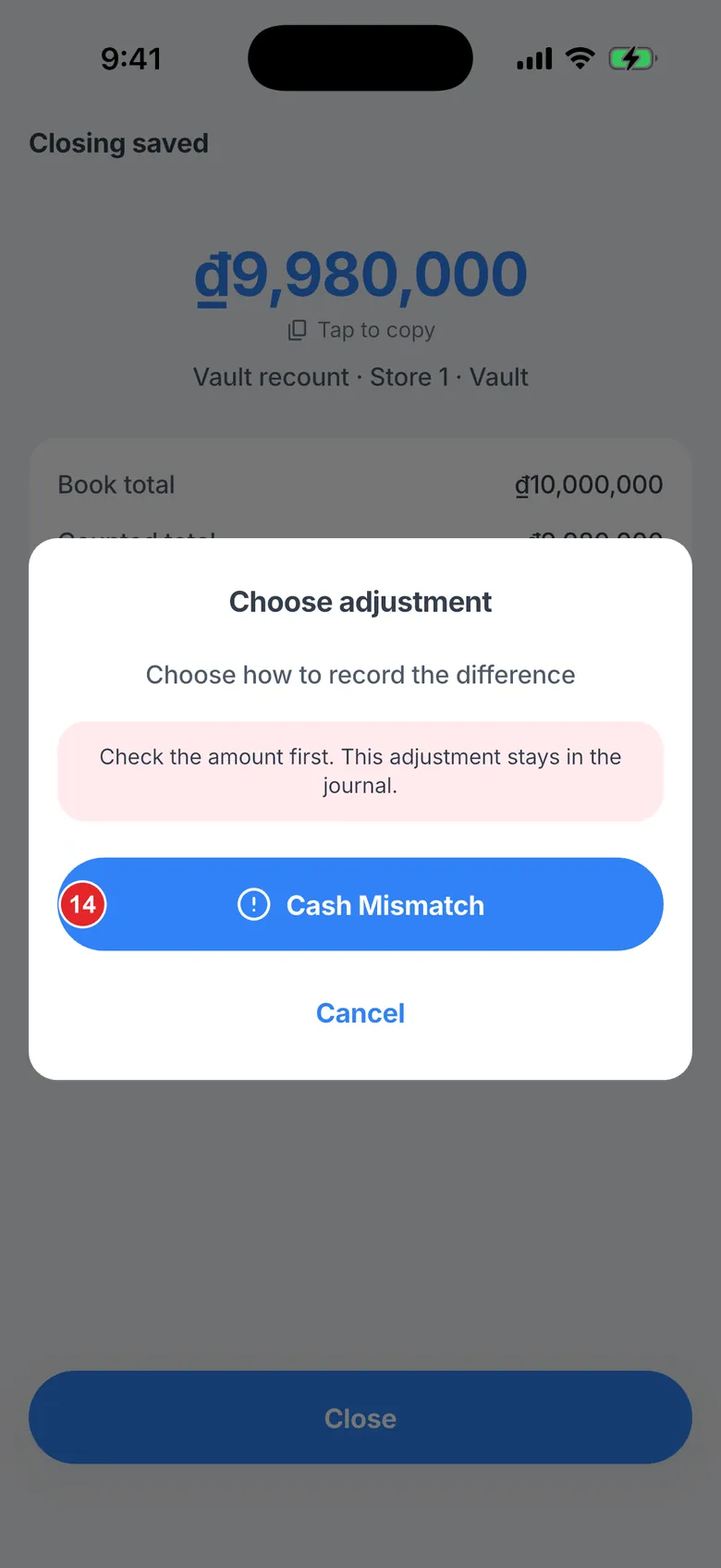
- Tap «Cash Mismatch».
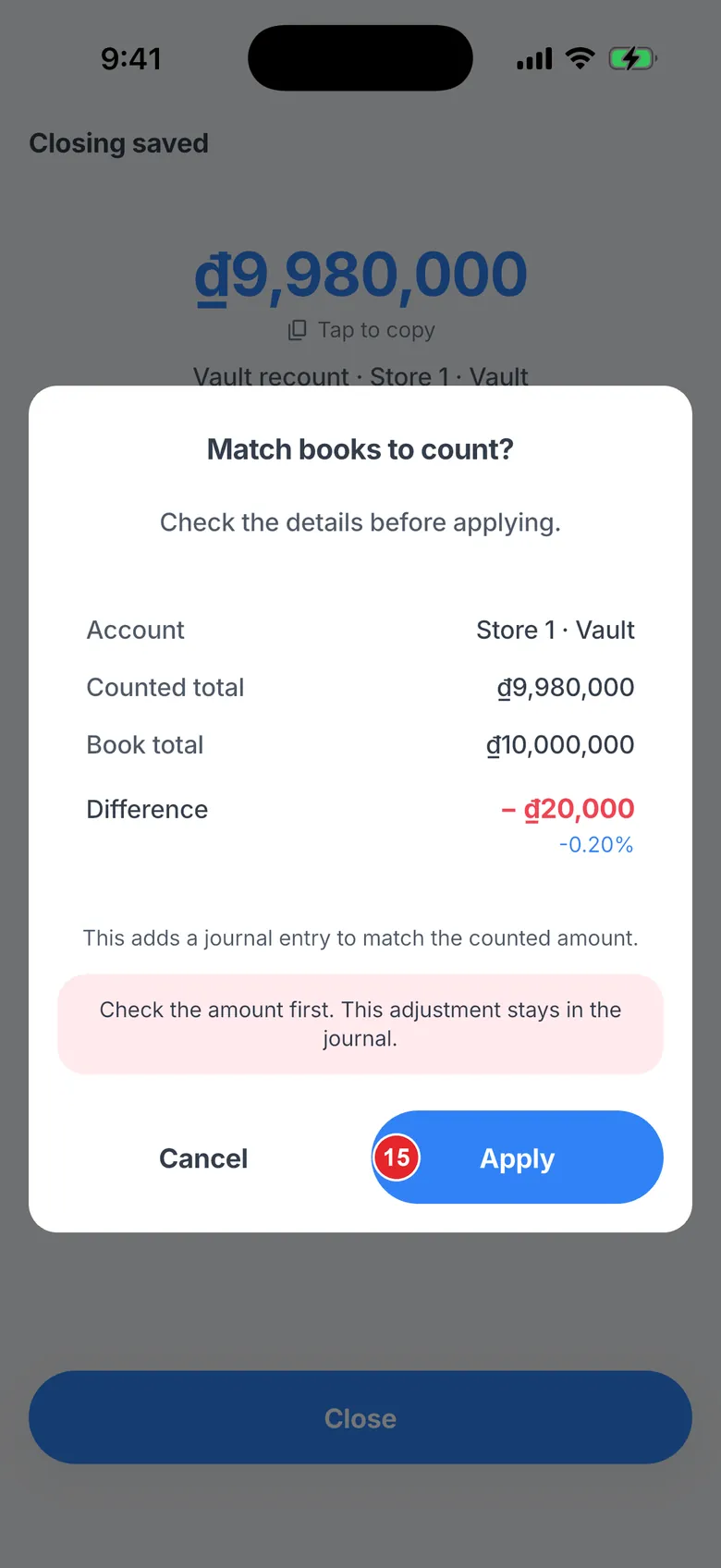
- Check «Counted total» · «Book total» · «Difference» and tap «Apply». The books are set to the counted amount.
Remember
- Look first. Check «Transaction History» for expenses or sales that weren't entered.
- Matching sets the books to the last counted amount. If there were sales or expenses after counting, count again first. Otherwise that money also counts as a difference.
- Matching turns the difference into a cost or a profit. If you match before finding the cause, the profit figure goes wrong.