
Show contents
Daily cash & closing › Count money at closing
The cash doesn't match
- Who
- Owner · Manager
- When
- When there is a difference
- Where
- App · Web
What you get
- Open a place with a difference, and the transactions in and out of it show, so you find the cause on the same screen.
- Fix missing or wrongly entered transactions, and the books come back in line with the real money.
- You match only the differences you never found, so the books and the counted money are the same again.
What it solves
- The counted money and the money in the books differ and «Differs» shows, but you don't know where or why money went missing.
- If you match before finding the cause, missing expenses or sales also go into the difference, and the profit figure goes wrong.
Why this way
- A difference comes from transactions not entered, transactions entered wrong, or money counted wrong. So check the transactions first and count again.
- Matching uses the last counted amount. If money came in or went out after counting, count again so those transactions don't also go into the difference.
- What if I don't know the cause yet? On the difference screen after saving, choose «Close» in the app or «Leave it» on the website. The difference stays as it is.
- What if staff already matched it? The match record stays in «Transaction History», and you can cancel it there.
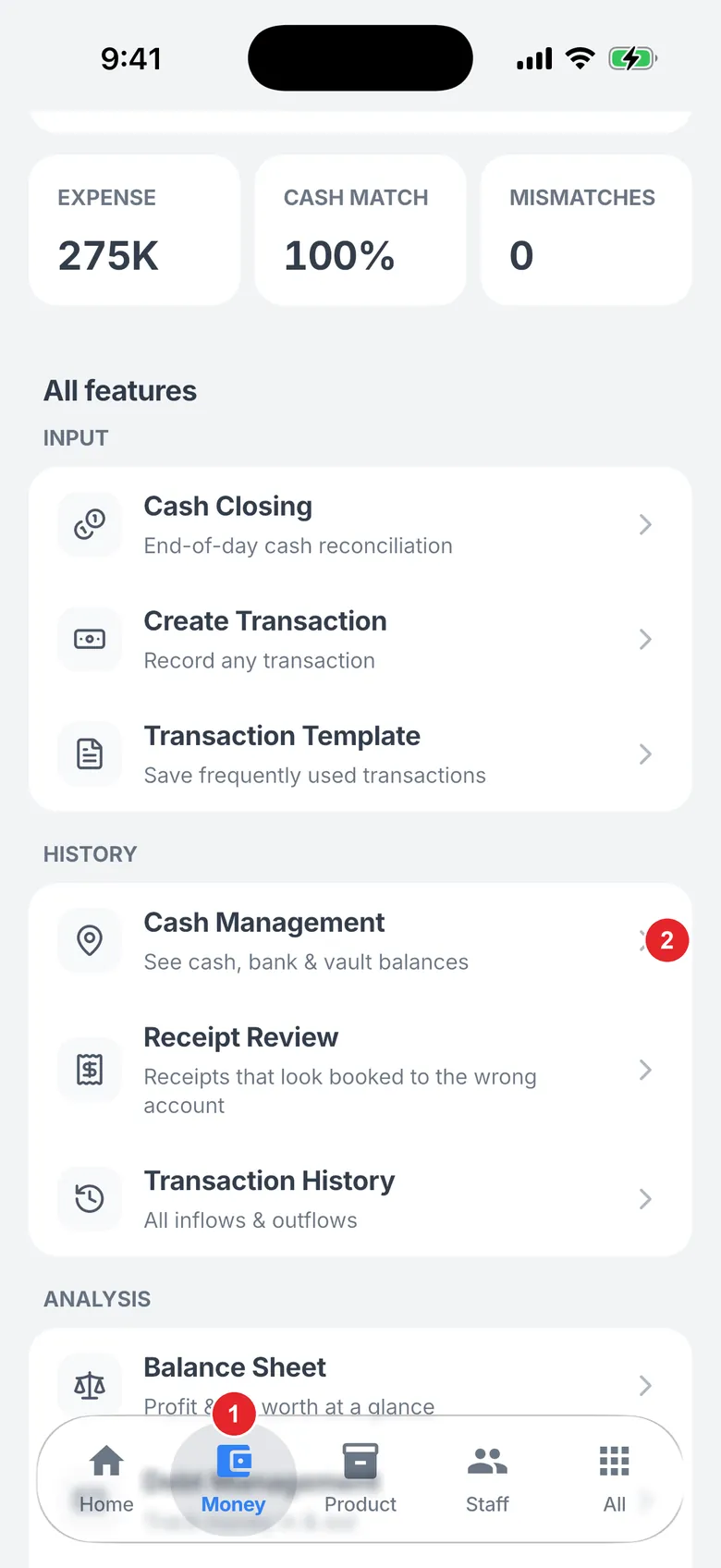
- Tap «Money» at the bottom of the app.
- Scroll down and, in «All features», tap «Cash Management».
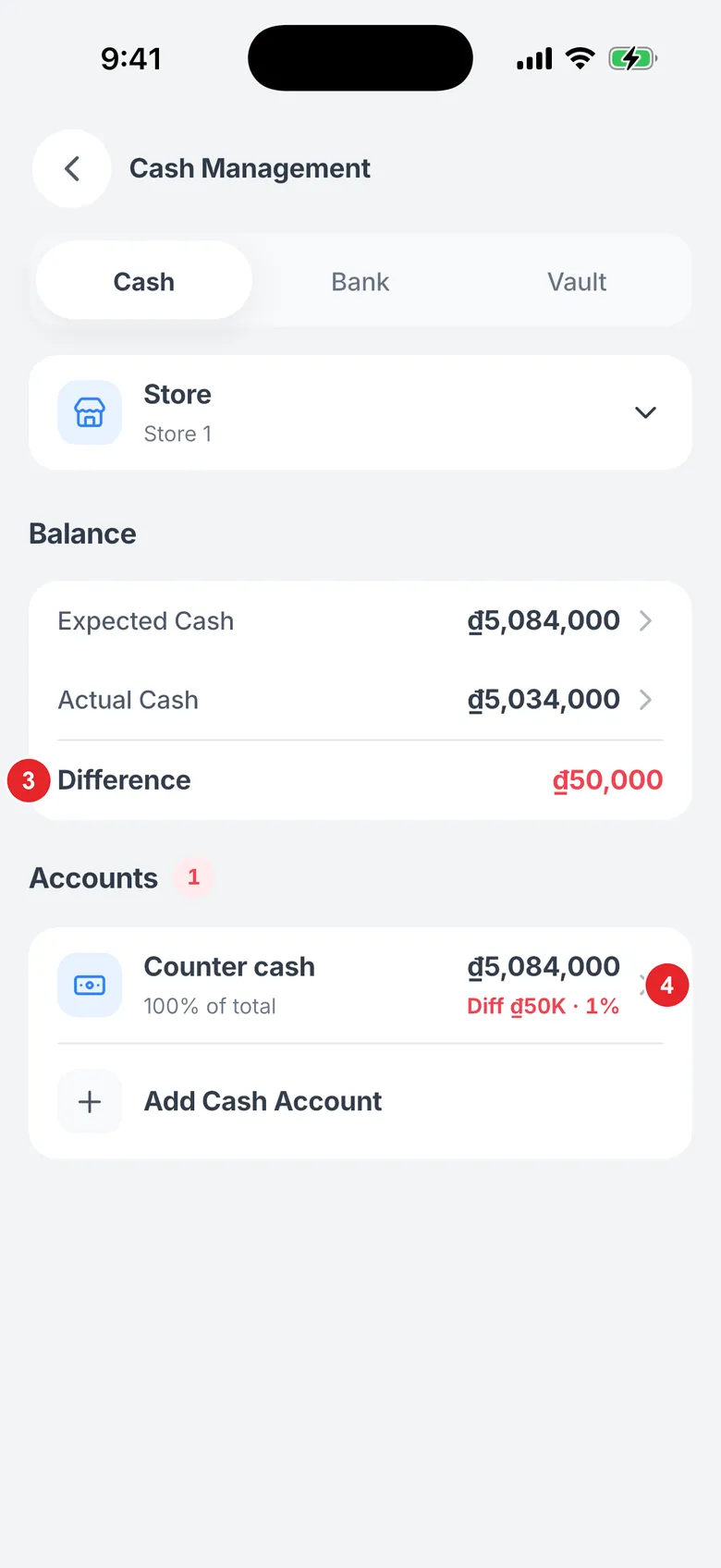
- Check the «Difference».
- Tap the place with a difference. Here it is «Counter cash».
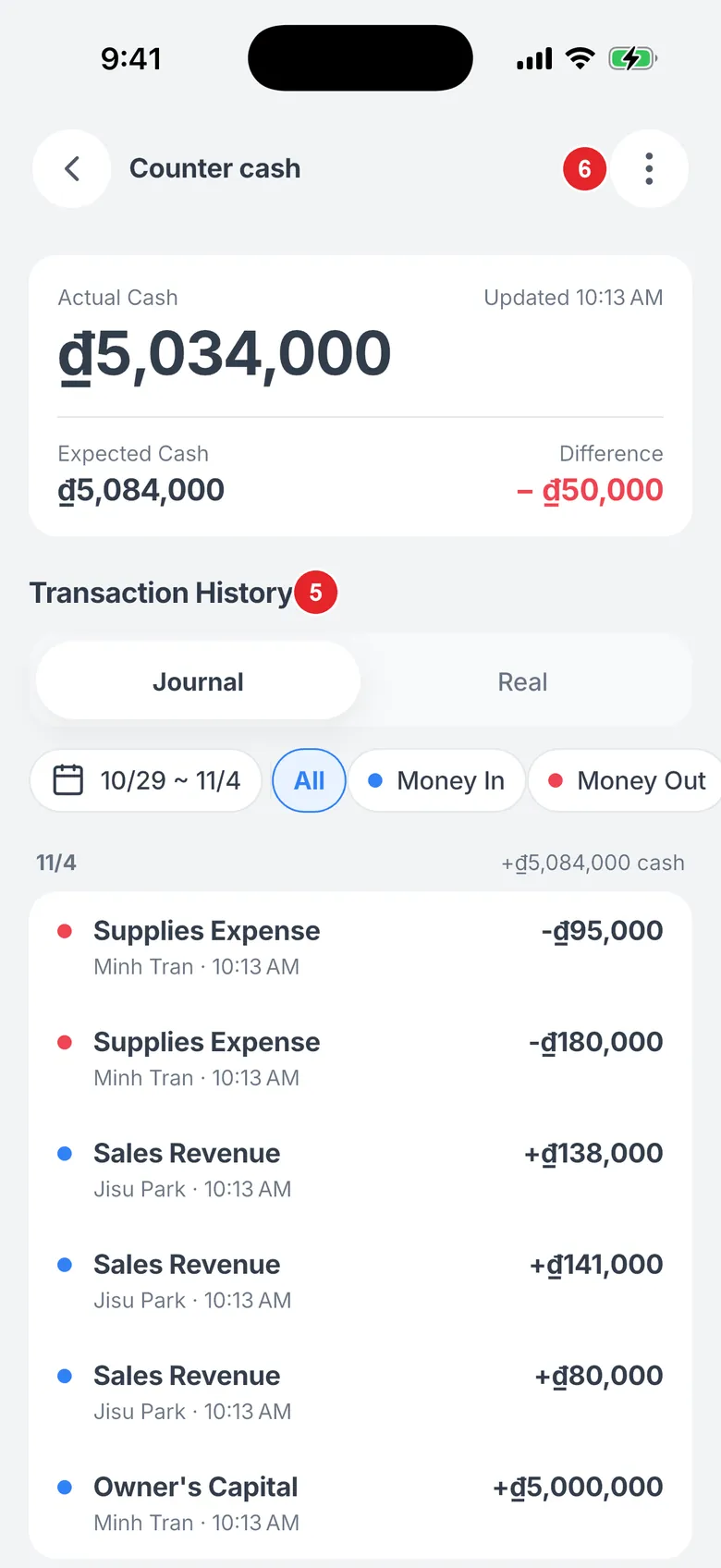
- First check «Transaction History» for transactions not entered or entered wrong. If one is missing, enter it.
- Tap the ⋮ button at the top right («Balance options»).
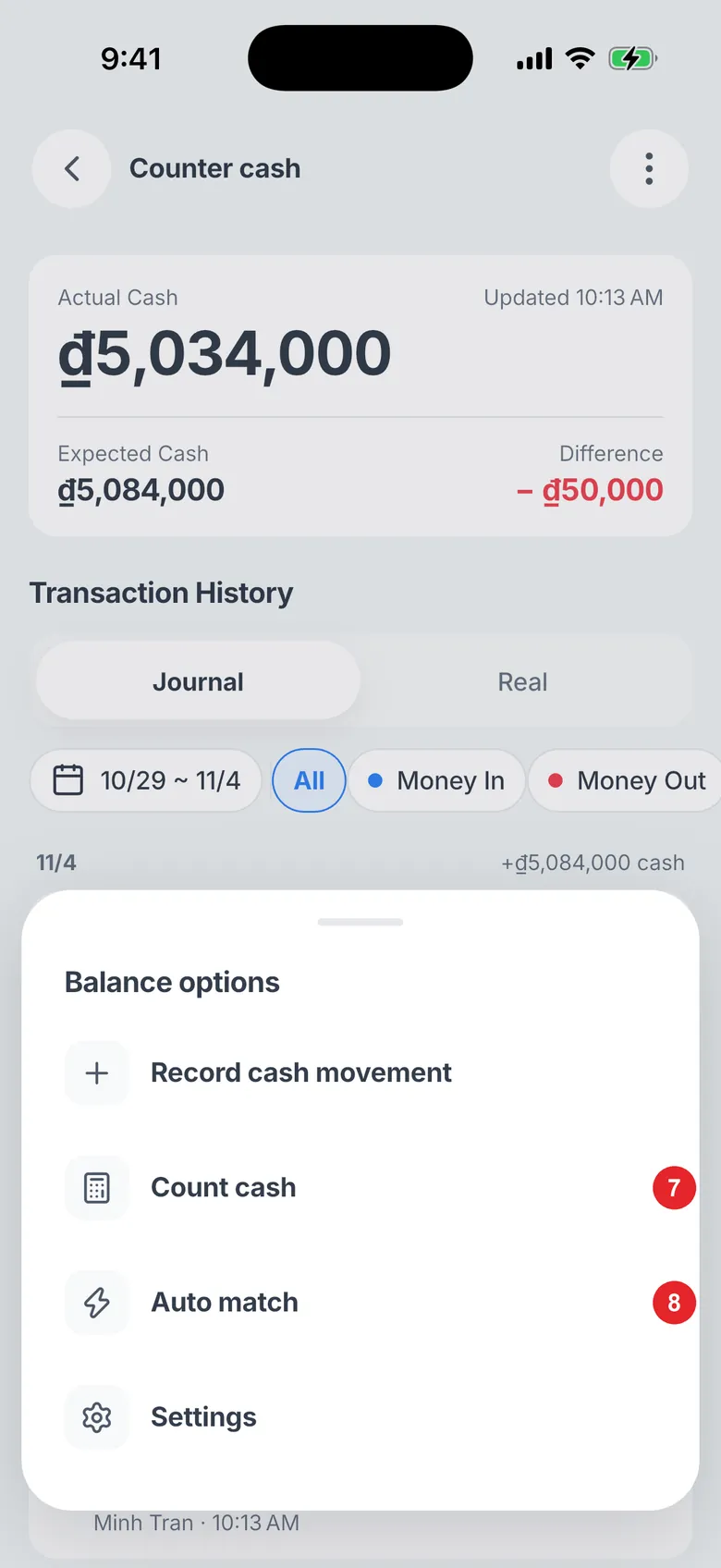
- If you entered transactions, or money came in or went out after the last count, tap «Count cash» and count again.
- If a difference is still left, tap «Auto match».
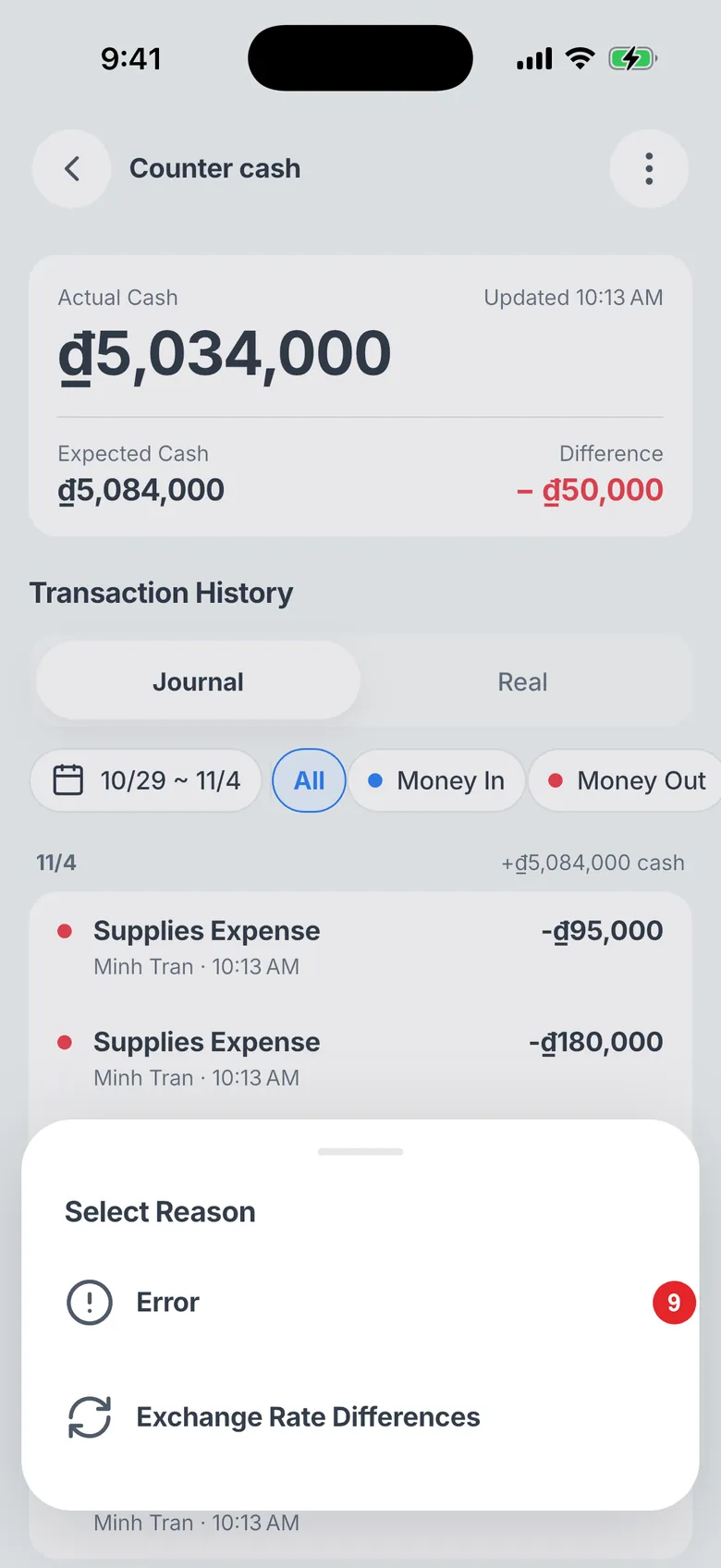
- Tap «Error».
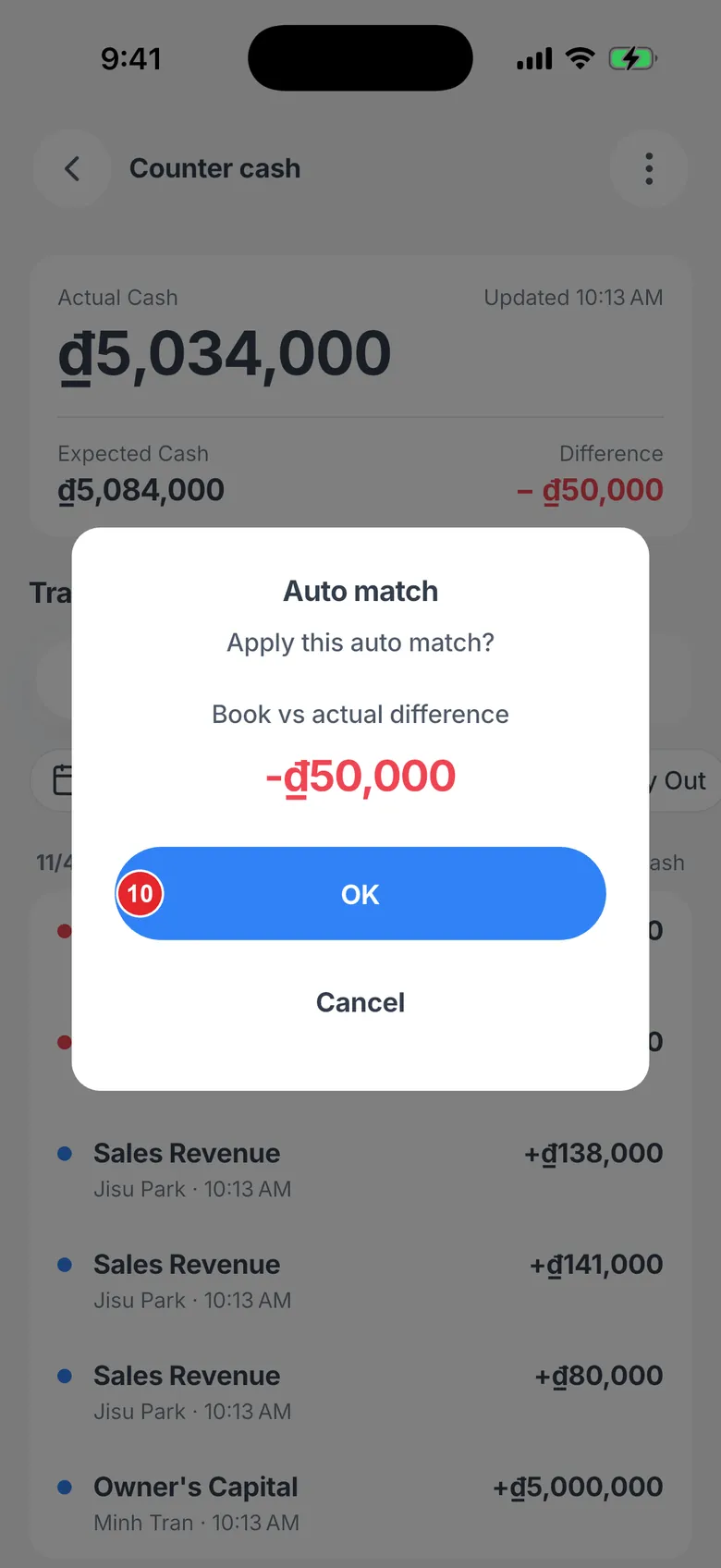
- Check the «Book vs actual difference» and tap «OK».
Why it works this way
When the counted money and the money in the books differ, it shows as «Differs». It comes from transactions not entered, transactions entered wrong, or money counted wrong.
Remember
- First find and enter the missing transactions, then count again.
- Matching (website «Match the books to the count», app «Match to count» or «Balance options» › «Auto match») sets the books to the last counted amount. If money came in or went out after the last count, count again first. If you match as it is, the transactions after that are also recorded as a difference.
- The match record stays in «Transaction History», and if you matched by mistake you can cancel it there.