
Show contents
Daily cash & closing › Count money at closing
Close several stores
- Who
- Owner · Manager
- When
- Every day at closing, when you have two or more stores
- Where
- App · Web
What you get
- You count each store's money separately, so you know right away which store is short.
- After counting everything, see each store's «Counted» · «vs books» · «Status» in one table under «All stores» in the website's «Cash Management».
What it solves
- If you count without looking at the store name, the counted money is recorded in another store's «Counter cash».
- With several stores, you have to open them one by one to see which store was counted and which is left.
Why this way
- Each store has its own «Counter cash», vault and bank account, so you count one store at a time to keep the money from mixing.
- Won't I mix up the stores? The app first shows the store you chose last. Before counting, look at the store name at the top.
- What if «All Stores» is chosen on the website? The counting table doesn't show. You need to choose one store to count.
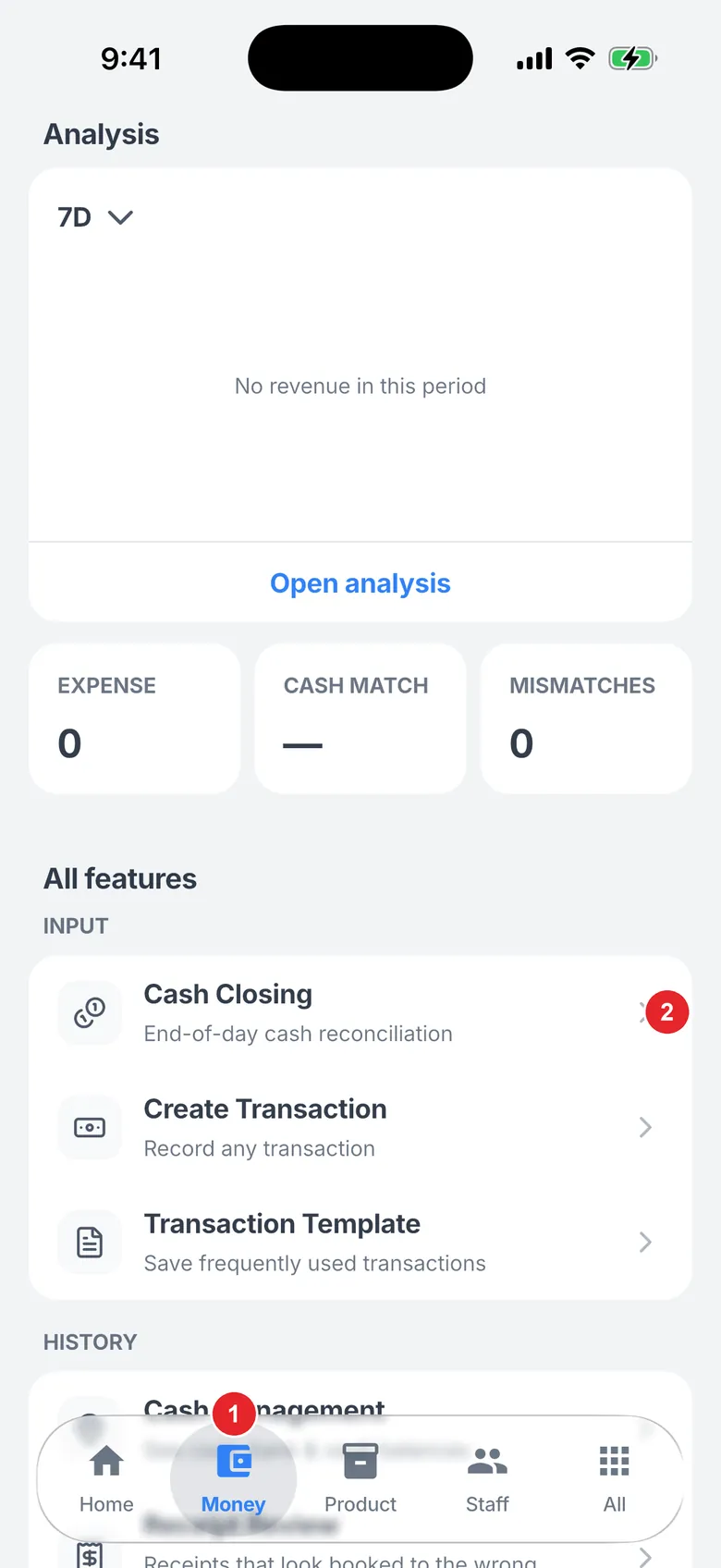
- Tap «Money» at the bottom of the app.
- Scroll down and, in «All features», tap «Cash Closing».
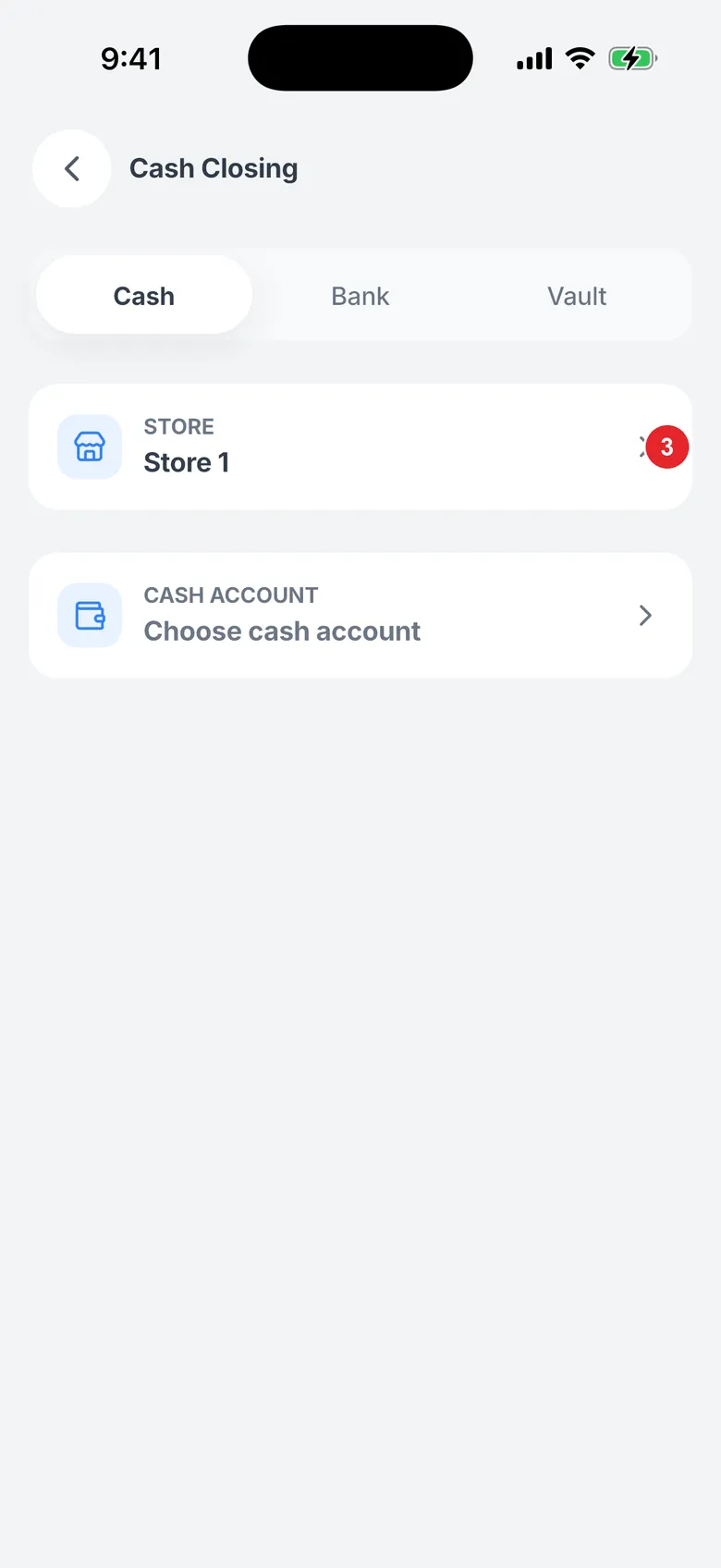
- Tap «STORE». It shows the store chosen now.
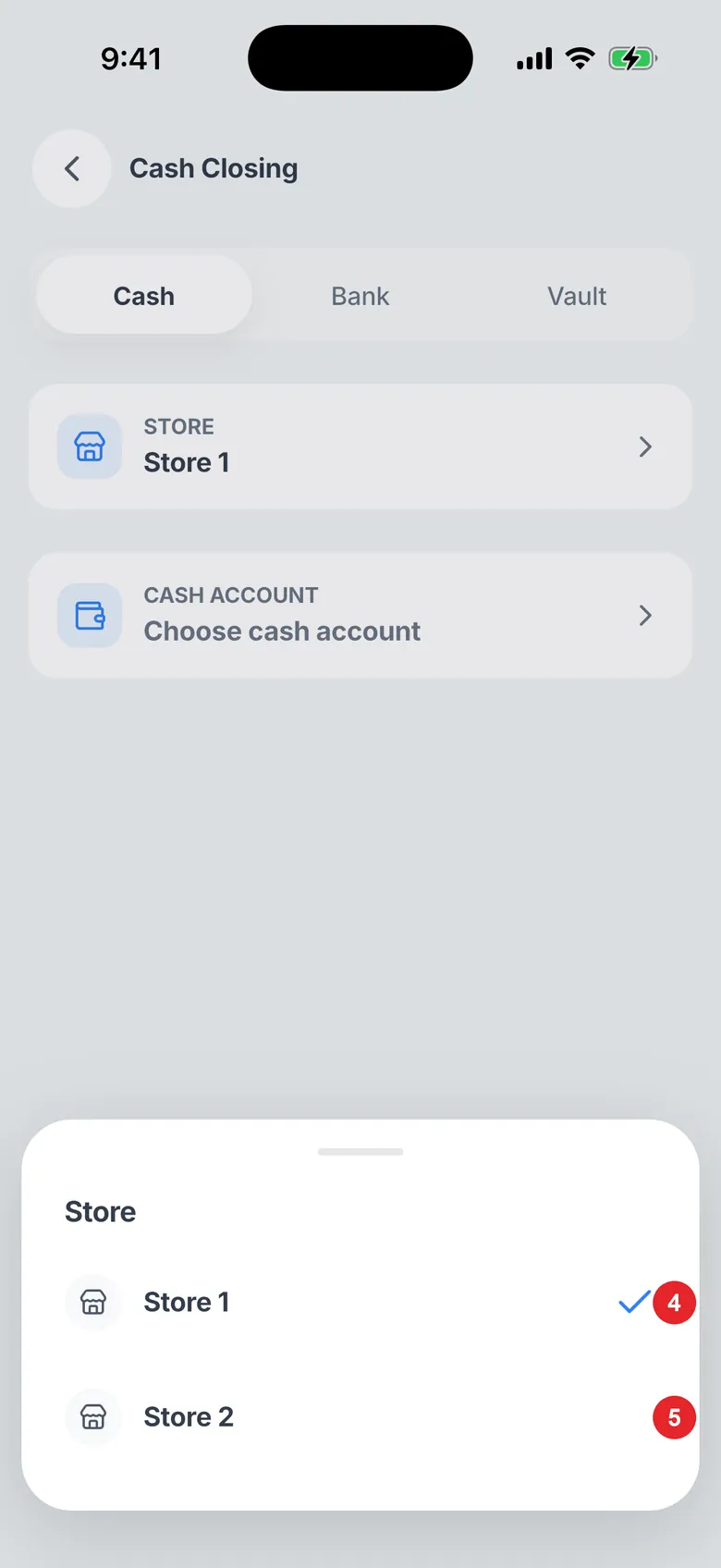
- Tap the store to count. Here it is «Store 1».
- Don't choose «Store 2» yet. After Store 1 is counted through step 8, start again from step 3 and choose it.
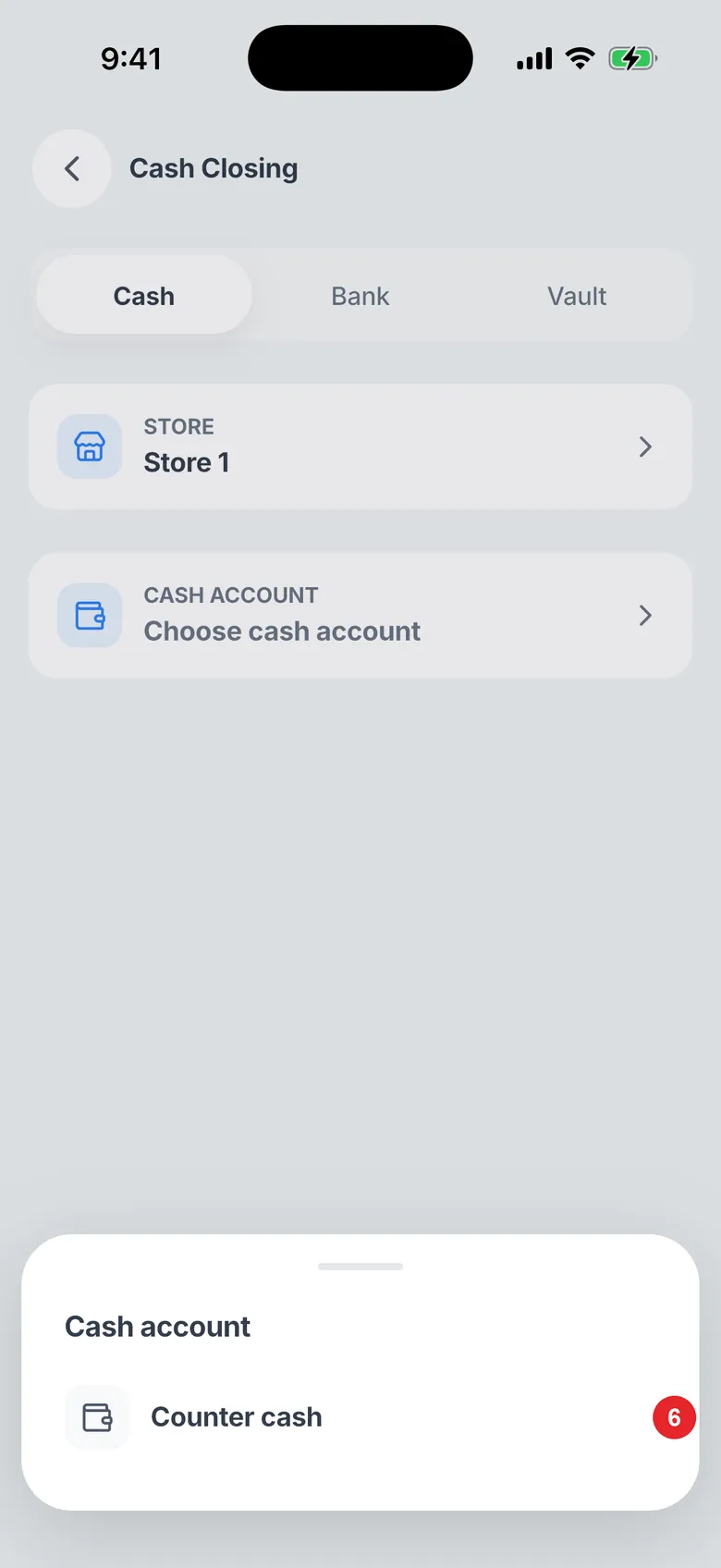
- Tap «Choose cash account», then tap that store's «Counter cash».
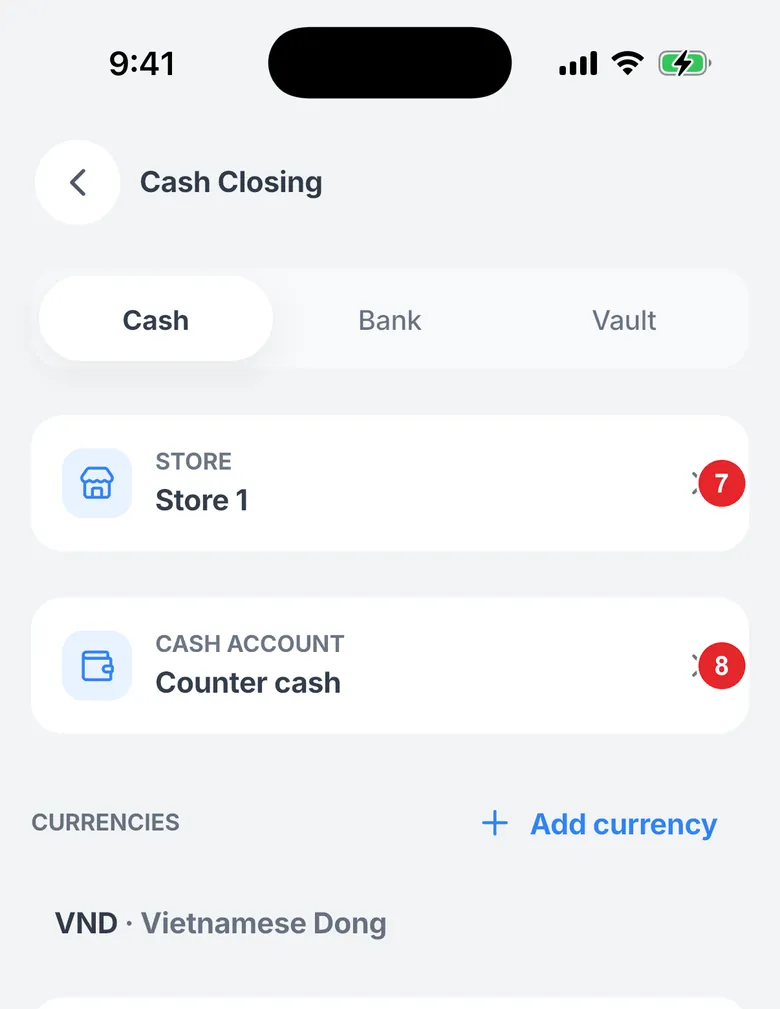
- Check that «STORE» shows the store you are counting.
- Check that «CASH ACCOUNT» shows the place you are counting. Entering the number of notes and tapping «Save closing» works as in «Count cash at closing».
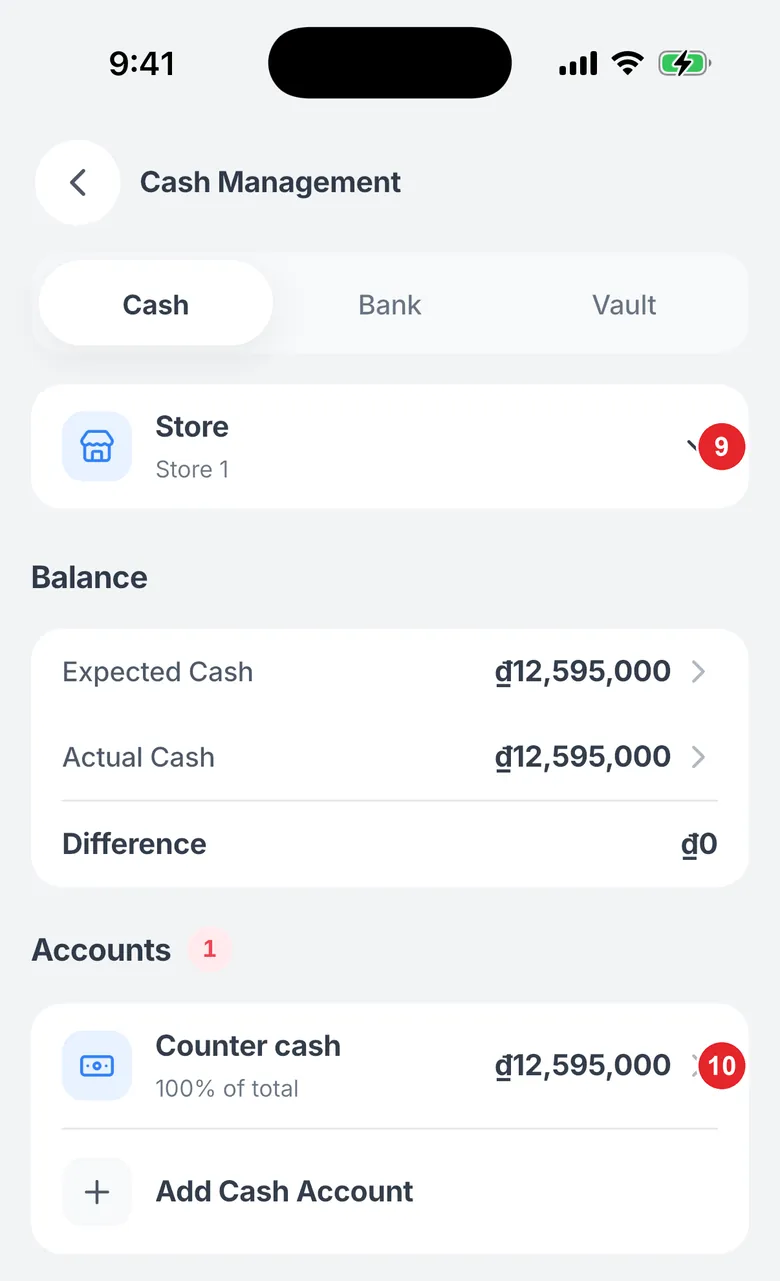
- After counting everything, open «Cash Management» in «All features». Tap «Store» to switch between stores as you look.
- The «Counter cash» row shows only its amount. For each store, the money that should be there, the money counted and the difference are in «Balance» above: «Expected Cash» · «Actual Cash» · «Difference».
Each store has its own «Counter cash», vault and bank account. To close, choose one store and count that store's money. When one store is done, switch to the next store and count the same way.
Remember
- Before counting, look at the store name at the top of the screen. The app first shows the store you chose last.
- If you choose «All Stores» on the website, the counting table doesn't show. Choose one store.
- After counting everything, look at «All stores» in the website's «Cash Management», and the counters, vaults and bank accounts of both stores show in one table.
- The way to count is the same as in «Count cash at closing».