
Show contents
Staff & shifts › Work out & pay salary
Check payment records and Excel
- Who
- Owner
- When
- Every month
- Where
- App · Web
What you get
- Each payment leaves a «Salary paid» line in «Transaction History», so you see which account it came from and whose pay for which month it was.
- On the website, download the month's pay as an Excel file. One file has both «Payroll» and «Shift records».
- Staff see the money they got that month themselves, in «Stats» on the app's «Shift» tab.
What it solves
- «How much did I pay that staff member last month?» From bank transfer history alone, it is hard to tell whose pay for which month it was.
- If you make a payroll sheet by hand on the side, its numbers easily differ from the books.
Why this way
- The record is made automatically when you pay, so the amount in the history is exactly the amount confirmed in the pay window.
- Does everything go into the Excel file? You choose the columns to include when you export. Include only the columns you need.
- What if I find out later I paid wrong? Use «Cancel transaction» on that «Salary paid» line («I made a wrong payment»).
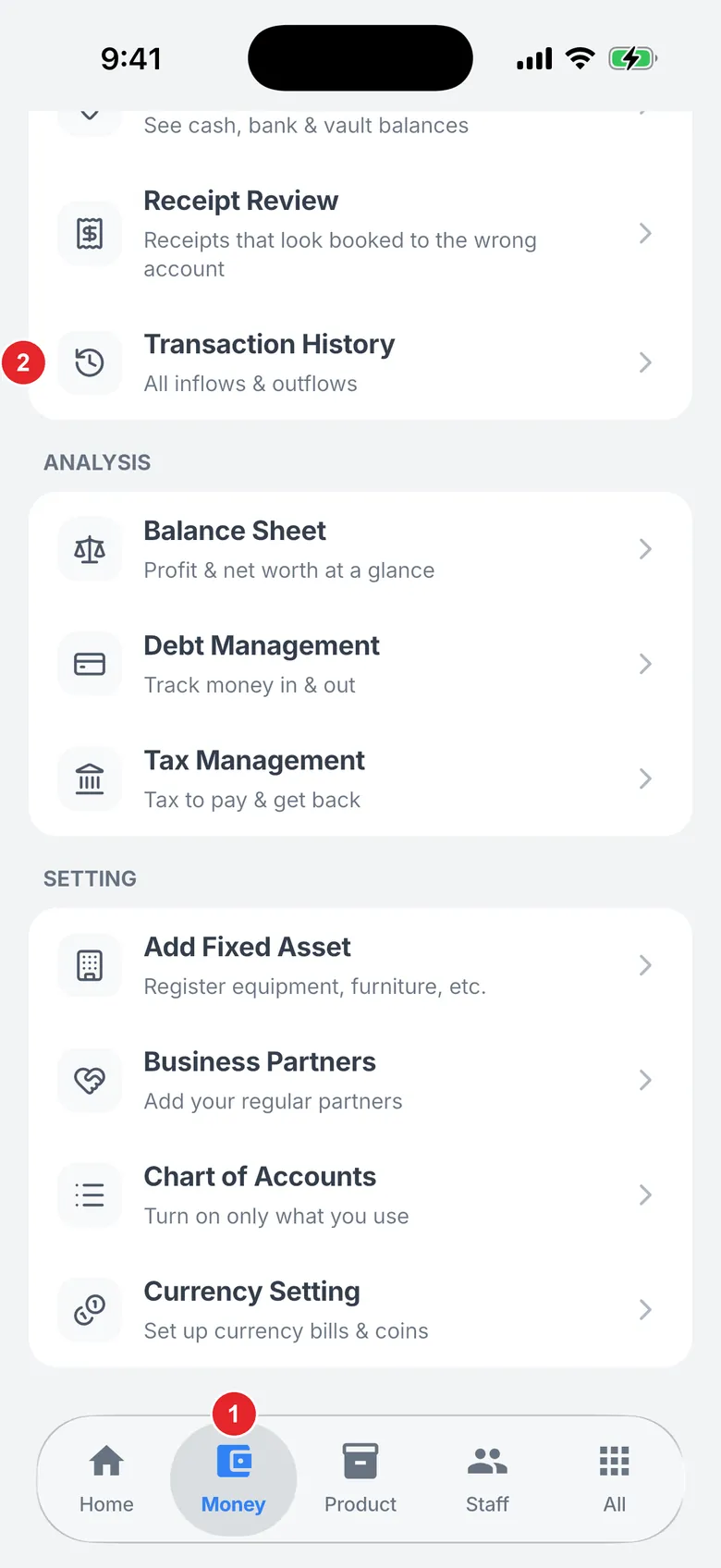
- Tap «Money» at the bottom of the app.
- Scroll down and tap «Transaction History» under «All features».
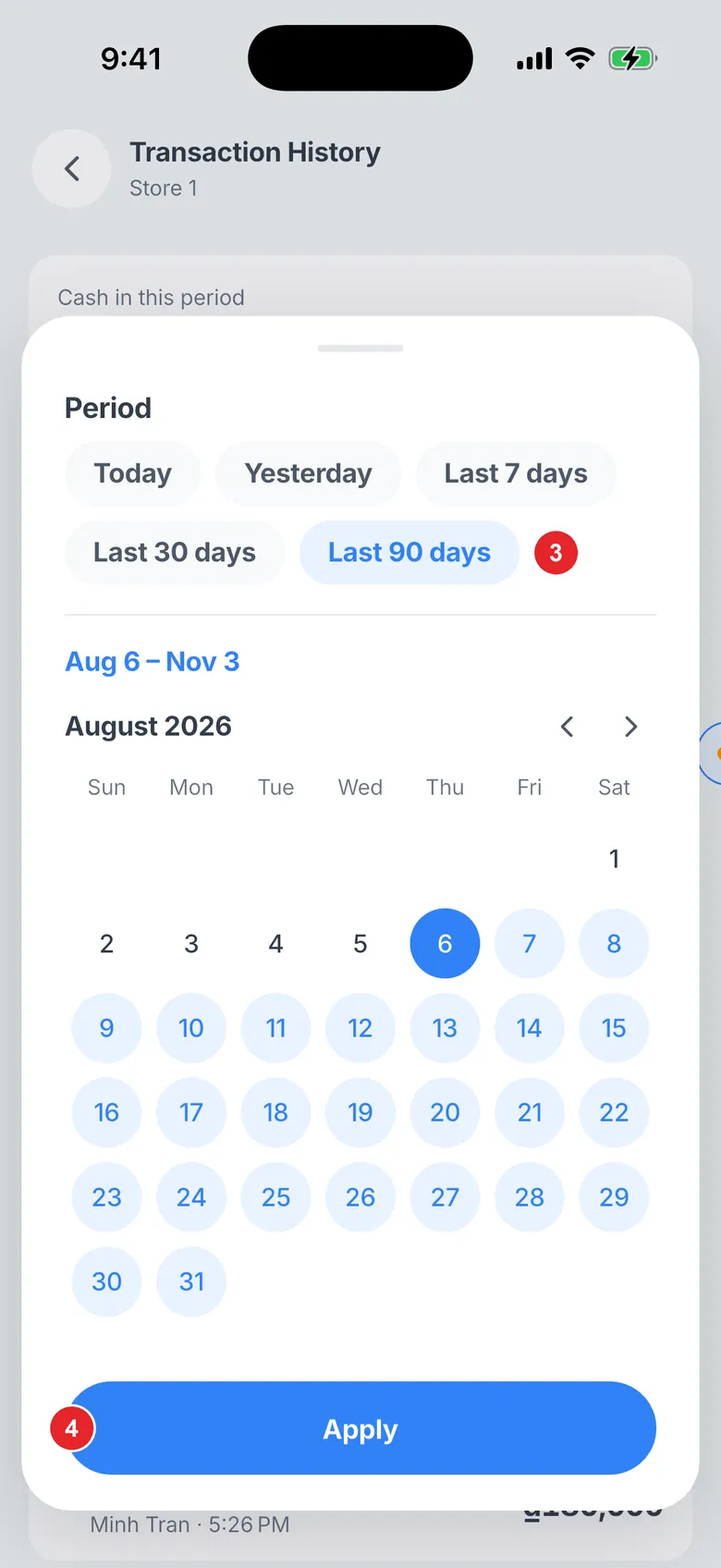
- Tap the date box (with the calendar icon) and choose a period that includes the day you paid. For last month's pay, «Last 90 days» is easy.
- Tap «Apply».
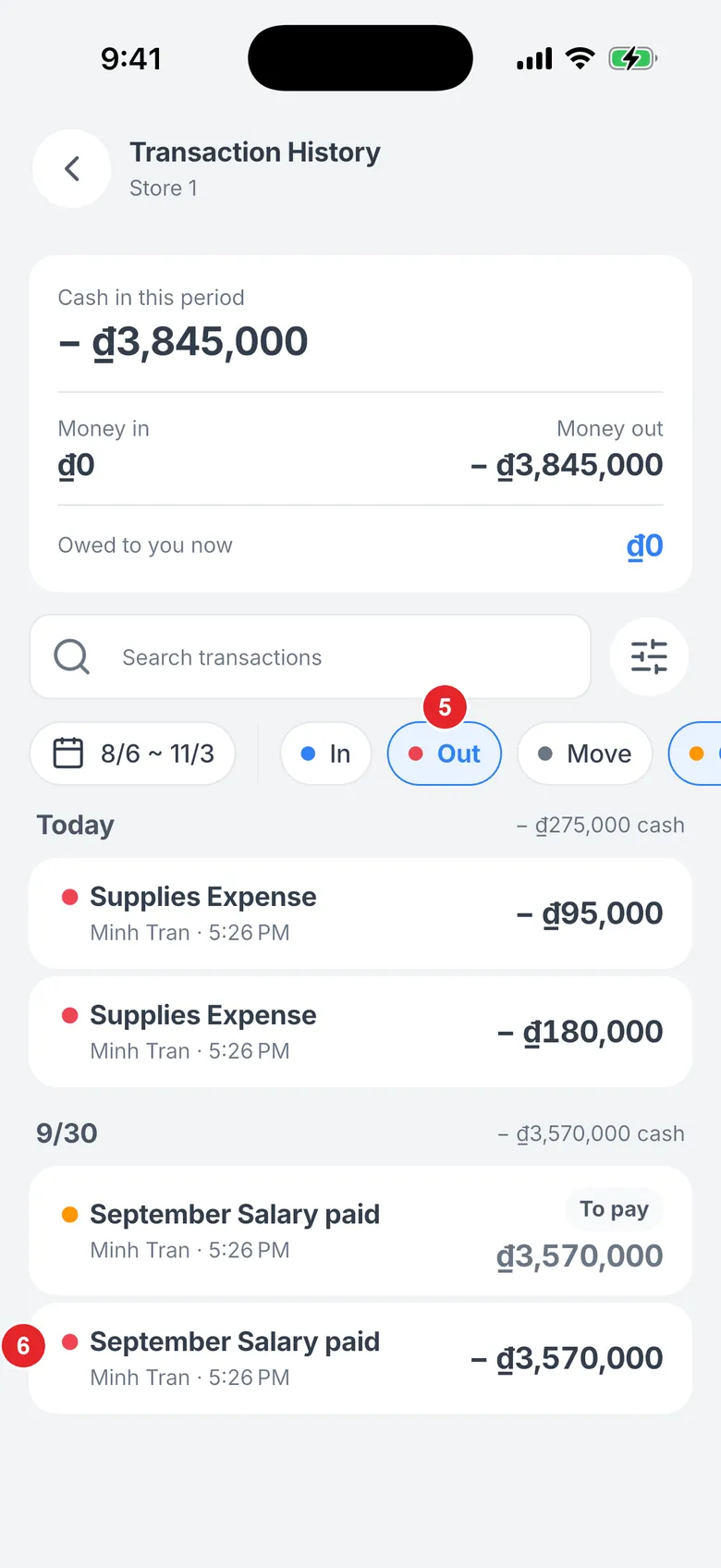
- Tap «In» and «Move» to turn them off, leaving only «Out» on.
- Tap the «September Salary paid» row. The row with the same name and «To pay» on the right is a record made together with the payment.
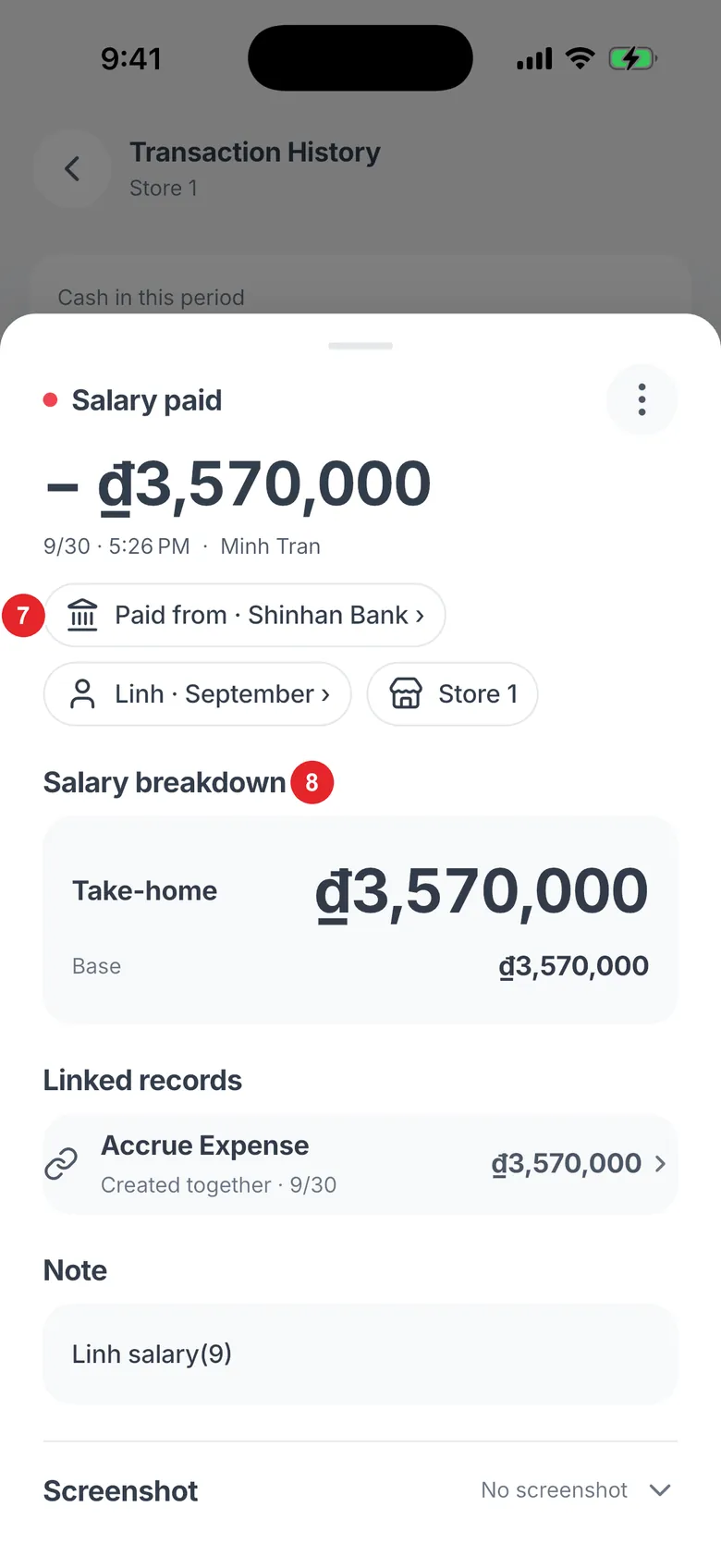
- Check the account the money went out from in «Paid from · Shinhan Bank ›», and the staff member and month just below it.
- Check the amount really paid in «Salary breakdown».
Remember
- The Excel file can be downloaded only on the website.
- Staff choose the month in «Stats» on the app's «Shift» tab to see the money they got. There is no PDF payslip yet.