
Show contents
Staff & shifts › Work out & pay salary
Check before you pay
- Who
- Owner
- When
- Month end
- Where
- App · Web
What you get
- Shifts to settle before paying show for each staff member as «N problems» (in the app, «N issues»). On the website, clicking it opens that shift's window, so you settle it right there.
- For monthly staff with unconfirmed days, the app's pay button changes to something like «Confirm 1 day(s) with no record before paying».
- Staff without pay entered are found too, through «No record» or «Set this employee's salary first».
What it solves
- «I want to pay, but the button isn't there.» If you don't know why it is blocked, payday gets delayed.
- Staff without pay entered are not blocked from paying, so it is easy to miss that they are at ₫0.
Why this way
- A shift with no clock-out does not go into pay until it is settled, and shifts settled after paying are not paid that month. Settle them first so you don't pay too little.
- Does one person stop me from paying the others? No. Only the staff member with problems left is blocked. Pay the others first.
- What if doing it all at month end is too much? Settle problems every day or every week, so they don't pile up at month end («Check and confirm shift records»).
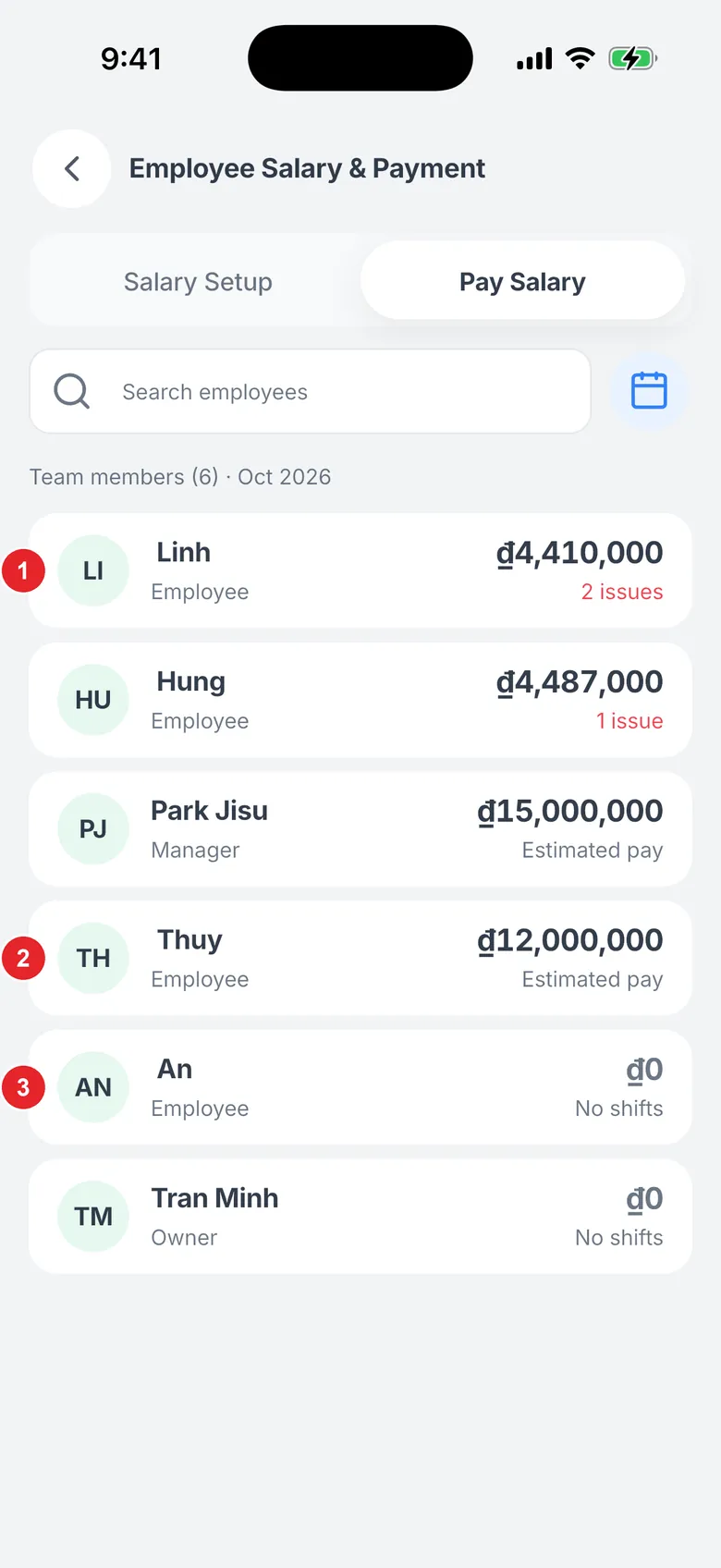
At the bottom of the app, go to «Staff» → «Employee Salary & Payment» → the «Pay Salary» tab, and choose the month with the calendar button next to the search box. This list shows. Tap a staff member and scroll to the very bottom to see why paying is blocked.
- Tap an hourly staff member showing a number of issues, like «2 issues».
- Tap a monthly staff member with «Estimated pay» under the amount.
- Tap a staff member with no pay entered.
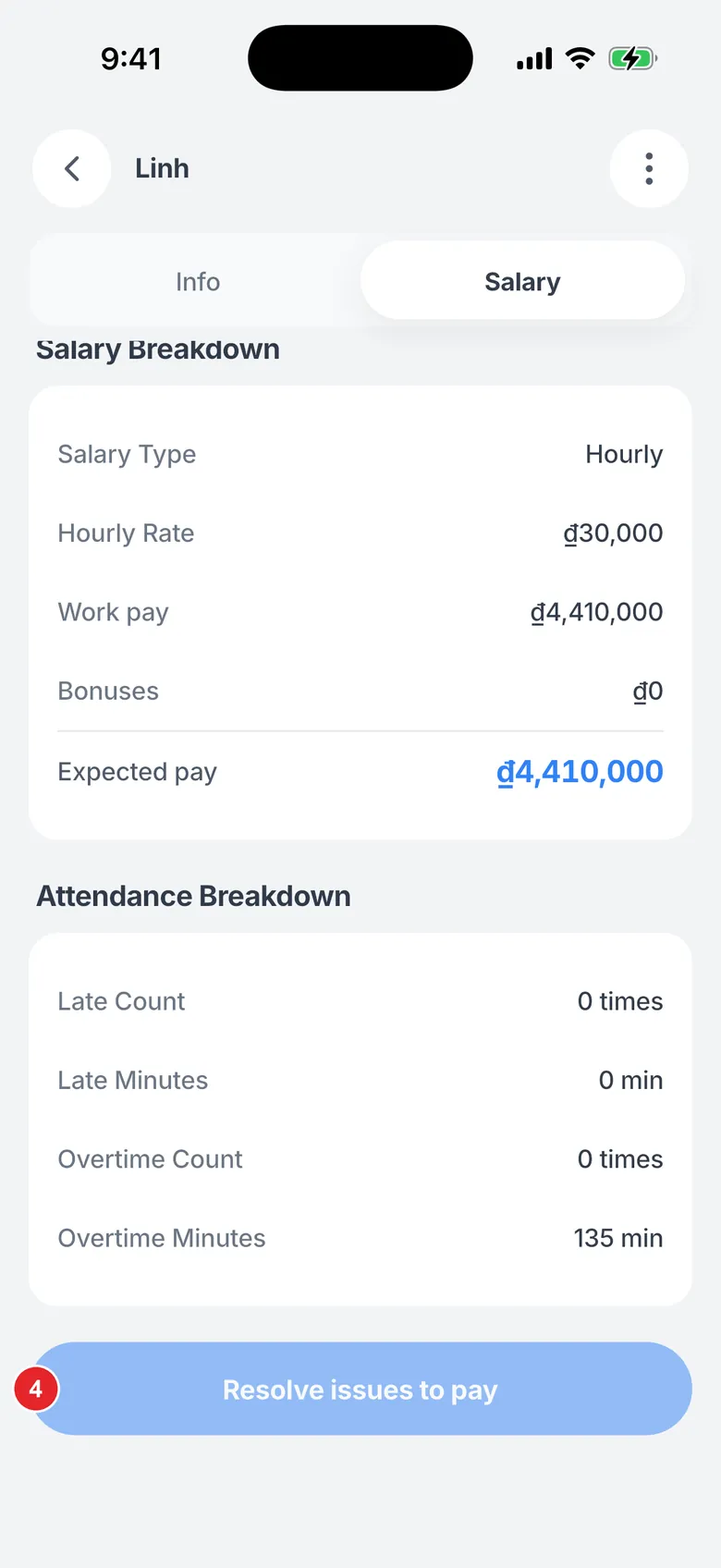
- If «Resolve issues to pay» shows, settle that shift in the «Problems» tab of «Shift Management».
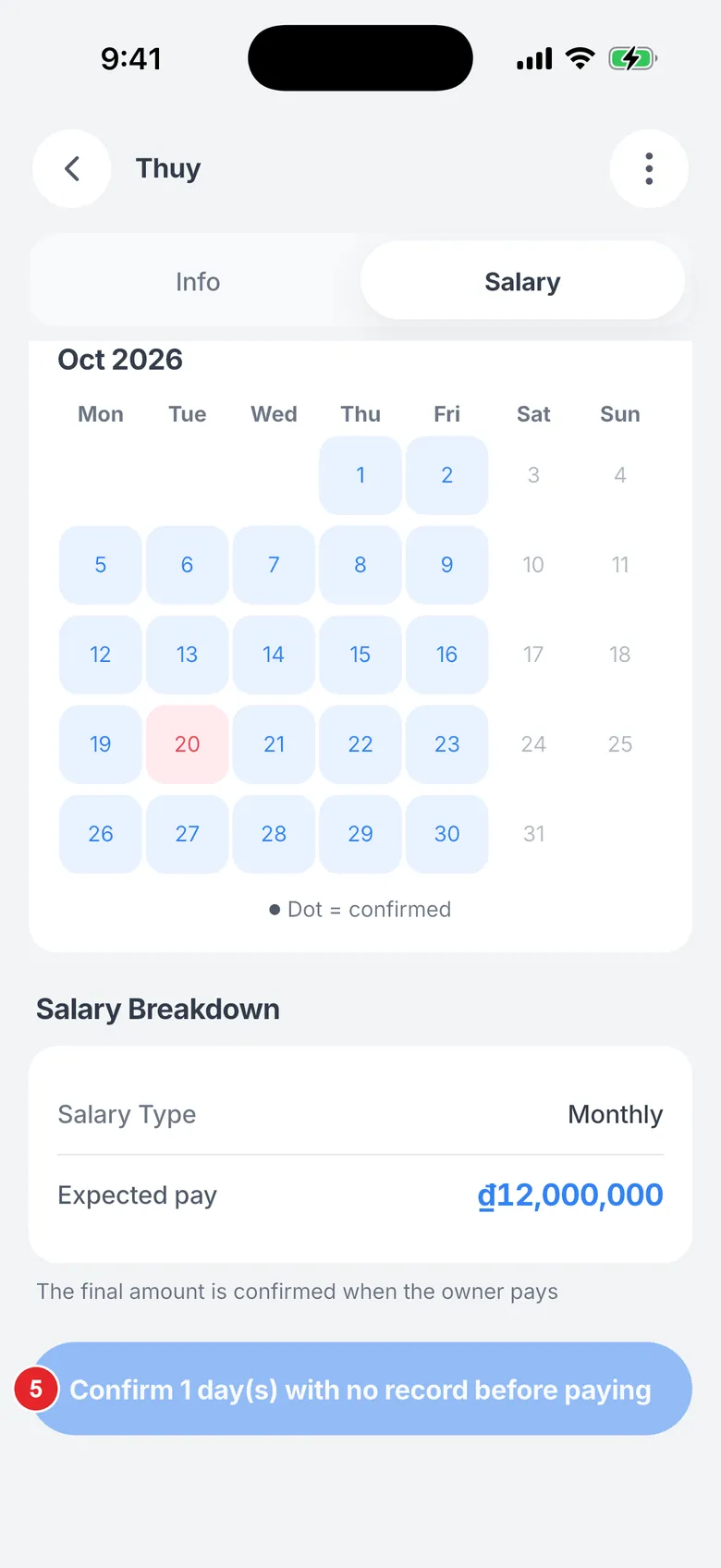
- If «Confirm 1 day(s) with no record before paying» shows, confirm that day under «Needs your review» in «Attendance Detail». «Attendance Detail» opens when you tap that monthly staff member on the «Problems» tab of «Staff» → «Shift Management» («A monthly staff member has no attendance record»).
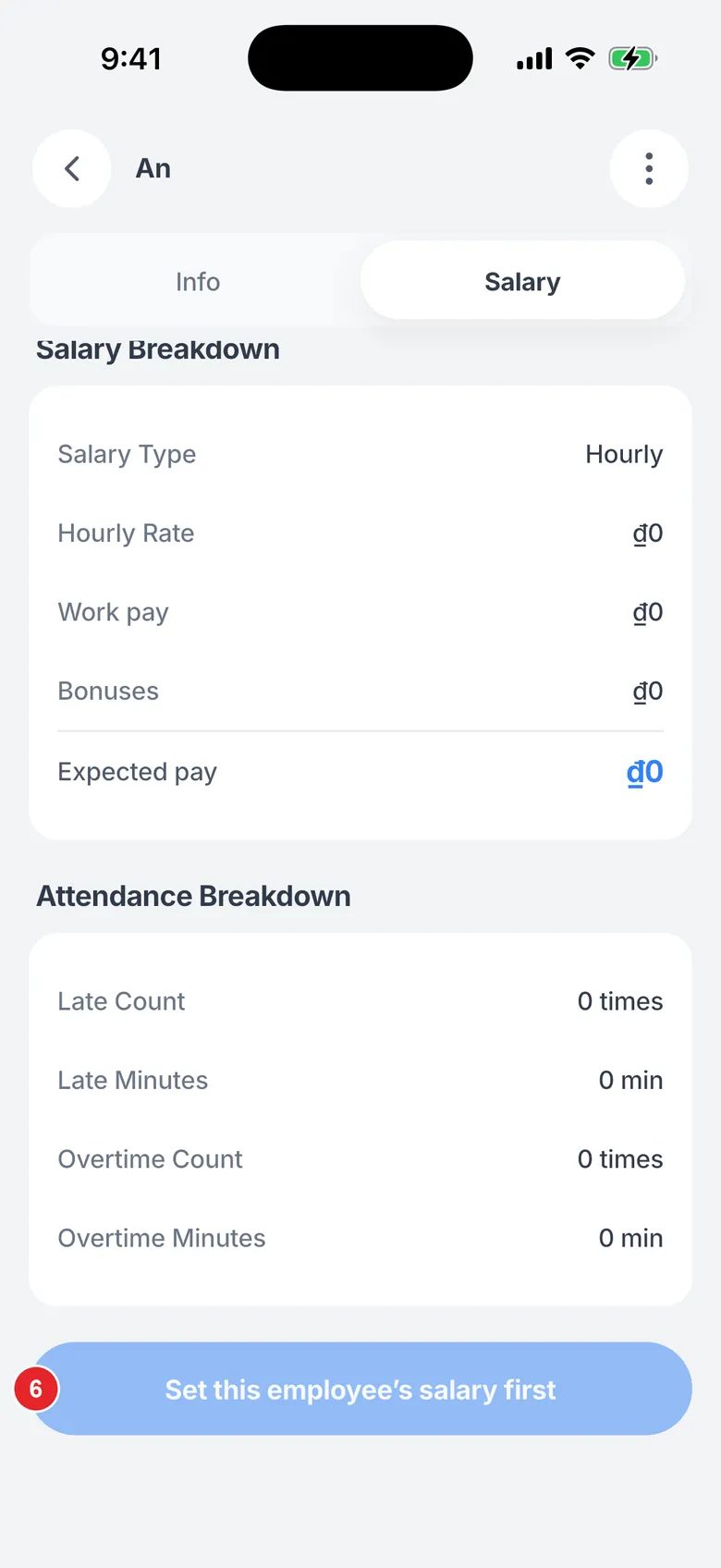
- If «Set this employee's salary first» shows, enter that staff member's amount in the «Salary Setup» tab.
Why payment is blocked
- Shifts you have not checked, or problems, are left. They show as «N problems» (in the app, «N issues»).
- A monthly staff member still has days with no clock-in record.
Staff without pay entered
- They are not blocked, so they are easy to miss. They show as «No record», or pressing «Pay» shows «There is nothing left to pay this month.»
- Enter their pay first. Shifts already confirmed stay at ₫0. → «The hourly pay shows ₫0»